
 Bay Alarm Medical
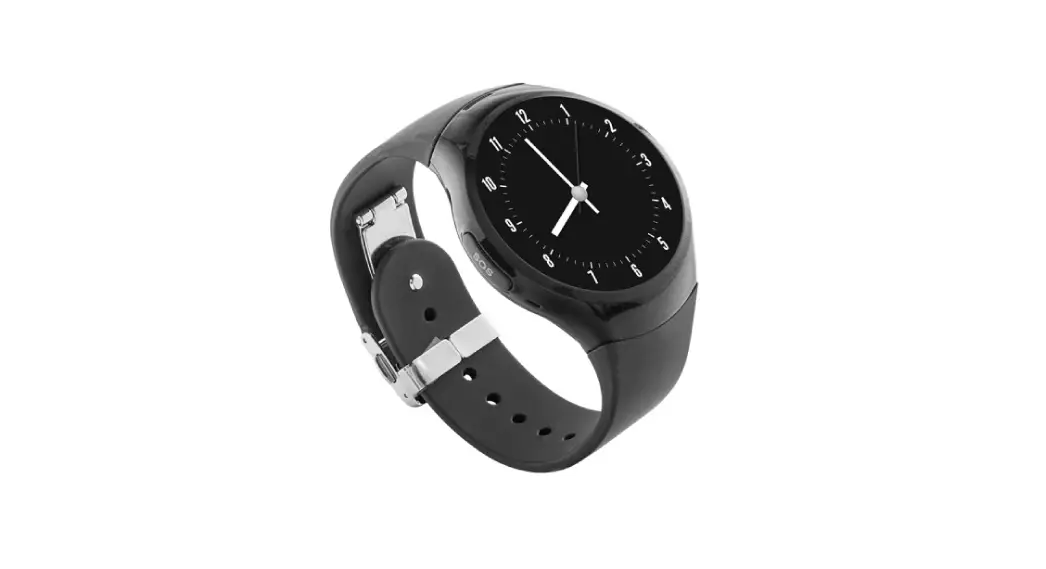
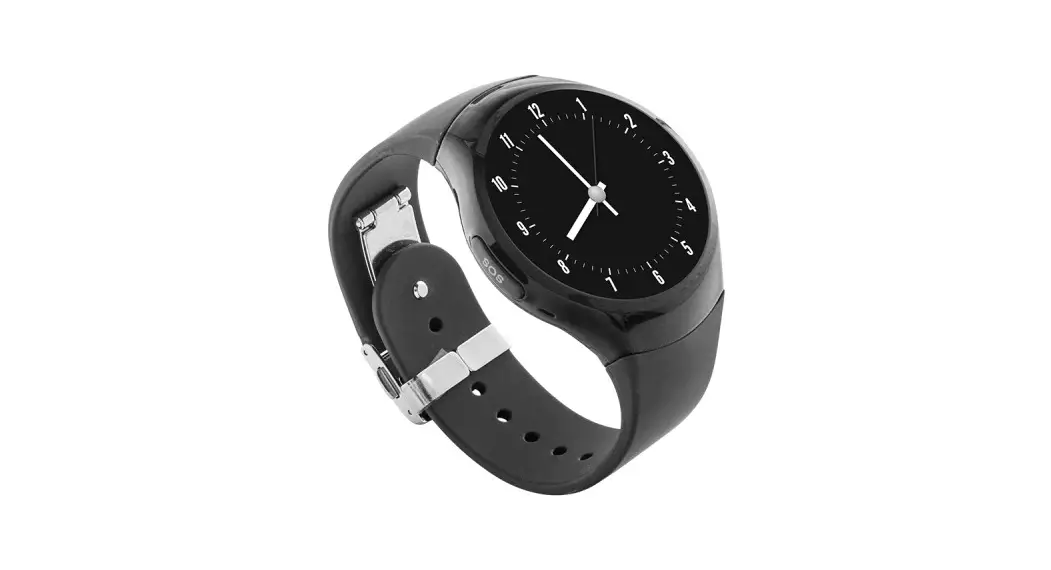
SOS Smartwatch
Quick Start Guide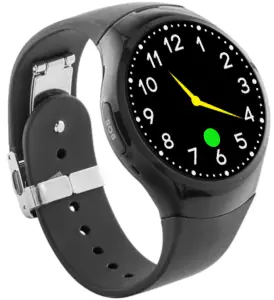
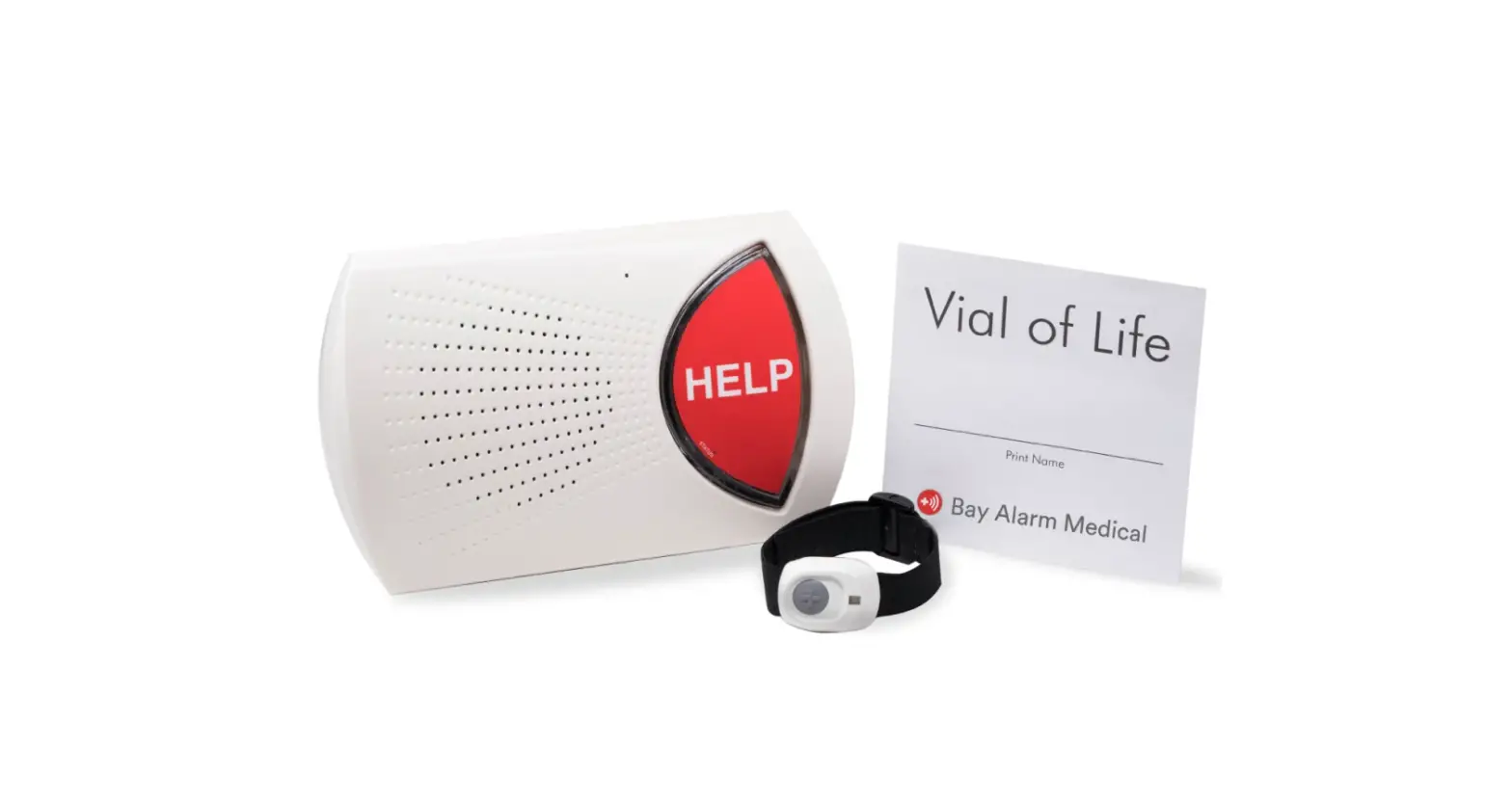
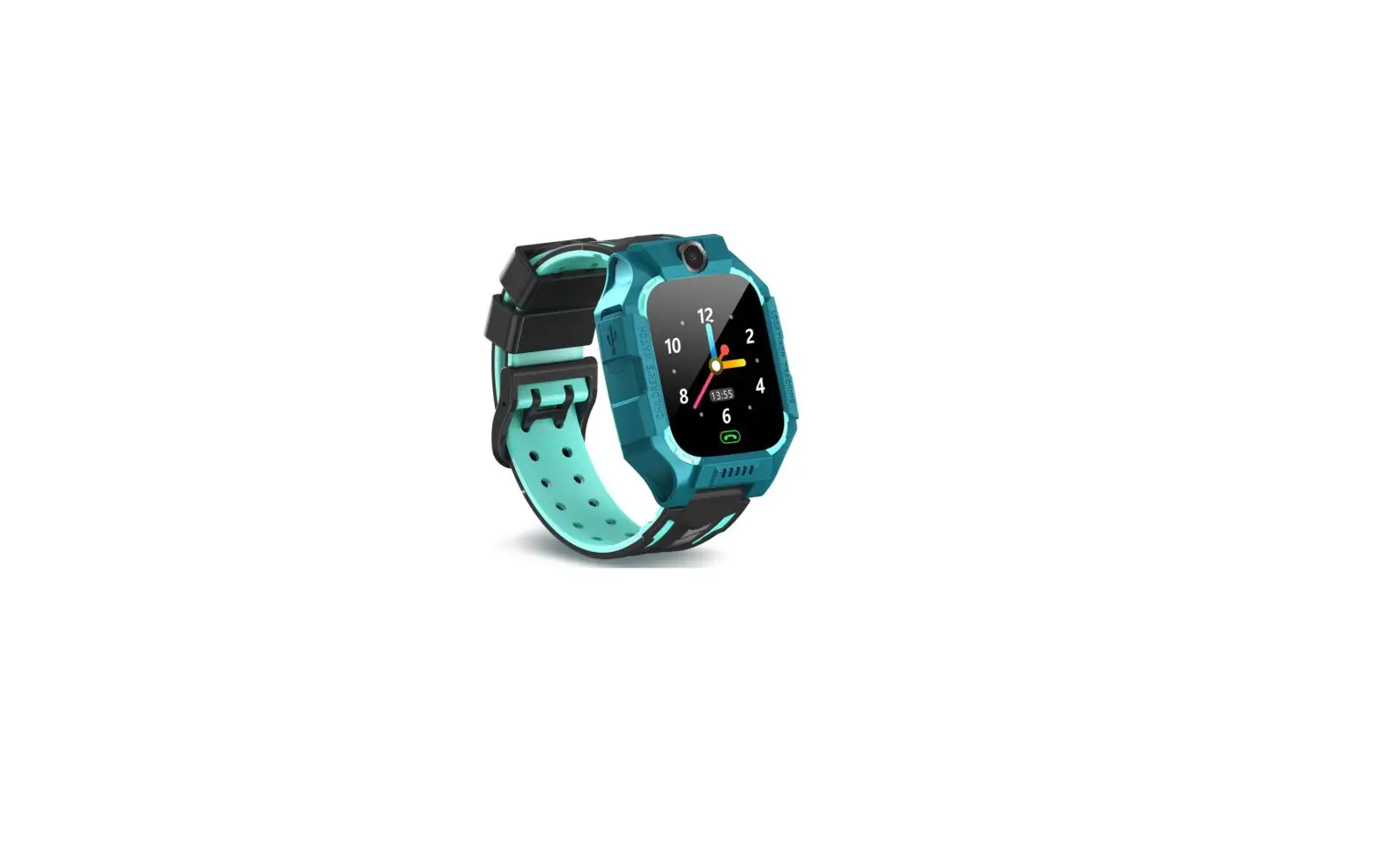
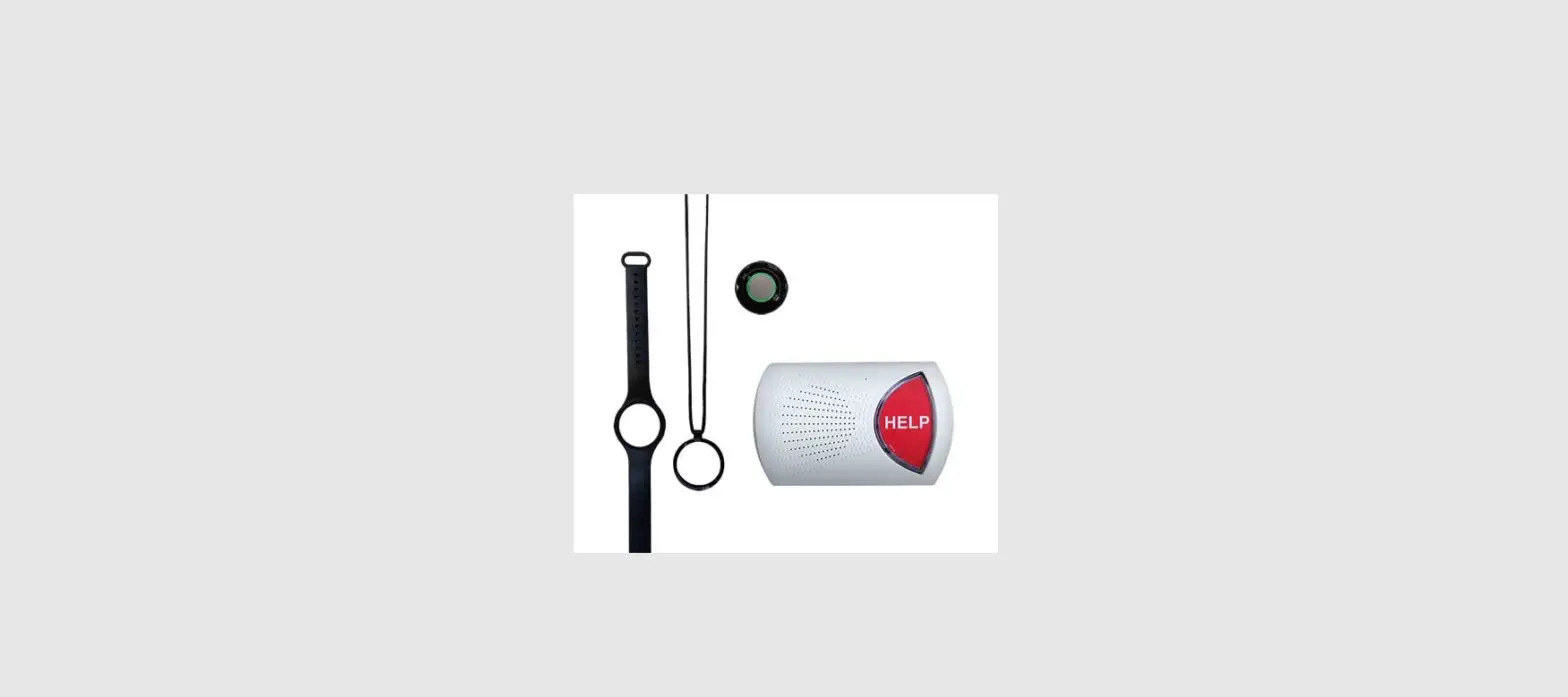
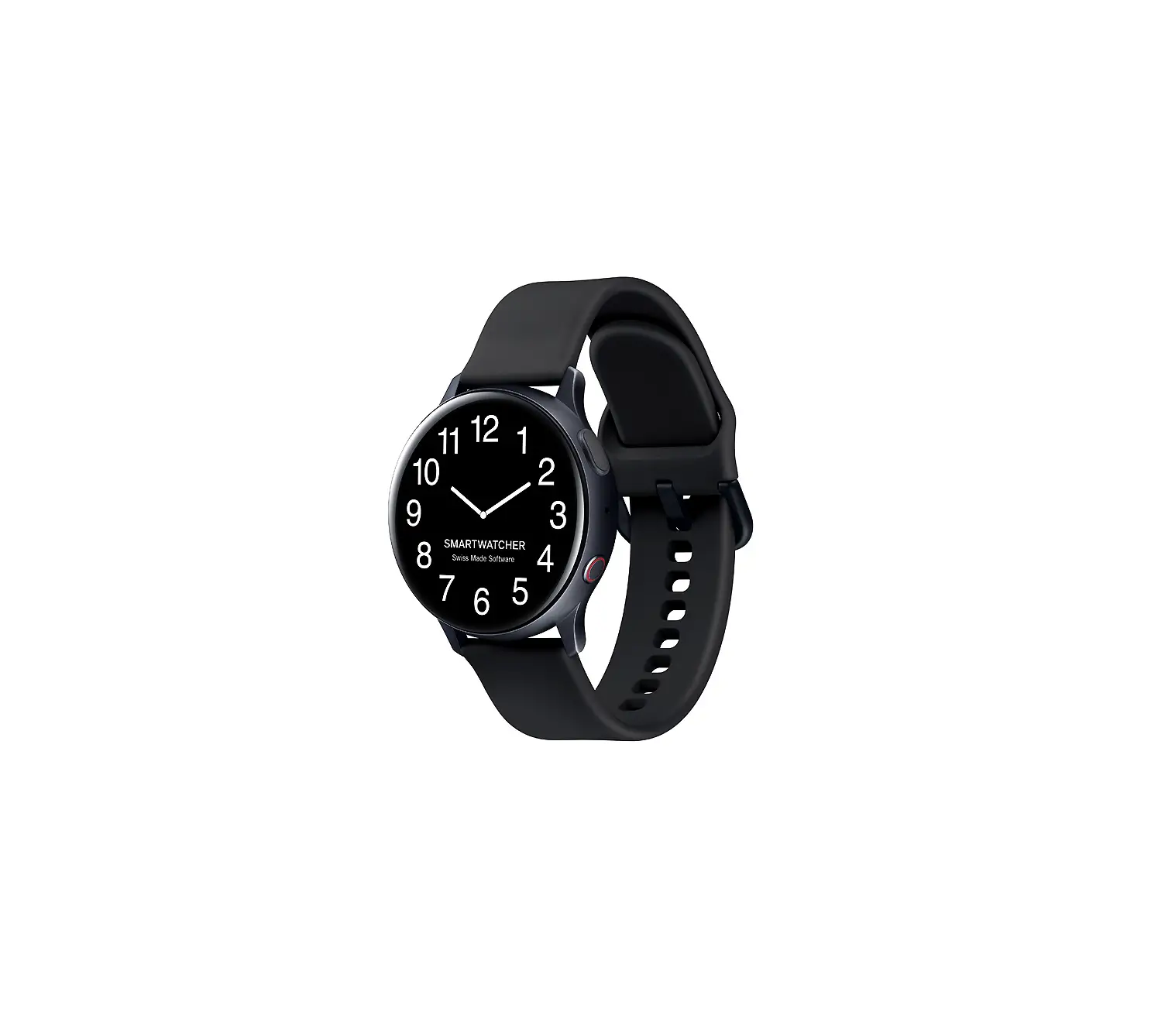
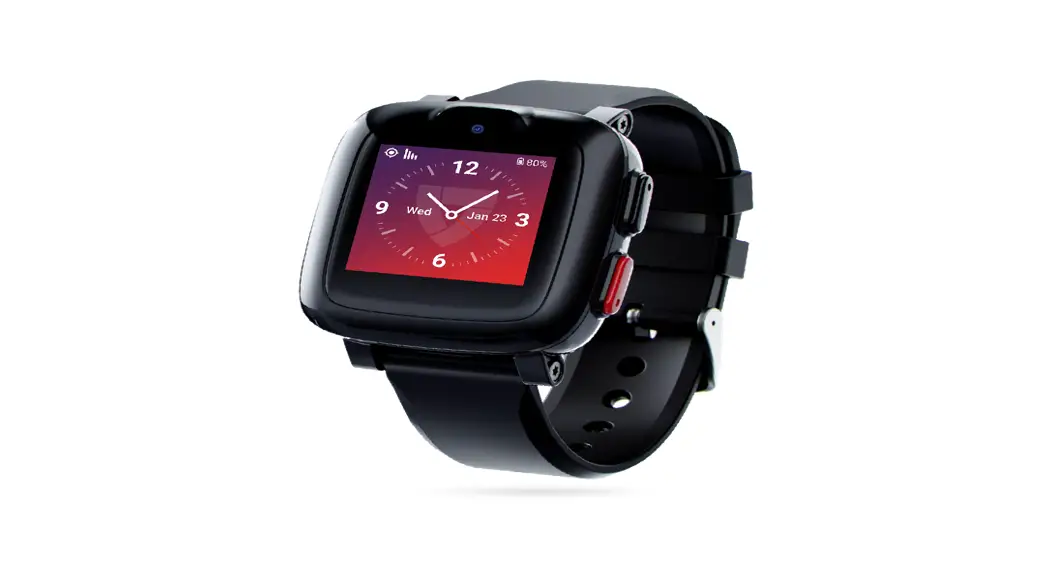
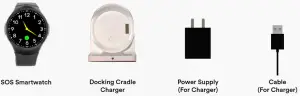
SOS Smartwatch Package Items
Understanding Your SOS Smartwatch
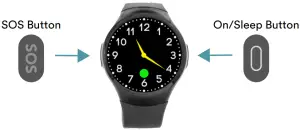
| Action | How To |
| To Place An Emergency Call | Press and hold the down for 5 seconds until the watch places the call. down for 5 seconds until the watch places the call. |
| On | Press and hold the  to turn ON the watch. It is HIGHLY RECOMMENDED that the watch is never turned off in case to turn ON the watch. It is HIGHLY RECOMMENDED that the watch is never turned off in case |
| Sleep Mode | Press to turn off the screen. Press again to turn on the screen |
| To Go Back | Press & release the. |
Understanding The Watch Screens
| Screen | What It Is | Description |
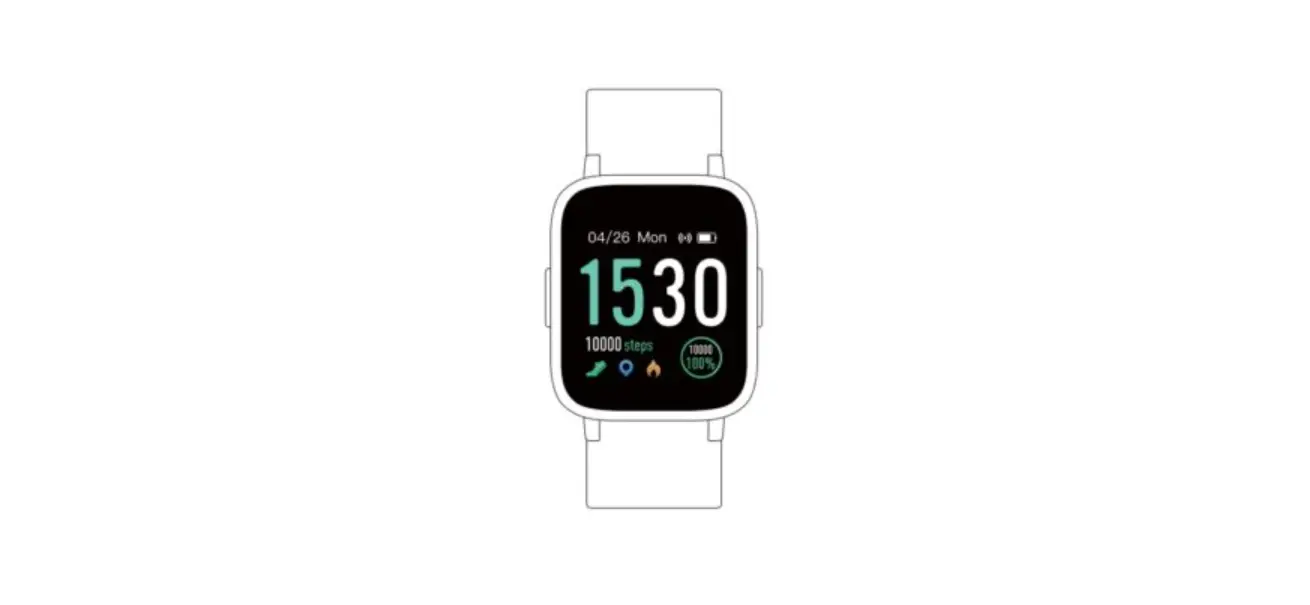
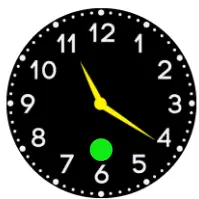 | Home Screensaver | This is the default screensaver and main screen. |
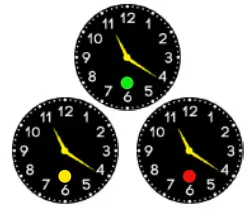 | Cellular Connection Signal | A colored circle on the Home Screen will indicate the connection strength. Green = Strong Yellow = Moderate Red = Weak |
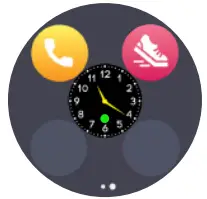 | Main Menu Screen | The Main Menu screen has 2 icons: (1) Yellow Phone Icon = Unavailable (2) Red Show Icon = Step Counter |
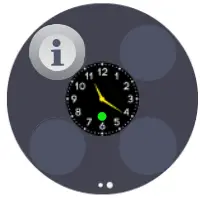 | Settings Menu Screen | The Settings Menu screen. Contains the the Info icon where you can access the User Settings and System Settings. |
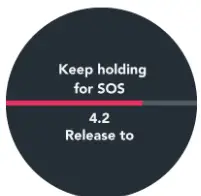 | Emergency Call Screen | When an emergency call is made by pressing and holding the SOS Button, the Emergency Call Screen will show, indicating how long the SOS Button needs to be held. |
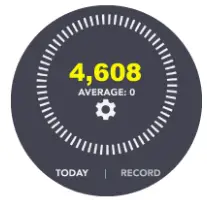 | Steps Tracker | The Step Tracker screen shows the number of steps taken. On this screen, the step records and the step settings can also be accessed. |
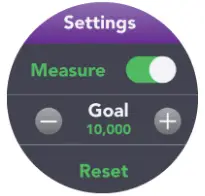 | Step Tracker Settings | This is the Step Tracker Settings were a daily step goal can be set up. |
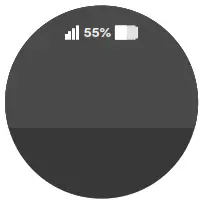 | Battery Status | To check the battery life swipe the screen from the top to the bottom. |
1) Turning On The Watch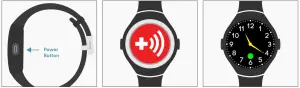
1) On the right-hand side of the watch, press and hold the Power Button until you feel the watch vibrate or start to light on.
2) Once the watch is on, the watch will show the image above to indicate it is loading and setting up.
3) The watch screen will display the screen above indicates that it is ready to use.
2) Putting On & Adjusting the Watch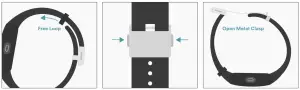
1) Push the Free Loop off the other strap so it is only on one strap.
2) There are two buttons on the side of the Metal Clasp. Press and hold both of them at the same time and lift up.
3) Place the watch on your wrist and close the Metal Clasp back into place. 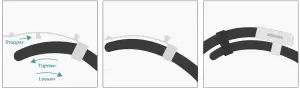
4) To adjust the band size, lift the Metal Clasp and detach the bottom strap from the Stopper. Pull the strap towards the other strap to tighten or pull away to loosen the strap.
5) When the straps are adjusted to the desired length, place the Stopper back into the adjustment hole of the strap.
6) Snap the Metal Clasp back to the strap of the watch.
3) Placing An Emergency Call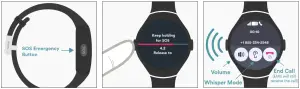
1) Locate the SOS button on the left-hand side of the watch.
2) Press and hold the SOS button for 5 seconds. After 5 seconds, the watch should be making the call to the monitoring center.
3) Once connected, an operator will ask if help is needed through the watch. Respond according to your situation. If there is no response from you, the operator will send emergency personnel.
4) Charging The Watch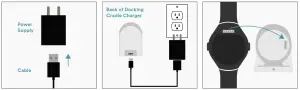
1) Connect the Cable to the Power Supply.
2) Plug the other end of the cable into the port of the back Docking Cradle Charger. Then plug the Power Supply into the outlet.
3) Place the watch onto the Docking Cradle Charger aligning the 5 prong port of the watch to that of the Docking Cradle.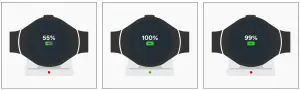
4)Check if the light on the Docking Cradle lights up red. This means the watch battery is charging.
5) Once the Docking Station light turns green, the watch is ready to use.
NOTE: Tap on the watch screen to check the battery life instead of looking at the charging station light. The light may turn red after being fully charged.
5) Tracking Your Steps & Adjusting Step Goals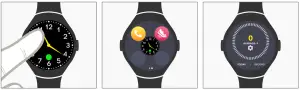
1) On the main screen, tap the screen once. It should direct you to the Main Menu screen.
2) Then press the red Step Counter button (red icon with the white shoe).
3) The Step Counter screen should show. To set a personal step goal, tap on the gear icon.
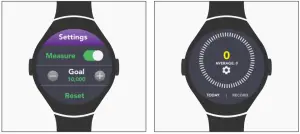
4) Tap the slide button to the right next to “Measure.” Then press either the “-” or “+” to adjust to your desired goal.
5) Press the SOS button to go back to your step counter. To see your personal record, tap Record on the bottom right.
6) Turning Off the Step Counter
Please note: The Step Counter may affect battery life. If you would like to have a longer battery life, then try keeping the Step Counter off. 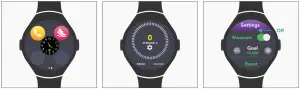
1) Tap the Home screen once. It should direct you to the Main Menu screen. Then tap the Step Counter button (red icon with the white shoe).
2) Tap on the gear icon to access the Step Counter settings.
3) Tap the Toggle button to switch on (green slider) or off (grey slider).
8) Activating/Deactivating Shake to Wake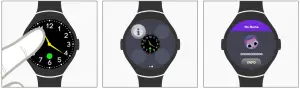
1) On the main screen, tap the screen once. It should direct you to the Main Menu screen.
2) Slide to the second screen to the Settings Menu screen, and tap on the Info icon.
3) Tap on the Info button at the bottom of the screen.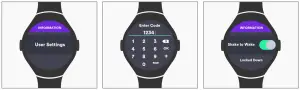
4) Scroll down to the User Settings and tap. It should be at the bottom of the list.
5) The watch will ask for a code. Enter “1234” and tap “OK.”
3) Scroll to “Shake to Wake” and tap the toggle button to either activate or deactivate the feature.
7) Resetting The Watch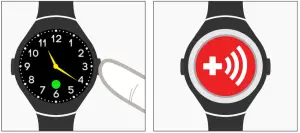
1) Locate the On/Sleep button on the right-hand side of the watch.Press and hold for about 15 seconds or until the screen goes dark.
2) The Bay Alarm Logo should appear soon after and return to the Home screen.
9) Changing The Watchface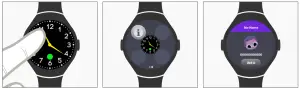
1. On the main screen, tap the screen once. It should direct you to the Main Menu screen.
2. On the main screen, tap the screen once. It should direct you to the Main Menu screen. Slide to the second screen to the Settings Menu screen, and tap on the Info icon.
3. Tap on the Info button at the bottom of the screen. 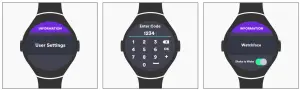
4) Scroll down to the User Settings and tap. It should be at the bottom of the list.
5) The watch will ask for a code. Enter “1234” and tap “OK.”
6) Scroll to “Watchface” and tap it.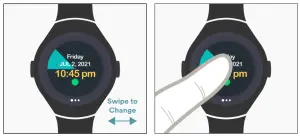
7) The screen image should minimize. Swipe left or right to look through the options.
8) When you see a screen you like, tap the center and it should be set. Go back by tapping the On/Sleep button to sleep and again to reactivate.
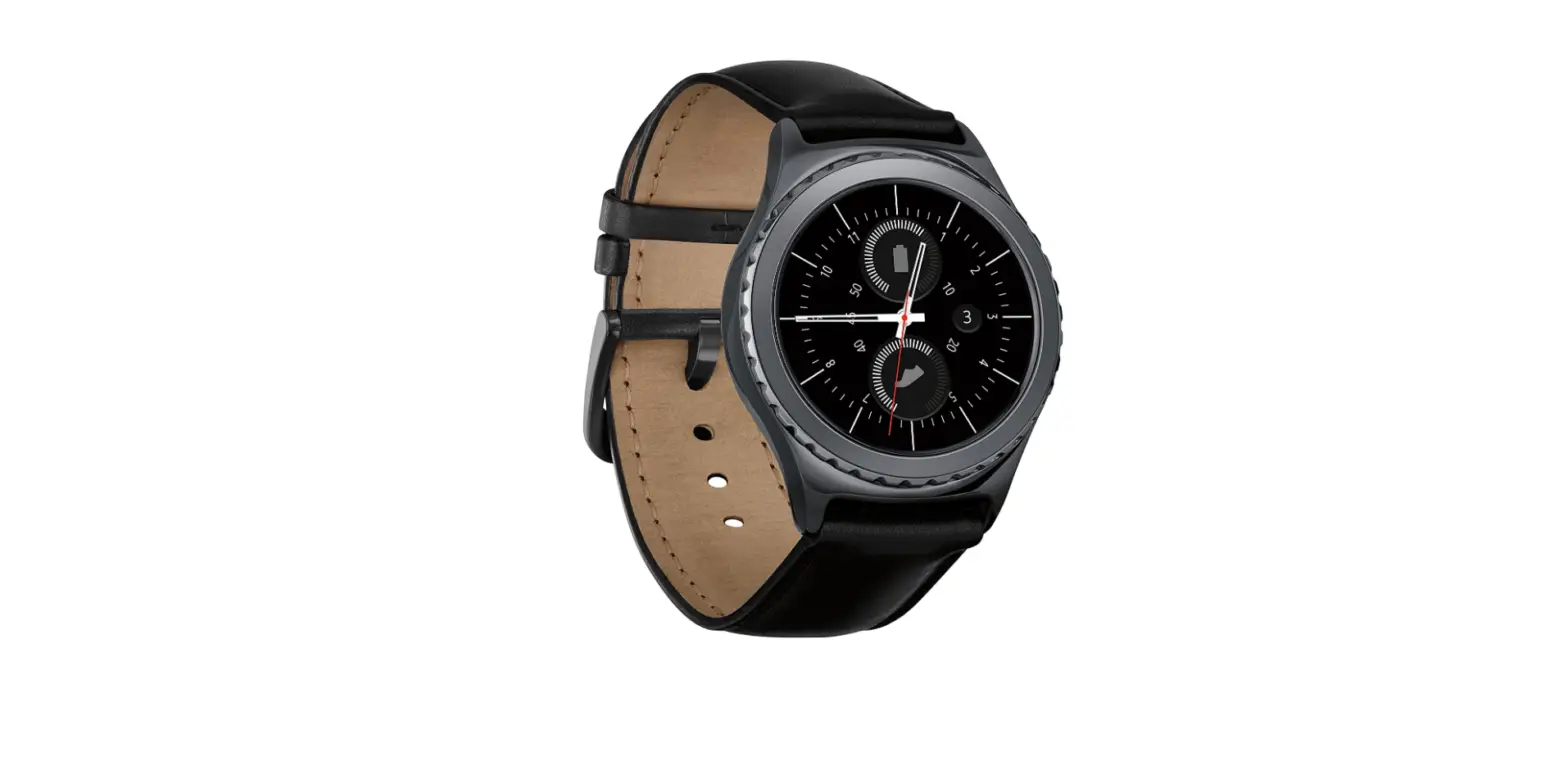
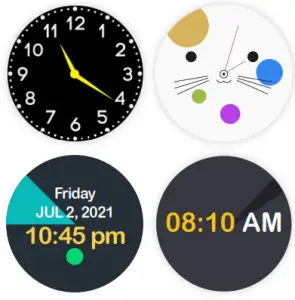
Watchface Options:
 Need Help? Call 1-877-522-9633