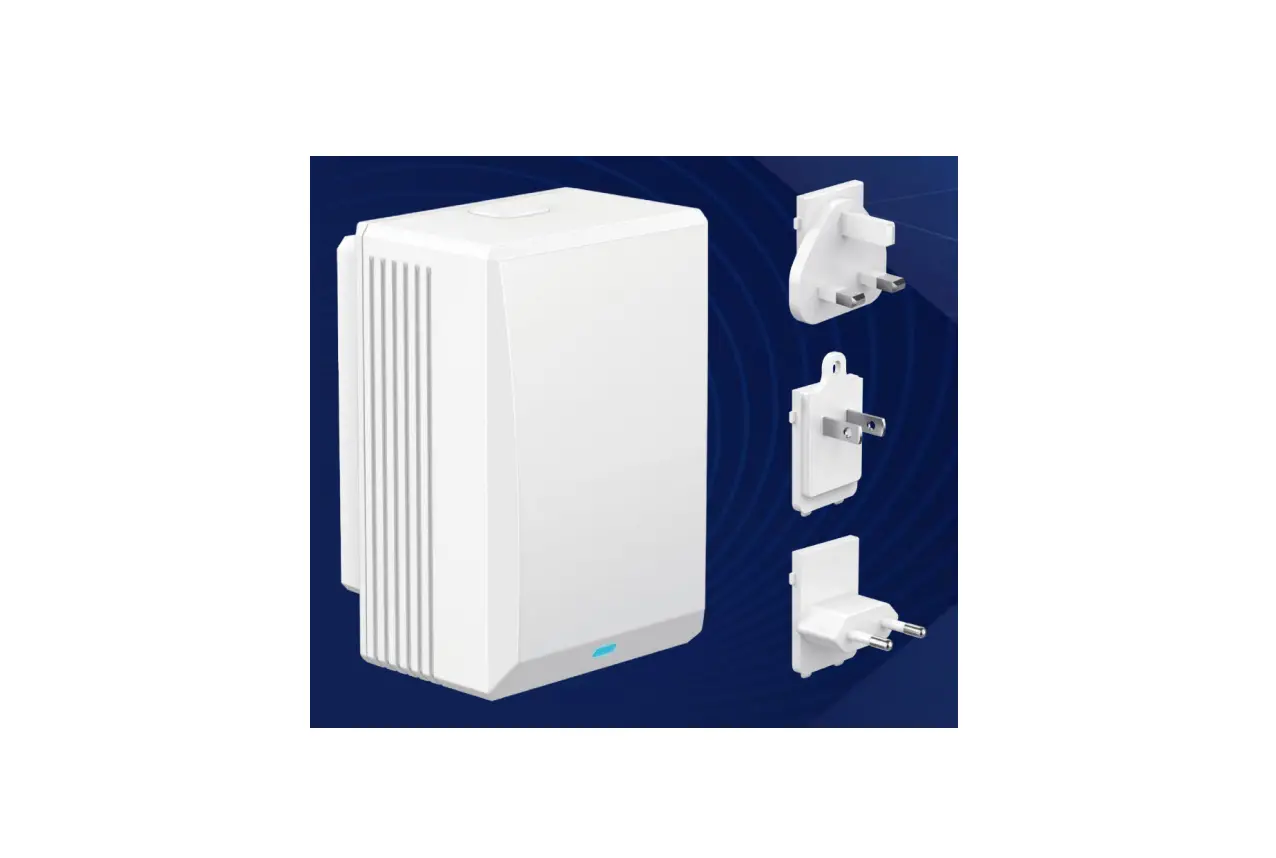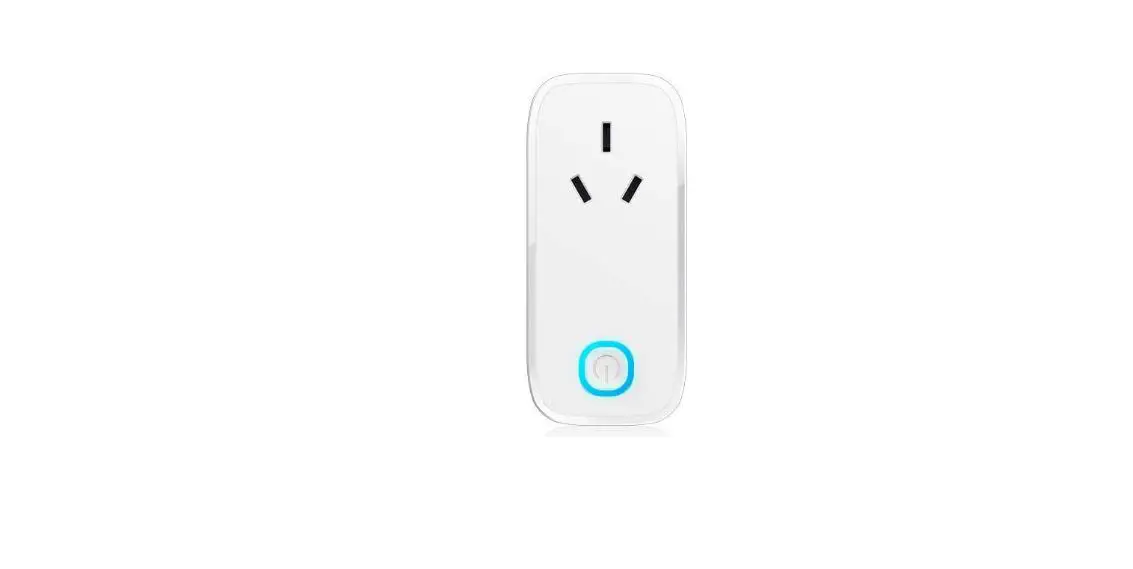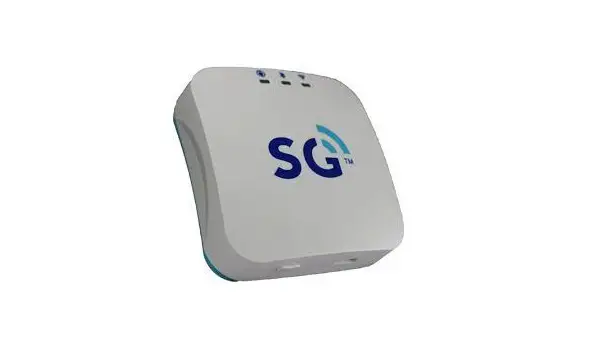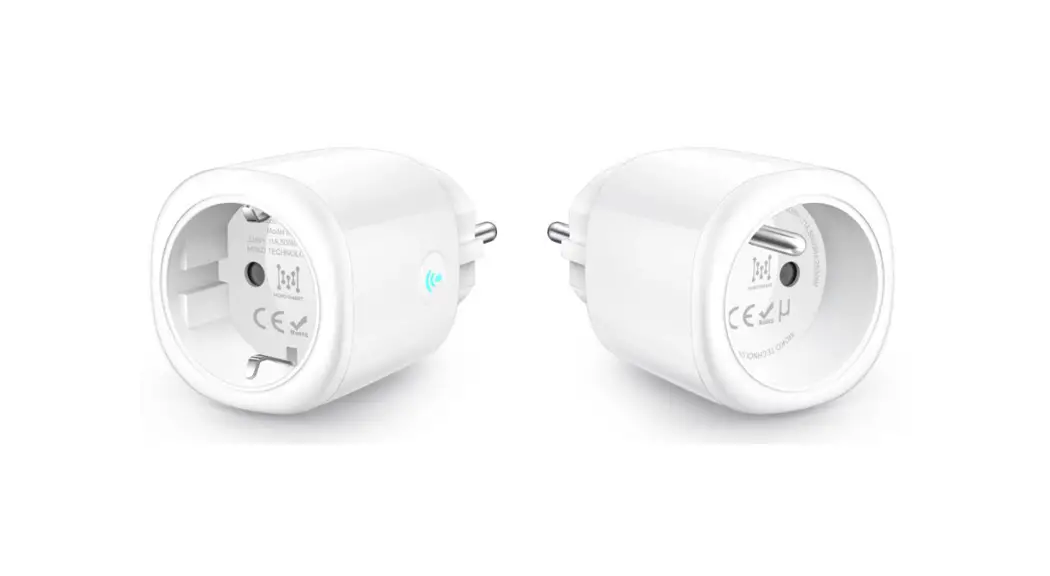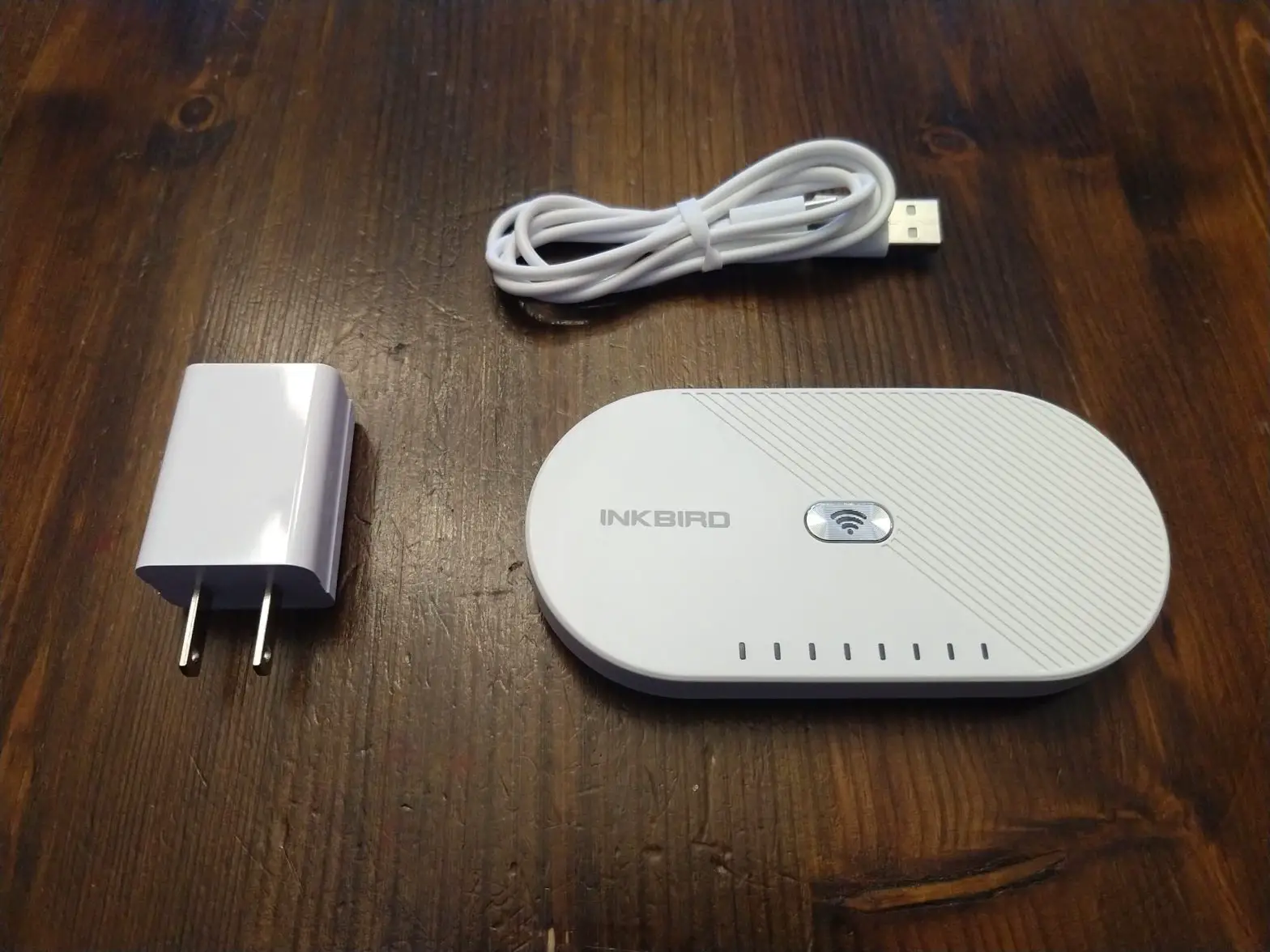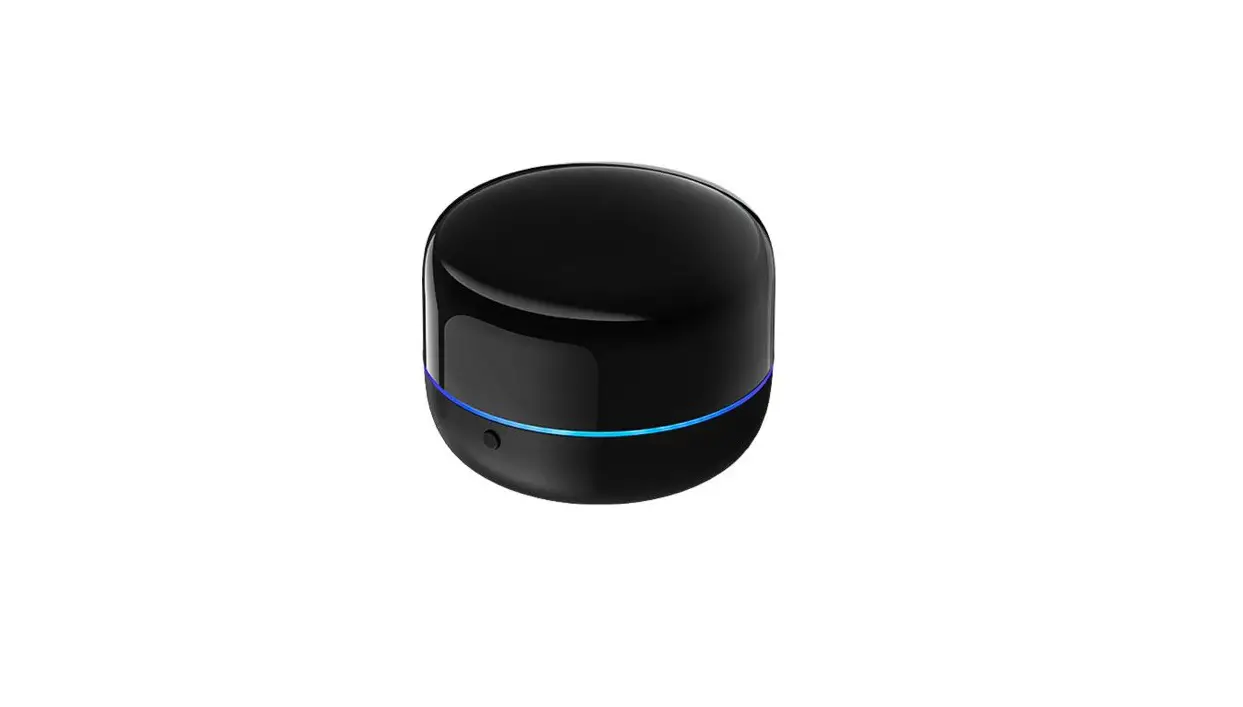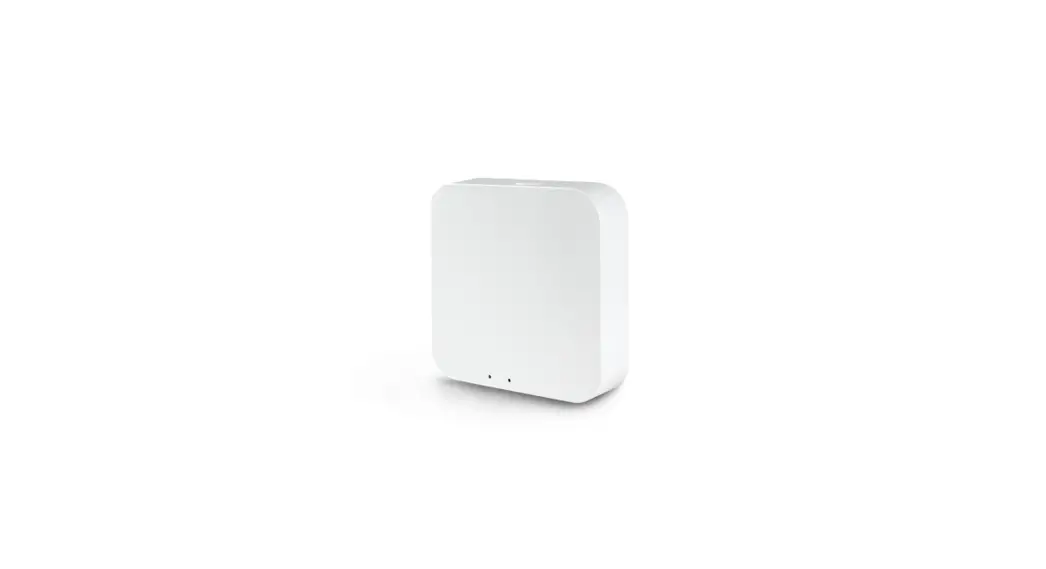
MOKO MKGW-mini BLE to WIFI Gateway User Manual
About This Manual
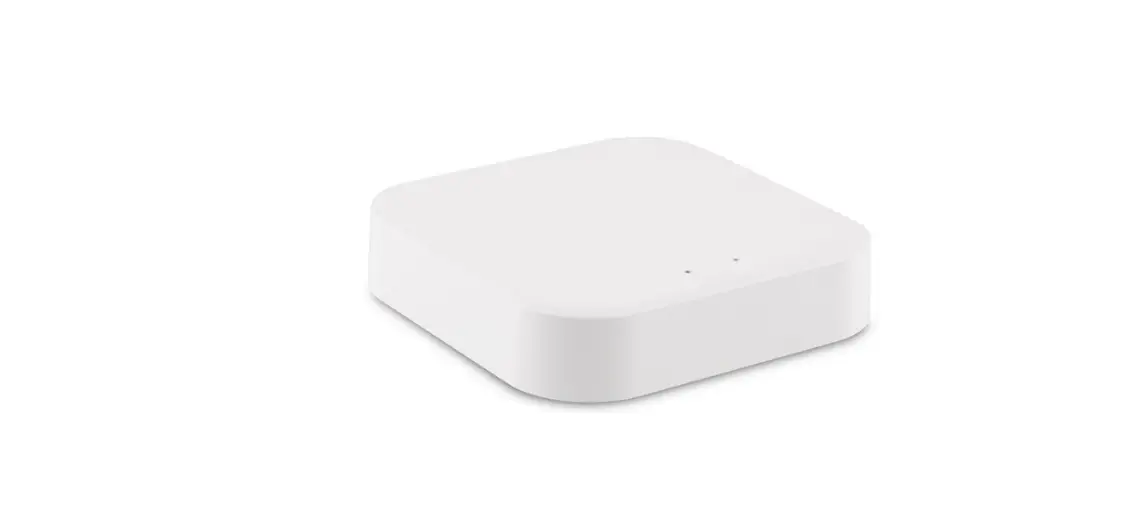
MKGW-mini gateway supports connecting to the customer’s own server, users can view the data uploaded by the gateway and set the gateway parameters through the MQTT tool. MOKO also provides a Demo APP for customers to quickly configure the gateway. This document will take the MOKO APP as an example to guide users to configure the gateway to connect to their own server and set the gateway to scan and obtain the required beacon data.
APP Guide
MKGW-mini gateway can connect to standard MQTT brokers (such as EMQTT, Mosquito, etc.), and it can also work with AWS iot and Alibaba iot. This section will guide users to use MKScannerPro APP to configure the gateway to connect to EMQTT and AWS iot.
APP Download
Scan the following QR code to download MKScannerPro APP. You can also search for the APP directly in Google play or APP store.



Configure Server Information
- Configure APP and Device connect to EMQTT
- If the gateway is configured for the first time, after the gateway is powered, its Bluetooth will advertise, and the indicator flashes green.
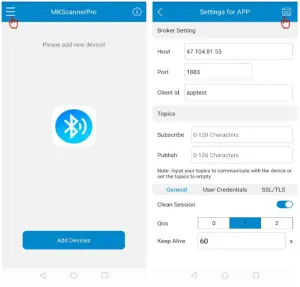
- Run the MKScannerPro APP, click the icon in the upper right to enter the “Settings for APP” page, fill in the configuration information and save it

Type Parameter Description Broker setting Host The IP address or domain name of your server. Port Server port number. Client Id MQTT client id, each device connected to the server should have a unique client id. Topics Subscribe The APP use it to subscribe message from the gateway, it can be blank. Publish The APP use it to publish message to the gateway, it can be blank. General Clean Session Default: Enable, range: Enable/Disable Qos Quality of service. Default: 1, range: 0-2 Keep Alive Default : 60, range: 10-120 User Credentials Username If access to your server doesn’t require a username and password, it can be blank. Password SSL/TSL SSL/TLS Enable means SSL mode Disable means TCP mode Certificates It supports three type of certificates: CA signed server certification CA certificate file
Self signed certificates
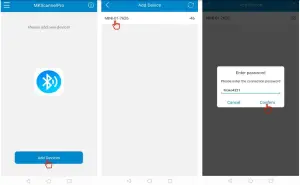
- 3. Click the “Add Devices” button to select a gateway to connect, the connection password is Moko4321. After the APP is successfully connected with the gateway’s Bluetooth, the indicator will turn to solid green.

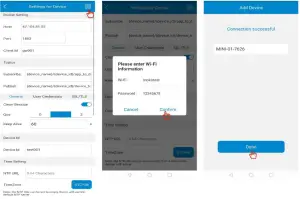
- Fill in the configuration for the device, and configure an available WIFI SSID and password. The gateway will automatically connect the WIFI and the server, and the indicator will flash blue.
- Waiting for a few seconds, if the gateway is successfully connected to the server, the indicator will change to solid blue, and the APP will prompt “Connection successful”, you can edit a local name for the gateway here.

Type Parameter Description Broker setting Host The IP address or domain name of your server. Port Server port number. Client Id MQTT client id, each device connected to the server should have a unique client id. Topics Subscribe The gateway uses it to subscribe messages from the APP. You can use the default topic directly or modify it. If the topic of “Settings for APP” page has been set, it should be set the same as the APP published topic.
Publish The gateway uses it to publish messages to the APP. You can use the default topic directly or modify it. If the topic of “Settings for APP” page has been set, it should be set the same as the APP subscribed topic.
General Clean Session Default: Enable, range: Enable/Disable Qos Quality of service. Default: 1, range: 0-2 Keep Alive Default : 60, range: 10-120 User Credentials Username If access to your server doesn’t require a username and password, it can be blank. Password SSL/TSL SSL/TLS Enable means SSL mode Disable means TCP mode Certificates It supports three type of certificates: CA signed server certification; CA certificate file;
Self signed certificates
Device Id Device Id Each added device should have a unique device id. Time setting NTP URL NTP server IP or domain name, it can be blank, then device will use the default NTP server. Timezone Default: UTC+0, range: UTC-12 – UTC+12
- Configure APP and Device connect to AWS iot
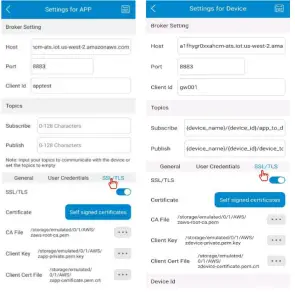
When configuring the gateway to connect to AWS iot, please enable the SSL/TLS option, and select the certificate files locally from the mobile phone.
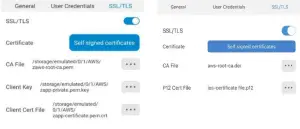
Since the certificate format required by the iOS APP is different from that of the Android APP, this page of Android and iOS are slightly different (the left picture is the “MQTT settings for APP” page of Android APP, and the right picture is the “MQTT settings for APP” page of IOS APP).
- Set the Gateway Scan BLE Device
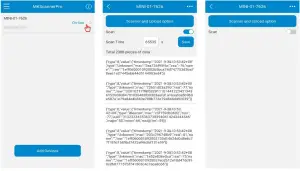
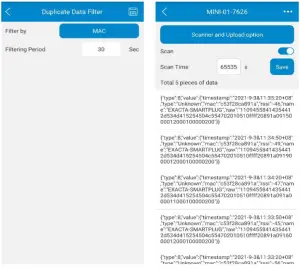
When the gateway is successfully connected to the server, it will automatically start scanning, and the scanned data will be displayed on the page. The scan switch and scan time of the gateway can be configured.
Parameter Description Scan switch Default: enable, range: Enable/Disabled Scan time Default: 65535, range: 10-65535 (unit: second) 65535 is a special value, which means the gateway will be always scanning. Other value is a countdown time, when the time expires, the gateway will automatically stop scanning.
- Set the Filter Condition
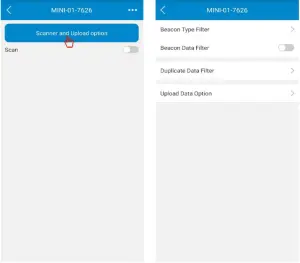
Click the “Filter and Upload option” button to set filter conditions, which can help users easily obtain target beacon data.
- Beacon Type Filter
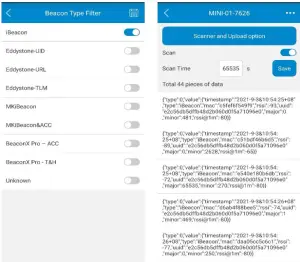
The gateway can filter data by beacon type, and there are total 9 beacon types. With the default configuration, the gateway will scan and upload all types of beacon data. When
the option is disabled, the gateway will not report this type of beacon data to your server.
- Beacon Data Filter
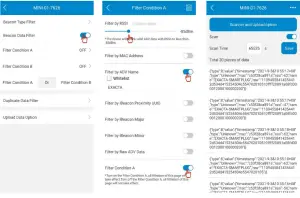
The gateway can also filter by beacon data, and it allows to set at most two filter conditions (condition A and condition B). The content of the two filter conditions is the same. When both of the filter conditions are ON, the relationship can be set to And or Or.
Both Condition A and Condition B include the following filter items, each filter item can be set to whitelist filtering. If the whitelist box is unchecked, the gateway will report advertising data which meets the filter rules. Otherwise the gateway will report advertising data which doesn’t meet the filter rules.Parameters Description Filter Condition A RSSI Default: -127 dBm, range: -127- 0 dBm MAC address Default is disabled, when enabling it, please enter a full MAC address or keyword. ADV Name Default is disabled, when enabling it, please enter a full ADV name or keyword. iBeacon Proximity UUID Default is disabled, when enabling it, please enter a full iBeacon UUID or keyword. iBeacon major
Default is disabled, when enabling it, please enter the range value of iBeacon major, the second value must be greater than or equal to the first value.
iBeacon minor
Default is disabled, when enabling it, please enter the range value of iBeacon minor, the second value must be greater than or equal to the first value.
Raw ADV Data
Default is disabled, when enabling it, please add the “ ➕” icon to add filter items. It can add at most 5 items, and the relationship of each item is “And”. l Data type: Data type of the Bluetooth raw data.
l Data offset: Data offset in bytes under the data type, it can be set to 0-0 or any value from 1 to 29, and the second value must be greater than the first value.
l Raw data field: A certain data field under the data type, and it should match the data offset.
Filter Condition A The function switch of filter condition A. Only when it is enabled, the filter rule will take affect. Filter condition B RSSI Default: -127 dBm, range: -127- 0 dBm MAC address Default is disabled, when enabling it, please enter a full MAC address or keyword. ADV Name Default is disabled, when enabling it, please enter a full ADV name or keyword. iBeacon Proximity UUID Default is disabled, when enabling it, please enter a full iBeacon UUID or keyword. iBeacon major
Default is disabled, when enabling it, please enter the range value of iBeacon major, and the second value must be greater than or equal to the first value.
iBeacon minor
Default is disabled, when enabling it, please enter the range value of iBeacon minor, and the second value must be greater than or equal to the first value.
Raw ADV Data Default is disabled, when enabling it, please add the “ ➕” icon to add filter items. It can add at most 5 items, and the relationship of each item is “And”.
l Data type: Data type of the Bluetooth raw data.
l Data offset: Data offset in bytes under the data type, it can be set to 0-0 or any value from 1 to 29, and the second value must be greater than the first value.
l Raw data field: A certain data field under the data type, and it
should match the data offset.
Filter Condition B The function switch of filter condition A. Only when it is enabled, the filter rule will take affect. Relationship between condition A and B Both of the filter conditions are ON, the relationship can be set to And or Or. - Duplicate Data Filter
The gateway judges whether the scanned data is duplicated with the previous data according to the set rules. In a filtering period, the gateway will only report one piece of duplicate data to your server, which can effectively save server and network resources.
Parameters Description Filter by Default: None, range: None/MAC/MAC+Data Type/MAC+Raw Data l None: Duplicate data filter is disabled
l MAC: Judge whether the data is duplicate according to the MAC address
l MAC+Data Type: Judge whether the data is duplicate according to the MAC address and the data type.
l Mac+ Raw Data: Judge whether the data is duplicate according to the MAC address and the raw data.
Filtering Period Only when the filter is enabled, the filtering period can be set. Default: 10, range: 1-86400 (Unit: second) - Upload Data Option
The content of the Bluetooth data reported to the server includes a timestamp, device type, RSSI, raw data, and MAC address.
Users can choose the reported data content, and the first four items can be configured to upload or not according to the actual application scenario.
- Beacon Type Filter
Set Device Parameters
The gateway supports user to flexibly modify the device parameters according to their application. All parameters on this page can be modified.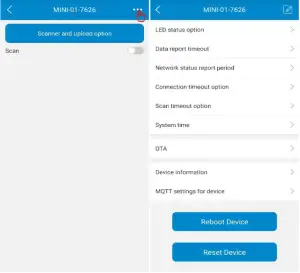
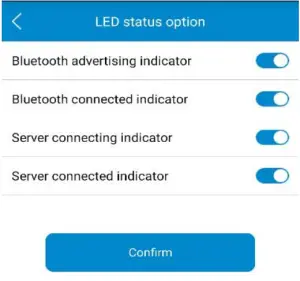
- LED Status Option
The LED indicator function in different device status can be configured
Parameters Description Bluetooth advertising indicator Default is enable, when it is disabled, the LED will be OFF Bluetooth connected indicator Default is enable, when it is disabled, the LED will be OFF Server connecting indicator Default is enable, when it is disabled, the LED will be OFF Server connected indicator Default is enable, when it is disabled, the LED will be OFF - Data Report Timeout
When the Bluetooth data packet reaches the specified length, the gateway will immediately report the data packet to the server. When the Bluetooth data packet is less than the specified length, the gateway will wait for the next piece of data. If the next piece of data is not scanned after the timeout period, it will directly report the currently scanned data to the server.Parameters Description Data report timeout Default: 20, range: 0-60 (unit: 50ms) - Network Status Report Period
The gateway reports its network status to the server to notify the server that it is online. The report interval can be configured.Parameters Description Network status report period Default: 10, range: 0 or 10-86400 (unit: second) Value 0 means that the gateway will report the network status only once when it successfully connects to the server, and will not report it later.
- Connection Timeout OptionThe gateway will automatically reboot once when it connects to server exceeding the configured timeout.
Parameters Description Connection timeout Default: 3, range: 0-1440 (unit: minute) Value 0 means that the device will not reboot
- Scan Timeout Option
When the scan switch is enabled, but no any data is scanned for a period of time, the gateway will automatically reboot once.Parameters Description Scan timeout Default: 60, range: 0-1440 (unit: minute) Value 0 means that the device will not reboot - System Time
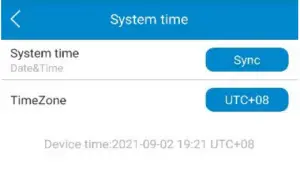
After the gateway is connected with the server, it will synchronize time from the NTP server every 1 hour. If the NTP server is invalid, it also supports to synchronize time from user’s phone. The “Sync” button is used to require the UTC time from your phone, it also needs to select the TimeZone to obtain the local current time.
OTA
The gateway has the ability to update firmware over the air. After filling in the OTA information, click the “Start Update” button, the gateway will enter the update process. During OTA process, LED will flash yellow, if OTA succeed, LED turns solid green, if failed, LED turns solid red.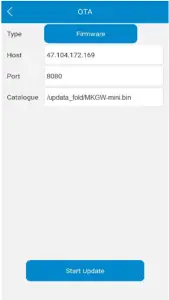
Note: The OTA server (47.104.172.169:8080) in the above picture is just available for your test. MOKO can also provide the update file, you can build your own OTA server to operate it.
Reboot Device
The “Reboot Device” button is used to send a reboot command to the device. After that, the gateway will reboot once.
Reset Device
The “Reset Device” button is used to send a reset command to the device. After that, the device
will restore to factory setting, and the indicator will flash blue and green once. You can also press and hold the reset button for 10 seconds to reset it.
Remove Device
Select a gateway on the device list and touch the screen for three seconds to remove it . After removed, the device will disappear in the device list.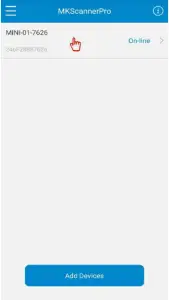
Revision History
| Revision | Description | Editor | Date |
| V1.0 | Initial Release, based on firmware V1.0.1 | Weiguifen | 2021.8.25 |
Customer Support
 4F, Building2, Guanghui Technology Park, MinQing Rd, Longhua, Shenzhen, Guangdong, China
 Tel: 86-755-23573370-829
 [email protected]
 https://www.mokosmart.com