

QUICK TIPS
A Step-By-Step User Guide
GETTING STARTED
STEP 1
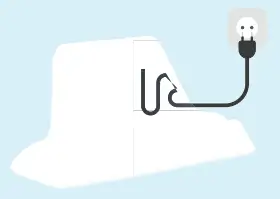
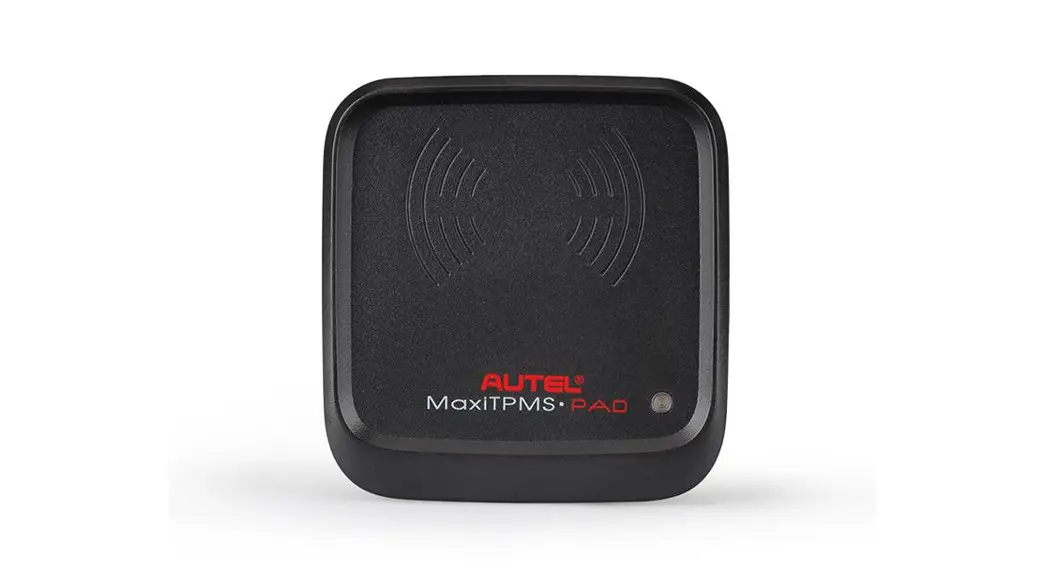
Plug the enclosed charging cradle into a wall outlet. You will see a green light on the back, which means it has power.
STEP 2
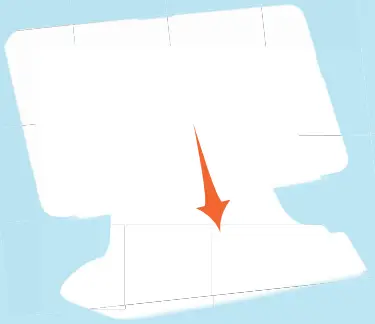
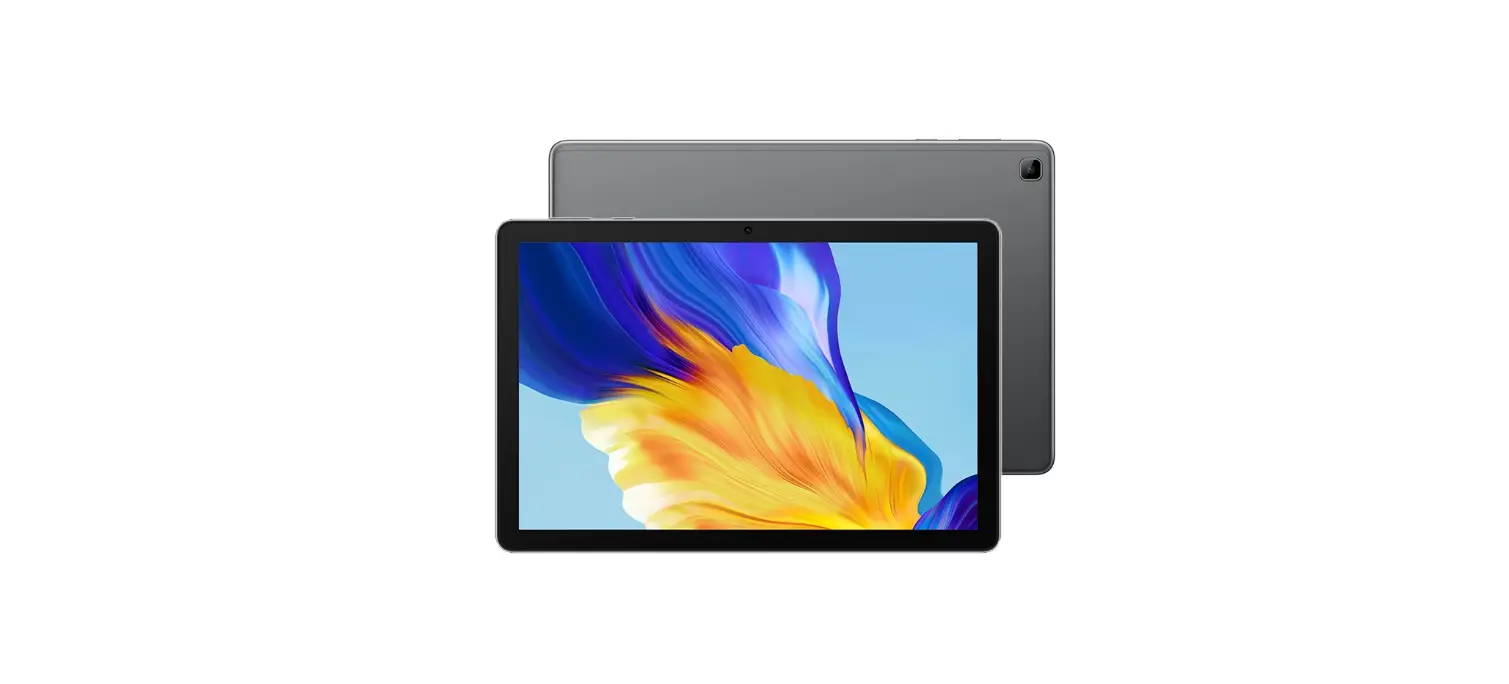
Place your GrandPad in the charging cradle.
The light on the front of the cradle will turn white when charging.
STEP 3

Your GrandPad will turn on automatically and be ready to use.
GET TO KNOW YOUR GRANDPA
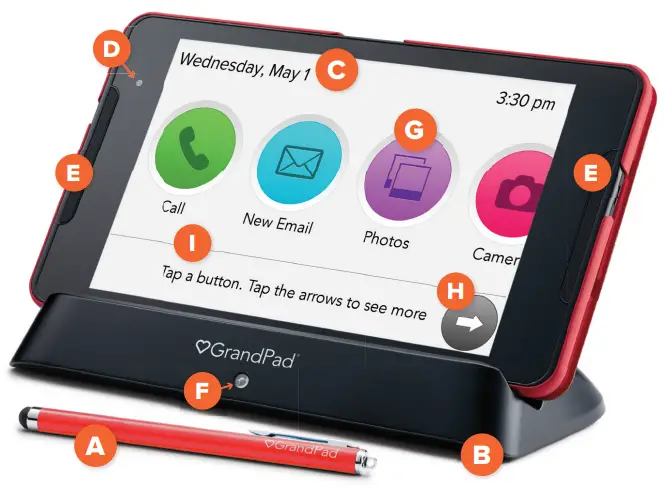
A. Stylus
B. Charging Cradle
C. Home Screen
D. Front Facing Camera
Video calls & photos of you
E. Speakers
F. Charge Indicator
Charging when lit
G. Home Screen Buttons
Selects an App
H. Arrow Buttons
Moves the page left or right
I. Page Instructions
Tips for navigating the page
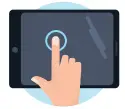 TOUCHSCREEN
Your finger can be used as a tool—touch a button to select it or touch the screen and swipe to move to the next page.
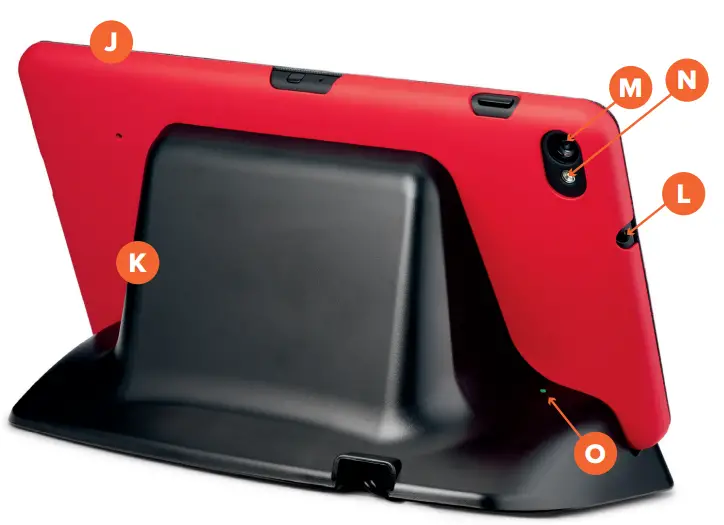
J. Protective Case
K. Charging Cradle
L. Headphone Jack
M. Rear Facing Camera
For taking photos in front of you
N. Camera Flash
O. Power Indicator
Greenlight when plugged in
USING THE INTERNET

✓ Tap this button to browse the Internet.
✓ When activated, the Internet browser gives you access to websites and social media.
 Tap these buttons to select from saved “favorites,” or search for new websites.
 Tap Search to start a new Internet search.
 Tap the Arrows to scroll through the list of your saved favorite websites.
Quit Internet
Tap Quit Internet to exit the Internet and return to your Home screen.

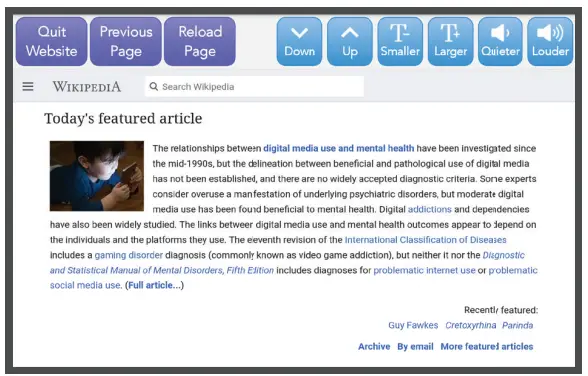
Tap to Quit Website, view the Previous page or Reload the current page.

Tap to customize your browsing experience.
MAKING CALLS
✓ Tap this button to make voice or video calls.
✓ Your saved contacts (family members, friends and other important numbers) will be displayed for easy access.
✓ You can also dial any phone number using a keypad.
Tap here to open a keypad to dial a phone number.
Tap the picture or “Call (name)”
Tap here to start a button to contact this person.
Video Call.
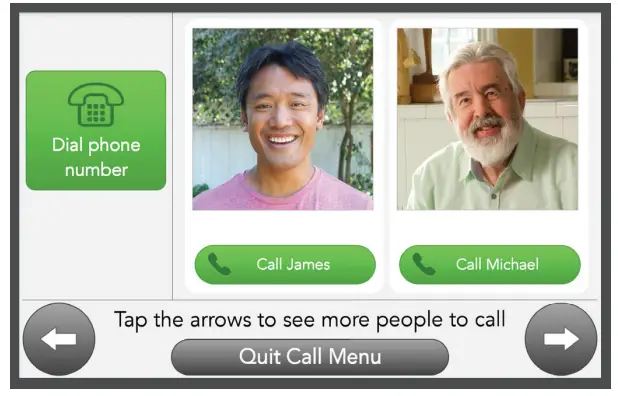
Tap Arrows to scroll through a list of contacts to find the person you wish to call. After entering a phone number, tap Call to make a voice call or simply tap the person you want to call.
Cancel
Tap Cancel to start over.
Quit Call Menu
Tap Quit Call Menu to exit and return to your Home screen.
TRANSPORTATION
 ✓ Ride service is an optional feature for GrandPad Users. See the note at the bottom of this page if you wish to set up this service.
✓ Once set up, tap this button to schedule a ride anywhere you need to go.
✓ On-demand rides are available through the CC Go service. You will be connected to an operator who will dispatch a driver using the ride-sharing service Lyft.
✓ For your convenience, you will need to create an account to use this service. To sign up, call us at (888) 803-6550.
CC GO
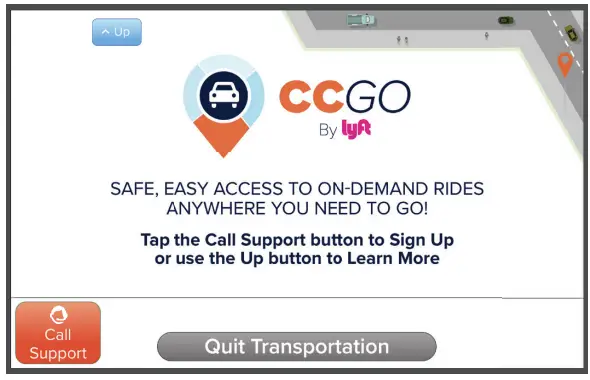
 Tap Call Support to get assistance.
 Tap Up on your screen to learn more about this service.
Quit Transportation
Tap Quit Transportation to exit the Transportation menu and return to your Home screen.
EMAIL & VIDEO MESSAGING
 ✓ Tap this button to create a new outgoing message.
✓ Your saved contacts (family members, friends and other important numbers) will be displayed for easy access.
Tap Compose New Email to begin a new message to send.
Tap Read message to view a message.
Messages you’ve received can be viewed in the right panel.
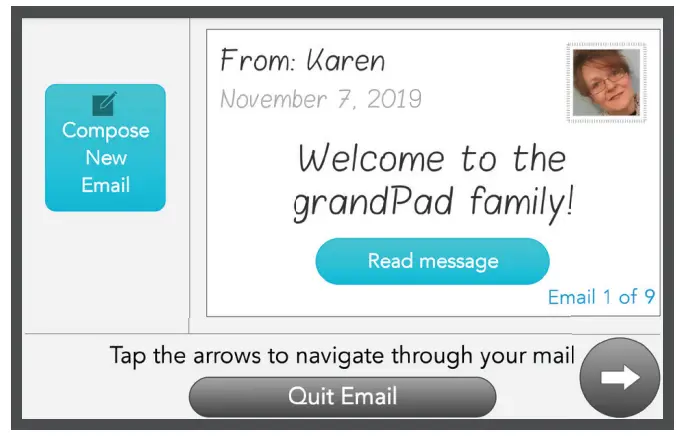
 Tap here to select who you want to send a message to.Tap Arrow to scroll through a list of the messages you’ve received.
 Tap Type Message to write an email.
Enter your message, then tap (SEND). Tap Speak Message to begin recording a voice message.
Back to Email
Tap Back to Email to return to the inbox/ message composing screen.
Quit Email
Tap Quit Email to exit and return to your Home screen.
TAKE & VIEW PHOTOS
 ✓ Tap this button to view photos that you’ve taken using GrandPad, or photos that have been shared with you by others.
✓ See the CAMERA card for information about taking pictures using your GrandPad.
Tap All Photos to view all of the photos stored on GrandPad.
Tap Favorite Photos to view photos you’ve selected as personal favorites. Tap Start Slideshow to start a continuous scroll of photos on your screen.
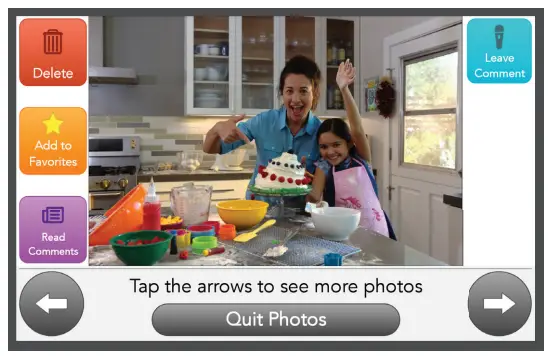
 Tap Delete to remove the photo from your library.
 Tap Add to Favorites to make a photo as one of your favorites for easy access later on.
 Tap Read Comments to see comments others have made about a photo.
 Tap Leave Comment to record your own comment about the photo.
USING GRANDPAD’S CAMERA
 ✓ Tap this button to take pictures or record videos using your GrandPad.
✓ Photos and videos you take will be saved to the Photos library, and can even be shared with others.
Tap Take Photo to take a photo, or Record Video to record a video. Once you’ve done so, you will be able to view the picture or play the video and decide if you’d like to keep it.
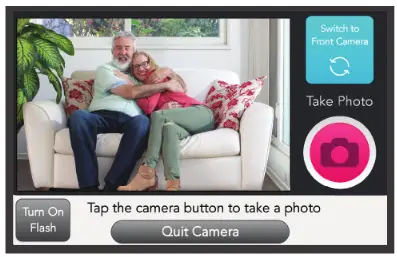
 Your GrandPad can take photos or videos from either side of the device.
Tap Switch to Front Camera to change from the rear (main) camera to the front (“selfie”) camera. Tap Turn On Flash to turn on the flash and add extra light to a photo.
Delete Photo
Tap Delete Photo (Video) if you do not wish to keep the photo or video.
Save Photo
Tap Save Photo (Video) to keep the photo or video.
Quit Camera
Tap Quit Camera to exit the Camera and return to your Home screen.
WEATHER & ARTICLES FROM GRANDPA
✓ Tap these buttons to check the weather, or read articles and view other topics that may interest you.
CHECKING THE WEATHER
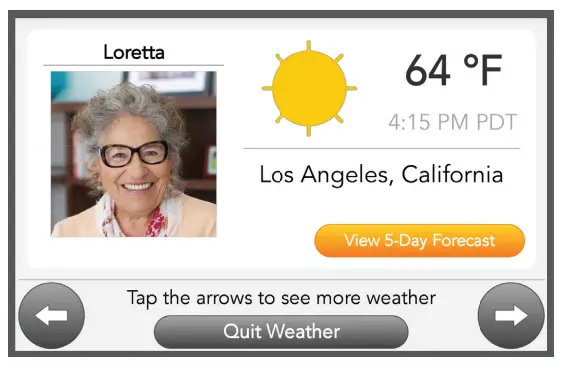
Tap the Arrow to move through a list of your family members to see their local weather.
Quit Weather
Tap Quit Weather to return to your home screen.
PLAYING MUSIC

✓ Tap this button to begin listening to music.
✓ This will be just like listening to the radio–simply tap a button for the type of “station” you want to listen to.
Tap Music Collection to view a selection of songs you’ve saved as your favorites.
Tap Search Music to find a specific song by either the song title or the performer.
Tap Big Band or other blue buttons to listen to songs on those playlists.
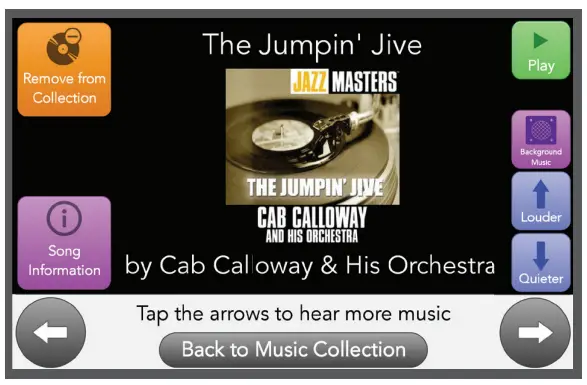
 Tap Play/Pause to start or stop the song from playing.
 Tap the Louder/Quieter buttons to control the volume.
 Tap Add to Collection if you wish to add a song to your list of favorites.
 Tap Remove from Collection if you wish to remove a song from your collection.
 Tap Background Music to let the music continue playing on the GrandPad while you use other features.
Quit Genre
Tap Quit Genre to exit and return to the Music menu.
Quit Music
Tap Quit Music to exit Music and return to your Home screen.
PLAYING GAMES
 ✓ Tap this button to select and play one of the many games that are included on GrandPad for your enjoyment.
✓ For your convenience, many games include a short tutorial that provides tips on how to play.
Tap the button for any game you want to play.
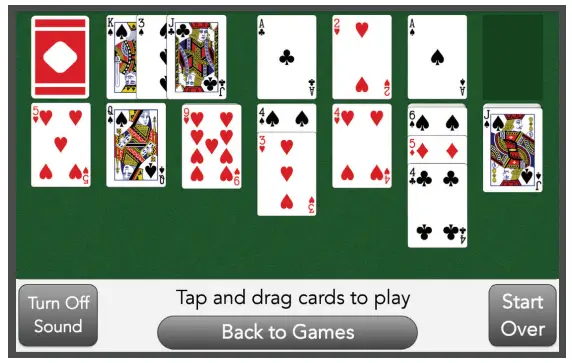
Back to Games
If you wish to stop playing a game, tap Back to Games to return to the Games menu.
Quit Games
Tap Quit Games to exit Games and return to your Home screen.
LOOKUP
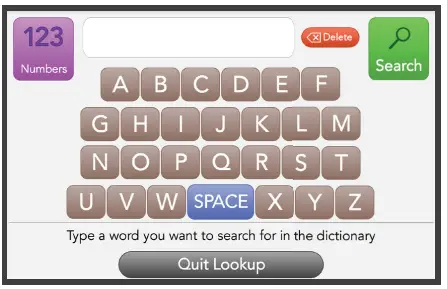
 ✓ Tap Lookup to find articles using an online encyclopedia, or find words using the dictionary.
 Tap Encyclopedia. A keypad will open, and you can type in the word or subject you want to learn more about.
 Tap Dictionary. A keypad will open, and you can type in the word you want to learn more about.
 Once you’ve typed in your subject or word, tap Search to find the information.
Quit Lookup
Tap Quit Lookup to exit the Dictionary or Encyclopedia and return to your Home screen.
TOOLBOX
 ✓ Tap Toolbox to access handy extra features.
 Tap Magnifying Glass to use your GrandPad’s camera and screen as a magnifier.
 Tap to use the Flashlight.
 Tap to use the Calculator.
 Tap Zoom In to look at an item more closely.
 Tap Turn On/Turn Off to turn
 Flashlight on (or off) to view more detail.
Tap Freeze Frame to “hold” a picture of an item you’re looking at so you can study it more closely.
NEED HELP?
 ✓ If you have questions about using any of your GrandPad’s features, just tap here. We’re happy to help!
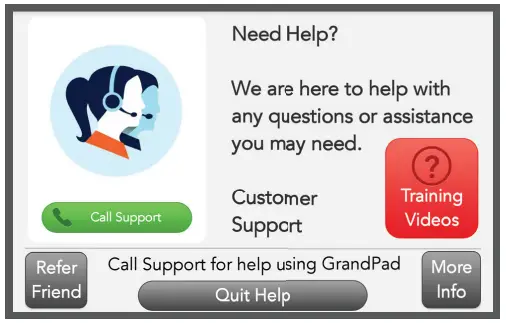
 Tap Training Videos to view step-by-step instructions on how to use many of GrandPad’s features.

Tap Call Support to reach one of our friendly support specialists anytime.
Quit Help
Tap Quit Help to exit Help and return to your Home screen.
© 2020 Consumer Cellular, Inc.