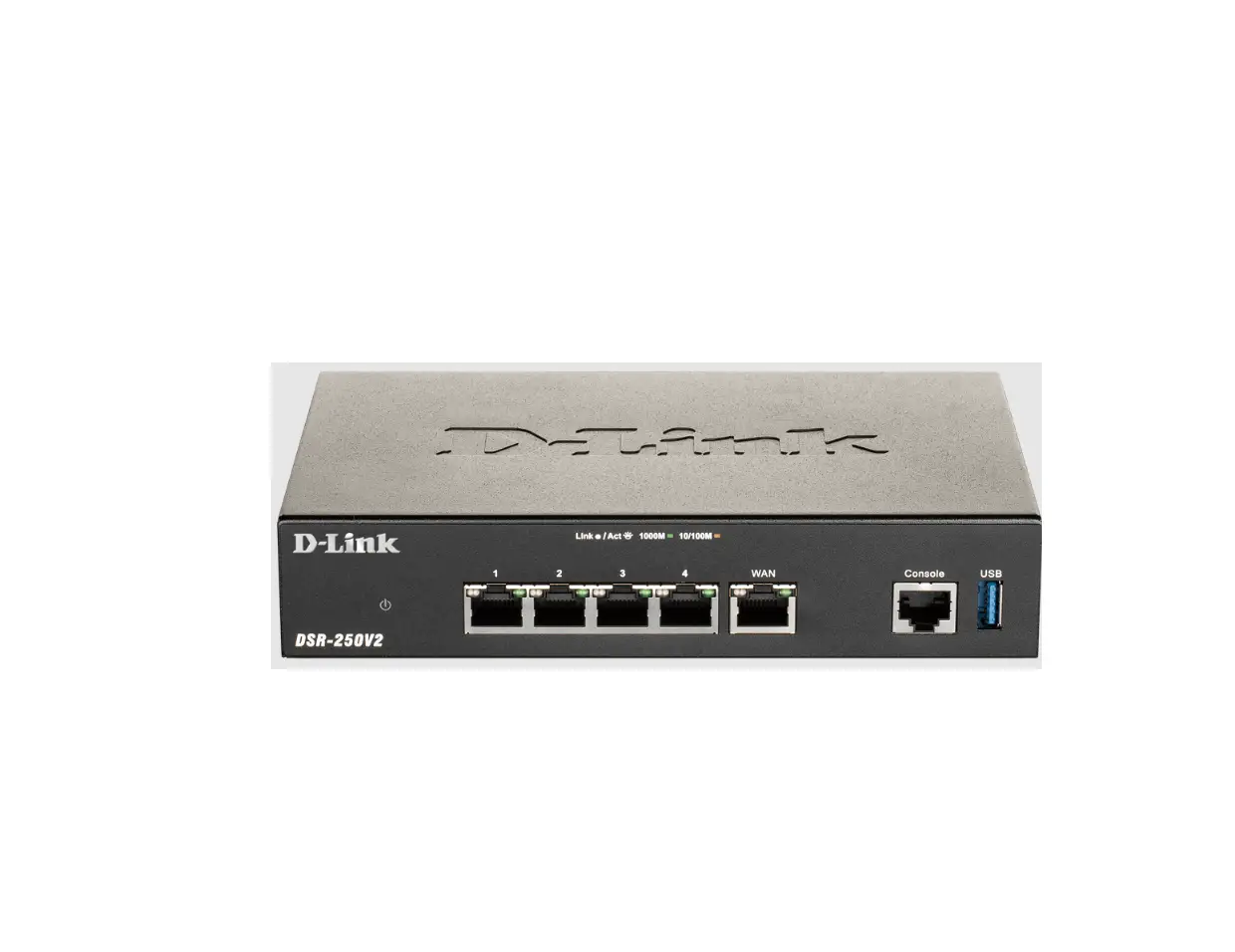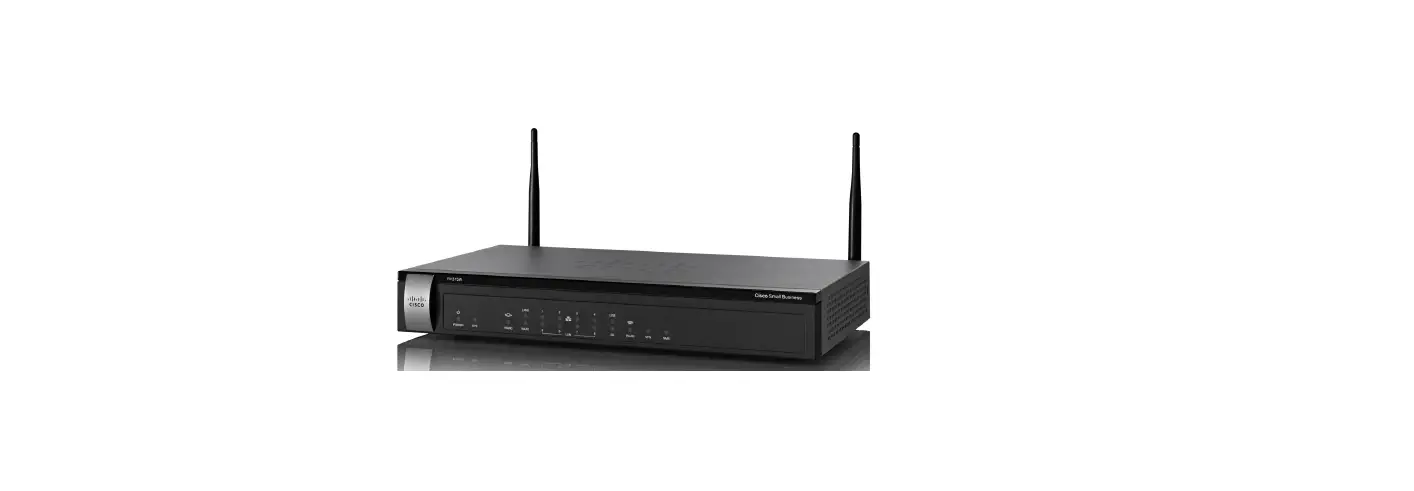
 DSR-1000AC Wireless AC Unified Services VPN Router
User Guide
About This Guide
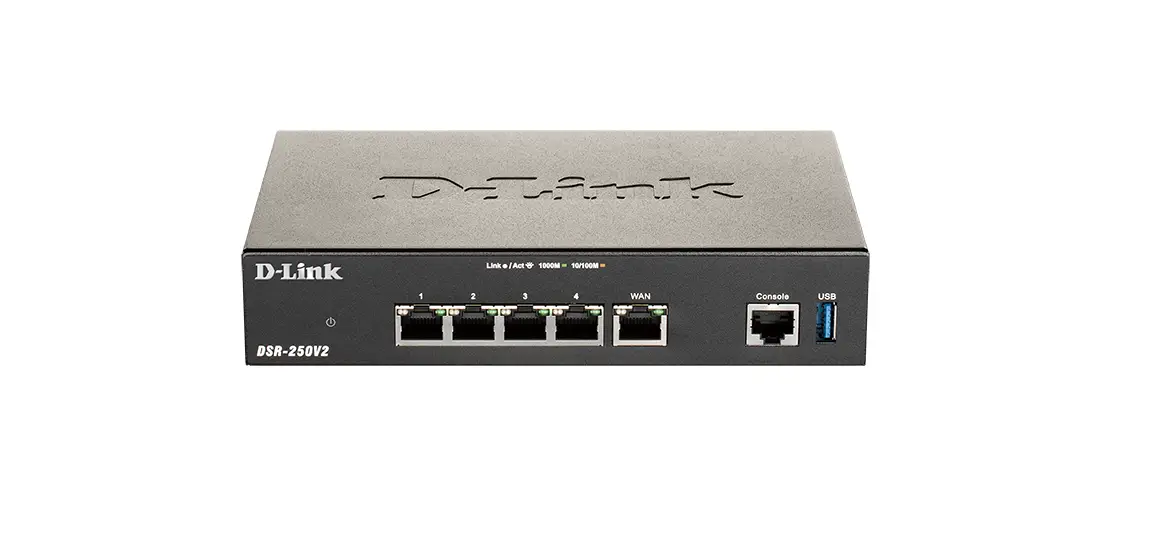
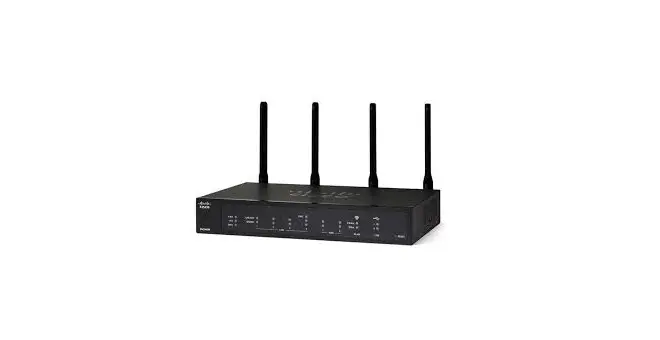
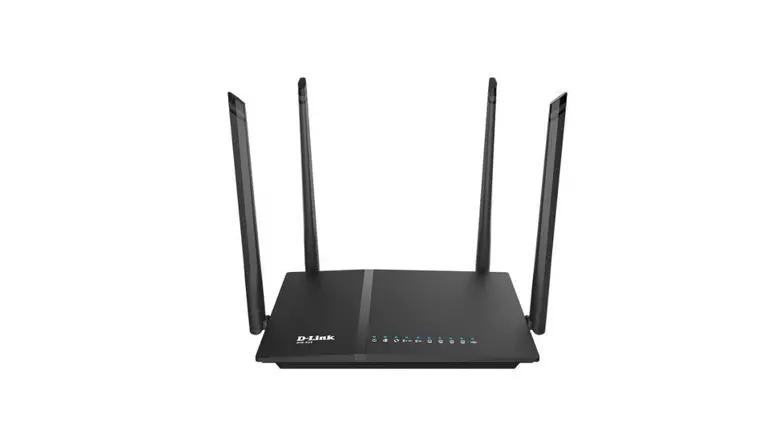
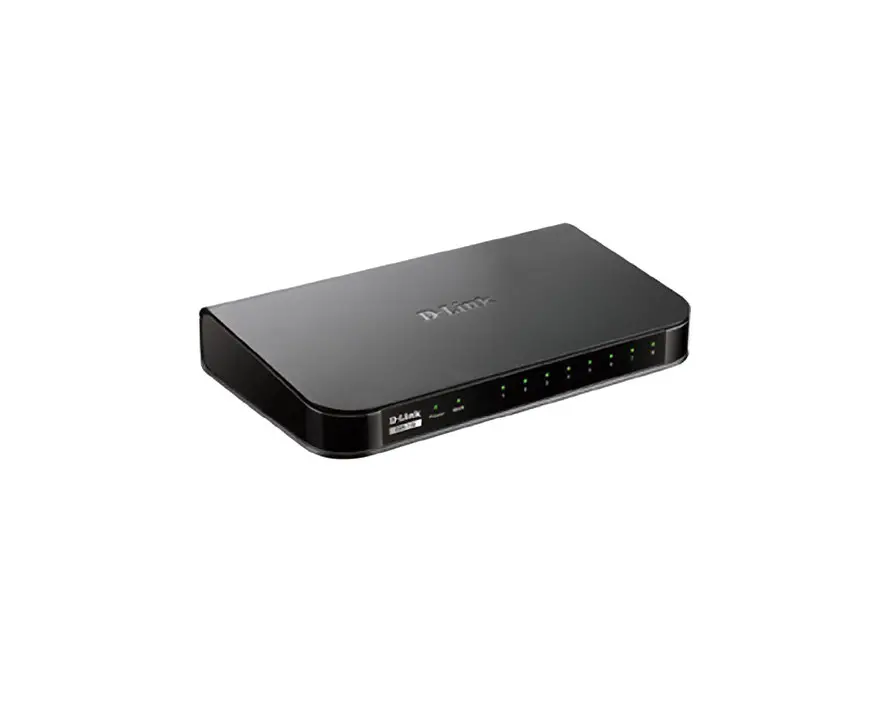
This guide gives step by step instructions for setting up D-портовLink DSR-портов1000AC Wireless AC Services Router. Please note that the model you have purchased may appear slightly different from those shown in the illustrations.
Unpacking the Product
Open the shipping carton and carefully unpack its contents. Please consult the packing list located in following information to make sure all items are present and undamaged. If any item is missing or damaged, please contact your local D-портовLink reseller for replacement.
- One (1) DSR-1000AC Wireless AC Services Router
- One (1) Power adapter
- One (1) Console Cable (RJ45-портовto-портовDB9 Cable)
- One (1) Ethernet (CAT5 UTP/Straight Through) Cable
- One (1) Reference CD (CD-портовROM containing product documentation in PDF format)
- Two (2) Rack Mounting Brackets
- Three (3) Detachable Omni-портовdirection antennas
Product Overview
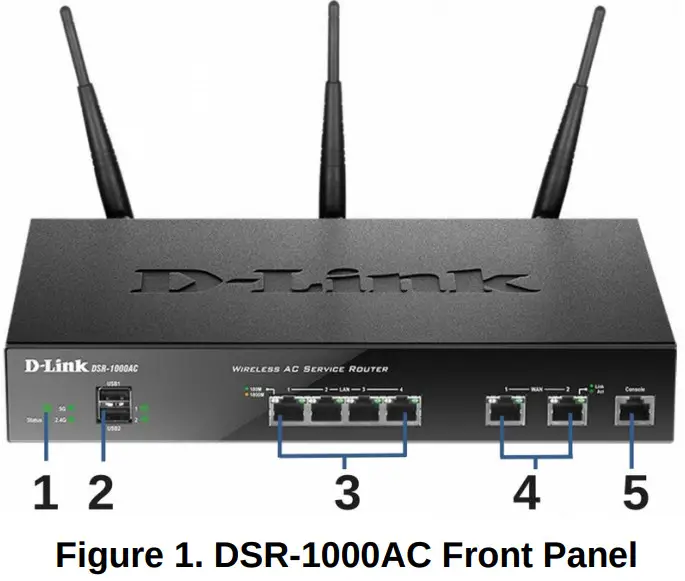
Front Panel – DSR-1000AC
| # | Item | Description |
| 1 | LED (Top to bottom) | Power LED: Indicates the Wireless AC Services Router is powered on. 5GHz WLAN LED: A solid light indicates that the wireless segment is ready. This LED blinks during wireless data transmission. 2.4GHz WLAN LED: A solid light indicates that the wireless segment is ready. This LED blinks during wireless data transmission. |
| 2 | USB Port | It can support various USB 1.1 or 2.0 devices below: 1.Flash Disk or Hard Disk for network sharing. 2. 3G Adaptor for WAN redundant. 3. Printer. |
| 3 | Gigabit LAN port (1-4) | Connect Ethernet devices, such as computers, switches and hubs. |
| 4 | Gigabit WAN port (1-2) | Two auto MDI/MDIX WAN ports are the connection for the Ethernet cable to the cable or DSL modem. The WAN2 port is a configurable port which can support WAN2 or DMZ port for dual WAN connections or internal Server Farm purpose. |
| 5 | Console Port | Used to access Command Line Interface (CLI) via RJ45-to-DB9 console Cable. |
Table 1. DSR-1000AC Front Panel Descriptions
Device Status LEDs and Ethernet Port LEDs
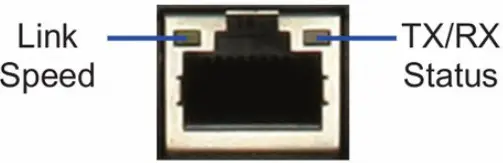 Figure 2. Ethernet RJ-45 Port LEDs
The device LEDs show information about current device status. When the device power up, the POWER/STATUS LED will show solid orange during power on process. Startup takes one minute approximately to complete, the LED will change to solid green. If you want to turn the device off and on again, we recommend you wait a few seconds between shutting it down and powering it back. The Ethernet LEDs show the status of each Ethernet port. Table 2 lists the name, color, status and description of each device LED.
| LED | Color | Status | Description |
| Power / Status | Orange/ Green | Solid Orange | Device during power-on process. |
| Solid Green | Completion of power on. | ||
| Blinking Orange | Device is crashed and under recovery mode. | ||
| Blinking Green | The system is defective, such firmware upgrades fail. | ||
| Light Off | The device is power-off. | ||
| 2.4GHz/ 5GHz WLAN | Green | Steady Green | The link is good. |
| Blinking Green | There is activity on this port. | ||
| Light Off | No link. | ||
| USB | Green | Solid Green | The link is good. |
| Blinking Green | There is activity on this port. | ||
| Light Off | No link. | ||
| TX/RX Status | Green | Light Off | No link. |
| Solid Green | Link present. | ||
| Blinking Green | Port is sending or receiving data. | ||
| LINK Speed | Green/ Orange | Light Off | Port is operating at 10Mbps. |
| Solid Green | Port is operating at 100Mbps. | ||
| Solid Orange | Port is operating at 1000Mbps. |
Table 2. Device Status LED Descriptions
DSR-1000AC Default Interface Settings
| Ethernet Interface | Interface Type | IP Address | Web-Based Management |
| LAN(1-портов4)/WLAN | Static IP | 192.168.10.1/24 | Enabled |
| WAN1 | DHCP Client | 0.0.0.0/0 | Disabled |
| WAN2 (Configurable port) | DHCP Client (default) | 0.0.0.0/0 | Disabled |
| Static IP (When it’s configured as DMZ) | 172.17.100.254/24 | Disabled |
Table 3. Default Interface Settings
Note: D-портовLink Wireless AC Services Router only allow Web GUI access from LAN and WLAN interfaces by default for security reason. The WAN2 is a configurable port which support various and advanced scenario applications. When WAN2 port is configured as DMZ port, the IP address will be changed to 172.17.100.254.
Installing and Connection
This chapter describes how to install a DSR-портов 1000AC device in a standard 19-портовinch equipment rack and how to connect cables and power to the device.
Before You Begin
Observe the following precautions to help prevent shutdowns, equipment failures and injuries:
- Before installation, always check that the power supply is disconnected.
- Ensure that the room in which you operate the device has adequate air circulation and that the room temperature does not exceed 40 ºC (104 ºF).
- Allow 1 meter (3 feet) of clear space to the front and back of the device.
- Do not place the device in an equipment rack frame that blocks the air vents on the sides of the chassis. Ensure that enclosed racks have fans and louvered sides.
- Correct these hazardous conditions before any installation: moist or wet floors, leaks, ungrounded or frayed power cables, or missing safety grounds.
Installing Equipment
You can mount the DSR-портов1000AC device into a standard 19-портовinch equipment rack. To install an appliance into a rack:
- Attach the mounting brackets to each side of the chassis as shown in figure 3 and secure them with the screws provided.
 Figure 3. Attaching Rack Mount Brackets
 - Then, use the screws provided with the equipment rack to mount the device in the rack.
 Figure 4. Installing the Wireless AC Services Router in a standard-sized equipment rack
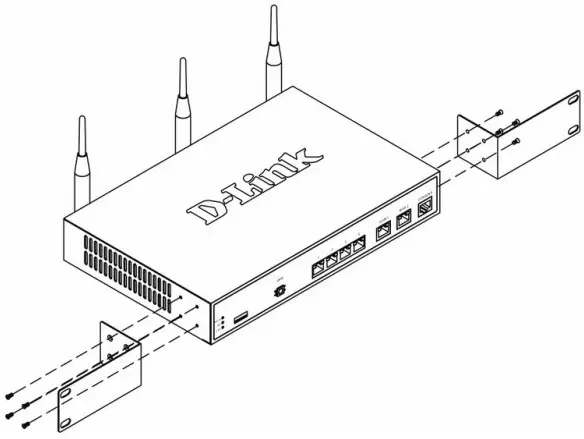 Figure 3. Attaching Rack Mount Brackets
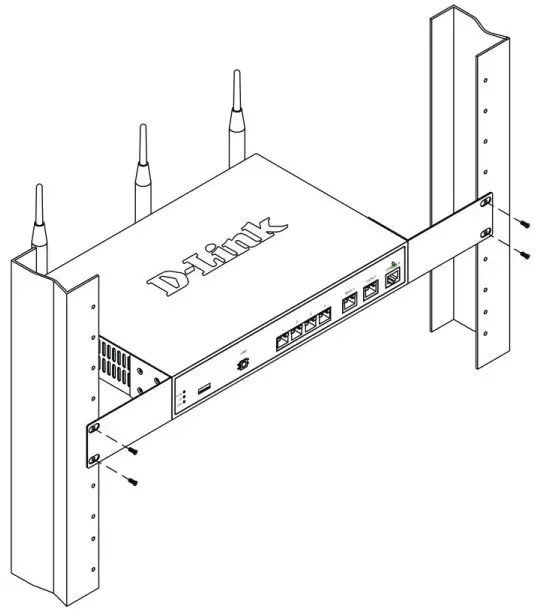 Figure 4. Installing the Wireless AC Services Router in a standard-sized equipment rack
Connecting Power and Turning On/Off
The AC Power adapter shipped with the device connects the device to earth ground when plugged an AC grounding-портовtype power outlet.
The device must be connected to earth ground during normal operation.
To connect power to the device, plug one end of the AC power core into the AC power appliance inlet on the back panel of the device. Plug the other end into an AC power source.
Note: We recommend using a surge protector for the power connection.
To power on the DSR-портов1000AC device, press the AC power switch on the rear panel to the on position. To power off the device, press the power switch to the off position.
Connecting the Device to a Network
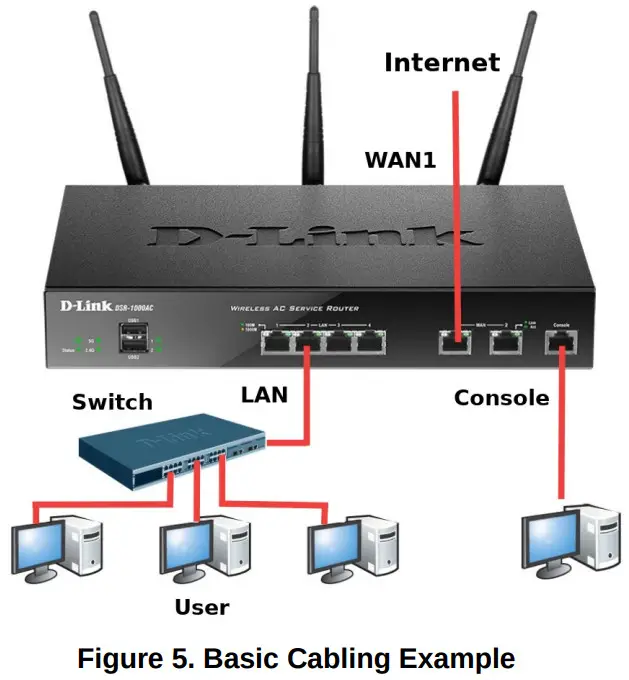
This section provides basic information about physically connecting the DSR-портов1000AC to a network. To connect the necessary cables as shown in Figure 5.
- Connect an RJ45 cable from the port labeled WAN1 to the external router. The port WAN1 is preallocated to the WAN1 network segment.
- Connect an RJ45 cable from the port labeled LAN (1-4) to a switch in the LAN network segment.
- Connect an RJ45-to-DB9 cable from the console port for CLI (Command Line Interface) management access.

Initial Configuration
The Wireless AC Services Router software is preinstalled on the DSR-портов1000AC device. When the device is powered on, it is ready to be configured. While the device has a default factory configuration that allow you to initially connect to the device, you must perform further configuration for your specific network requirements.
Using the WebUI
To use the WebUI, the workstation from which you are managing the device must initially be on the same subnetwork as the device.
| Browser | Version | |
 | Microsoft Internet Explorer | 6.0 or higher |
 | Mozilla Firefox | 3.5 or higher |
 | Netscape Navigator | 9.0 or higher |
 | Apple Safari | 4.0 and later |
 | Google Chrome | 3.0 and later |
Table 4. Browser Compatibility
To access the device with the WebUI:
- Connect your workstation on the port labeled LAN (1-портов4), which is pre-портовallocated to the LAN.
- Ensure your workstation is configured with a static IP address in the 192.168.10.0/24 subnet.
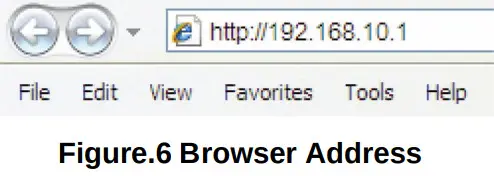
Note: Disable pop-портовup blocking software or add the management IP address https://192.168.10.1 to your popup blockers’ allow list. - Launch your browser, enter the IP address for the LAN interface (the factory default IP address is https://192.168.10.1 (for DSR Series routers with WW firmware) or http://192.168.10.1 (for DSR Series routers with RU firmware)), then press Enter.

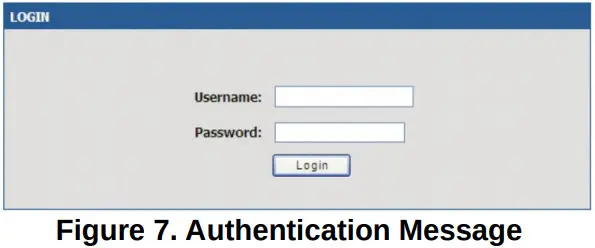
- Log on the Wireless AC Services Router Web Interface The default log on information is:
Username: admin
Password: admin
Using a Console Connection (RJ45-to-DB9 DCE)
The Wireless AC Services Router provides an serial port that enables a connection to a computer or terminal for monitoring and configuring the device. This port is a RJ-45 connector, implemented as a data communication terminal equipment (DCE) connection.
To use the console port connection, you need the following equipment:
- A terminal or a computer with both a serial port and the ability to emulate a terminal.
- A RJ45-to-DB9 RS232 with female connector. (Already included in packing list).
- If your Laptop or PC doesn’t have RS232 connector, a converter is required.
Note: DSR-1000AC does not come with RS-232 converter and these must be purchased separately.
To establish a console connection:
- Plug the RJ-45 connector of the supplied RJ45-to-DB9 cable directly to the console port on the Wireless AC Services Router.
- Connect the other end of the cable to a terminal or to the serial connector of a computer running terminal emulation software. Set the terminal emulation software as following:
Baud rate: 115200
Data bits: 8
Parity: None
Stop bits: 1
Flow control: None - When you have correctly set up the terminal, having previously followed the instructions in section 2.3, “Connecting Power and Turn the Device On/Off” then switch on your device. The boot sequence appears in the terminal.
- Once the boot sequence completes, the command prompt is displayed, the device is ready to be configured.
Finalizing the Configuration
After initial setup, you should refer to the companion publications found in PDF format on the accompanying master CD for more information on how to begin to configure the DSR-1000AC device.