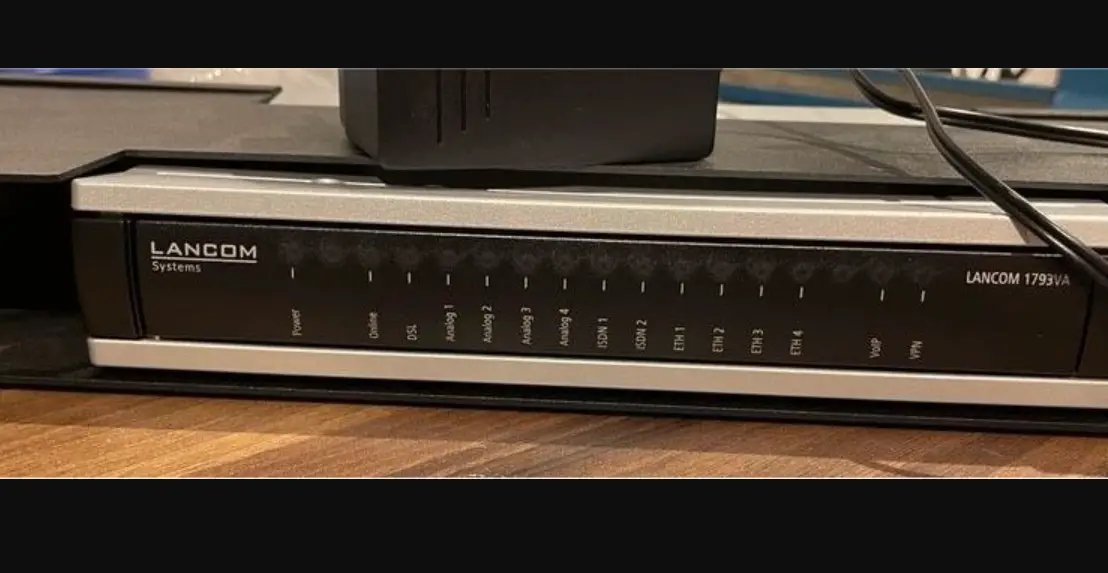
RAP-117 WLAN Access System and IPsec VPN Gateway
DataSoft RAP-117 WLAN Access System and IPsec VPN Gateway
The DataSoft RAP-117 is a versatile device that functions as
both a WLAN Access System and an IPsec VPN Gateway. It allows users
to establish wireless communications with an organization’s private
network through its 802.11 Access Point and IPsec VPN. The device
is designed to provide secure and reliable connectivity for users
in a network environment.
Product Information
- Manufacturer: DataSoft Corp.
- Model: RAP-117
- Address: 10235 S 51st Street, #115 Phoenix, AZ 85044
Record of Changes
| Version | Date | Title or Brief Description |
|---|---|---|
| 1.0 | 06/09/2023 | Initial Version |
| 1.1 | 07/20/2023 | Updated in response to check-out comments |
| 1.2 | 07/25/2023 | Updated in response to check-out comments |
Introduction
The DataSoft RAP-117 Configuration Guide is intended for
administrators who are installing and configuring the TOE (Target
of Evaluation). It assumes that the administrators have a basic
understanding of internetworking concepts, network topologies, and
protocols. The guide provides instructions and information to help
administrators effectively use the RAP-117 in their network
environment.
Audience
This document is written for administrators installing and
configuring the TOE. It assumes that the administrators are
familiar with the basic concepts and terminologies used in
internetworking, understand their network topology, and the
protocols that the devices in their network can use. Administrators
should also be trusted individuals and trained to use the operating
systems on which they are running their network.
Purpose
The purpose of this document is to provide administrators with
the necessary guidance to install and configure the DataSoft
RAP-117 WLAN Access System and IPsec VPN Gateway.
Document Reference
This section lists the DataSoft documentation that is also a
portion of the Common Criteria Configuration Item (CI) List. The
documents used are referenced throughout this guide.
TOE Overview
The TOE (Target of Evaluation) refers to the DataSoft RAP-117
WLAN Access System and IPsec VPN Gateway. This section provides an
overview of the TOE and its functionalities.
Operational Environment
The TOE requires certain IT Environment Components to be present
when it is configured in its evaluated configuration. These
components include:
| Component | Usage/Purpose Description |
|---|---|
| Wireless Client | Allows users to establish wireless communications with an organization’s private network through the TOE’s 802.11 Access Point and IPsec VPN. |
| Certificate Authority | The Certification Authority is used to provide the TOE, Authentication Server, and Wireless clients with valid certificates. It also allows the TOE to check the revocation status of peer certificates on the wired network. |
| RADIUS Authentication Server | The RADIUS Authentication Server is responsible for authenticating wireless clients using EAP-TLS. FreeRADIUS 3.0.x or higher is required in the IT environment to support RADIUS communication. An IPSEC trusted channel is required to protect the RADIUS traffic. |
Product Usage Instructions
To use the DataSoft RAP-117 WLAN Access System and IPsec VPN
Gateway, follow these instructions:
- Ensure that you have the necessary IT environment components as
listed in the operational environment section. - Install and configure the RAP-117 according to the instructions
provided in the Configuration Guide. - Establish a wireless connection with the organization’s private
network by connecting to the RAP-117’s 802.11 Access Point. - If necessary, obtain valid certificates from the Certificate
Authority and configure the TOE, Authentication Server, and
Wireless clients with these certificates. - Configure the RADIUS Authentication Server to authenticate
wireless clients using EAP-TLS. - Ensure that an IPSEC trusted channel is established to protect
the RADIUS traffic.
DataSoft RAP-117 WLAN Access System and IPsec VPN Gateway
CC Configuration Guide
Version 1.2 Date July 25, 2023
© 2023 DataSoft Corp, Inc. All rights reserved. This document may be reproduced in full without any modification.
RECORD OF CHANGES
Prepared by: DataSoft Corp. 10235 S 51st Street, #115 Phoenix, AZ 85044
CC Configuration Guide
VERSION
DATE
TITLE OR BRIEF DESCRIPTION
1.0
06/09/2023 Initial Version
1.1
07/20/2023 Updated in response to check-out comments
1.2
07/25/2023 Updated in response to check-out comments
______________________________________________________________________________
Use of data contained on this page is subject to the restrictions on the cover page.
Page 2 of 32
CC Configuration Guide
Table of Contents
Record of Changes ………………………………………………………………………………………………………………..2 1.0 Introduction …………………………………………………………………………………………………………………5
1.1 Audience…………………………………………………………………………………………………………………5 1.2 Purpose …………………………………………………………………………………………………………………..5 1.3 Document Reference…………………………………………………………………………………………………5 1.4 TOE Overview…………………………………………………………………………………………………………5 1.5 Operational Environment …………………………………………………………………………………………..6 1.6 Evaluated Configuration ……………………………………………………………………………………………6 2.0 Procedures and Operation Guidance for IT Environment……………………………………………………..7 2.1 Provisioning Environment………………………………………………………………………………………….7 2.2 Syslog Server …………………………………………………………………………………………………………..7 2.3 RADIUS Server ……………………………………………………………………………………………………….7 2.4 CA …………………………………………………………………………………………………………………………7 2.5 SSH Public Key ……………………………………………………………………………………………………….8 3.0 Preparative Procedures and Operational Guidance for the TOE …………………………………………….8 3.1 Setup………………………………………………………………………………………………………………………8 3.2 Account Configuration………………………………………………………………………………………………9 3.3 Administration Functions …………………………………………………………………………………………..9 3.4 Software Update …………………………………………………………………………………………………….10 3.5 Provisioning Application………………………………………………………………………………………….10 3.6 TOE Configuration …………………………………………………………………………………………………11 3.7 Optional Pull-down Menu Items………………………………………………………………………………..11 3.8 Configuring Wired, Wi-Fi, and VPN Data …………………………………………………………………..13 3.9 Provisioning the TOE………………………………………………………………………………………………14 3.10 Importing X.509 Certificates …………………………………………………………………………………15 3.11 X.509 Certificate Checking …………………………………………………………………………………..15 3.12 Admin Configuration……………………………………………………………………………………………16 3.13 Audit Log Configuration ………………………………………………………………………………………17 3.14 IP Filtering Configuration and SPD rules. ………………………………………………………………..18 3.15 RADIUS Configuration ………………………………………………………………………………………..20 3.16 Wi-Fi Restriction Configuration …………………………………………………………………………….20 3.17 Powering the TOE in Operation Setting …………………………………………………………………..21 3.18 Status/Control Rotary Switch and LED……………………………………………………………………21 3.19 Wi-Fi and VPN Control & Status……………………………………………………………………………21 3.20 Key Status / Zeroize …………………………………………………………………………………………….22 3.21 Monitor and Troubleshoot …………………………………………………………………………………….22 4.0 Auditable Events…………………………………………………………………………………………………………22 5.0 Obtaining Documentation and Submitting a Service Request ……………………………………………..32 6.0 Contacting DataSoft…………………………………………………………………………………………………….32
______________________________________________________________________________
Use of data contained on this page is subject to the restrictions on the cover page.
Page 3 of 32
CC Configuration Guide
List of Tables
Table 1 Operational Environment Components……………………………………………………………….6 Table 2 IP Filtering Configuration ………………………………………………………………………………18 Table 3 Auditable Events…………………………………………………………………………………………..22
______________________________________________________________________________
Use of data contained on this page is subject to the restrictions on the cover page.
Page 4 of 32
CC Configuration Guide
1.0 Introduction
This Operational User Guidance with Preparative Procedures documents the administration of the DataSoft RAP-117, version 1.0 TOE, as it was certified under Common Criteria. The DataSoft RAP-117 may be referenced below by the related acronym e.g. RP-117 or simply the TOE. The TOE allows mobile and dismounted operators to perform C2-releated computing functions security across existing tactical communications networks. With the ability to process the data communications for a variety of C2-related applications, the TOE is a subsystem that provides lightweight wireless connectivity (with support for multi-cast traffic) between commercial mobile computing platforms (i.e., smartphone, table, etc.) and the secure military radios at the tactical edge.
1.1 Audience
This document is written for administrators installing and configuring the TOE. This document assumes that you are familiar with the basic concepts and terminologies used in internetworking, and understand your network topology and the protocols that the devices in your network can use, that you are a trusted individual, and that you are trained to use the operating systems on which you are running your network.
1.2 Purpose
This document is the Operational User Guidance with Preparative Procedures for the Common Criteria evaluation. It was written to highlight the specific TOE configuration and administrator functions and interfaces that are necessary to configure and maintain the TOE in the evaluated configuration. This document is not meant to detail specific actions performed by the administrator but rather is a road map for identifying the appropriate locations within DataSoft Corp documentation to get the specific details for configuring and maintaining the TOE. All security relevant commands to manage the TSF data are provided within this documentation within each functional section.
1.3 Document Reference
This section lists the DataSoft documentation that is also a portion of the Common Criteria Configuration Item (CI) List. The documents used are shown below in Table 1. Throughout this document, the guides will be referred to by the “#”, such as [1].
1.4 TOE Overview
The TOE is a small form factor, low power, cybersecurity endpoint device that is a Wi-Fi access point and VPN Gateway. It provides CSfC-compliant communications & connectivity to wirelessly connect End User Devices (EUD), sensors, and remote controlled devices to classified tactical and enterprise networks without needing a centralized infrastructure. The TOE establishes an IPsec trusted channel (which protects the transmitted data from unauthorized disclosure and modification) over WLAN with a corresponding VPN Client.
______________________________________________________________________________
Use of data contained on this page is subject to the restrictions on the cover page.
Page 5 of 32
CC Configuration Guide
1.5 Operational Environment
The TOE requires the following IT Environment Components when the TOE is configured in its evaluated configuration as listed in Table 1.
Table 1 Operational Environment Components
Component Wireless Client
Usage/Purpose Description
Allows users to establish wireless communications with an organization’s private network through the TOE’s 802.11 Access Point and IPsec VPN.
Certificate Authority
The Certification Authority is used to provide the TOE, Authentication Server, and Wireless clients with valid certificates. The CA also provides the TOE with a method to check the revocation status of peer certificates the TOE communicates with on the wired network.
RADIUS Authentication Server
The purpose of the RADIUS Authentication Server is to authenticate wireless clients using EAP-TLS. FreeRADIUS 3.0.x or higher is required in the IT environment to support RADIUS communication. An IPSEC trusted channel is required to protect the RADIUS traffic.
Syslog Server
Any syslog server to which the TOE would transmit syslog messages over an IPSEC trusted channel.
Provisioning PC or Laptop
Linux (Ubuntu 20.04 or higher preferred) platform to run the Device Provisioning Application (DPA) software provided by DataSoft
Device Provisioning Application (DPA) software provided on CD
Assemble and provision all configuration data including public/private keys, and X.509 certificates
Provisioning cable: Glenair to USB Type-A male cable (P/N-808-079-C1-1.5)
Provides a wired connection from the TOE’s USB port to the USB port of the provisioning
computer
1.6 Evaluated Configuration
The evaluated TOE is the DataSoft RAP-117 (HW version 2.0 and FW version 2.2.0)
______________________________________________________________________________
Use of data contained on this page is subject to the restrictions on the cover page.
Page 6 of 32
CC Configuration Guide
2.0 Procedures and Operation Guidance for IT Environment
The following subsections describe the hardware and software components required to support the TOE as evaluated.
2.1 Provisioning Environment
To configure and operate in its evaluated configuration, the TOE requires a minimum one (1) Certificate Authority (CA), a Linux-based provisioning PC (Ubuntu 20.04 or above is preferred) with the Device Provisioning Application (DPA) software, and one (1) Glenair to USB Type-A male cable (P/N-808-079-C1-1.5).
2.2 Syslog Server
Any syslog server that can be accessed over IPsec may be used, such as rsyslog partnered with the StrongSwan VPN. This combination of tools can run on the Linux-based provisioning PC. Example configuration files are packaged with DPA under the directory templates/dpa for both the rsyslog server and StrongSwan.
2.3 RADIUS Server
FreeRADIUS 3.0.x or higher is required to support WPA2- and WPA3-Enterprise modes of operation. The RADIUS connection is tunneled through a VPN such as StrongSwan. Example configuration files for the VPN tunnel using StrongSwan can be fund packaged with DPA under the directory templates/radius.
2.4 CA
A certificate authority such as EJBCA Enterprise from PrimeKey is required.
– An external Certificate Authority (CA) will need to sign certificates for use by the TOE.
– The CA that signs the certificate used by TOE must use 384-bit ECDSA keys.
o Signed certificates can be imported in PEM or PKCS#7 format.
– To meet CSfC requirements, all public/private key pairs used for IPSec should be generated with 384-bit ECDSA keys. This includes the following TOE VPNs:
o Data traffic IPSec VPN between the TOE and EUD
o rsyslog IPSec VPN between the TOE and the audit log server
o RADIUS IPSec VPN between the TOE and the RADIUS server
– TOE configurations always have strict CRL checking turned on so valid CRLs need to be available via a Certificate Distribution Point (CDP) or imported when configuring each TOE.
______________________________________________________________________________
Use of data contained on this page is subject to the restrictions on the cover page.
Page 7 of 32
CC Configuration Guide o CRL files must be in PEM format. o The TOE automatically rejects any certificate where the TOE cannot determine
the renovation status (e.g., the TOE cannot reach the revocation server) o The administrator need not configure anything and cannot change or override this
aspect of the TOE’s behavior.
2.5 SSH Public Key
TOE administrators manage the configuration and provisioning of the TOE through the Secure Shell Protocol (SSH). Authentication for SSH can be via a password or it can use SSH Public Key Authentication.
– If using SSH key pairs between the TOE and provisioning laptop (so passwords are not required for each login,) the provisioning PC needs to have 384 bit ECDSA keys. The keys can be generated with the following: o ssh-keygen -t ecdsa -b 384 o use the default for the output file placement
o select a passphrase if desired
o repeat passphrase – The public key file (e.g. ~/.ssh/id_ecdsa.pub) must be imported in to the TOE through the
GUI as described in Section 3.12
3.0 Preparative Procedures and Operational Guidance for the TOE
The following sections provide information and instructions to configure the TOE.
3.1 Setup
Ensure that the date on provisioning computer is set to the correct date/time/time-zone as the TOE date gets initialized to the laptop date during provisioning. This is especially important when signing certificates with an external CA that will set the valid dates for the certificates during signing.
The TOE provides two interfaces: a data interface (Ethernet interface through pogo pins) and a local interface (acting as a USB to Ethernet peripheral). An administrator uses the SSH through local interface to provision the TOE and for local access after provisioning. An administrator can use the data interface to export audit logs post-mission (or in alternative configurations, an administrator can use the data interface to support both connections to a WPA-
______________________________________________________________________________
Use of data contained on this page is subject to the restrictions on the cover page.
Page 8 of 32
CC Configuration Guide Enterprise/RADIUS server as well as remote SSH administrative access).
Attach the TOE to the provisioning computer using a Glenair to USB Type-A cable. Power to the TOE is provided by the USB cable from the provisioning computer. When thus connected, the TOE will go through its power-on boot cycle. This is indicated by the RF-Mute LED glowing yellow throughout the boot cycle. When the TOE is ready for provisioning, the RF-Mute LED will turn off.
3.2 Account Configuration
TOE administrators manage the security functions of the TOE through the Secure Shell Protocol (SSH) CLI. Administration cannot be performed from a wireless client.
The TOE will need to be configured with an admin account. All TOEs are shipped with a default admin account with username/password = admin/admin. The password must be changed upon first login. Make sure the RAP is connected to the Linux PC via a USB-to-Glenair cable as described in Section 3.1. Once connected, the Linux PC should have a USB Ethernet interface active with IP address = 10.68.83.2. Additional administrative functions are described in Section 3.3. Login to the RAP via ssh:
ssh [email protected] (Change the password and then log out.)
exit
(log out command for local and remote sessions)
After TOE configuration as per section 3.6 below, an administrator can also login remotely through the TOE’s “radio” Ethernet interface in a similar fashion:
ssh admin@<radio_network_ip_address>
3.3 Administration Functions
Additional admin accounts can be created and managed only by using the Command Line Interface (CLI) using SSH as described in Section 3.2. The following scripts can be used to provide that functionality.
· create-admin-acct [user name] — This script is used to create another admin account. It will prompt for creation of a temporary password that must be changed at first login of the new admin.
· delete-admin-acct [user name] — This script is to delete an admin account · unlock-admin-acct [user name] — This script is used to unlock an admin account that is
locked due to missed password attempts. · passwd [user name] — This utility is used to change the password on an existing admin
account.
Administration accounts will be locked out after the configurable number of missed password validation attempts. To avoid total lockout on the TOE, the default admin account will not be locked out on missed attempts; however, the default admin account will only be able to log in on
______________________________________________________________________________
Use of data contained on this page is subject to the restrictions on the cover page.
Page 9 of 32
CC Configuration Guide
the USB interface to the TOE. Locked accounts can either be unlocked by waiting until the Account Lockout Time period expires or by using the unlock-admin-acct script from another account that is not locked out.
3.4 Software Update
Software updates can only be initiated by using the Command Line Interface (CLI) using SSH as described in Section 3.2. The software update image file needs to be a DataSoft supplied firmware image in “swupdate” format signed with DataSoft’s image signing tools/keys. The filename will end in “.swu”. The file needs to be copied (via scp) onto the TOE prior to running the following script.
Usage: update-sw [update filename]
The TOE will automatically reboot when the software update is complete and it will be running the newly installed software. If the TOE cannot verify the signature on the *.swu file, then the TOE will reject the image, log the error, and not apply the update.
3.5 Provisioning Application
The provisioning application (DPA) is a Graphical User Interface (GUI) written in Python and run on Linux platforms.
The DPA software is used to assemble and provision all configuration data for the TOE including public/private keys, X.509 certificates, and all Wi-Fi parameters. The supplied software installation CD contains the DPA application and all associated files. Software installation is summarized in the following sub-sections. From the provided CD:
– Copy all files and folders under the “dpa” folder to a single folder named $HOME/tools/dpa on your Linux hard drive.
– Install the following Linux packages from the Internet. This can be done with the following command:
– sudo apt-get install <package-name>
o python3-mako
o python3-pyqt5
o python3-usb
o python3-qrcode
When the TOE is connected to the provisioning PC via the USB cable, DPA can be launched via a script called provision.sh which initiates the SSH login and then launches DPA upon a successful login. From the installed DPA directory enter the following command.
______________________________________________________________________________
Use of data contained on this page is subject to the restrictions on the cover page.
Page 10 of 32
CC Configuration Guide ./provision.sh When the GUI is displayed, the TOE information is displayed such as the HW Version, SW Version, Serial number, and current timestamp. The time on the TOE can be updated to match the time on the provisioning laptop by pressing the Update button. The time will also automatically be sent to the TOE during the provisioning step defined later.
3.6 TOE Configuration
The DPA application is used to generate all of the Wi-Fi/VPN and administrative configuration data and provision it into the TOE. Most of the fields can be configured with custom values but the default values can be used as-is or as a starting point. Use the GUI of the DPA application to configure the wired and Wi-Fi network parameters as well as the VPN parameters. The following steps are an outline for what needs to be done to completely provision the TOE for operation.
1. Start DPA with provision.sh 2. Enter admin login credentials 3. Configure Wired and Wi-Fi network interfaces and VPN. 4. Initiate Provisioning of the TOE
5. Enter list of EUD Distinguished Names (DN) for the TOE 6. Update default Admin settings (if desired) 7. Configure Audit log settings 8. Configure IP Filtering (if desired) 9. Configure RADIUS interface (if operating in WPA2- or WPA3-Enterprise) The TOE provides auditing capabilities to provide a secure and reliable way to trace all changes to the system. Any administrative configuration changes during provisioning and other auditable events are audited internally and then transmitted externally over a secure communication channel to an audit server (syslog). All audited events have the necessary details like timestamp, event log, event code, and identity of the party involved to provide a comprehensive audit trail
3.7 Optional Pull-down Menu Items
The following menus are available in the DPA GUI. On each page or tab of the DPA, only the applicable menu items are available on that page. 1. Open Mission Data This option allows opening a previous configuration folder that was
______________________________________________________________________________
Use of data contained on this page is subject to the restrictions on the cover page.
Page 11 of 32
CC Configuration Guide
saved. This is handy if a previous TOE configuration needs one or two minor changes, e.g. wire network IP address, etc.
2. Check Provisioning Status This option will list the current provisioning status of the TOE.
3. Generate New Certificate Request This option generates new TOE ECDSA P-384 public/private keys and a new certificate signing request that will need to be signed by a CA and imported into the TOE.
4. Import Signed Certificate This option allows a signed certificate to be loaded into the TOE.
5. Import Trusted CA Certs This option allows a certificate to be inserted as a trust anchor on the TOE.
6. Show Trusted CA Certs This option will list all certs in the CA chain that were imported.
7. Import CRL File This option allows the importing of a CRL file. Note files must be in pem format but the file must be a .crl
8. Generate WPA3-SAE-PK This option will generate a new pre-shared key for the TOE’s Wi-Fi access point. The EUD will need to be re-configured to use this new key.
9. Get WPA3 Public Key This will get the TOE’s WPA3 public key so that the user can generate the WPA3-SAE-PK key with external tools.
10. Import WPA3-SAE-PK This allows importing an externally generated SAE PK into the TOE.
11. Display WPA3-SAE-PK QR Code This option is used to pop up a window that contains the QR Code info needed to connect to the TOE’s Wi-Fi access point. Scan this with the phone’s camera to configure the phone to connect to the TOE via Wi-Fi.
12. Import SSH Public Key This allows an SSH public key to be imported into the TOE so that the admin doesn’t need to continually type a password to authenticate during login.
13. CSfC Compliant Mode checkbox When unchecked, the DPA GUI allows an administrator the most configuration flexibility, including configuration some options required by the NIAP protection profiles (e.g., additional key exchange and cipher algorithms and configuration of WPA-Enterprise modes). Leaving CSfC Compliant Mode unchecked enables the RADIUS tab configuration (needed to configure WPA2 and WPA3 Enterprise modes).
Conversely, checking the CSfC checkbox causes the DPA GUI to allow only configuration options that comply with CSfC requirements. For example, when checked, the DPA GUI
______________________________________________________________________________
Use of data contained on this page is subject to the restrictions on the cover page.
Page 12 of 32
CC Configuration Guide restricts key exchange curves to P-384 only, restricts data encryption ciphers to AES-GCM only, enforces WPA3-SAE only modes. 14. About Displays the provisioning application version and a short description. 15. Exit Exits the provisioning application
3.8 Configuring Wired, Wi-Fi, and VPN Data
All detailed configuration values for the radio network IP addresses, Wi-Fi parameters, or VPN cert CN names will need to be set. Select the “Edit Config” button on the middle-right area of the menu.
Radio (Wired) Network Section:
IP Address The IP address of the TOE’s Ethernet interface. Netmask Bits The number of bits in the netmask for the TOE’s Ethernet interface. This needs to match the subnet mask configured in the wired Ethernet interface. Gateway The default gateway address for the TOE’s Ethernet interface. The radio network IP addressing scheme needs to match the IP addressing scheme configured into the wired radio.
Wi-Fi Section:
SSID is hidden check this box if you don’t want the SSID advertised. SSID The name advertised by the TOE for Wi-Fi connections. IP Address Address of the TOE’s Wi-Fi interface and it must end in “.1”. EUDs will be given DHCP address of “.2”, “.3”, etc. Num Devices The max number of EUDs to be connected to this RAP. 80211 Mode The mode and channel bandwidth of the Wi-Fi configuration. Channel The Wi-Fi channel to be used. Encryption The Wi-Fi encryption to be used. Note: Using any of the CCMP-256 settings may result in a reduction of about 50% of the Wi-Fi throughput. Some EUDs do not support CCMP-256 mode only. Transmit Power The available transmit power settings (in 1dBm steps from min to max) based on the 80211 Mode selected above. WPA3-SAE-PK only mode check this box if the RAP should only accept Wi-Fi connections in WPA3-SAE-PK mode. This mode is enabled by default and is required for
______________________________________________________________________________
Use of data contained on this page is subject to the restrictions on the cover page.
Page 13 of 32
CC Configuration Guide
a CSfC compliant configuration. It can only be changed if the CSfC Compliant Mode checkbox under Menu is unchecked.
VPN Section:
X509 Cert CN The name of the RAP’s x509 certificate CN.
Algorithms List of available encryption algorithms. Only AES-GCM-256/IKEv2 DH Group 20 is available in CSfC Compliant mode. The additional modes AES-GCM256/IKEv2 DH Group 19, AES-CBC-256/IKEv2 DH Group 20 and AES-CBC256/IKEv2 DH Group 19 are available when the administrator leaves CSfC Compliant mode unchecked.
SA Lifetime The security association (SA) lifetime for IKE Phase 1. Valid values are 324 hours via the pulldown selection. Child SA Lifetime This is the SA lifetime for the IPSec data path. Valid values are 1-8 hours via the pulldown selection.
The TOE offers no other configuration options beyond the Algorithms and Lifetimes configuration (i.e., the TOE has a fixed configuration for all other IPsec aspects, including hash/HMAC algorithms [HMAC-SHA-384], IKEv2, tunnel mode, and NAT-T support).
3.9 Provisioning the TOE
After entering all the configuration data, close the configuration tab select “Provision” in the DPA GUI to push the configuration data to the TOE. With this action the TOE will generate ECDSA P-384 private/public key pairs, generate SAE-PK keys/password, and upload and save a X.509 certificate signing request (CSR) on the provisioning PC. During provisioning, a status bar will show progress and the status line at the bottom of the screen displays current activities being performed. The location of the CSR that needs to be signed by a Certificate Authority (CA) is displayed at the bottom of the UI in the status area.
The above CSR file that was just generated needs to be sent to a CA to be signed. The signed certificate will then be brought back to the Linux PC and imported into the TOE along with the CA certificate chain of the signing CAs. The explanation of CAs, X.509 certificate signing and public key infrastructure (PKI) tools and processes is beyond the scope of this document. Operational Guidance for the TOE.
Note that the TOE includes an internal DRBG that it uses when generating key pairs (whether for the CSR ultimately used for IKE authentication or for SSH, IKE, and WPA key exchange). The administrator need not and cannot configure the TOE’s DRBG functionality; the TOE automatically seeds and uses its internal DRBG appropriately.
______________________________________________________________________________
Use of data contained on this page is subject to the restrictions on the cover page.
Page 14 of 32
CC Configuration Guide
3.10 Importing X.509 Certificates
Once a signed certificate file is available and the CA certificate chain file has been copied to the provisioning computer (be sure to note which folder they get saved), they can be imported into the TOE through the “Menu” pulldown on the top left of the main provisioning screen.
3.11 X.509 Certificate Checking
The TOE performs certificate checking during IKE Authentication of the peer’s presented certificate. Once the TOE receives an IKE peer’s certificate, the TOE performs a series of checks to ensure validity, including checking whether the certificate remains valid or has expired, checks the peer certificate chains to a trusted root CA (that the administrator has already imported into the TOE), the TOE checks for other, required certificate properties (including the presence of the basicconstraints section and a cA:true flag for CA certs, cRLsign key usage for CA certs; however the TOE does not require any extendedKeyUsage fields be preset), and finally checks all certificates in the peer’s chain for revocation using CRLs (obtaining those CRLs from the specified CDP information contained within the certificates).
For the TOE’s EUD VPN network, an administrator must configure the TOE with EUD DNs. The administrator must do this after the TOE has been provisioned (as in the previous steps), and should use the DPA GUI to enter the list of EUD Distinguished Names (DN) or Common Names (CN) for all EUDs that will connect to this TOE. From the main screen, select “Edit Config” again. After provisioning the TOE, the tabs along the top of the screen are now selectable for further configuration. Select the “EUD IDs” tab at the top of the configuration screen. Enter CN/DN info, select “Apply to Scratchpad”, and then after all EUD DNs are in the scratchpad list, select “Apply Scratchpad to TOE”. There are several ways to enter EUD DNs:
1) Enter a Common Name only. Notice the DN is auto-filled as the CN is typed. Select “Apply to Scratchpad”
2) Enter a CN and Organization (O) and/or Country (C). Notice the DN is auto-filled again. Select “Apply to Scratchpad”.
3) Enter the DN directly in the DN field with comma separated fields and no spaces. Select “Apply to Scratchpad”.
This screen also has the ability to save and import EUD lists from a file. This is a handy feature if a TOE gets zeroized so once the EUD list is complete, it’s a good idea to select the “Save EUD IDs to File”. Last step is to select “Apply Scratchpad to TOE” to save the EUD list to the TOE. The TOE uses this list to allow valid EUDs to connect to the TOE’s VPN. Select “Close” to return to the main screen.
At this point, the TOE Wi-Fi/VPN should be configured. This can be verified by selecting
______________________________________________________________________________
Use of data contained on this page is subject to the restrictions on the cover page.
Page 15 of 32
CC Configuration Guide
“Check Provisioning Status” on the menu pulldown.
Reboot the TOE after it has been provisioned and the EUD IDs have been entered, and the TOE can then compare EUD presented certificates to ensure it contains a recognized DN.
In addition to configuring EUD Distinguished Names, the TOE automatically checks the IKE Authentication certificates of a configured syslog or RADIUS peer to ensure that the presented certificate contains a Subject Alternative Name (SAN) IPv4 address that matches what the administrator specified in the DPA GUI under “Server IP Address” (for either the syslog or RADIUS server). The TOE requires no additional administrator configuration beyond specifying the syslog or RADIUS server’s IP address to enable this checking. The TOE will reject any syslog or RADIUS peer certificate lacking a valid SAN:IPv4 containing that server’s IP address.
3.12 Admin Configuration
The admin configuration tab of DPA allows for setting administrative values such as password minimum length and retry times, account lockout time, session inactivity time, or to change the warning banner that displays upon logging into the TOE. Any values are activated by selecting the “Apply to RAP” button or reset via the “Reset RAP to Default Values” button. The default values are usually sufficient for these parameters.
An administrator can use the DPA GUI (Edit Config->Admin [Tab]->Account Lockout Time (min)) to set the TOE’s Account Time Period in minutes to a value between 5 and 120 and to set the TOE’s Password Retry Times (Edit Config->Admin [Tab]->Password Retry Times) to a value between 3 and 10.
The Admin tab of the DPA GUI also allows an administrator to set the minimum password length between 6 and 16 characters (Edit Config->Admin [Tab]->Password Min Length). Administrative passwords may contain any of the 95 ASCII printable characters, and administrators can specify string passwords as a series of any of the 95 ASCII printable characters; however, administrators should choose strong passwords by using a long password, which contains both uppercase and lowercase letters and numbers, and contains special characters. Administrators should not choose passwords that include one’s own name, birthday, or other easily guessable information.
This Admin tab also allows an admin to import their SSH public key for authentication so they don’t have to enter their password to login. See Section 2.5 for how to generate SSH key pairs and where to find the public key to import.
The administrator can also set the “Session Inactivity Timeout (min)” to a value between 3 and 30 minutes (Edit Config->Admin [Tab]->Session Inactivity Timeout (min)).
The TOE does not support local administrative session locking and instead simply terminates
______________________________________________________________________________
Use of data contained on this page is subject to the restrictions on the cover page.
Page 16 of 32
CC Configuration Guide
such sessions after the administrative configured Session Inactivity Timeout.
The administrator can set the “Warning Banner” from the Admin tab (Edit Config->Admin [Tab]->Warning Banner).
The “Add SSH key…” checkbox is available only with CSfC Compliant Mode is unchecked and allows use of 256-bit ECDSA keys for SSH Public Key Authentication.
The TOE always supports ecdh-sha2-nistp384 for SSH key exchange, and the administrator can additionally enable support for SSH key exchange using ecdh-sha2-nistp256 by unchecking CSfC mode, and then, from the Admin tab, checking the “Add SSH Key Exchange Algorithm ecdh-sha2-nistp256” checkbox, closing, and applying the configuration.
Beyond SSH key exchange, the TOE utilizes a fixed configuration of AES-256-GCM ([email protected]) and implicit MAC/integrity algorithms, P-384 ECDSA host keys, and fixed rekey limits of 1 hour and 0.5 Gigabytes (whichever comes first).
Finally, note that the TOE internally hashes administrator passwords using SHA-512 for protection and does not offer any configurability to use a different hash algorithm.
3.13 Audit Log Configuration
The TOE can transmit protected (with an IPsec tunnel) audit records to a syslog server in its operational environment. The administrator can use the audit log tab to configure the IP address of the syslog server and set up the VPN to tunnel the syslog data. Once configured, the TOE detects when it has a wired connection (typically post-mission) and attempts to establish an IPsec connection to the administrator specified syslog server and then send audits via syslog.
The default values on this tab will set up a connection over the USB connection to the provisioning PC and are likely sufficient. Update if needed and select “Apply VPN Settings”.
In addition to these settings the X.509v3 certificates need to be created and imported into the TOE. This is done via the menu options available when on this tab to Generate New Certificate Request, Import Signed Certificate, Import Trusted CA Certs and Import CRL File.
This setup encrypts all log data as it is exported from the TOE to the provisioning PC. Configuring these properly allows the TOE to do a post-mission export of its log files.
Note that in the TOE’s primary use case, it operates without the expectation of network connectivity, and thus the TOE internally accumulates audit logs using its local storage. Upon mission completion, the TOE exports all of its log files. If the TOE has network connectivity to the audit server, the TOE sends protected audit messages to the audit server in real time (but continues to locally store the audit records). The TOE also keeps track of the most recent, successfully transmitted audit record such that if it should lose connectivity with the audit server,
______________________________________________________________________________
Use of data contained on this page is subject to the restrictions on the cover page.
Page 17 of 32
CC Configuration Guide
it can resume sending records from that point forward upon regaining connectivity.
The TOE does not allow any administrator configurability for audit settings and comes preset with a fixed amount of local storage space and automatically attempted to establish an IPsec protected syslog connection to opportunistically export audit logs.
3.14 IP Filtering Configuration and SPD rules.
The NIAP protection profiles require the TOE allow an administrator to configure packet filtering rules. This interface allows an administrator to specify additional firewall rules (with either an ACCEPT or DROP action) that the TOE adds to a base set of built-in, default rules. The TOE, by default, drops all input and output packets, if no rule exists to specifically allow that traffic. The default rules allow the minimum necessary traffic for the WLAN IPSEC tunnel and proper administration of the TOE. One should add rules to the default set carefully, ensuring both the necessity of the new rules and that the new rules do not weaken the security of the TOE.
The IP Filtering tab of DPA allows the admin to create one or more of IP filter and apply those rules to the TOE. Each rule can be specified by configuring the options from Table 2. Once the options are configured, the “Add Rule to Scratchpad” button is pressed and the rule will show up in the Rules Scratchpad. Rules can be deleted from the Rules Scratchpad by specifying the “Rule Num” pull-down menu and then selecting the “Delete Rule from Scratchpad” button. The “Clear Scratchpad” button will clear the Rules Scratchpad of all rules. Once a satisfactory set of rules is defined, the “Apply Rules to RAP” button is pressed to configure the RAP with this set of rules. The RAP enforces the rules, prioritizing earlier rules over later rules. The RAP’s IP filtering can be reset to the default set of rules by pressing the “Reset RAP to Default Rules” button.
Configuration Item
Table 2 IP Filtering Configuration
Description
Row Number
Pull-down menu to select row in the scratchpad to insert rule
IP Version
Pull-down menu to select IPv4 or IPv6
Input Interface
Pull-down menu to select the input interface to apply the rule. Selections are Radio, Control, or Wireless LAN.
Output Interface
Pull-down menu to select the output interface to apply the rule. Selections are Radio, Control, or Wireless LAN.
Direction
Pull-down menu to select the direction the filter is applied to. Selections are Input, Output, and Forward.
Protocol/Next
Pull-down to select the protocol IPv4 Protocol or IPv6 Next Header. The
______________________________________________________________________________
Use of data contained on this page is subject to the restrictions on the cover page.
Page 18 of 32
CC Configuration Guide
Configuration Item
Description
Header
most commonly used selections are ALL, TCP(6), UDP (17), and ICMP(1), but a full list of protocols is available in the menu.
IP Source
Text box to enter the IPv4 or IPv6 source address to apply filter. Can be left blank to apply filter to all packets regardless of source address.
Source Port
Text box to enter the TCP or UDP source port. An entry in this field is not valid for other Protocols/Next Headers. Can be left blank to apply filter to all source ports.
IP Dest
Text box to enter the IPv4 or IPv6 destination address to apply filter. Can be left blank to apply filter to all packets regardless of destination address.
Dest Port
Text box to enter the TCP or UDP destination port. An entry in this field is not valid for other Protocols/Next Headers. Can be left blank to apply filter to all destination ports.
Action
Pull-down menu to select whether the RAP should accept or drop a packet meeting the rule.
Log
Pull-down menu to select whether the RAP should log the packet meeting
the rule.
When navigating to the IP Filtering tab, the current set of IP Filtering Rules are queried from the RAP and will be displayed in the Rules Scratchpad if any exist beyond the default set. These rules can be added to or deleted and reapplied to the RAP if desired.
The IP Filtering tab of DPA also allows the admin to save off a set of IP filter rules to a file and import a saved set of IP filter rules via the “Save Rules to File” and “Import New Rules from File” buttons respectively.
The TOE also allows an administrator to specify IPsec SPDs that govern the TOE’s VPNs. Because of the TOE’s dedicated use-case, the TOE can provide up to three different VPNs. First, the TOE provides a VPN that secures wireless client traffic (a wireless client is also referred to as an End User Device or EUD). The TOE creates an SPD that always encrypts all traffic to and from EUDs. Second, the administrator can configure the TOE to secure (with a VPN) export of its audit records to a syslog server. In this case, the TOE creates an SPD that protects TCP port 514 traffic sent to the configured syslog server. Finally, the administrator can configure a WPAEnterprise mode and specify the corresponding RADIUS server. In this case, the TOE creates an SPD that protects the traffic sent to and from the RADIUS server. The TOE does not allow
______________________________________________________________________________
Use of data contained on this page is subject to the restrictions on the cover page.
Page 19 of 32
CC Configuration Guide
administrators to specify other SPD rules beyond these three.
Though not directly needed for the TOE’s typical use case, the TOE automatically supports NATTraversal for each supported VPN. The TOE does not allow the administrator to configure or change the TOE’s inherent NAT-T support, but the TOE will always detect when an IKE/IPsec peer lies behind a NAT device and permit the peer to use NAT-T UDP port 4500 encapsulation.
3.15 RADIUS Configuration
The RADIUS can be accessed when the CSfC compliant checkbox is unchecked. Select the WPA Enterprise mode and configure the RADIUS and VPN information on the top part of this tab and select the Apply button. The TOE can be returned to WPA3-SAE mode of operation by selecting the “Clear RADIUS Config on RAP” button.
The bottom part of this tab is used to configure the X.509v3 certificates for the VPN that forms the trusted channel for the RADIUS data. This is done via the menu options available when on this tab to Generate New Certificate Request, Import Signed Certificate, Import Trusted CA Certs and Import CRL File.
For both its RADIUS and syslog configuration, the TOE uses the administrator defined server IPv4 address as the reference identifier. The TOE will inspect the peer’s IKE authentication certificate to ensure that it contains an SAN:IPv4 field containing the administrator configured server IP address and reject the certificate otherwise.
For both its RADIUS and syslog configuration, the TOE offers a fixed configuration supporting, IKEv2, tunnel-mode, NAT-T support, and a fixed set of IKEv2 and ESP algorithms: AES-256CBC or GCM, SHA-384, and DH Groups 19 and 20 (ECP-256 and 384). The TOE allows no administrator configuration of this fixed configuration other than the SA lifetimes. The TOE allows an administrator to configure the RADIU/Syslog SA lifetime between 3-24 hours and the Child SA Lifetime between 1-8 hours.
In the event a connection is lost, following the previous procedures can assist in re-establishing a connection.
3.16 Wi-Fi Restriction Configuration
The TOE can be configured to prevent Wi-Fi operation based on time of day or day of week via the following script. These restrictions can only be applied via the Command Line Interface (CLI) using SSH as described in Section 3.2.
usage: wlan-cfg [-h] [–list] [–session_block_days [eg. Mon or Tue]] [-session_block_time [HH:MM]] [–session_block_duration [0,1439]] [-clear_session_blocking]
WLAN configuration tool for setting device behavior parameters
______________________________________________________________________________
Use of data contained on this page is subject to the restrictions on the cover page.
Page 20 of 32
CC Configuration Guide
optional arguments:
-h, –help
show this help message and exit
–list
List the current values of the WLAN configurable items
–session_block_days [ eg. Mon or Tue]
Add a day of week to the list of days on which WLAN sessions
should be blocked. Note time is based on UTC time
–session_block_time [HH:MM]
UTC starting time when new WLAN sessions should be blocked
–session_block_duration [0,1439]
time period in minutes starting at –session_block_time that
wlan sessions will be blocked. Defaults to 60 minutes if –session_block_time is set
and
–session_block_duration is not set
–clear_session_blocking
Clear all WLAN session blocking settings
3.17 Powering the TOE in Operational Settings
In operational settings, the TOE is powered by a PRC-117G radio or a mounting fixture. As soon as normal power is applied to the TOE, it reboots and lights up the yellow LED. During this time, the TOE performs power up self-tests to ensure the integrity of its firmware and to ensure correct operation of its cryptographic algorithms. If a self-test fails, the TOE flashes it LEDs and halts its boot. An administrator can attempt to power cycle the TOE to see if it can boot normally, otherwise, the unit must be returned to DataSoft. If all self-tests pass, the TOE indicates this by turning off the yellow LED at which point the TOE becomes fully operational.
3.18 Status/Control Rotary Switch and LED
The rotary switch on the front of the TOE is a spring-return type. It will return to the center 12 o’clock center position when released. The functions of the rotary switch are explained in the following subsections. Operation of the rotary switch is indicated by the two LEDs.
3.19 Wi-Fi and VPN Control & Status
Once the TOE has been configured for operation, i.e., the TOE has been provisioned and the EUD has been authenticated, the TOE remains in an RF-muted state (Wi-Fi interfaces are disabled). This is by design to protect against inadvertent initial RF operation.
RF mute state can be verified by turning the rotary switch momentarily to the left (counterclockwise) and releasing it back to the center position as soon as it reaches its left-most stop position. If muted, the RF mute status LED will light red for 1 second. If not muted, the RF mute status LED will light blue for 1 second.
The RF mute state can be toggled by turning and holding the rotary switch to the left-most stop position for 3-5 seconds. During this time, if RF is currently muted, the RF mute LED will light red and then transition to blue once RF is enabled. If RF is currently enabled, the RF mute LED will light blue and then transition to red once RF has been muted.
When the RF is enabled, the Wi-Fi is started and the VPN is enabled such that it is ready for a provisioned client to authenticate to the Wi-Fi and to initiate a VPN tunnel with the TOE.
______________________________________________________________________________
Use of data contained on this page is subject to the restrictions on the cover page.
Page 21 of 32
CC Configuration Guide
The status LED can indicate problems when transitioning from the muted to unmuted state. If the LED is Amber, this indicates that the TOE provisioning is incomplete. If the LED is white, it indicates that Wi-Fi operation is prohibited by settings in Section 3.16.
3.20 Key Status / Zeroize
Key status can be verified by turning the rotary switch momentarily to the right (clockwise) and releasing it back to the center position as soon as it reaches its right-most stop position. If keys have been previously provisioned, the key status LED will light green for 1 second. If keys have not previously been provisioned or if the TOE has been zeroized, the key status LED will light red for 1 second.
Zeroization can be performed by turning and holding the rotary switch to the right-most stop position for 2 seconds. For the first 1 second the key status LED will blink green. For the next 1 second it will blink orange followed by transition to solid red indicating the keys/certs have been removed. Releasing the rotary switch back to the center position prior to the key status LED transitioning to solid red will cancel the zeroization.
3.21 Monitor and Troubleshoot
If during TOE provisioning, the provisioning computer does not properly connect to the device after starting the DPA application on the PC:
a) Disconnect the USB cable from the device
b) Restart the DPA application
c) Reconnect the USB cable to the device
d) Provision as before
If the TOE’s Wi-Fi network is overloaded for an extended period as part of network stress testing, mission operations, etc., the periodic VPN rekey packets may timeout and the VPN client will become disconnected from the TOE, i.e., the connection will be unintentionally broken. To recover from this condition, open the VPN client on the EUD and reconnect to the TOE.
4.0 Auditable Events
The TOE generates auditing messages to track events or to signal errors. Table 3 lists sample auditing messages.
Requirement
Table 3 Auditable Events
Audit Event
Additional Contents
Example Logs
______________________________________________________________________________
Use of data contained on this page is subject to the restrictions on the cover page.
Page 22 of 32
Requirement Audit Event
NDcPP22e:FAU_G · Start-up and shut-
EN.1
down of the audit
function
· Administrative login and logout
· Resetting password
· Changes to TSF data related to configuration changes
· Generating/import of, changing, or deleting of cryptographic keys (in addition to the action itself, a unique key name or key reference shall be logged)
Additional Contents
CC Configuration Guide
Example Logs
· Startup: <Date Time> rap-<serial #> systemd[1]: rapstartup.service: Succeeded. <Date Time> rap-<serial #> rsyslogd: [origin software=”rsyslogd” swVersion=”8.2206.0″ xpid=”918″ x-info=”https://www.rsyslog.com”] start
· Shutdown: <Date Time> rap-<serial #> charonsystemd[1378]: SIGTERM received, shutting down <Date Time> rap-<serial #> systemd[1022]: Reached target Shutdown.
· Resetting Password: See audits for FMT_SMF.1
NDcPP22e:FCS_IP Failure to establish an Reason for
SEC_EXT.1
IPsec SA.
failure.
WLANAS10:FCS_ IPSEC_EXT.1/WL AN
· Protocol failures.
· Establishment or Termination of an IPsec SA.
· Reason for failure.
· Non-TOE endpoint of connection. Non-TOE endpoint of connection.
Changes to TSF data related to configuration changes:
See audits for FMT_SMF.1
· Generating/import of, changing of, deleted on cryptographic keys
See audits for FMT_SMF.1
<Date Time> rap-<serial #> python3[842]: INFO:root:VPN X509 validation failure: {“Properties”: “Configured”, “VPN X509”: “Error – certificate chain verification failed. certificate untrusted “, “WLAN PSK”: “WPA3 SAE PK exists “}
· Protocol Failures: See NDcPP22e:FCS_IPSEC_EXT.1
· Establishment:
<Date Time> rap-<serial #> charon-systemd[6279]: IKE_SA rap-eud-3[1] established between 10.68.84.1[CN=rap-vpn000323]…10.68.84.2[C=US, ST=MD, L=Catonsville, O=GSS, CN=tl1-16x.example.com]
· Termination:
<Date Time> rap-<serial #> charon-systemd[6279]: deleting IKE_SA rap-eud-3[1] between 10.68.84.1[CN=rap-vpn000323]…10.68.84.2[C=US, ST=MD,
______________________________________________________________________________
Use of data contained on this page is subject to the restrictions on the cover page.
Page 23 of 32
CC Configuration Guide
Requirement
NDcPP22e:FCS_S SHS_EXT.1
Audit Event
Additional Contents
Failure to establish an Reason for
SSH session
failure
Example Logs
L=Catonsville, O=GSS, CN=tl1-16x.example.com] <Date Time> rap-<serial #> sshd[7916]: pam_faillock(sshd:auth): User unknown: datasoft
WLANAS10:FIA_ 8021X_EXT.1
NDcPP22e:FIA_A FL.1
· Attempts to access the 802.1X controlled port prior to successful completion of the authentication exchange.
· Failed authentication attempt.
Unsuccessful login attempt limit is met or exceeded
· Provided client identity (e.g. Media Access Control [Media Access Control (MAC)] address).
· Provided client identity (e.g. MAC address)
Origin of the attempt (e.g., IP address)
<Date Time> rap-<serial #> sshd[2027]: PAM 1 more authentication failure; logname= uid=0 euid=0 tty=ssh ruser= rhost=192.168.144.254 user=root
· Attempt and successful completion of auth exchange:
<Date Time> rap-<serial #> hostapd: wlan0: STA b4:75:0e:c0:10:a4 IEEE 802.11: associated (aid 1) <Date Time> rap-<serial #> hostapd: wlan0: STA b4:75:0e:c0:10:a4 RADIUS: starting accounting session 82B009BB9D15BAC1 <Date Time> rap-<serial #> hostapd: wlan0: STA b4:75:0e:c0:10:a4 WPA: pairwise key handshake completed (RSN) <Date Time> rap-<serial #> hostapd: wlan0: STA b4:75:0e:c0:10:a4 IEEE 802.11: authenticated
· Failed authentication attempt:
<Date Time> rap-<serial #> hostapd: wlan0: STA 58:24:29:db:a4:38 IEEE 802.1X: authentication failed – EAP type: 13 (TLS) <Date Time> rap-<serial #> sshd[2673]: pam_faillock(sshd:auth): Consecutive login failures for user <admin user> account temporarily locked
WLANAS10:FIA_ Attempts to re-
UAU.6
authenticate
Origin of the attempt (e.g., IP address)
<Date Time> rap-<serial #> sshd[2673]: Failed password for root from 192.168.144.254 port 46220 ssh2 <Date Time> rap-<serial #> sshd[1074]: Connection closed by 192.168.144.250 port 35042 [preauth] <Date Time> rap-<serial #> charon-systemd[944]: scheduling reauthentication in 85712s <Date Time> rap-<serial #> charon-systemd[944]: scheduling reauthentication in 85712s <Date Time> rap-<serial #> mcproxy[975]: reauth-time = 85712 <Date Time> rap-<serial #> mcproxy[975]: reauth-time = 85712 <Date Time> rap-<serial #> charon-systemd[944]: scheduling reauthentication in 85585s <Date Time> rap-<serial #> charon-systemd[944]: scheduling reauthentication in 85585s <Date Time> rap-<serial #> mcproxy[975]: reauth-time = 85585 <Date Time> rap-<serial #> mcproxy[975]: reauth-time = 85585
______________________________________________________________________________
Use of data contained on this page is subject to the restrictions on the cover page.
Page 24 of 32
Requirement Audit Event
NDcPP22e:FIA_U AU_EXT.2
NDcPP22e:FIA_UI A_EXT.1
All use of identification and authentication mechanism All use of identification and authentication mechanism
CC Configuration Guide
Additional
Contents
Origin of the attempt (e.g., IP address)
Example Logs
See NDcPP22E:FIA_UIA_EXT.1
Origin of the attempt (e.g., IP address)
· SSH Logon success:
<Date Time> rap-<serial #> systemd[1]: [email protected]:22-192.168.144.250:54868.service: Succeeded. <Date Time> rap-<serial #> sshd[2724]: Accepted password for <admin user>from 192.168.144.250 port 60778 ssh2 <Date Time> rap-<serial #> <Date Time> rap<serial #> sshd[2724]: pam_unix(sshd:session): session opened for user <admin user> (uid=0) by (uid=0)
NDcPP22e:FIA_X 509_EXT.1/Rev
NDcPP22e:FMT_ MOF.1/ManualUpd ate NDcPP22e:FMT_S
· Unsuccessful attempt to validate a certificate.
· Any addition, replacement or removal of trust anchors in the TOE’s trust store
Any attempt to initiate a manual update All management
· Reason for failure of certificate validation
· Identification of certificates added, replaced or removed as trust anchor in the TOE’s trust store
· SSH Logon Failure: <Date Time> rap-<serial #> sshd[2508]: pam_unix(sshd:auth): authentication failure; logname= uid=0 euid=0 tty=ssh ruser= rhost=192.168.144.254 user=admin2 <Date Time> rap-<serial #> sshd[2508]: pam_listfile(sshd:auth): Refused user <admin user> for service sshd <Date Time> rap-<serial #> sshd[2508]: Failed password for <admin user> from 192.168.144.254 port 39438 ssh2
· Invalid Chain: <Date Time> rap-<serial #> charonsystemd[5719]: no trusted ECDSA public key found for ‘192.168.144.254’
· Certificate Revoked: <Date Time> rap-<serial #> charonsystemd[4730]: certificate was revoked on Jan 11 20:12:00 UTC 2023, reason: unspecified
· CRL incorrectly signed: <Date Time> rap-<serial #> charon-systemd[935]: signature validation failed, looking for another key
· Explicit Curve: <Date Time> rap-<serial #> charonsystemd[4191]: public key uses explicit params for elliptic curve which is not allowed
· Addition/Removal of trust anchors: See audits for FMT_SMF.1 <Date Time> rap-<serial #> swupdate: RUN [network_initializer] : Software update started
· Ability to administer the TOE locally and
______________________________________________________________________________
Use of data contained on this page is subject to the restrictions on the cover page.
Page 25 of 32
Requirement
MF.1
Audit Event
activities of TSF data
CC Configuration Guide
Additional Contents
Example Logs
remotely:
See NDcPP22e: FIA_UAU_EXT.1
· Configure the access banner:
<Date Time> rap-<serial #> python3[878]: INFO:root:Admin acct (<admin user>) updated warning banner from b’nnYou are accessing a U.S. Government (USG) Information System (IS) that is provided for USG-authorized use only.nnn’ to b’nChanged Bannernn’
· Configure the session inactivity time before session termination or locking and configure the authentication failure parameters for FIA_AFL.1:
<Date Time> rap-<serial #> python3[878]: INFO:root:Admin acct (<admin user>) updated session inactivity timeout from 5 to 7 minutes <Date Time> rap-<serial #> python3[878]: INFO:root:Admin acct (<admin user>) updated password retry times from 3 to 5 times
· Ability to update the TOE, and to verify the updates using [digital signature] capability prior to installing those updates:
See NDcPP22e:FPT_TUD_EXT.1
· Configure Audit Behavior:
<Date Time> rap-<serial #> python3[848]: INFO:root:Handling request: set_audit_cfg <Date Time> rap-<serial #> python3[848]: INFO:root:Admin acct (<admin user>) instantiated provisioning app <Date Time> rap-<serial #> python3[848]: INFO:root:Sending response to command set_audit_cfg with status ok
· Configure IPsec (lifetimes and reference identifier):
<Date Time> rap-<serial #> root: Admin acct (<admin user>) changed configuration item VPN SA Lifetime from value 17 to 18 <Date Time> rap-<serial #> root: Admin acct (<admin user>) changed configuration item VPN Child SA Lifetime from value 6 to 5
· Ability to re-enable an Administrator account:
<Date Time> rap-<serial #> sudo: admin : TTY=pts/0 ; PWD=/home/admin ; USER=root ; COMMAND=/usr/sbin/faillock –user test –reset <Date Time> rap-<serial #> admin: successfully unlocked Security Administration account for user:test
· Ability to set the time which is used for timestamps:
See NDcPP22e:FPT_STM_EXT.1
______________________________________________________________________________
Use of data contained on this page is subject to the restrictions on the cover page.
Page 26 of 32
Requirement
Audit Event
CC Configuration Guide
Additional Contents
Example Logs
· Resetting Passwords:
<Date Time> rap-<serial #> passwd[8652]: password for ‘test’ changed by ‘root’
· Importing/Creation of Keys:
<Date Time> rap-<serial #> python3[883]: INFO:root:Admin acct (<admin user>) added VPN x509 Cert: subject=CN = rap-vpn-000331 <Date Time> rap-<serial #> python3[883]: INFO:root:Admin acct (<admin user>) VPN x509 certificate, rap-vpn-000323-cert.pem was successfully imported and validated
· Deletion of Keys:
<Date Time> rap-<serial #> python3[852]: INFO:root:Handling request: zeroize_keys <Date Time> rap-<serial #> python3[852]: INFO:root:Admin acct (<admin user>) instantiated provisioning app <Date Time> rap-<serial #> python3[852]: INFO:root:Admin acct (<admin user>) deleting Audit Log x509 trusted ca cert: (subject=C = US, ST = MD, L = Catonsville, O = GSS, emailAddress = [email protected], CN = rootca-ecdsa
· Manage the Trusted Keys database:
<Date Time> rap-<serial #> python3[842]: INFO:root:Handling request: import_ssh_pubkey <Date Time> rap-<serial #> python3[842]: INFO:root:Admin acct (<admin user>) instantiated provisioning app <Date Time> rap-<serial #> python3[842]: INFO:root:Admin acct (<admin user>) added SSH Public key of type: ecdsa-sha2-nistp384 for host root@tl1-16x <Date Time> rap-<serial #> python3[842]: INFO:root:Sending response to command import_ssh_pubkey with status ok
<Date Time> rap-<serial #> python3[848]: INFO:root:Handling request: delete_ssh_pubkey <Date Time> rap-<serial #> python3[848]: INFO:root:Admin acct (admin) instantiated provisioning app <Date Time> rap-<serial #> python3[848]: INFO:root:Admin acct (<admin user>) deleted SSH Public key of type: ecdsa-sha2-nistp384 for host root@tl1-16x <Date Time> rap-<serial #> python3[848]: INFO:root:Sending response to command delete_ssh_pubkey with status ok
· Configure the Reference Identifier:
______________________________________________________________________________
Use of data contained on this page is subject to the restrictions on the cover page.
Page 27 of 32
Requirement
Audit Event
CC Configuration Guide
Additional Contents
Example Logs
<Date Time> rap-<serial #> python3[882]: INFO:root:Admin acct (<admin user>) imported an EUD distinguished name list to be used as VPN client identifiers: b’C=US, ST=MD, L=Catonsville, O=GSS, CN=tl116x.example.comnC=US, ST=MD, L=Catonsville, O=GSS, CN=tl116y.example.com'”
· Configure IPsec (lifetimes and reference identifier):
<Date Time> rap-<serial #> root: Admin acct (<admin user>) changed configuration item VPN SA Lifetime from value 17 to 18 <Date Time> rap-<serial #> root: Admin acct (<admin user>) changed configuration item VPN Child SA Lifetime from value 6 to 5
· Ability to re-enable an Administrator account:
<Date Time> rap-<serial #> sudo: admin : TTY=pts/0 ; PWD=/home/admin ; USER=root ; COMMAND=/usr/sbin/faillock –user test –reset <Date Time> rap-<serial #> admin: successfully unlocked Security Administration account for user:test
· Ability to set the time which is used for timestamps:
See NDcPP22e:FPT_STM_EXT.1
· Resetting Passwords:
<Date Time> rap-<serial #> passwd[8652]: password for ‘test’ changed by ‘root’
· Importing/Creation of Keys:
<Date Time> rap-<serial #> python3[883]: INFO:root:Admin acct () added VPN x509 Cert: subject=CN = rap-vpn-000331 <Date Time> rap-<serial #> python3[883]: INFO:root:Admin acct (<admin user>) VPN x509 certificate, rap-vpn-000323-cert.pem was successfully imported and validated
· Deletion of Keys:
<Date Time> rap-<serial #> python3[852]: INFO:root:Handling request: zeroize_keys <Date Time> rap-<serial #> python3[852]: INFO:root:Admin acct (<admin user>) instantiated provisioning app <Date Time> rap-<serial #> python3[852]: INFO:root:Admin acct (<admin user>) deleting Audit Log x509 trusted ca cert: (subject=C = US, ST = MD, L = Catonsville, O = GSS, emailAddress = [email protected], CN = rootca-ecdsa
______________________________________________________________________________
Use of data contained on this page is subject to the restrictions on the cover page.
Page 28 of 32
CC Configuration Guide
Requirement
Audit Event
Additional Contents
Example Logs
· Manage the Trusted Keys database:
<Date Time> rap-<serial #> python3[842]: INFO:root:Handling request: import_ssh_pubkey <Date Time> rap-<serial #> python3[842]: INFO:root:Admin acct (<admin user>) instantiated provisioning app <Date Time> rap-<serial #> python3[842]: INFO:root:Admin acct (<admin user>) added SSH Public key of type: ecdsa-sha2-nistp384 for host root@tl1-16x <Date Time> rap-<serial #> python3[842]: INFO:root:Sending response to command import_ssh_pubkey with status ok
VPNGW12:FMT_ All administrative ·
SMF.1/VPN
actions
<Date Time> rap-<serial #> python3[848]: INFO:root:Handling request: delete_ssh_pubkey <Date Time> rap-<serial #> python3[848]: INFO:root:Admin acct (<admin user>) instantiated provisioning app <Date Time> rap-<serial #> python3[848]: INFO:root:Admin acct (<admin user>) deleted SSH Public key of type: ecdsa-sha2-nistp384 for host root@tl1-16x <Date Time> rap-<serial #> python3[848]: INFO:root:Sending response to command delete_ssh_pubkey with status ok
· Configure the Reference Identifier:
<Date Time> rap-<serial #> python3[882]: INFO:root:Admin acct (<admin user>) imported an EUD distinguished name list to be used as VPN client identifiers: b’C=US, ST=MD, L=Catonsville, O=GSS, CN=tl116x.example.comnC=US, ST=MD, L=Catonsville, O=GSS, CN=tl1-16y.example.com’ <Date Time> rap-<serial #> python3[848]: INFO:root:Handling request: update_firewall
<Date Time> rap-<serial #> python3[848]: INFO:root:Admin acct (<admin user>) instantiated provisioning app
<Date Time> rap-<serial #> kernel: [84991.203730] audit: type=1325 audit(1686172607.440:173): table=filter family=2 entries=80
VPNGW12:FPF_R Application of rules
UL_EXT.1
configured with the
‘log’ operation
Source and destination addresses
<Date Time> rap-<serial #> python3[848]: INFO:root:Admin acct (<admin user>) added IP filtering rule: IPv4,eth0,,INPUT,,,,,,ACCEPT,false SyslogReceipt: 2023-02-03T15:12:25.620132-05:00 Host:rap000323 AuditTimestamp:2023-02-
______________________________________________________________________________
Use of data contained on this page is subject to the restrictions on the cover page.
Page 29 of 32
CC Configuration Guide
Requirement Audit Event
WLANAS10:FPT_ Failure of the TSF FLS.1
Additional Contents
Source and destination ports Transport Layer Protocol
Indication that the TSF has failed with the type of failure that occurred
Example Logs
03T20:11:38.654512+00:00 SyslogTag:kernel: SyslogMessage:<4>2023-0203T20:11:38.654512+00:00 rap-000323 kernel: [363320.408360] FW: custom ipv4 drops: IN=eth0 OUT=usb0 MAC=68:83:00:00:02:81:00:15:5d:00:06:0d:08:00 SRC=192.168.144.254 DST=10.1.1.1 LEN=44 TOS=0x00 PREC=0x00 TTL=63 ID=1 PROTO=ICMP TYPE=8 CODE=0 ID=0 SEQ=0 The logging service has not initiated in a fail state. However, the following console errors will be presented at the detection of the fail state.
<Seconds Since Boot> device-mapper: verity: 179:1: data block 1 is corrupted
<Seconds Since Boot> mount: /rootfs: wrong fs type, bad opt[
NDcPP22e:FPT_S TM_EXT.1
WLANAS10:FPT_ TST_EXT.1
Discontinuous changes to time either Administrator actuated or changed via an automated process. (Note that no continuous changes to time need to be logged. See also application note on FPT_STM_EXT.1)
· Execution of TSF self-test.
· Detected integrity violations.
NDcPP22e:FPT_T UD_EXT.1
Initiation of update; result of the update attempt (success or failure)
For discontinuous changes to time: The old and new values for the time. Origin of the attempt to change time for success and failure (e.g., IP address)
<Seconds Since Boot> Kernel panic not synching: Attempted to kill init! Exitcode=0x00000200
<Date Time> rap-<serial #> python3[882]: INFO:root:Admin acct (<admin user>) successfuly set the RAP time from (Thu Jun 8 20:22:20 UTC 2023) to (Thu Jun 8 21:22:14 UTC 2023)
· None.
· The TSF code file that caused the integrity violation.
· For Execution of the TSF self-test, they are performed prior to initiation of the logging service; however, the TSF outputs the following console output line when performing its powerup self-test KATs.
[ OK ] Started Install openssl FIPS module and start openssh.
· For an example of an integrity violation, see WLANAS10:FPT_FLS.1
· <Date Time> rap-<serial #> swupdate: START Software Update started !
· <Date Time> rap-<serial #> swupdate: SUCCESS SWUPDATE successful !
· <Date Time> rap-<serial #> swupdate: RUN [network_initializer] : Main thread sleep again !
______________________________________________________________________________
Use of data contained on this page is subject to the restrictions on the cover page.
Page 30 of 32
CC Configuration Guide
Requirement
NDcPP22e:FPT_T UD_EXT.2
NDcPP22e:FTA_S SL.3
NDcPP22e:FTA_S SL.4 NDcPP22e:FTA_S SL_EXT.1
WLANAS10:FTA_ TSE.1
Audit Event
Additional Contents
Failure of update
Reason for failure (including identifier of invalid certificate)
The termination of a remote session by the session locking mechanism.
The termination of an interactive session. (if ‘lock the session’ is selected) Any attempts at unlocking of an interactive session. (if ‘terminate the session’ is selected) The termination of a local session by the session locking mechanism. Failure of the TSF
Indication that the TSF has failed with the type of failure that occurred
Example Logs
· <Date Time> rap-<serial #> swupdate: IDLE Waiting for requests…
· <Date Time> rap-<serial #> swupdate: RUN [endupdate] : Swupdate was successful !#012
· <Date Time> rap-<serial #> swupdate: FAILURE ERROR : EVP_DigestVerifyFinal failed, error 0x2000068 0
· <Date Time> rap-<serial #> swupdate: FATAL_FAILURE Image invalid or corrupted. Not installing …
· <Date Time> rap-<serial #> swupdate: RUN [endupdate] : Swupdate *failed* !#012
· <Date Time> rap-<serial #> sshd[3903]: Disconnected from user admin 10.68.83.2 port 36604 <Date Time> rap-<serial #> sshd[3900]: pam_unix(sshd:session): session closed for user admin
· <Date Time> rap-<serial #> sshd[2425]: pam_unix(sshd:session): session closed for user root
· Note that only ‘terminate the session’ is selected. See audits for FTA_SSL.3.
The logging service has not initiated in a fail state. However, the following console errors will be presented at the detection of the fail state.
<Seconds Since Boot> device-mapper: verity: 179:1: data block 1 is corrupted
<Seconds Since Boot> mount: /rootfs: wrong fs type, bad opt[
NDcPP22e:FTP_IT · Initiation of the
C.1
trusted channel.
· Termination of the trusted channel.
Identification of the initiator and target of failed trusted channels establishment
<Seconds Since Boot> Kernel panic not synching: Attempted to kill init! Exitcode=0x00000200 · Intiation/Termination of the trusted channel: See WLANASEP10:FCS_IPSEC_EXT.1
· Failure of the trusted channel functions:
______________________________________________________________________________
Use of data contained on this page is subject to the restrictions on the cover page.
Page 31 of 32
Requirement Audit Event
· Failure of the trusted channel functions.
WLANAS10:FTP_ ITC.1
· Failed attempts to establish a trusted channel (including IEEE 802.11).
· Detection of modification of channel data.
VPNGW12:FTP_I · Initiation of the
TC.1/VPN
trusted channel.
· Termination of the trusted channel.
· Failure of the trusted channel functions
NDcPP22e:FTP_T · Initiation of the
RP.1/Admin
trusted path.
· Termination of the trusted path.
· Failure of the trusted path functions.
CC Configuration Guide
Additional Contents
attempt
Example Logs
See NDcPP22e:FCS_IPSEC_EXT.1
Identification of the initiator and target of channel
See audits for WLANAS10:FIA_8021X_EXT.1 and WLANAS10:FCS_IPSEC_EXT.1/WLAN.
Identification of the initiator and target of failed trusted channel establishment attempt
See audits for NDcPP22e:FCS_IPSEC_EXT.1 and WLANAS10:FCS_IPSEC_EXT.1
See audits for NDcPP22e:FCS_IPSEC_EXT.1 and WLANAS10:FCS_IPSEC_EXT.1
5.0 Obtaining Documentation and Submitting a Service Request
Customers are provided with a User Guide that provides detailed information on the use of the TOE in various use cases. Documentation may be requested by contacting DataSoft.
6.0 Contacting DataSoft
DataSoft Corp can be contacted via phone 480-763-5777 x402, or email [email protected]
______________________________________________________________________________
Use of data contained on this page is subject to the restrictions on the cover page.
Page 32 of 32
 The rocket-fast Syslog Server - rsyslog