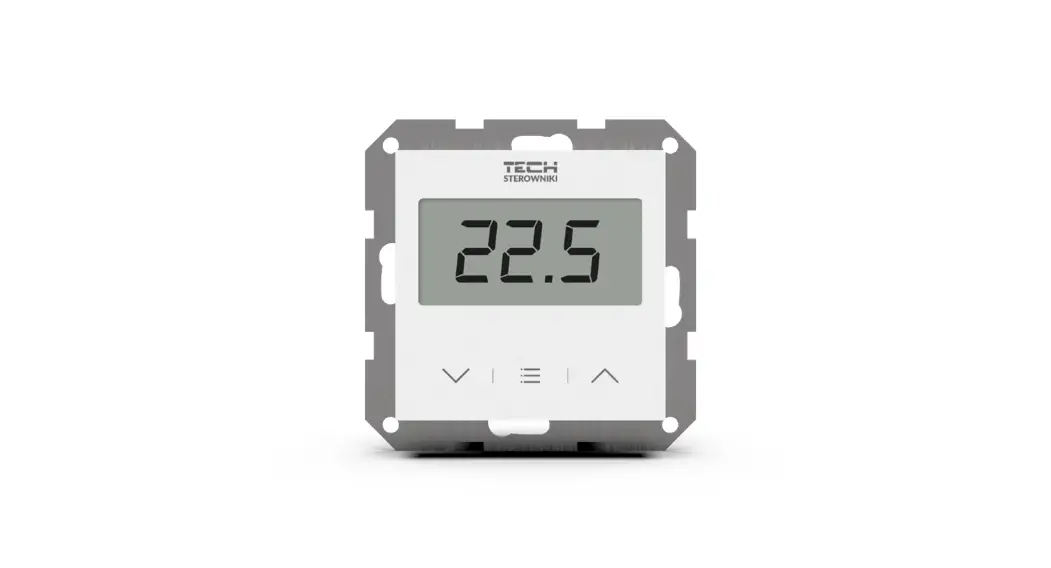
EU-292n v3 Two State with Traditional Communication
Product Information:
Product Name: EU-292n v3
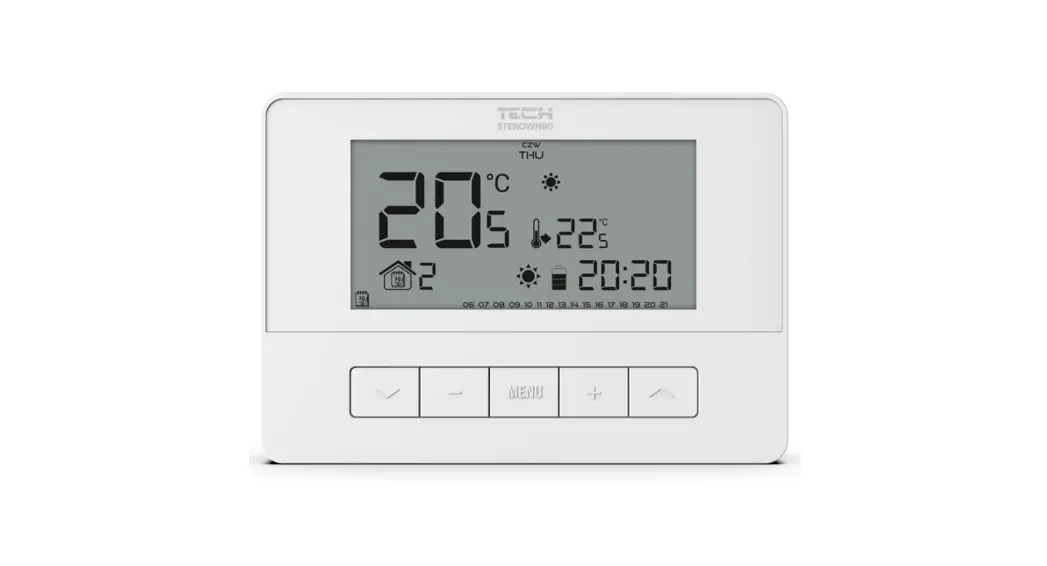
Product Type: Room Regulator
Description: The EU-292n v3 room regulator is
designed for controlling heating or cooling devices such as gas,
oil, or electric boilers or boiler controllers. Its main function
is to maintain the preset temperature in the room by sending a
signal to the heating/cooling device when the desired temperature
is reached. It offers advanced software that enables various
functions including maintaining the preset room temperature, manual
mode, day/night program, weekly control, and underfloor heating
system control (additional temperature sensor required).
Controller Equipment:
- Touch buttons
- Front panel made of 1mm glass
- Built-in temperature sensor
- Batteries
Display Versions:
- Standard (black text on white background)
- Negative (white text on black background)
Product Usage Instructions:
- Installation:
The device should be installed by a qualified electrician.
Follow the connection diagram provided in the user manual. Connect
the room regulator to the heating device using a two-core cable. If
connecting devices with a power greater than 1A, use a contactor.
Optionally, an additional sensor can be connected to the floor
sensor contact for additional functions. - First Start-Up:
Follow these steps for the first start-up of the EU-292n v3
controller:- Insert the batteries by removing the controller back
cover. - If the room regulator is controlling a floor heating system,
connect an additional sensor to the floor sensor connector. - Connect the regulator to the heating device using a two-core
cable.
- Insert the batteries by removing the controller back
- Controller Operation Modes:
The room regulator can operate in the following modes:
- Maintaining the preset room temperature
- Manual mode
- Day/Night program
- Weekly control
In order to access floor heating functions in the controller
menu, an additional sensor must be connected to the floor sensor
contact.
EU-292n User manual
EU-292n v3
1
TECH
TABLE OF CONTENTS
I. Safety ………………………………………………………………………………………………………………………………………………………. 3 II. Device description …………………………………………………………………………………………………………………………………….. 4 III. How to install the controller ……………………………………………………………………………………………………………………….. 5 IV. First start-up …………………………………………………………………………………………………………………………………………….. 6 V. How to use the controller …………………………………………………………………………………………………………………………… 6
1. Principle of operation …………………………………………………………………………………………………………………………….. 6 2. Operation modes…………………………………………………………………………………………………………………………………… 6 3. Main screen view and description……………………………………………………………………………………………………………. 8 4. Controller functions……………………………………………………………………………………………………………………………… 10
4.1. Block diagram – main menu …………………………………………………………………………………………………………… 11 4.2. Day of the week …………………………………………………………………………………………………………………………… 11 4.3. Clock settings ………………………………………………………………………………………………………………………………. 12 4.4. Day from… ………………………………………………………………………………………………………………………………….. 12 4.5. Night from… ……………………………………………………………………………………………………………………………….. 12 4.6. Button lock………………………………………………………………………………………………………………………………….. 12 4.7. Optimum start …………………………………………………………………………………………………………………………….. 12 4.8. Automatic manual mode ………………………………………………………………………………………………………………. 13 4.9. Weekly control…………………………………………………………………………………………………………………………….. 13 4.10. Pre-set comfort temperature ………………………………………………………………………………………………………… 15 4.11. Pre-set economical temperature……………………………………………………………………………………………………. 15 4.12. Pre-ser temperature hysteresis ……………………………………………………………………………………………………… 16 4.13. Temperature sensor calibration …………………………………………………………………………………………………….. 16 4.14. Floor sensor ………………………………………………………………………………………………………………………………… 16 4.15. Maximum floor temperature…………………………………………………………………………………………………………. 17 4.16. Minimum floor temperature …………………………………………………………………………………………………………. 17 4.17. Floor temperature hysteresis ………………………………………………………………………………………………………… 17 4.18. Service menu ………………………………………………………………………………………………………………………………. 17 VI. Technical data …………………………………………………………………………………………………………………………………………. 18
JG, 11.10.2022
2
EU-292n User manual
I. SAFETY
Before using the device for the first time the user should read the following regulations carefully. Not obeying the rules included in this manual may lead to personal injuries or controller damage. The user’s manual should be stored in a safe place for further reference. In order to avoid accidents and errors it should be ensured that every person using the device has familiarized themselves with the principle of operation as well as security functions of the controller. If the device is to be sold or put in a different place, make sure that the user’s manual is there with the device so that any potential user has access to essential information about the device. The manufacturer does not accept responsibility for any injuries or damage resulting from negligence; therefore, users are obliged to take the necessary safety measures listed in this manual to protect their lives and property.
WARNING A live electrical device! Make sure the regulator is disconnected from the mains before performing any
activities involving the power supply (plugging cables, installing the device etc.) The device should be installed by a qualified electrician. The device should not be operated by children.
WARNING The device may be damaged if struck by a lightning. Make sure the plug is disconnected from the power
supply during a thunderstorm. Any use other than specified by the manufacturer is forbidden. The device should be periodically checked.
Changes in the merchandise described in the manual may have been introduced subsequent to its completion on 11.10.2022. The manufacturer retains the right to introduce changes to the structure or colours. The illustrations may include additional equipment. Print technology may result in differences in the colours shown.
We are committed to protecting the environment. Manufacturing electronic devices imposes an obligation of providing for environmentally safe disposal of used electronic components and devices. Hence, we have been entered into a register kept by the Inspection for Environmental Protection. The crossed-out bin symbol on a product means that the product may not be disposed of to household waste containers. Recycling of waste helps to protect the environment. The user is obliged to transfer their used equipment to a collection point where all electric and electronic components will be recycled.
3
TECH
II. DEVICE DESCRIPTION
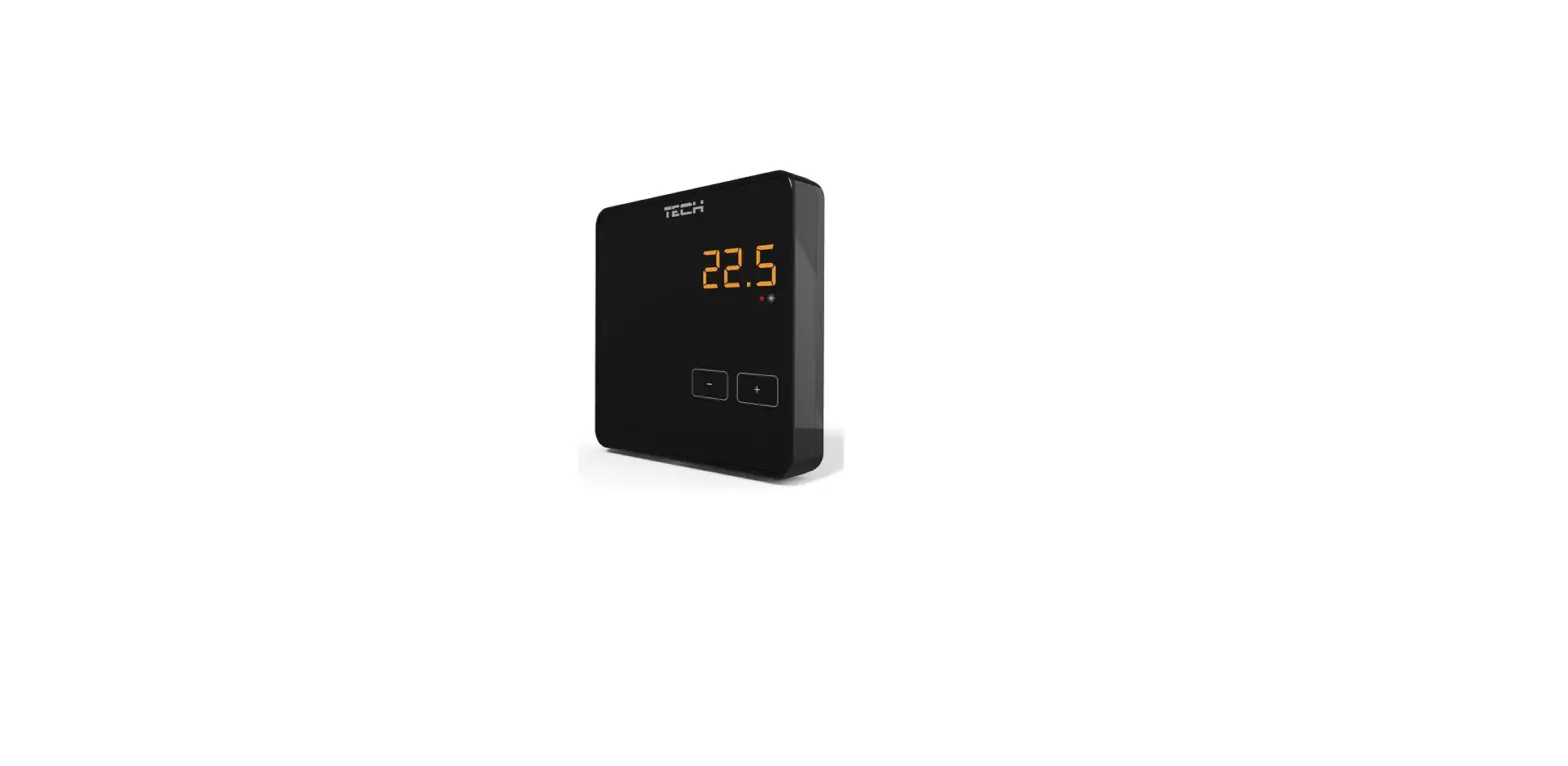
The EU-292n v3 room regulator is intended for controlling the heating or cooling device (e.g. gas, oil or electric boiler or the boiler controller).
Its main task is to maintain the pre-set temperature in the flat by sending a signal to the heating/cooling device (contact opening) when the desired temperature is reached.
Advanced software enables the regulator to fulfil a wide range of functions:
maintaining the pre-set room temperature manual mode day/night program weekly control underfloor heating system control (optional; an additional temperature sensor is necessary)
Controller equipment:
touch buttons front panel made of 1mm glass built-in temperature sensor batteries
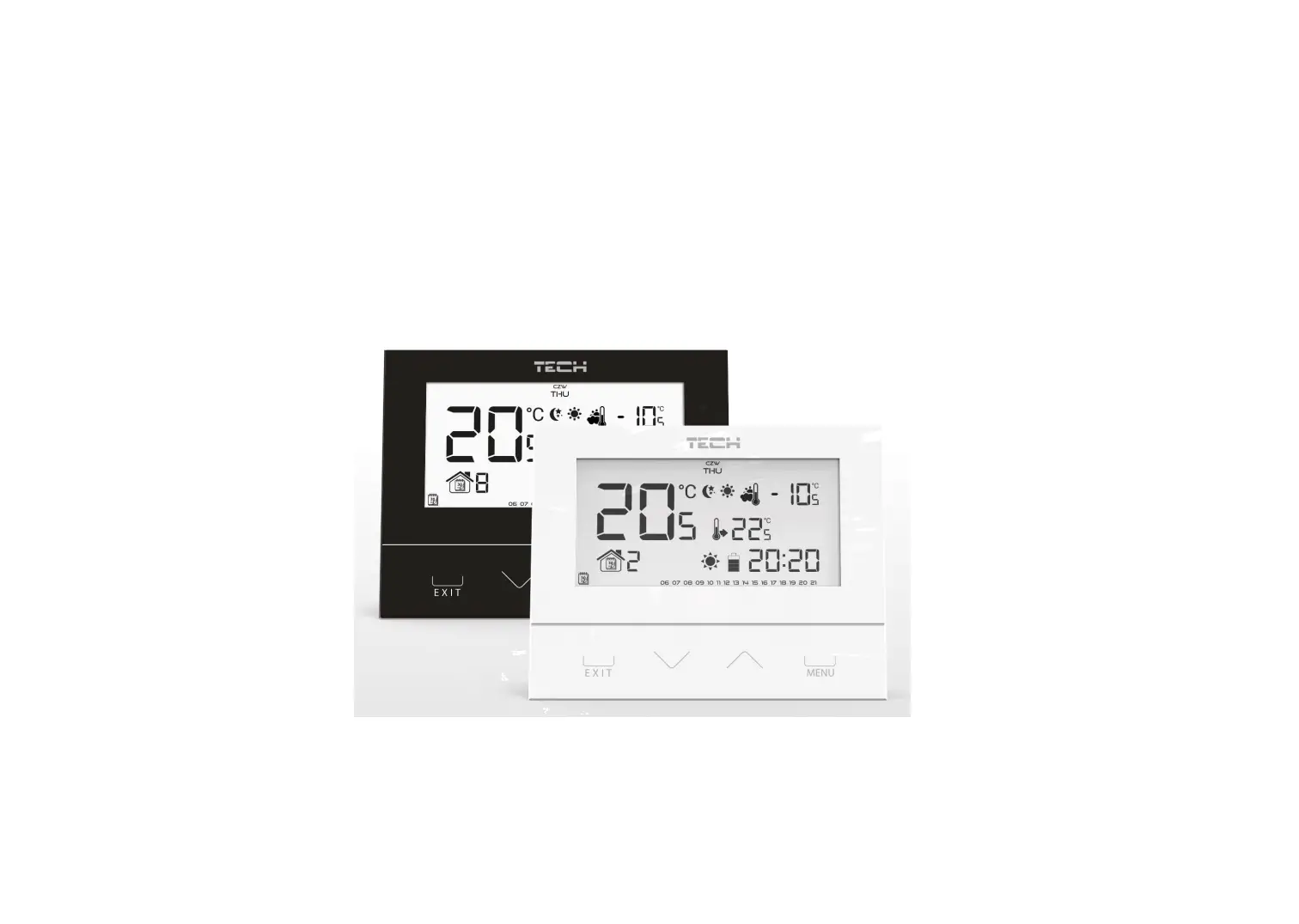
The EU-292n v3 room regulator offers two display versions:
standard (the data is displayed in black against white background) negative (the data is displayed in white against black background)
WHITE
Two colour versions available
BLACK
4
EU-292n User manual
III. HOW TO INSTALL THE CONTROLLER
NOTE The device should be installed by a qualified electrician.
The EU-292n v3 room regulator – connection diagram The room regulator should be connected with the heating device with the use of a two-core cable. When connecting devices with a power greater than 1A, it is necessary to use a contactor. Optionally, it is possible to connect an additional sensor to the floor sensor contact contact – additional functions will appear in the controller menu.
heating device
5
TECH
IV. FIRST START-UP
In order for the EU-292n v3 controller to operate correctly, follow these steps when starting the device for the first time: 1. Insert the batteries – in order to do it, remove the controller back cover. 2. If the room regulator is to control the floor heating system, connect an additional sensor to the floor sensor connector. 3. Connect the regulator with the heating device using a two-core cable.
V. HOW TO USE THE CONTROLLER
1. PRINCIPLE OF OPERATION The EU-292n v3 room regulator is designed to maintain the pre-set room temperature by sending a signal to the heating/cooling device (contact opening) when the pre- set room temperature has been reached. After receiving such a signal, the heating/cooling device is disabled (if it is connected to a CH boiler controller, the CH boiler switches to sustain mode after receiving the signal). If the regulator is used in heating mode, it may also cooperate with a floor sensor. In such a situation, the contact remains closed when the floor temperature is below the minimum threshold. After the threshold temperature has been exceeded, the contact remains closed until the pre-set room temperature is reached. If the floor sensor temperature exceeds the maximum value, the controller will open the contact regardless of the current room temperature.
NOTE In order for the floor heating functions to be available in the controller menu, an additional sensor must be connected to the floor sensor contact.
2. OPERATION MODES The room regulator may operate in one of the following operation modes:
Day/night mode In this mode the pre-set temperature value depends on the current time of the day. The user may set different temperature values for the daytime and nighttime (comfort temperature and economical temperature) as well as define the exact time of entering day mode and night mode. In order to activate this mode, press EXIT button until day/night mode icon appears on the main screen.
day/night mode icon
6
EU-292n User manual
Weekly control
This mode enables the user to define the time when the pre-set comfort temperature and the pre-set economical temperature will apply. The user may set 9 different programs divided into three groups:
– PROGRAMS 1÷3 daily temperature values are set for all days of the week; – PROGRAMS 4÷6 daily temperature values are set separately for the weekdays (Monday-Friday) and for the weekend (Saturday-Sunday); – PROGRAMS 7÷9 daily temperature values are set for each day of the week separately.
Weekly control icon
Number of the current weekly control program
Parameters of the current weekly control
program*
* The display shows the hours when the comfort temperature applies. In the remaining time period economical temperature applies.
In order to activate this mode, press EXIT until a weekly control icon appears on the main screen.
Manual mode
In this mode the pre-set temperature is adjusted manually from the main screen view with the use of these buttons: .Manual mode is activated automatically when one of these buttons is pressed. Once the manual mode is
activated, the previous operation mode enters sleep mode until the next pre-programmed temperature change. Manual mode may be deactivated by pressing EXIT button.
Example 1 manual mode activation in Day/night mode
When Day/night mode is active, the user changes the pre-set temperature by pressing one of the buttons which automatically activates manual mode. The controller returns to Day/night mode when daytime changes into nighttime (or the other way round) or when the user presses EXIT.
Weekly control icon
Manual mode icon
7
TECH
Example 2 manual mode activation in weekly control mode
When Weekly control is active, the user changes the pre-set temperature by pressing one of the buttons which automatically activates manual mode. The controller returns to weekly control mode when, according to the weekly schedule, economical temperature changes into comfort temperature (or the other way round) or when the user presses EXIT.
Manual mode icon
Day/night mode icon
3. MAIN SCREEN VIEW AND DESCRIPTION
The user operates the device using touch buttons. While one parameter is being edited, the remaining icons are not displayed.
1
2
3
5 4
1. Display
2. EXIT in the main screen view – press this button to activate the weekly control or day/night mode. In the
controller menu, use this button to confirm the settings and return to the main screen view.
3.
in the main screen view – press this button to switch to manual mode and decrease the pre-set temperature
value. In the controller menu, use this button to change parameter settings , enter the service code etc.
4.
in the main screen view – press this button to switch to manual mode and increase the pre-set temperature
value. In the controller menu, use this button to change parameter settings , enter the service code etc.
5. MENU hold this button to enter the controller menu. While editing parameters, press this button to confirm
the changes and move on to edit the next parameter.
8
EU-292n User manual
1 12
2
3
4
5
12
11
6
10
9
8
7
1. Day of the week 2. An icon informing about current economical temperature (resulting from weekly control or day/night mode
settings). 3. An icon informing about current comfort temperature (resulting from weekly control or day/night mode
settings). 4. An icon informing about displaying current floor temperature (point 6 on the display) – a floor sensor must be
and registered in the controller menu. 5. Floor temperature 6. Pre-set room temperature 7. Time 8. Buttery level 9. An icon informing about room cooling/heating. The animation differs depending on the selected operation
mode: Heating mode the icon flashes when the pre-set temperature has not been reached; it is steady when the
pre-set temperature has been reached. Cooling mode the icon rotates when the temperature is above the pre-set value; it is steady when the pre-
set temperature has been reached. 10. Current operation mode:
a. Weekly b. Manual c. Day/night 11. Current room temperature 12. Parameter icons (see: a table below)
9
Clock settings Day from… Night from… Optimum start Button lock Weekly control settings
Parameter icons:
Floor sensor
TECH
Comfort temperature
Economical temperature
Hysteresis
Temperature sensor calibration
4. CONTROLLER FUNCTIONS
The user navigates the menu structure using
, EXIT and MENU. In order to edit particular parameters, press
MENU. Next, press MENU to view the controller functions the edited parameter is flashing whereas the remaining
parameters are not displayed. Use
to change the parameter settings. Press MENU to confirm the changes and
move on to edit the next parameter or press and EXIT to confirm the changes and return to the main screen view.
10
EU-292n User manual
4.1.
BLOCK DIAGRAM – MAIN MENU
Menu
Day of the week Clock settings Day from… Night from… Button lock Optimum start
Automatic manual mode Weekly program
Pre-set comfort temperature Pre-set economical temperature Pre-set temperature hysteresis Temperature sensor calibration
Floor sensor
Maximum floor temperature*
Minimum floor temperature*
Heat/Cool
Floor temperature hysteresis
Edition min. pre-set temperature
Service menu
Edition max. pre-set temperature
Optimum Start calibration
Factory settings
*These functions are displayed only after the additional sensor has been connected to the floor sensor contact and activated in the controller menu by selecting ON in the Floor sensor submenu.
4.2.
DAY OF THE WEEK
After entering the main menu, all icons which are not connected with the parameter which is being edited are not displayed. The first parameter is day of the week. Press or until the current day of the week is displayed.
Press MENU to confirm and move on to the next parameter or press EXIT to confirm and return to the main screen view.
11
4.3.
CLOCK SETTINGS
In order to set current time, press MENU until time setting panel is displayed on the screen. By pressing or set the hour and minutes.
Press MENU to confirm and move on to the next parameter or press EXIT to confirm and return to the main screen view.
TECH
4.4.
DAY FROM…
This function enables the user to define the exact time of entering the day mode. When Day/night mode is active, comfort temperature applies at daytime. To configure this parameter press MENU until Day from… setting appears on the screen. By pressing or set the hour and minute of day mode activation.
Press MENU to confirm and move on to the next parameter or EXIT to confirm and return to the main screen view.
4.5.
NIGHT FROM…
This function enables the user to define the exact time of entering the night mode. When Day/night mode is active, economical temperature applies at nighttime.To configure this parameter press MENU until Night from… setting appears on the screen. By pressing or set the hour and minute of night mode activation.
Press MENU to confirm and move on to the next parameter or press EXIT to confirm and return to the main screen view.
4.6.
BUTTON LOCK
In order to activate the button lock, press MENU until a padlock icon
appears. Use one of the buttons or to select ON. In order to unlock
the buttons, press and hold the buttons
at the same time, select the
button lock function and select OFF.
4.7.
OPTIMUM START
Optimum start is an intelligent system controlling the heating/cooling process. It involves constant monitoring of the heating/cooling system efficiency and using the information to activate the heating/cooling in advance in order to reach the pre-set temperatures.
12
EU-292n User manual
Room temperature OPTIMUM START OFF
Room temperature OPTIMUM START ON
A pre-programmed change from economical temperature to comfort temperature
Activating this function means that at the time of pre-programmed change of the pre-set temperature determined by the schedule, the current room temperature will be close to the desired value.
In order to activate this function, press MENU until Optimum start settings
appear. Use the buttons
to activate/deactivate the function.
Press MENU to confirm and move on to the next parameter or press EXIT to confirm and return to the main screen view.
4.8.
AUTOMATIC MANUAL MODE
This function enables manual mode control. If this function is active (ON), the manual mode is disabled automatically when a pre-programmed change resulting from the previous operation mode is introduced. If the function is disabled (OFF), the manual mode remains active regardless of the pre-programmed changes.
4.9.
WEEKLY CONTROL
This function is used to change the current weekly control program and edit the weekly programs.
HOW TO CHANGE WEEKLY PROGRAM NUMBER
When weekly control is enabled (see: VII.2. Operation modes) the current program is activated. In order to choose the program number, press MENU until weekly program settings appear on the screen.
By pressing and holding MENU button the user opens up the program selection screen. Each time the user holds the MENU button, the program number changes. When the desired number appears on the screen, press MENU the controller returns to the main screen view and the selected program number is set.
weekly program number
13
HOW TO CONFIGURE PARTICULAR WEEKLY PROGRAMS
Weekly program allows the user to define the time when comfort temperature and economical temperature will apply. Depending on the program number, the user may set daily temperature values for all days of the week (programs 1÷3), for weekdays and the weekend separately (programs 4÷6) and for each day of the week separately (programs 7÷9).
In order to edit weekly program, press MENU until weekly program setting screen opens up.
TECH
STEP 1 CHOOSE THE PROGRAM TO BE EDITED
By pressing and holding MENU button the user opens up the program editing screen. Each time the user holds the MENU button, the program number changes. When the desired number appears on the screen, the user may start editing its parameters.
weekly program number
STEP 2 SELECT DAYS OF THE WEEK If the user wants to edit programs 1÷3, there is no possibility of selecting particular days of the week as the setting applies to each day. If the user wants to edit programs 4÷6 , it is possible to edit the settings for weekdays and the weekend separately. Press MENU briefly in order to select.
Editing weekdays parameters
If the user wants to edit programs 7÷9, it is possible to edit the settings for each day separately. Press MENU briefly in order to select a day.
Editing parameters for Monday
14
EU-292n User manual
STEP 3 ASSIGN COMFORT TEMPERATURE OR ECONOMICAL TEMPERATURE TO PARTICULAR HOURS
An hour which is being edited is displayed on the controller screen. In order to assign comfort temperature, press . In order to select economical temperature, press . The controller automatically moves on to editing the next hour.
Edited hour
The parameters of the weekly program are displayed at the bottom of the screen: hours to which comfort temperature has been assigned are displayed whereas hours to which economical temperature has been assigned are not displayed. Example: The following screenshot presents daily settings of program no. 7 for Monday
00-00- economical temperature 01-08- comfort temperature 09-14- economical temperature 15-21- comfort temperature 22-23- economical temperature
NOTE
When the user finishes the editing process by pressing EXIT button, the controller returns to the main screen view and this program is selected as the current program.
4.10.
PRE-SET COMFORT TEMPERATURE
Pre-set comfort temperature is used in weekly control mode and day/night mode. Press MENU button until the comfort temperature
change screen opens up. Press or
to set the desired
temperature.
Press MENU to confirm and move on to the next parameter or press EXIT to confirm and return to the main screen view.
4.11.
PRE-SET ECONOMICAL TEMPERATURE
Pre-set economical temperature is used in weekly control mode and
day/night mode. Press MENU button until the economical temperature
change screen opens up. Press or
to set the desired
temperature.
Press MENU to confirm and move on to the next parameter or press EXIT to confirm and return to the main screen view.
15
TECH
4.12.
PRE-SER TEMPERATURE HYSTERESIS
Room temperature hysteresis defines the pre-set temperature tolerance in order to prevent undesired oscillation in case of small temperature fluctuation (within the range of 0,2 ÷ 4°C).
In order to set the hysteresis, press MENU until the hysteresis setting screen opens up. Use or to set the desired hysteresis value.
Press MENU to confirm and move on to the next parameter or press EXIT to confirm and return to the main screen view.
Example:
Pre-set temperature : 23°C Hysteresis : 1°C
The room regulator reports that the temperature is too low only when the room temperature drops to 22 °C.
4.13.
TEMPERATURE SENSOR CALIBRATION
Calibration should be performed while mounting or after the regulator
has been used for a long time, if the room temperature measured by the
internal sensor differs from the actual temperature. Calibration setting
range is from -10 to +10 C with the accuracy of 0,1C. To calibrate the
built-in sensor, press the MENU button until the temperature sensor
calibration screen appears. Use the buttons
to set the desired
correction.
To confirm, press the MENU button (confirm and go on to edit the next parameter) or press EXIT to confirm and return to the main screen view.
4.14.
FLOOR SENSOR
Use one of the buttons
to enable the floor sensor (ON) or
disable it (OFF). To confirm, press the MENU button (confirm and go on
to edit the next parameter) or press EXIT to confirm and return to the
main screen view.
NOTE
It is necessary to set this function to ON in order for the following parameters to be available in the controller menu: maximum floor temperature, floor sensor hysteresis, minimum floor temperature.
16
EU-292n User manual
4.15.
MAXIMUM FLOOR TEMPERATURE
In order to set the maximum floor temperature, enable floor heating and press MENU until the maximum floor temperature screen opens up. Next, use or to set the maximum temperature.
To confirm, press the MENU button (confirm and go on to edit the next parameter) or press EXIT to confirm and return to the main screen view.
4.16.
MINIMUM FLOOR TEMPERATURE
In order to set the minimum floor temperature, enable floor heating and press MENU until the minimum floor temperature screen opens up. Next, use or to set the minimum temperature.
To confirm, press the MENU button (confirm and go on to edit the next parameter) or press EXIT to confirm and return to the main screen view.
4.17.
FLOOR TEMPERATURE HYSTERESIS
Floor temperature hysteresis defines the pre-set temperature tolerance in order to prevent undesired oscillation in case of small temperature fluctuation within the range of 0,2 ÷ 4°C. In order to set the hysteresis, press MENU until the hysteresis screen opens up. Next, use or to set the hysteresis. To confirm, press the MENU button (confirm and go on to edit the next parameter) or press EXIT to confirm and return to the main screen view.
Example:
Pre-set temperature: 23°C Hysteresis: 1°C The room regulator reports that the temperature is too low only when the room temperature drops to 22 °C.
4.18.
SERVICE MENU
Certain controller functions are secured with a code. They can be found
in the service menu. In order to introduce changes in the service menu
settings, press MENU until Service menu settings screen opens up.
Next, use the buttons
to enter the code – 215. Select the first
digit – 2 and confirm by holding the Menu button until the next digit
starts flashing. Follow in the same way with the remaining digits of the
code. Press MENU to confirm.
17
HEAT/ COOL mode
This function enables the user to select the operation mode of the room regulator: COOL – controlling a cooling system HEAT – controlling a heating system
TECH
Use the buttons
to select the type of system to be controlled. To confirm, press the MENU button (confirm and
go on to edit the next parameter) or press EXIT to confirm and return to the main screen view.
NOTE
Cooling mode mustn’t be selected in the case of using a floor sensor – it may lead to underfloor system damage.
How to edit the minimum (T1) and maximum (T2) pre-set temperature
This function enables the user to set the minimum (T1) and the maximum (T2) pre-set room temperature. Select this
option – the parameter starts flashing. Use the buttons
to set the temperature. To confirm, press the MENU
button (confirm and go on to edit the next parameter) or press EXIT to confirm and return to the main screen view.
Optimum start calibration Optimum start calibration starts when the controller detects the heating need in order to reach the pre-set temperature, with the Optimum start function turned on.
DEF factory settings
This function enables the user to restore factory settings. In order to do it, select Def function and press MENU to confirm.
Next, use the buttons
to select YES and confirm by pressing MENU.
VI. TECHNICAL DATA
Power supply Range of room temperature setting Potential-free cont. nom. out. load
EU-292n v3
Accuracy of measurement * AC1 load category: single-phase, resistive or slightly inductive AC load. ** DC1 load category: direct current, resistive or slightly inductive load.
2xAA, 1,5V batteries
5oC ÷ 35oC 230V AC / 0,5A (AC1) * 24V DC / 0,5A (DC1) **
+/- 0,5oC
The pictures and diagrams are for illustration purposes only. The manufacturer reserves the right to introduce some hanges.
18
EU-292n User manual
Declaration of conformity
Hereby, we declare under our sole responsibility that EU-292n v3 manufactured by TECH STEROWNIKI, head-quartered in Wieprz Biala Droga 31, 34-122 Wieprz, is compliant with Directive 2014/35/EU of the European Parliament and of the Council of 26 February 2014 on the harmonisation of the laws of Member States relating to the making available on the market of electrical equipment designed for use within certain voltage limits (EU OJ L 96, of 29.03.2014, p. 357), Directive 2014/30/EU of the European Parliament and of the Council of 26 February 2014 on the harmonisation of the laws of Member States relating to electromagnetic compatibility (EU OJ L 96 of 29.03.2014, p.79), Directive 2009/125/EC establishing a framework for the setting of ecodesign requirements for energy-related products as well as the regulation by the MINISTRY OF ENTREPRENEURSHIP AND TECHNOLOGY of 24 June 2019 amending the regulation concerning the essential requirements as regards the restriction of the use of certain hazardous substances in electrical and electronic equipment, implementing provisions of Directive (EU) 2017/2102 of the European Parliament and of the Council of 15 November 2017 amending Directive 2011/65/EU on the restriction of the use of certain hazardous substances in electrical and electronic equipment (OJ L 305, 21.11.2017, p. 8). For compliance assessment, harmonized standards were used: PN-EN IEC 60730-2-9:2019-06, PN-EN 60730-1:2016-10.
Wieprz, 11.10.2022
19
TECH
20