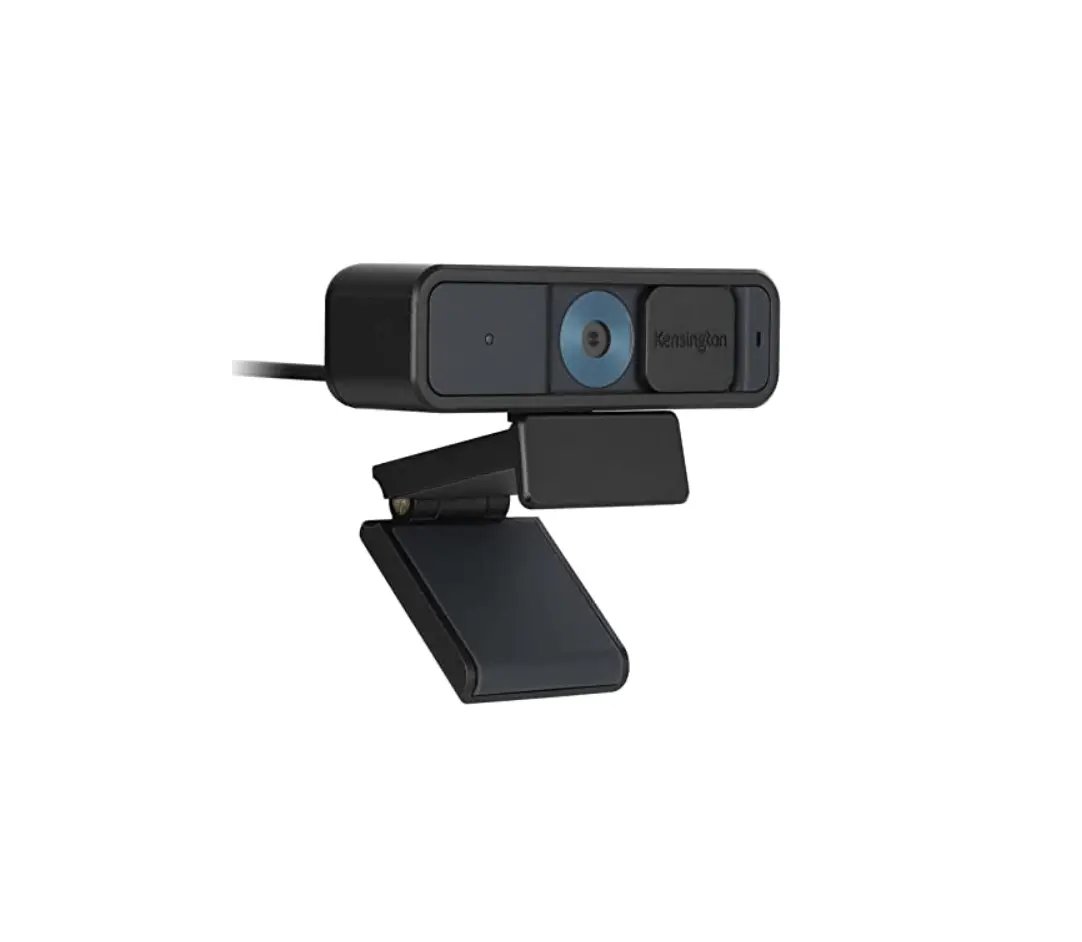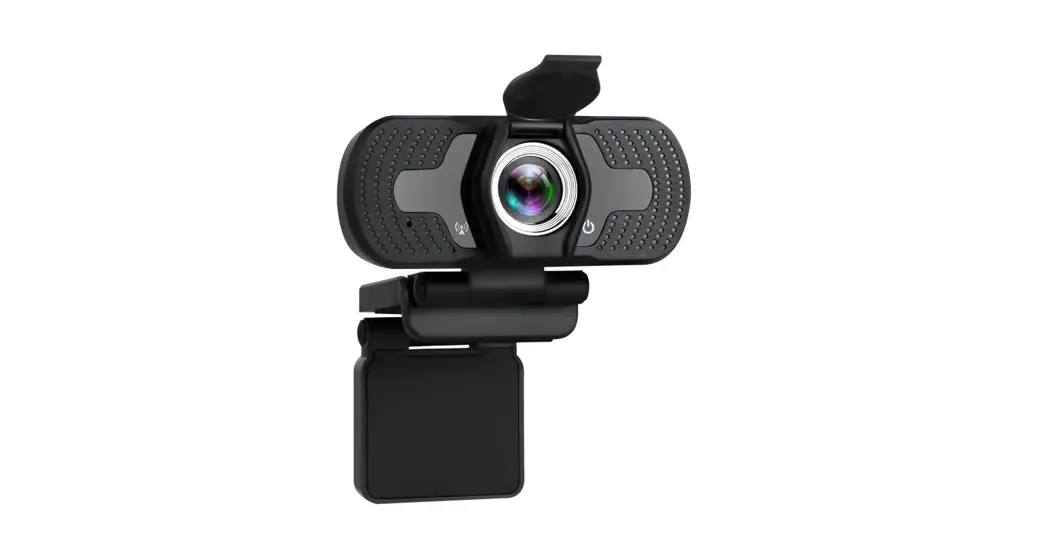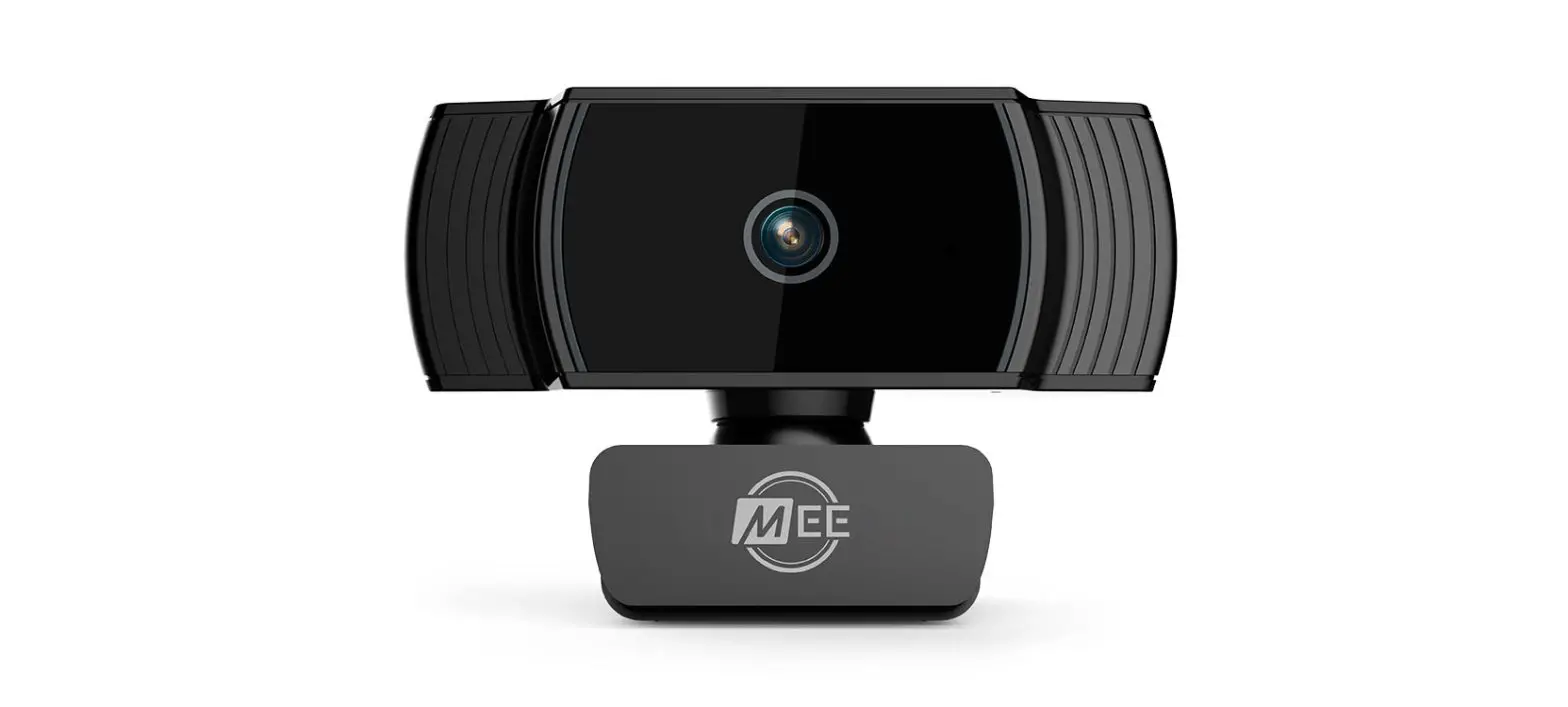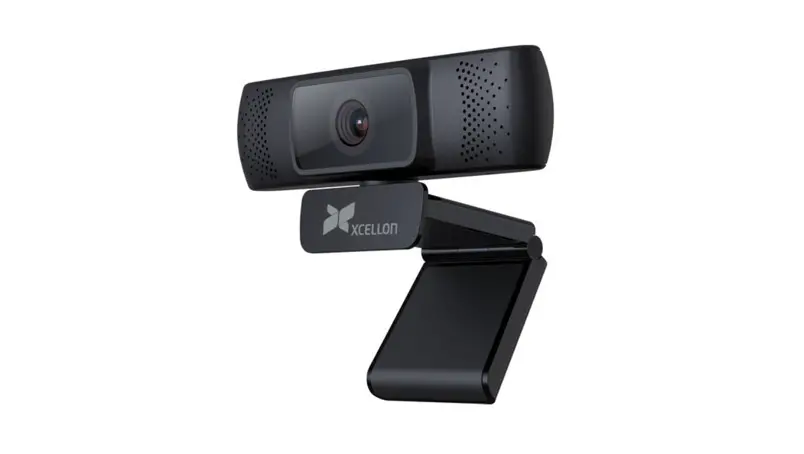

HDWC-WA10
HD WE
1080P 3CAv
A/ide Angle Full HD A/ebcorli with Autofocus
User Manual
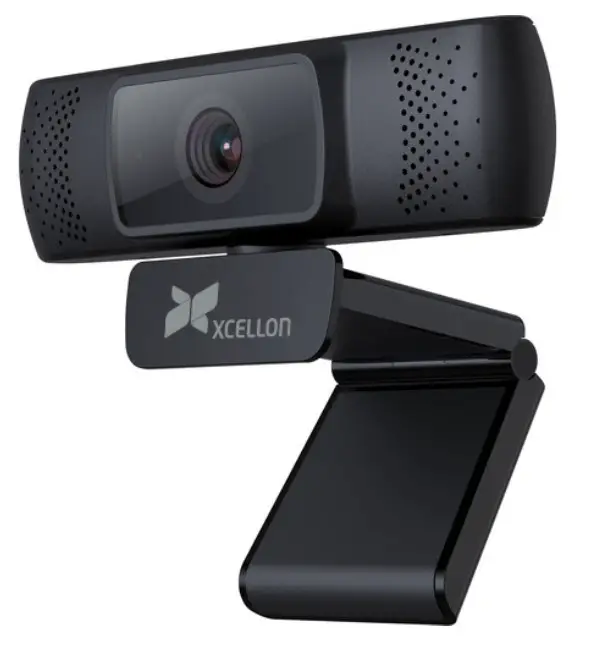
Thank you for choosing Xcellon.
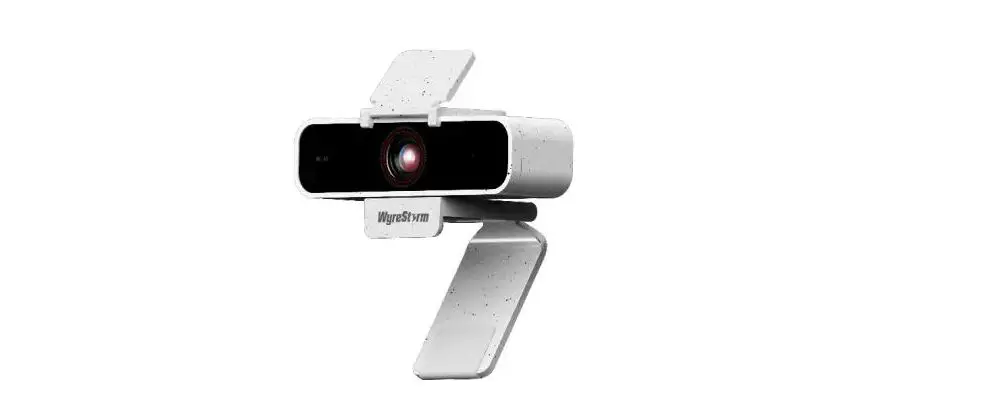
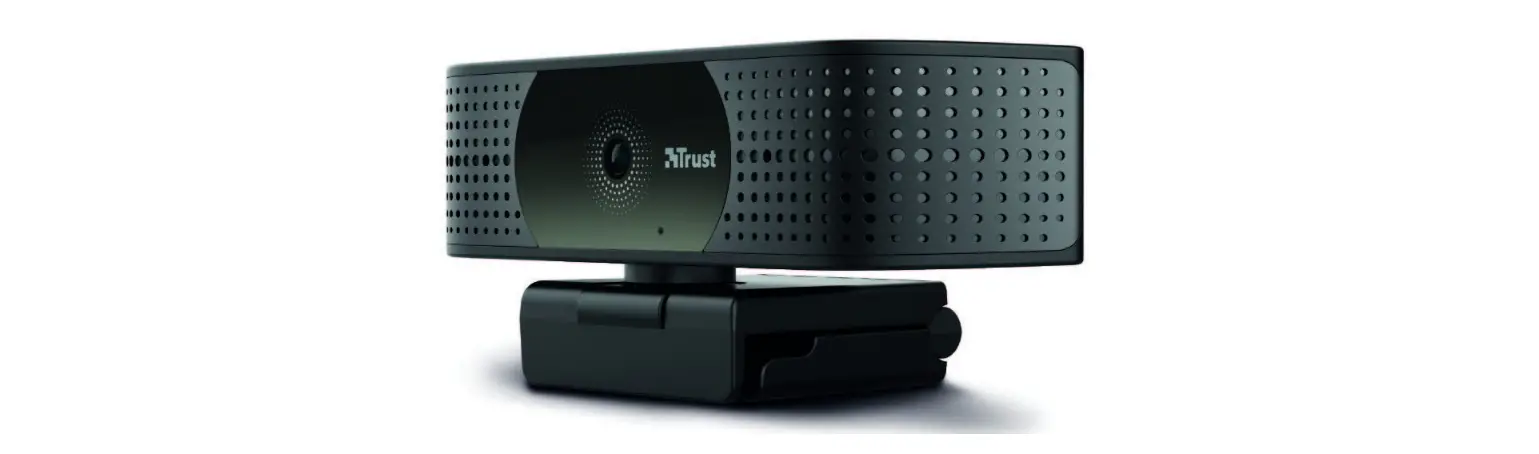
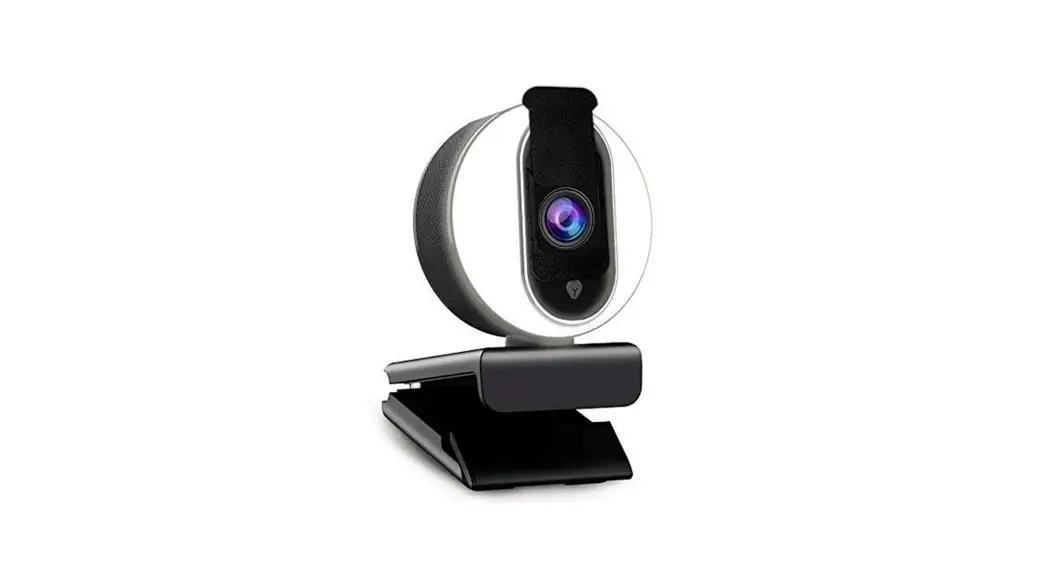
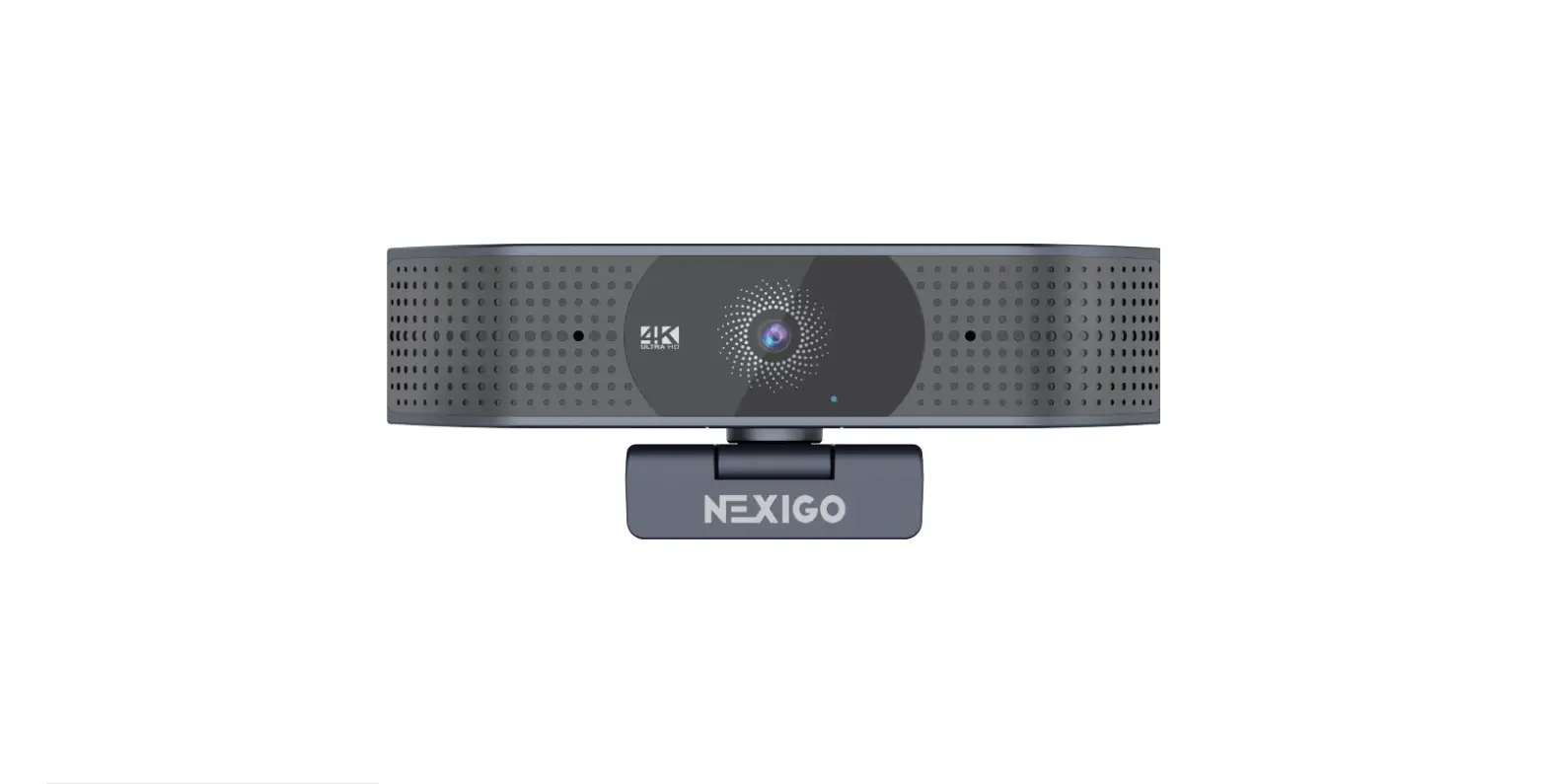
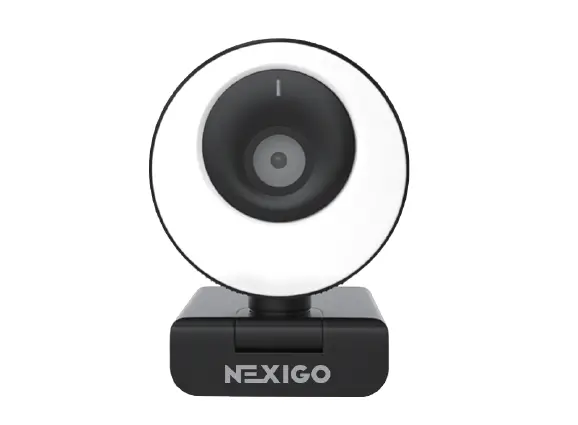
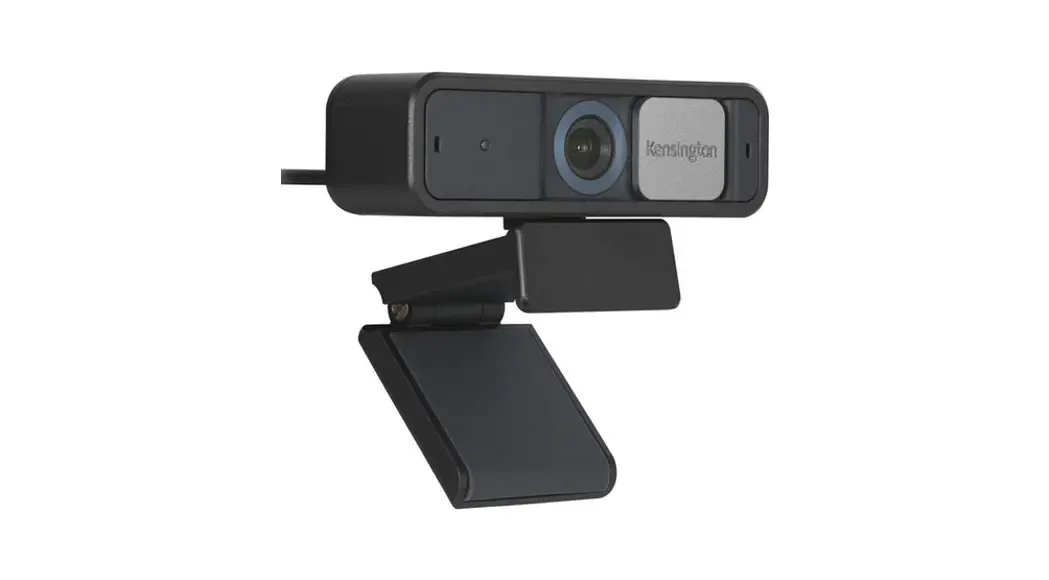
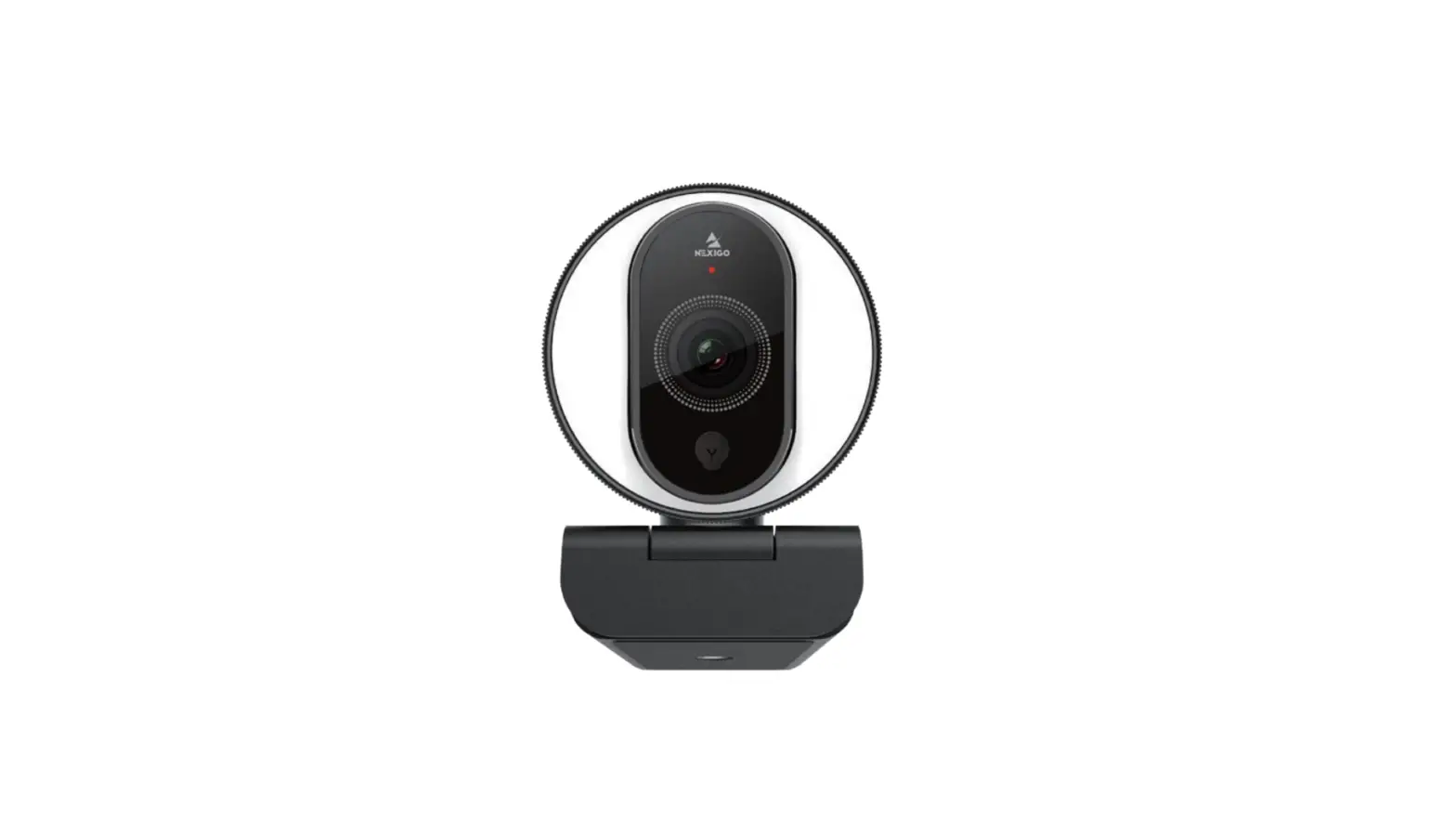
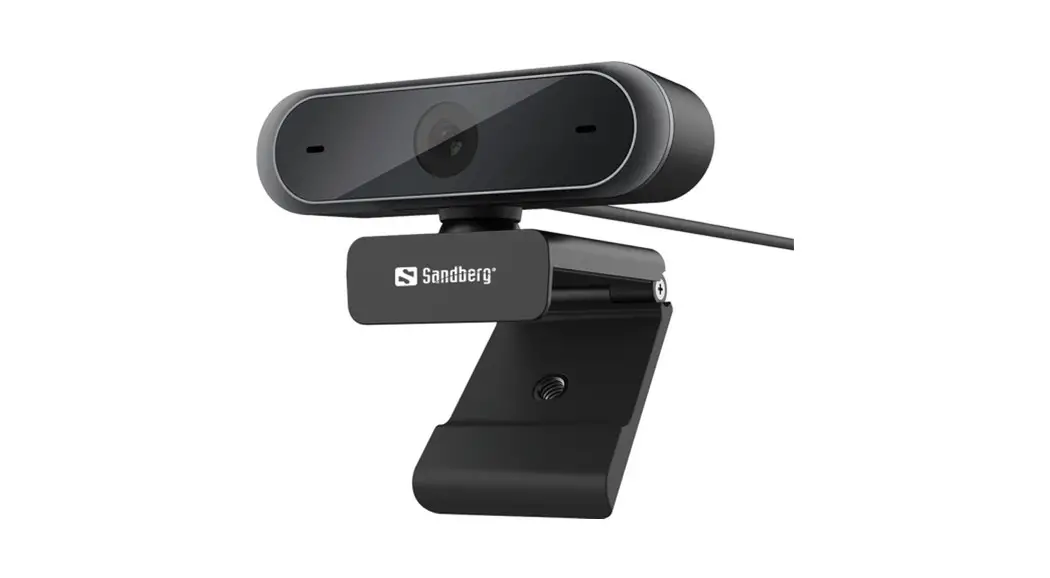
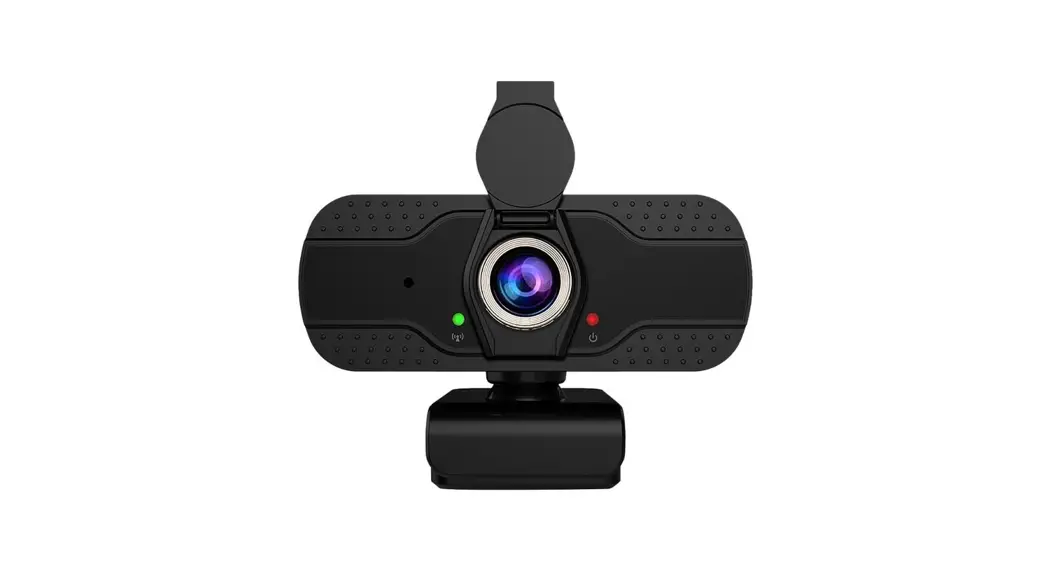
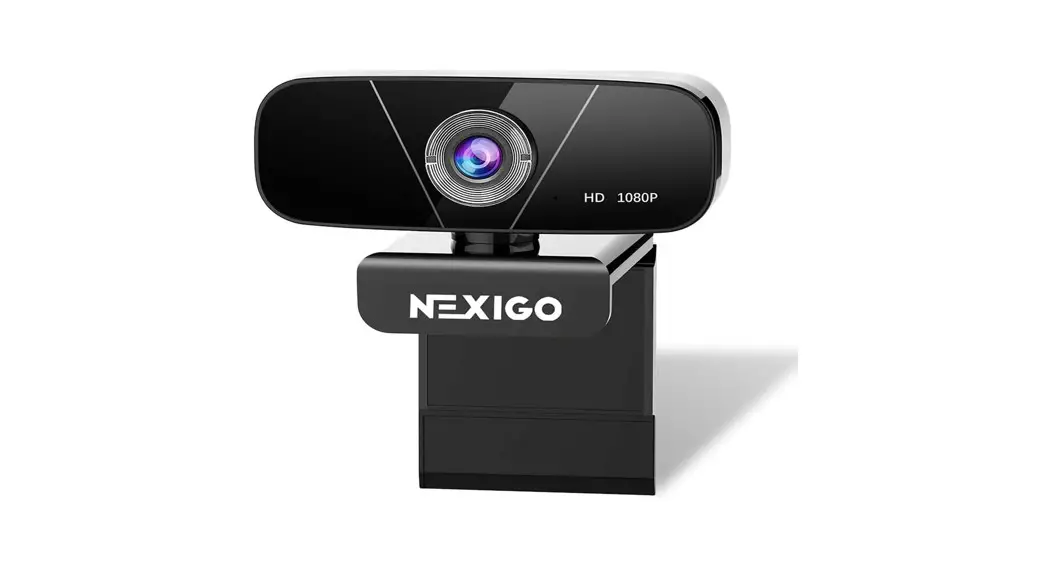
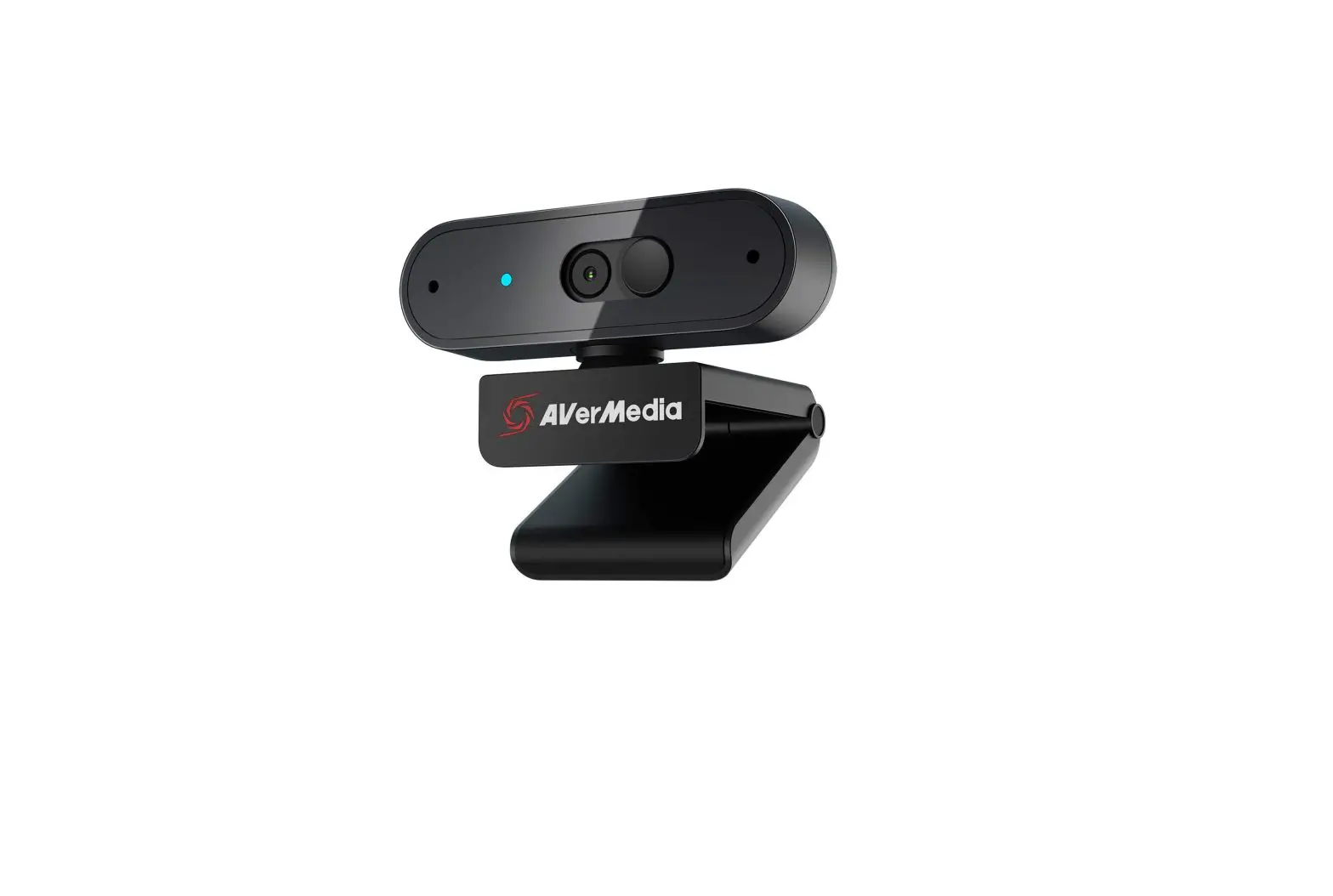
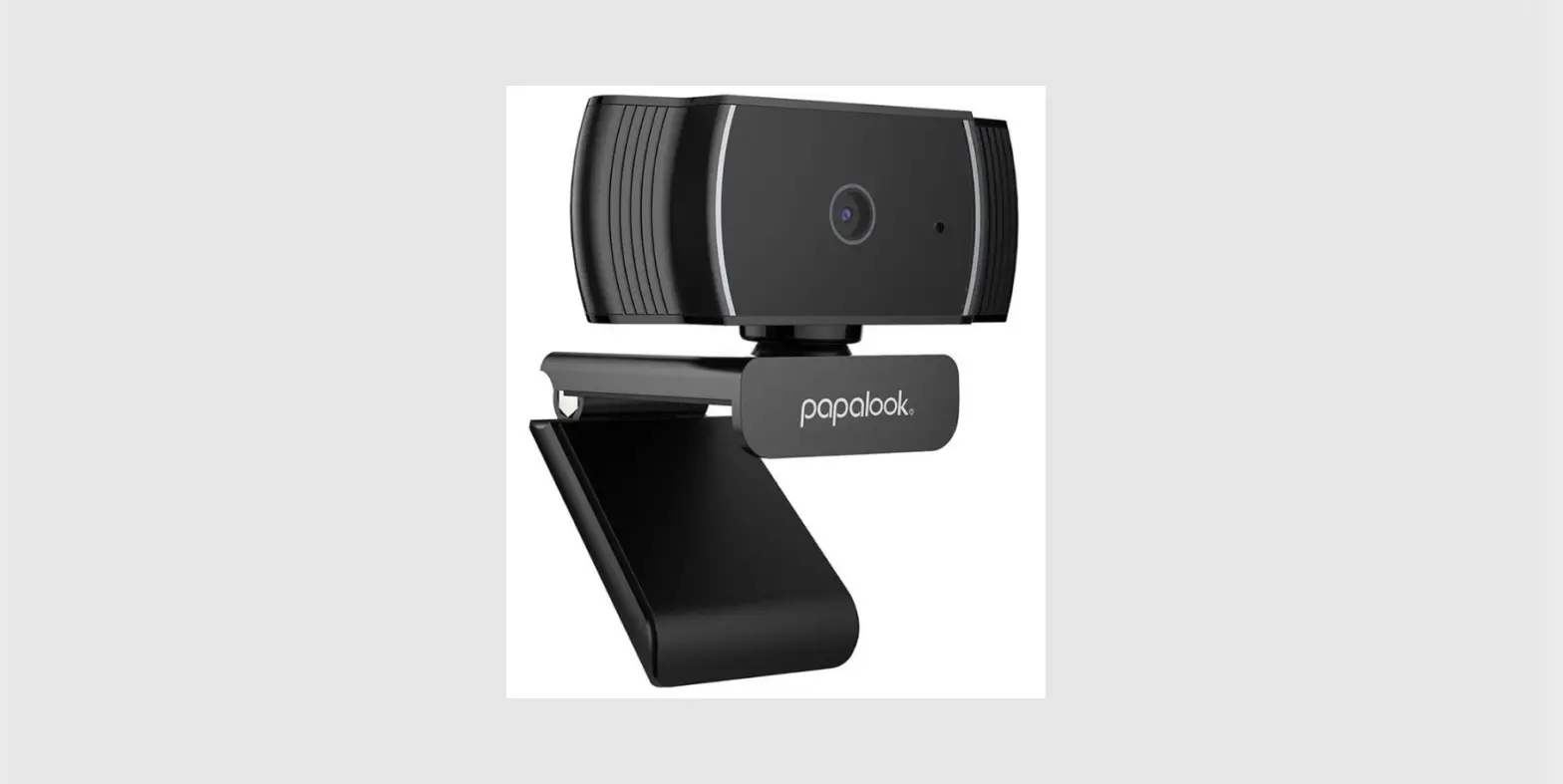
The HDWC-WA10 is a compact and powerful webcam that delivers full HD 1080p resolution at 30 fps to your computer for live video streams, video chats, and photos.
This webcam features automatic low-light correction for dimly lit locations, and a wide-angle field of view that’s perfect for conferences or multi-person conversations. The webcam’s 2-megapixel sensor captures images with accurate detail. The internal omnidirectional microphone will capture audio accurately, even if you’re not directly in front of the camera.
This webcam comes with options for mounting on a monitor or laptop, tabletop, or tabletop tripod. Aiming and leveling the camera is made easy with the integrated ball head that lets you turn and swivel the camera without removing it from where it’s mounted.
Precautions
>> Please read and follow these instructions, and keep this manual in a safe place.
>> Make sure that this product is intact and that there are no missing parts.
>> Keep this unit away from water and any flammable gases or liquids.
>> Clean the unit with only a soft, dry cloth.
>> All images are for illustrative purposes only.
Overview
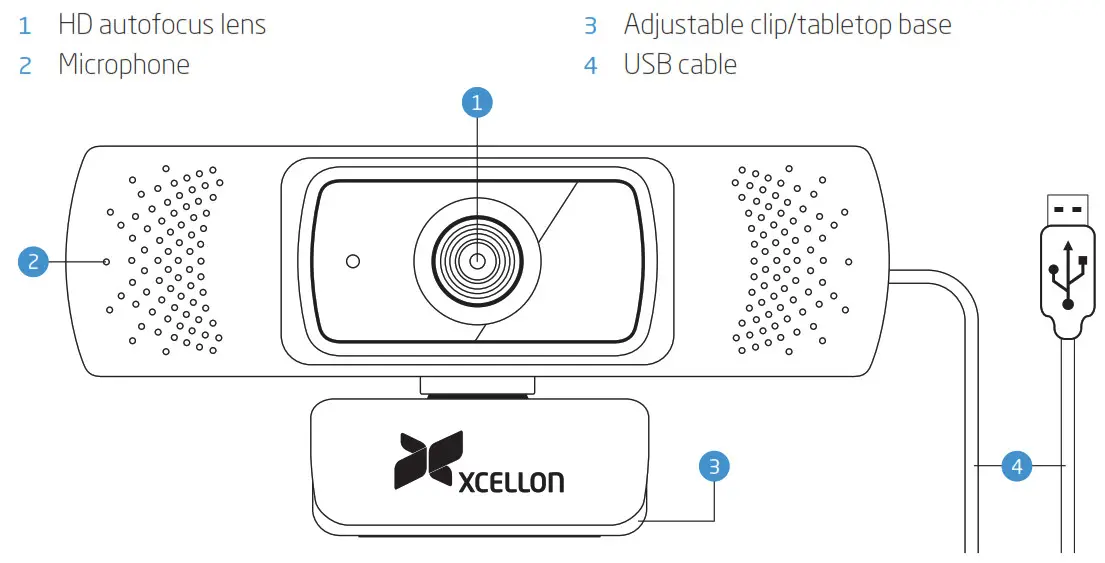
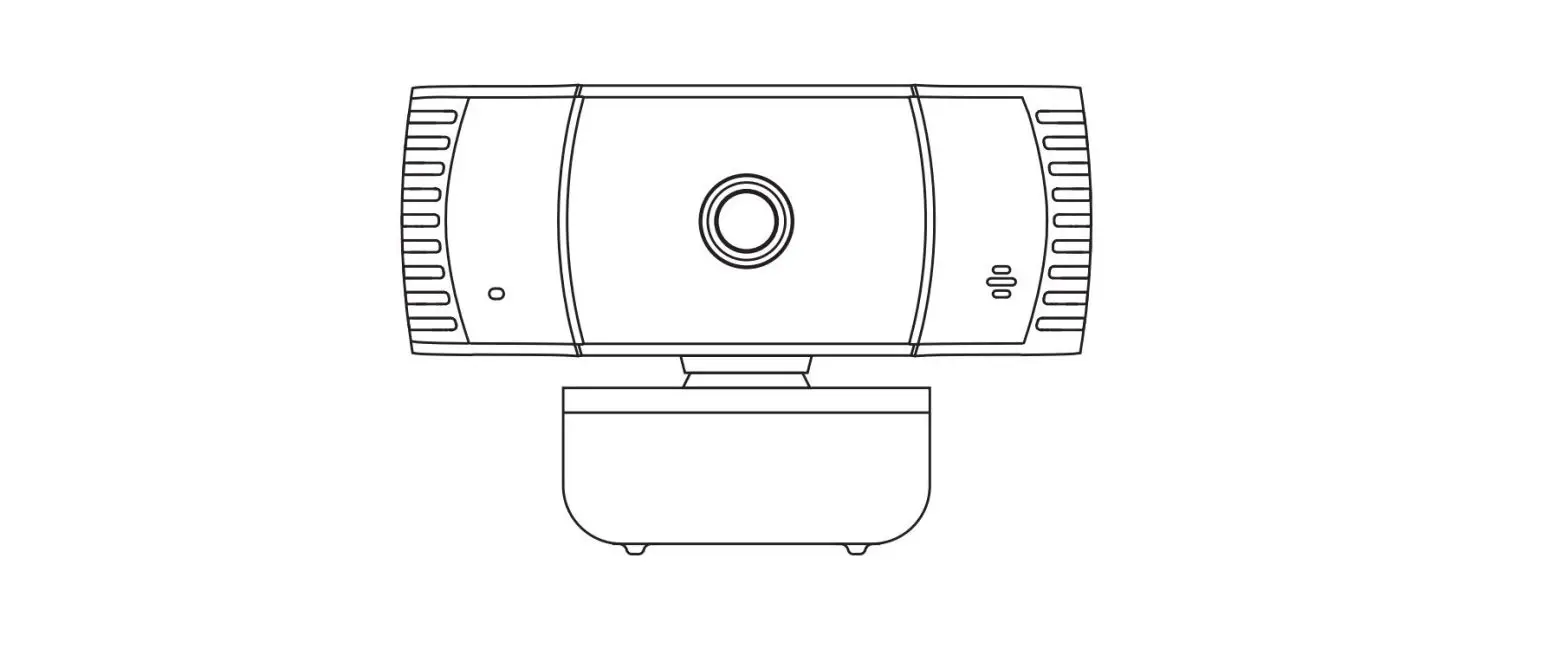
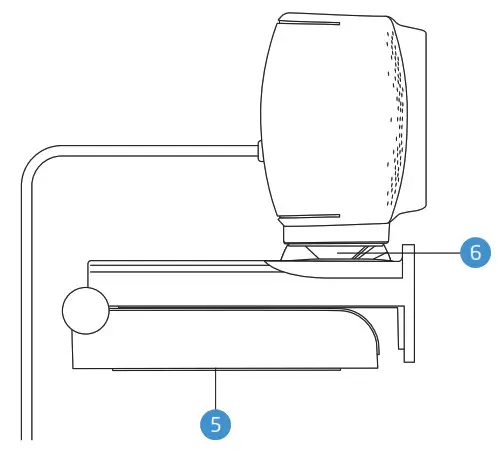
5 1/4-20 tripod socket
6 Ballhead
System Requirements
Minimum Requirements
• 1 GHz Intel® CoreTm2 Duo or more
• 512 MB RAM
• 200 MB free HD space
Recommended System Requirements for Video Recording
• 3.0 GHz Intel® CoreTm2 Duo
• 2 GB RAM
Setting Up the Webcam
Monitor/Laptop Mounting
Unfold the clip so it fits over the top of your monitor or laptop screen.
For a secure fit, adjust the clip by pressing it against the back of your device.
Desktop Use
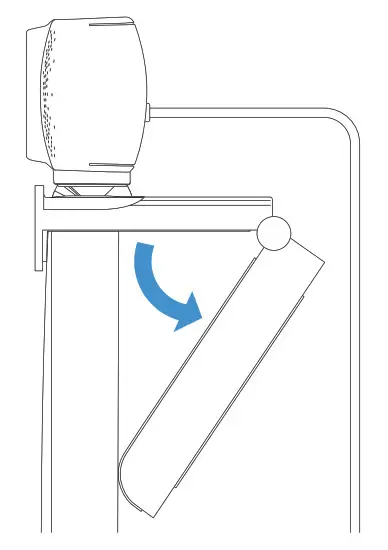
Fold in the clip so it forms a flat surface, and place it on a desk or tabletop.
Tripod Mounting
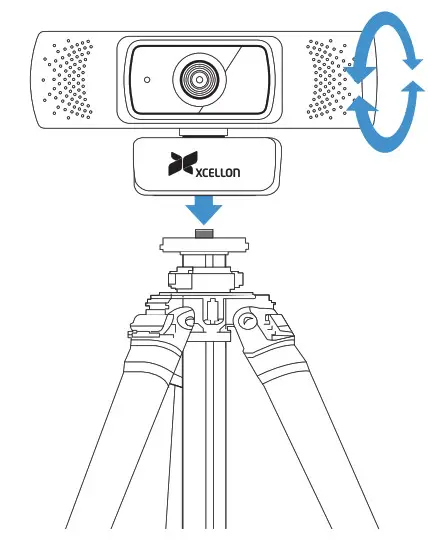
With the clip folded in, use the integrated socket to screw the webcam onto a tripod with a 1/4-20 stud.
Aiming the Webcam
The webcam features a ball head at the base of the camera. Once the webcam is mounted, swivel or turn the camera to aim it and level the image.
Connecting to a Computer
Plug the USB connector into an available port on your computer. Plug-and-play support will let your computer instantly recognize the webcam. If your computer does not instantly recognize the webcam:
- Try plugging the webcam into a different USB port.
- If the computer still doesn’t recognize the webcam, restart the computer.
Open the app you want to use with your webcam.
! Note! You may need to select the webcam and the built-in microphone in the settings of the specific app you’re using.
Specifications
| Sensor | |
| Resolution | 640 x 480, 1280 x 720, 1920 x 1080 |
| Frame Rate | 30 fps |
| Sensor | 2 MP CMOS (1/2.7 in.) |
| Field of View | 84° Diagonal: 92° Vertical: 52° Horizontal: 84.4° |
| General | |
| Focus Type | Auto |
| Focus Range | 2.8 in. (7 cm) to co |
| Host Connection | USB Standard-A (USB 2.0) |
| Power Source | Bus-powered |
| Low-Light Correction | Yes |
| Automatic Whiteness Balance | Yes |
| Cable Length | 6.6 ft. (2 m) |
| Supported Operating Systems | Windows XP or later macOS 10.7 or later Android 5.0 or later ChromeOS Linux |
Specifications
| Microphone | |
| Microphone | Yes |
| Signal to Noise Ratio | >48dB |
| Voice pick up range | 9.8 to 16.4 ft. (3 to 5 m) |
| Physical | |
| Lens Material | Glass |
| Attachment Method | Clip, Tripod |
| Housing Material | Plastic |
| Weight | 4.5 oz. (127g) |
One-Year Limited Warranty
This Xcellon product is warranted to the original purchaser to be free from defects in materials and workmanship under normal consumer use for a period of one (1) year from the original purchase date or thirty (30) days after replacement, whichever occurs later. The warranty provider’s responsibility with respect to this limited warranty shall be limited solely to repair or replacement, at the provider’s discretion, of any product that fails during normal use of this product in its intended manner and in its intended environment. The Inoperability of the product or part(s) shall be determined by the warranty provider. If the product has been discontinued, the warranty provider reserves the right to replace it with a model of equivalent quality and function.
This warranty does not cover damage or defect caused by misuse, neglect, accident, alteration, abuse, improper installation, or maintenance. EXCEPT AS PROVIDED HEREIN, THE WARRANTY PROVIDER MAKES NEITHER ANY EXPRESS WARRANTIES NOR ANY IMPLIED WARRANTIES, INCLUDING BUT NOT LIMITED TO ANY IMPLIED WARRANTY OF MERCHANTABILITY OR FITNESS FOR A PARTICULAR PURPOSE. This warranty provides you with specific legal rights, and you may also have additional rights that vary from state to state.
To obtain warranty coverage, contact the Xcellon Customer Service Department to obtain a return merchandise authorization (“RMA”) number, and return the defective product to Xcellon along with the RMA number and proof of purchase. Shipment of the defective product is at the purchaser’s own risk and expense.
For more information or to arrange service, visit www.xcellongear.com or call Customer Service at 212-594-2353. Product warranty provided by the Gradus Group. www.gradusgroup.com
Xcellon is a registered trademark of the Gradus Group. © 2020 Gradus Group LLC. All Rights Reserved.

 Gradus | Gradus Group
 Xcellon | Computer Mice & Keyboards, Speakers, Hubs, Display Adapters, Cooling Pads, Hard Drive Cases and Accessories