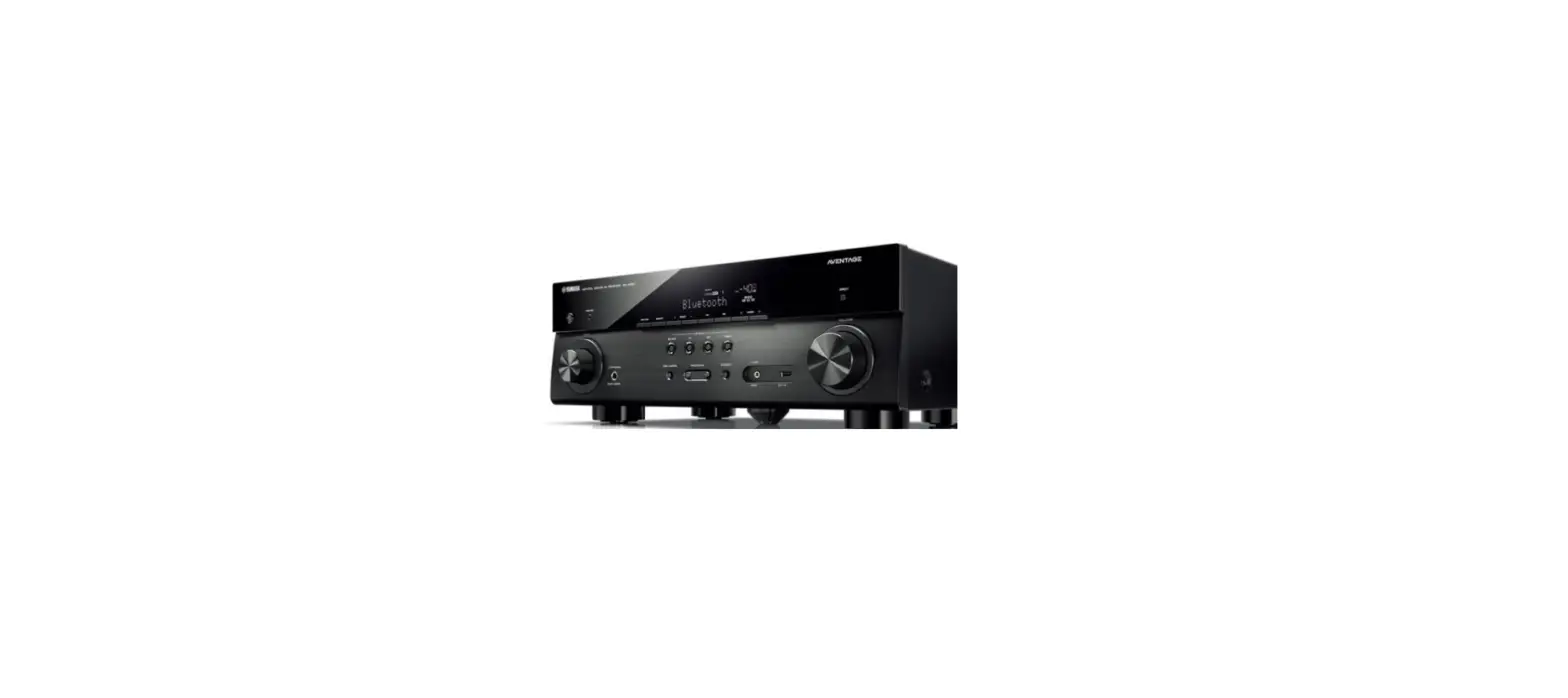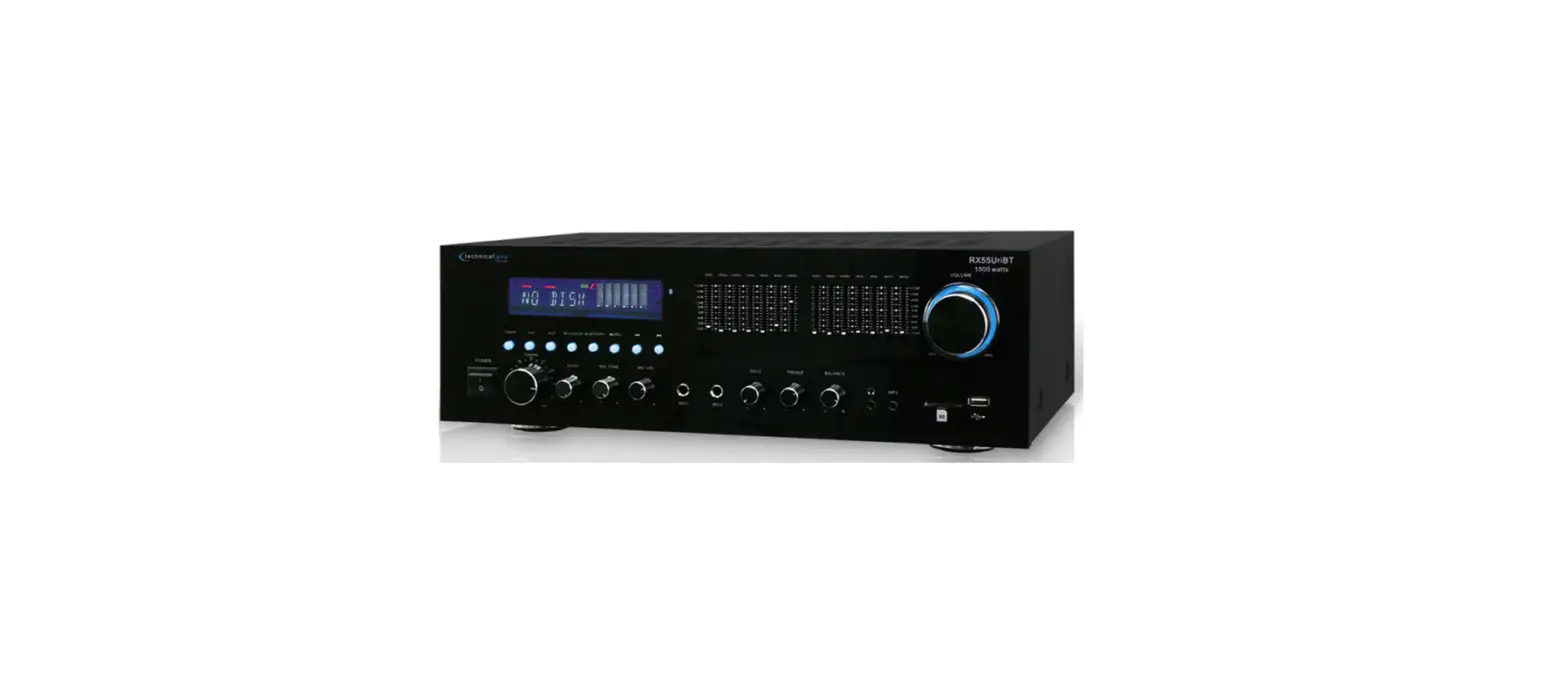

Technical Pro RX55URIBT Receiver with USB & SD Card and Bluetooth
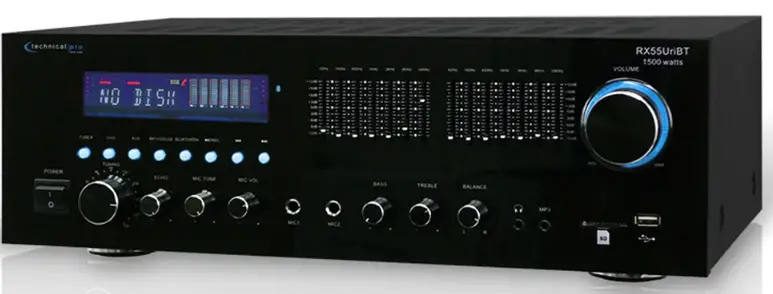
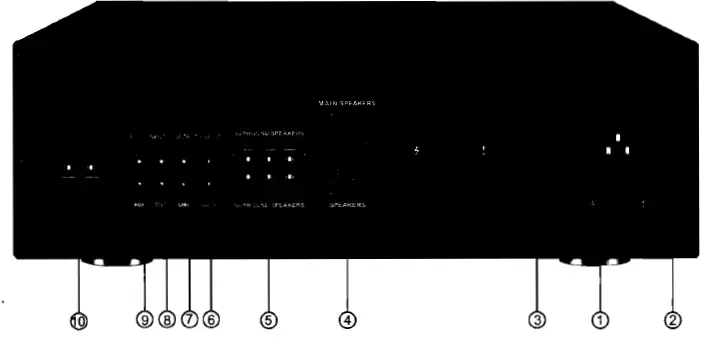
RX55UriBT Rear Panel
- Power Supply: Only use the power cord provided with the unit to power the RX55UriBT. When connecting and disconnecting the power cord, be sure the power of the Rx55UnBT is off. Connect the cord to the rear of the RX55UriBT and then connect it to the outlet.
- Fuse: The fuse specifications are 3A /250V. If your fuse is blown, replace the fuse with one of the exact same specifications. When using with a 115V outlet, the unit should be set to 115V.
- Power Switch: Voltage selector. Select between 230V AC 50Hz/ 115V AC 65Hz. When using with a 115V outet, the unit should be set to 115V.
- Main Speakers: Connect your main speakers to these speaker outputs.The RX55UiBT should be powered off and volume levels turned down when making these connections.
- Surround Speakers: Connect your suround speakers to these speaker outputs.The RX55UriBT should be powered off and volume levels tumed down when making these connections. The surround speakers only work when all surround speakers are connected.
- SUB Output: Connect the sub output to either a recording device or another amplifier. The signal from the line output is a passive output and can not be connected directly to a passive speaker.
- LINE Output: Connect the line output to either a recording device or another amplifier. The signal from the line output is a passive output and can not be connected directly to a passive speaker.
- DVD Input: Connect any stereo signal such as a DVD, CD, TAPE, Mixer etc to this input. To play a signal connected to this input make sure the DVD input is selected on the front panel.
- AUX Input: Connect any stereo signal such as a DVD, CD, TAPE, Mixer etc to this input. To play a signal connected to this input make sure the AUX input is selected on the front panel.
- .FM Antenna: Connect your FM antenna here.

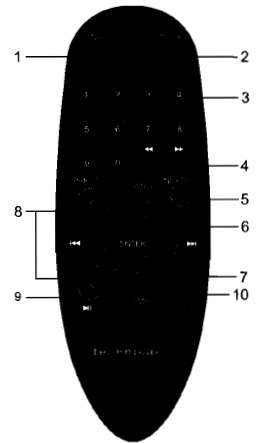
REMOTE
- Input Selector: Use this button to switch between the inputs.
- SP Mode Selector: The RX55UriBT has four built-in pre-saet equalization modes. Press this button to switch between; t pre-set equalization modes.
- Number Keys: The number keys are used to input the tracking number. For example, if you press 6-4-3 then ENTER the unit will go to track number 643 on either the USB flash drive, SD Card or iPod T (Classic and Nano). If you do not press ENTER after inputting the tracking number there will be a delay of about 5 seconds before the unit goes to track number 643. These buttons will only function for the USB flash drive, SD Card or iPad TM (Classic and Nano) signals.
- Fast Forward & Rewind: Press either of these buttons to fast forward of rewind. The unit will continue to fast forward or rewind until the button is pressed again. This button will only function for the USB flash drive, SD Card or iPod(Classic and Nano) signals.
- NEXT 10 & PREV 10: Press either of these buttons to quickly go 10 tracks ahead or back. This button will only function for the USB flash drive, SD Card or iPod (Classic and Nano) signals.
- Next&Previous Track: Press either of these buttons to go to the next or previous track on a USB flash drive, SD Card, iPod (Classic and Nano) or iPhone signals.
- Enter Button: Press this button to confirm the track number you entered using the numbers key to quickly go to that track on the USB flash drive,SD Card or iPod (Classic and Nano) signals.
- Master Volume Control: Use these buttons to adjust the master volume output.
- Play/Pause: Press this button to pause the signal from the USB flash drive, SD Card, or iPodCiassic and Nano) signals, press again to play. This button will only function for the USB flash drive, SD Card, iPod(Classic and Nano) or iPhone TM signals.
- Repeat and Random Control: Press this button to repeat the current track, all tracks or play random tracks on the USB flash drive, SD Card or iPod T(Classic and Nano). The unit’s default setup is repeating all tracks. Press this button once to repeat the current track, press again to play random tracks, press three times to repeat all tracks.

REMOTE CONTROL OPERATION
- The remote should be used within 20 feet in front of the unit.
- There should be no obstacles in between your remote and the unit,as this will hinder the remoie’s functionality.
- To maximize the effectiveness of your remote control, keep the remote sensor(located on the front of the unit)out of direct sunlight.
Typical RX55UriBT Input and Output Connections
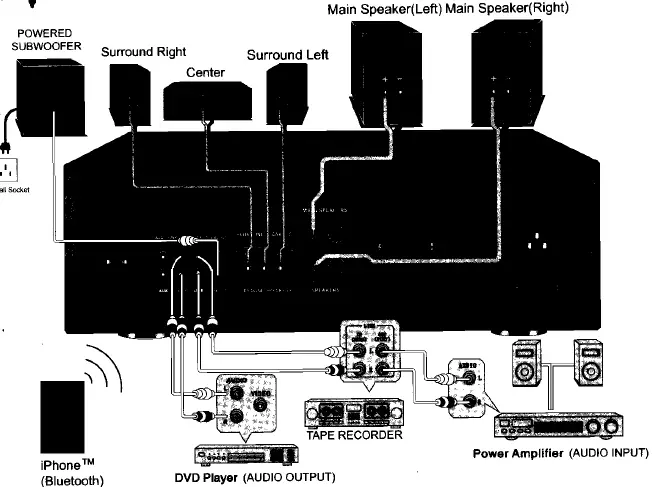
In the typical setup, a user should wire from the output of the signal source directly to one of the RCA inputs on the rear of the RX55UriBT. Once the input signal source is connected to the RX55UriBT, connect the speakers to the RX55UriBTs main outputs. Pictured above is an iPhone TM and DVD player connected to the RX55UiBT inputs. To play tracks from the iPhone T to RX55UriBT via Bluetooth, firstly press the “BLUETOOTH” button on the front panel or the “input” key on the remote to select the Bluetooth input mode, then turn on the Bluetooth function on iPhone M and search RX55UriBT whose Bluetooth device is named “Tpro RX55UriBT”, and then pair and connect. The pairing code is “0000”-4 zeros. The RX55UriBT has two full-range loudspeakers, three surround speakers and one subwoofer connected to it which will play either the signal from either the iPhone M, DVD, USB Flash Drive, SD Card, Pod” M(Classic and Nano) or MP3 player. The surround speakers only work when ALL surround speakers are connected. The LINE OUTPUT is connected to the input of the tape recorder. The output of the tape recorder is connected to the input of another amplifier. You can bypass the tape recorder and connect the LINE OUTPUT directly to the input of another amplifier. The LINE OUTPUT will send the signal from the selected input (AUX, DVD, USB Flash Drive, SD Card.iPod M(Classic and Nano) or MP3 player). NOTE: WHEN MAKING THESE CONNECTIONS THE PoWER OF THE RX55UriBT AND THE SIGNAL sOURCE SHOULD ALL BE IN THE OFF POSITION WITH THE VOLUME LEVELS TURNED DOWN
USB Flash Drive & SD Card & iPodTM(Classic and Nano) & Bluetooth Connection
There are also SD Card and USB flash drive inputs on the front panel of the RX55UriBT which is compatible with IPod (Classic and Nano) via the USB input. The maximum size of the SD Card or USB flash drive is 32GB. If your memory card exceeds 32GB the unit will not be able to read the files from the memory cards. You will only be able to play .mp3, .wav, wma files directly from these memory cards once they are inserted into the front panel of the unit. Press the play/pause button on the front panel of the unit to begin playing files from your USB /SD Card, press this button again to pause. Press the NEXT button to move to the next track on either the USB,SD Card or iPod TM (Classic and Nano). Press the PREVIOUS button to move to the previous track on either the USB,SD Card or iPodM (Classic and Nano0).
NOTE: THE USB INPUT WILL ONLY CONNECT TO A USB FLASH DRIVE OR iPodM(Classic and Nano). DO NOT ATTEMPT TO CONNECT THE USB INPUT DIRECTLY TO A COMPUTERAS THIS WILL NOT WORK.BE SURE NOT TO HOOK-UP AN AMPLIFIER OR ANY AMPLIFIED SIGNAL INTO THE RCA INPUT JACK AS THIS COULD DAMAGE THE RX55UriBT. NO OTHER AMPLIFIER IS NEEDED TO POWER YOUR SIGNAL IN ADDITION TO THE RX55UriBT. ALWAYS MAKE SURE THAT THERE IS ONLY ONE AMPLIFIER IN THE SIGNAL PATH.
Connecting a device with Bluetooth (for example an iPhoneT) to the RX55UriBT via Bluetooth
Turn on the RX55UriBT and the bluetooth function on iPhone TM, then search for the device namedTpro RX55UriBT” and pair the device. The pair code is “0000”- 4 zeros. Connect after successfully pairing. The indicator on the front panel of RX55UriBT will flash after iPhone T successfully connected to the unit. You can play the tracks from iPhone “M and press the previous,next or pause button on either the front panel of the RX55UriBT or iPhone TM to control the playing.
NOTE: ONLY PREVIOUS/NEXT TRACK & PLAYIPAUSE FUNCTION wORKS FOR BLUETOOTH. THE OPERATIONS OF BLUETOOTH CONNECTION MAY VARY AS DIFFERENT BLUETOOTH DEVICE. THIS MANUAL IS BASED ON IPhone TM
Connecting Two Microphones to the RX55UriBT
There are two ” inputs on the face of the RX55UriBT which you can plug microphones directly into. It is important to note that these inputs are to be used solely by microphones. Do not attempt to use the ” inputs for any other use. To use, simply plug the microphones into the 4″ inputs while the speaker and microphones are in the OFF position.Once plugged in, power on the RRX55UiBT and microphones.Once turned on, simply turn up the Microphone Volume and the Master Volume.
Volume and Tone Controls
The volume control on the face of the RX55UriBT controls the volume at which the signal is played at. Turn the volume control clockwise to increase the volume and counter-clockwise to decrease the volume. Additionally, there are Bass and Treble controls on the front panel of the RX55UriBT. To manipulate either of these simply turn the Bass or Treble knobs to a levet at which you are satisfied. There is alsoa 7 Band equalizer located on the front panel of the RX55UriBT. The equalization points on this equalizer are 62Hz,160Hz,400Hz,1KHz,3KHz,8KHz, 16KHz.
Microphone Controls
The two microphone inputs have many options which can be controlled on the front panel of the RX55UriBT. The microphone volume control can be found on the front panel of the RX55UriBT. Use this control to adjust the volume of the microphones.There are also two microphone sound controls on the front panel of the RX55UriBT, echo control and a tone control. Use these controls to adjust the sound from the microphones.
Note: IF YOU HAVE TWO MICROPHONES PLUGGED INTO THE RX55UiBT THEN THE ECHO AND TONE CONTROLS WILL ADJUST THE SOUND ON BOTH OF THE MICROPHONES.
AC Power Cord Connection
Connect the power cord to your RX55UriBT simpily plug female side of the power cord into the power cord input which is on the rear of the RX55UriBT. Then plug the male side of the power cord to an electric outlet. The AC power cords supplied purposefully have 2 blades and one grounding prong. If your outlet is not equipped to handte this type of plug, do not attempt to forcefully plug this AC power cord into the outlet, and do not alter the plug so that it can fit in the outlet. The only course of action you can take is to find another outlet which is properly equipped to handler a grounded plug or have an electrician upgrade your electrical outlet.Be sure that the plug is well connected so that it does not disconnect in the middle of usage. If at any point in time the supplied AC power cord is punctured or damaged replace it with a new power cord from a local electrician.
NOTE: ONLY PLUG IN THE AC POWER CORD WHILE THE UNIT’S POWER IS OFF AND THE VOLUME IS TURNED DOWN. TURNING ON THE UNIT WITH THE VOLUME TURNED UP MAY CAUSE THE UNIT OR ANY SPEAKERS CONNECTED TO IT TO BE DAMAGED. ALWAYS TURN DOWN THE VOLUME PRIOR TO TURNING OFF THE UNIT
Input/ Output Connections
Connecting the Signal Source to the RX55UriBT(DVD/MIXER/MP3 etc.)
The RX55UriBT has two RCA input jacks on the rear of the unit which is designed to receive the signal directly from your DVD,mixer or any of your other 2 Channel signal sources. To ensure that you have correctly connected your DVD player (other sound sources) to the unit, make sure that the DVD player has a RCA cord coming from its output and that this cord is plugging into the RCA Input on the rear of the RX55UriBT. Ensure that the polarity of your signalis always maintained by using color coordinated RCA cables.
NOTE: BE SURE NOT TO CONNECT AN AMPLIFIER OR ANY AMPLIFIER SIGNAL INTO THE RCA INPUT JACK. AS THIS COULD DAMAGE THE RX55UriBT. NO OTHER AMPLIFIERIS NEEDED TO POWER YOUR SIGNAL IN ADDITION TO THE RX55UriBT. ALWAYS MAKE SURE THAT THERE IS ONLY ONE AMPLIFIER IN THE SIGNAL PATH.
There are also input jacks for a MP3 player, USB flash drive and SD card on the front panel of the RX55UriBT which is compatible with iPodTM (Classic and Nano) via the USB input. Just plug the MP3 player, USB flash driver,SD card or iPod (Classic and Nano) into their respective input jacks and set the RX55UriBT to the corresponding input. Be sure that the volume of your MP3 player and RX55UriBT are turned down at first and then slowly raise the volume to prevent damage the speakers or any of your other equipment.
Connecting the RX55UriBT to Passive Loudspeakers
The RX55UriBT is designed to power up to two full-range passive loudspeakers,three surround speakers and one subwoofer. The speakers should be connected via the speaker wire outputs on the rear of the RX55UriBT.
NOTE: WHEN MAKING THESE CONNECTIONS THE POWER OF THE RX55UriBT AND THE SIGNAL THE SOURCE SHOULD ALL BE IN THE OFF POSITION WITH THE VOLUME LEVELS TURNED DOWN. ONCE THE UNITS ARE ALL POWERED ON, SLOWLY INCREASE THE VOLUME TO AVOID DAMAGING ANY OF YOUR EQUIPMENT. THE RX55UriBT OPERATED MOST EFFICIENTLY WHEN USED WITH 8 OHM SPEAKERS.
FCC
Federal Communication Commission Interference Statement
This equipment has been tested and found to comply with the limits for a ClassB digital device, pursuant to Part 15 of the FCC Rules. These limits are designed to provide reasonable protection against harmful interference in a residential installation. This equipment generates, uses, and can radiate radio frequency energy and, if not installed and used in accordance with the instructions, may cause harmful interference to radio communications.However, there is no guarantee that interference will not occur in a particular installation. If this equipment does cause harmful interference to radio or television reception, which can be determined by turning the equipment off and on, the user is encouraged to try to correct the interference by one of the following measures:
- Reorient or relocate the receiving antenna.
- Increase the separation between the equipment and the receiver.
- Connect the equipment to an outlet on a circuit different from that to which the receiver is connected.
- Consult the dealer or an experienced radio/TV technician for help.
This device complies with Part 15 of the FCC Rules. Operation is subject to the following two conditions:
- This device may not cause harmful interference, and
- this device must accept any interference received, including interference that may cause undesired operation.
FCC Caution: Any changes or modifications not expressly approved by the party responsible for compliance could void the user’s authority to operate this equipment.
FCC
Can you record from the fm radio to a usb card or to an sd card?
It has the ability to take an aux, Bluetooth, and an SD card to play music
yes you can connect 4 speakers to listen in different room
The only settings that reset are on the remote and take 3 seconds to fix, the dials obviously stay the same
It only has 2 outputs, but it does have a remote
yes, but if you lose it, you’re basically screwed because it controls tone levels
Yes you shuffle songs off a usb flash drive
In my experience, no, but it depends on your speakers, I have 2 750 watt towers.
Have you turned up the bass treble and turned the loudness on
I don’t think you can hook up Bluetooth speakers sorry..
Yes It looked up the Polk audio tsx 330t speaker power requirements they are about 120 per speaker The 1500 wat or 750 per channel is over rated I am running Pioneer 120 watt per channel speakers, they sound pretty good = I have had the RX55u cranked up with no problem.
The RMS is 90 watts per channel.
NO technical proxy 55 orbit playback repeat music
They are used in portable devices such as digital cameras, cell phones, personal digital assistants (PDAs), and mobile computers. A Bluetooth® SD card, also called a Bluetooth® SDIO (In/Out) card, is a device that combines the SD format with an In/Out device
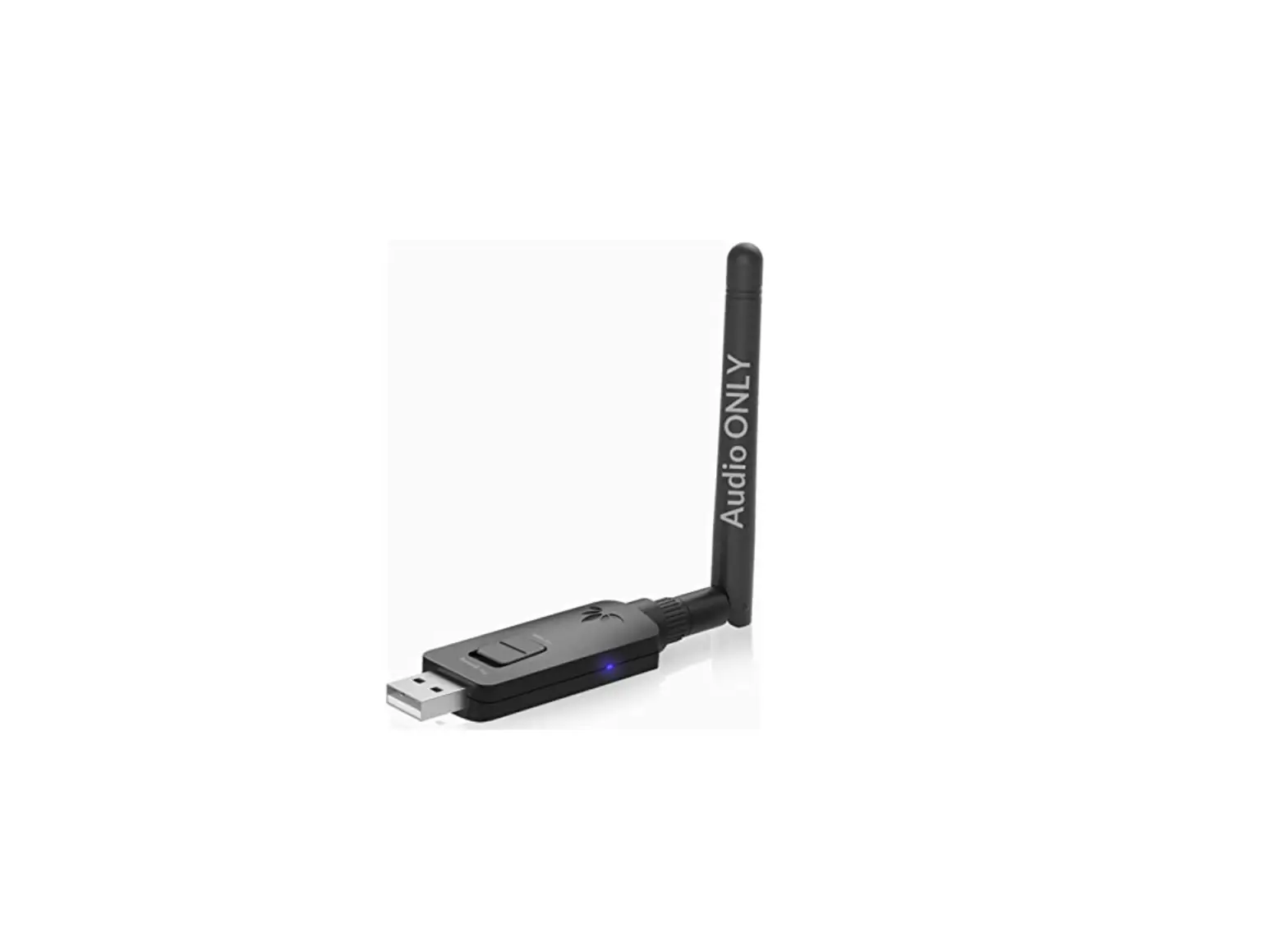
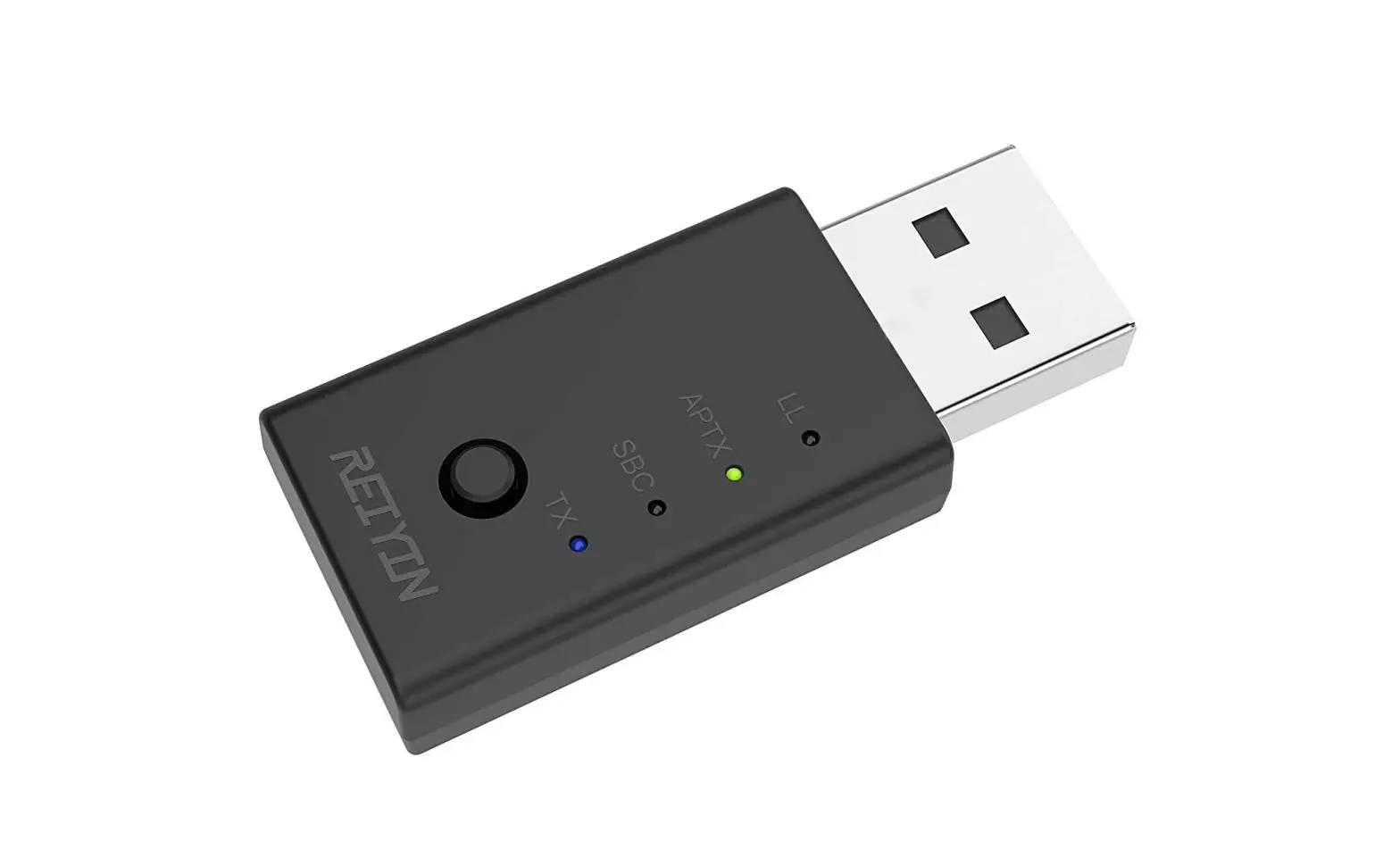
A USB-based device that transmits and receives Bluetooth wireless signals. It plugs into the USB port to support Bluetooth mice, keyboards and other Bluetooth devices. Also called a “Bluetooth dongle
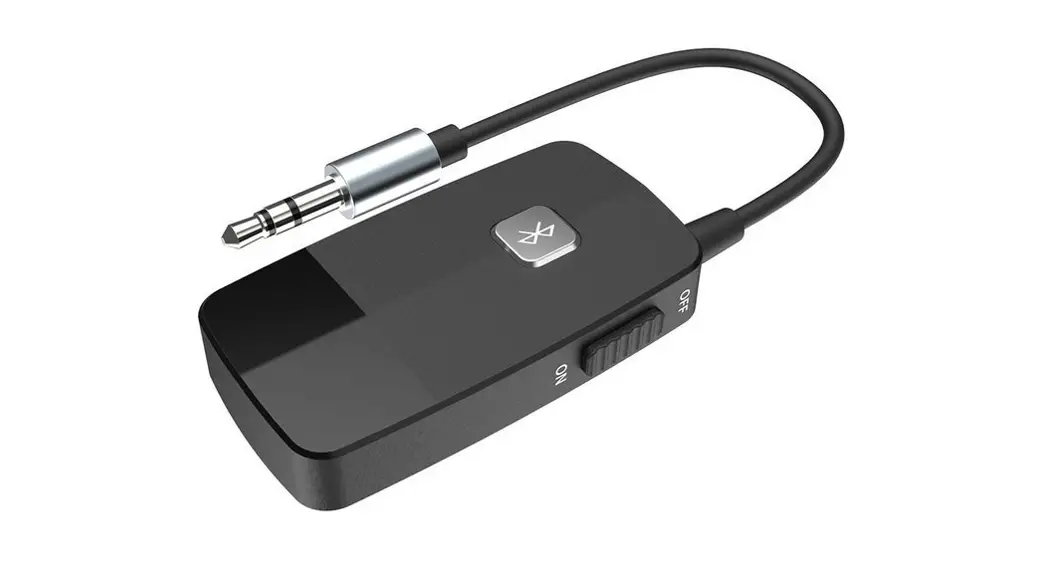
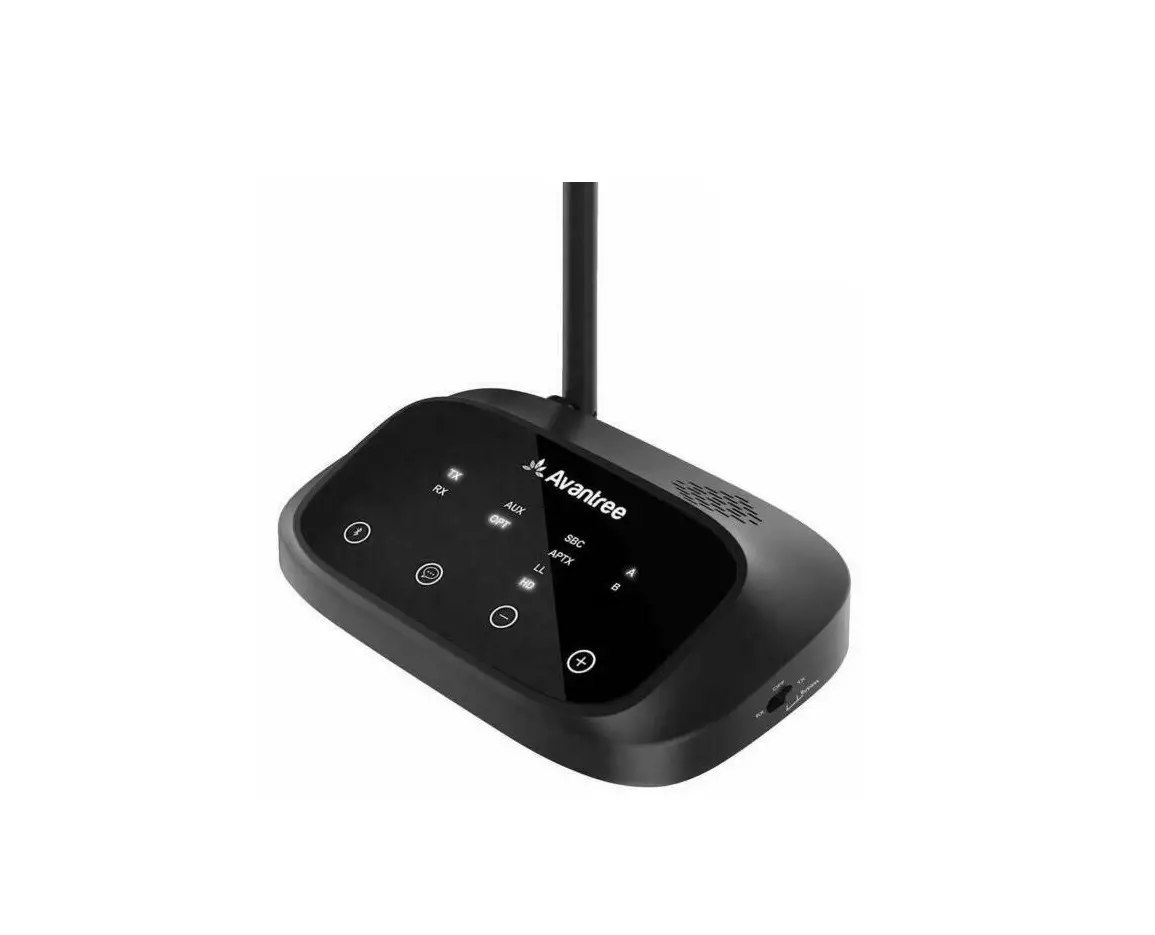
To add Bluetooth to an A/V or Stereo Receiver, you can use a wireless Bluetooth adapter. These devices come in a range of prices based on the quality you need, and they’re simple to use