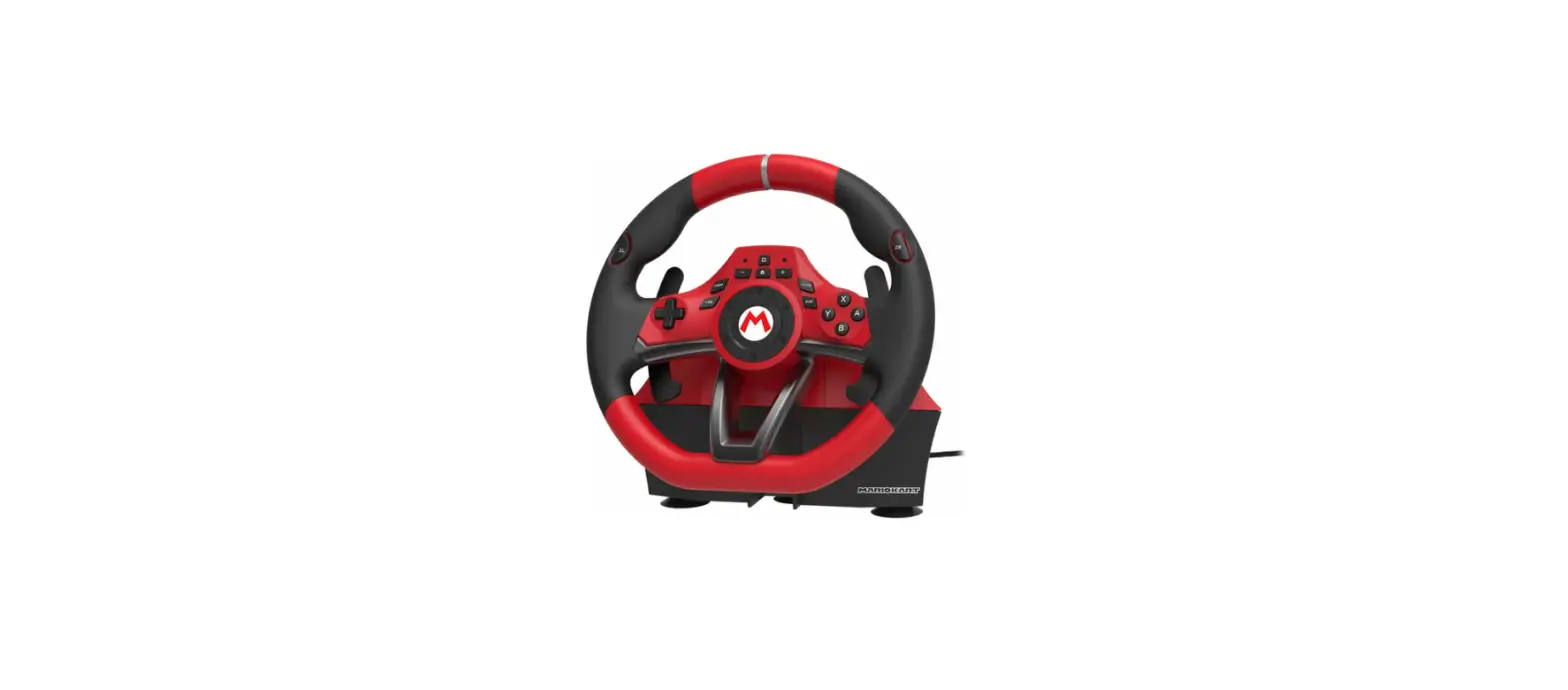
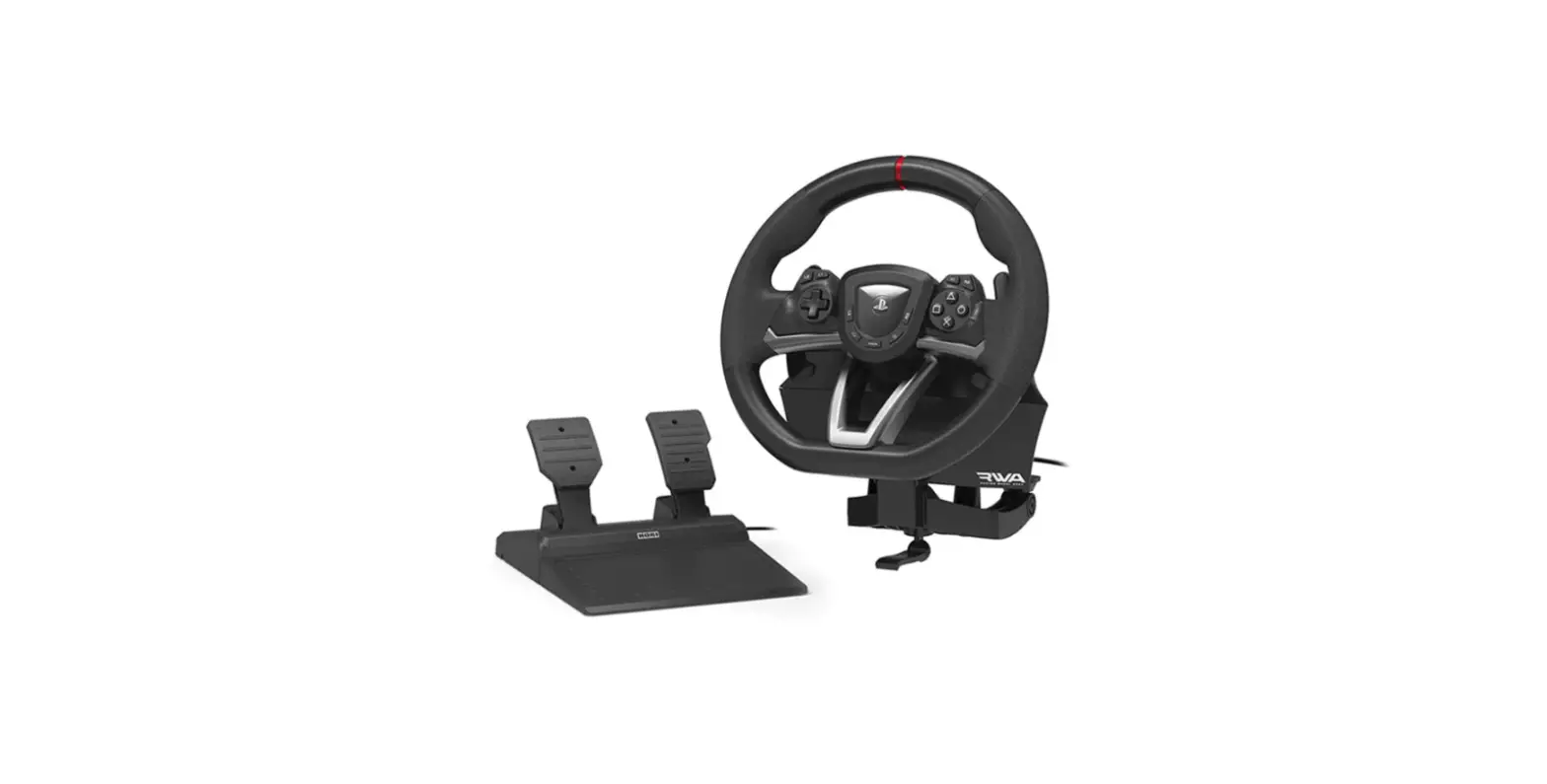
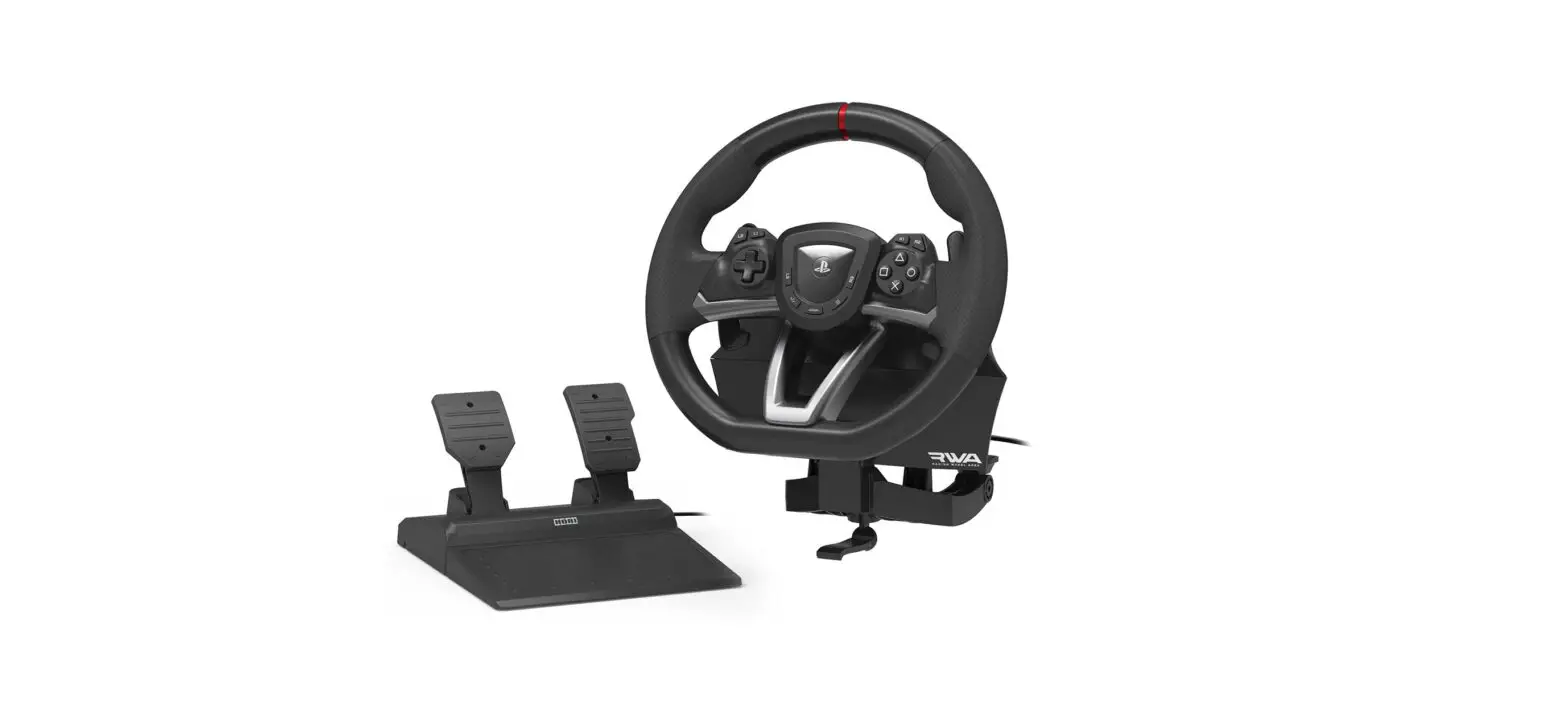
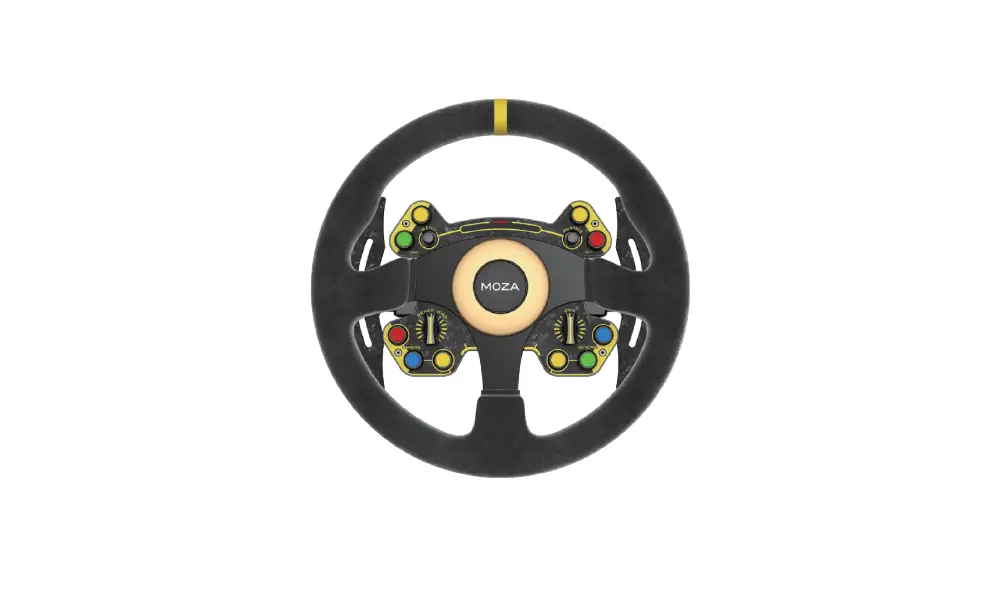
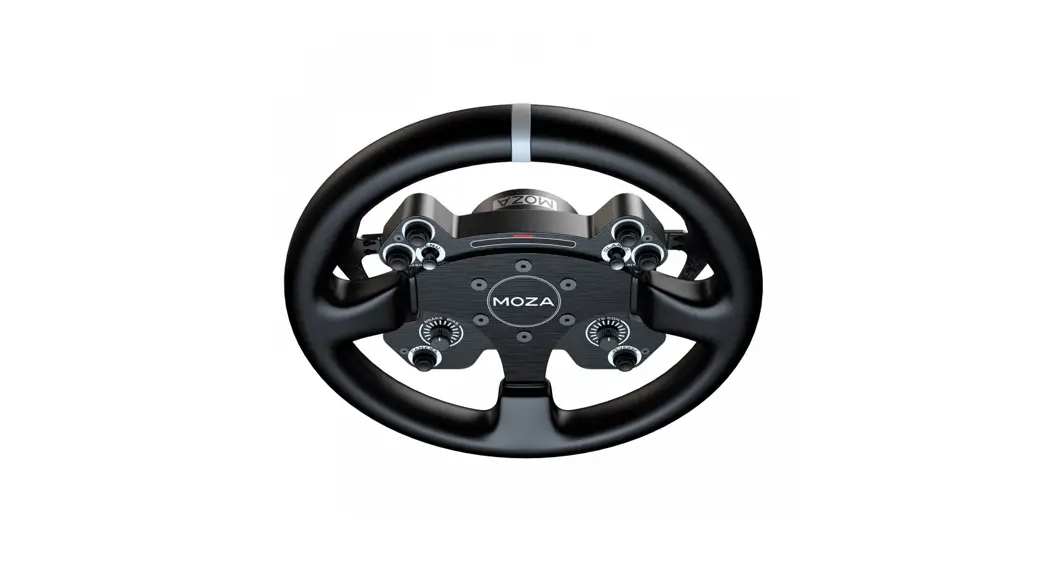
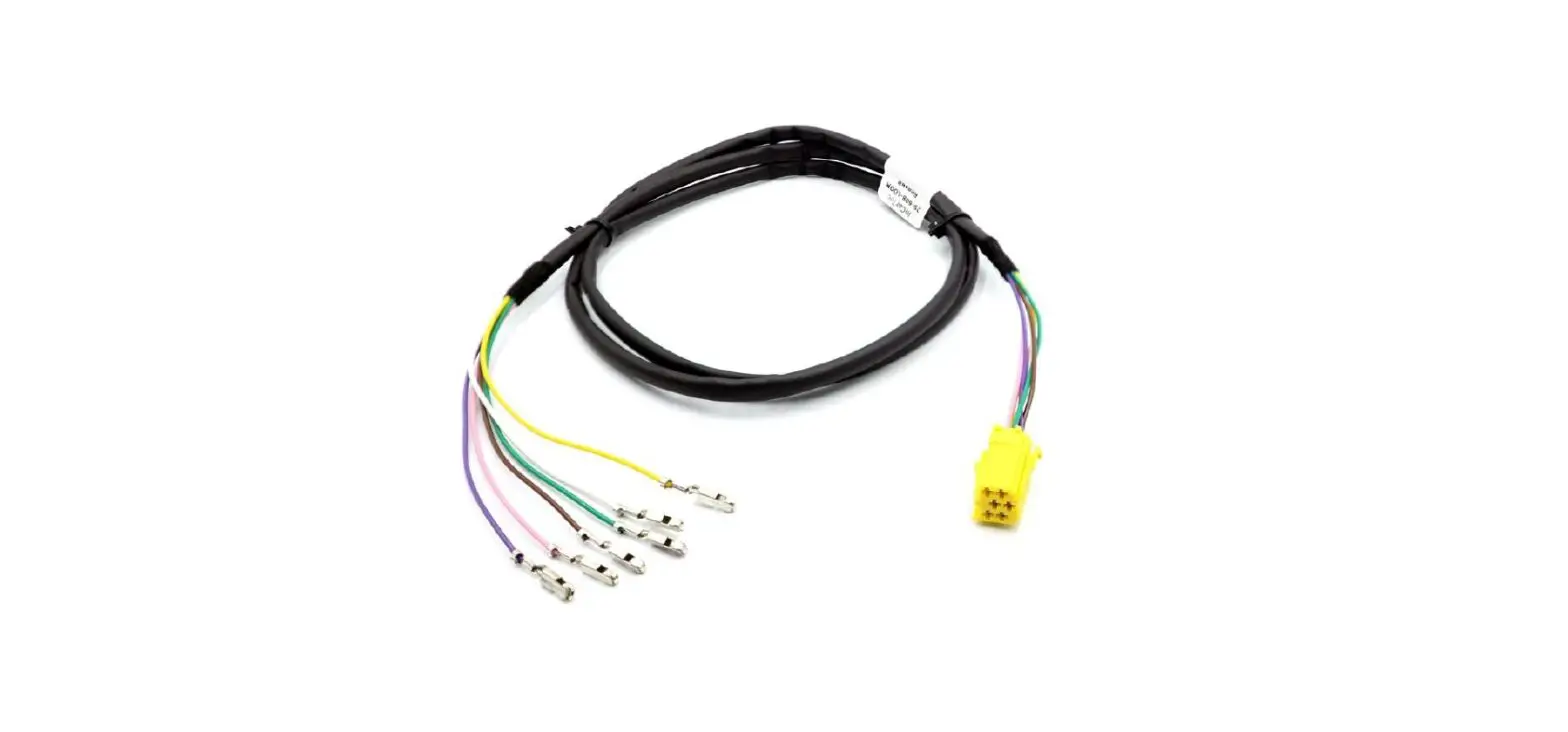
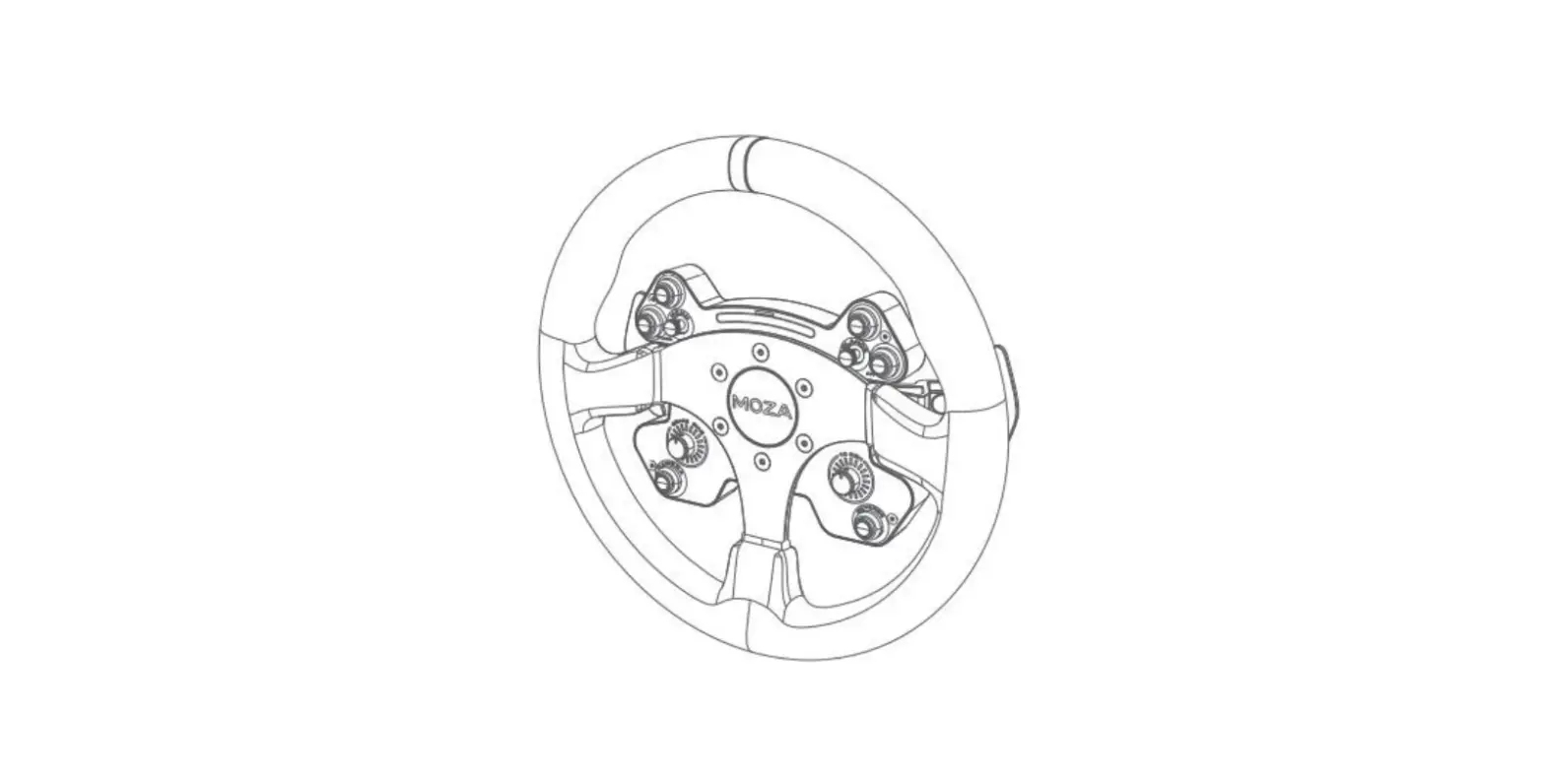
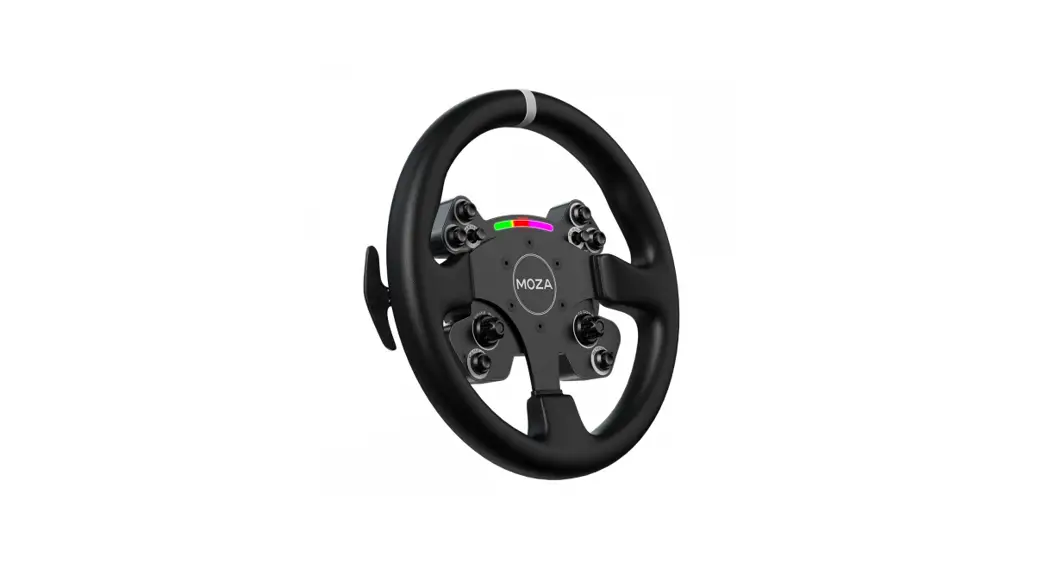
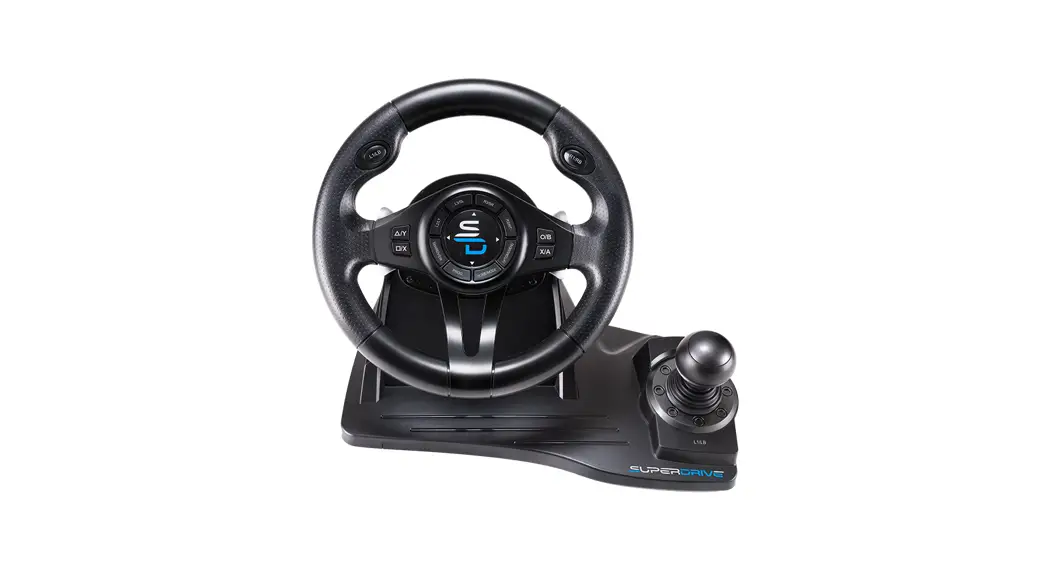
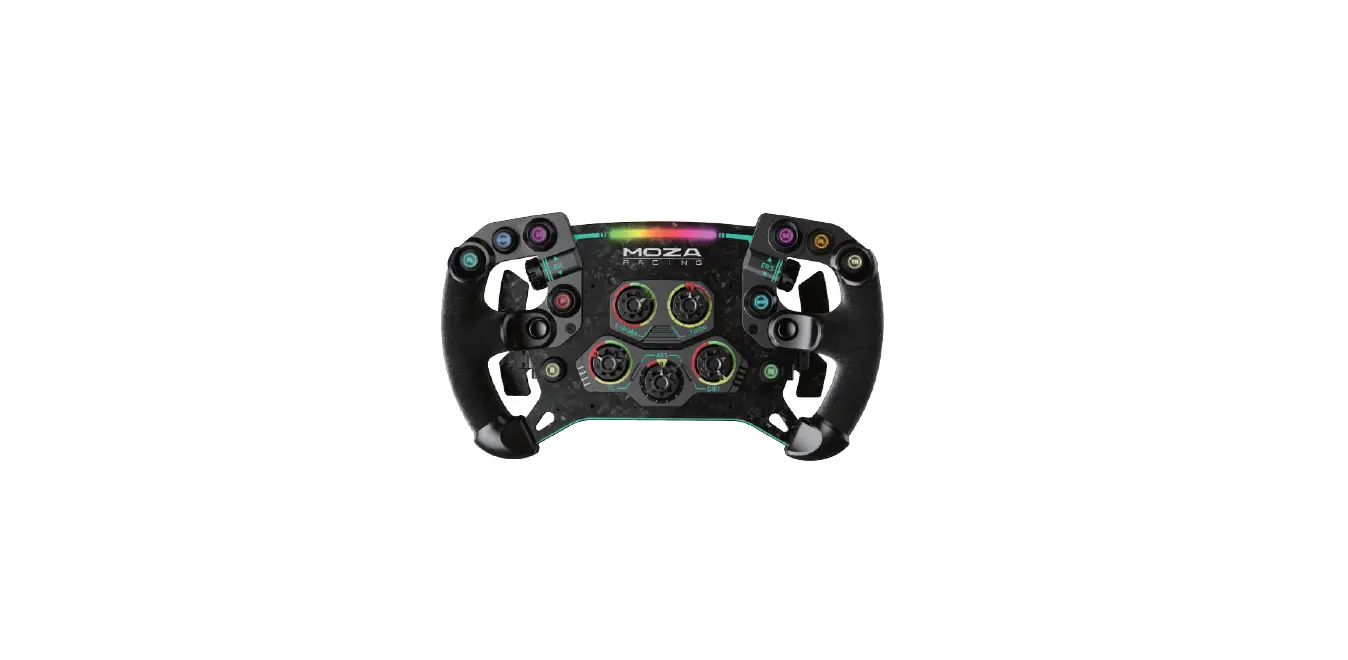
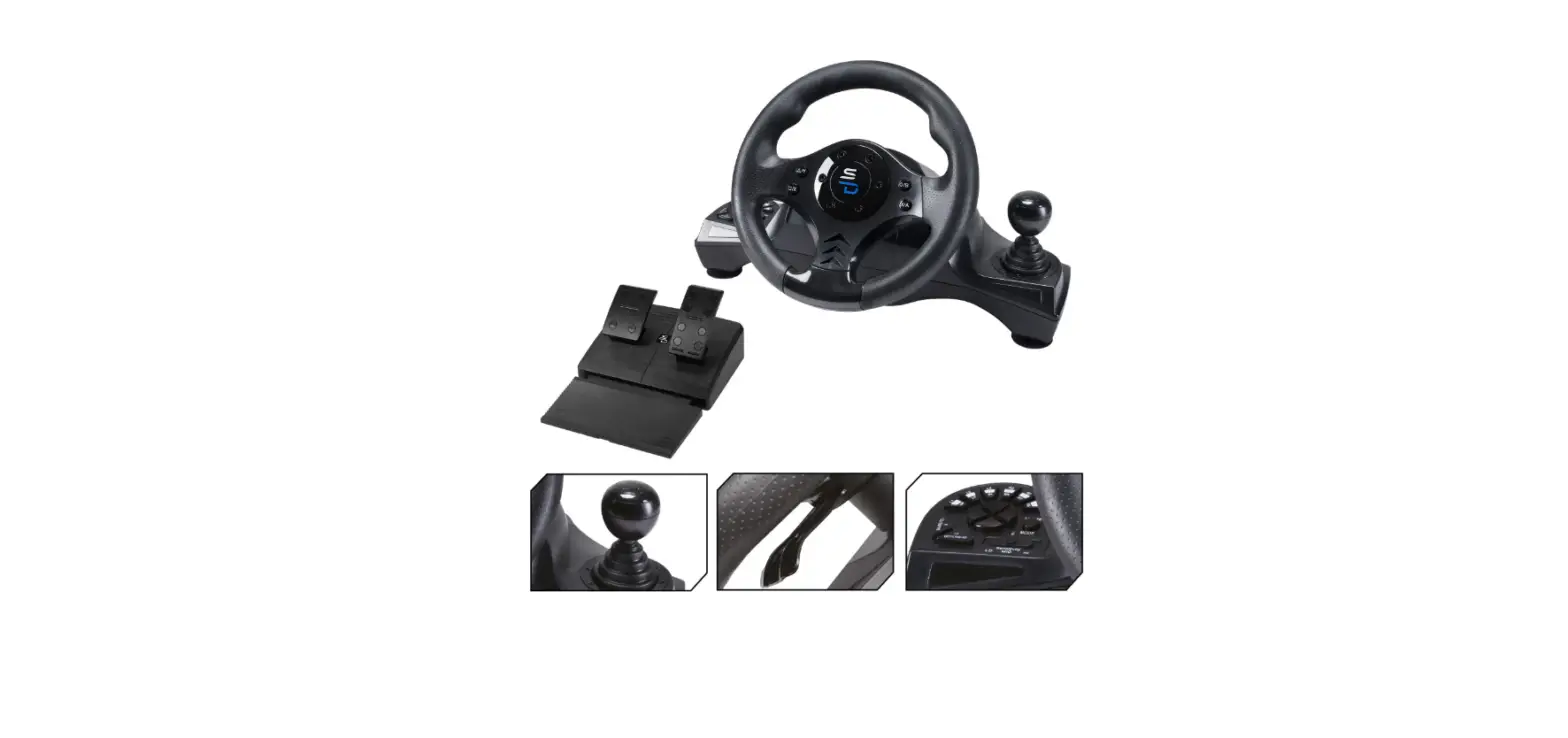
R808A 1080 Degree Guided Wired Steering Wheel
Product Information:
Product Name: G30-R808A V2
Date: 20220718
Model: R808A
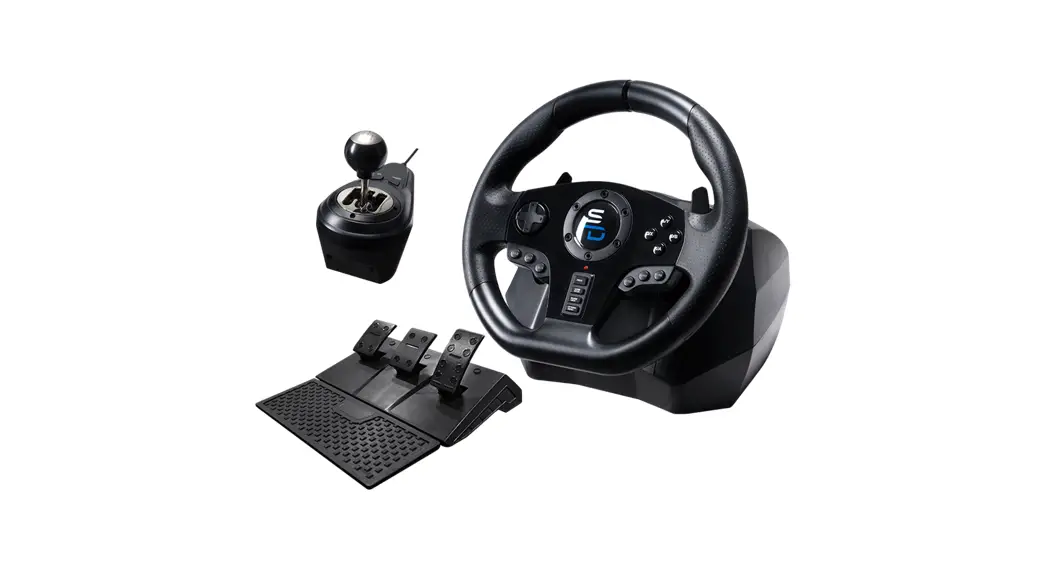
Type: 1080 Degree Guided Wired Steering Wheel
Precautions:
- DirectInput Mode: DirectInput is the old game input standard of
the Windows operating system. Most old games support game
controllers to use DirectInput. If the game supports the
DirectInput game controller, and the steering wheel is in XInput
mode, most functions of the steering wheel will not work normally,
nor will it support the vibration function. - H Lever Support: When the steering wheel is powered on, the
default DirectInput mode supports the H lever. If the steering
wheel is in XInput mode, the H gear lever is not supported, and the
H gear lever can be used normally only when the steering wheel is
in DirectInput mode. - Correct Insertion: The gear lever and pedal should be inserted
correctly to avoid abnormal problems. - Abnormal Pedal or Gear Lever: If the pedal or gear lever is
abnormal, please check whether the USB socket in the storage box
behind the steering wheel is inserted in the wrong position or
whether the USB plug is inserted to the bottom. - Vibration Issues: If there is no vibration in the steering
wheel game, please check whether the game supports vibration, and
check whether the steering wheel DirectInput mode or XInput mode
matches the game mode. - Sensitivity Setting: When the sensitivity is set above level 5,
the function steering of 1080 degrees due to high sensitivity will
become smaller. (sensitivity is not suitable for cart games) - Reset and Calibration: After receiving the steering wheel,
please press the reset key for 5 seconds to reset the steering
wheel, and then turn it left and right to the maximum angle to
calibrate the direction. The steering wheel also has an automatic
calibration function. - Proper Calibration: Before power on, please put the
refueling/braking/clutch/gear lever of the wheel disc/pedal in the
non-operating position for normal calibration. Otherwise, poor
calibration will occur.
Introduction to the Steering Wheel:
- Platform Compatibility: The steering wheel supports platforms
PS5 / PS4 / Xbox Series X / Xbox One / Xbox 360. - Steering Wheel Guidance: Connect each original controller
corresponding to each platform to the position marked with the
letter D in the storage box behind the steering wheel through the
data line and start the steering wheel through the original
controller. - Plug-and-Play: The steering wheel is plug-and-play compatible
with platforms PS3 / PC XInput / PC Dinput / Switch. When the PC is
powered on, the default mode is DirectInput. - PS4 Game Support: The steering wheel can only guide the PS4
controller to play PS4 games on the PS5 platform. - High and Low Gear Functions: The steering wheel supports high
and low gear functions. - Hot Plug Function: The foot pedal and gear lever support hot
plug function. They can be plugged in and out while the steering
wheel is electrified. - Potentiometer Sensitivity Adjustment: The steering wheel
supports potentiometer sensitivity adjustment. - Function Key Replacement: The steering wheel supports function
key replacement. - Angle Locking: The steering wheel supports locking at any angle
when it rotates more than 180 degrees. - Power-Off Memory: The angle locking function and replacement
function support power-off memory. - Reset and Restore: The angle setting and replacement function
support pressing the reset key for 5 seconds to reset and restore
with one key. - Manual Calibration: The steering wheel supports manual
calibration of the H lever.
Function Introduction:
No specific information provided in the text extract.
1
G30-R808A V2 20220718
R808A
1080 Degree Guided Wired Steering Wheel
Precautions
1. What is DirectInput mode: DirectInput is the old game input standard of the Windows operating system. Most old games support game controllers to use DirectInput. If the game supports the DirectInput game controller, and the steering wheel is in XInput mode, most functions of the steering wheel will not work normally, nor will it support the vibration function.
What is XInput mode: XInput mode is pc360 mode. XInput is the latest game input standard of the Windows operating system. Most recent games support game controllers to use XInput, and the XBOX360 handle uses XInput. If the game supports the XInput game controller and the steering wheel is in XInput mode, vibration feedback and all functions of the steering wheel will work normally. If the game supports the XInput game controller and the steering wheel is in DirectInput mode, the steering wheel will not work normally in the game (unless you switch the steering wheel to XInput mode).
2. When the steering wheel is powered on, the default DirectInput mode supports the H lever; If the steering wheel is in XInput mode, the H gear lever is not supported, and the H gear lever can be used normally only when the steering wheel is in DirectInput mode.
3. The gear lever and pedal cannot be inserted in the wrong position to avoid abnormal problems.
4. If the pedal or gear lever is abnormal, please check whether the USB socket in the storage box behind the steering wheel is inserted in the wrong position or whether the USB plug is inserted to the bottom.
5. If there is no vibration in the steering wheel game, please check whether the game supports vibration, and check whether the steering wheel DirectInput mode or XInput mode matches the game mode.
6. When the sensitivity is set above level 5, the function steering of 1080 degrees due to the high sensitivity will become smaller. (sensitivity is not suitable for cart games)
7. After receiving the steering wheel, please press the reset key for 5 seconds to reset the steering wheel, and then turn it left and right to the maximum angle to calibrate the direction.
8. The steering wheel has an automatic calibration function. Before power on, please put the refueling/braking/clutch/gear lever of the wheel disc/pedal in the nonopnonoperating before normal calibration. Otherwise, poor calibration will occur
. Introduction to the steering wheel
1. Steering wheel support platform ps5 / PS4 / Xbox series X / Xbox One / Xbox 360; What is steering wheel guidance? Connect each original controller corresponding to each platform to the position marked with the letter D in the storage box behind the steering wheel through the data line and start the steering wheel through
1
2
the original controller.
G30-R808A V2 20220718
2. The steering wheel plug-and-play for the platform PS3 / PC XInput / PC Dinput /switch. When the PC is powered on, the default mode is DirectInput.
3. The steering wheel can only guide the PS4 controller to play PS4 games on the ps5 platform.
4. Support high and low gear functions.
5. Support the hot plug function of the foot pedal and gear lever; When the steering wheel is electrified, the foot pedal and gear lever can be plugged in and out.
6. Support potentiometer sensitivity adjustment. The 7. Support function key replacement.
8. It supports locking at any angle when the steering wheel rotates more than 180 degrees.
9. The angle locking function and replacement function support power-off memory.
10. The angle setting and replacement function supports pressing the reset key for 5 seconds to reset and restore with one key.
11. Support manual calibration of H lever.
Function Introduction
1. The LB function key corresponds to the No. 7 key of the controller. 2. The Y function key corresponds to the No. 1 key of the controller. 3. The X function key corresponds to the No. 4 key of the controller. 4. Reset function, one-key reset angle setting
2
3
5. Angle function, angle setting function key.
G30-R808A V2 20220718
6. Left trigger paddle, default LB function.
7. Direction control buttons.
8. The sensitivity potentiometer knob adjusts the sensitivity height; there are 6 levels of sensitivity, and level 0 is
to close the sensitivity.
9. Left and right clamp screws.
10. RB key, corresponding to the No. 8 key of the controller.
11. The B key corresponds to the No. 2 key of the controller.
12. A key, corresponding to the No. 3 key of the controller.
13. Replace function, function keys replace keys.
14. PS key, the PC platform switches between DirectInput mode and Xinput mode, long press for 3 seconds to
switch; PS3 platform is used as PS key; NS Switch platform is the HOME key function; XBOX platform is the X big
button function.
15. Right trigger paddle, default RB function key.
16. High and low gear adjustment switch.
17. Clutch pedal function.
18. Gas pedal function.
19. Brake pedal function.
20. H gear lever.
21. L3 function key, corresponding to controller 11 key
22. BACK function key, return or select function key.
23. Platform indicator lights and function setting lights.
24. START key, pause start key.
25. R3 function key, corresponding to the 12 key of the controller.
Introduction to the special functions of the steering wheel Angle function: angle setting key. The steering wheel angle can only be set to lock with one side greater than 90 degrees. When it is less than 90 degrees, the system will automatically default to 90 degrees.
For example, set the steering wheel angle to 900 degrees, press and hold the “angle” key for about 2 seconds, and the blue LED flashes slowly to enter the angle setting.
3
4
G30-R808A V2 20220718
After entering the angle setting, rotate the left side of the steering wheel to the position of 900 degrees, press the “angle” key once to lock the angle, and the LED returns to the platform indicator.
4
5
G30-R808A V2 20220718
Then long press the “angle” key again for about 2 seconds, the blue LED flashes slowly, the steering wheel
rotates to the right to 900 degrees, press the “angle” key to lock the angle, and the LED returns to the platform
indicator.
After completing the angle setting, only the linear rotation of the steering wheel is the angle set, which does not represent the mechanical steering of the steering wheel.
Clear the angle setting: long press the “angle” key for about 5 seconds, and the blue LED turns from slow flash to fast flash, indicating that the angle has been cleared.
1. Replace function, function key replacement key, which can replace the action key a/b/x/y/l3/r3/l1/r1/ pedal refueling / braking / clutch / gear lever 1/2/3/4/5/6/r/ high and low gear / on the steering wheel; Use methods such as: Left Trigger and a key replacement position: long press the replacement key for 2 seconds, the blue LED light is on, press the left trigger led to flash, and then press the placental a key to set the led off to complete the replacement. At this time, the left trigger position has the a key function; The a key position has the left trigger function, and the replacement method of other functions is the same.
If there is no operation within 60 seconds after entering the replacement, the replacement function will automatically exit; Or click Replace to exit the replacement.
Clear the replacement function: long press the “replace” key for about 5 seconds, and the blue LED turns from slow flash to fast flash, indicating that the replacement function has been cleared.
3. Reset function, one click to clear the angle setting and replace the setting; Long press the key for 5 seconds, and the LED flashes to automatically clear the set angle and key replacement.
4. Sensitivity adjustment: when we play racing games, we often fail to turn when turning sharply. It feels like the delay in the direction of rotation. In fact, this is related to the steering sensitivity of the game. The default steering sensitivity of each game will be slightly different, so this steering problem will occur. We can adjust the direction sensitivity in the game settings; It can also be fine tuned through the steering wheel sensitivity
5
6
G30-R808A V2 20220718
potentiometer. When we turn on the sensitivity potentiometer switch, the blue indicator light of the steering
wheel will adjust the sensitivity from slow flash to fast flash according to our level. When the sensitivity is
adjusted to the appropriate level, the LED will stop flashing.
The sensitivity function is not suitable for big car games, such as Chinese truck simulation, European truck simulation, simulated truck driver, heavy truck simulation, simulated bus real driving, and so on. Sensitivity is mainly used in “top speed”, “GT”, “galloping shadow”, “dust” and so on. 5. The connection position of gear lever / foot pedal / guide handle, the position of letter B behind the steering wheel is connected to the gear lever, the position of letter C is connected to the foot pedal, and the position of letter D is connected to the guide controller. Before use, pay attention to check that it is not inserted in the wrong position to cause abnormal use of the steering wheel.
6. High and low gear shake adjustment switch. When the steering wheel is not set in the game, the H gear lever is from gear 1 to gear 6. When the high and low gear function is set in the game, 12 gears can be achieved. After the switch is shaken to high gear, the H gear lever 1 corresponds to gear 7 of high gear, gear 2 corresponds to gear 8 of high gear, gear 3 corresponds to gear 9 of high gear, gear 4 corresponds to gear 10 of high gear, gear 5
6
7
G30-R808A V2 20220718
corresponds to gear 11 of high gear, and gear 6 corresponds to gear 12 of high gear
7. A. introduction to the use of the gear lever. The gear lever is divided into 6 gears and 1 reverse gear. When engaging gear 1, move the gear lever to the left and then push it forward; When engaging gear 2, the gear lever moves left and then pulls backward; When engaging the third gear, the gear lever will return to the center position and directly push forward; When engaging gear 4, pull the gear lever back to the central position; Move the gear lever to the right and then push it forward when engaging gear 5; When engaging gear 6, the gear lever moves to the right and then pulls backward; To engage the reverse r gear, first press the gear lever to the 6th gear position and then pull it. When reversing the R gear, you also need to press the gear lever and push it forward to exit the R gear. Note that if the R gear is not operated correctly, it is easy to be confused with the 6th gear. For this point, it must be noted that the operation requires pressing the gear lever down to engage the gear and pressing the gear lever down to reverse the gear.
B. Introduction to the use of the gear lever: first loosen the screw of the fixture, and then install the fixture in the hole below the gear lever.
7
8
G30-R808A V2 20220718
C. Then push the stop rod of the installed fixture into the edge of the table to tighten the screw; Support table thickness 8mm to 55mm
·
D. Manual calibration method of gear lever: if the gear lever is inaccurate or shifted during use, the gear lever can be calibrated according to the following method. (if there is no abnormal condition of the gear lever, please do not calibrate it.)
8
9
G30-R808A V2 20220718
First, insert the gear lever into the gear lever USB jack of the steering wheel, and put the gear lever in neutral,
and then press and hold the x/y functions on the steering wheel at the same time. At this time, insert the
steering wheel USB into the computer. If the calibration mode is successfully entered, the steering wheel will
light blue;
After entering the calibration mode, release the two functions of long press, push the gear lever to the third gear position and shake it left and right to obtain the maximum space value, then press the steering wheel a key to confirm, at this time, the steering wheel purple LED is on, then push the gear lever to the fourth gear position and shake it left and right to obtain the maximum space value, and then press the a key to confirm, at this time, the LED returns to the normal mode, and the calibration is completed. The steering wheel can be used normally after being plugged in and out again.
8. Install the pan head. After the steering wheel is purchased, the pan head is disassembled. It is necessary to fix the pan head and the main body. Pay attention to the direction. After the pan head is aligned with the main
body in a positive direction, turn it to the left and tighten it with the nut of the main body.
9. Storage box. When the machine is not in use, the USB cable behind the steering wheel can be stored in the storage box.
9
10
G30-R808A V2 20220718
10. Install the steering wheel fixture. The fixture is suitable for the table with a thickness of 8mm to 55mm. If our table is thick, please gently pull down the heightening buckle at the bottom of the fixture; If the table is thin, you can install the heightening buckle, and then tighten the two screws.
Connect PS3 Console First, connect the USB of the pedal to the position marked C in the storage box behind the steering wheel, and the USB of the gear lever to the position marked b in the storage box behind the steering wheel, and
10
11
G30-R808A V2 20220718
then connect the USB main line of the steering wheel to the USB port of the PS3 host; After the connection
is successful, the red indicator light of the steering wheel is on.
If the game does not support the H lever, please use the left and right trigger paddles as the automatic lever.
Connecting to the Nintendo Switch Before connecting the switch steering wheel to the switch host,you need to set the `Pro controller Wired Communction’to be `on’
Turn on the vibration function at the switch host, and set the `controller Vibration’ to be the “on” state; After the vibration function is turned on, the steering wheel has the vibration function during the game.
11
12
G30-R808A V2 20220718
First install the switch host in the base, then connect the USB of the pedal to the position marked C in the storage box behind the steering wheel, connect the USB of the gear lever to the position marked b in the storage box behind the steering wheel, and then connect the USB main line of the steering wheel to the USB port of the switch host base; After the connection is successful, the green indicator light of the steering wheel is on.
If the game does not support the H lever, please use the left and right trigger paddles as the automatic lever.
For the 1080 degree calibration of the direction under the switch host, if there is a direction that cannot be turned to the maximum value during the use of the steering wheel, please unplug the steering wheel connection switch cable first, turn off the “on” in the following options, and then turn it on again, and then connect the steering wheel USB to the host.
12
13
G30-R808A V2 20220718
Connect Android devices Connect the USB of the foot pedal to the position marked C in the storage box behind the steering wheel, the USB of the gear lever to the position marked b in the storage box behind the steering wheel, and the USB of the XBOX360 original wired handle to the position marked D in the storage box behind the steering wheel, and then connect the main cable line of the steering wheel to the USB port of the XBOX360 device; After the connection is successful, the light green indicator light of the steering wheel is on, and the first light of the XBOX360 handle is on. Note: the XBOX360 platform must be guided by the original wired XBOX360 handle; The XBOX360 wireless handle does not support boot. If the wired Xbox-360 handle is not original, it may fail to boot or boot successfully, but the handle light will flash. If the game does not support the H lever, please use the left and right trigger paddles as the automatic lever.
13
14
G30-R808A V2 20220718
Connect Xbox One Console Connect the USB of the pedal to the position marked C in the storage box behind the steering wheel, and the USB of the gear lever to the position marked b in the storage box behind the steering wheel. First, remove the battery from the original Xbox One wireless controller, then connect it to the position marked D in the storage box behind the steering wheel through the USB data cable, and then connect the main line of the steering wheel USB cable to the USB port of the Xbox one device. After the connection is successful, the light blue indicator light of the steering wheel is on, and the Xbox one controller light is always on.
Note: the original Xbox one wireless controller must be powered off or the controller battery must be removed before connecting to the steering wheel, otherwise it will cause boot failure.
If the game does not support the H lever, please use the left and right trigger paddles as the automatic lever
14
15
G30-R808A V2 20220718
Connecting Xbox series X Console Connect the USB of the pedal to the position marked C in the storage box behind the steering wheel, and the USB of the gear lever to the position marked b in the storage box behind the steering wheel. First, remove the battery from the original Xbox series X wireless controller, and then connect it to the position marked D in the storage box behind the Xbox series X through the USB data cable. Then connect the main line of the steering wheel USB cable to the USB port of the Xbox series X console. After the connection is successful, the light blue indicator light of the steering wheel is on, and The Xbox series X controller light is always on. Note: the Xbox series X wireless controller must be turned off or the controller battery must be removed before connecting to the steering wheel, otherwise it will cause boot failure. If the game does not support the H lever, please use the left and right trigger paddles as the automatic lever.
15
16
G30-R808A V2 20220718
Connect to the PS4 console Connect the USB of the pedal to the position marked C in the storage box behind the steering wheel, and the USB of the gear lever to the position marked b in the storage box behind the steering wheel. When the PS4 original wireless controller is turned off, connect it to the position marked D in the storage box behind the steering wheel through the USB data line, and then connect the main line of the steering wheel USB cable to the USB port of the PS4 device. After the connection is successful, the red indicator light of the steering wheel is on, and the blue light of the PS4 controller is on.
Note: the PS4 wireless controller must be powered off before connecting to the steering wheel to guide successfully, otherwise it will fail to guide.
If the game does not support the H lever, please use the left and right trigger paddles as the automatic lever.
Connect to the PS5 console
16
17
G30-R808A V2 20220718
Ps5 platform can only support the connection of PS4 controller to guide the connection to play PS4 racing games;
Ps5 controller is not supported to guide you to play ps5 games.
Connect the USB of the foot pedal to the position marked C in the storage box behind the steering wheel, and the USB of the gear lever to the position marked b in the storage box behind the steering wheel. When the PS4 original wireless controller is turned off, connect it to the position marked D in the storage box behind the steering wheel through the USB data line, and then connect the main line of the steering wheel USB cable to the USB port of the ps5 device first. After the connection is successful, the red indicator light of the steering wheel is on.
Note: the PS4 wireless controller must be powered off before connecting to the steering wheel to guide successfully, otherwise it will fail to guide.
If the game does not support the H lever, please use the left and right trigger paddles as the automatic lever.
Introduction to connecting the PC windows
1. Computer connection First, connect the USB of the pedal to the position marked C in the storage box behind the steering wheel, and the USB of the gear lever to the position marked b in the storage box behind the steering wheel, and then connect the USB main line of the steering wheel to the USB port of the PC; After the connection is successful, the red indicator of the steering wheel default DirectInput mode is on. Press the PS key for about 3 seconds to switch to XInput mode and Xbox one mode, and the three modes are cycled.
Note: Xbox one mode on PC is mainly used in win10/win11 system.
If the game does not support the H lever, please use the left and right trigger paddles as the automatic lever.
After the steering wheel is connected to the computer, press the “reset” key for 5 seconds to reset, and then
17
18
G30-R808A V2 20220718
rotate the steering wheel left and right at the maximum angle to calibrate the steering wheel.
1. Driver installation
The game controller display interface after connecting the steering wheel before the driver is installed is as follows.
The address to download the driver:
https://cdn.shopify.com/s/files/1/0275/6811/1700/files/G30-Driver.rar?v=16560333
18
19
G30-R808A V2 20220718
31
After downloading the driver, decompress the compressed package. There are two drivers in the package, “doyo vibration wheel” is the driver in DirectInput mode, and “xbox360_64eng” is the driver in XInput mode. Let’s install the driver of “doyo vibration wheel” first. (it is recommended to close the anti-virus software before installing the driver to avoid accidental killing of the driver)
3. Double click the left mouse button to install the “doyo vibration wheel” driver,
Click “next” next.
19
20
G30-R808A V2 20220718
Click “finish” to complete the installation after the driver is automatically installed
4Function check After the driver is successfully installed, the game controller interface is as follows, and the controller name is “doyo vibration wheel”
20
21
G30-R808A V2 20220718
Steering wheel function test:
Press any function key to light it up, and it will go out after you let go. The H lever corresponds to the G1-G6 keys, and R is the reverse key of the lever; If you need to set the “replace” or “angle” function, please refer to the above special function introduction for some operation methods.
The rotation direction X axis changes left and right from the digital position of x=128 to the maximum value; Stepping on the pedal for refueling corresponds to a=0 to 255, and the motor vibrates. Step on the pedal to brake, corresponding to b=0 to 255, and the motor vibrates. Press the pedal clutch corresponding to c=0 to 255. You can set the intensity of motor vibration in the column of tremor.
5. Install XInput mode driver
You can long press the PS key for about 3 seconds to switch the steering wheel to XInput mode, the green indicator light is on, double-click the drive package “xbox360_64eng” with the left mouse button to install it,
21
22
mark “” in the red box, and click “next” to install the drive by itself.
G30-R808A V2 20220718
Click “finish” after the driver installation is completed. Both drivers have been installed. We can choose DirectInput and XInput modes according to different games.
22
23
G30-R808A V2 20220718
Steering wheel key corresponding table
Racing
XBOX-Serie
PS4/PS
Androi
XBOX-360 XBOX-one
SWITCH PS3
PC-Xinput PC-Dinput
wheel
s X
5
d
A
A
A
A
A
A
3
A
B
B
B
X
X
X
Y
Y
Y
B
B
B
2
B
X
X
X
4
X
Y
Y
Y
1
Y
L3
L3
L3
L3
L3
L3
L3
LS
11
L3
R3
R3
R3
R3
R3
R3
R3
RS
12
R3
LB
LB
LB
LB
L
L1
L1
LB
7
L1
RB BACK
RB BACK
START Reset
PS
START
Reset
X big button
RB BACK
START Reset X big button
RB
Reset X big button
R Reset
R1 SELEC
T START
Reset
R1
SHARE OPTIO
NS Reset
RB BACK START Reset
HOME PS
PS
MODE
8
R1
9
SELECT
10
Reset MODE 13
START Reset
Replac e
Angle
Pedal refueli
ng Pedal brake
Replace Angle
RT
LT
Replace Angle
RT
LT
Pedal RX axial RX axial
clutch right
right
Left trigger Right trigger Turn
to
LB RB LX axis
LB RB LX axis
Directi Direction Direction
on key
key
key
Replace Angle
Replace Angle
Repla ce
Angle
Replac e
Angle
Replace Angle
Replace Angle
Replac e
Angle
RT
ZR
R2
R2
RT
a=0
R2
LT
ZL
L2
L2
LT
b=0
L2
RX
RX
RX
RX axial RX axial
X rotation
axial axial
c=0
axial
right
right
axis
right right
right
LB
L
L1
L1
LB
5
L1
RB
R
R1
R1
RB
6
R1
LX axis
Direction key
LX
Directio n key
LX
LX
Direct ion key
Directi on key
LX
Direction key
X=0
LX
Direction Directi key on key
23
24
Sensiti vity
potent iomet
er High and low gear
Sensitivity potentiom
eter
L3
Sensitivity potentiom
eter
L3
Sensitivity potentiome
ter
L3
Sensitivi ty
potentio meter
L3
Sensit ivity poten tiome ter
L3
Sensitiv ity
potenti ometer
L3
G30-R808A V2 20220718
Sensiti
Sensitivity Sensitivity vity
potentiom potentiom potent
eter
eter iomete
r
L3
17
L3
1Gear
G1
2 Gear
G2
3Gear
RB
RB
RB
R
R1
R1
RB
G3
R1
4 Gear
LB
LB
LB
L
L1
L1
LB
G4
L1
5 Gear
G5
6 Gear
G6
R
R
Countermeasures for common problems Computer steering wheel test panel entry mode Click the start button in the lower-left corner of the computer;
As shown in the figure, look for the w file in the start menu, and then look for the windows system file to see the control panel.
24
25
G30-R808A V2 20220718
After the control panel is opened, search for “U” according to the place indicated by the arrow.
Then select the USB game controller (as shown in the figure below). Open the USB game controller and click properties to open the steering wheel test interface.
25
FCC Warnning: This equipment has been tested and found to comply with the limits for a Class B digital device, pursuant to part 15 of the FCC Rules. These limits are designed to provide reasonable protection againstharmful interference in a residential installation. This equipment generates, uses and can radiateradio frequency energy and, if not installed and used in accordance with the instructions, maycause harmful interference to radio communications. However, there is no guarantee thatinterference will not occur in a particular installation. If this equipment does cause harmfulinterference to radio or television reception, which can be determined by turning the equipmentoff and on, the user is encouraged to try to correct the interference by one or more of thefollowing measures: · Reorient or relocate the receiving antenna. · Increase the separation between the equipment and receiver. · Connect the equipment into an outlet on a circuit different from that to which the receiver is connected. · Consult the dealer or an experienced radio/TV technician for help.
Caution: Any changes or modifications to this device not explicitly approved by manufacturer could void your authority to operate this equipment.
This device complies with part 15 of the FCC Rules. Operation is subject to the following two conditions: (1)This device may not cause harmful interference, and (2) this device must accept any interference received, including interference that may cause undesired operation.
This equipment complies with FCC radiation exposure limits set forth for an uncontrolled environment. This equipment should be installed and operated with minimum distance 0cm between the radiator and your body.