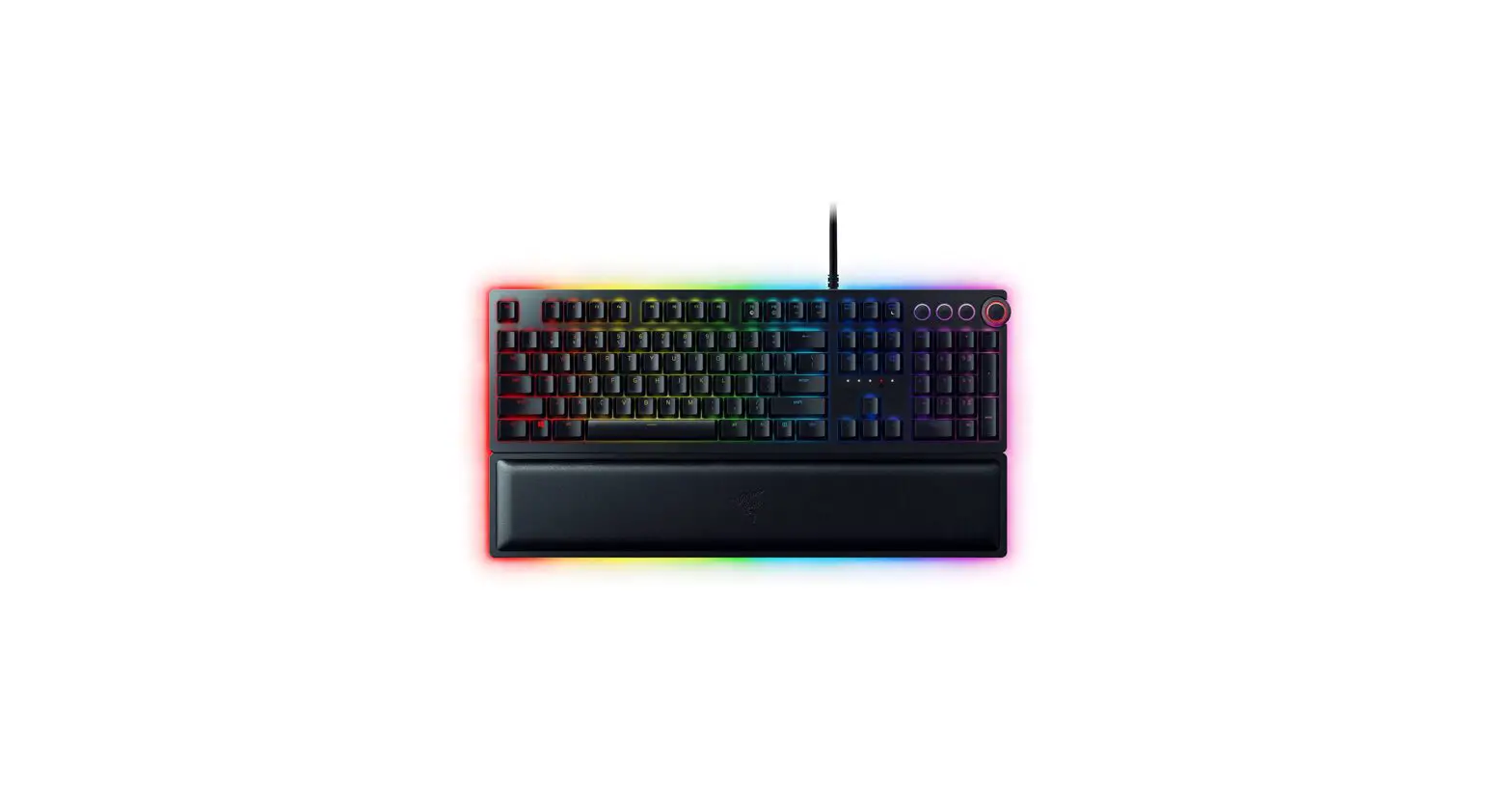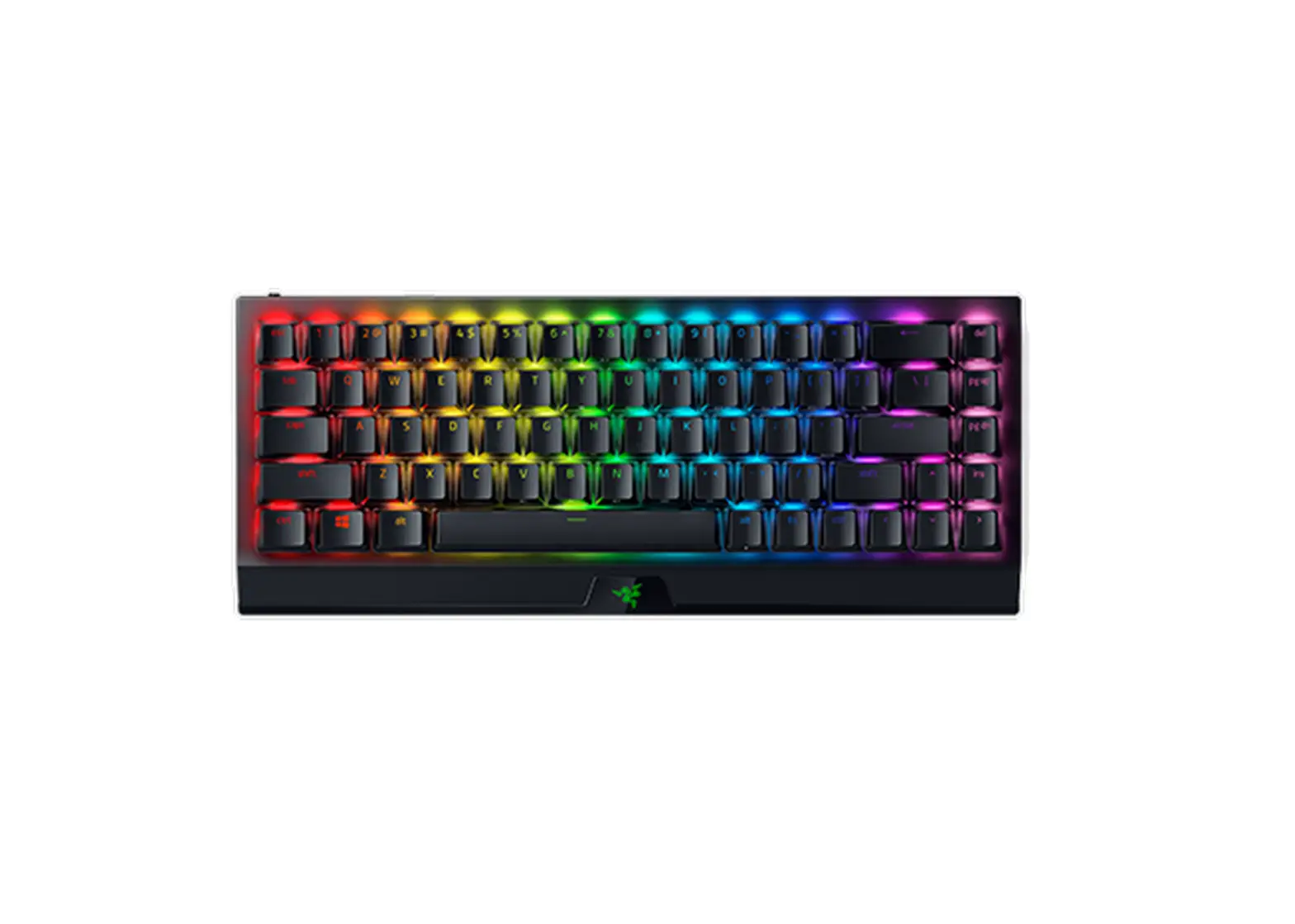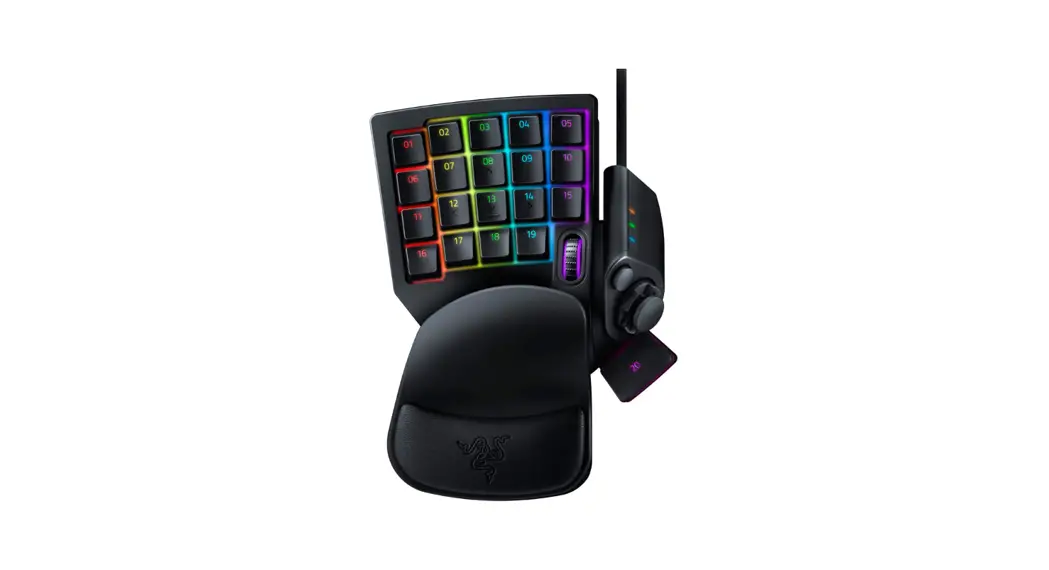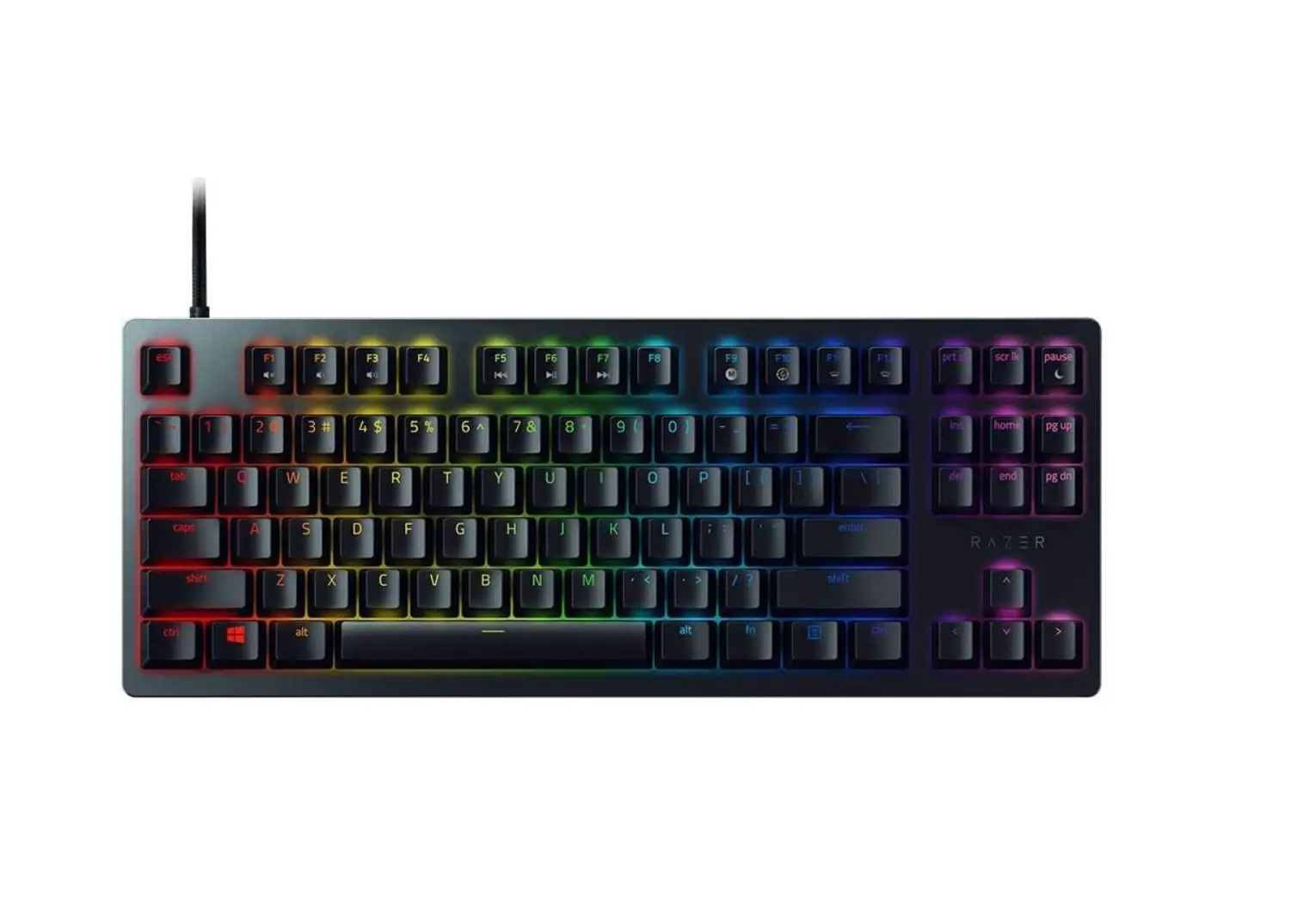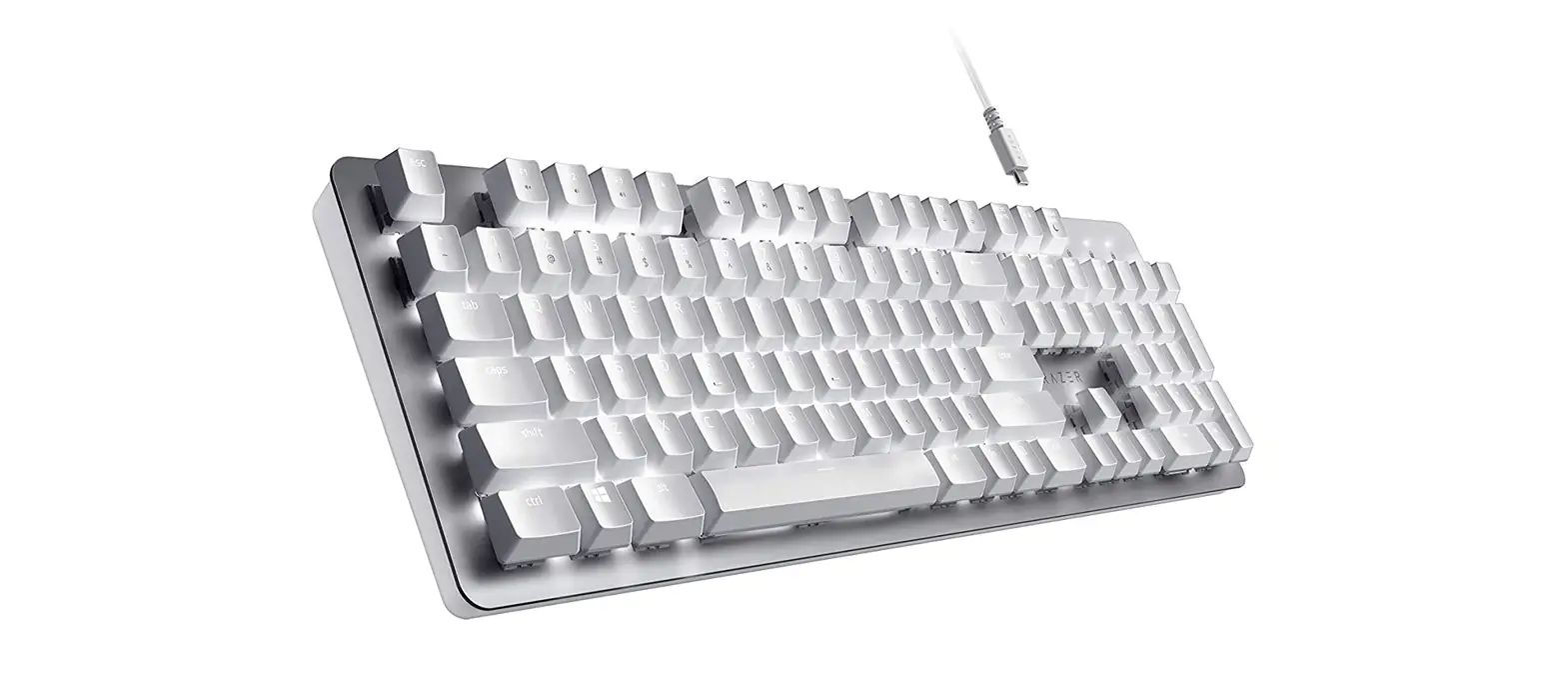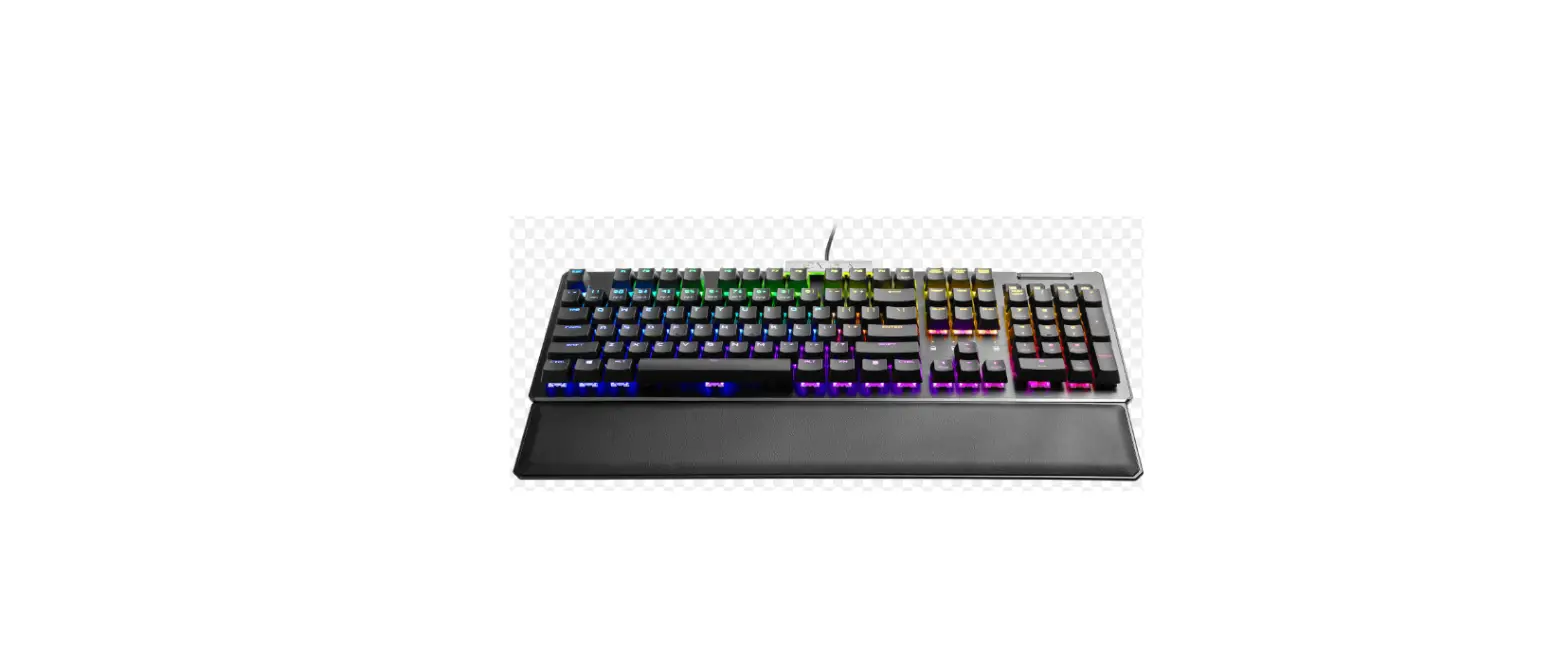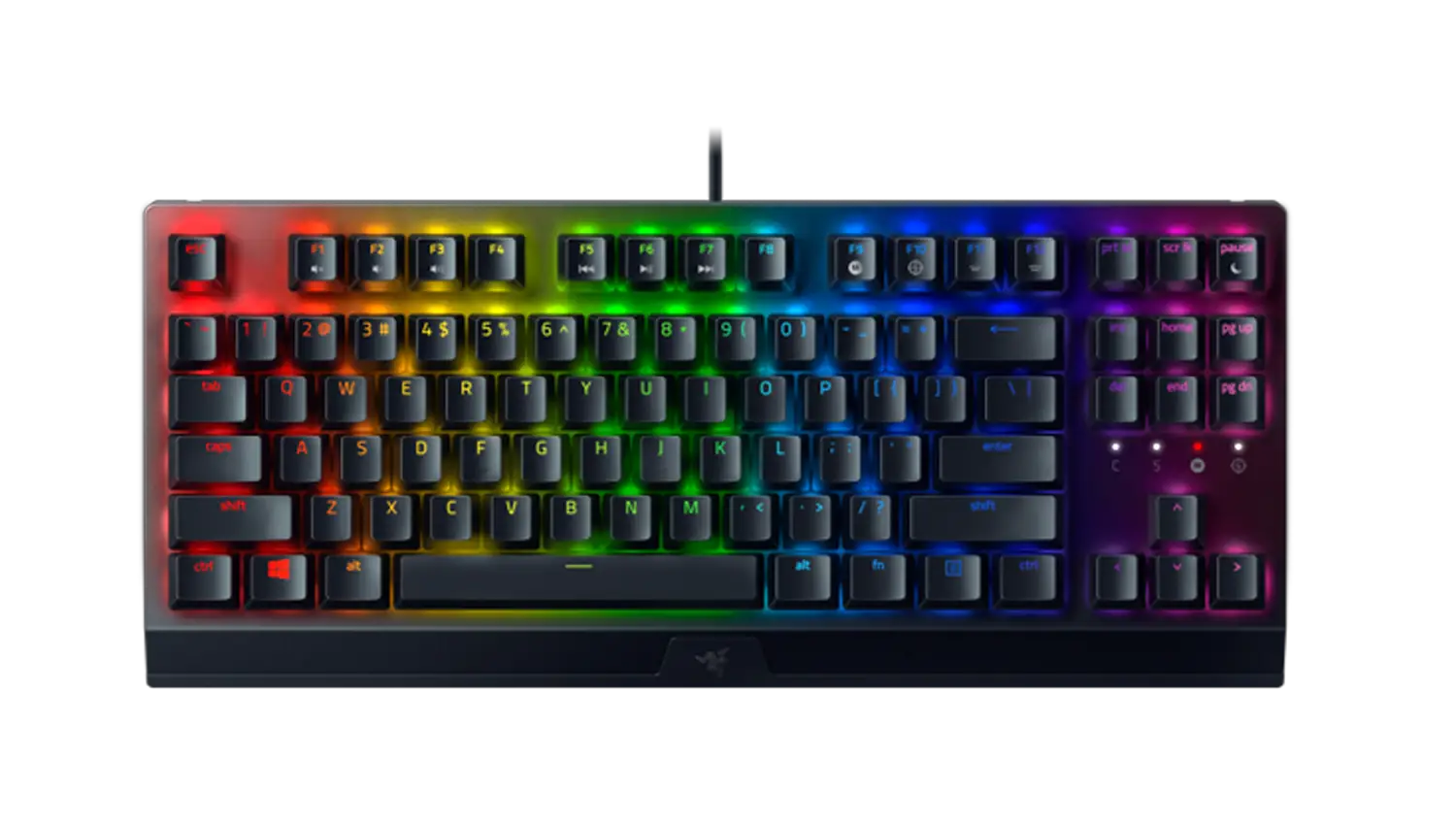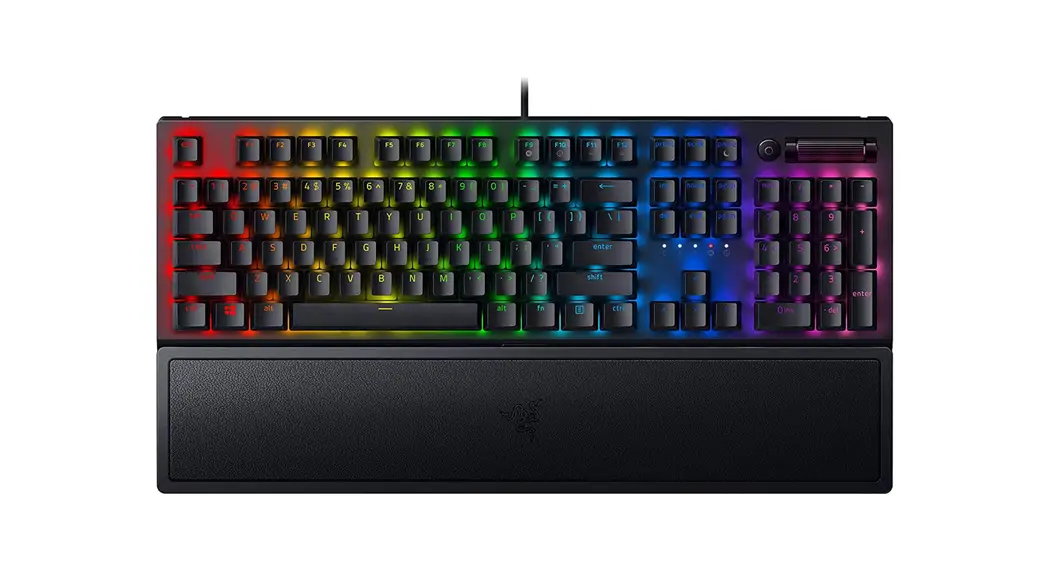
 RZ03 Cynosa Chroma RU Keyboard Gaming
User Guide
RZ03 Cynosa Chroma RU Keyboard Gaming
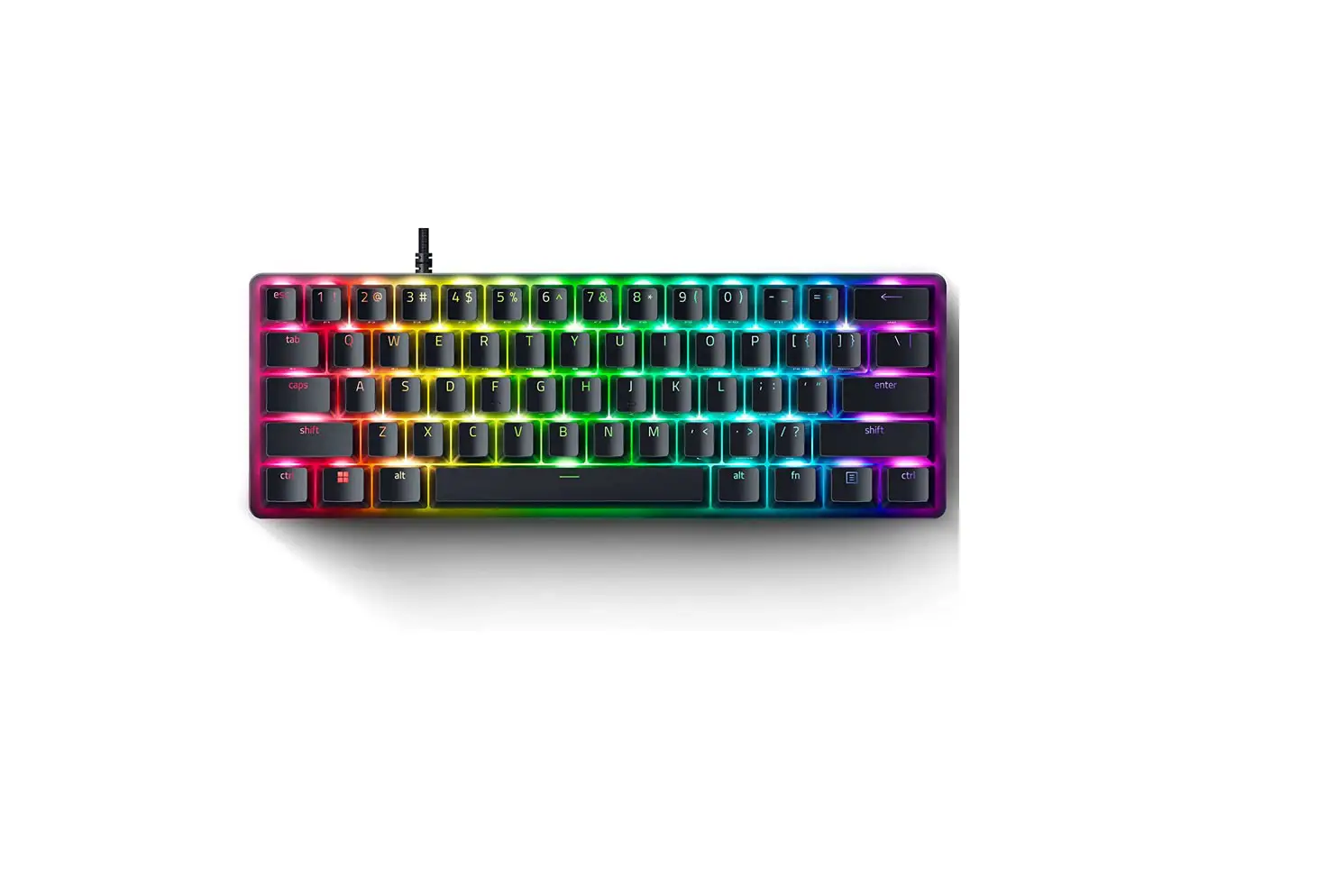
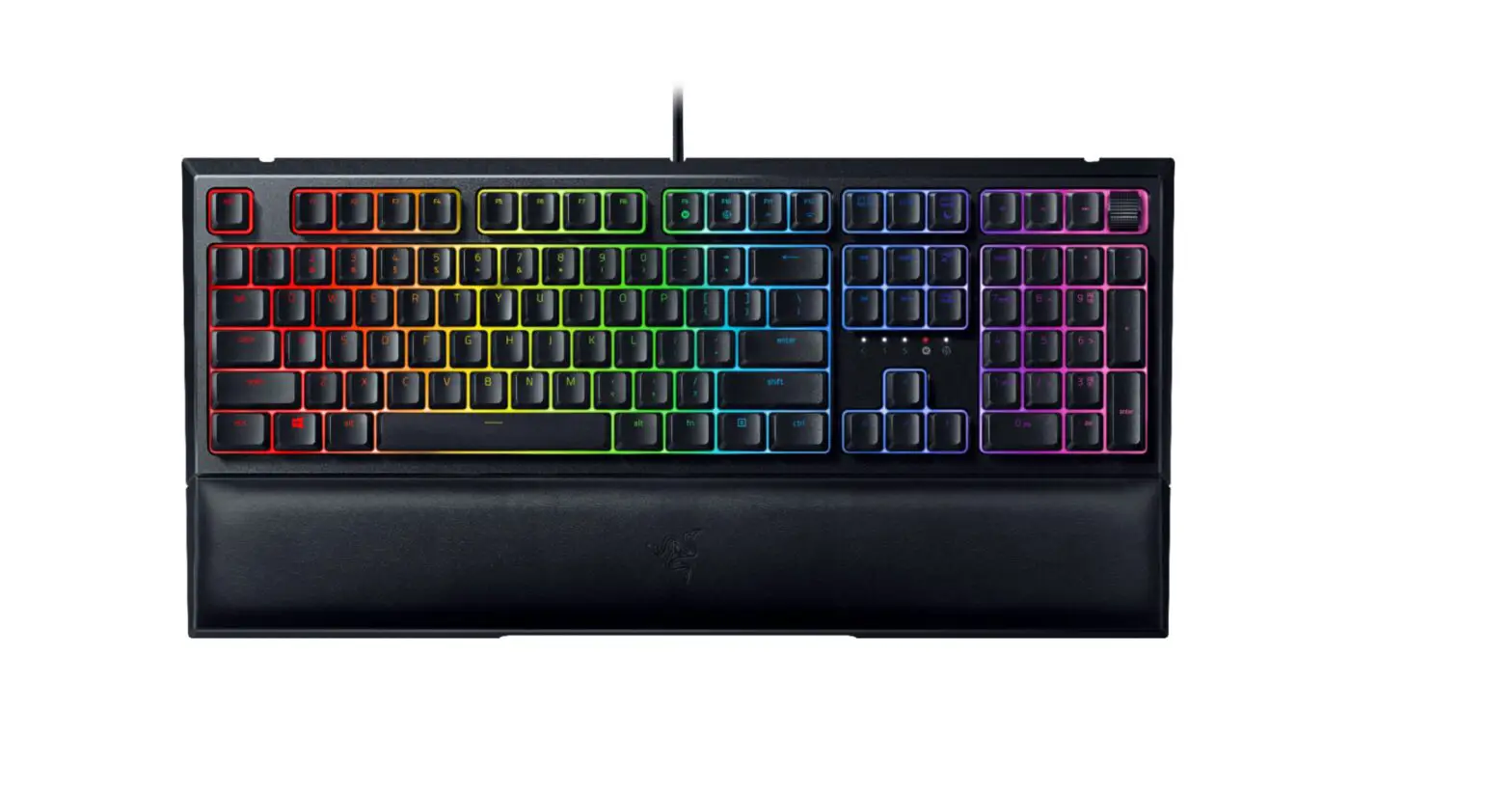
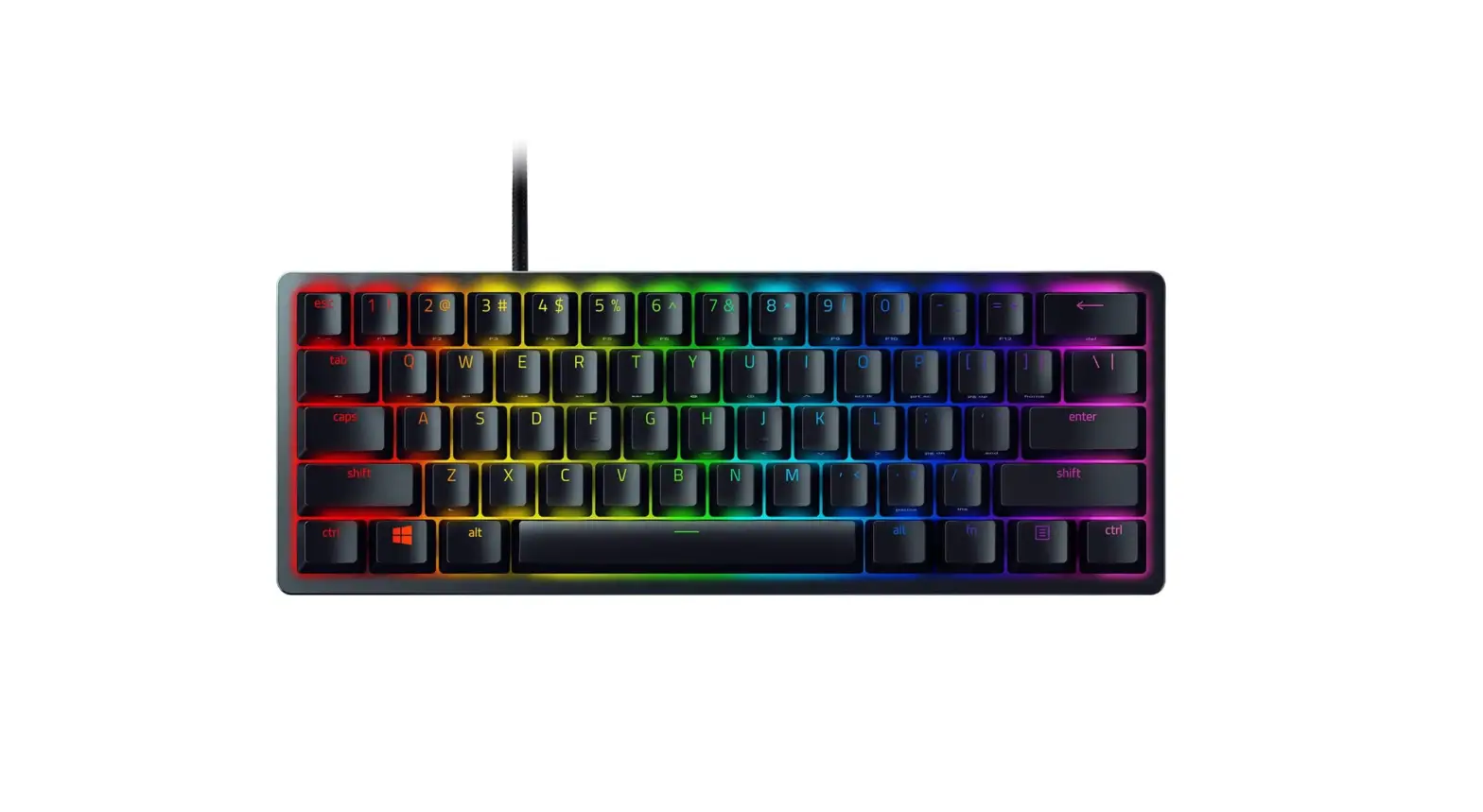
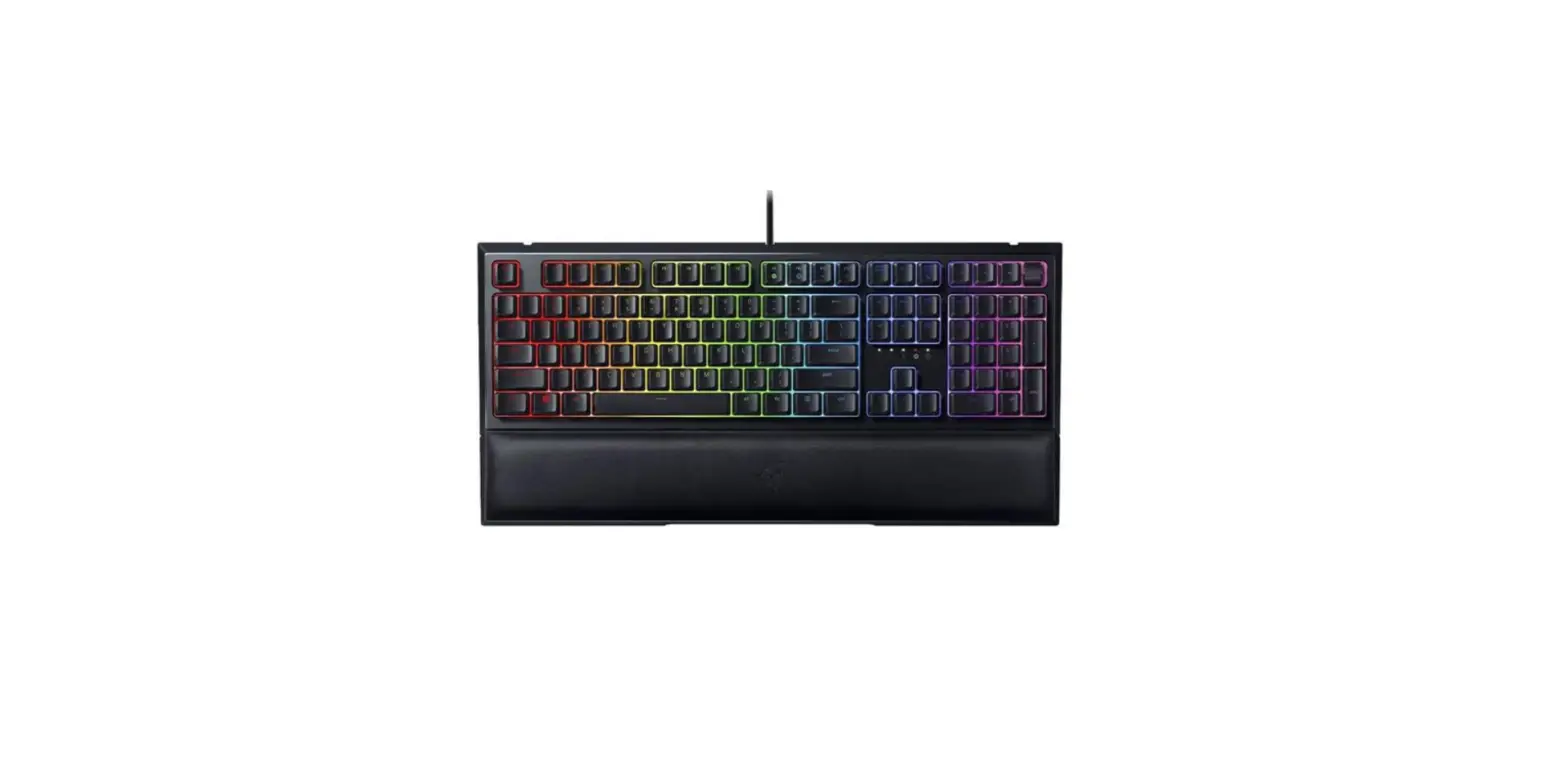
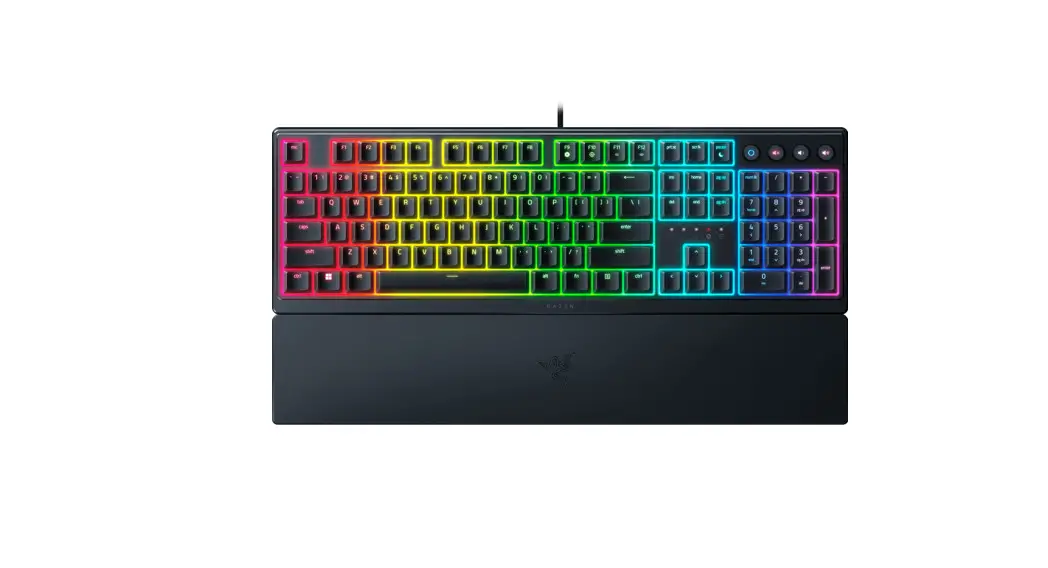
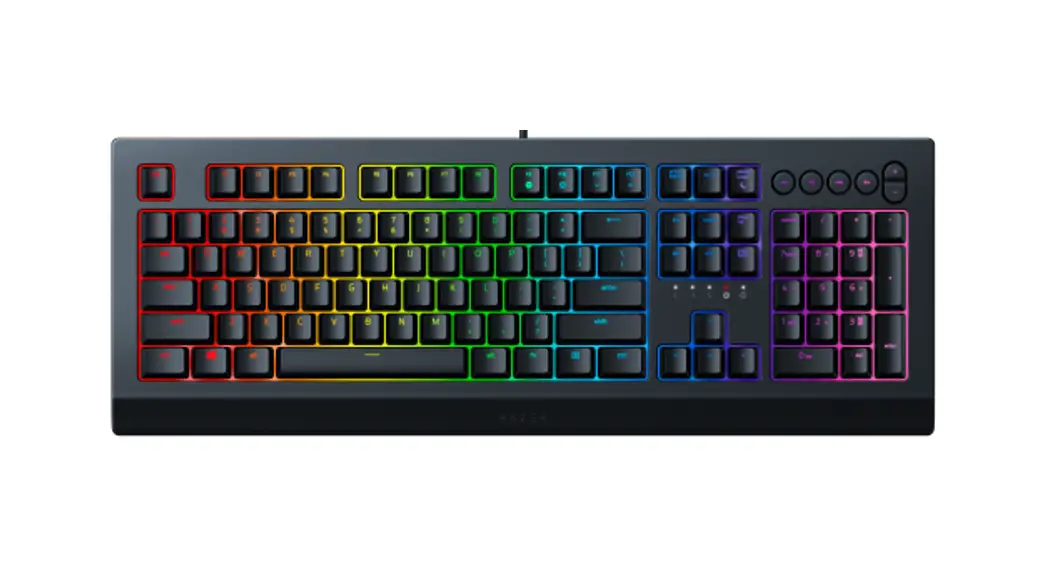
The Razer Cynosa Chroma is a gaming-grade keyboard that features all the essentials a gamer need. With soft cushioned, Individually programmable backlit keys powered by Razer Chroma, and a spill-resistant design that keeps your keyboard safe.
WHAT’S INSIDE / WHAT’S NEEDED
WHAT’S INSIDE
- Razer Cynosa Chroma
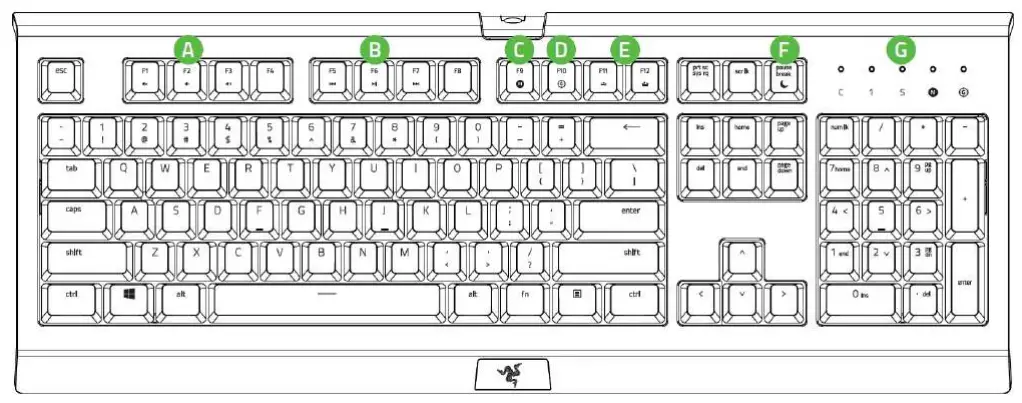
 A. Volume control keys
B. Media keys
C. On-The-Fly macro record key
D. Gaming mode key
E. Backlight control keys
F. Sleep mode key
G. LED indicators - Important Product Information Guide
 A. Volume control keys
WHAT’S NEEDED PRODUCT REQUIREMENTS
- PC with a free USB port
RAZER SYNAPSE REQUIREMENTS
- Windows® 7 64-bit (or higher)
- Internet connection for software installation
LET’S GET YOU COVERED
You’ve got a great device in your hands, complete with 2-year limited warranty coverage. Now maximize its potential and score exclusive Razer benefits by registering at razerid.razer.com
Got a question? Ask the Razer Support Team at support.razer.com
TECHNICAL SPECIFICATIONS
FEATURES
- Soft cushioned gaming-grade keys
- Individually customizable backlit keys
- Razer Chroma™ backlighting with 16.8 million customizable color options
- Razer Synapse enabled
- 10 key roll-over with anti-ghosting
- Spill-resistant durable design
- Fully programmable keys with on-the-fly macro recording
- Gaming mode option
- 1000Hz Ultrapolling
APPROXIMATE SIZE & WEIGHT
- Length: 463 mm / 18.22 in
- Width: 154 mm / 6.06 in
- Height: 31mm / 1 . 2 2 in
- Weight: 950 g/2.1|bs
INSTALLING RAZER SYNAPSE FOR YOUR RAZER CYNOSA CHROMA
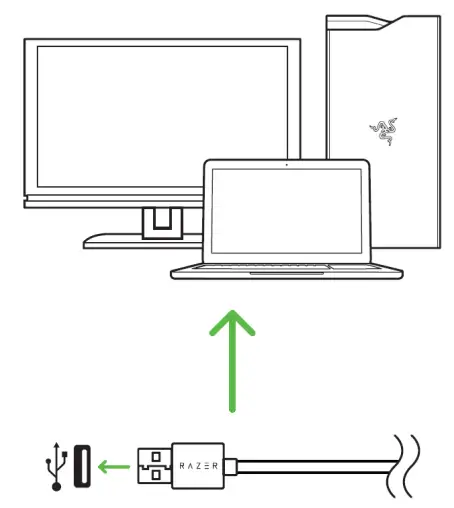
Step 1: Connect your Razer device to the USB port of your computer.
Step 2 : Install Razer Synapse when prompted* or download the in staller from razer.com/synapse,
Step 3: Register for a Razer ID or log in with an existin g account.
“Applicable for Windows 8 or later.
USING YOUR RAZER CYNOSA CHROMA
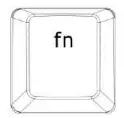
When the fn key is held down, all function keys with secondary functions including other keys which you can combine with the fn key will light up. Pressing the fn key in combination with the function keys will activate their secondary features on your PC.
| Function Keys | Features Description |
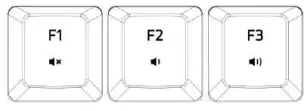 | The audio volume controls allow you t o mute (  ), decrease ( ), decrease ( ) andincrease ( ) andincrease (  ) the audio output. ) the audio output. |
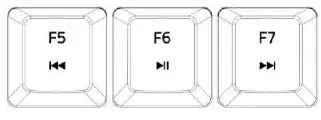 | The media keys allow you to play/pause ( ) a track or skip tracks backward ( ) a track or skip tracks backward ( ) and forward ( ) and forward ( ). ). |
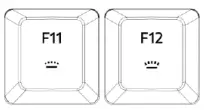 | The backlight control keys allow you t o decrease ( ) or increase () the brightness of your keyboard’s LEDs. ) or increase () the brightness of your keyboard’s LEDs. |
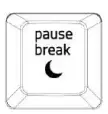 | The sleep key allows you to suspend all operating system activities. This function allows you to save electricity while the computer is idle. |
ON-THE-FLY MACRO RECORDING
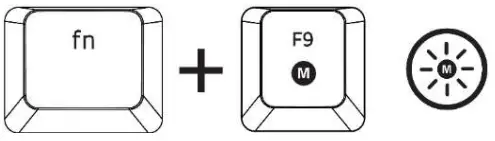
Follow these steps to createan OTF Macro Recording:
- Press the key combination to start recording.
- The Macro Recording Indicator will light up to show that the device is ready to record. Type in the keys you want to record.
- Press the key combination to stop the recording or the ESC key to cancel recording. The Macro Recording Indicator will start blinking to show that the device has stopped recording and is ready to save the macro.
- Press the desired key where you want to save your macro.
GAMING MODE
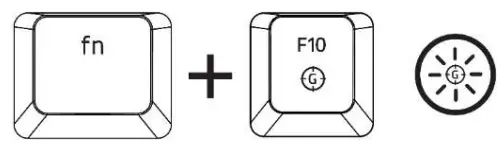
The Gaming Mode disables the Windows Key function to avoid accidental usage. Furthermore, you can maximize the effect of Anti-Ghosting by activating the Gaming Mode function. You can also choose to disable the Alt + Tab and Alt + F4 functions by changing the Gaming Mode settings in Razer Synapse. An indicator will light up when Gaming Mode i s active.
CONFIGURING YOUR RAZER CYNOSA CHROMA VIA RAZER SYNAPSE
 Disclaimer: Internet connection is required for installation, updates and cloud-based features. Registering for a Razer ID account is recommended, but optional. All listed features are subject to change based on the current software version, connected device(s), and supported apps and software.
SYNAPSE TAB
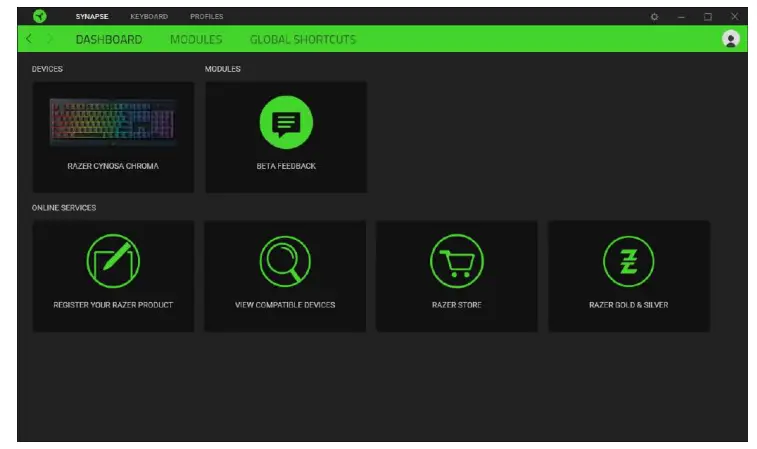
The Synapse tab is your default tab when you first launch Razer Synapse.
Dashboard
The Dashboard subtab is an overview of your Razer Synapse where you can access all your Razer devices, modules, and online services.
Modules
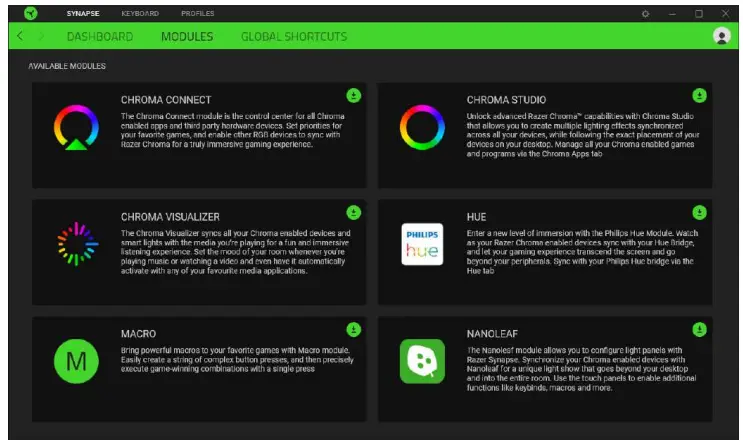
The Modules subtab displays all installed and available modules for installation.
Global Shortcuts
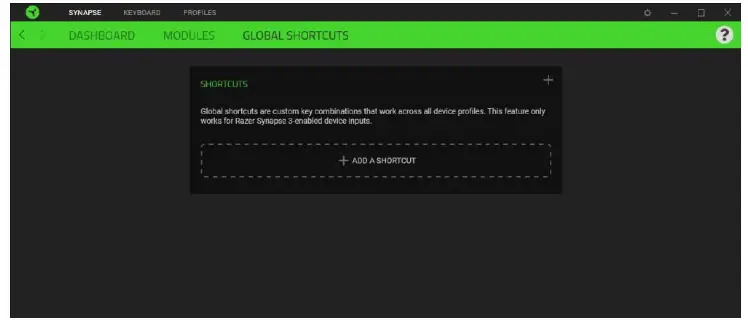
Bind operations or Razer Synapse functions to custom key-combinations from any Razer Synapse- enabled device inputs which apply across all device profiles. Learn more a bout ProfilesOnly Razer Synapse-enabled device inputs will be recognized.
KEYBOARD
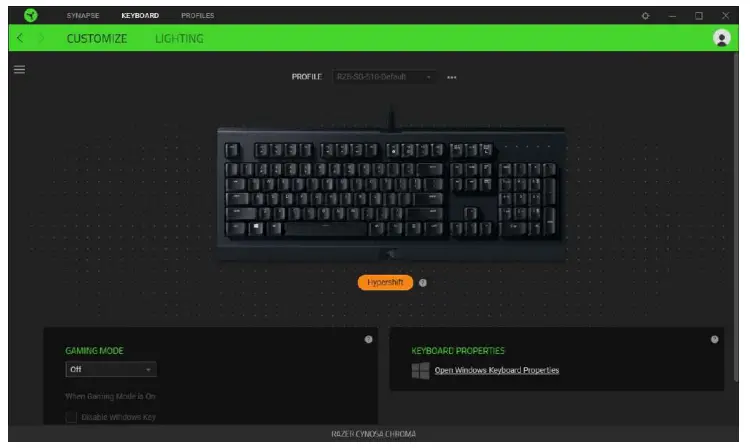
The Keyboard tab is the main tab for your Razer Cynosa Chroma. From here, you can change your device settings such as key assignments and your device’s lighting. Changes made under this tab are automatically saved to your system and cloud storage.
Customize
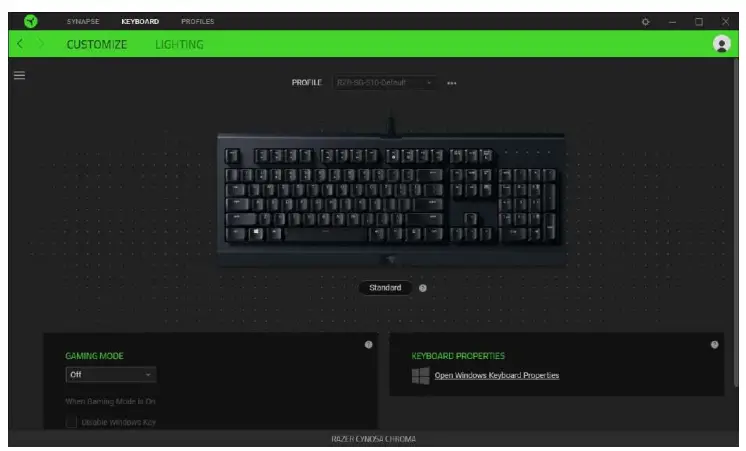
The Customize subtab is for modifying your keyboard’s key assignments.
Profile
Profile is a data storage for keeping all your Razer peripheral’s settings. By default, the profile name is based on your system’s name. To add, import, rename, duplicate, export, or delete a profile, simply press the profile’s corresponding Miscellaneous button ( © 0 ).
Gaming Mode
Gaming Mode Gaming Mode enables you to customize which keys to disable when Gaming Mode is activated. Depending on your settings, you may choose to disable the Windows key, Alt + Tab and Alt + F4.
Keyboard Properties
Keyboard Properties Allows you to open the Windows Keyboard Properties where you can modify other keyboard settings such as Repeat delay, Repeat Rate, and Cursor blink rate, or view all keyboard drivers installed in your PC.
Hypershift
Hypershift Hypershift mode is a secondary set of key assignments that is activated when the Hypershift key is held down. By default, the Hypershift key is assigned to the fn key of your Razer Synapse supported keyboard however, you can also assign any key as a Hypershift key.
Sidebar
Clicking the Sidebar button ( ) will reveal all current key assignments for your Razer Cynosa Chroma.
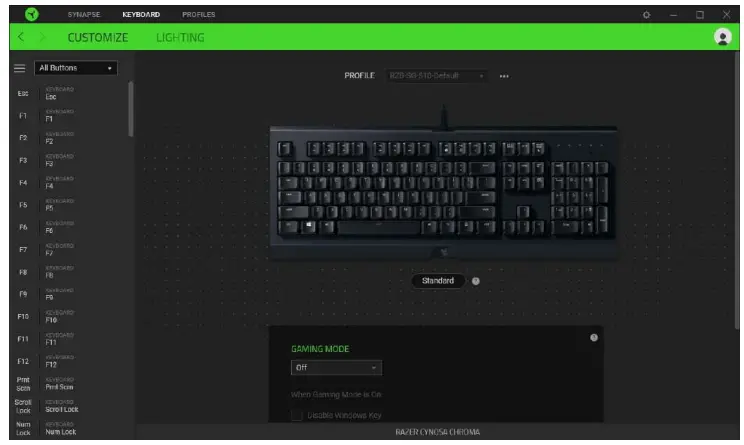
Alternatively, you can skip to a specific key assignment by selecting it on the Customize tab.
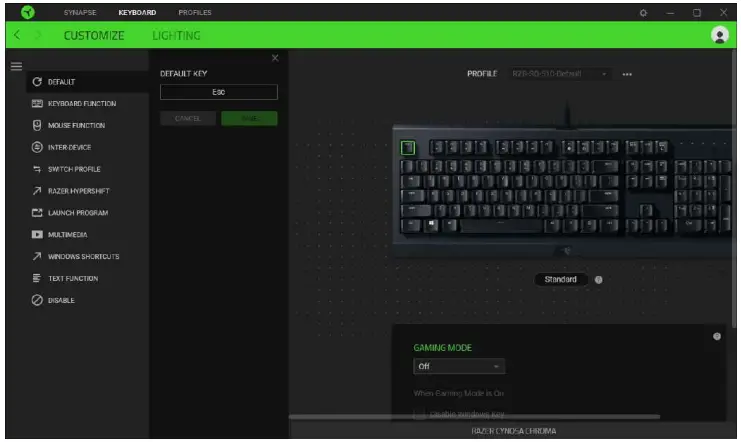
Upon selecting a key assignment, you may then change it to one of the following functions: Default
This option enables you to return the selected key to its original setting. Keyboard Function
This option changes the key assignment into a keyboard function. You can also choose t o enable Turbo mode which allows you to emulate repeatedly pressing the keyboard function while the key is held down. Mouse Function
This option allows you to change any key into a mouse function. Listed below are the functions which you can choose from:
- Left Click – Performs a left mouse click using the assigned button.
- Right Click – Performs a right mouse click using the assigned button.
- Scroll Click – Activates th e universal scrolling function.
- Double Click – Performs a double left click using the assigned button.
- Mouse Button 4 – Performs a “Backward” command for most internet browsers.
- Mouse Button 5 – Performs a “Forward” command for most internet browsers.
- Scroll Up – Performs a “Scroll Up” command using the assigned button.
- Scroll Down – Performs a “Scroll Down” command using the assigned button.
- Scroll Left – Performs a “Scroll L e f t ” command using the assigned button.
- Scroll Right – Performs a “Scroll Right” command using the assigned button.
You can also choose to enable Turbo mode in some of the mouse functions which allow you to emulate repeatedly pressing and releasing said function while the key is held down. Inter-device
Inter-device allows you to change the functionality of other Razer Synapse-enabled devices. Some of these functionalities are device-specific such a s using your Razer gaming keyboard to change the Sensitivity Stage of your Razer gaming mouse. Macro
Macro
A Macro is a prerecorded sequence of keystrokes and button presses that are executed with precise timing. By setting the key function to Macro, you can conveniently execute a chain of commands. This function will only be visible when the Macro module is installed. Switch Profile
Switch Profile enables you to quickly change profiles and load a new set of key assignments. An on-screen notification will appear whenever you switch profiles. Switch Lighting
Switch Lighting allows you to easily switch between all advanced lighting effects. This function will only be visible when the Chroma Studio module is installed. Razer Hypershift
Setting the key to Razer Hypershift will allow you to activate Hypershift mode if the key is held down. Launch Program
Launch Program enables you to open an app or a website using the assigned key. When you select Launch Program, two choices will appear which requires you to search for a specific app you want to open or write the address of the website you want t o visit. Multimedia
This option allows you to assign multimedia controls to your Razer device. Windows Shortcuts
This option allows you to assign your preferred key into a Windows Operating System shortcut command. For more information, please visit: support.microsoft.com/kb/126449 Text Function
Text Function enables you to type a prewritten text with a touch of a key. Simply write your desired text on the given field and your text will be typed whenever the assigned key is pressed. This function has full Unicode support and you can also insert special symbols from character maps. Disable
This option renders the assigned key unusable. Use Disable if you do not want to use the selected key or if it interferes with your gaming.
Lighting
The Lighting subtab enables you to modify your Razer device’s light settings.
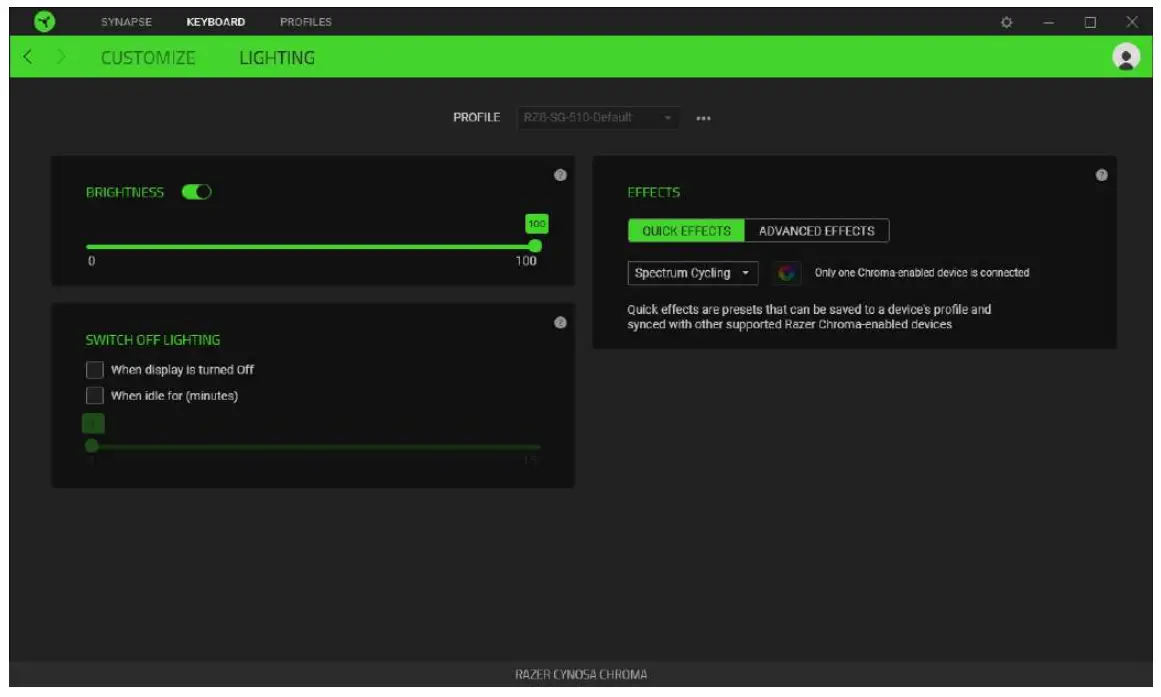
Brightness
You can turn off your Razer device’s lighting by toggling the Brightness option or increase/decrease the luminance using the slider.
Switch Off Lighting
This is a power-saving tool that allows you to disable your device’s lighting in response to your system’s display turning off and/or automatically power down when your Razer Cynosa Chroma has been idle for a set amount of time.
Quick Effects
A number of quick effects can be selected and applied to your device’s lighting, as listed here:
| Name | Description | How to set up | |
 | Ambient awareness | The lighting will reflect the averaged color on the selected screen region | Select or customize a screen region |
 | Audio meter | The LEDs will light up according to the audio level with a default spectrum of colors | Select a Color Boost level |
 | Breathing | The lighting will fade in and out of the selected color(s) | Select up to 2 colors or randomize colors |
 | Fire | The LEDs will light up in warm colors to mimic the motion of flames | No further customization required |
 | Reactive | The LEDs will light up when a key is pressed. The light will fade off after a specified period of time | Select a color and a duration |
 | Ripple | On key press, the light will ripple away from the pressed key | Select a color |
 | Spectrum cycling | The lighting will cycle between 16.8 million colors indefinitely | No further customization required |
 | Starlight | Each LED will have a chance of fading in and out atarandom time and duration | Select up to 2 colors or randomize colors and select a duration |
 | Static | The LEDs will remain lit in the selected color | Select a color |
 | Wave | The lighting will scroll in the direction selected | Select either left-to-right or right- to-left wave direction |
 | Wheel | The lighting will rotate in the direction selected with a default spectrum of colors | Select either counterclockwise or clockwise wheel direction |
If you have other supported Razer Chroma-enabled devices, you can synchronize their quick effects with your Razer device by clicking the Chroma Sync button ( ).Only devices that support the selected lighting effect will synchronize.
Advanced Effects
The Advanced Effects option allows you to choose a Chroma Effect you want to use on your Razer Chroma-enabled peripheral. To start making your own Chroma Effect, simply press the Chroma Studio button ( )
)
PROFILES TAB
The Profiles tab is a convenient way of managing all your profiles and linking them to your games and applications.
Devices
View which Razer device is using a specific profile using the Devices subtab.
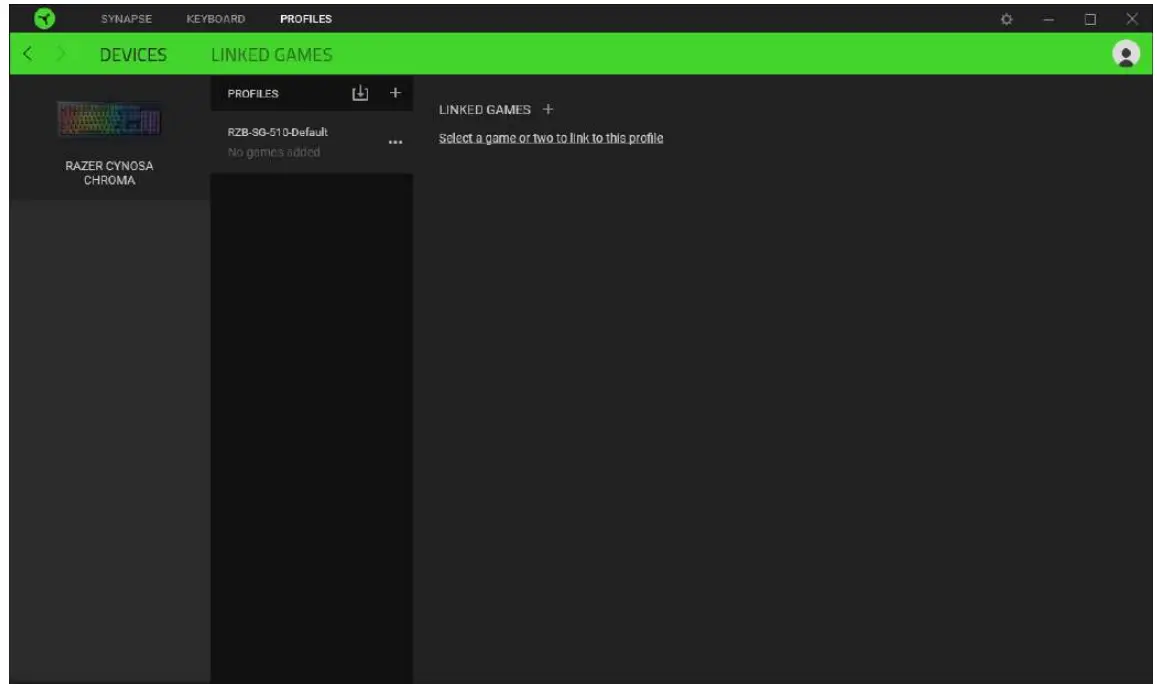
You can import Profiles from your computer or from the cloud through the import button ( ) or
) or
create new profiles within the selected device using the add button (+). To rename, duplicate, export, or delete a profile, simply press the Miscellaneous button ( •••). Each profile can be set to automatically activate when you run an application using the Linked Games option.
Linked Games
The Linked Games subtab gives you the flexibility to add games, view peripherals that are linked to games or search for added games. You can also sort games based on alphabetical order, last played, or most played. Added games will still be listed here even if it is not linked to a Razer device.
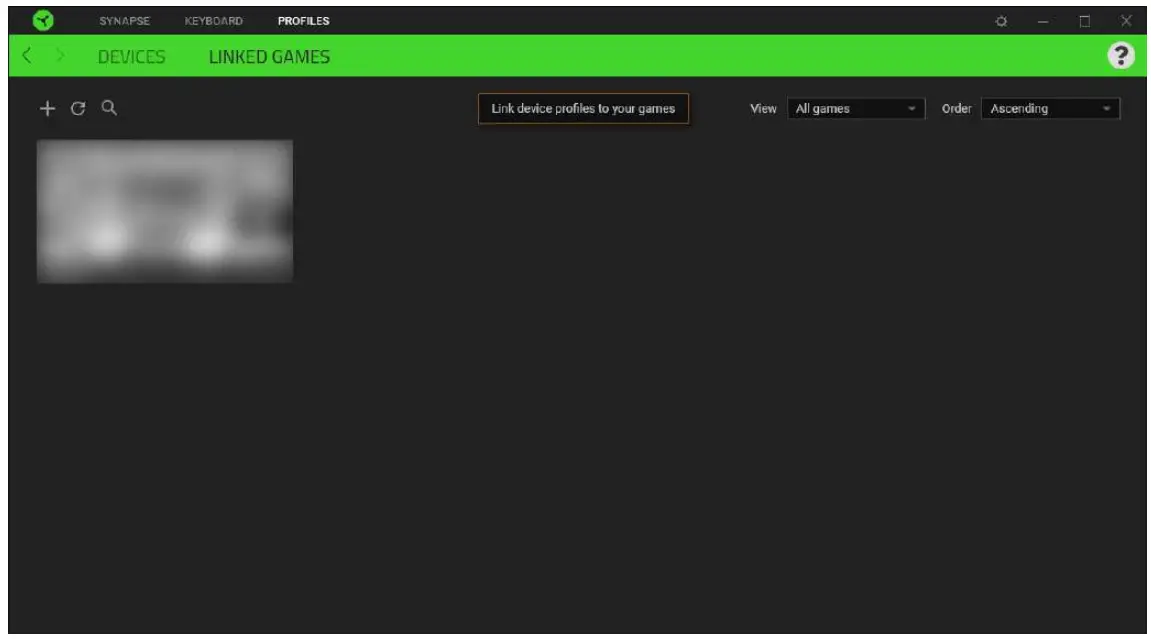
To link games to connected Razer devices, simply click on a game from the list, and then click Select a device and its profile t o launch automatically during gameplay link to select the Razer device it will link with. Once linked, you may click on the Miscellaneous button ( •••)of the corresponding device to select a specific profile.
SETTINGS WINDOW
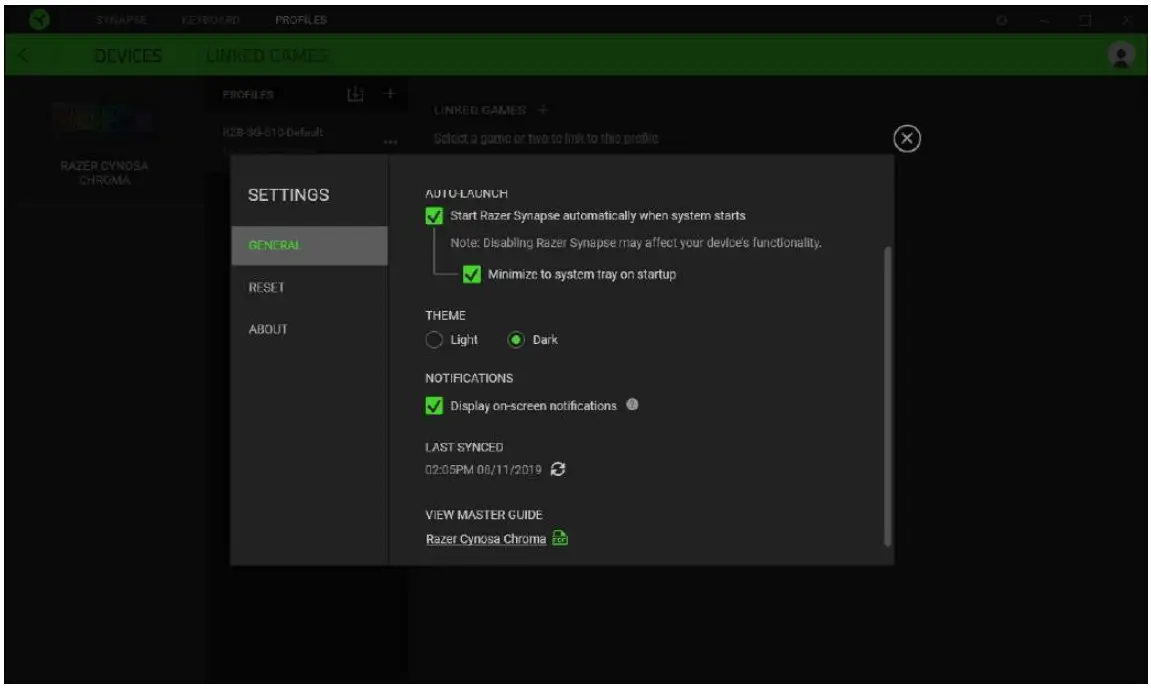
The Settings window, accessible by clicking the (  ) button on Razer Synapse, enables you to configure the startup behavior and display language of Razer Synapse, view the master guides of each connected Razer device o r perform factory reset on any connected Razer device.
General tab
The default tab of the Settings window. The General tab enables you to change the software’s display language, start-up behavior, and display theme. You may also manually sync your profiles to the cloud ( ) or view the master guide of all connected Razer devices and installed modules.
Reset tab
The Reset tab allows you to perform a factory reset on any connected Razer device and/or reset Razer Synapse tutorials to acquaint yourself again with Razer Synapse’s new features on its next launch.By resetting a Razer device, all profiles on the selected device and its on-board memory (if present) will be erased.
About tab
The About tab displays brief software information and copyright statement and provides relevant links for its terms of use. You may also use this tab to check for software updates orasa quick access to Razer’s social communities.
SAFETY AND MAINTENANCE
SAFETY GUIDELINES
I n order to achieve maximum safety while using your Razer Cynosa Chroma, we suggest that you adopt the following guidelines:
Should you have trouble operating the device properly and troubleshooting does not work, unplug the device and contact the Razer hotline or g o to support.razer.com for support.
Do not take apart the device (doing so will void your warranty) and do not attempt t o operate it under abnormal current loads.
Keep the device away from liquid, humidity or moisture. Operate the device only within the specific temperature range of 0°C (32°F) to 40°C (104°F). Should the temperature exceed this range, unplug and/or switch off the device in order to let the temperature stabilize to an optimal level.
COMFORT
Research has shown that long periods of repetitive motion, improper positioning of your computer peripherals, incorrect body position, and poor habits may be associated with physical discomfort and injury to nerves, tendons, and muscles. Below are some guidelines to avoid injury and ensure optimum comfort while using your Razer Cynosa Chroma.
- Position your keyboard and monitor directly in front of you with your mouse next to it. Place your elbows next to your side, not too far away and your keyboard within easy reach.
- Adjust the height of your chair and table so that the keyboard and mouse are at or below elbow height.
- Keep your feet well supported, posture straight and your shoulders relaxed.
- During gameplay, relax your wrist and keep it straight. If you do the same tasks with your hands repeatedly, try not to bend, extend or twist your hands for long periods.
- Donot rest your wrists on hard surfaces for long periods.
- Use awrist rest to support your wrist while gaming.
- Customize the keys on your keyboard t o suit your style of gaming in order to minimize repetitive or awkward motions while gaming.
- Do not sit in the same position all day. Get up, step away from your desk and do exercises to stretch your arms, shoulders, neck, and legs.
If you should experience any physical discomfort while using your keyboard, such a s pain, numbness, or tingling in your hands, wrists, elbows, shoulders, neck or back, please consult a qualified medical doctor immediately.
MAINTENANCE AND USE
The Razer Cynosa Chroma requires minimum maintenance to keep it in optimum condition. Once a month we recommend you unplug the device from the computer and clean it using a soft cloth or cotton swab to prevent dirt buildup. Do not use soap or harsh cleaning agents.
LEGALESE
COPYRIGHT AND INTELLECTUAL PROPERTY INFORMATION
©2018 Razer Inc. All rights reserved. Razer, the triple-headed snake logo, Razer logo, and “For Gamers. By Gamers.”, are trademarks o r registered trademarks of Razer Inc. and/or affiliated companies in the United States or other countries. All other trademarks are the property of their respective owners.
Windows and the Windows logo are trademarks of the Microsoft group of companies.
Razer Inc. (“Razer”) may have copyright, trademarks, trade secrets, patents, patent applications, or other intellectual property rights (whether registered or unregistered) concerning the product in this guide. Furnishing of this guide does not give you a license to any such copyright, trademark, patent or other intellectual property right. The Razer Cynosa Chroma (the “Product”) may differ from pictures whether on packaging or otherwise. Razer assumes no responsibility for such differences or for any errors that may appear. Information contained herein is subject to change without notice.
LIMITED PRODUCT WARRANTY
For the latest and current terms of the Limited Product Warranty, please visit razer.com/warranty.
LIMITATION OF LIABILITY
Razer shall in no event be liable for any lost profits, loss of information or data, special, incidental, indirect, punitive or consequential or incidental damages, arising in any way out of distribution of, sale of, resale of, use of, or inability to use the Product. In no event shall Razer’s liability exceed the retail purchase price of the Product.
GENERAL
These terms shall be governed by and construed under the laws of the jurisdiction in which the Product was purchased. If any term herein is held to be invalid or unenforceable, then such term (in So far a s it is invalid or unenforceable) shall be given noeffect and deemed to be excluded without invalidating any of the remaining terms. Razer reserves the right to amend any term at any time without notice.
FOR GAMERS. BY GAMERS.”
 Razer Warranty Policy
 Keyboard shortcuts in Windows - Microsoft Support
 Razer ID