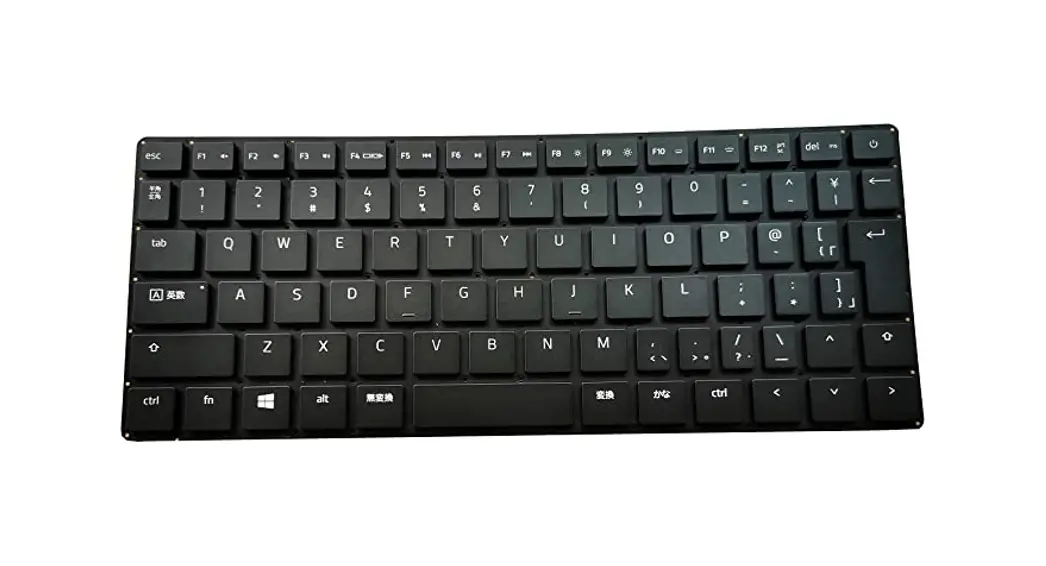

RZ09-03101 Laptop Keyboard
User Guide
DRIVER INSTALLATION INSTRUCTIONS
APPLICABLE MODEL NUMBERS
- RZ09-03101
DRIVER NAME AND VERSION
Intel® Iris® Graphics Driver and Intel® Display Audio Version 25.20.100.7060 4ID
INSTRUCTIONS
Note: This download is for the original driver that was installed on your Razer Laptop. Updates for this driver are available via standard Windows Updates. To ensure you have the latest driver installed on your Blade please make sure to apply all available updates from Windows.
Please follow the instructions below to download and install the original driver for your Blade. Following the installation, it is recommended to search for any available Windows
Updates.
- Ensure that your Blade is plugged into a wall outlet and not running on battery alone before proceeding.
- Save any open documents on your computer and close all other programs before attempting this update.
- Download the driver from the link below. You will need to right-click the .zip folder and choose to extract the files to a location of your choosing (such as your desktop) and locate the files for the installation process.
http://rzr.to/RF6Ij - Once you have extracted the file proceed to the installation steps below.
INSTALLATION PROCESS
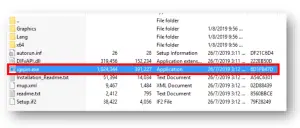
- To initiate the initial process, click on the igxpin.exe (Application) as shown in the image below:
- The User Account Control window may pop up to confirm changes that will be made by the application. Click “Yes” to allow the application to launch.

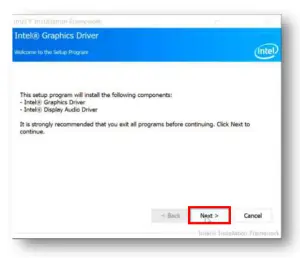
- The Intel® Chipset Device Software will prompt you to exit all other programs. Once done with the message, click “Next” to begin and follow the on-screen prompts as necessary as shown in the image below:

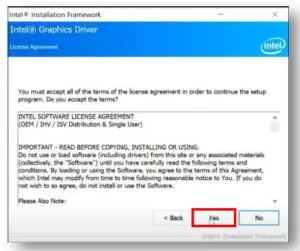
- Click “Yes” to accept all of the terms of the license agreement and proceed with the installation.

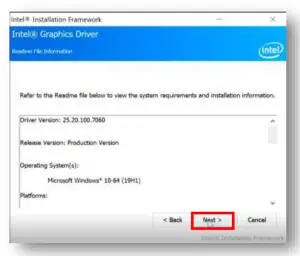
- The next window will display information about the driver. Read through and click “Next” to continue.

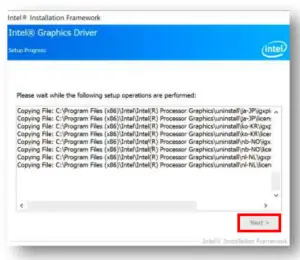
- Wait until the installation process finishes. Click “Next” when the button is no longer grayed out.

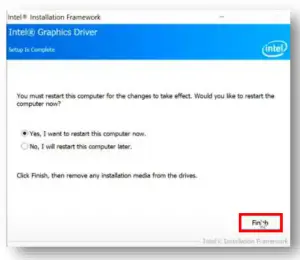
- The system will prompt you to restart the computer. We recommend restarting your system for the changes to take effect. Click “Finish” to exit the installer.
F O R G A M E R S . B Y G A M E R S .™