
StarHub Installation Guide
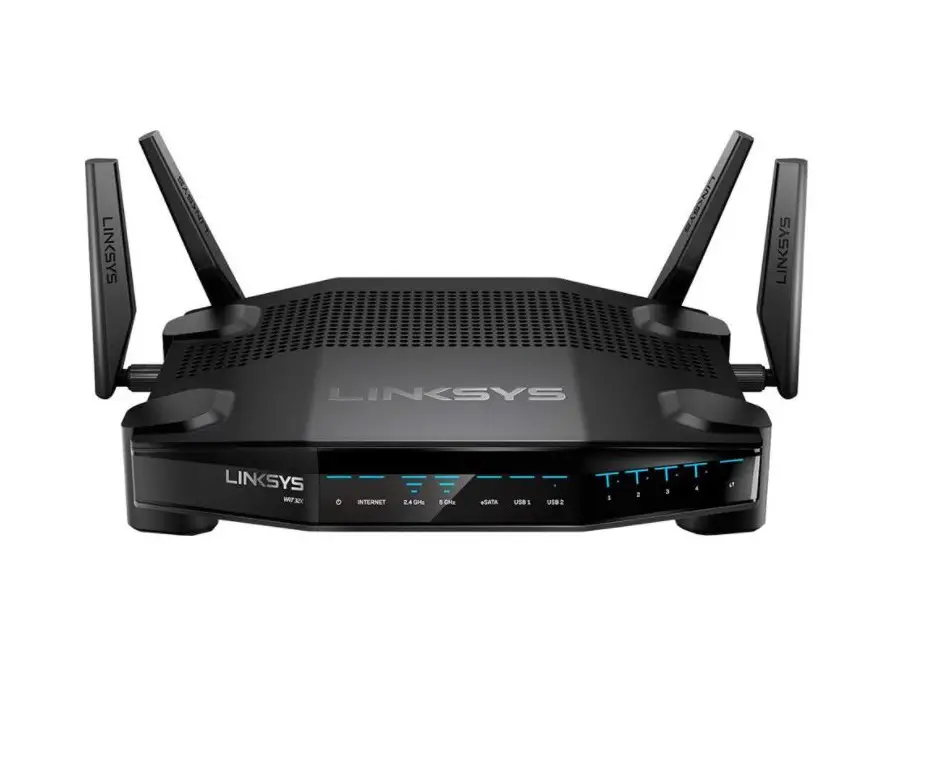
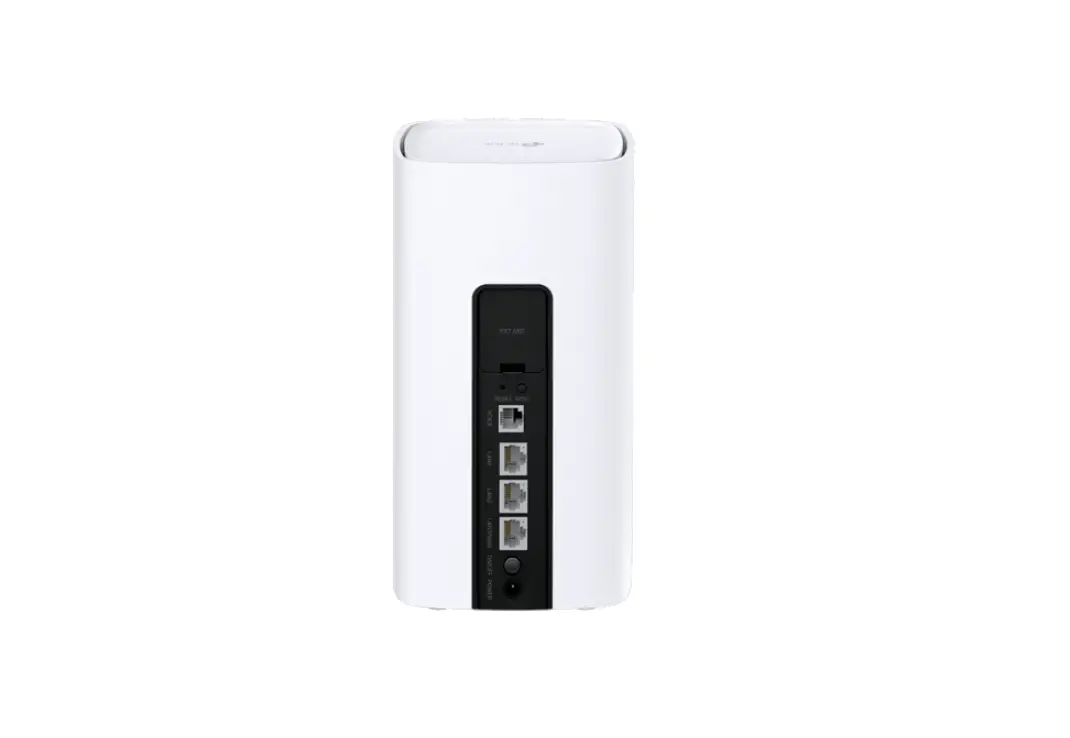
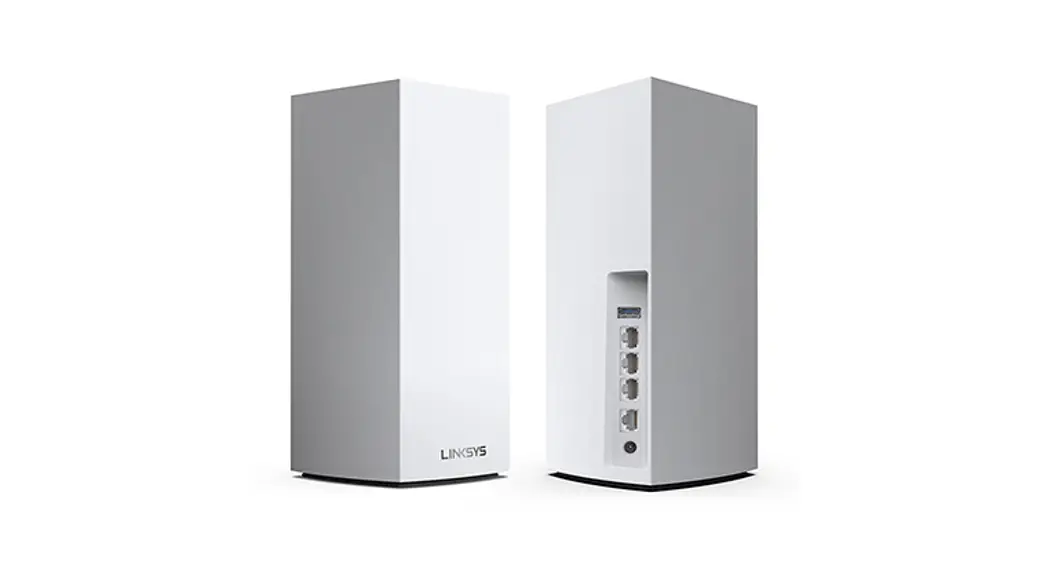
MX4200 Router
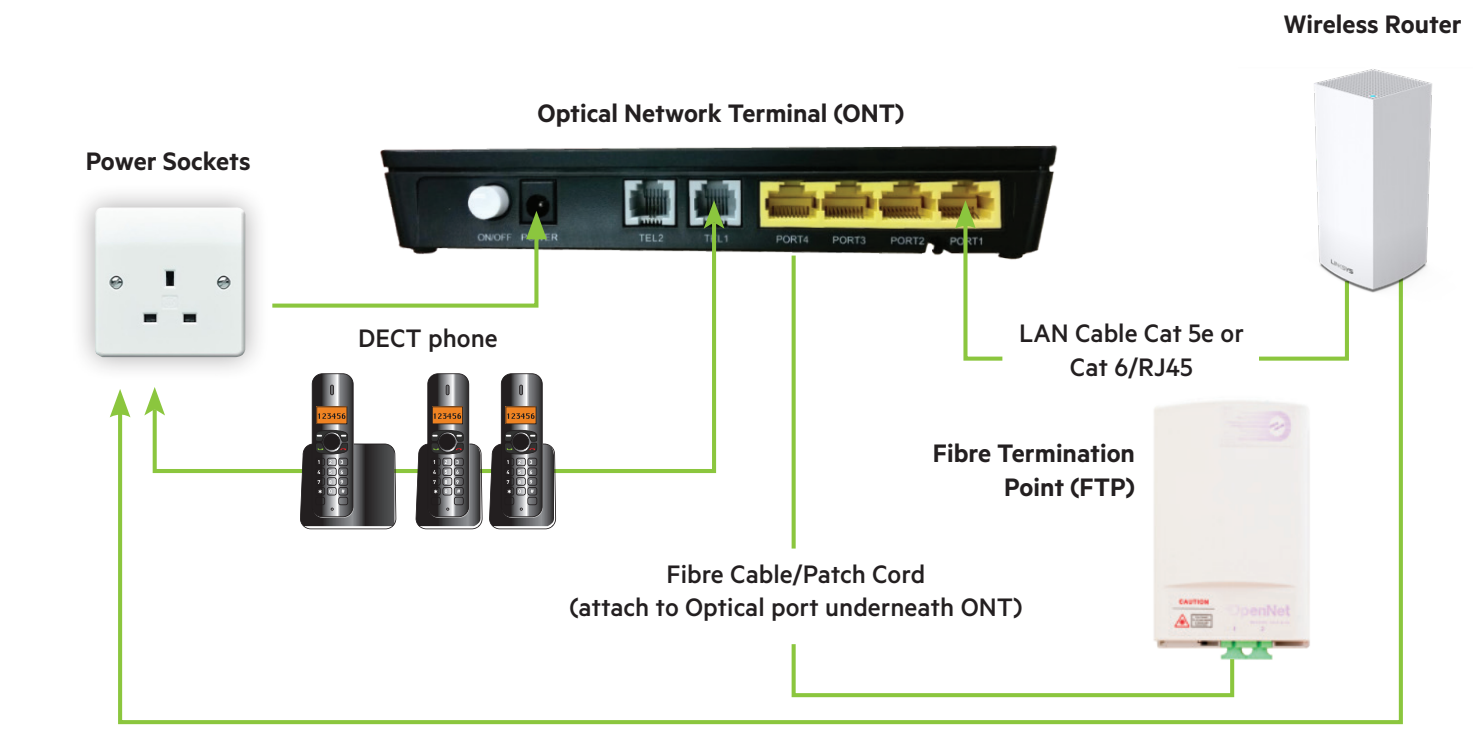
StarHub Typical Fibre Set Up StarHub Router Installation Guide
 StarHub Router Installation Guide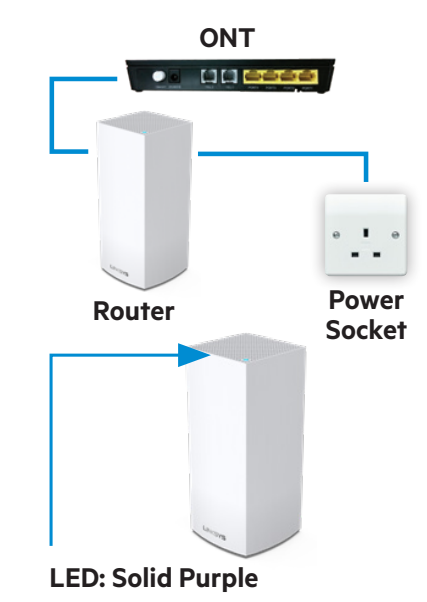
- First, switch off the power to your ONT.
- Unplug and remove your old router from the ONT.
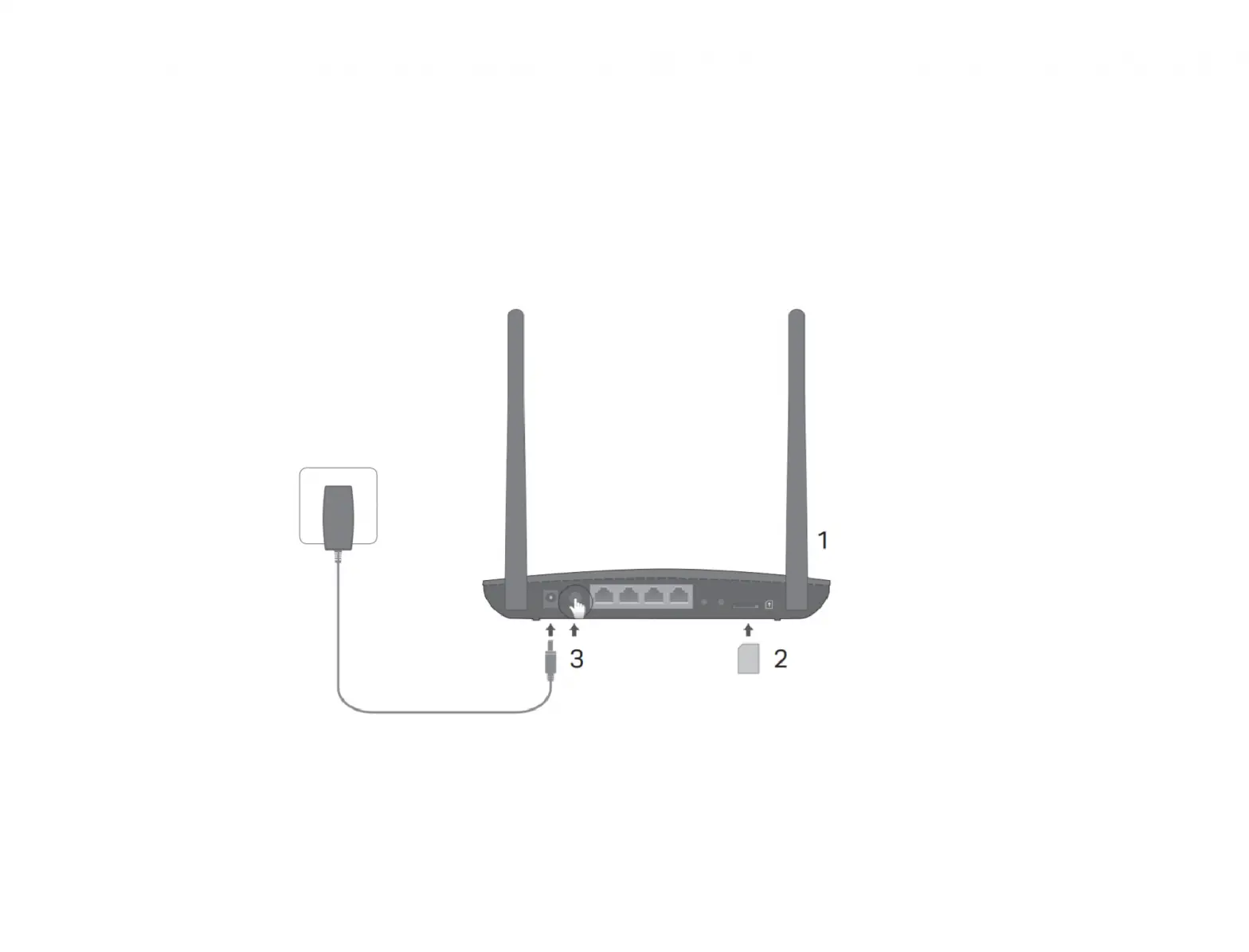
- Connect an Ethernet cable from the LAN port on your ONT to the Internet port of the Linksys MX4200 router.
- Plug your ONT back into power and wait about a minute while it starts up. Plug the power adapter into your Linksys MX4200 and connect it to an available power outlet or surge protector. If the LED does not light up, switch on the Power button on the bottom of your Linksys MX4200 router.
- When the light on top of your router is solid purple it is ready for setup.
- Download and launch the Linksys app. Follow the app instructions to complete the setup.
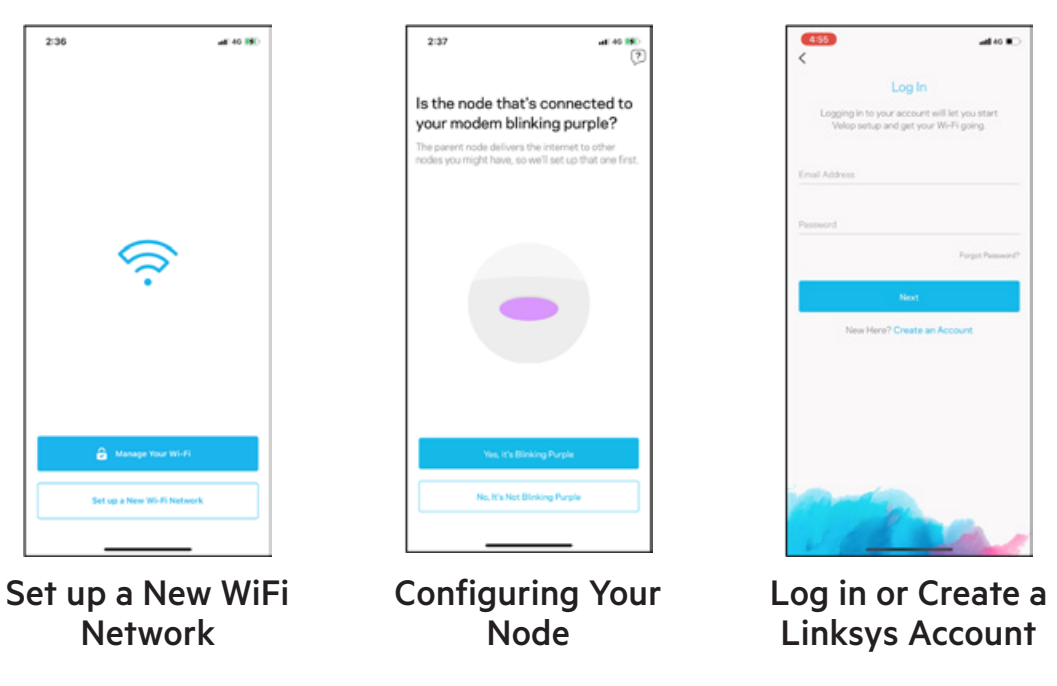
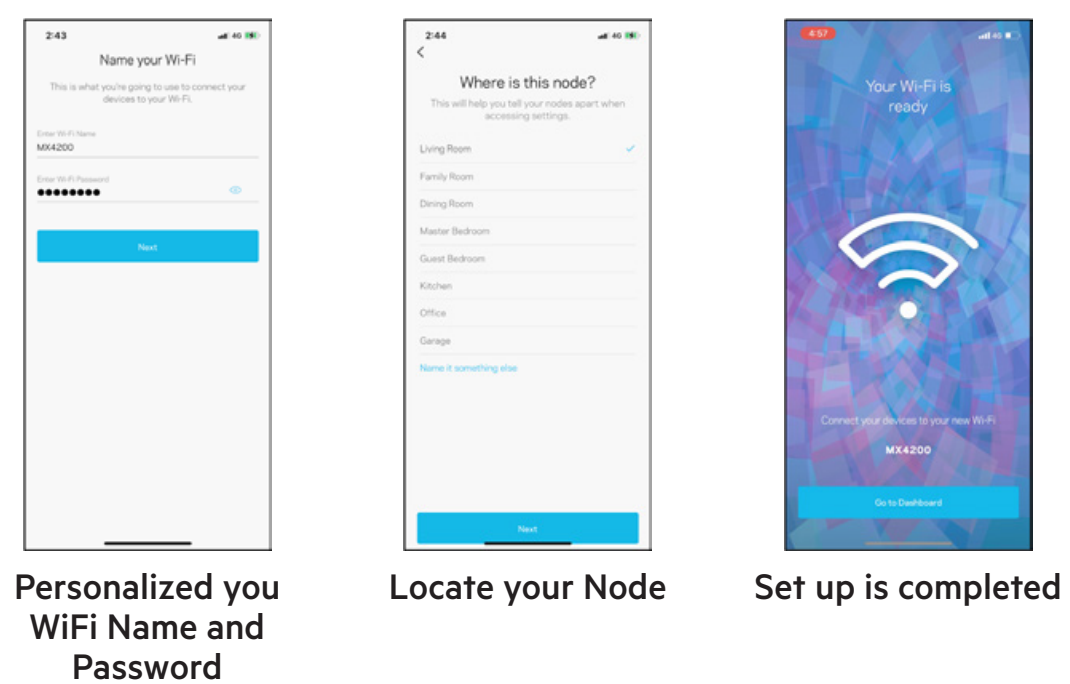
* Please note that if you have your own CCTV/Security/PABX installation/Gaming/ other port forwarding set up in your home premises (current router), please refer to your specific vendor/provider for further assistance when you are replacing your current router with a NEW router.
Monitor and control your home WiFi. Anytime. Anywhere
Download the Linksys App
Download the Linksys App to your phone for easy setup. Follow the App instructions to complete setup.
Quick and Easy Setup
Managing your home WiFi with Linksys App is fast and easy: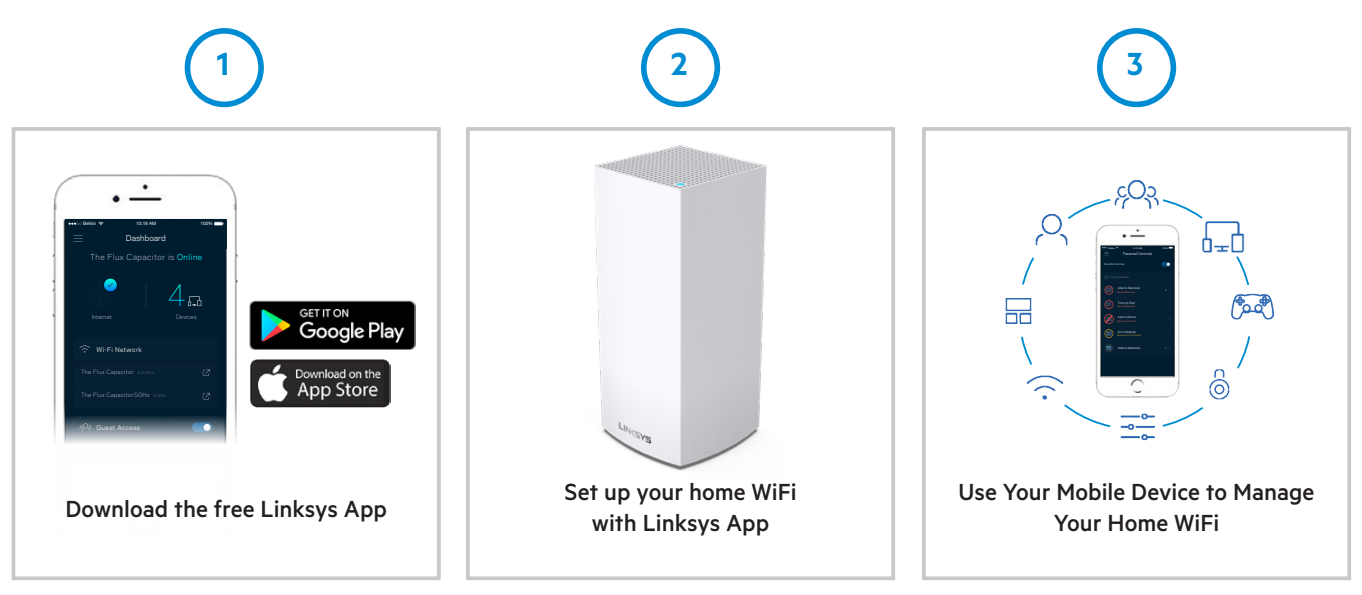 Manage your home WiFi from any mobile device
 | |||
| DEVICE LIST See Who’s Online View which devices are connected to your home WiFi | GUEST ACCESS Share Your WiFi Permit up to 40 guests WiFi access | MOBILE GAMING Reduce Latency Giving WiFi priority to specific phones and tablets for better gameplay | PARENTAL CONTROLS Set Boundaries Manage your kids’ access and usage |
 | |||
| ADVANCED SETTINGS Connect Better Access advanced features to get more out of your router | WIRELESS Connect and Share Safely Password retrieval, connect and share home WiFi | DASHBOARD WiFi at Your Fingertips Get real-time info about your WiFi network | MANAGE NETWORKS Simplify Network Access Manage your network, all in one place |
Automatic updates ensure you get the best performance form your router
Upgrading the firmware of your router allows you to fully enjoy its complete features. If you don’t update the firmware after installing your Linksys Smart WiFi router the first time, you will be prompted to do so the next time you try to access router settings. If the Linksys app was used to configure your Linksys MX4200, automatic updates will be turned on by default. You can enable automatic updates by following the steps below.
Enabling Automatic update
Managing your home WiFi with Linksys app is fast and easy:
Step 1: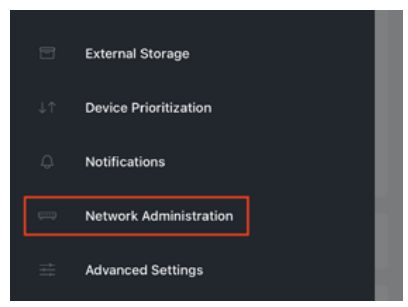 Log into the Linksys app with your email address and password. Select “Network Administration”
Step 2: Under the Automatic Firmware Update section, toggle the switch to turn it on.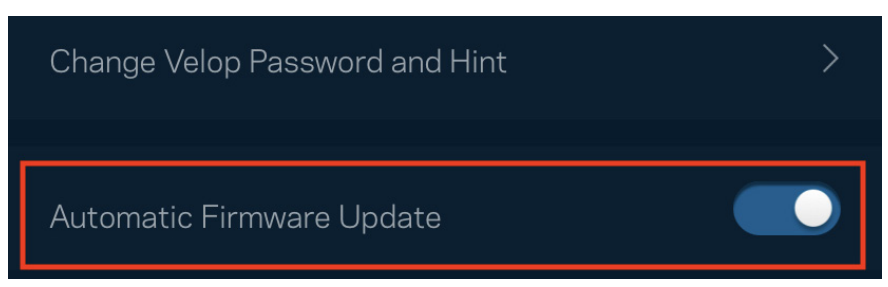 When connected to the internet, the router will be able to detect available updates and apply them to your router.
Keeping your home router updated is a crucial part of not just staying secure but to also enhancing the performance of your router.
Security Features and Fixes
Linksys may issue firmware updates to upgrade features such as outdated encryption modules or to add entirely new security mechanisms that weren’t in previous versions of the firmware.
Performance Enhancements
Updates can boost speeds or add features to improve your overall WiFi experience.
Change Default Passwords for security reasons
What is the router password for?
The router password is an administrator password used to access router settings if you don’t have an internet connection. Change it to something only you will remember to prevent unauthorized access.
Step 1: Log in to the Linksys app with your email address and password.
Step 2: Select “Network Administration”
Step 3: Select “Change Velop Password and Hint”
Step 4: Set your secure password and hint (optional)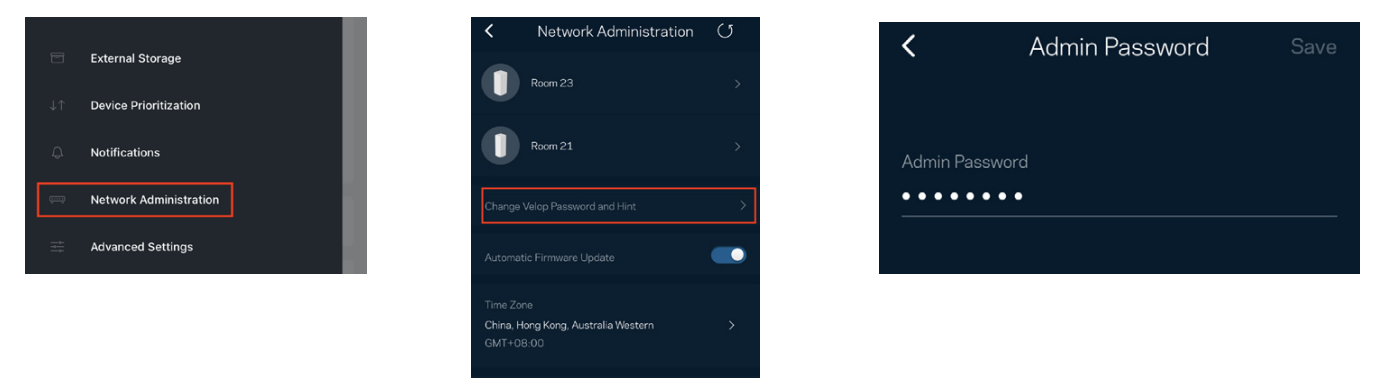
For additional information and how-to videos, visit: https://www.linksys.com/us/support-article?articleNum=217429
Need more WiFi coverage?
To enjoy better WiFi coverage, add nodes to extend your home WiFi range. Follow the steps below.
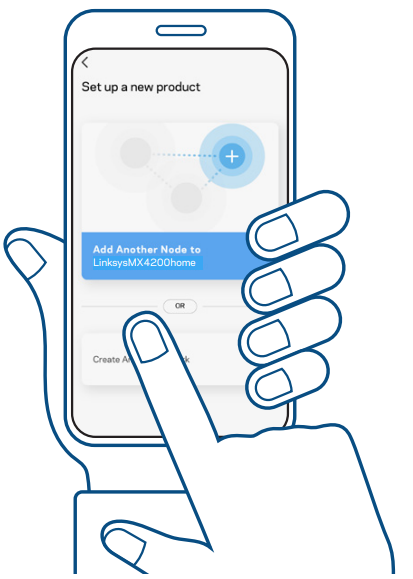
- Log in to the Linksys app
- Find “Set Up a New Product” from the menu
- Select “Add Another Node”
 What do the lights mean?
 What do the lights mean?
 Starting up (blinking)
 Connected
 No internet from the modem
 Ready for setup
 Weak connection (child node only)
 Setup in progress (blinking)
 Disconnected (blinking) Child node: too far Parent node: unplugged from the modem
Troubleshooting
- How can I reset the Linksys MX4200 to factory defaults?
Press and hold the Reset button at the bottom of the Linksys MX4200 for about 10 seconds. - I have reset the Linksys MX4200 and now I can’t launch the setup page. What should I do?
Make sure the Node LED is solid purple and your mobile phone with the Linksys app is ready. QUICK TIP: You may want to log out from the Linksys app, and select “Set up a New WiFi Network” - What should I do if I can’t connect to the Internet wirelessly and my network name is not listed in the Available Networks?
Try the following steps to resolve the issue: · Verify that your router is ON and the LED is solid BLUE. · If you are far from the router, move closer to see if your device is out of the wireless network range. · Turn the router OFF and power it back ON. - Can I also block HTTPS websites in Parental Controls?
Yes, website addresses starting with HTTPS:// can be blocked but, because they have encryption, Linksys Smart WiFi cannot redirect you. Instead of a page telling you the address has been blocked, you will see a browser error page.
Additional FAQs and troubleshooting information can be found at www.Linksys-SH.com
Linksys MX4200 is DFS Certified
DFS Certified
Dynamic Frequency Selection (DFS) allows wireless routers to operate on the 5GHz frequency band that is traditionally allocated to radar systems. The Linksys MX4200 is DFS-certified which enables it to operate in clear airspace denied to traditional routers. This certification triples the number of channels available at 80MHz. A DFS band provides you with additional 5GHz channels that are less congested compared with the common Bands 1 and 4 on the 5GHz channels, enabling better performance in a router.
However, please note that:
- When DFS is enabled, the router will monitor the radar signal frequency in the environment. If radar signals are detected on the current channel, the router will switch to an alternate channel automatically.
- During this channel switch, you might encounter a short disconnection on 5GHz; however, the connection will be restored after a short while.
- After the channel switch, the router will keep the operating channel until the next time you restart your router.
- If you have older wireless devices that do not have DFS capability, you can disable DFS in the Advanced WiFi Settings section of the Linksys app or at LinksysSmartWiFi.com.
* Some older or legacy devices do not support DFS. Check with your device manufacturer for DFS support.
Remote Assistance
Should you need more help
Linksys Smart WiFi Agent Assist allows you to give permission to a Linksys Support Agent to take control and make changes to your router if you can’t resolve issues on your own. Agents can help with port forwarding, setting up network storage, or changing wireless settings.
- The customer must have a Linksys Smart WiFi account.
- The customer must have an active Internet connection (WAN)
 Need more help?
For more information on the product, warranty, technical support, troubleshooting, FAQs, etc., please visit www.linksys-sh.com OR scan the following QR code for easy access to the site: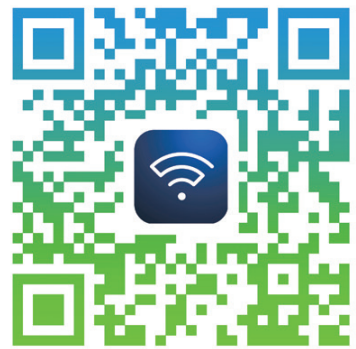
IMPORTANT NOTICE:
Inactivating Agent Assist, the Linksys Support Agent (“Agent”) will have access to Customer’s Smart WiFi account settings but not to computer settings or any information stored on the computer, and the Customer’s WiFi network name and password will be visible to the Agent. We therefore strongly encourage Customers to change his/her WiFi password immediately after the Agent Assist session.
Call Linksys at:
6701-6971
8820-03180 Rev.A00 10
16/4/2021 10:50