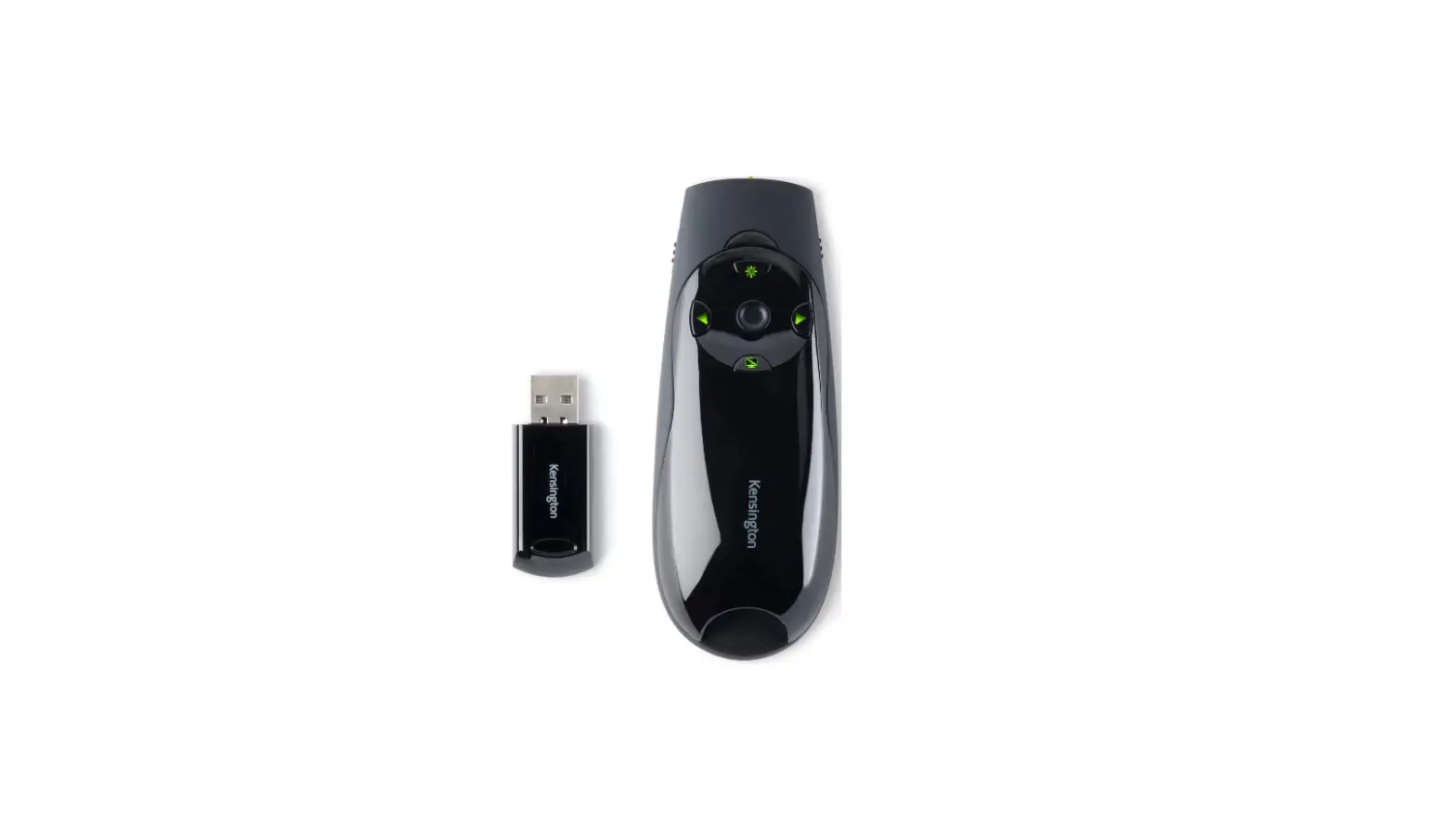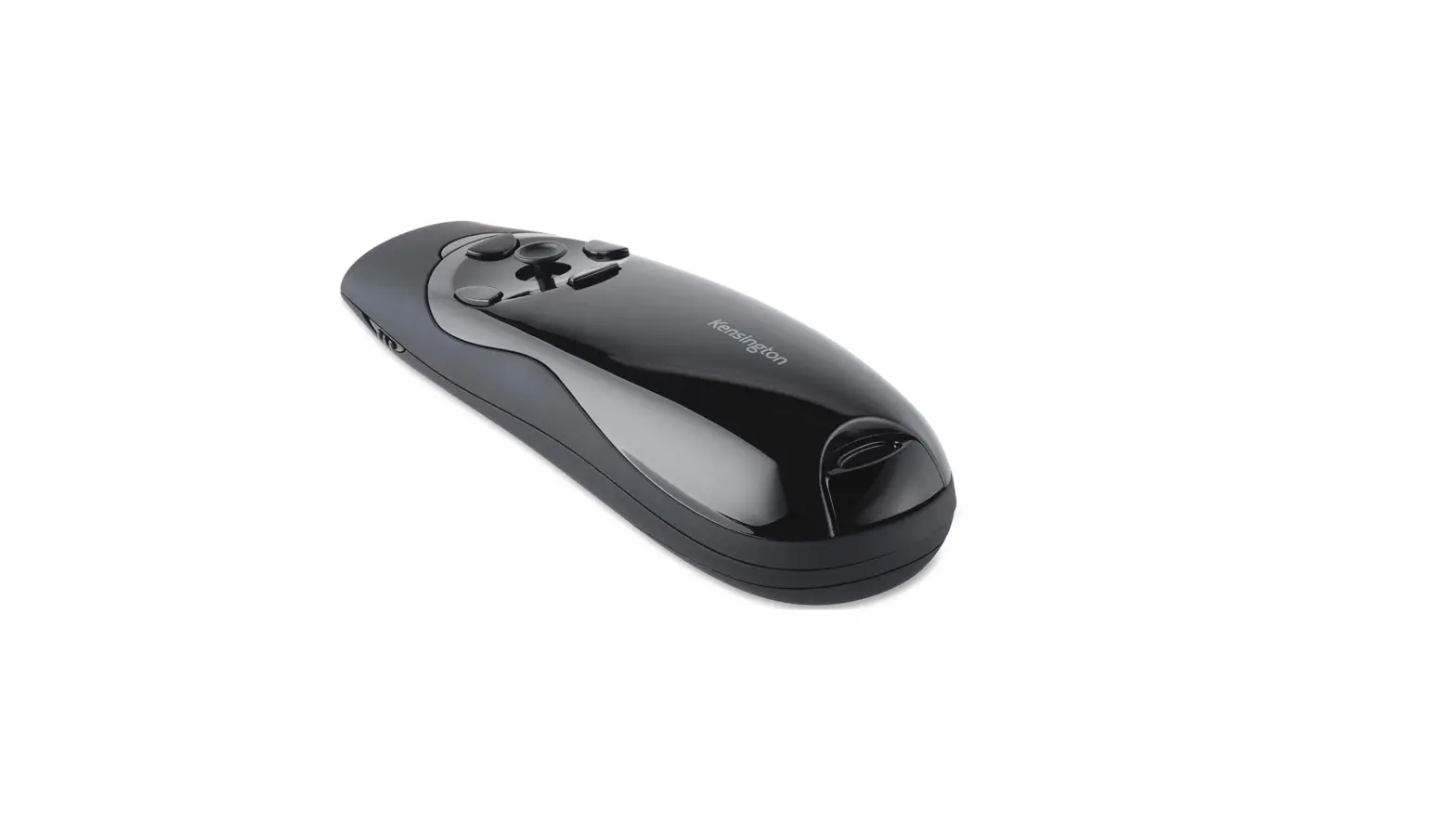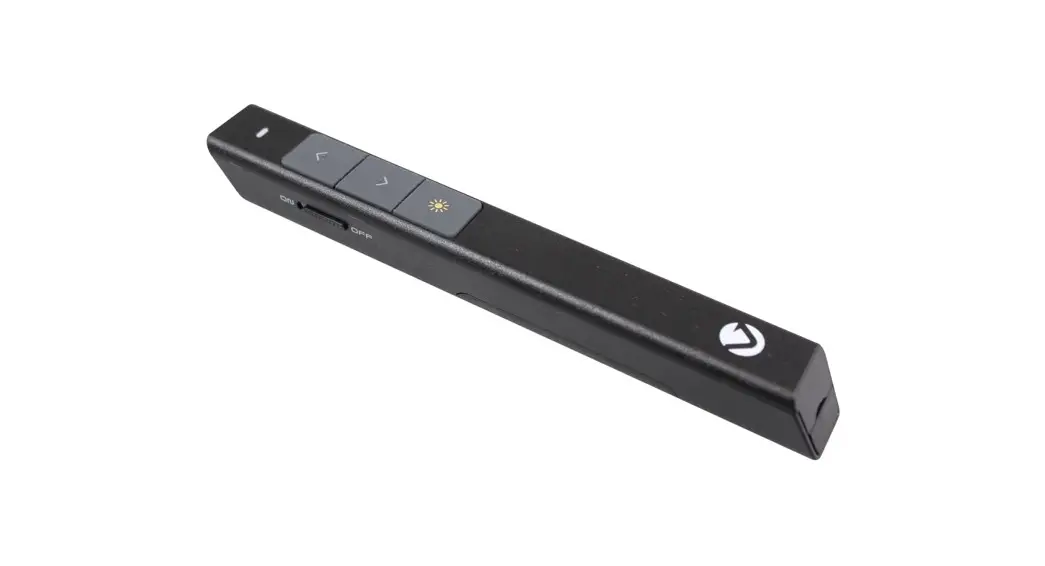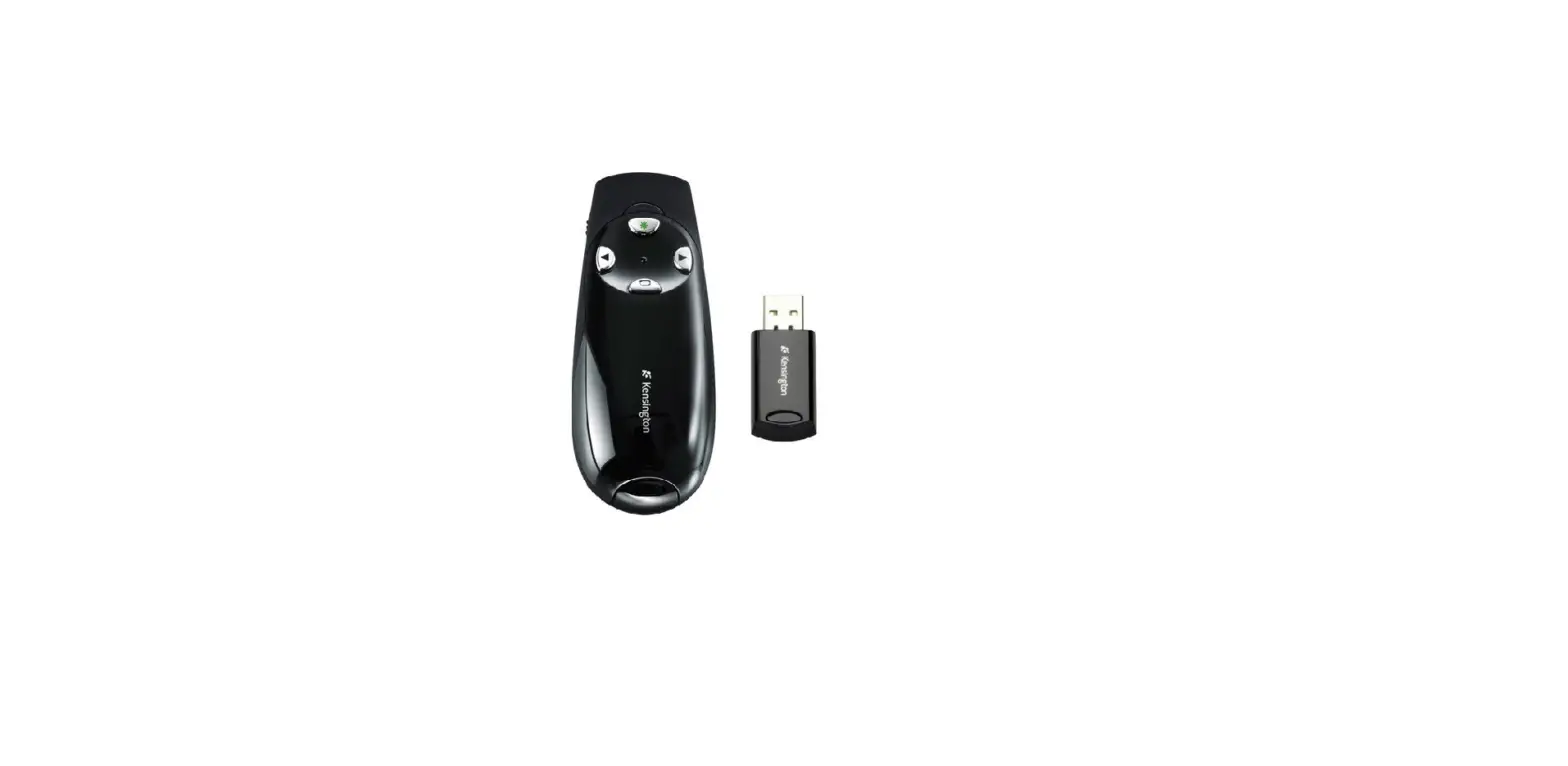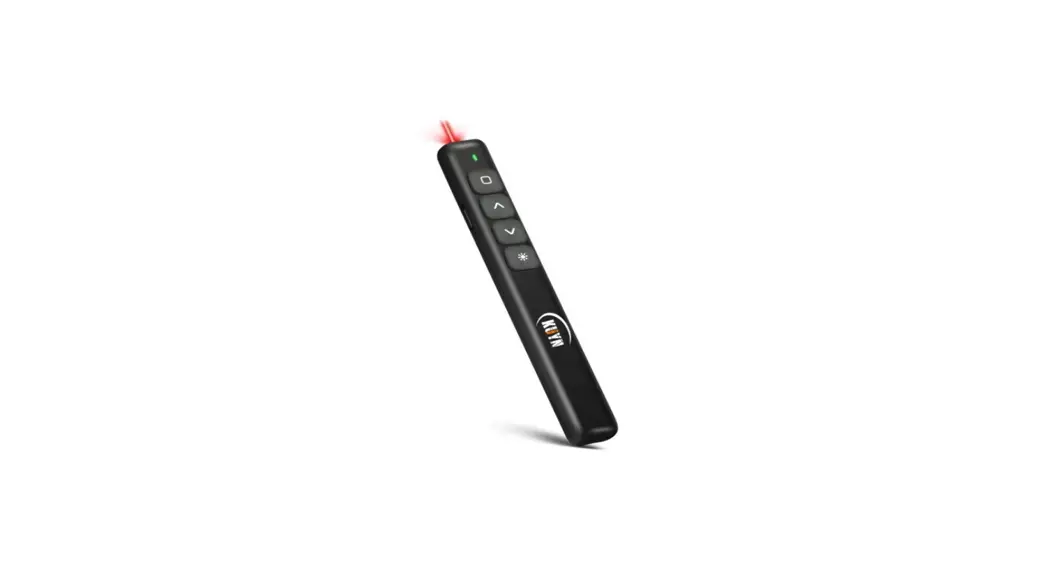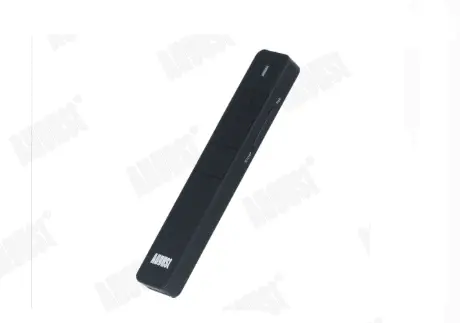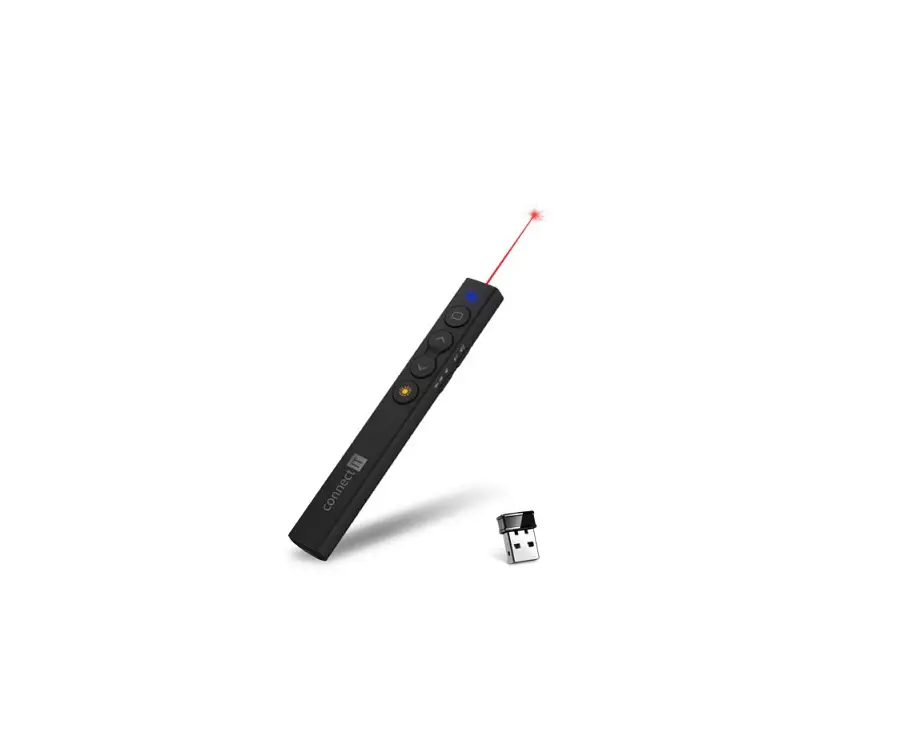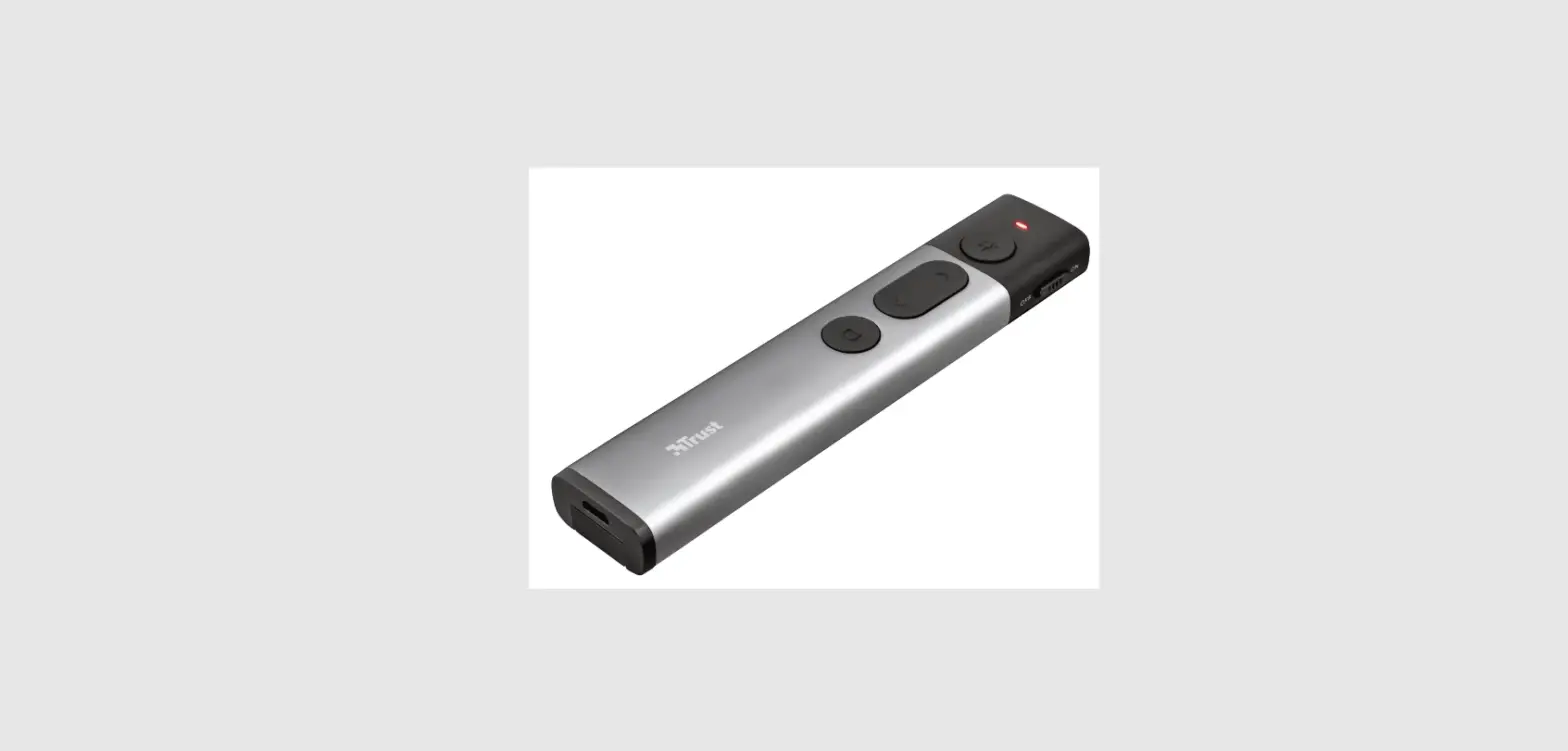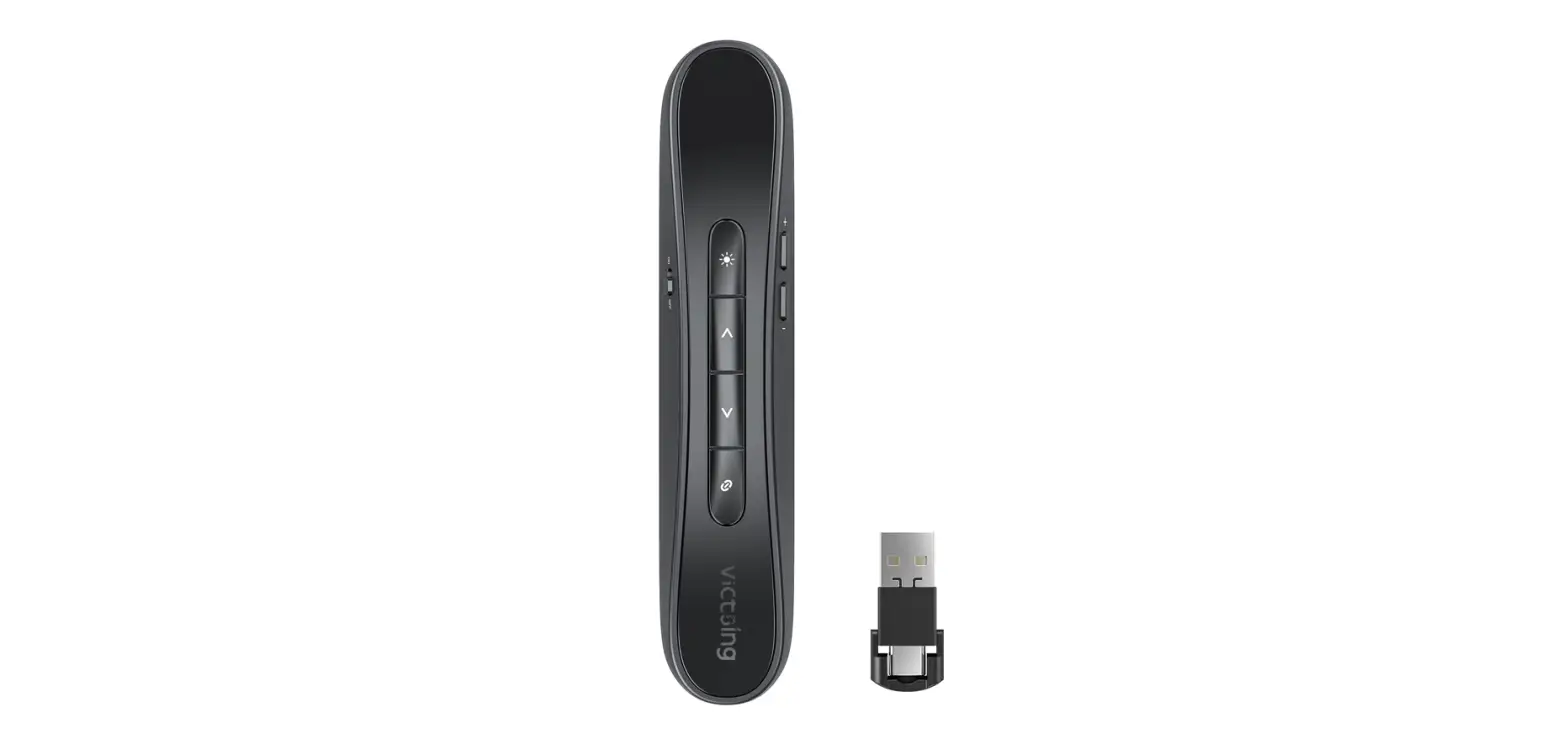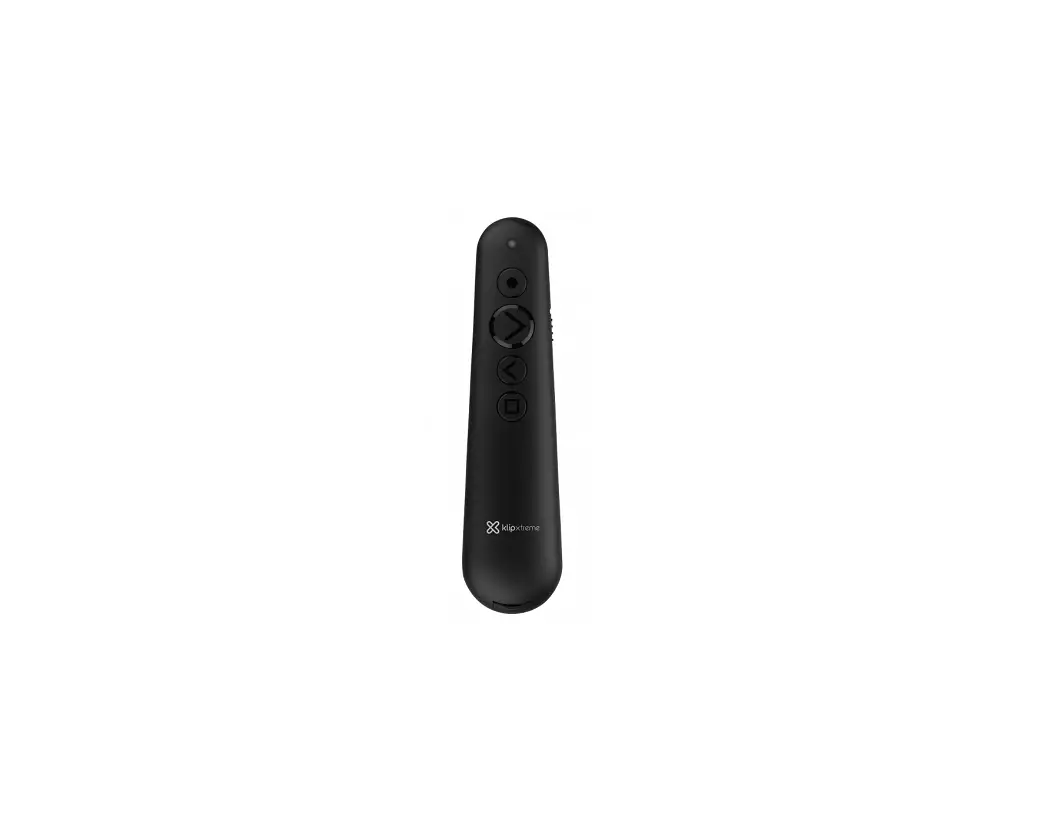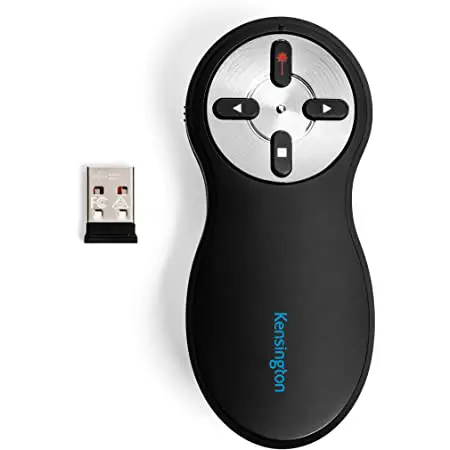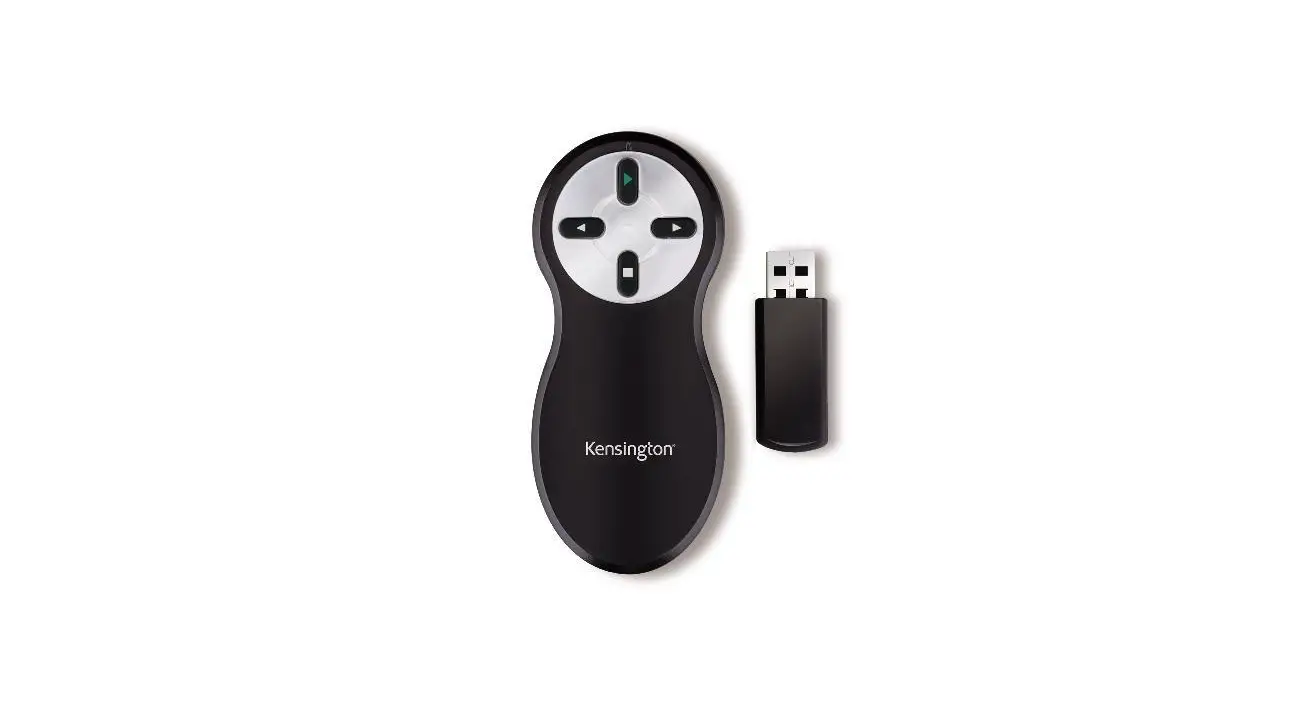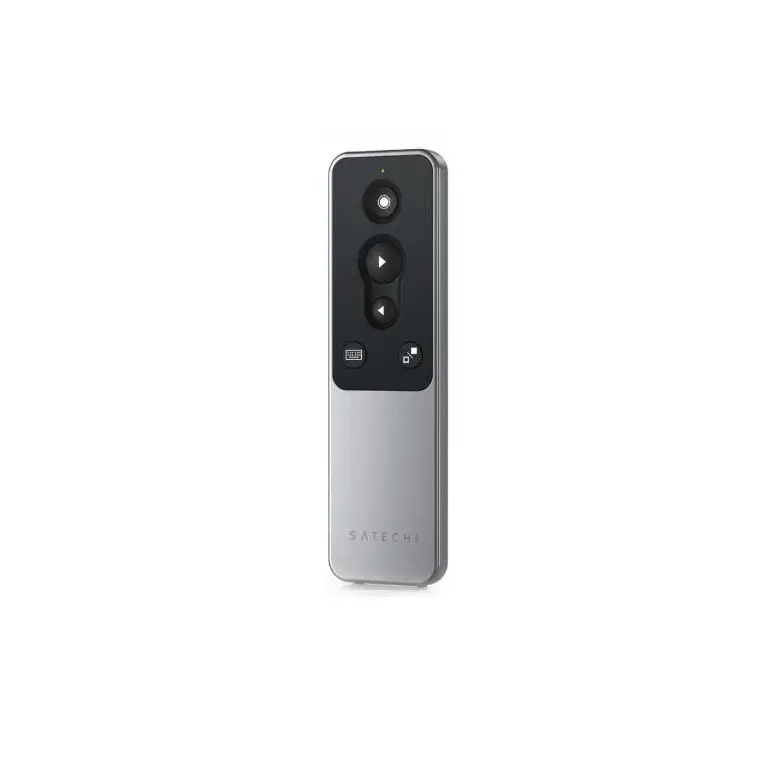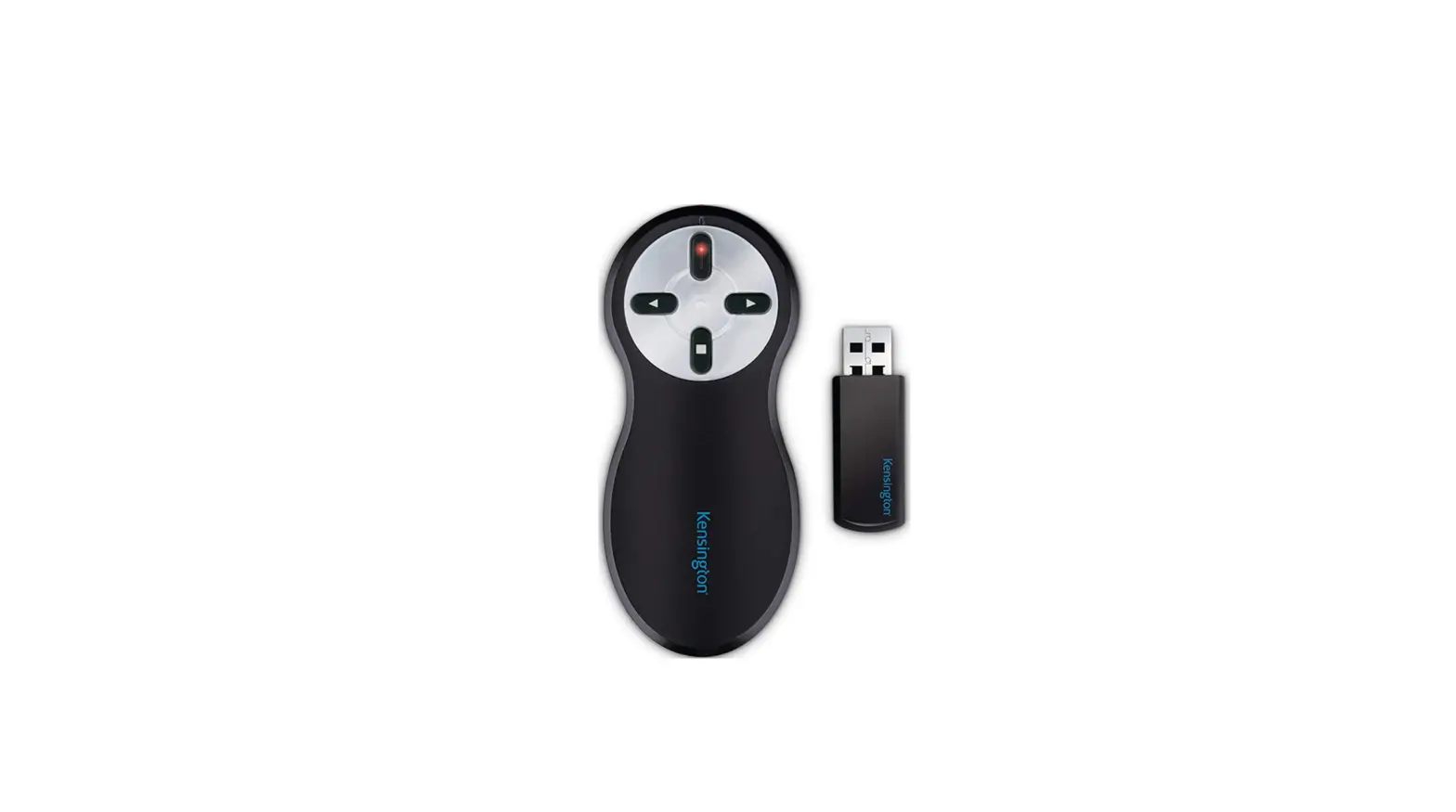

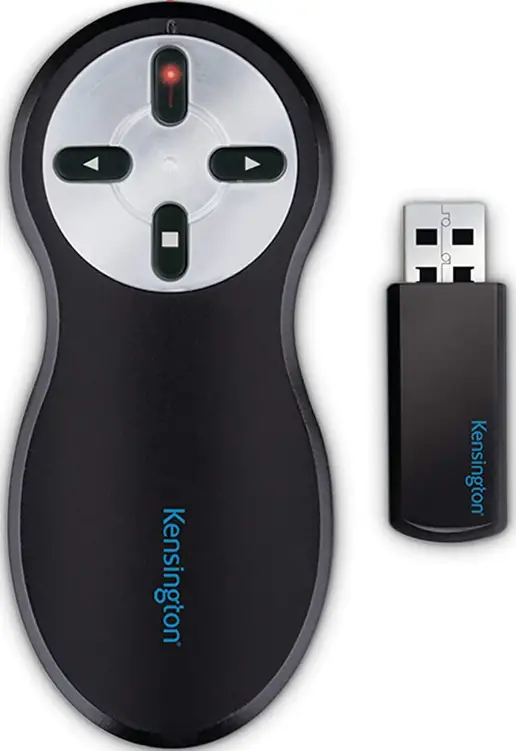
Kensington K33374 Wireless Presenter
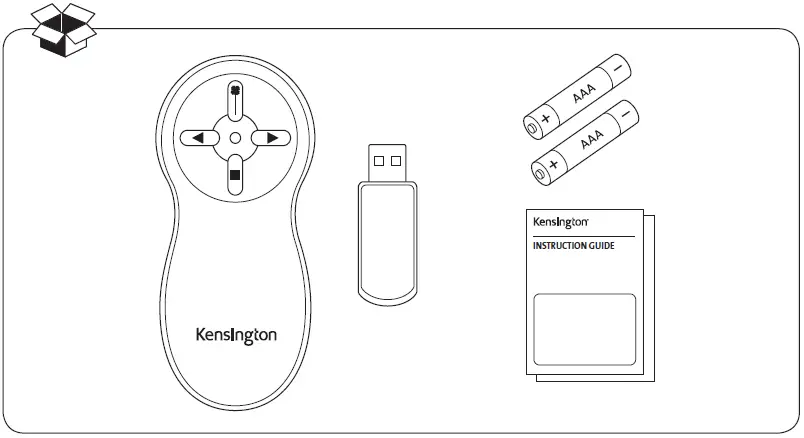
What’s included
How to start
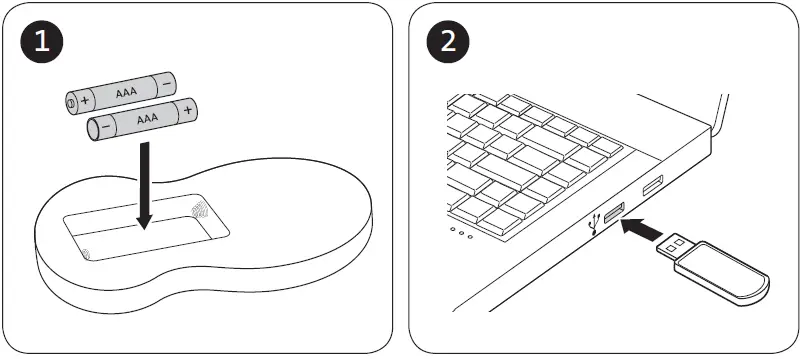
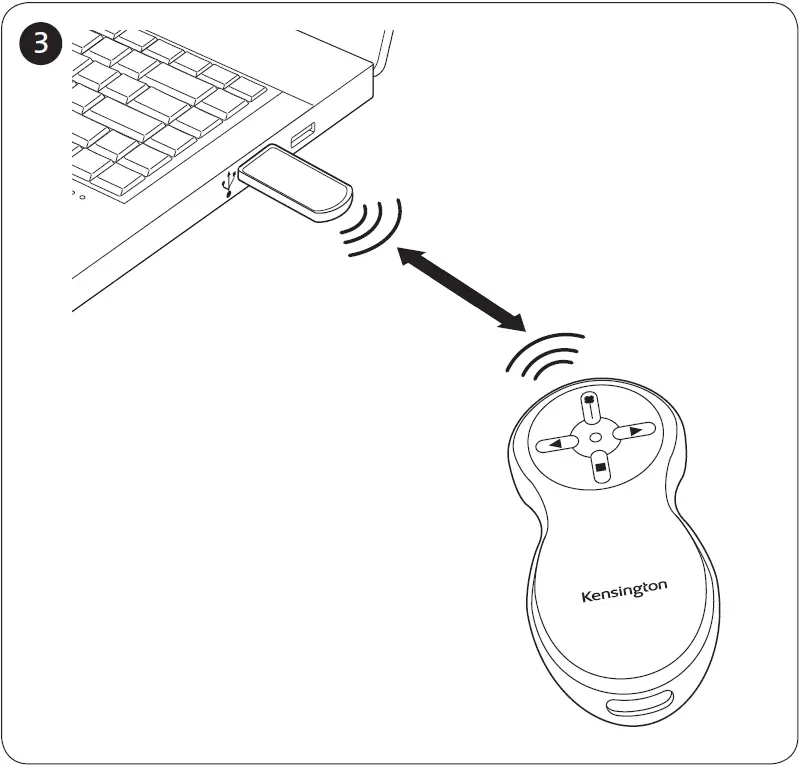
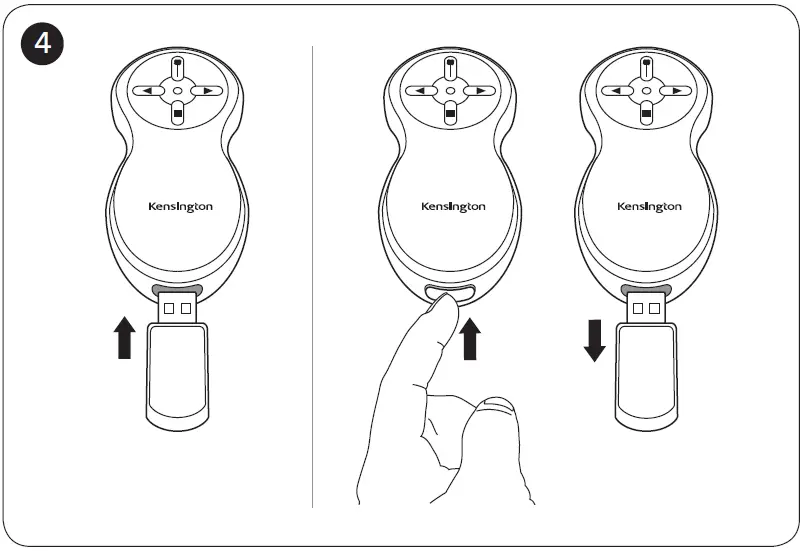
CAUTION! IMPORTANT SAFETY INSTRUCTIONS
The Wireless Presenter with Laser Pointer includes a built-in laser pointer. Therefore, as with any laser pointer, it is important to adhere to the following warnings and safety instructions to prevent injury:
- Never shine a laser pointer into a person’s eyes, or stare into the laser Pointing a laser pointer into a person’s eyes, or staring directly at the laser beam, can cause instant temporary vision dysfunction such as flash blindness, disorientation, or glare. This can be particularly dangerous if the exposed person is engaged in a vision-critical activity such as driving. In addition, prolonged and/ or repeated exposure to the laser beam can be hazardous and damaging to the eyes.
- Never aim a laser pointer anywhere on any person or animal. Laser pointers are designed to illustrate inanimate objects only. In some states and provinces, it is illegal to aim a laser pointer at a law enforcement officer or on any other person. The purchaser/ user is responsible for insuring that his or her use of the laser pointer conforms to any local
- Do not point a laser pointer at mirror-like A reflected beam can act like a direct beam on the eye.
- Laser pointers are not toys. Do not allow a minor to use a pointer unsupervised. In some states and provinces, it is illegal for a minor to purchase and/or use a The purchaser/user is responsible for insuring that his or her purchase or use of the laser pointer conforms to any local laws.
About your Wireless Presenter with Laser Pointer
- The receiver has a single light indicator with 2 colors, green and red. For every button press of the presenter, the receiver LED quickly flashes green on the Presenter to indicate that the battery level is good. The LED will flash red on every button press if the battery level is
- The Wireless Presenter with Laser Pointer should work for up to one year with the batteries that come with it. This is based on average usage. To extend battery life when not in use, be sure to turn off the remote by inserting the receiver into the remote.
Technical Support
| Australia | 1300 881 931 | Nederland | 010 713 1882 |
| België / Belgique | 02 401 2395 | New Zealand | 0800 539 26273 |
| Brasil | 14 3235-4003 | Norway | 80017520 |
| Canada | 1 800 268 3447 | Österreich | 0800 677 873 |
| Denmark | 80 250966 | Polska | 22 570 18 00 |
| Deutschland | 0692 222 3654 | Portugal | 800855802 |
| España | 911 146 735 | Russia | 007 495 933 5163 |
| Finland | 0800 9 15697 | Schweiz / Suisse | 044 580 6667 |
| France | 01 7671 0404 | Sweden | 08 5033 6577 |
| Hungary | 06 20 9430 612 | United Kingdom | 0203 364 5390 |
| Ireland | 01 431 1395 | United States | 1 800 535 4242 |
| Italia | 02 3604 7030 | International Toll | +31 53 484 9135 |
| México | 55 15 00 57 00 |
Technical support is available to all registered users of Kensington products. There is no charge for technical support except the cost of the phone call, and long-distance charges where applicable. Technical Support Contact information can be found on the back page of this manual.
Technical Support Tips
- You may find the answer to your problem in the Frequently Asked Questions (FAQ) section of the Support area on the Kensington Website: support.kensington.com.
- Call from a phone where you have access to your device
- Be prepared to provide the following information:
- Name, address, and telephone number
- The name of the Kensington product
- Symptoms of the problem and what led to them
Class 2 Laser Safety Statement
Please select your country-specific safety warning sticker and adhere to the laser pointer
This laser device complies with International Standard EN/IEC 60825-1:2007, Class 2 Laser Product, and also complies with 21 CFR 1040.10 and 1040.1, except for deviations pursuant to laser Notice No. 50, dated Jul 26, 2001:
- Emission of a parallel beam of visible light;
- Maximum Power of 1 milliwatt CW, wavelength range 650±20 nanometers;
- Operating temp between 0 ° C (32° F) to 40° C (104° F).
CAUTION!
This device has no serviceable parts. Use of controls or adjustments or performance of procedures other than those specified herein may result in hazardous radiation exposure.
FEDERAL COMMUNICATIONS COMMISSION RADIO FREQUENCY INTERFERENCE STATEMENT
Note: This equipment has been tested and found to comply with the limits for a Class B digital device, Pursuant to Part 15 of the FCC Rules. These limits are designed to provide reasonable protection against harmful interference in a residential installation. This
equipment generates, uses, and can radiate radio frequency energy and, if not installed and used in accordance with the instructions, may cause harmful interference to radio communications. However, there is no guarantee that interference will not occur in a particular installation. If this equipment does cause harmful interference to radio or television reception, which can be determined by turning the equipment off and on, the user is encouraged to try to correct the interference by one or more of the following measures:
- Reorient or relocate the receiving
- Increase the separation between the equipment and
- Connect the equipment to an outlet on a circuit different from that to which the receiver is
- Consult the dealer or an experienced radio/TV technician for
MODIFICATIONS: Modifications not expressly approved by Kensington may void the user’s authority to operate the device under FCC regulations and must not be made.
Operating Frequency Range: 2.4 GHz
FCC DECLARATION OF CONFORMITY COMPLIANCE STATEMENT
This product complies with Part 15 of the FCC rules. Operation is subject to the following two conditions: (1) This device may not cause harmful interference, and (2) This device must accept any interference received, including interference that may cause undesired operation. As defined in Section 2.909 of the FCC Rules, the responsible party for this device is Kensington Computer Product Group, 1500 Fashion Island Blvd, 3rd Floor, San Mateo, CA 94404, USA.
INDUSTRY CANADA CONFORMITY STATEMENT
This device has been tested and found to comply with the limits specified in RSS-210. Operation is subject to the following two conditions: (1) This device may not cause interference, and (2) This device must accept any interference, including interference that may cause undesired operation of the device.
This Class [B] digital apparatus complies with Canadian ICES-003.
CE DECLARATION OF CONFORMITY
Kensington declares that this product is in compliance with the essential requirements and other relevant provisions of applicable EC directives.
For Europe, a copy of the Declaration of Conformity for this product may be obtained by clicking on the Compliance Documentation link
THE FOLLOWING INFORMATION IS ONLY FOR EU-MEMBER STATES:
The use of the symbol indicates that this product may not be treated as household waste. By ensuring this product is disposed of correctly, you will help prevent potential negative consequences for the environment and human health, which could otherwise be caused by inappropriate waste handling of this product. For more detailed information about recycling this product, please contact your local city office, your household waste disposal service, or the shop where you purchased the product.
Kensington and ACCO are registered trademarks of ACCO Brands. The Kensington Promise is a service mark of ACCO Brands. All other trademarks are the property of their respective owners.
© 2015 Kensington Computer Products Group, a division of ACCO Brands. Any unauthorized copying, duplicating, or other reproduction of the contents hereof is prohibited without written consent from Kensington Computer Products Group. All rights reserved. 02/15
User Support
| FCC: register.kensington.com | ||
| Kensington Computer Products Group | ACCO Brands Europe | ACCO Brands Canada Inc ACCO Australia |
| A Division of ACCO Brands | A Division of ACCO Brands | 7381 Bramalea Rd Level 2, 8 Lord St |
| 1500 Fashion Island Blvd, 3rd Floor | Europe | Mississauga, Botany NSW 2019 |
| San Mateo, CA 94404 | Oxford House, Oxford Road | ON L5S 1C4 Australia |
| Aylesbury, Buckinghamshire, | ||
| HP21 8SZ | ||
| United Kingdom | ||
| Importado por ACCO Mexicana | Acco Brands Chile S.A., | Importado e Distribuído por: |
| S.A. de C.V. | Avda. San Josemaría | TILIBRA PRODUTOS DE PAPELARIA LTDA. |
| Circuito de la Industria Norte # 6, | Escrivá de Balaguer Nº5773 | CNPJ: 44.990.901/0001-43 |
| Corredor Industrial Toluca Lerma, | Vitacura, C.P. 7640870 | Rua Aymorés, 6-9 – Bauru/SP – Brasil |
| Lerma México Cp. 52004 | Santiago, Chile | CEP 17013-900 |
| R.F.C. AME640229-1W3 | www.kensington.com.br | |
| www.kensington.com | ||
FAQ’s
With the built-in laser pointer, you can determine whether new batteries are required. Nevertheless, make sure the USB receiver isn’t connected to the clicker since if it is, neither the clicker nor the laser pointer will function. Restarting the computer while the USB receiver is hooked to a powered port will occasionally help if the issue continues.
Insert the Presentation Remote USB Receiver into a USB port on your computer to establish a connection.
Switch to Bluetooth mode (obviously) then press and hold all four buttons at once to begin a Bluetooth pairing.
These tools, which can be used to wirelessly switch slides during a slide show presentation, are also known as clickers, presenters, PowerPoint remotes, presentation mice, presentation pointers, remote points, professional presenters, etc.
1) Connect the battery. 2) Remove the wireless presenter’s small USB receiver. The USB receiver should be plugged into the USB port.
When you want to attract attention to something on a slide, hold down the Ctrl key while clicking and dragging with the left mouse button.
In the Zoom toolbar, click the Annotate button. The toolbar for annotating appears. 1. Click Spotlight and choose the option for a highlighted arrow or cursor.
Switch to Bluetooth mode (obviously) then press and hold all four buttons at once to begin a Bluetooth pairing.
You can connect using Bluetooth or by plugging the USB receiver into your computer. The top and bottom buttons should be pressed and held simultaneously for three seconds.
Check the batteries in the classroom “clicker” if it’s not working.
You can connect using Bluetooth or by plugging the USB receiver into your computer. The top and bottom buttons should be pressed and held simultaneously for three seconds. After three minutes, the remote should stop vibrating and be accessible for Bluetooth connecting. Finish pairing Bluetooth on your computer.
Check the batteries in the classroom “clicker” if it’s not working. The most frequent cause of “clicker failure” is this. Although some models of these devices may use “AA” or “AAAA” batteries, these gadgets typically use regular “AAA” batteries.
Download this PDF Link: Kensington K33374 Wireless Presenter Instructions Guide