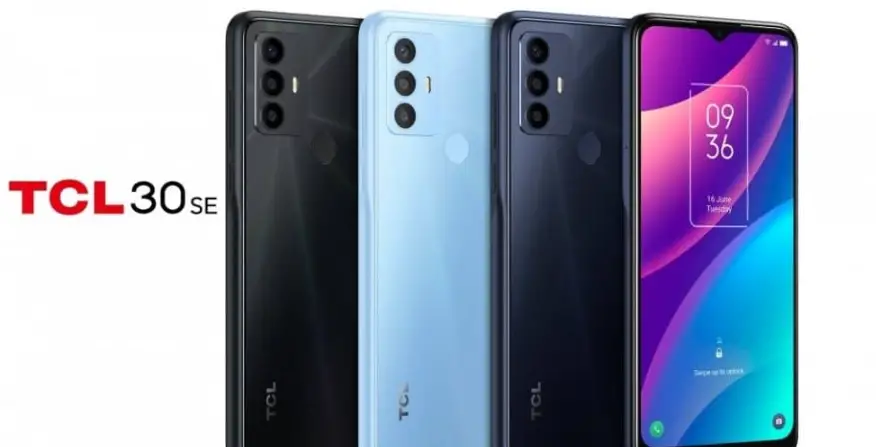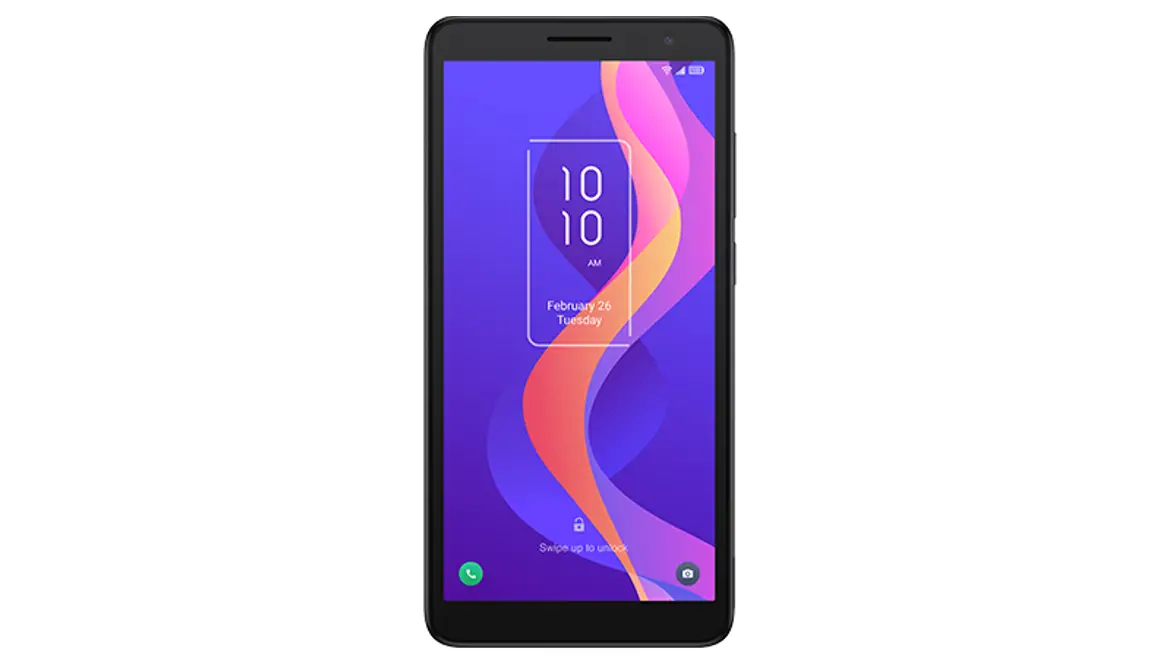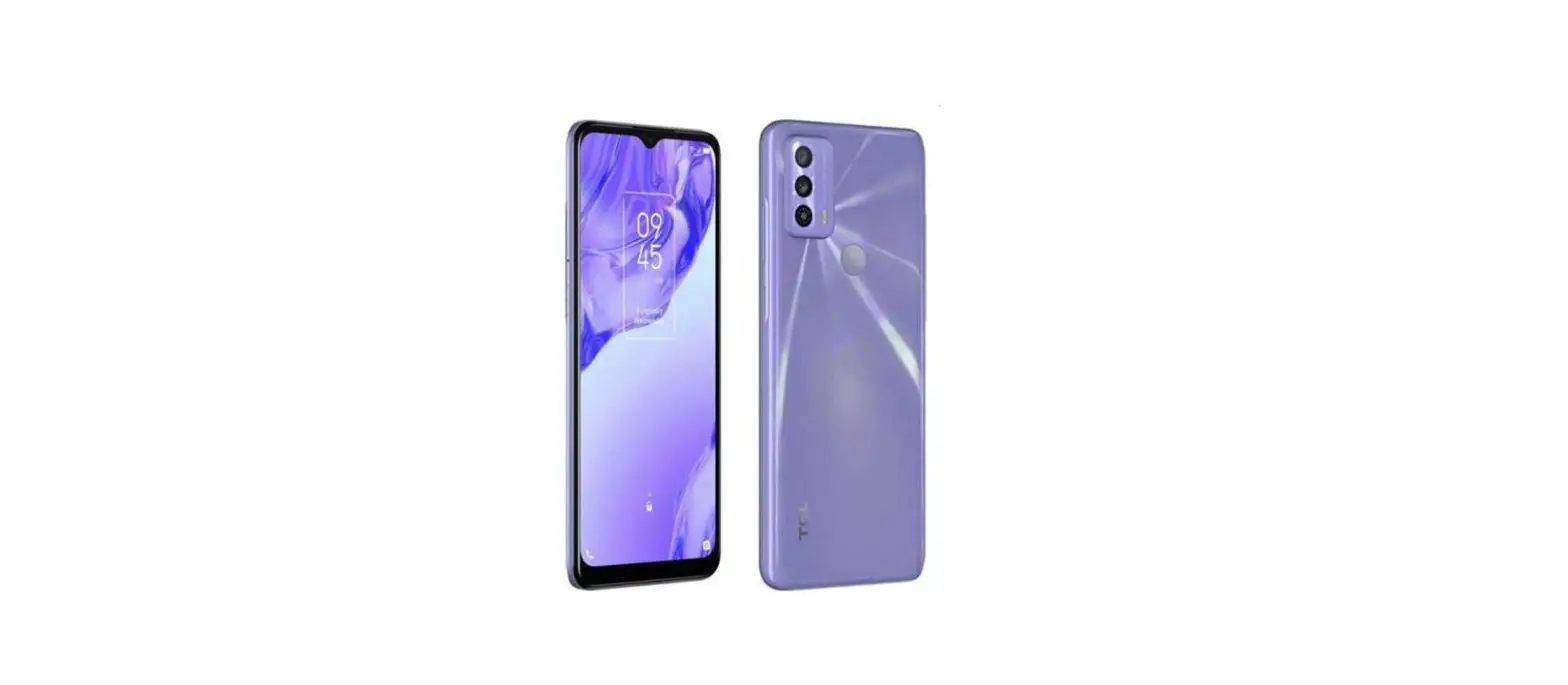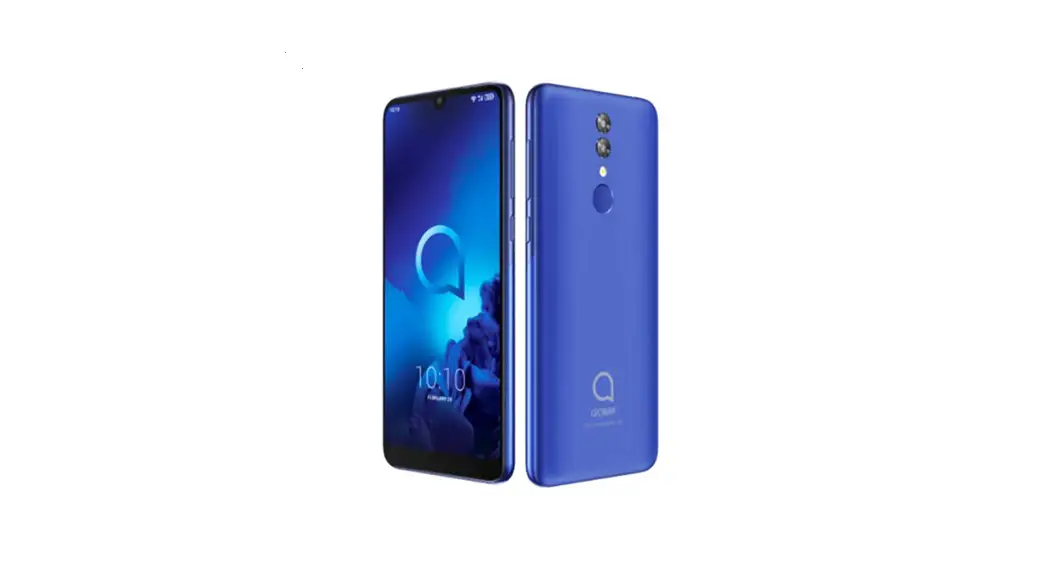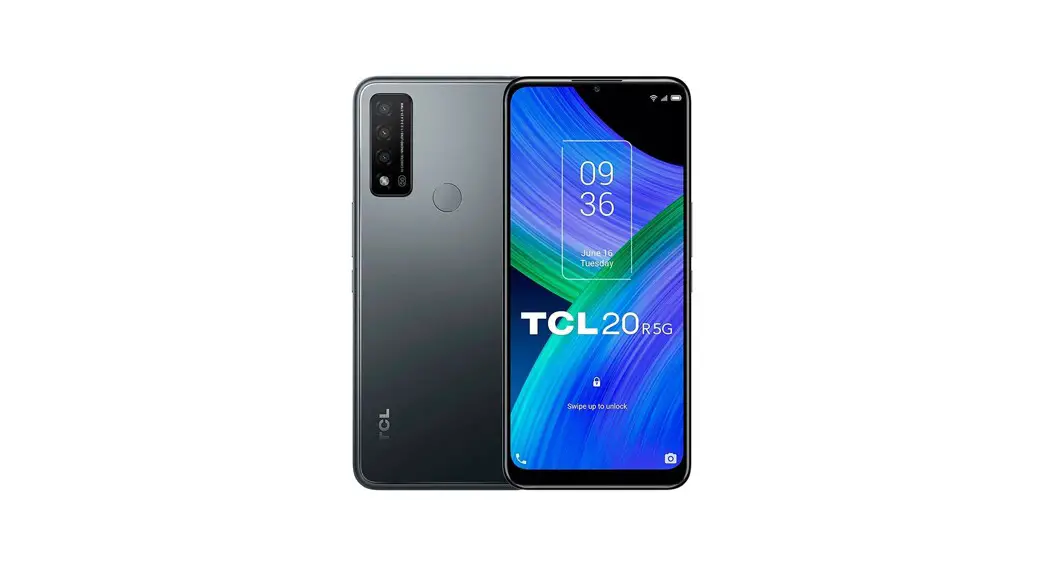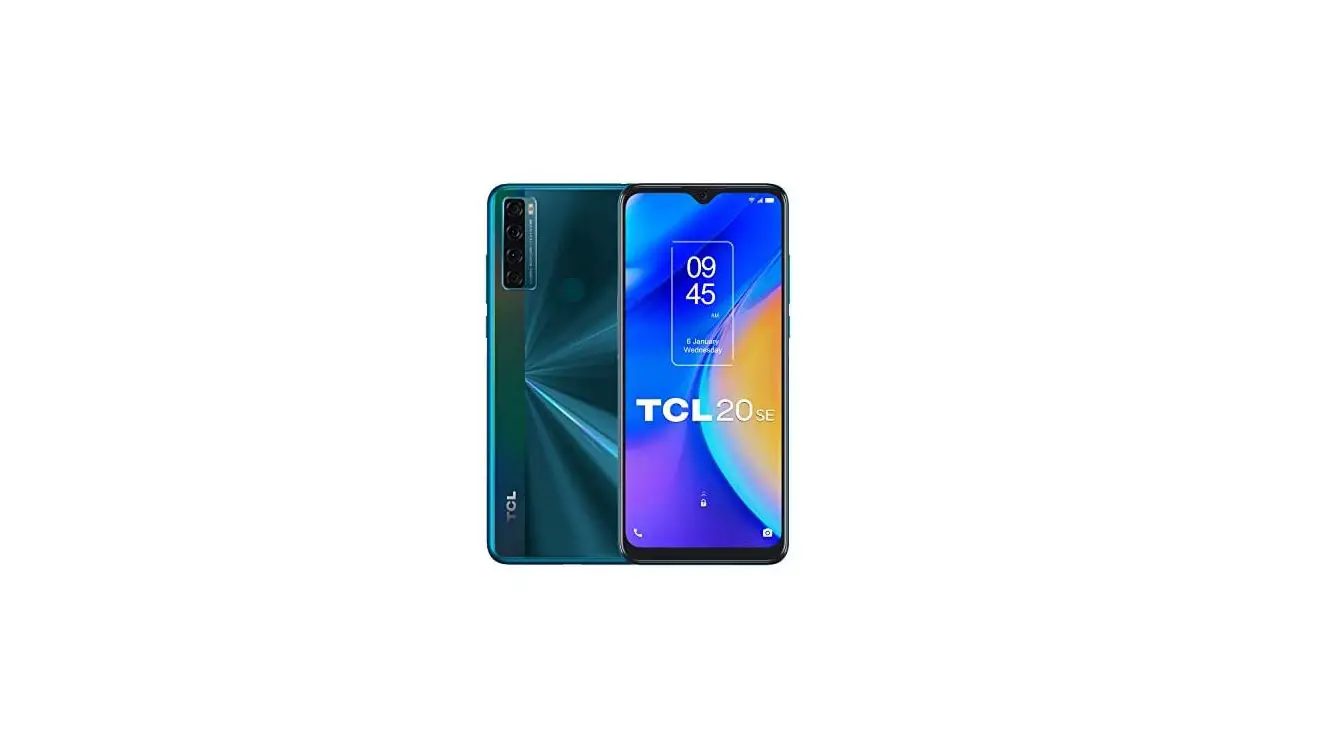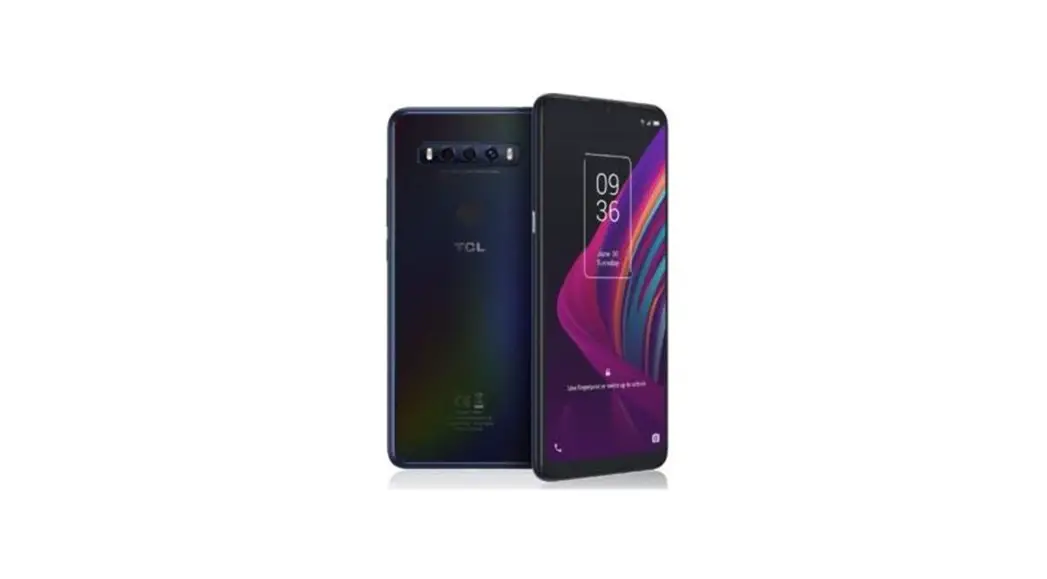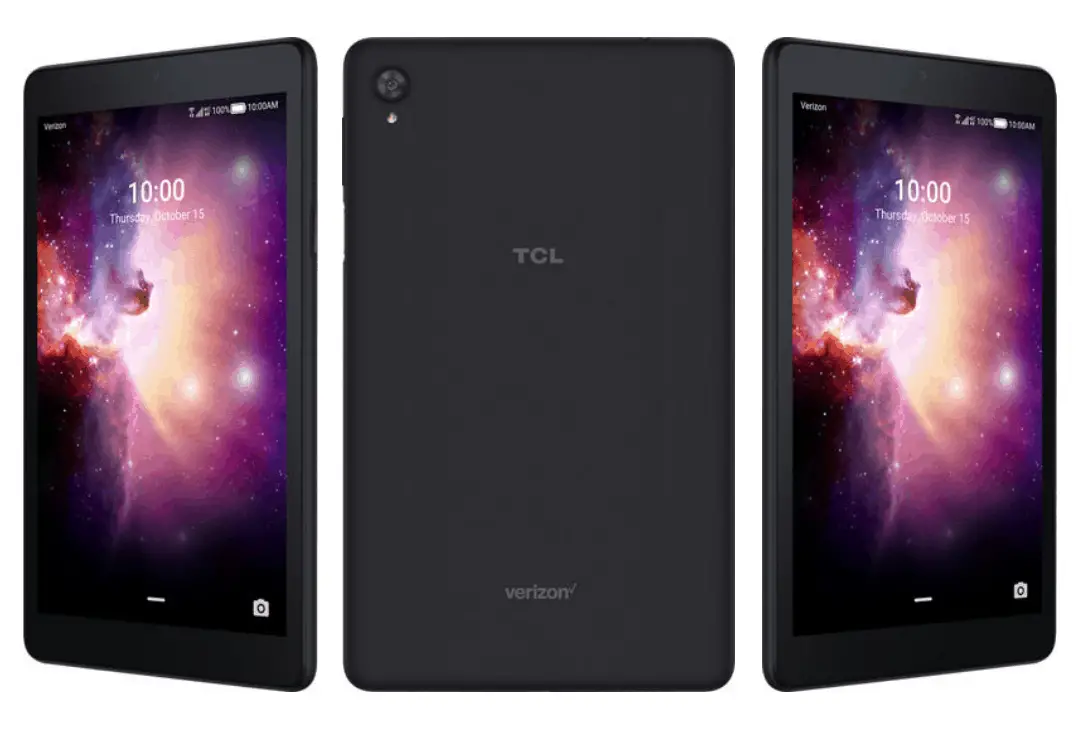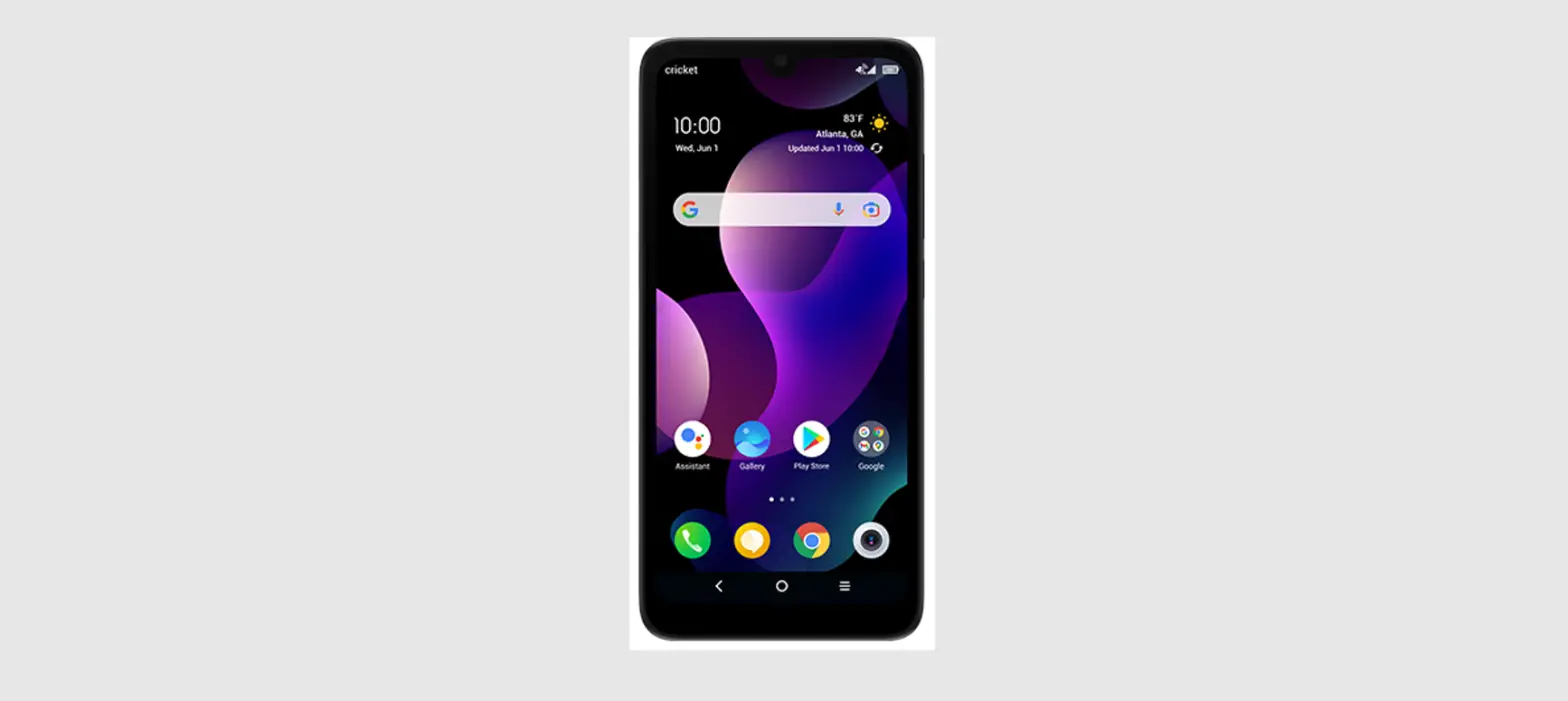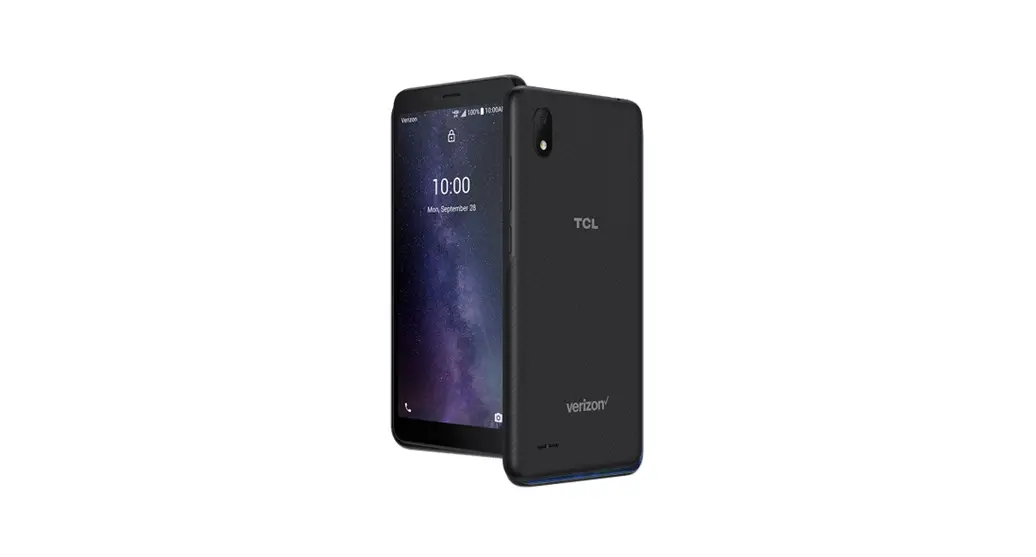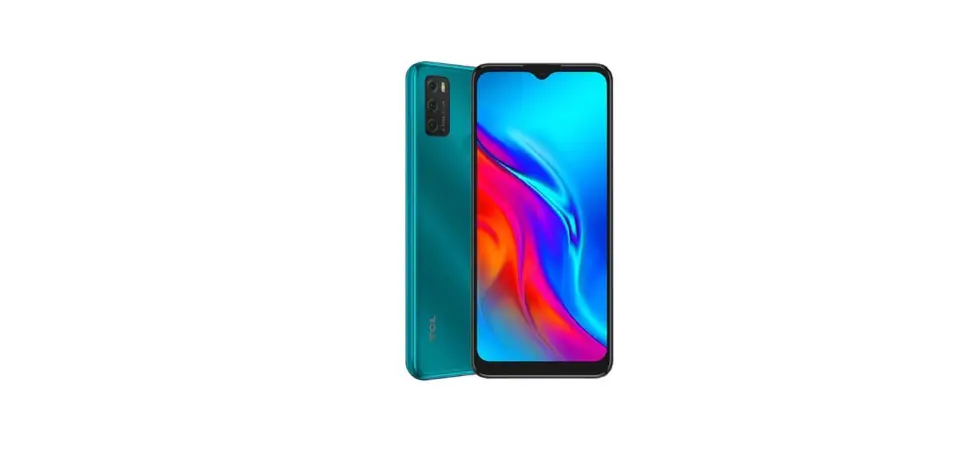

Meet your phone
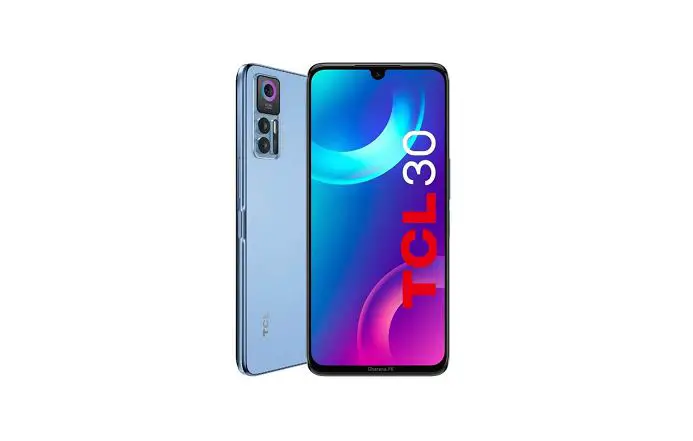
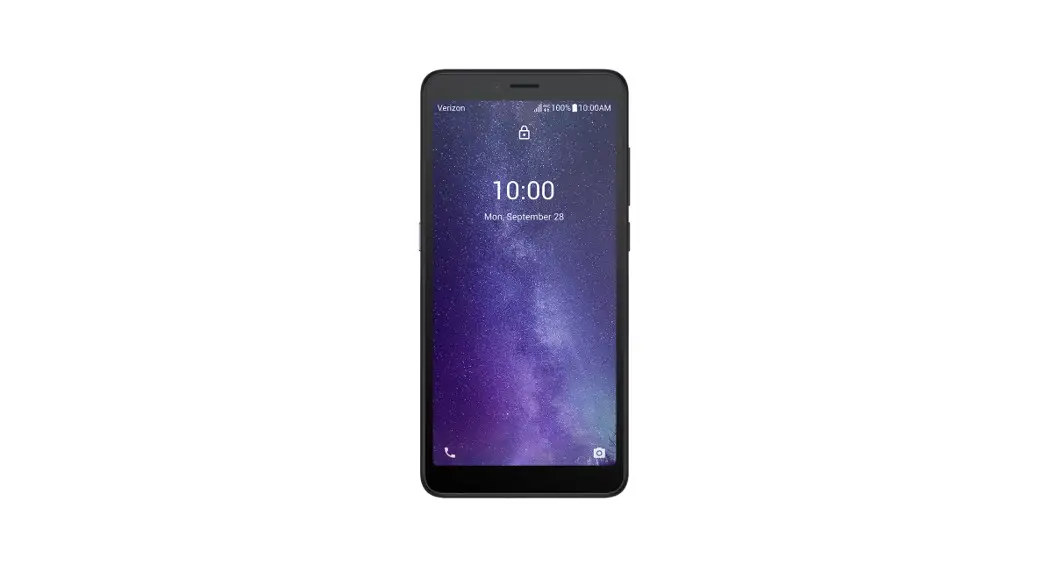
TCL SIGNA
Have questions about your Prepaid phone? You’re in the right place. Find out how to set up and use your phone, access special features, get help, and lots more. We’re here to help.
About your phone
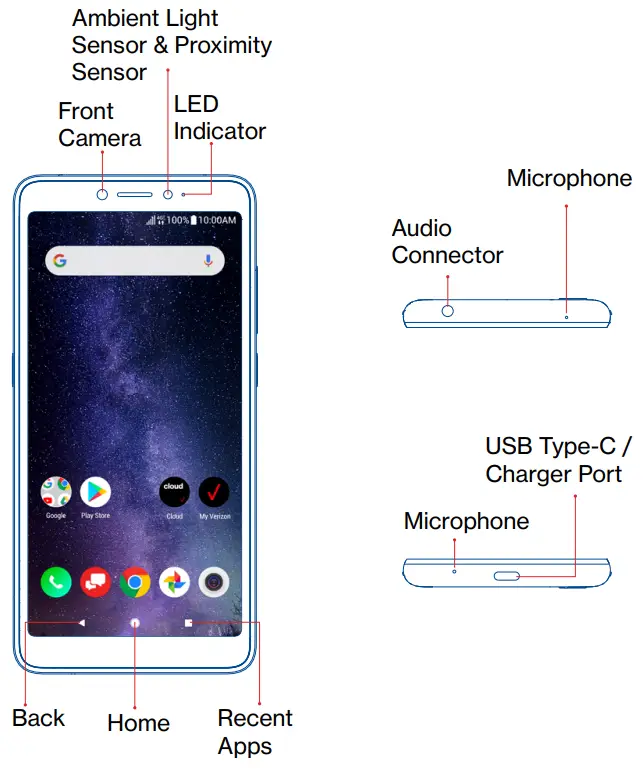
NOTE: Devices and software are constantly evolving–the screen images and icons you see here are for reference only.
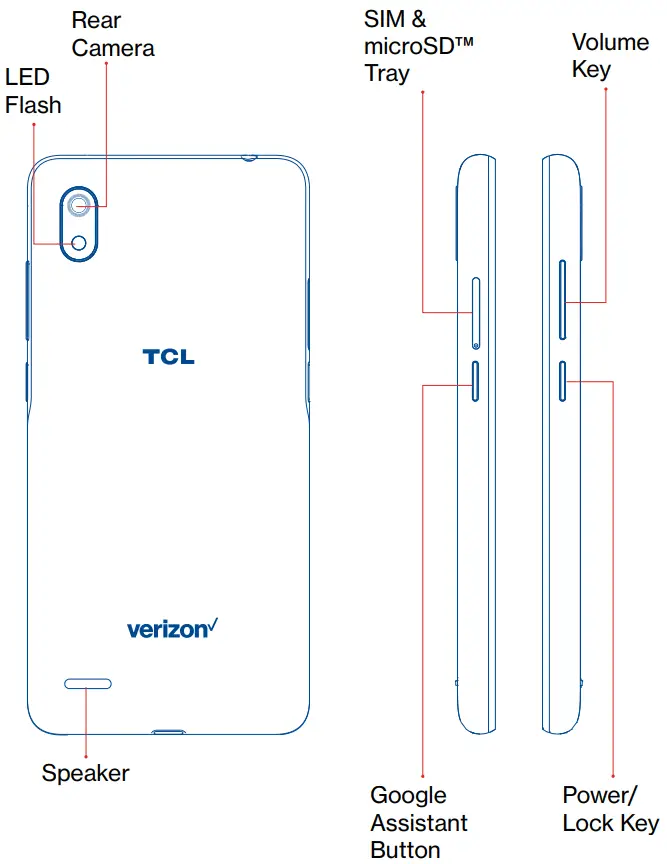
Setting up your phone
Your phone already has a NANO SIM card installed. MicroSD cards (capacity up to 256GB) may be purchased separately.
Install the SIM card /microSD card
Step 1. If you need to replace the NANO SIM card and/or insert an optional microSD card, use the SIM tool provided in the box to open the SIM tray.
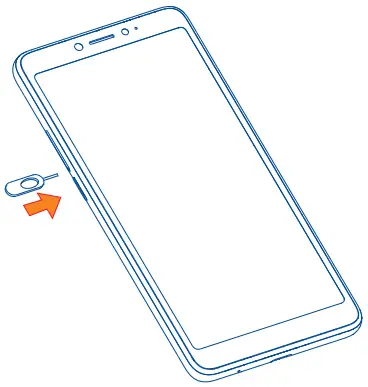 Step 2. Remove the NANO SIM card/microSD card tray.
Step 3. Position the SIM card and/or microSD card in the tray correctly, aligning the cutout tab and gently snap into place. Be sure the edges are aligned.
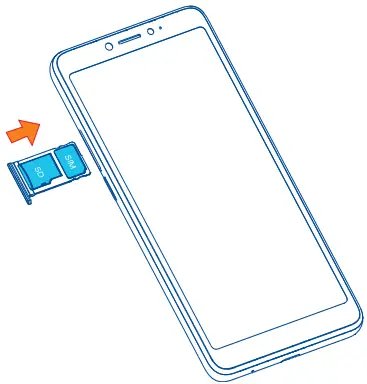 Step 4. Slide the tray slowly into the SIM tray slot. It only fits one direction. Do not force into place. Keep the SIM tool in a safe place for future use.
NOTE: The microSD card is sold separately.
Charge your phone
You might need to charge the battery before using your phone by inserting the small end of the charging cable into the charger port as shown. Charge your phone fully before turning it on and starting the setup process. Insert the other end of the USB cable into your wall charger and plug it into a wall outlet.
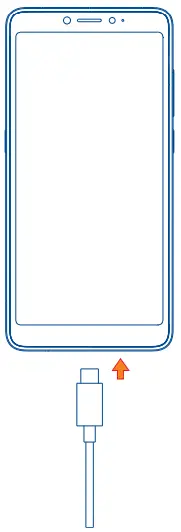 WARNING: Only use the charger and cable supplied with your device. Using incompatible chargers or tampering with the charger port could damage your device and void the
Using your phone
Turn your phone on/off
To turn on your phone, press and hold the Power/Lock Key.
To turn off your phone, press and hold the Power/Lock Key, and tap Power Off on the screen when it appears.
NOTE: The first time you turn on your phone, you will need to activate it. See the Get started guide included with your phone.
Locking/unlocking the screen
To turn on your screen, press the Power/Lock Key. Then swipe up on the screen to unlock it.
To create a screen unlock pattern, touch Setting > Security > Screen lock. To turn off your screen and prevent accidental key presses, press the Power/Lock Key.
Touch screen tips
Use touch gestures to move around the screen, open menus, select items, zoom in and out of web pages, and more. There are several touch gestures recognized by your phone:
- Tap–Tap the screen with your finger to select items or press buttons on the screen.
- Touch and hold–Touch and hold an item on the screen (such as a link on a web page) to open available options.
- Swipe- -Swipe by quickly sliding your finger in any direction. · Drag–To drag, touch, and hold an item and move it to a new position.
- Double-tap– Double-tap to zoom in/out on a web page or picture. · Multi-touch–Pinch or spread your thumb and index finger to zoom in or out.
Home screen
The Home screen provides quick access to all the items (applications, shortcuts, folders, and widgets) you like to use most frequently.
Touch the Home symbol to get instant access to the Home screen.
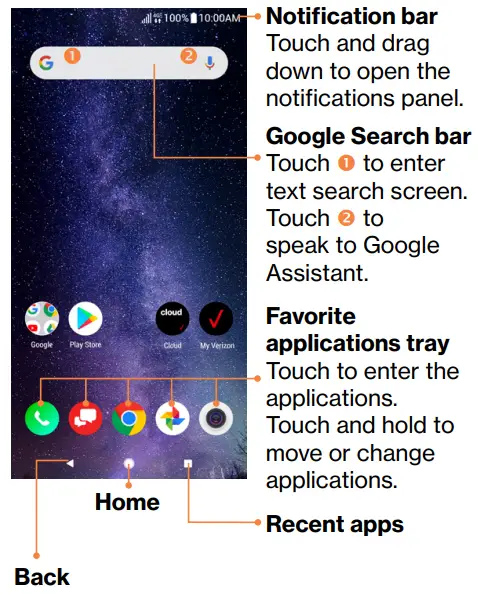
The Home screen is provided in an extended format with multiple panes to allow more space for adding applications, shortcuts, etc. To navigate to the additional panes swipe your finger on the screen horizontally to the right.
Swipe left to see more pages for Home screen applications.
Verizon Cloud
Verizon Cloud offers secure online storage to back up your contacts and sync them with your other Cloud-connected devices.
To learn more, go to vzw.com/cloud.
Making a call
- From the Home Screen, tap Call
 .
. - Tap Keypad
 .
. - Enter the number you want to call in the keypad or use the Search Contacts bar to enter the first few letters of a contact’s name. Tap the correct entry to make a call.
- Tap Call to place the call.
 .
.Receiving a call
When you receive a call, a call window will be presented on top of the screen. Touch DECLINE to dismiss a call or ANSWER to answer a call.
Touch the call window to open the Phone call screen.
On the Phone call screen:
- Swipe Phone
 up to answer the call;
 - Swipe Phone down to reject the call;
- Swipe Message
 up to reject the call by sending a preset message.
 up to answer the call;
 up to reject the call by sending a preset message.
To mute incoming calls, press the Volume Key.
Setting up Voice Mail
- Dial *86 and press Call
- When you hear a greeting, press # to interrupt
- Follow the instructions to set up your voice mail
Checking Voice Mail From your phone:
- Press Call
- From Keypad, press, and hold number 1

From other phones
- Dial your wireless number
- When the greeting begins, press # to interrupt
- Follow the instructions to listen to, save or discard phone messages
NOTE: Voice mailboxes not set up within 45 days will be canceled. Your voice mailbox is not password protected until you create a password by following the setup tutorial. Voice Mail may not be available in some areas. Follow the setup instructions to password-protect your Verizon Wireless Voice Mailbox. Verizon Wireless is not responsible for missed messages or deletions of messages from your Voice Mailbox, even if you have saved them.
Services and features
Calling features
- Domestic Long Distance
- Caller ID
- Call Waiting
- 3-Way Calling
- Call Forwarding
Text messaging
- Open the Messaging App by tapping
 on the Home screen or within the App Drawer.
 - Tap
 to start a new text message.
 - Enter the name or number of the recipient, or tap
 to select a contact from your contacts list.
 - Compose the text message in the text box, and tap
 to send.
 to start a new text message.
 to select a contact from your contacts list.
 to send.
NOTE: Data charges will apply when sending and receiving a picture or video message. International or roaming text charges may apply to those messages outside of the United States of America. See your carrier agreement for more details about messaging and related charges.
Picture and video messaging
Take pictures or videos and send them to almost any email address, or to other phones.
- From the Home screen, tap then to begin a text message tap.
- Enter the name or number of the recipient, or tap to select a contact from your contacts list.
- Tap + and choose the pictures or videos you want to send.
- After attaching the pictures or videos, tap to send.
For pricing details please visit verizonwireless.com/prepaid.
Apps and more
Play it up with music, ringtones, wallpapers, apps, and games. Keep up with Twitter and Facebook. We’ve got apps that help you do it all. Data charges may apply.
Installing apps
From the Home Screen, tap Play Store .
.
Web browsing
From the Home Screen, tap Chrome .
.
Then type a search term or web address and press .
.
Google Assistant
Google Assistant is built into your phone. When activated, Google Assistant will pop up on your screen to let you know it is listening- speak your command when ready. There are multiple ways to access it:
- Press the dedicated Google Assistant button on the left side of your device. You may activate or deactivate this feature in Settings > System > Gestures > Google Assistant key. Press the button to quickly start Google Assistant. Press and hold the button to talk to Google Assistant for a longer command.
- Press and hold the Home
 .
. - Tap the microphone
 on the Google Search bar located at the top of the Home screen.
 - Simply say out loud “Hey Google”.
 .
. on the Google Search bar located at the top of the Home screen.
International services
Keep in touch with family and friends while at home and abroad with our Prepaid International plans. TravelPass Take your domestic talk, text, and data allowances with you for a low daily rate. You’re only charged on the days you use your wireless plan abroad. For additional details, including rates, visit vzw.com/prepaidglobal. Location-based services This phone can determine its location, which is useful for services such as navigation, shopping, and weather. For your safety, it’s defaulted to acquire your location only when you dial 911.
VZ Navigator®
Select the app or download it from the Google PlayTM Store. Go to verizonwireless.com/navigator for more details and pricing.
Support and more
The Help app gives you tips, videos, and other information on how to use your phone, including:
 | Making calls |
 | Voice mail |
 | Sending texts |
 | Taking photos |
 | Taking photos |
 | From your computer, visit verizonwireless.com/support. |
 | Customer service Call 800.922.0204 Twitter @VZWSupport |
 | Download a User Guide from verizonwireless.com/support. |
Important customer information
The services described in this brochure are only for your personal use. They are subject to the Customer Agreement, your Calling Plan, the Verizon Wireless Privacy Principles, and Internet Privacy Policy (both of which can be viewed at verizonwireless.com and the following terms and conditions, as applicable. You agree to comply with all applicable laws, rules, regulations, and policies when using these services. In addition to your rights under the Customer Agreement, we may terminate or modify all services upon notice. Verizon Wireless is not responsible for third-party content you encounter using these services, including any possible defamation, obscenity, or profanity. Content, content pricing, service functionality, and menu order may change without notice. Unless otherwise indicated, data sessions will terminate after 30 seconds of inactivity.
Device recycling program
For information visit verizonwireless.com/device-recycle.
Warranty replacements
If you’re having a problem with your wireless device, just contact Verizon toll-free at 866.406.5154 from another phone.
Hearing aid compatibility information
This phone has been tested and rated for use with hearing aids for some of the wireless technologies that it uses. However, there may be some newer wireless technologies used in this phone that have not been tested yet for use with hearing aids. It is important to try the different features of this phone thoroughly and in different locations, using your hearing aid or cochlear implant, to determine if you hear any interfering noise. Consult your service provider or the manufacturer of this phone for information on hearing aid compatibility. If you have questions about return or exchange policies, consult your service provider or phone retailer.
© 2020 Verizon. All rights reserved.
 Verizon: Wireless, Internet, TV and Phone Services | Official Site
 Verizon: Wireless, Internet, TV and Phone Services | Official Site