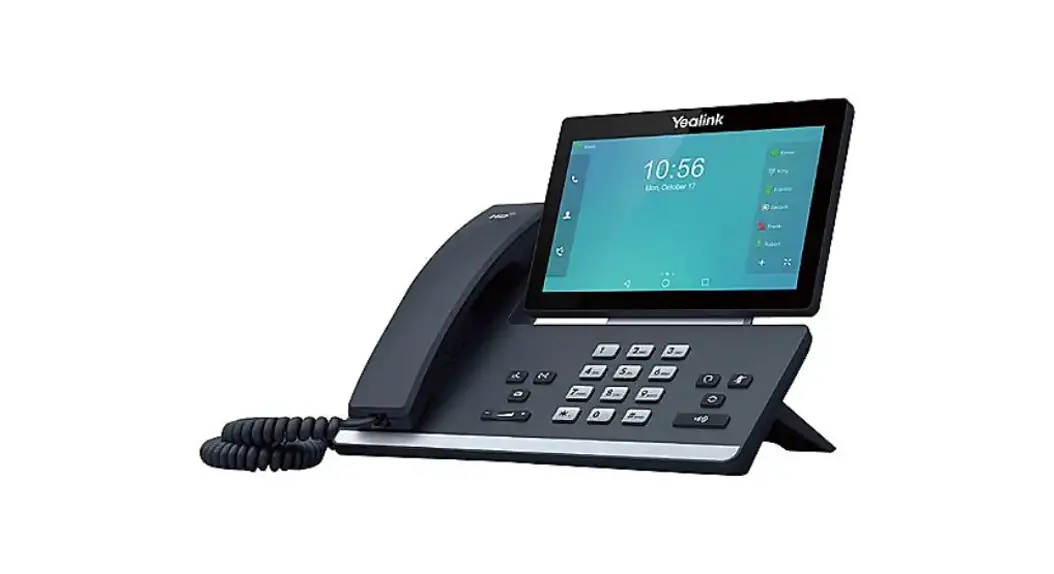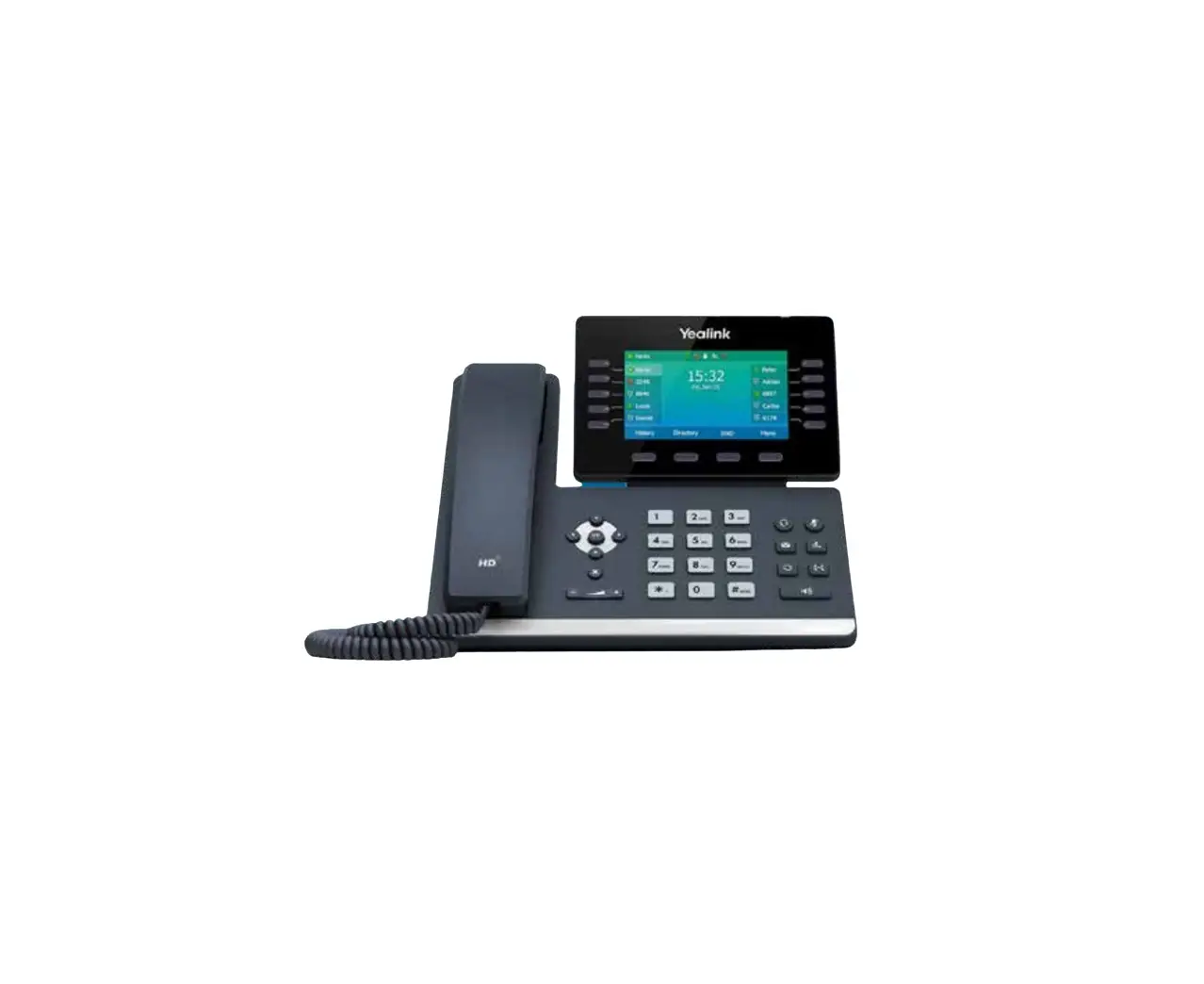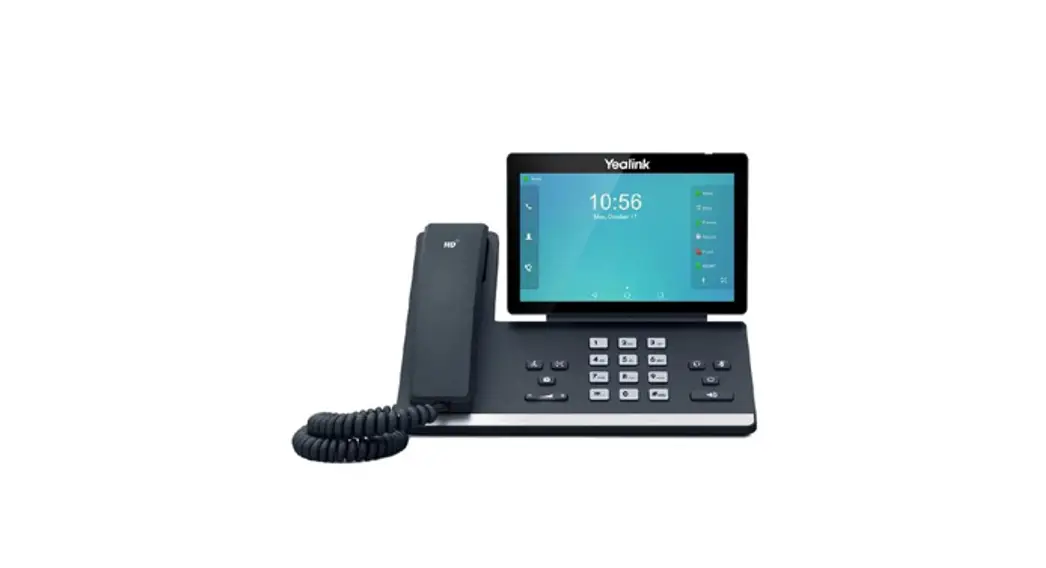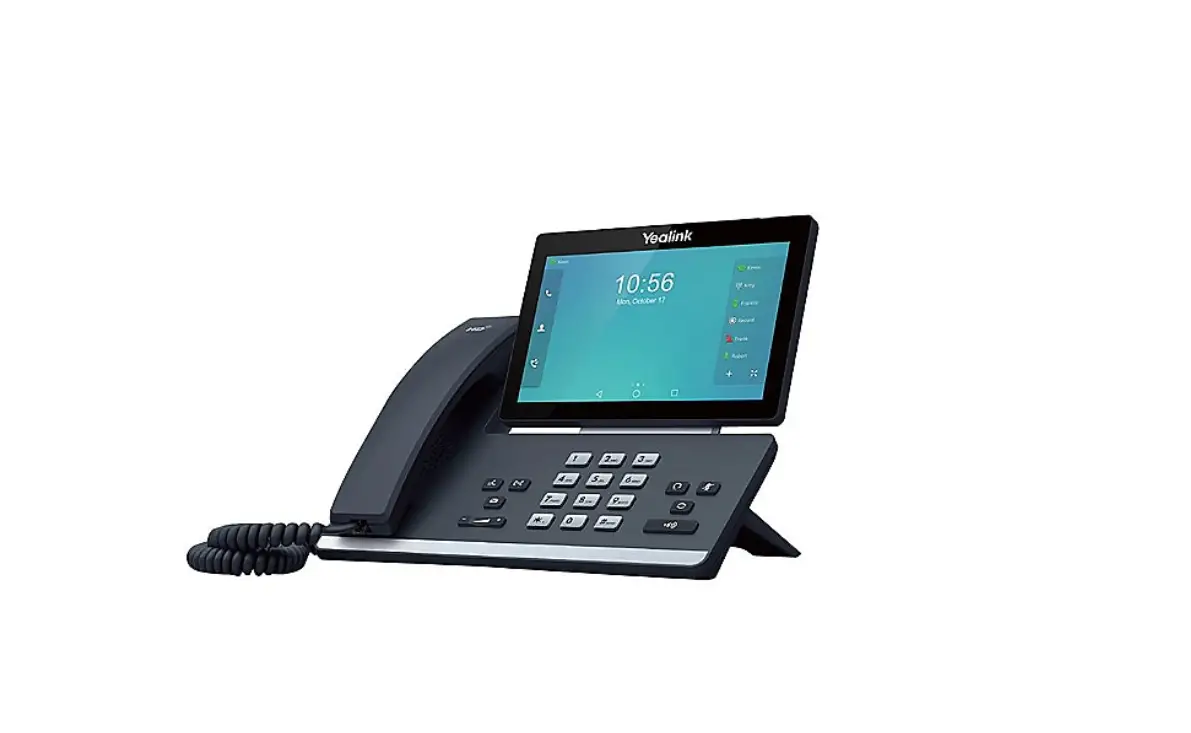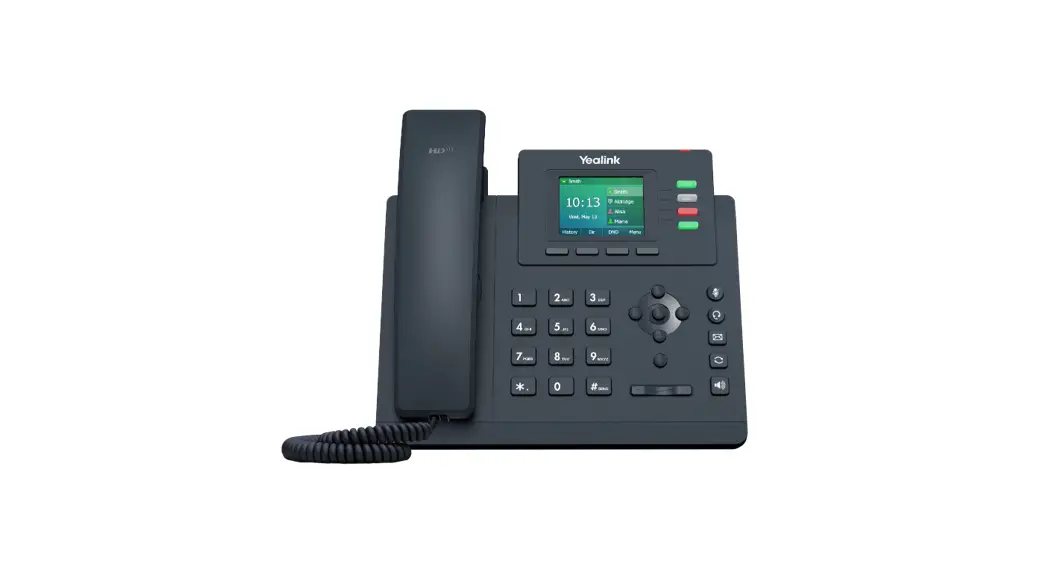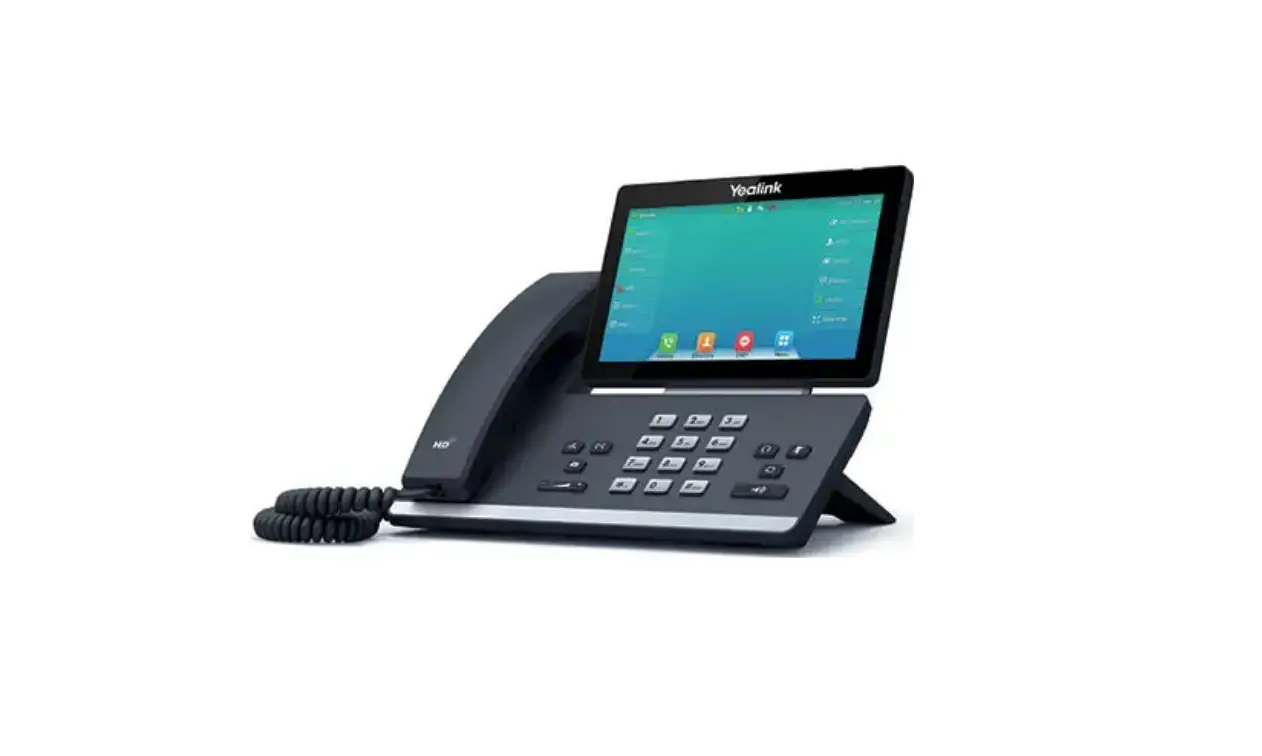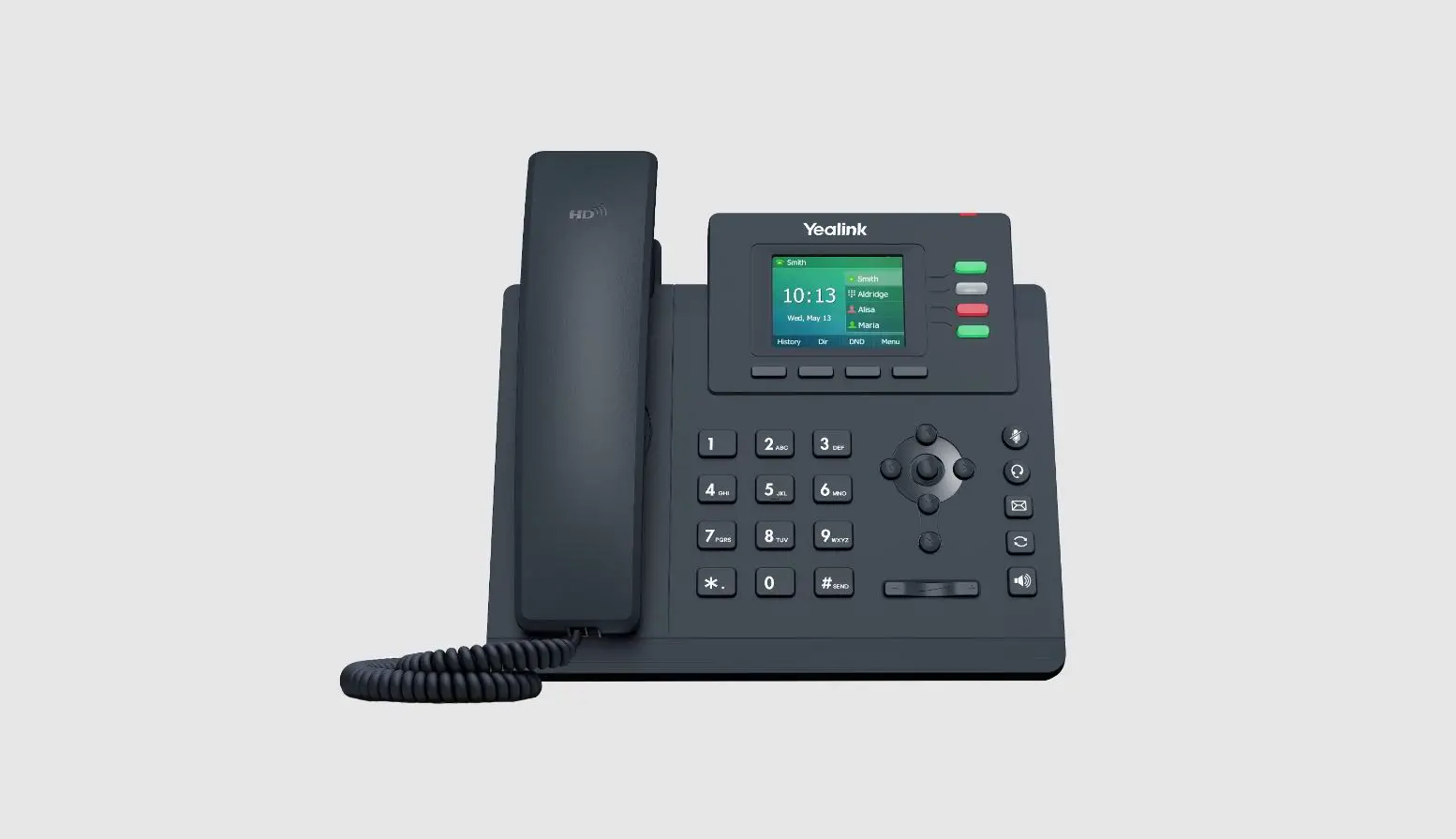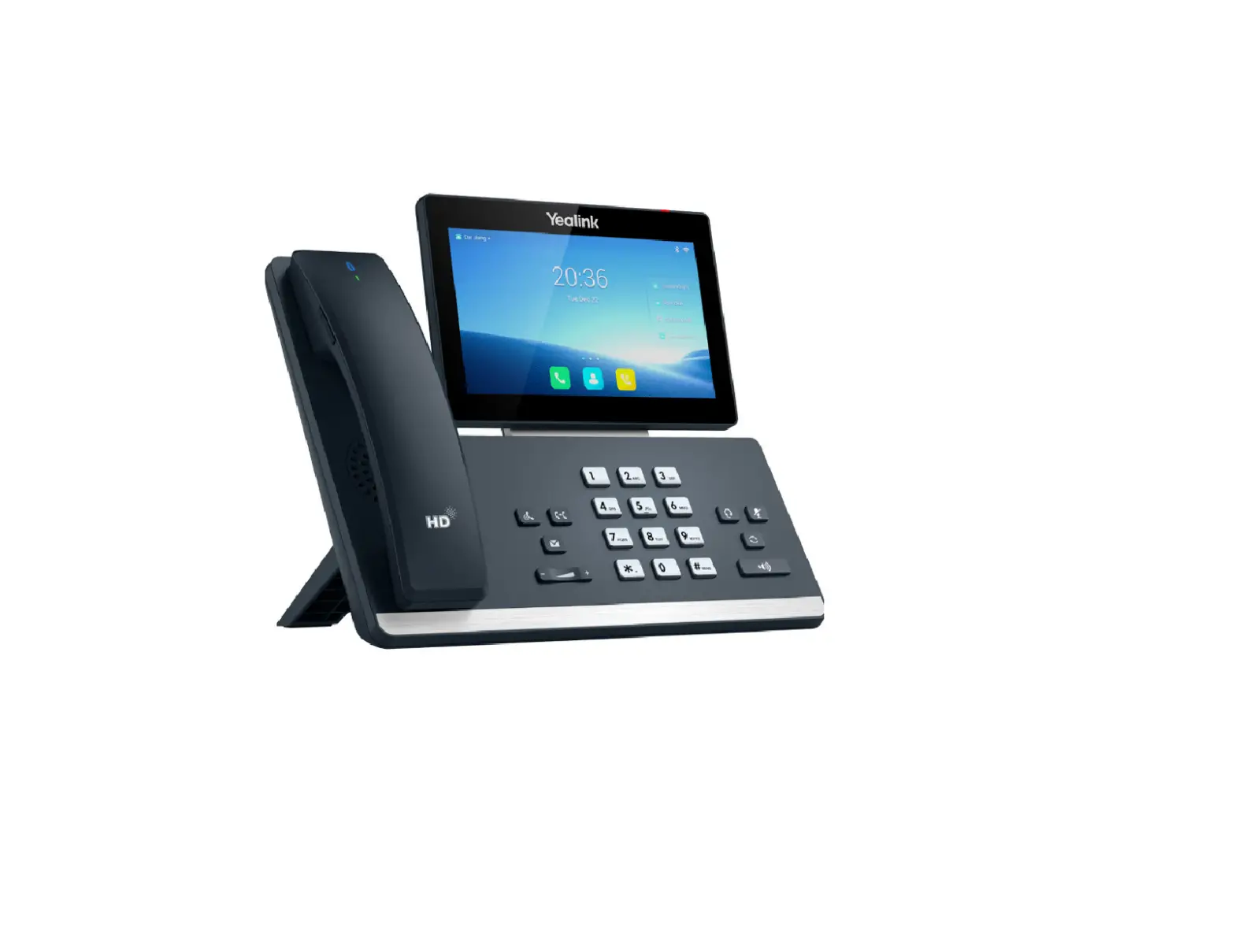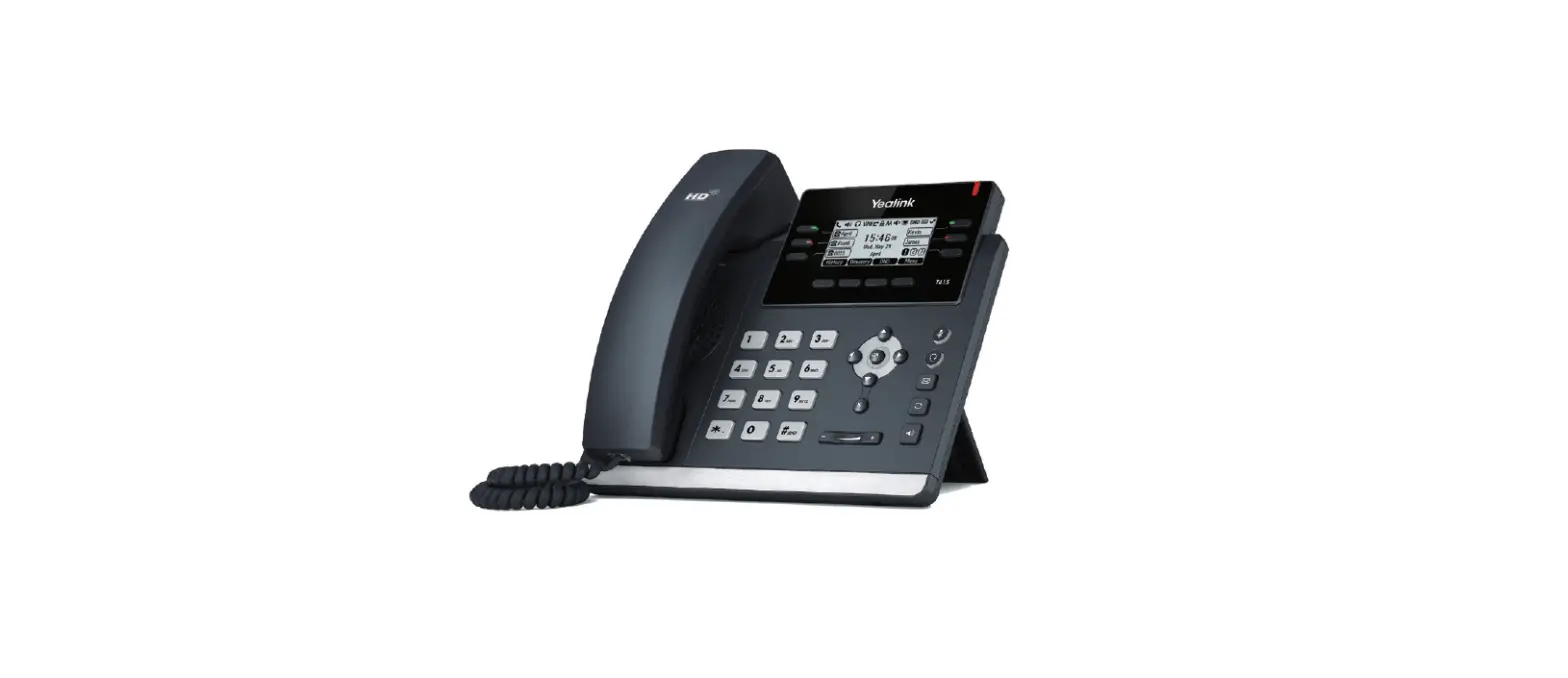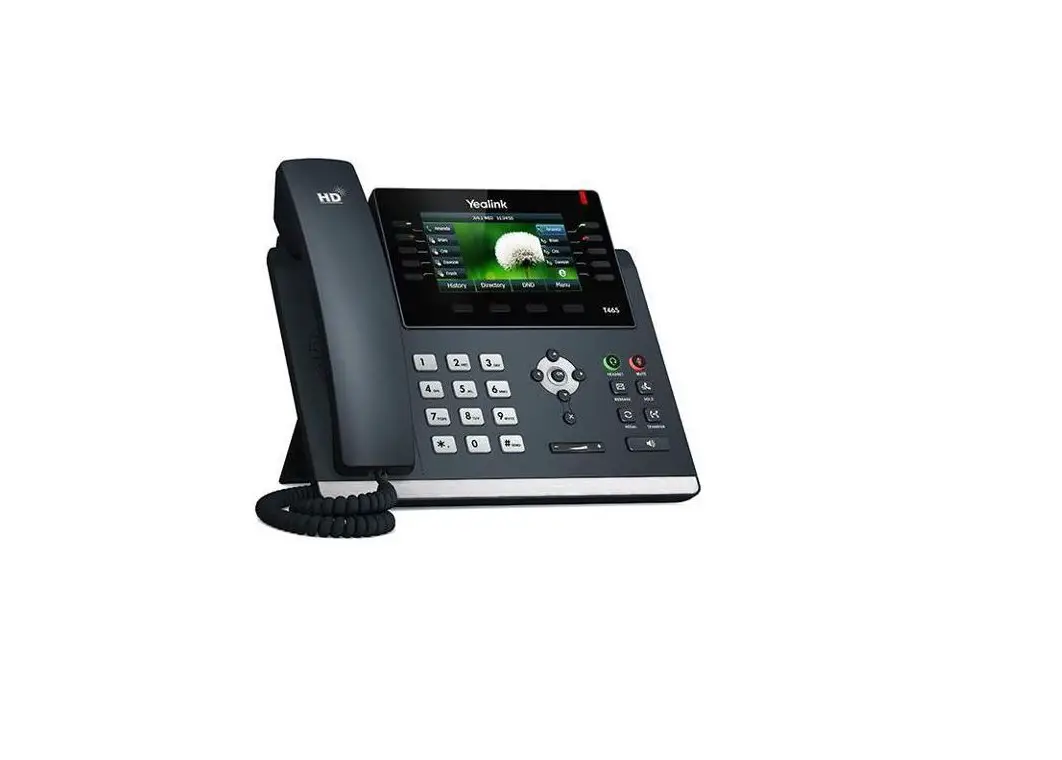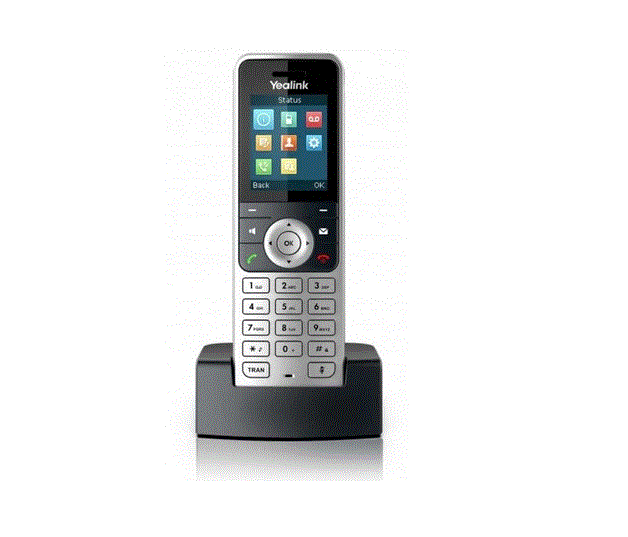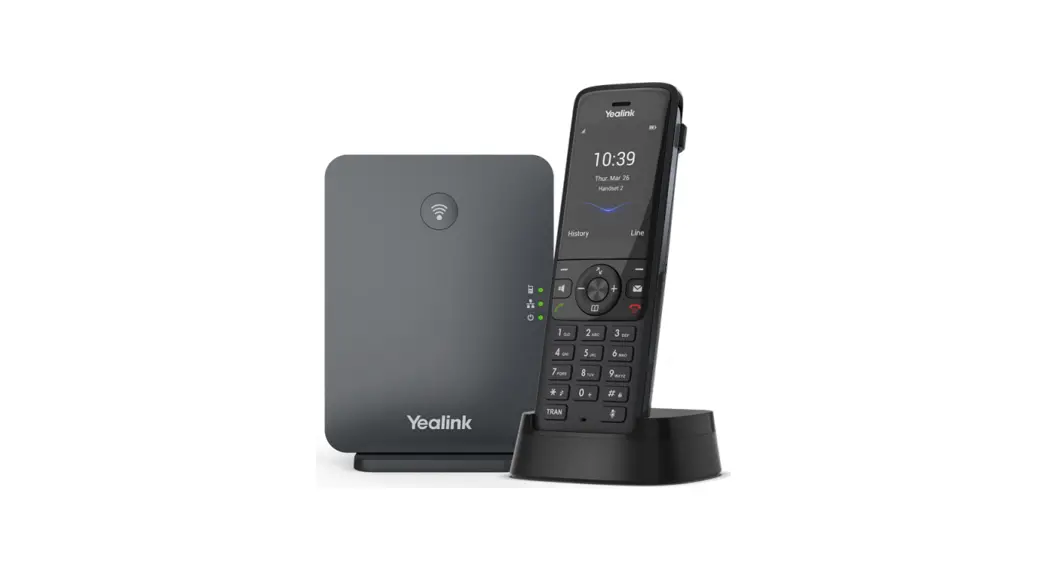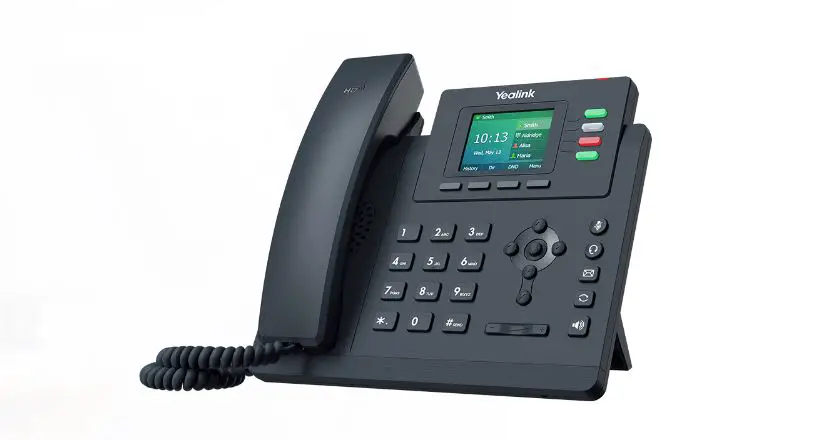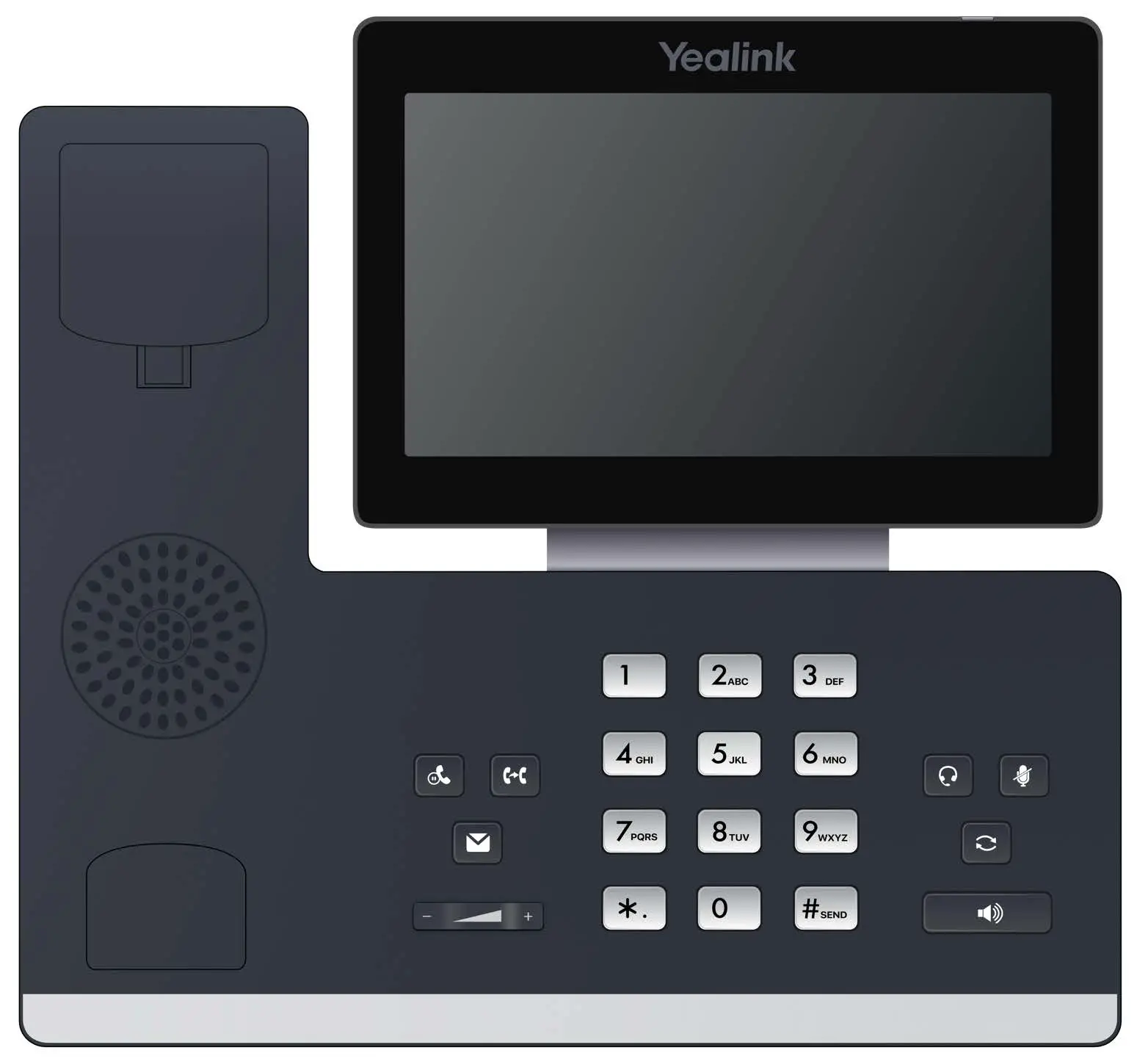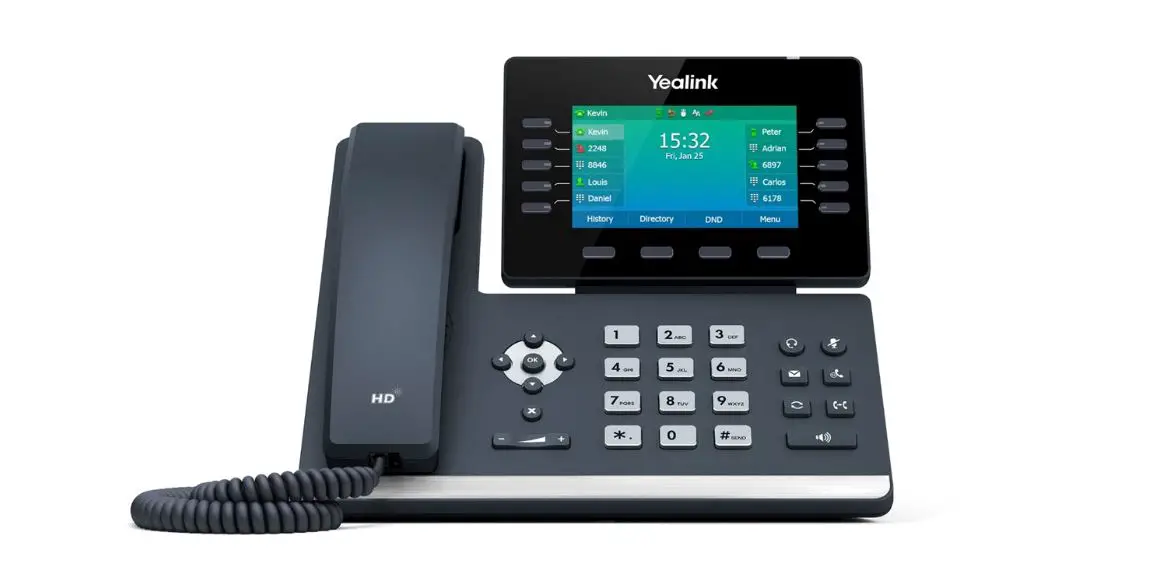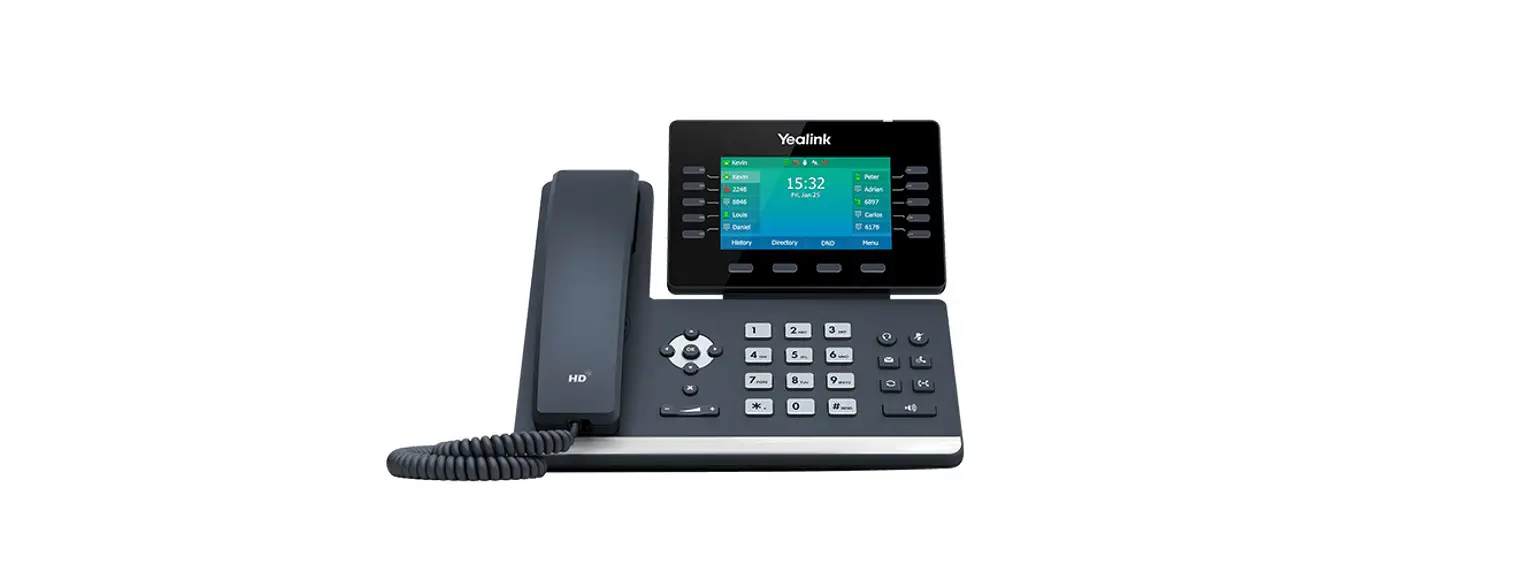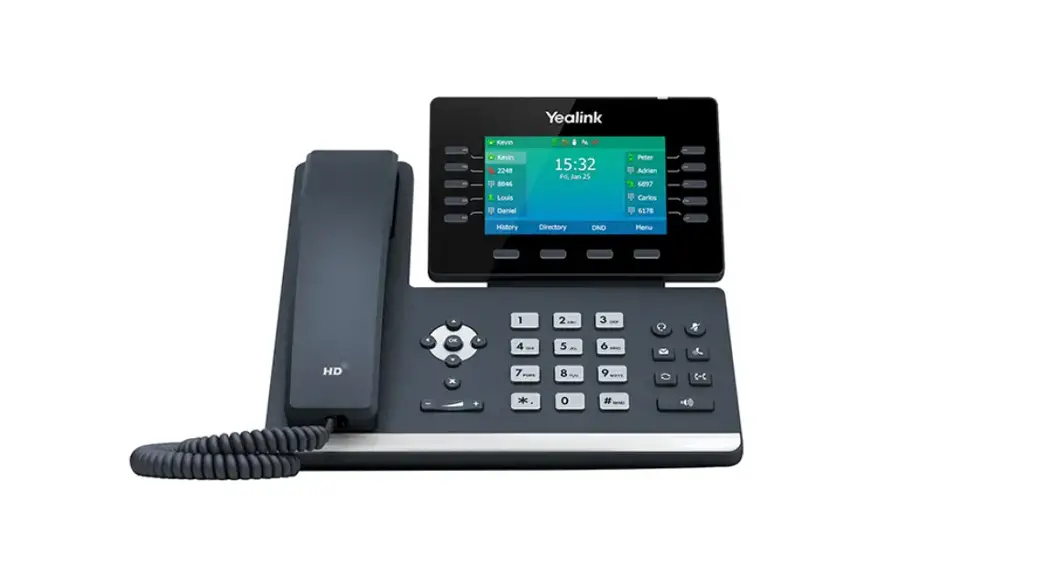
 Yealink T54W Desk Phone
Instructions
YOUR YEALINK T54W DESK PHONE
Solutions Made Easy.
Key Descriptions
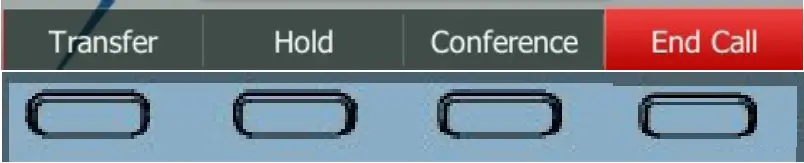
Softkeys – Accesses the feature/function that appears on the display above them. Softkeys change based on the state of the phone: idle, on a call, in a menu, etc.
 | Headset Key – Toggles the headset on/off. LED glows green when headset is in use. |
 | Mute Key – Tap to mute or unmute the speaker, handset or headset. |
 | Message Key – Use to access your voicemail. |
 | Hold Key – Press once to place a call on hold. Press again to retrieve call. |
 | Redial Key – Displays a list of recently called numbers and allows you to redial from the list. |
 | Transfer Key – Transfers a call to another number (internal or external). |
 | Speaker Key – Toggles the speaker on/off. LED glows green when speaker is active. |
 | Volume Key – Tap to adjust ringer, speaker, handset or headset volume. |
 | Navigation Key – Use to scroll through menus and lists on the display. X – Use to exit from menus and lists on the display. |
Call Handling
Blind Transfer
- Press TRANSFER Key.
- Enter the number you want to transfer to and press the TRANSFER Key again – immediately.
Announced Transfer
- Press the TRANSFER Key.
- Enter the number you want to transfer to, press the CALL Softkey and wait for the person to answer.
- Announce the call and press the TRANSFER Key again.
Transfer to Voicemail
- Press the TRANSFER Key.
- Dial *99 and the extension number.
- Press the TRANSFER Key again immediately.
Conference Call
- Press the CONFERENCE Softkey.
- Enter the second number and press the CALL Softkey.
- Wait for the person to answer and announce the conference.
- Press the CONFERENCE Softkey again.
- Repeat to add additional parties.
Park a Call
- To place a call on Park, with the caller on the line, press an available PARK key. Key flashes red.
- To retrieve a parked call, press the applicable PARK Key.
Do Not Disturb (DND)
- To activate Do Not Disturb, press the DND Softkey.
- The telephone screen will display a DND Icon in the Status Bar.

- To deactivate DND, press the DND Softkey again.

YOUR VOICEMAIL
Solutions Made Easy.
LOG IN TO VOICEMAIL
From any internal extension:
- Dial *99 (Pressing the MESSAGE Key, logs you in to VISUAL VOICE for that account).
- Enter your 10-digit telephone number and press the # key.
- Enter your password (temporary password provided by your System Administrator) and press the # key.
- Follow the voice prompts.
NOTES: If Fast Login has been enabled, you will not be asked to enter your telephone number. From your own phone, enter your password and press # when prompted.
If logging in from another account phone that has Fast Login enabled, press * and enter your 10-digit telephone number, press #, enter your password and press #.
Pressing the MESSAGE Key on any phone, logs you in to VISUAL VOICE for that account.
From any external telephone:
- Dial: 315-671-0031 (Syracuse) or 315-624-9994 (Utica).
- Enter your 10 digit telephone number and press the # key.
- Enter your password (temporary password provided by your System Administrator) and press the # key.
- Follow the voice prompts.
COMMON VOICEMAIL COMMANDS
From the Main Menu
| Listen to messages | 1 |
| Leave a message for another user | 2 |
| Work with personal greetings | 3 |
| Mailbox settings | 4 |
| Get Deleted Messages | 6 |
| Switch Account (log into another account) | 7 |
| Help menu | 0 |
While Listening to Messages
| Repeat | 1 |
| Save | 2 |
| Erase | 3 |
| Reply | 4 |
| Increase Message | 6 |
| VolumeNext Message | # |
| Back Up 5 seconds | 77 |
| Forward 5 seconds | 99 |
NOTES: Star (*) will always back you up to the previous menu.
When listening to a greeting, pound (#) will bypass the user’s personal greeting.
CommPortal for Web
CommPortal is an interactive web page that allows you to access and manage your call service, settings and voicemail for your account phone. Your system administrator will provide you with a temporary password.
To log into CommPortal, go to: https://bucommportal.northland.net
Dial 4357 (HELP) or 315-671-6262 to speak to a Northland Representative
DECEMBER 2022
 Login
Login