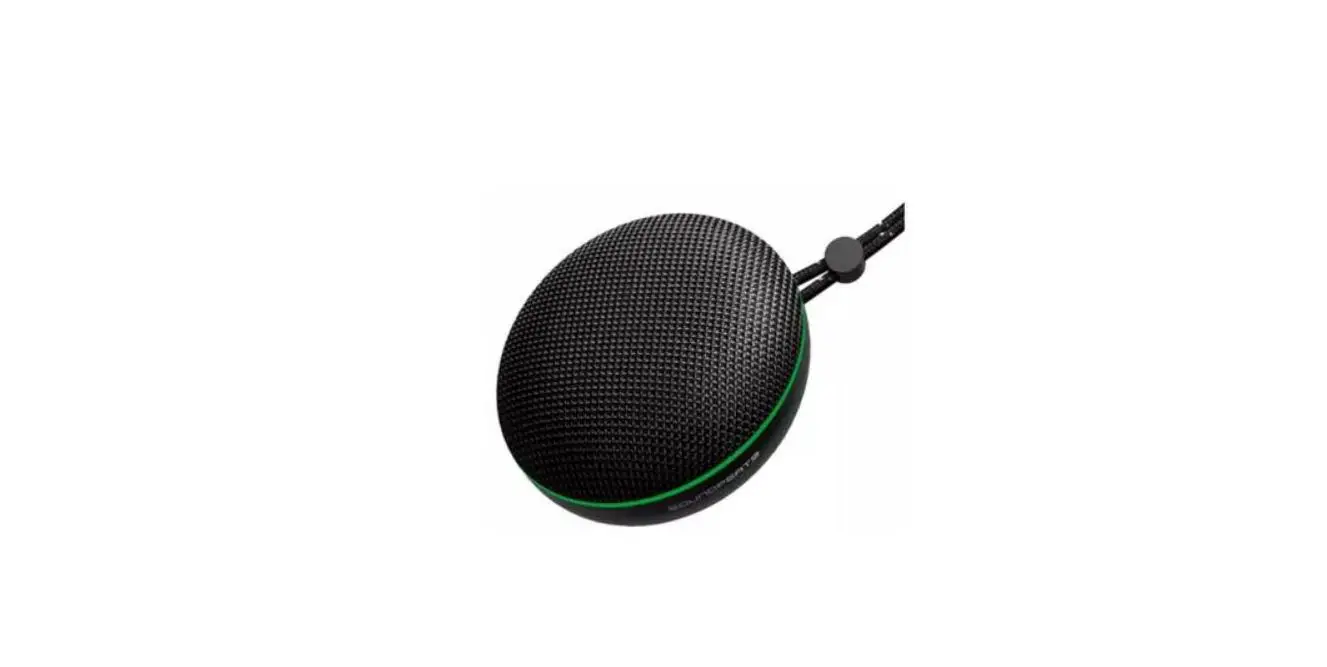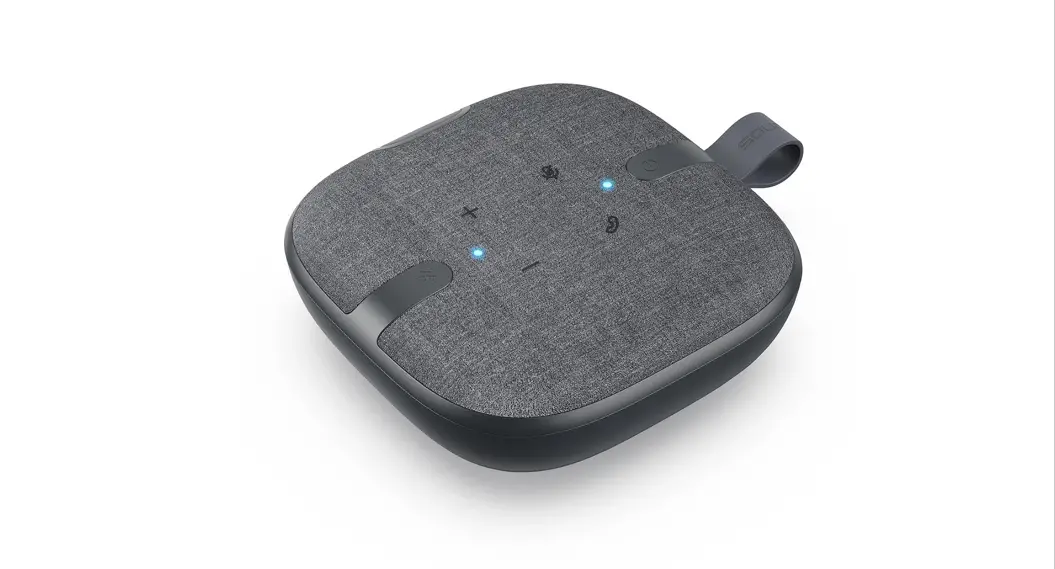
 PureVoice
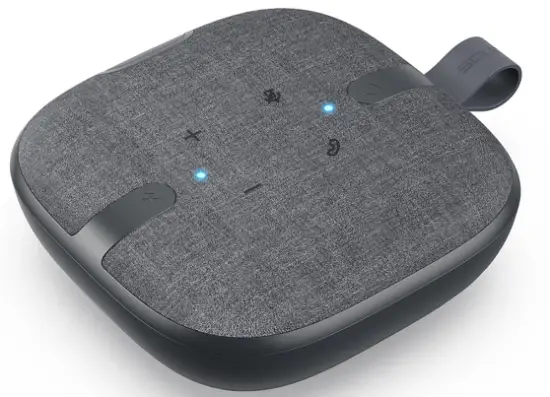 Using Guide
Product Diagram
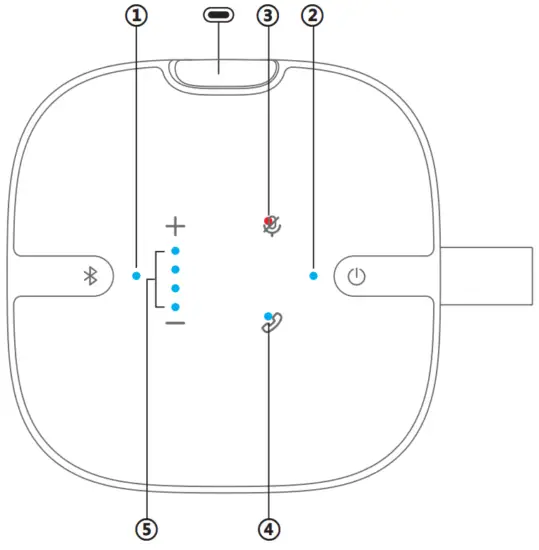 Button Control:
 Bluetooth Button
 Power Button
Touch Control: Mute Button
 Call Button
 Volume+
 Volume-
Charging Port: Type-C Charging Port
LED indicator:
- Bluetooth indicator
- Power Indicator
- Mute Indicator
- Call Indicator
- Volume Indicator
Connection
Wireless connection-Bluetooth Pairing
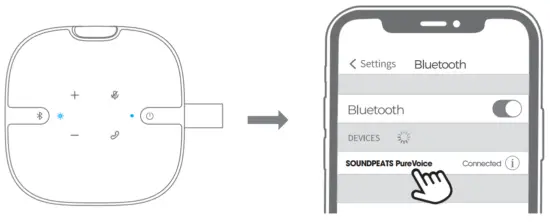
- Long press the power button for 3s to turn on, and the power indicator stays blue, then short press the Bluetooth button till the Bluetooth indicator flashes blue, the PureVoice conference speaker enters pairing mode.
- Activate Bluetooth on the device, and choose “SOUNDPEATS PureVoice” on the Bluetooth list to pair.

Wired Connection
- Long press the power button for 3 seconds to turn it on, and the power indicator stays blue.
- Connect the Type-A end of the cable to the device.
- Then connect the Type-C at the other end to the PureVoice conference speaker.
Control
| Power on | Long press the power button for 3s |
| Power off | Auto: 1) Automatically power off when not connected with the device within 10 minutes. 2) Automatically power off when on a low battery. Manually: Long press the power button for 3s |
| Volume- | Short tap volume- button |
| Keep Volume down | Long press volume- button |
| Volume+ | Short tap volume+ Button |
| Keep Volume up | Long press volume+ Button |
| Enter/Exit Mute Mode | Short press the Mute button |
| Bluetooth Pairing | Short press the Bluetooth button till the Bluetooth indicator flashes blue |
| Turn on Bluetooth visibility | Short press the Bluetooth button |
| Turn off Bluetooth visibility | Long press Bluetooth button for 3s |
| Answer/ Hang-up phone call | The short tap call button |
| Reject phone call | Long press the call button for 1.5s |
Reset
The long-press the power button for 8 seconds when the PureVoice Conference Speaker is in power on/off status, then wait for 3 seconds, the PureVoice will be rebooting with a voice prompt “Power on”, its power indicator stays blue, reset compete.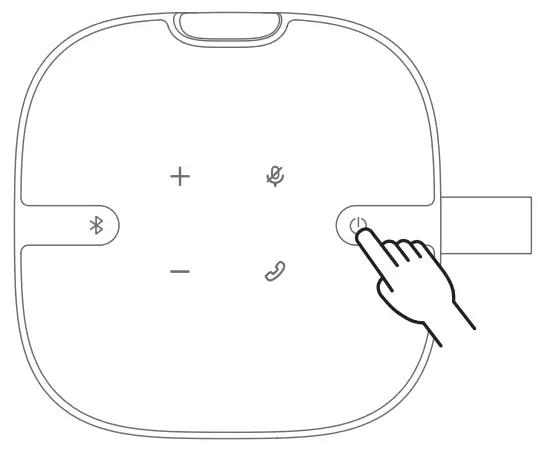
Q&A
Q1:What does the LED of PureVoice Conference Speaker mean?
| PureVoice Speaker | Indicator | Meaning |
| Bluetooth indicator ① |  Flash blue quickly Flash blue quickly | Pairing mode |
 Blue Blue | Connected | |
 Blue light off Blue light off | Turn off Bluetooth visibility | |
| Power indicator ② | Blue | Power on/ enough battery |
 Flash red Flash red | Low battery | |
 Red Red | In charging | |
 Green Green | Fully Charged | |
| Mute indicator ③ | Red | Enter mute mode |
 Red light off Red light off | Exit mute mode | |
| Call indicator ④ | Flash Blue | Incoming call |
| Blue | Calling | |
| Volume indicator ⑤ | After volume+/-, the volume indicator will display the current volume status and stay blue for 2s then disappear | |
Q2: If Bluetooth visibility is turned off during use, the PureVoice conference speaker will be disconnected from the current device. Can other devices still connect to the conference speaker?
Other devices can be connected. The main purpose of turning off Bluetooth visibility is to disconnect from the current device without automatically reconnecting, so that other devices can be connected quickly, enabling convenient switching of devices in the meeting.
Q3: After the PureVoice conference speaker is connected to the phone, why is it sound so small when the volume on the phone is one bar?
- Because the volume is already at a low level when the volume is one level on the phone, the sound will be relatively small.
- The main reason is related to the volume gradient set by the phone manufacturer. Because the volume gradients set by different phone manufacturers are different, the sound of the conference speaker will be relatively small when the volume of some phones is one level. You can adjust the volume to a suitable level.
FCC Statement
This equipment has been tested and found to comply with the limits for a Class B digital device, pursuant to Part 15 of the FCC rules. These limits are designed to provide reasonable protection against harmful interference in a residential installation. This equipment generates uses and can radiate radio frequency energy and, if not installed and used in accordance with the instructions, may cause harmful interference to radio communications. However, there is no guarantee that interference will not occur in a particular
installation. If this equipment does cause harmful interference to radio or television reception, which can be determined by turning the equipment off and on, the user is encouraged to try to correct the interference by one or more of the following measures:
— Reorient or relocate the receiving antenna.
— Increase the separation between the equipment and receiver.
— Connect the equipment into an outlet on a circuit different from that to which the receiver is connected.
— Consult the dealer or an experienced radio/TV technician for help.
This device complies with part 15 of the FCC rules. Operation is subject to the following two conditions:
- This device may not cause harmful interference.
- this device must accept any interference received, including interference that may cause undesired operation.
Changes or modifications not expressly approved by the party responsible for compliance could void the user’s authority to operate the equipment.
IC ID
This device complies with Industry Canada licence-exempt RSS standard(s). Operation is subject to the following two conditions:
- this device may not cause interference, and
- this device must accept any interference, including interference that may cause undesired operation of the device.”
RF warning statement:
The device has been evaluated to meet general RF exposure requirements. The device can be used in portable exposure conditions without restriction.
MANUFACTURER
Shenzhen SoundSOUL Information Technology Company Limited Room 1308-1309, Building B, Huaihai Square, Chuangye Road,
Longhua District, Shenzhen, China. 518109 [email protected]
 www.soundpeatsaudio.com
Company:Qing UG(haftungsbeschränkt)
Address: Undinestr. 7, 12203 Berlin Germany
FCC ID: 2AFTU-DD027
IC ID:27785-PUREVOICE
MADE IN CHINA
 SOUNDPEATS TrueWireless Earbuds & Headphones for Sound.