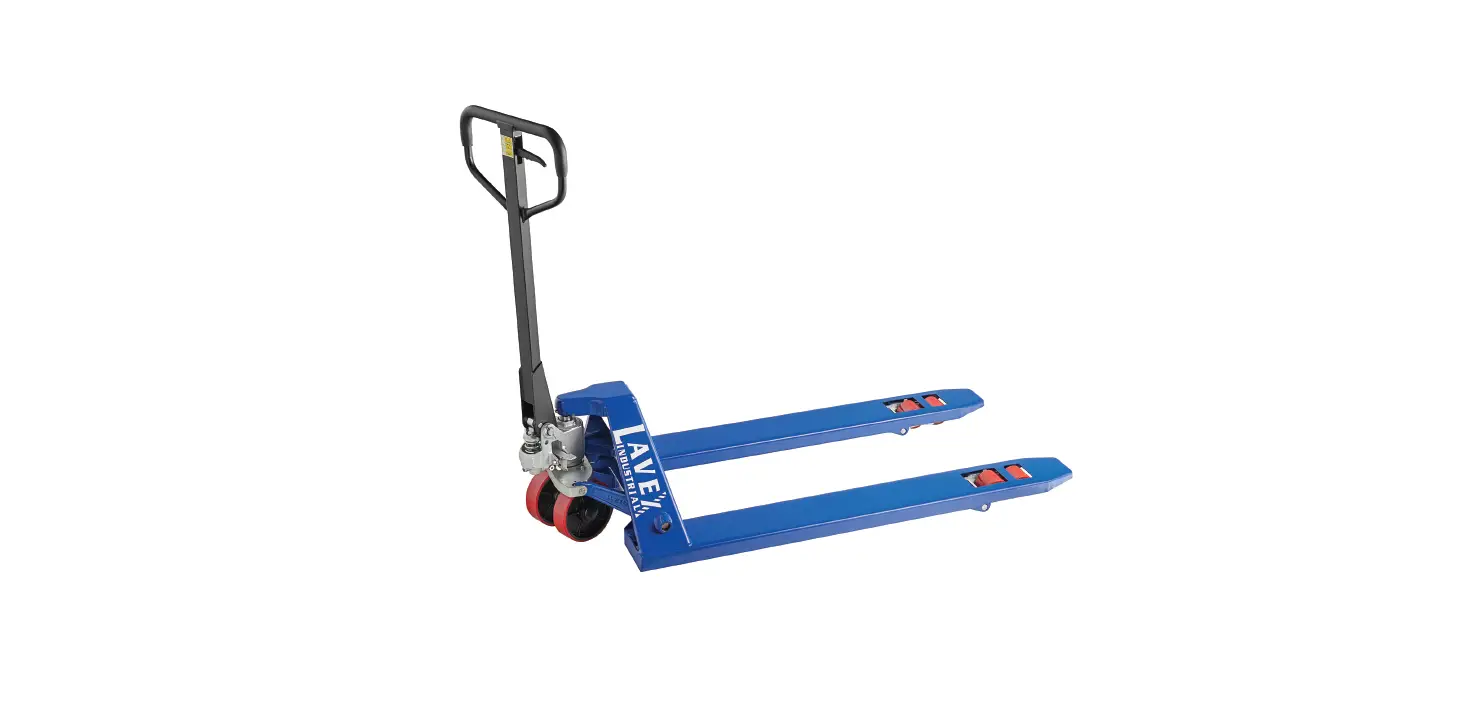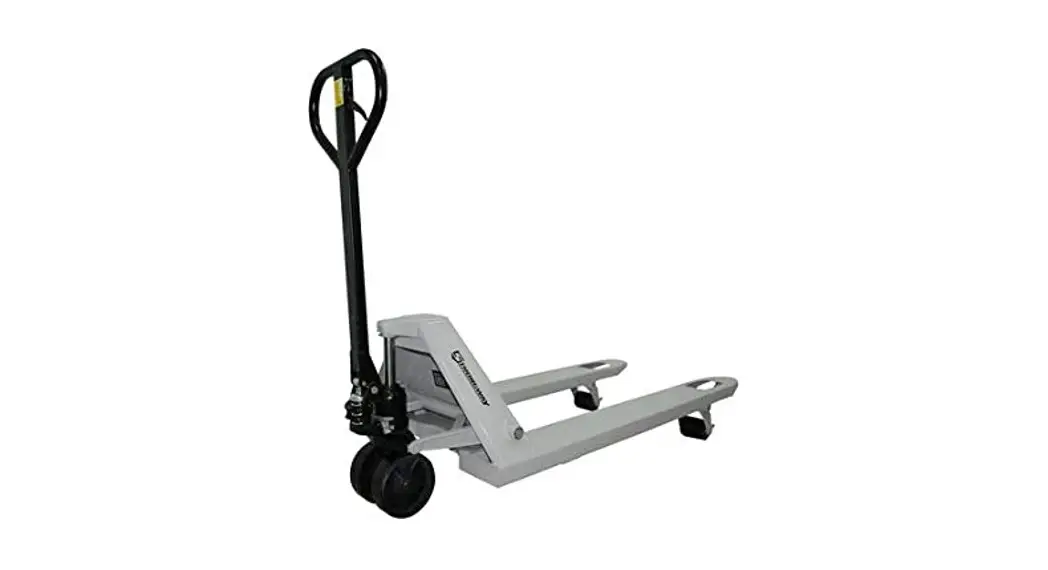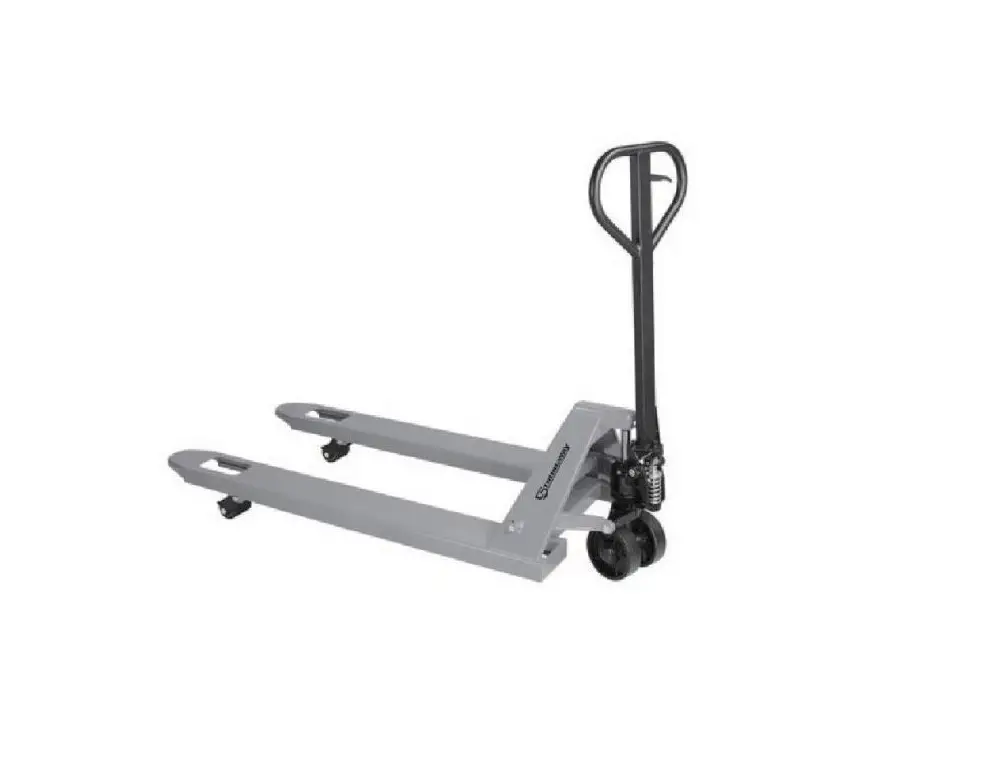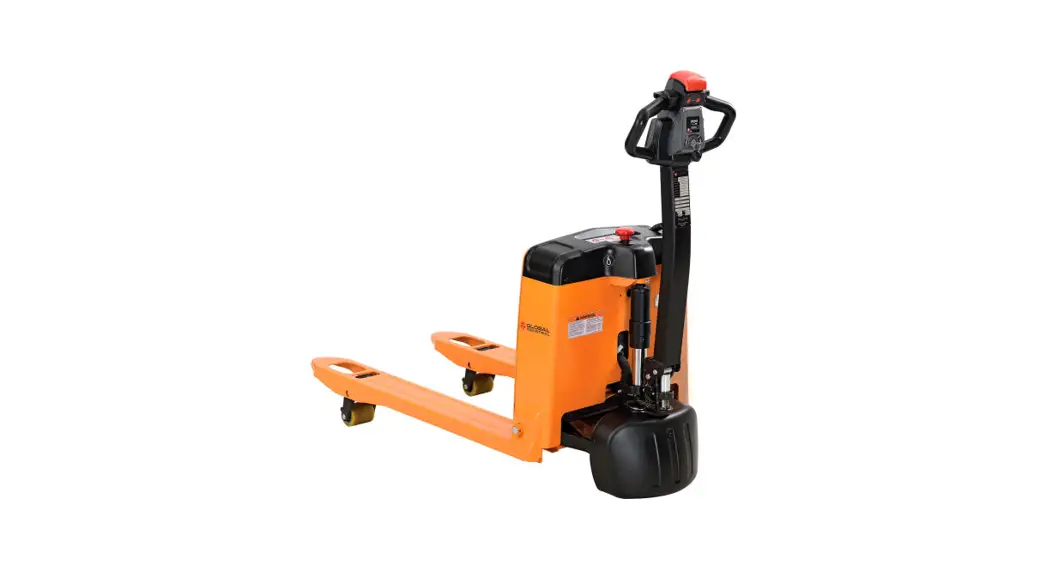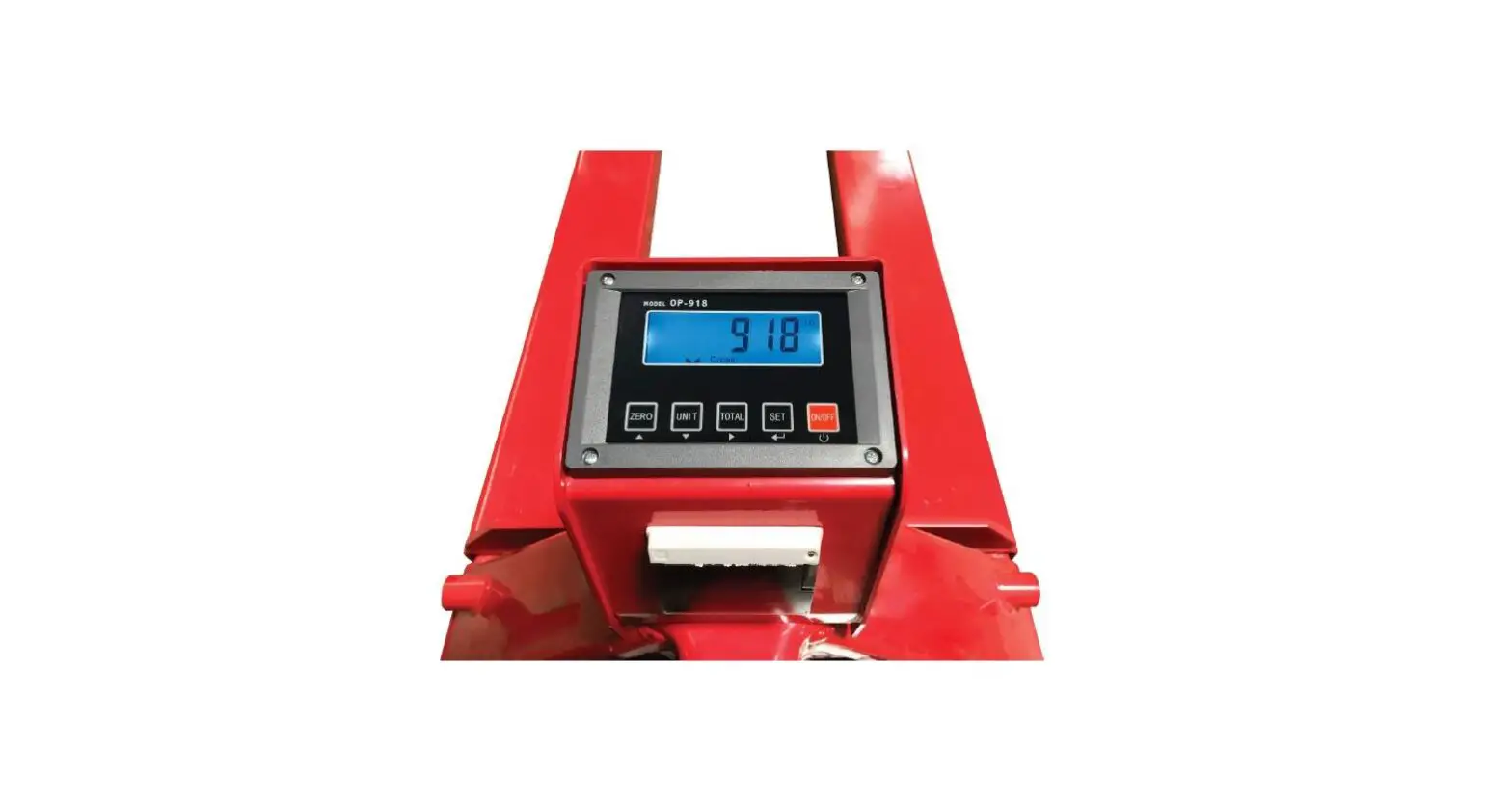

NORTHERN TOOL OP-918 Pallet Jack Indicator with Scale
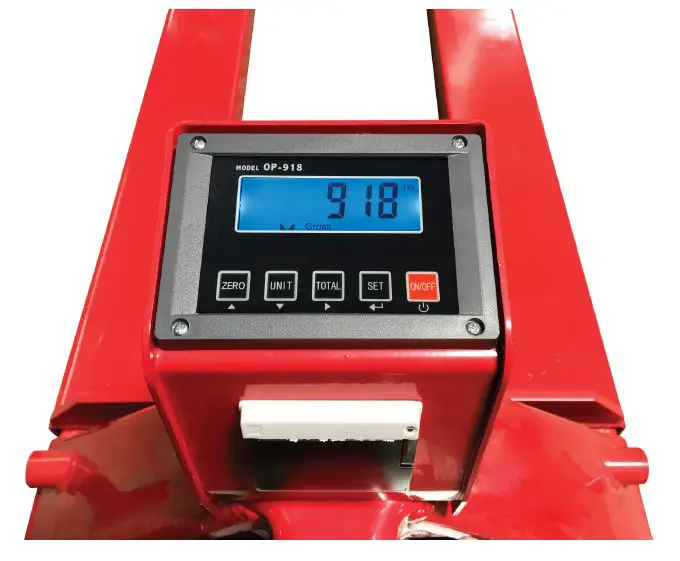
SAFETY PRECAUTIONS
For safe operation of the weighing indicator, please follow these instructions:
- Calibration inspection and maintenance of the indicator are prohibited by non-pro-fessional staff
- Please ensure that the indicator rests on a stable surface
- The indicator is a piece of static sensitive equipment; Please cut off power during electrical connections
- Touching the internal components by hand is prohibited
- DO NOT exceed the rated load limit of the unit
- DO NOT step on the unit
- DO NOT jump on the scale
- DO NOT use this product if any of the components are cracked
- DO NOT use for purposes other then weight taking
- To avoid damaging the battery do not keep charger plugged in once battery is fully charged
- Make sure the weight is not over the Max capacity as it could damage the load cell inside
- Material that has a static electric charge could influence the weighing. Discharge the static electricity of the samples, if possible. Another solution to the problem is to wipe both sides of the pan and the top of the case with an anti-static agent
Please take anti-static prevention measures
Any Accumulated charge on the body of the human operator should be discharged first before opening the protective container with ESDS devices inside. The discharge can be accomplished by:
Putting a hand on a grounded surface or, ideally, by wearing a grounded Anti-static Wrist Strap and an Anti-static Mat
PREPARATION & SET UP
- Plug into a wall outlet to avoid interference with other wirings
- Turn on the indicator while there is no load
- Calibration may be required before weighing when the scale is initially installed or moved from a location
FEATURES
The OP-918 indicator is designed for the hydraulic forlift truck scale application. The in-strument has a friendly interface, simple operation, stable performance, and uses mini-mal energy.
Main Functions
- LCD display
- Multiple weighing units: kg/lb
- Gross and net weighing
- Tare feature
- Zero feature
- Accumulation weighing
- Printer (optional)
- Splash proof keyboard and display
- Power saving mode
- NTEP approved for 5,000 divisions
- Rechargeable battery
Technical Parameters
- Stimilating voltage: +3.3VDC
- A/D converting speed: 10 SPS
- Load signal range: 0~12.8mV
- Load capacity: it can connect 4 pcs 350 load cell at most
- Weight unit: KG/LB
- Resolution: 3000e
- Interval: 1/2/5/10/20/50
- Display: LCD
- Key: 5 function keys
- Operation temperature: -10~40°C
- Operation humidity: ≤90%RH
- Storage temperature: -40 °C ~ +70 °C (32-104°F)
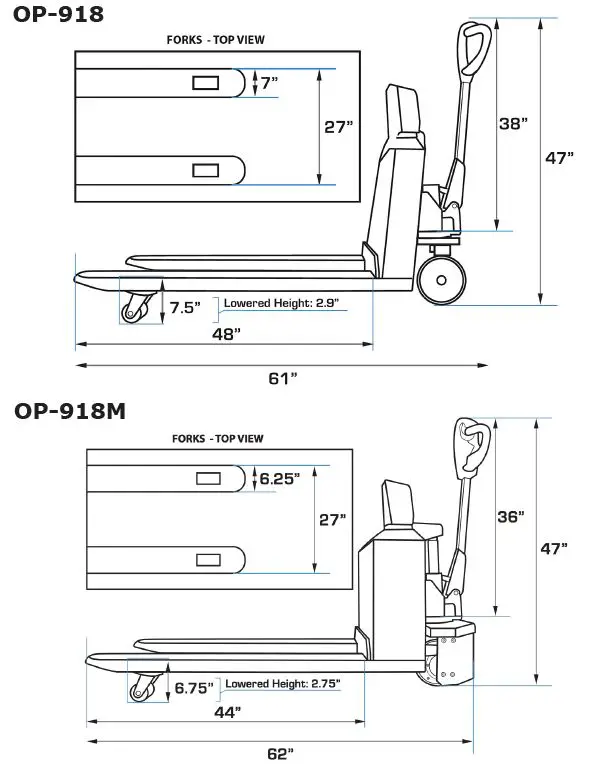
SPECIFICATIONS
POWER SUPPLY
AC Adapter
Please use the included adapter to charge your indicator. We recommend to plug into a wall outlet to avoid interference with other wirings.
Adapter 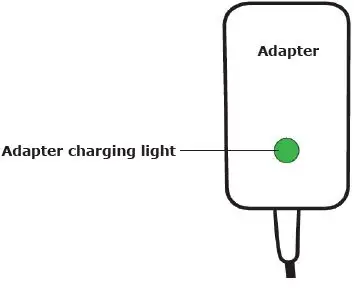
- Connect adapter to indicator and plug into wall outlet
- . If adapter light is red, indicator needs to be charged
- When indicator is completely charged, adapter light will turn green
- Turn indicator on
- An empty battery icon will flash for a couple seconds on indicator
- This does NOT mean indicator is not charged
- Indicator charge lasts up to 22 hours
Battery
Please charge the internal battery fully before first time use. A 110 to 220V AC adapter should be provided with your indicator. Please use only the AC adapter provided to pre-vent damage to your indicator. To keep the battery in best condition, fully discharge the battery every month by leaving the indicator on until the indicator powers off, and then recharge fully. If the battery is not going to be used for a long period of time it is recom-mended to remove it to avoid leakage.

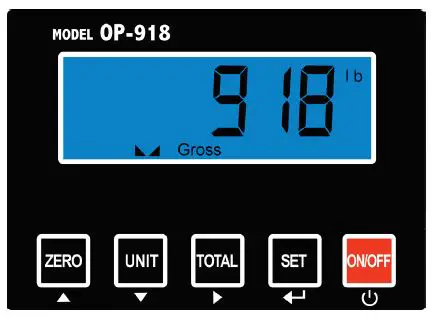
DISPLAY AND KEY DESCRIPTION
| ON/OFF | Powers the Indicator On or Off if held for 3 seconds |
| TOTAL | 1. Accumulates weights 2. Works with SET key to perform the Accumulation function and check the Accumulation result |
| UNIT | Shifts between weighing units, KG and LB |
| ZERO | 1. Zero’s the scale within zero range 2. Tare’s the weight if its over the zero range |
| SET | 1. Long Press to print the weight 2. Combined with ON/OFF to enter into calibration 3. Combined with the TOTAL key to check the Accumulative sum |
| lb | The weight is shown in pounds |
| kg | The weight is shown in kilograms |
| hold | Shows you are in Hold mode |
| Gross | Shows you are in Gross weight mode (includes tare); default mode |
| Net | Shows you are in Net weight mode (weight without tared weight) |
| Tare | Display’s tare satus |
| The scale is stable | |
| The scale is at zero | |
| Hi | Flashes when weight is higher than set alarm parameter |
| Low | Flashes when weight is lower than set alarm parameter |
| Ok | Flashes when weight is within the set alarm parameters |
|
| Arrow keys |
| Return/Enter | |
| Power | |
| Back |
OPERATING INSTRUCTIONS
Power On
Turn on the power by pressing the power button for 3 seconds. Once on, the scale will flash the voltage and then begin to auto-check and count down from 0-9 sequentially before entering the weighing mode
Note: Anything on the scale before powering on will automatically be tared out.
Zeroing
- The zero function is used only when the scale is empty and is not at gross zero due to material build up
- Pressing the ZERO key will reset your scale to 0
- Depending on what your manual zero range parameter is set to, you can zero out any number within your set selection, after that you will receive an error and will need to tare out the weight
Tare Function
- The Tare function is used when you only wish to see the current change in weight, not the entire amount of weight that is on the scale
- When the indicator is in gross mode (gross light is shown) pressing the ZERO key will Tare the current weight on the scale and enter the net mode (net light shown)
- For example if you are using a container add the container to the scale, press tare and the display will show the tare symbol and reset back to 0
- Add your product to the scale to weigh without the weight of the container
- To exit Tare mode press the ZERO key again to enter gross mode and you will see the total weight of the container and the product
Note: If you remove the container the scale will show the minus weight of the container
Unit Selection
To switch between measuring units (kg/lb) press the UNIT key
Accumulation
- The Accumulation function is used to add multiple weights and total them together
- In weighing mode load the first weight, once stable press the TOTAL key to enter the Accumulation mode. The screen will show “n001” followed by the weight.
- Remove the weight so scale reads 0 before adding the second weight to the scale
- Once the second weight is stable press TOTAL key to add the weight to the Accumulat-ed total, the screen will show “n002” followed by the weight.
- Repeat previous steps until all desired weights have been added to the total (max 999 times)
- When you are done and want to display the Accumulated total, press the TOTAL and SET key together. The Accumulated number “n###” (the number of weights you are adding together) will flash on the display followed by the total
- The total will display by flashing between 2 sets of numbers
- There are 8 digits in total, the display will flash 4 at a time, the first 4 on the left and the last 4 on the right. For example if the first 4 digits are “0012” and the last 4 digits are “3456” the actual weight is 001234.56 or 1234.56 lbs/kg
- If you want to print the Accumulated total, hold the SET key for one second while the last 4 digits of the total are shown
- To exit Accumulation mode, wait for the last 4 digits to the right of the screen to appear, and then press and hold the TOTAL key for one second
- “CLr n” will be displayed, asking you if you want to keep the data?
- If NO you do not want to clear the Accumulated total, then keep “CLr n”.
- If YES you do want to clear the Accumulated total, then use the arrow key to change to “CLr y”.
- Finally, press the SET key to select exit Accumulation mode
Hold
To use the hold feature press the SET and ZERO keys at the same time. Press both again to release the hold.
There are 4 different hold functions you can choose from in the C11 parameter
1. Peak Hold: Grabs the highest weight (for materials testing, ie. tension and pulling force)
● Press the HOLD key then add weight to the scale
● The indicator will show the highest weight it recorded and hold it on the screen until a higher weight is placed on the scale
2. Manual Hold: Grabs the current weight and holds it so it will not change/fluctuate
While weighing, press HOLD and the indicator will hold the current weight on the screen until HOLD is pressed again
3. Auto Hold: If the weight on the scale is above 20d (20 x division) and is stable, the indicator will hold that weight on the screen for 3 seconds then go back to general weighing
Pressing the hold key is unnecessary, holding is done automatically when the scale is stable\
4. Average Hold: Used for animal weighing, the indicator will display the average weight sampled from 3 seconds
● Add livestock to scale and press HOLD
● Indicator screen will show “LOC” for 3 seconds, then display the average weight from those 3 seconds
● Press HOLD again to exit holding mode
Print
If your pallet jack has a printer and the weight on the scale is stable press the SET key for 1 second to print the current weight
Note: In tare mode the printer can not print if negative weight is shown
Print Out Format:
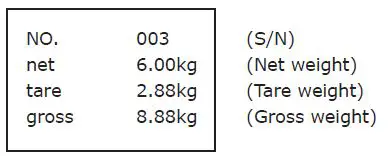
PM-2746-TL-SCL-LP PALLET JACK
CALIBRATION PROCEDURE
- Turn on the scale by holding ON/OFF for 2 seconds.
- Press and hold SET and ON/OFF together to access the setup menu.
- done correctly, the display should now show C01.
- Press SET to access the C1 channel. The display should show [C1 1].
- Press ZERO to choose which unit you want to calibrate in (1 = kg, 2 = lb).
- ess SET to set the value. The display will now show C02.
- Press SET to access the C2 channel. The display should show [C2 0].
- Press ZERO to change the setting to the decimal places desired (The C2 channel isused to adjust the decimal point on the scale. A value of 1 means there is one digit behind the decimal point.)
- Press SET to set the value. The display will now show C03.
- Press SET to access the C3 channel. The display should show [C3 5].
- Press ZERO to cycle through the values until the desired graduation appears.(The C3 channel adjusts the division of the scale. A value of 1 selected and C2 set to 1, the scale will read in 0.1 lb. increments.)
- Press SET to set the value. The display will now show C04.
- Press SET to access the C4 channel. The display will show [021000].
- Enter in the maximum capacity you want to use for this scale by using TOTAL tomove the cursor to the right, and UNIT and ZERO to move the values down and up. (The C4 channel is used to enter in the max capacity of the scale; Make sure to enter the correct max capacity of your scale, most pallet jack’s are 5,000 lbs.)
- Press SET to set the value. The display will now show C05.
- Press SET to access the C5 channel. The display should show [C5 0].
- The C5 channel calibrates zero on the scale. Make sure the scale is empty.
- Press ZERO to change the value to 1.
- Press SET. The display will count down from 10-1 while the scale iscalibrating zero. When the display shows 0 the zero calibration is complete
- Press SET to continue. The display will now show C06.
- Press SET to access the C06 channel. The display will show [C6 0].
- The C6 channel is used to calibrate the scale with a known weight. Press ZERO toset the value of C6 to [C6 1]. Press SET . The display will flash SPAN, and then show [010170].
- Enter the value of the calibration weight you will use (at least 10% of max capacityyou set in C04) by using TOTAL to move the cursor right, and UNIT and ZERO move the values down and up.
- Place the calibration weight you have on the empty scale and press SET.
- The scale will count down from 10 to 0. Once 0 has been reached, the display willshow CALEnd.
- Press SET to continue. The display will now show C07.
- Short press ON/OFF to save and exit the setup menu.
- The scale has now been calibrated. The display will show the value of the calibrationweight on the scale
- If the scale does not show the value of the calibration weight, check that the palletjack is level on the ground and on a flat surface and recalibrate
- Unload the scale; the display should read 000000. If so, calibration is complete.
- .If the scale does not display 000000, check that the check that the pallet jack is lev-el on the ground and on a flat surface
INDICATOR PARAMETER SETTINGS
The parameter settings menu has a calibration section (C01 to C07 explained above) and a parameter settings section (C08 and up).
To enter calibration/parameter settings, follow the procedure below:
1. Press and hold the SET and ON/OFF key at the same time for 2 seconds
2. Navigate through the settings (C01 to C45) as shown in the table 4 below by using the arrow keys and return keys as labeled under each indicator button
3. Press the SET key to enter/edit the parameter setting
4. Press the ON/OFF key to save and exit settings at any time
Parameter Settings
| Function | Parameter | Settings/Options |
| Weighing Unit | C01 | 1 = kg 2 = lb 3 = gram 4 = oz Note: for calibration only kg or lb are allowed |
| Decimal Setting | C02 | 0 = no decimal 1 = 0.0 2 = 0.00 3 = 0.000 4 = 0.0000 |
| Division/ Graduation Setting (readability of the least significant digit) | C03 | options: 1/2/4/10/20/50 Example with no decimal places (ie. C02=0) 1 = 1 lb 2 = 2 lb 5 = 5 lb 10 = 10 lb 20 = 20 lb 50 = 50 lb |
| Maximum Capacity | C04 | set max capacity ex. 100kg = 0100.00 |
| Zero Calibration | C05 | 0 = zero calibration not needed 1 = set the zero calibration (Please ensure scale is empty and the stable light is on) |
| Calibration | C06 | 0 = calibration not needed 1 = Ready to calibrate with one calibration weight 2 = Ready to calibrate using multiple calibration weights (Linear) 3 = Sensitivity Output |
| Restore Default Settings | C07 | 0 = do not restore 1 = restore to default settings |
| Warning Tone | C08 | 0 = turn off warning tone 1 = turn on warning tone |
| Function | Parameter | Settings/Options |
| Automatic Power Off | C09 | 0 = turn off auto power off 10 = power off automatically if no change within 10 minutes 30 = power off automatically if no change within 30 minutes 60 = power off automatically if no change within 60 minutes |
| Power Saving Mode | C10 | LED Version OP918A: 0 = turn off power saving setting 3 = turn off display if no change within 3 minutes 5 = turn off display if no change within 5 minutes LCD Version OP918B: 0 = turn off the backlight 1 = backlight only when the weight changes or keyboard is pressed 2 = constant backlight |
| Hold Function | C11 | 0 = turn off hold function 1 = Peak hold – Grabs the highest weight 2 = Manual hold – Grabs the current weight 3 = Auto hold – Automatically holds data when stable 4 = Average hold – for animal weighing, averages the weight from a sample of 3 seconds |
| Inner Code Display | C15 | check the inner code (raw data) |
| Set Date | C16 | Set date from left to right: year/month/day |
| Set Time | C17 | Set the time from left to right: hour/minute/second |
| Manual Zero Range | C20 | 0 = turn off manually zero setting 1 = ±1% max capacity 2 = ±2% max capacity 4 = ±4% max capacity 10 = ±10% max capacity 20 = ±20% max capacity 100 = ±100% max capacity |
| Initial Zero Range | C21 | 0 = no initial zero setting 1 = ±1% max capacity 2 = ±2% max capacity 5 = ±5% max capacity 10 = ±10% max capacity 20 = ±20% max capacity 100 = ±100% max capacity |
| Zero Tracking | C22 | 0= turn off zero tracking 0.5 = ±0.5d d = division 1.0 = ±1.0d 2.0 = ±2.0d 3.0 = ±3.0d 4.0 = ±4.0d 5.0 = ±5.0d Note: the zero tracking range can not be bigger than manual zero range |
| Zero Tracking Time | C23 | 0 = turn off zero tracking time 1 = 1 second 2 = 2 seconds 3 = 3 seconds |
| Overload Range | C24 | 00 = turn off overload range 01-99d = overload range setting d = division |
| Function | Parameter | Settings/Options |
| Negative Display | C25 | 0 = -9d 10 = -10% max. capacity 20 = -20% max. capacity 50 = -50% max. capacity 100 = -100% max. capacity |
| Standstill Time | C26 | 0 = quick 1 = medium 2 = slow |
| Standstill Range | C27 | 1 = 1d d = division 2 = 2d 5 = 5d 10 = 10d |
| Digital Filter (for filtering moving weight such as animals) | C28 | 0 = turn off dynamic filter 1 = 1 digital filter strength 2 = 2 digital filter strength 3 = 3 digital filter strength 4 = 4 digital filter strength 5 = 5 digital filter strength 6 = 6 digital filter strength Note: The higher the number, the higher the filter strength |
| Noise Filter | C29 | 0 = turn off noise filter 1 = 1 digital filter strength 2 = 2 digital filter strength 3 = 3 digital filter strength |
| Gravity of Calibration Location | C36 | 9.7000 – 9.9999 |
| Gravity of Destination | C37 | 9.7000 – 9.9999 |
| Version No. | C38 | |
| Print Mode | C41 | 0 = auto mode 1 = gross mode 2 = tare mode |
| Print Carriage Return | C42 | 0 – 9 (How much space between print outs) |
| Space Print | C43 | 0 – 9 (Where the data prints on the paper: 0 = left ; 9 = right) |
| Date Print | C44 | 0 = do not print the date 1 = print the date |
| Time Print | C45 | 0 = do not print the time 1 = print the time |
Table 3. Default Parameter Settings
| Function | Parameter | Default Setting |
| Weighing Unit | C01 | 1 |
| Decimal Setting | C02 | 0 |
| Graduation Setting | C03 | 1 |
| Maximum Capacity | C04 | 1000 |
| Zero Calibration | C05 | 0 |
| Calibration | C06 | 0 |
| Restore Default | C07 | 0 |
| Warning Tone | C08 | 1 |
| Automatic Power Off | C09 | 0 |
| Power Saving Mode | C10 | 0 |
| Hold Function | C11 | 0 |
| Unit Conversion | C12 | 1 |
| Upper Limit Alarm | C13 | 000000 |
| Lower Limit Alarm | C14 | 000000 |
| Inner Code Display | C15 | |
| Set Date | C16 | |
| Set Time | C17 | |
| Communication Setting | C18 | 0 |
| Baud Rate | C19 | 3 (9600) |
| Manual Zero Range | C20 | 10 |
| Initial Zero Range | C21 | 10 |
| Zero Tracking | C22 | 0.5 |
| Zero Tracking Time | C23 | 1 |
| Overload Range | C24 | 9 |
| Negative Display | C25 | 10 |
| Standstill Time | C26 | 1 |
| Standstill Range | C27 | 2 |
| Digital Filter | C28 | 0 |
| Noise Filter | C29 | 2 |
| Print Time and Date | C30 | 0 |
| Analog Output Setting | C31 | 1 |
| Calibrate Current | C32 | 4 |
| Relay Output Setting | C33 | 1 |
| Multi-connection add. | C34 | 0 |
| Wireless Communica- tion | C35 | 6 |
| Gravity of Calibration Location | C36 | 9.7936 |
| Gravity of Destination | C37 | 9.7936 |
HELPFUL DEFINITIONS
Division: The amount of increments a scale offers. How accurate the scale can be
Capacity: the maximum amount the scale can contain
Initial Zero Range: The percentage of weight allowed on the scale when indicator is powered on that will automatically zero.
example: If initial zero range is set to 10% of the max. capacity and your max. capacity is 100lbs, you can place up to 10lbs of weight on the scale and when the indicator is powered on, it will automatically zero out the weight.
Manual Zero Range: The percentage of weight allowed on the scale where the indicator will let you manually zero (anything above this percent will be tared)
Zero Tracking Range: A subset to the manual zero range; if the weight on the scale is not stable, the zero tracking range still allows you to zero within a set division of the scale
Zero Tracking Time: A subset to the zero tracking range, it is the time allowed for the scale to fall within the zero tracking range tolerance and still qualify to be zero’d
Overload Range: Weight allowance that is out of the set calibrated range. Adds a tolerance to the calibrated max. capacity without having to recalibrate.
example: If your scale has a max. capacity of 1000lbs with a division of 1 and you set the overload range to 60, you can add 1060lbs of weight to the scale without it displaying an error code
Negative Display: How far you can go in the negative direction before displaying an error code
Standstill Time: How fast the scale will stabilize
Standstill Range: How much the scale can fluctuate before being determined stable
Digital Filter: For filtering moving weight, such as animals, It changes how sensitive the scale is to variations in movement.
Noise Filter: A filter for how susceptible the scale is to general variations
Baud Rate: The rate at which information is transferred in a communication channel. example: In the serial port context, “9600 baud” means that the serial port is capable of transferring a maximum of 9600 bits per second.
CONNECTORS
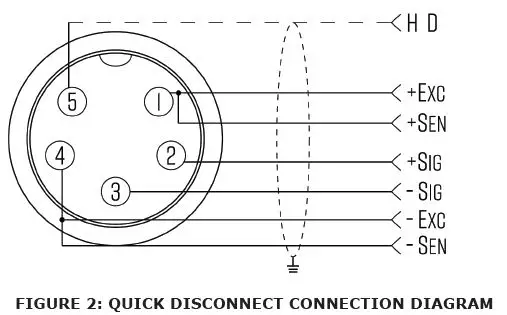
Connecting load cells to the indicator
● The indicator can connect with 4 load cells of 350Ω at most
● 4 wire or 6 wire load cell connections are both okay
● Please contact us directly if you have other special needs for your application
● There are two connection methods between the load cell and indicator
Quick Disconnect as shown below:
TROUBLESHOOTING
Error Codes
| Error | Reason | Solution |
| UUUUUU | 1. Overload 2. Wrong connection with load cell 3. Load cell has quality problem | 1. Reduce the weight 2. Check load cell connection 3. Inspect load cell; Check the input/output 4. See Q&A section |
| nnnnnnn | 1. Calibration is no good 2. Wrong connection with load cell 3. Load cell has quality problem | 1. Make sure scale is level 2. Check load cell connection 3. Check load cell input and output resistance 4. See Q&A section |
| ERR1 | During calibration, weight is not used or the weight is above the max. capacity | Use correct weight within the defined range |
| ERR2 | During calibration, the weight is below the minimum required weight | The calibration weight minimum is 10% of the max. capacity set in C04. Recommended to use 60%-80% of max. capacity if possible |
| ERR3 | During calibration, the input signal is negative | 1. Check all wire connections 2. Check load cell 3. Recalibrate 4. PCB replacement needed if steps 1-3 fail |
| ERR4 | During calibration signal is unstable | After the platform is stable, start calibration |
| ERR5 | EEPROM Error | Change PCB |
| ERR6 | Exceed Zero Range | See Q&A section |