 2AXVQWILIOT1 Battery-Free Tag
User Guide
Version 1.1
Date October 6, 2020
Set Up Instructions
What You Will Need
- Wiliot tag(s)
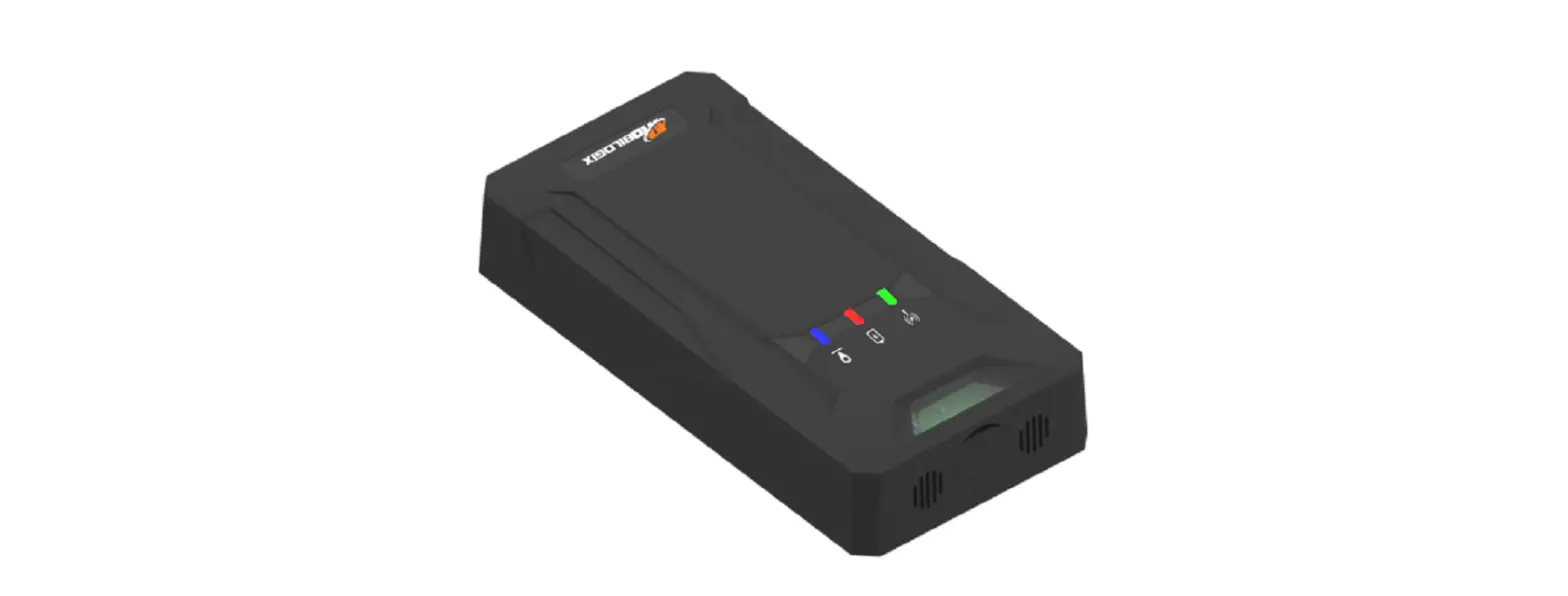
- Fanstel gateway BWG840XE model (https://www.fanstel.com/wifi-ble-5-iot-gateway)
- A mobile phone running the Wiliot smartphone application
You can download the Wiliot smartphone application from:

- iOS: https://apps.apple.com/us/app/wiliotapp/id1443545774
- Android: https://play.google.com/store/apps/details?id=com.easternpeak.wiliot
Contact [email protected] to create your account with Wiliot. Through this account, you will be granted private and authorized access to the data generated by the tag(s).
BWG840XE Gateway Provisioning
Connecting the gateway to your local Wi-Fi
The instructions in this section are equivalent between iOS and Android devices. Please note that the BWG840XE supports a .4 GHz 802.11 b/g/n. Please make sure your local Wi-Fi has a 2.4 GHz SSID network available for joining devices.
- Download the ESP SoftAP Provisioning app, available on
– Apple App Store https://apps.apple.com/us/app/esp-softap-provisioning/id1474040630
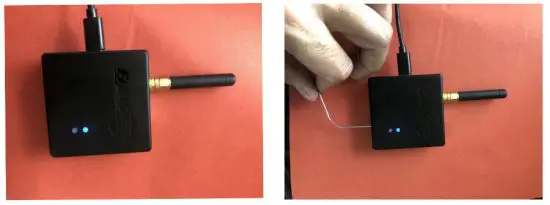
– Google Play Store https://play.google.com/store/apps/details?id=com.espressif.provsoftap - Power on the BWG840XE plugging the USB cable connected to a wall power supply (left image). Set it into Access Point (AP) mode performing a physical reset of the gateway, insert a paperclip into the small hole on the side until the red LED turns on and then off (right image).

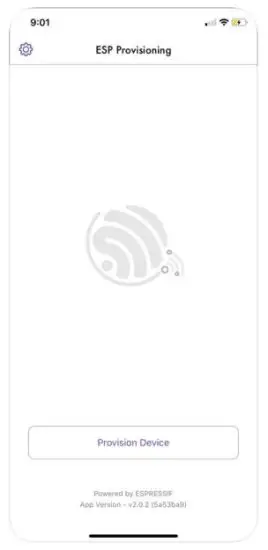
- Open the ESP-SoftA-Prov app and tap on “Provision Device”

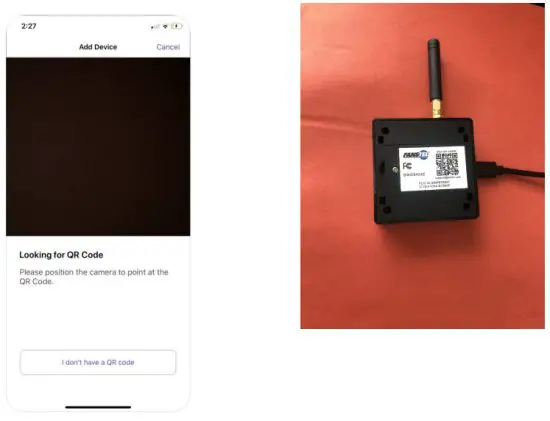
- When the app prompts for the QR code like below, point your phone camera to the QR code on the box of the box or the BWG840XE

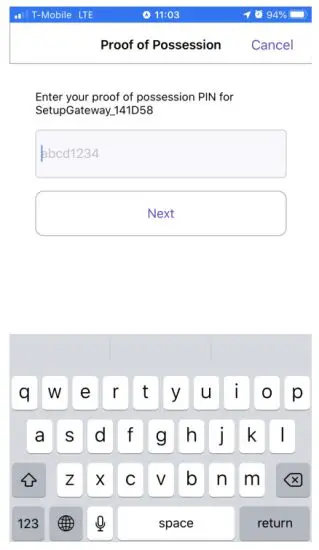
- Delete all text from the “Proof of Possession” field and click “Next”

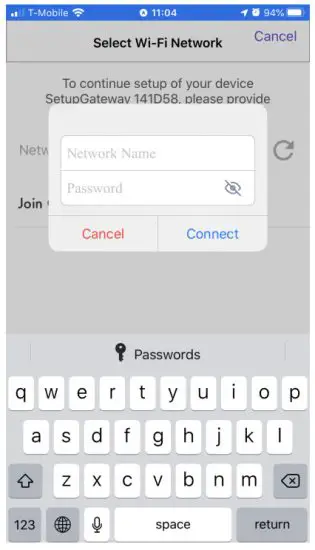
- Fill in the SSID and password of your Wi-Fi access point. and tap on “Connect”.

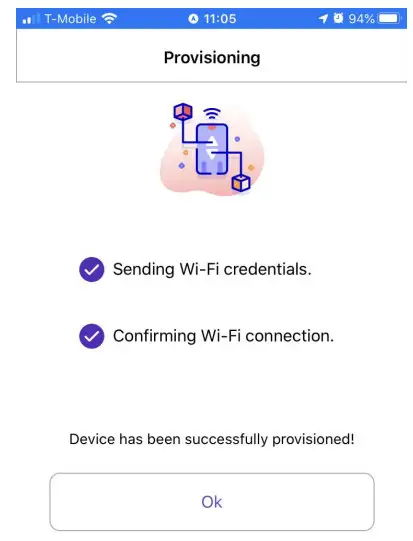
- Credentials are transferred to the BWG840XE When the procedure completes successfully, you should see a screen like the one below!

Getting Started
- Provision of the BWG840XE gateway to the local WI-Fi network as illustrated in the previous pages
- Place the Wiliot tag within 3 meters of the BWG840XE. For best performance, set the tag and the gateway at the same height and in parallel with the gateway antenna
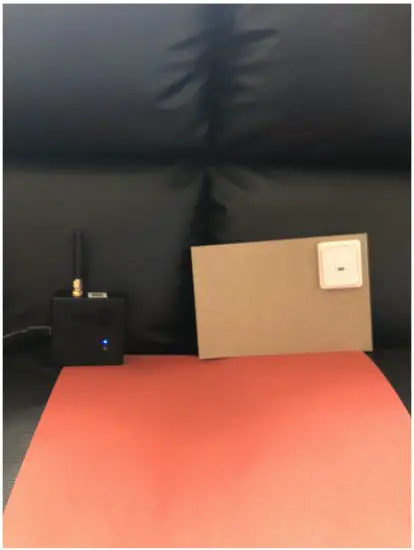
You can apply the tag on top of various surfaces, though please keep in mind that the performance (range, latency) depends on the type of surface. For best results, apply the tag on cardboard or plastic PET material
Once the tag is energized it will start transmitting Bluetooth® packets.
The gateway will blink red each time it receives a packet.
Discovering Packets
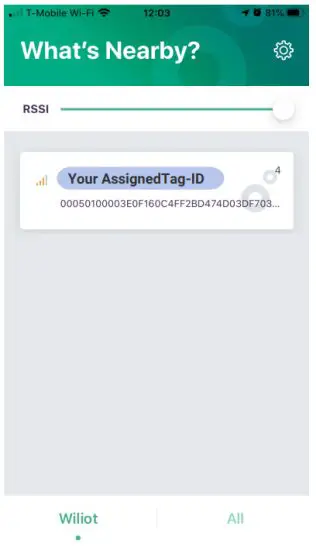
- A smartphone can receive information from the Wiliot tags at the same time. Use your smartphone within 5 meters of the tag(s). Open the Wiliot app to see Bluetooth® packet data

U.S
FCC ID: 2AXVQ-WILIOT1
Canada
IC: 26623-WILIOT1
Wiliot tag complies with part 15 of the FCC Rules and Industry Canada license-exempt RSS standard(s). Operation is subject to the following two conditions:
- This device may not cause harmful interference,
- This device must accept any interference received, including interference that may cause undesired operation.
Changes or modifications not expressly approved by the manufacturer could void the user’s authority to operate the equipment
Please reach out to [email protected]
with any questions.
 ESP SoftAP Provisioning on the App Store
 WiliotApp - Apps on Google Play
 BWG840F, BWG840X Industrial WiFi Bluetooth 5 IoT Gateway — Fanstel