Split-screen mode
About split-screen mode
Use split-screen mode to use two apps at once.
Enabling split screen mode
Split screen mode is not available for all apps. Some apps may not function properly in split screen mode.
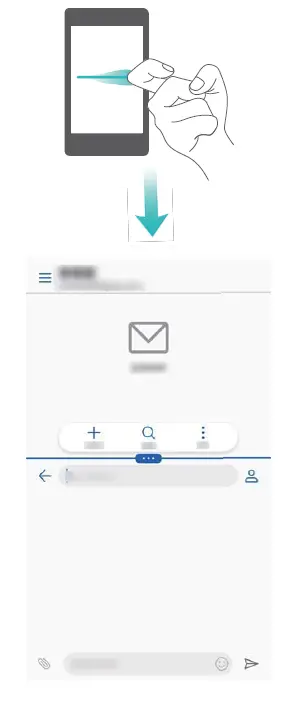
Using your knuckle to enable split screen mode
Open an app that supports split-screen mode and knock the screen with one knuckle. Hold down your knuckle and draw a line across the screen.
If the screen is in portrait view, draw a horizontal line; if the screen is in landscape view, draw a vertical line.
Using the Recent key to enable split screen mode
Open an app that supports split-screen mode, and then touch and hold  .
.
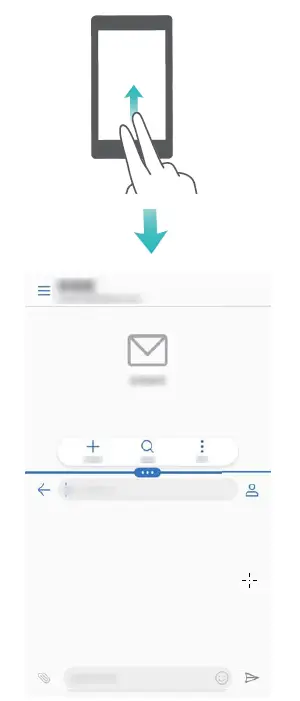
Using swipe gestures to enable split screen mode
Open an app that supports split screen mode, and then swipe up from the bottom of the screen with two fingers.
Using split screen mode
Switching to full screen mode
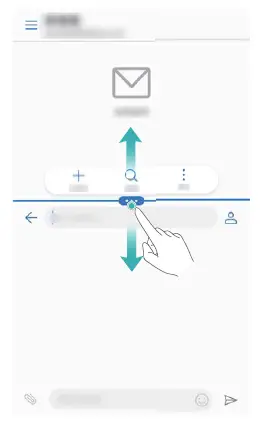
In split screen mode, touch and hold  and swipe up or down to switch to full screen mode.
Moving screens
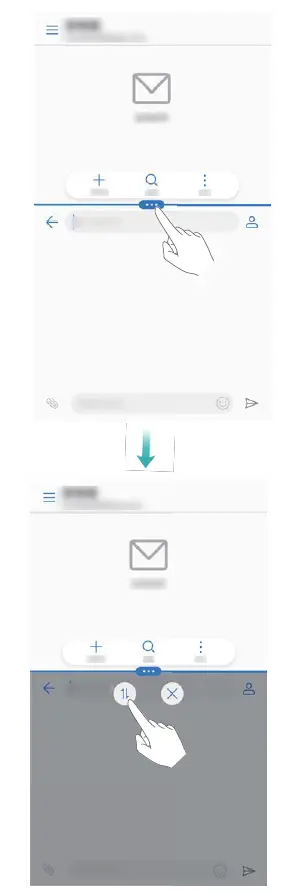
In split screen mode, touch , and then touch  to switch the position of the screens.
Changing the screen orientation
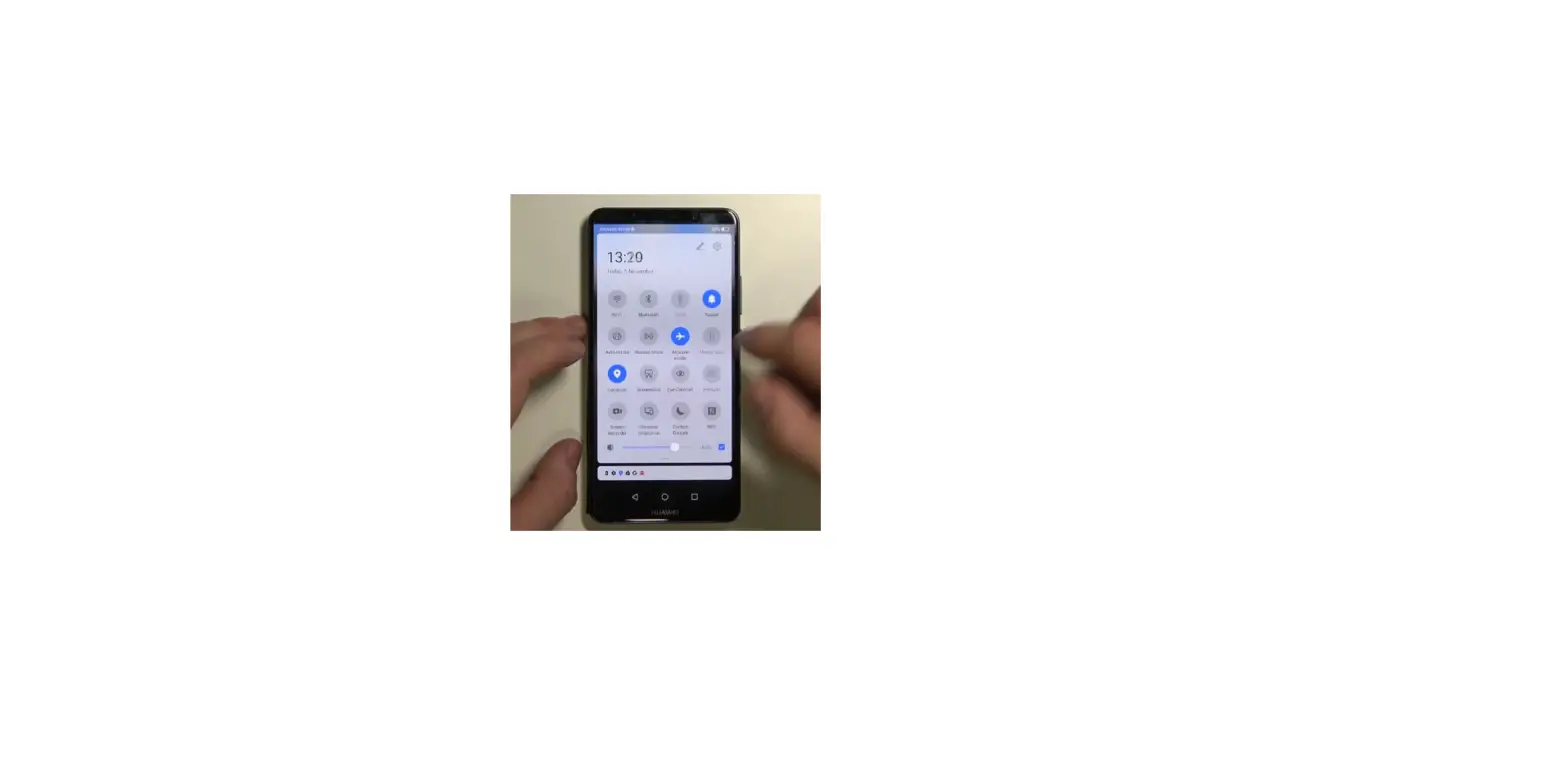
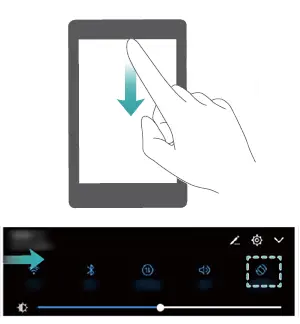
Swipe down from the status bar to open the notification panel. Touch the  switch to enable automatic screen rotation.
Accessing the home screen
In split screen mode, touch  to access the home screen.
Exiting split-screen mode
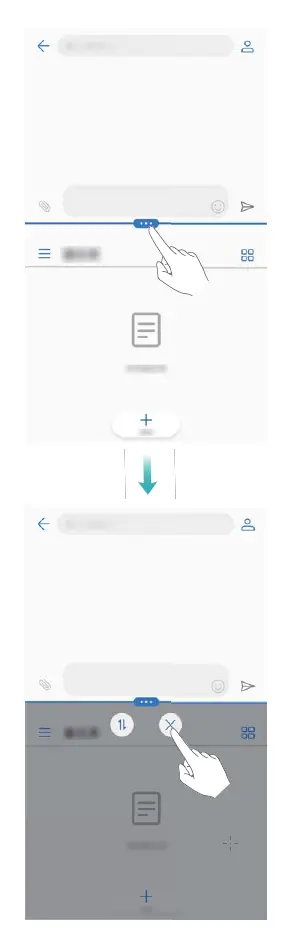
To exit split-screen mode, touch and select  .
.
Questions about your Huawei Mate 10? Post in the comments!
Huawei Mate 10 Manual [PDF]