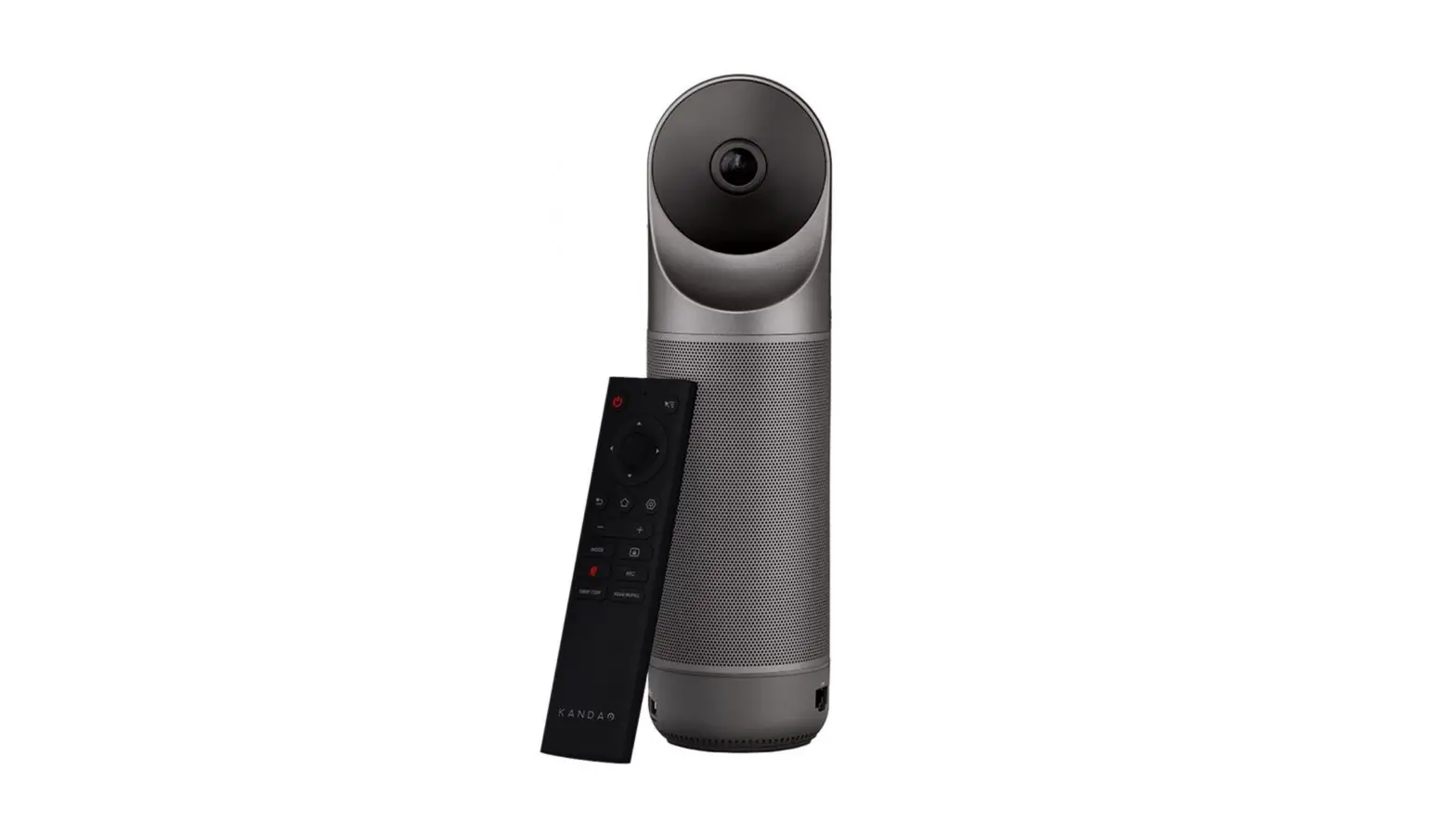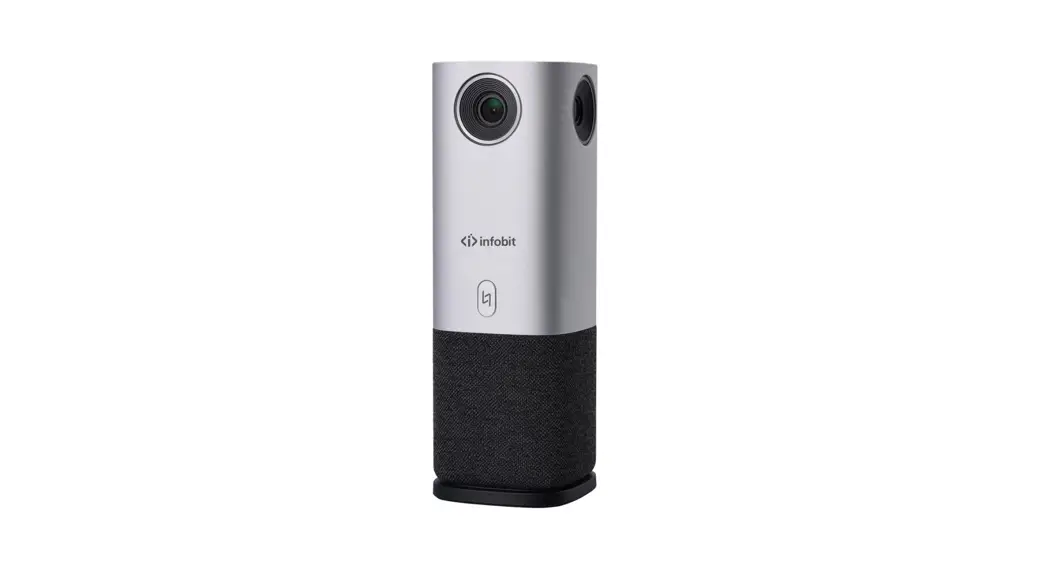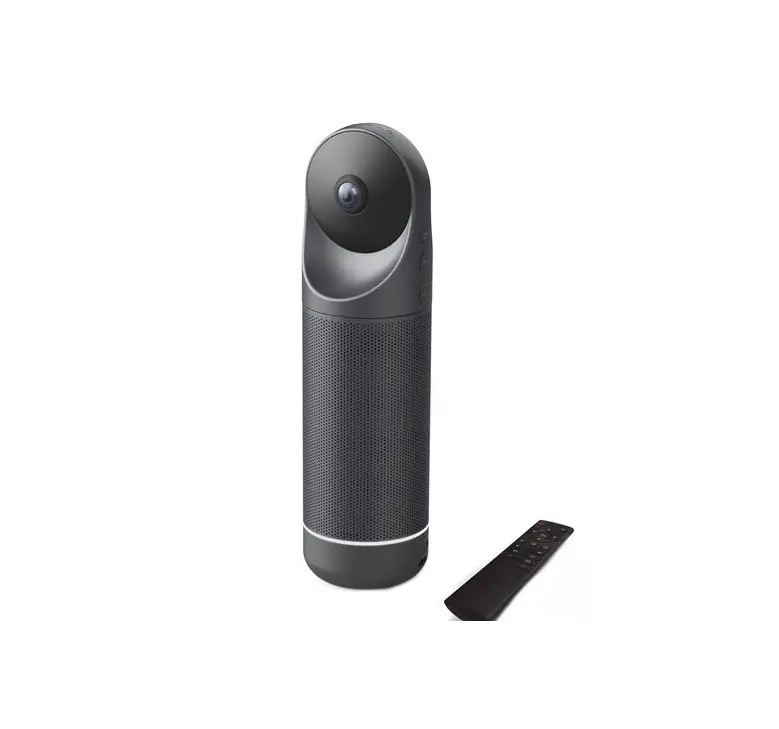

UC-CAM10PRO-MA1
CONFERENCE CAMERA WITH MIC
Quick Start Guide
M314A17
CHECKING THE CONTENTS OF THE PACKAGE
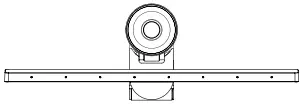

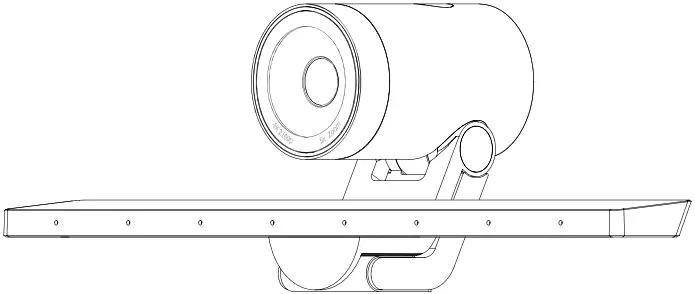
Camera USB Cable
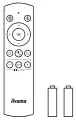
Remote Control AAA Battery x2 Quick Start Guide
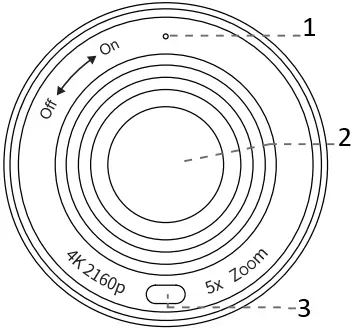
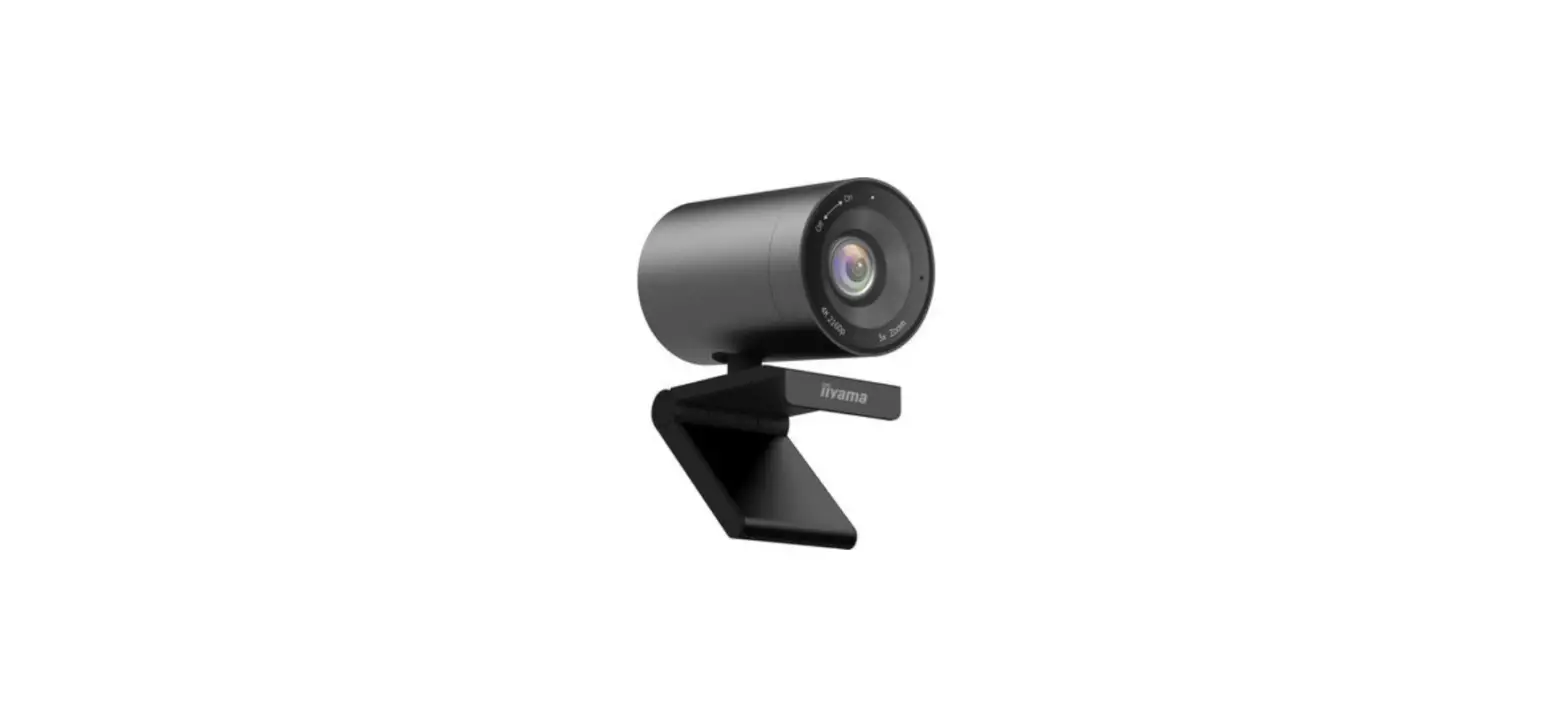
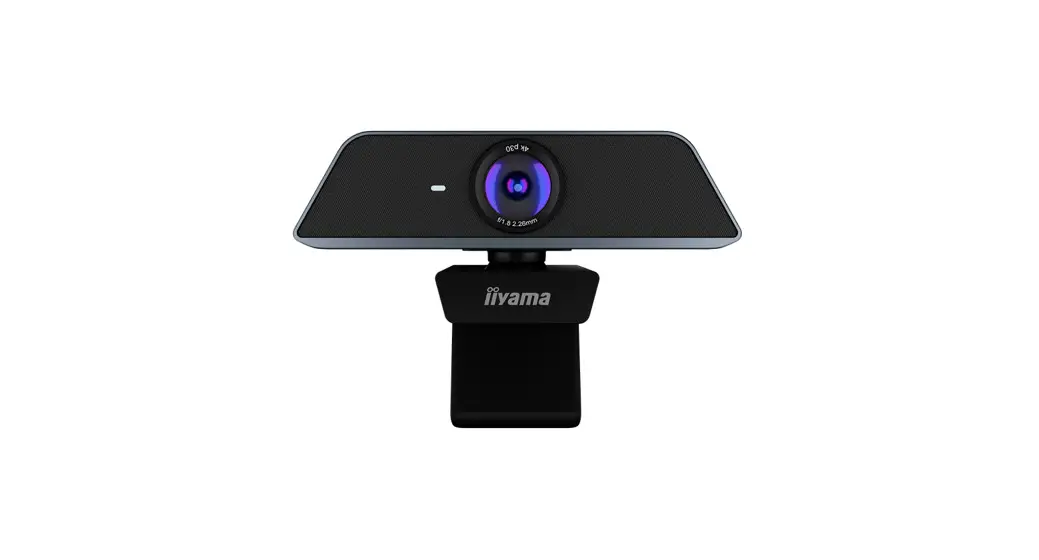
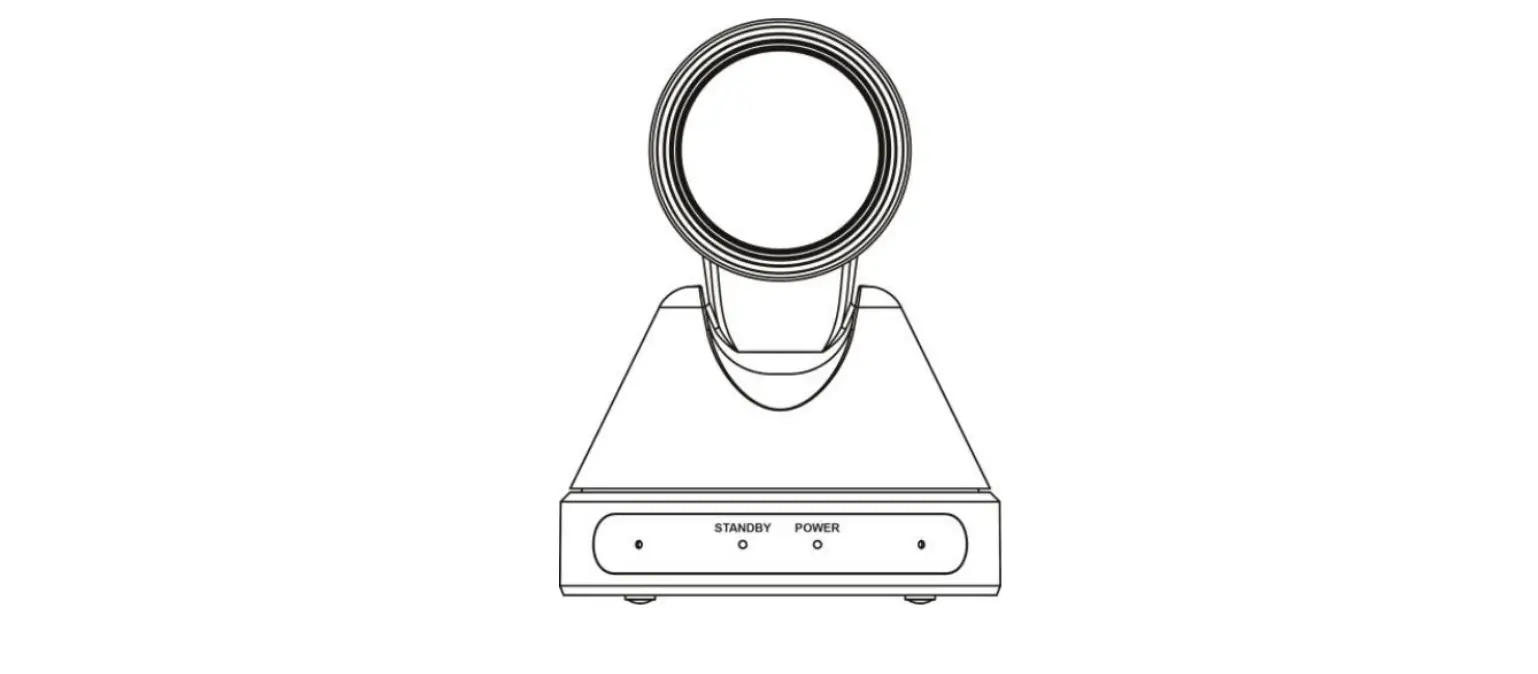
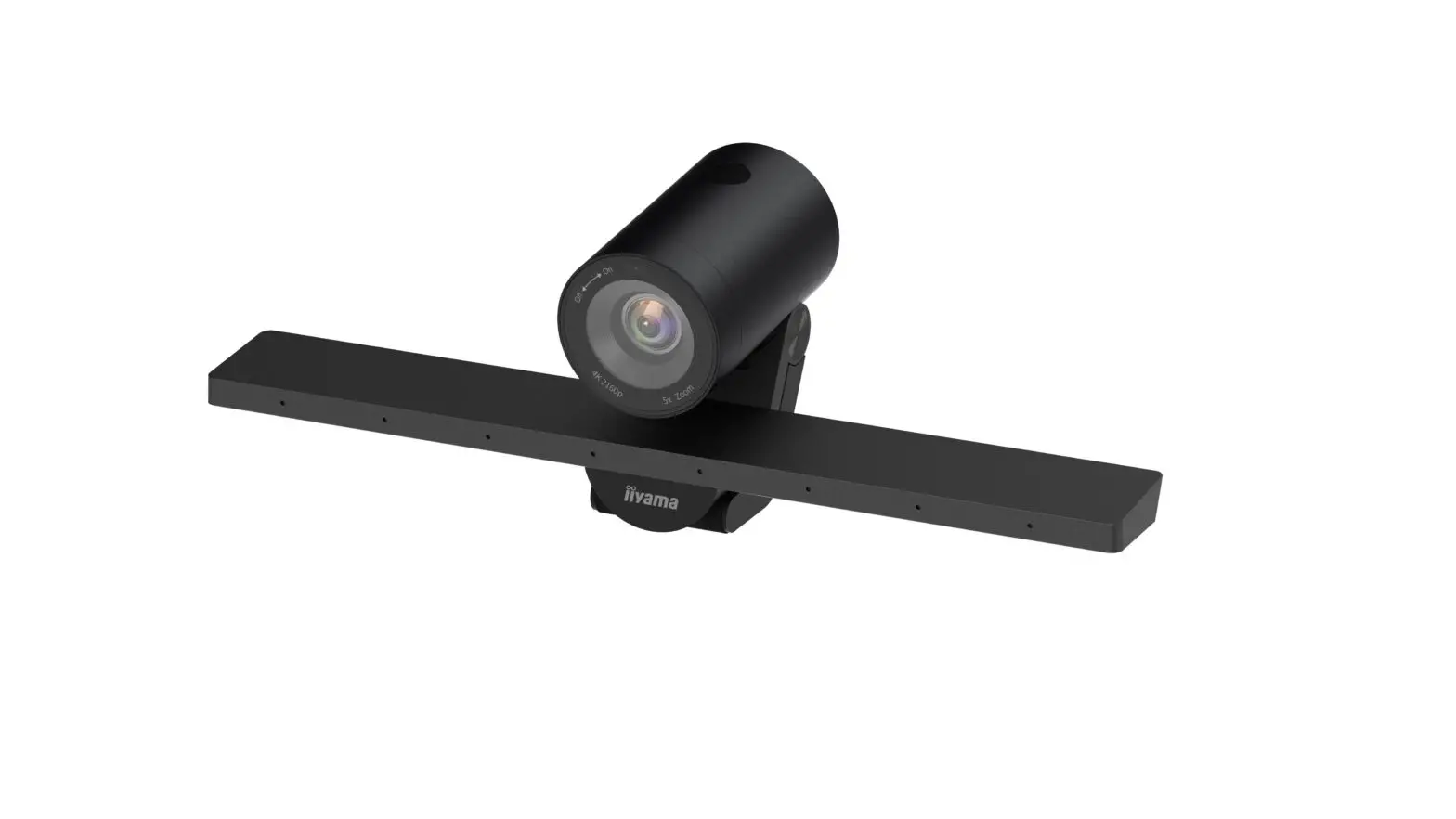
Front
- LED Indicator
- 4K Ultra HD 120° FOV Lens
- IR Receiver
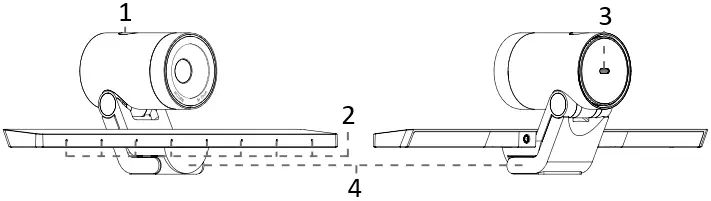 Side Back
- Switch Button
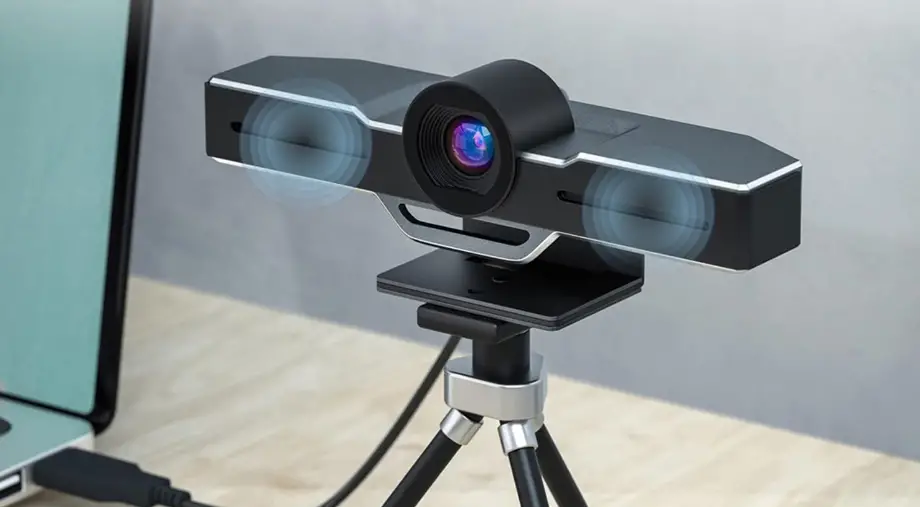
- Dual Microphones
- USB Type-C Port
- Clip Mount
REMOTE CONTROL
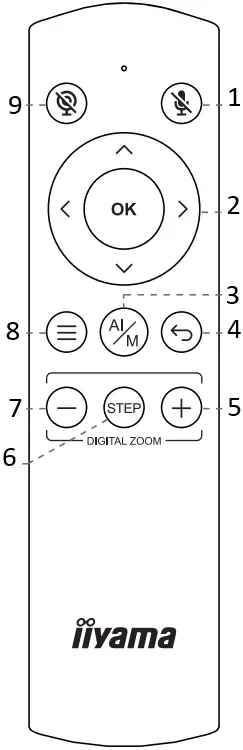
- Mic off
- Arrow keys & OK
- Auto framing / Manual
- Return
- Zoom in
- Zoom Steps 1x, 2x, 3x, 4x, 5x
- Zoom out
- Menu
- Camera off

Arrow keys
Adjust the position of field of view

Menu
Open OSD settings to customize image settings including contrast, saturation, brightness, etc.
LED INDICATOR STATUS
| Event | Camera response | LED Status | |
| 1 | Plug-in power | / | Red light & orange light flashing |
| 2 | Camera is in use | / | Green light |
| 3 | Camera is not in use | / | Red light |
| 4 | Single press the switch button | Switch to 1x→2x→3x →4x→5x→auto framing by each press | Red light blink |
| 5 | Long press (>2 sec) the function button | Enter / Exit auto framing mode | Red light blink |
| 6 | Long press (>5 sec) the function button | Reboot the C570 | Red light blink |
| 7 | Use remote and turn off mic | Mic is mute, mute icon pop up | Orange light blink |
| 8 | Use remote and turn off camera | Camera is off , pop up a black image with camera off icon | Red light blink |
| 9 | Use remote and turn off both mic and camera | Mic is mute and camera is off , pop up a black image with mic off icon and camera off icon | Red light & orange light blink alternately |
GETTING START WITH UC-CAM10PRO-MA1
Clip Mount
Easily mount onto any displays such as laptop monitor, television or interactive display using its built-in clip mount.
Tripod Mount
Tripod screw hole is located at the bottom of the clip mount for tripod mounting.
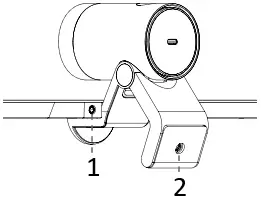
- Not applicable for this model
- 1/4 Tripod Screw Hole
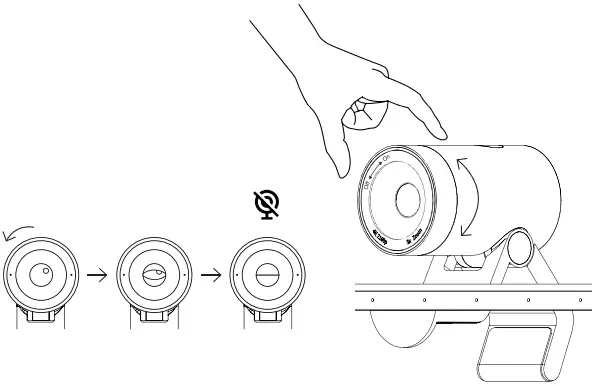
Privacy Cover
On the side of the camera lens, rotate the privacy shutter adjuster counterclockwise to cover the camera lens.
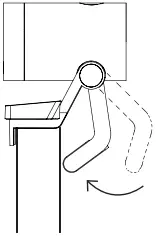
Swivel & Tilt
Manually adjust the webcam tilt up / down to the best shooting angle.
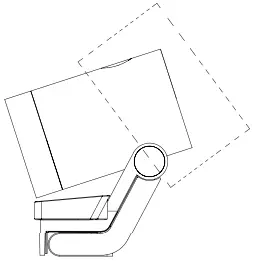 ± 15°
± 15°
Connecting the camera
1) Connect the type C end of the bundled USB 3.0 cable to the Type C port at the back of the UC-CAM10PRO-MA1.
2) Connect the Type A end of the same cable to a laptop or workstation.
If connecting to USB 2.0 port of PC, the maximum available resolution will be 1080P.
If connecting to USB 3.0 port of PC, the maximum available resolution will be 4K.
 A USB 3.0 cable is required to deliver 4K resolution.
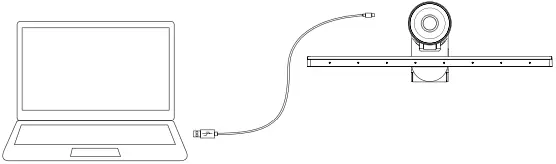
PC
USB 2.0 Port : 1080P
USB 3.0 Port : 4K
 How to prevent flicker in your video
 How to prevent flicker in your video
The default camera frequency setting is 50Hz, if you encounter the flicker problem, simply use the remote control, get into Menu to adjust camera frequency that match the electrical frequency of your region.
Important Safety, Compliance and Warranty Information
*Read Manual Before Product Use*
Safe Usage Guidelines for Products
- Do not open or modify the product except for battery removal and replacement.
- Do not disassemble or attempt to service this product.
- This product is safe under normal and reasonably foreseeable misuse operating conditions.
- If product is operating improperly, contact the authorized reseller.
- Product must be returned to the authorized reseller for any service or repair.
- This is not a Children’s Product and is not intended for use by children under 14 years old.
CE MARKING DECLARATION OF CONFORMITY
This USB Camera complies with the requirements of the EC/EU Directive 2014/30/EU “EMC Directive”, 2014/35/EU “Low Voltage Directive”, and 2011/65/EU “RoHS Directive”.
The electro-magnetic susceptibility has been chosen at a level that gives correct operation in residential areas, business and light industrial premises and small-scale enterprises, inside as well as outside of the buildings.
All places of operation are characterized by their connection to the public low voltage power supply system.
IIYAMA CORPORATION: Wijkermeerstraat 8, 2131 HA Hoofddorp, The Netherlands
 We recommend recycling of used product. Please contact your dealer or iiyama service center. Recycle information is obtained via the Internet, using the address: https://iiyama.com You can access the Web page of different countries from there.
 iiyama