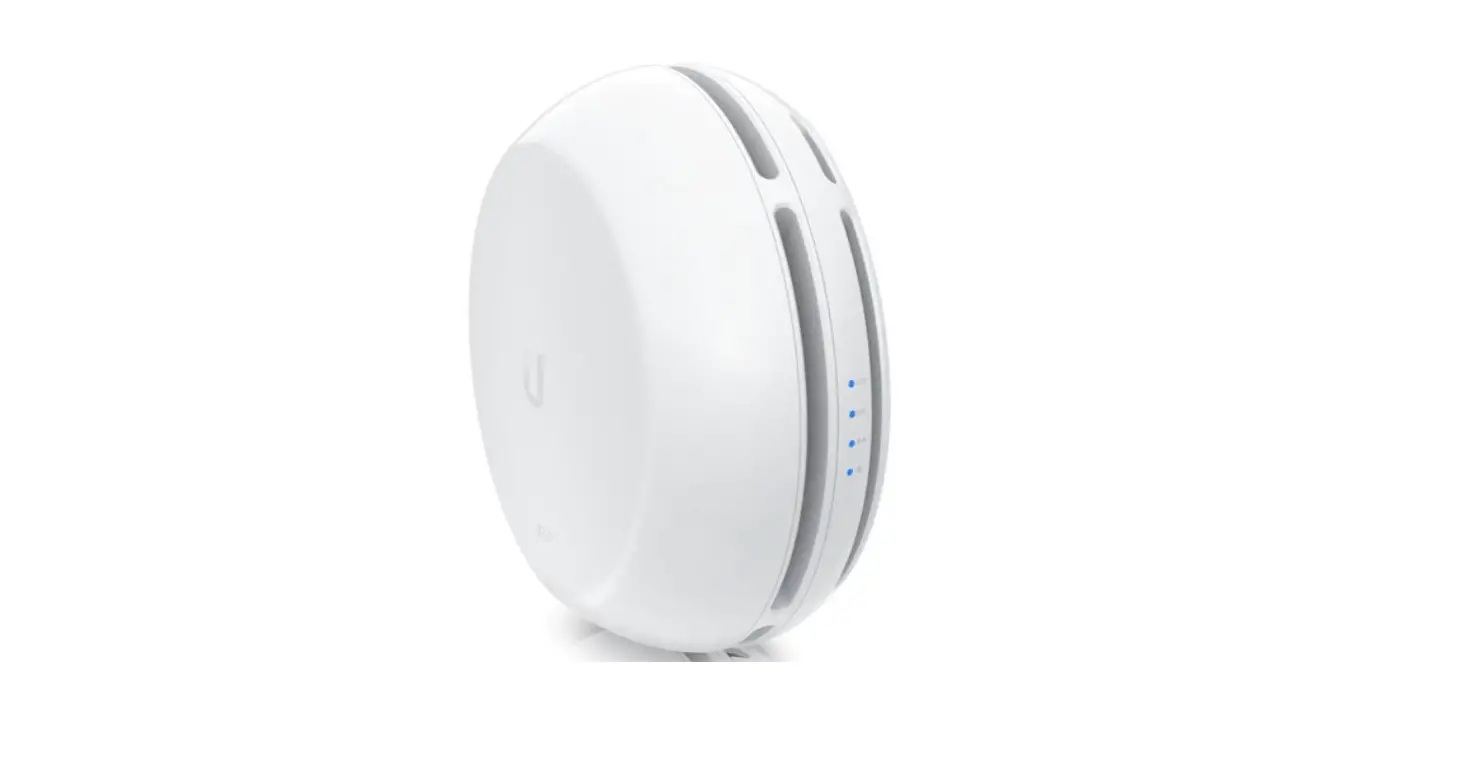
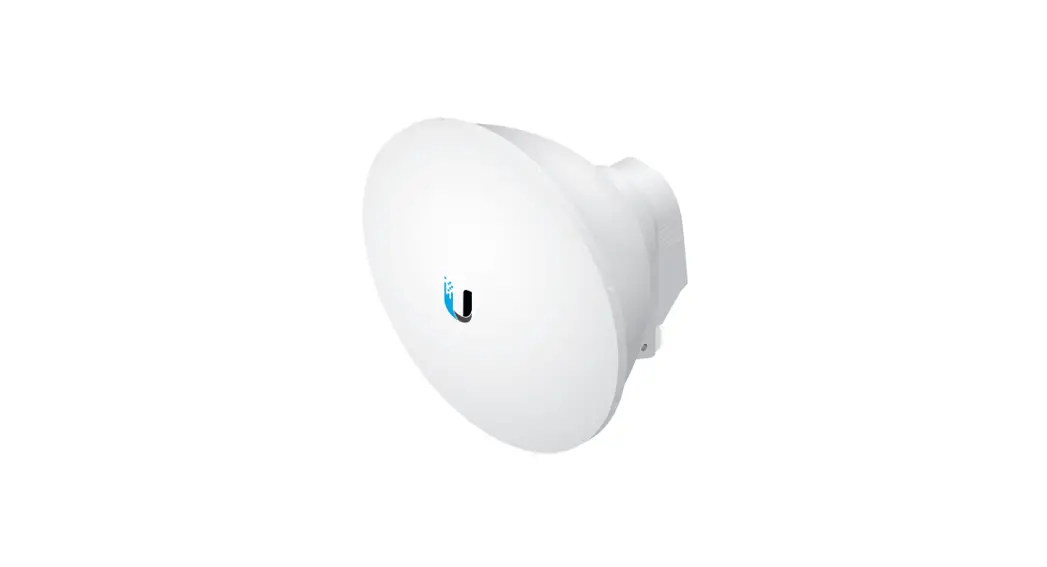
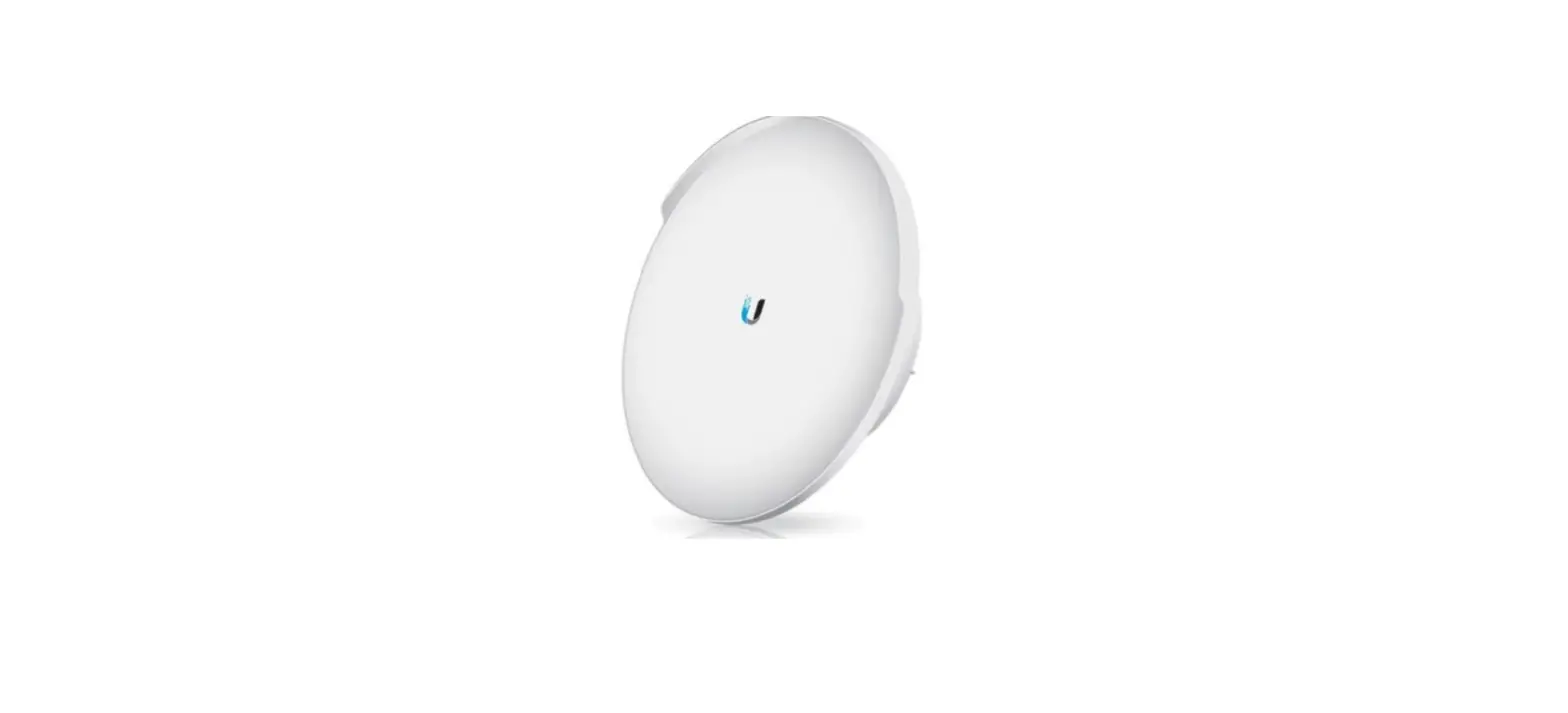
AF60 Network Antenna
AF60 Quick Start Guide
Package Content:
- Dish
- Main arm
- Stabilizer Arms (Qty: 2)
- Mounting bracket
- Screw
- U clamp
- Flat Washers (Qty: 2)
- Lock Washers (Qty: 2)
- Flange Nuts (Qty: 2)
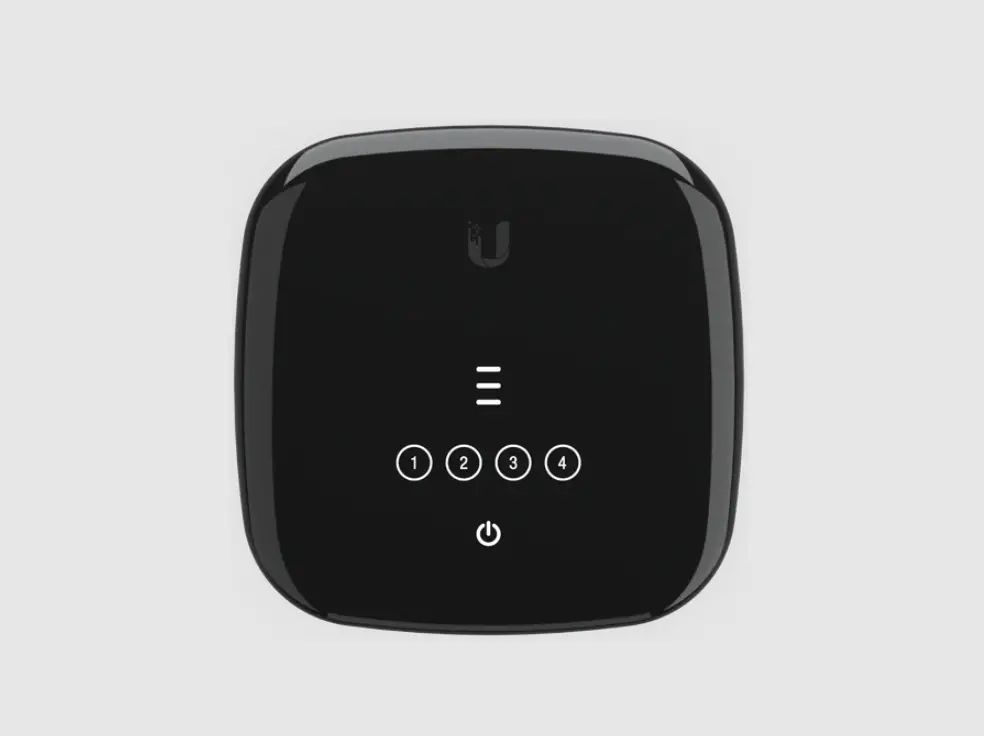
- Gigabit PoE (24V, 0.5A) with mounting bracket
- Power cord
Installation Requirements:
- Clear line of sight between airFiber access point and
station - It must be installed without obstacles in the upper part, for
the correct operation of the GPS - Vertical Mounting Orientation mounting point:
- At least 1 m below the highest point of the structure
- For installation on towers, at least 3 meters below the top of
the tower
- Category 6 (or higher) shielded cabling and RJ45 shielded
connectors are required for all Ethernet cable connections. - SP-G2), one near the airFiber radio and one at the entry point
of the building. The ETH-SP-G2 will absorb surge voltages and
safely discharge them to the ground.
Note: For guidelines on grounding and lightning
protection, follow local electrical regulation codes.
Device Overview:
- GPS LED Blue – The LED will light blue when the GPS signal
strength is sufficient. Requires a minimum of three GPS satellite
connections. - 60G LED Blue – The LED will light blue when the 60 GHz link is
ready. - LED the 5G Blue – The LED will light blue when the 5GHz link is
ready. - LED the LAN Blue – The LED indicator will be solid blue when
the device is connected to an Ethernet network through the Ethernet
port and will blink if there is activity. - Power LEDs flashing white White – Startup in progress.
- Blue – Steady blue with occasional flicker fast blue flashing
Alternation between blue and white PoE IN Ready to use, connected
to the UNMS. Out of the box, unable to connect to UNMS, check
connection to UNMS server. It is used to locate a device in the
UNMS. - Firmware update in progress.
- Gigabit Ethernet PoE port to manage user traffic and power the
Reset button To restore factory defaults, press and hold the Reset
button for more than 10 seconds while the device is powered on. You
can also remotely reset the device using the reset button on the
bottom of the Gigabit PoE adapter.
Installation Overview:
We recommend that you configure both airFiber radios (access
point and station) prior to installation. Follow the instructions
available in Configuration (Settings) for each radio.
Setting:
Power over Ethernet connection
Configuring the settings:
The device is set to DHCP by default, so it will attempt to
obtain an IP address automatically. If this fails, it will use the
default fallback IP address: 192.168.1.20. Go to the appropriate
section: DHCP or Fallback IP Address :
DHCP
Use one of the following methods:
- Configure the DHCP server to provide a specific IP address to
the device based on its MAC address (on the label). - Let the device obtain an IP address, and then check the DHCP
server for the IP address that has been assigned.
- Launch the web browser. Type the correct address in the address
field. Press Intro (PC) or Return (Mac). - Select your language and country. You must accept the Terms of
Use to use the product. Click Continue. - Enter a username and password, confirm the password, and click
Save. - Click on the icon.
Fallback IP Address :
If DHCP fails, use this IP address: 192.168.1.20
Note: For more detailed information on
installation requirements, device overview, and configuration
settings, please refer to the user manual.
AF60 Quick Start Guide
Package content
dish
main arm
Stabilizer Arms (Qty: 2)
Mounting bracket
Screw
u clamp
Flat Washers (Qty: 2) Lock Washers (Qty: 2)
Flange Nuts (Qty: 2)
Gigabit PoE (24V, 0.5A) with mounting bracket
Power cord
installation requirements
Clear line of sight between airFiber access point and station It must be installed without obstacles in the upper part, for the correct operation of the GPS Vertical Mounting Orientation mounting point:
At least 1 m below the highest point of the structure For installation on towers, at least 3 meters below the top of the tower
Category 6 (or higher) shielded cabling and RJ45 shielded connectors are required for all Ethernet cable connections.
SP-G2), one near the airFiber radio and one at the entry point of the building. The ETH-SP-G2 will absorb surge voltages and safely discharge them to the ground.
Note: For guidelines on grounding and lightning protection, follow local electrical regulation codes.
Device overview
GPS LED Blue
60G LED Blue
LED the 5G Blue
LED the LAN
Blue
The LED will light blue when the GPS signal strength is sufficient. Requires a minimum of three GPS satellite connections.
The LED will light blue when the 60 GHz link is ready.
The LED will light blue when the 5GHz link is ready.
The LED indicator will be solid blue when the device is connected to an Ethernet network through the Ethernet port and will blink if there is activity.
Power LEDs flashing white White
Startup in progress.
Ready to use, not connected to the Ubiquiti® Network Management System (UNMSTM). See “UNMS Management”.
Blue
Steady blue with occasional flicker
fast blue flashing Alternation between blue and white
PoE IN
Ready to use, connected to the UNMS. Out of the box, unable to connect to UNMS, check connection to UNMS server. It is used to locate a device in the UNMS.
Firmware update in progress.
Gigabit Ethernet PoE port to manage user traffic and power the
Reset button To restore factory defaults, press and hold the Reset button for more than 10 seconds while the device is powered on. You can also remotely reset the device using the reset button on the bottom of the Gigabit PoE adapter.
Installation overview
We recommend that you configure both airFiber radios (access point and station) prior to installation. Follow the instructions available in “Configuration” (Settings) for each radio.
Setting
Power over Ethernet connection
1.
2.
3.
Configuring the settings
The device is set to DHCP by default, so it will attempt to obtain an IP address automatically. If this fails, it will use the default fallback IP address: 192.168.1.20. Go to the appropriate section: “DHCP” or “Fallback IP Address” :
DHCP Use one of the following methods:
Configure the DHCP server to provide a specific IP address to the device based on its MAC address (on the label). Let the device obtain an IP address, and then check the DHCP server for the IP address that has been assigned. 1. Launch the web browser. Type the correct address in the address field.
Press Intro (PC) or Return (Mac). 2. Select your language and country. You must accept the Terms of Use to use the
product. Click Continue.
3. Enter a username and password, confirm the password, and click Save.
4. Click on the icon.
5. Set the following options: to. Enable Access Point mode on one of the airFiber radios. Leave the access point disabled on the other airFiber radio (the station). b. Enter a name in the SSID field. It must be the same in both point access as in the station. c. In the WPA2 Preshared Key field, enter a combination of alphanumeric characters (0-9, AZ, or az). Note: The key is an alphanumeric password between 8 and 63 characters.
6. Click Save Changes. 7. Configure each of the airFiber radios with a unique IP address:
to. Click on the icon .
DHCP: By default, the DHCP client setting is enabled; if there is a DHCP server on your network, the airFiber radio will obtain its address through DHCP.
Note: If the DHCP client configuration fails, the device will use the backup IP address: 192.168.1.20 Static IP You can disable the DHCP client setting and use a static IP address. c. Click Save Changes. Backup IP address 1. Make sure your computer (or other host system) is connected to the same LAN as the airFiber radio. 2. Configure the Ethernet adapter on your host system with a static IP address on the 192.168.1.x subnet. 3. Launch the web browser. Type https://192.168.1.20 in the address field and press Intro (PC) or Return (Mac).
4. Select your language and country. You must accept the Terms of Use to use the product. Click Continue.
5. Enter a username and password, confirm the password, and click Save. 6. Click on the icon.
7. Set the following options: to. Enable Access Point mode on one of the airFiber radios. Leave the access point disabled on the other airFiber radio (the station). b. Enter a name in the SSID field. It must be the same at both the point of access as in the station.
c. In the WPA2 Preshared Key field, enter a combination of alphanumeric characters (0-9, AZ, or az).
Note: The key is an alphanumeric password between 8 and 63 characters.
8. Click Save Changes. 9. Configure each of the airFiber radios with a unique IP address:
to. Click on the icon . b. Check your network settings to ensure that each airFiber radio has a unique IP
address. The IP address of each radio can be obtained through DHCP or a static IP address can be used.
DHCP: By default, the DHCP client setting is enabled; if there is a DHCP server on your network, the airFiber radio will obtain its address through DHCP. Fallback IP If you use fallback IP address on one radio, you must change the IP address configuration of the other radio. The backup IP address is: 192.168.1.20
c. Click Save Changes.
UNMS Management
You can manage the device through the UNMS, which allows you to configure, monitor, update and back up your devices through a single application. To get started, go to www.unms.com
Installation
1.
4.
Note: The AF60 can be installed on either side of the pole. This section shows the AF60 installed on the left side; the procedure for its mounting on the right side is similar.
O
Left
5.
Right
Note: Rotate the mounting bracket clockwise until it clicks into position.
6.
7.
8.
(Post not shown)
9.
10. 11. 12. 13.
Power connection
WARNING: The switch port must meet the power specifications listed in the “Specifications” section. (Specifications).
O
Optional
Alignment
Tips
To accurately align airFiber devices to optimize performance, you MUST align only one end of the link at a time. You may need to use additional tools to compensate for issues such as improper orientation of a mounting post or significant elevation differences between the two airFibers.
Establishing a link Adjust the orientation of the access point and the station to establish a link.
Note: The access point must first face the station because the station does not transmit RF signals until it detects transmissions from the access point.
lit.
1. Access Point: Visually orient the access point towards the station by loosening the flange nuts on the mounting bracket to allow adjustment of azimuth and elevation.
Azimuth adjustment:
Elevation Adjustment:
Note: DO NOT make simultaneous settings on the access point and the station. 2. Station: Visually orient the station towards the access point. To adjust the station
position, modify the azimuth and elevation as described in step 1. 3. Open the setting interface, select Tools, then click
Align Antenna.
4. Repeat steps 1 and 2 until the link is optimal and the 5G and 60G LEDs turn blue. This ensures the best possible data speed between airFiber devices. Note: The best way to achieve maximum signal strength is by repeatedly going through azimuth and elevation.
5. Lock the alignment of the two airFiber radios by tightening all the nuts.
remain constant while yoAuFt6ig0htQeunicthkeSntaurtts.GIuf iadney of the values change during the locking process, loosen the nuts, refinish the alignment of each airFiber radio, and retighten the nuts.
Installer Compliance Responsibility
Devices must be professionally installed and it is the responsibility of the professional installer to ensure that the device is operational in accordance with country specific regulatory requirements.
Antenna
The 5GHz Output Power field assists the professional installer in meeting regulatory requirements.
Specifications
Dimensions
Weight with mounting without mounting
Material antenna gain
5 GHz 60 GHz network interface maximum power consumption feeding method Power supply voltage range Luces LED Mounting wind load
Wind resistance
ESD/EMP protection
AF60
413 x 413 x 320 mm (16,26 x 16,26 x 12,60″)
Aluminium, UV-stable polycarbonate
1,4 kg (3,09 lb) 1,8 kg (3,97 lb)
11 dBi 38 dBi
(1) 10/100/1000 Mbps Ethernet port
11W
Passive PoE, sockets 4, 5+; 7, 824VDC 0.5A Gigabit PoE Adapter (included)
+22 to +26V DC Power/Ethernet/5G/60G/GPS
Pole mount (included)
420 N @ 200 km/h (94,4 lbf @ 125 mph)
200 km/h (125 mph) ± 24 kV contact/air
Operating temperature operating humidity Certifications
peak performance maximum range
encryption YOU
Maximum transmit power 5/60 GHz combined
Channel Bandwidth 60 GHz 5 GHz
EE. UU. / CA
All over the world
All over the world EE. UU. / CA
System Radio
-40 to 60° C (-40° F to 140° F) 5 to 95% non-condensing FCC, IC, CE
1,8 Gbps more than 2km WPA2-PSK (AES)/WPA2 Enterprise
airOS GP
25 dBm
Operating frequency (MHz) U-SO-1 U-NII-2A U-NII-2C U-SO-3
Radio Management (MHz)
2160 MHz 20/40/80 MHz
5150 – 5250 5250 – 5350 5470 – 5725 5725 – 5850 57.000 – 67.000 5180 – 5875 57.000 – 66.000
2412 – 2472 2412 – 2462
safety instructions
1. Read, follow and save these instructions. 2. Pay attention to all warnings. 3. Only use the devices or accessories indicated by the manufacturer.
WARNING: Do not use this product in a location where it may be submerged in water.
WARNING: Avoid using this product during a lightning storm. There is a remote possibility of an electrical discharge caused by lightning.
electrical safety information
1. It is mandatory to comply with the current, frequency and voltage requirements indicated on the manufacturer’s label. Connection to a power source other than those specified may result in malfunction, equipment damage, or fire hazard if limitations are not followed.
2. This equipment contains no operator-serviceable parts. Only a qualified service technician should provide services.
3. This equipment is supplied with a detachable power cord that has an integral safety ground wire designed to be connected to a safety ground. to. Do not substitute the power cord with one other than the approved type provided. Never use an adapter plug to connect to a two-wire outlet, as it will break the continuity of the ground wire.
Modification or misuse can create a shock hazard, which could cause serious injury or death. c. If you have any questions about the installation, contact an electrician
qualified person or the manufacturer before connecting the equipment.
d. The indicated AC adapter provides a safety ground. For installation in a building, adequate short-circuit back-up protection must be provided.
and. A protective connection must be installed in accordance with national wiring rules and regulations.
limited warranty
ui.com/support/warranty The limited warranty requires arbitration to resolve disputes on a case-by-case basis and, where appropriate, specifying arbitration instead of jury trials or class actions.
Compliance
FCC / CAN ICES-3(A)/NMB-3(A)
Changes or modifications not expressly approved by the party responsible for compliance could void the user’s authority to operate the equipment. This device complies with Part 15 of the FCC Rules and ISED Canada licence-exempt RSS standard(s). Operation is subject to the following two conditions. 1. This device may not cause harmful interference. 2. This device must accept any interference received, including interference that may
may cause undesired operation. This device complies with ISED Canada license-exempt RSS standard(s). Exploitation is authorized under the following two conditions: 1. the device may not cause interference; 2. The device must accept any radio interference received, even if the interference is likely
to compromise its operation. This equipment has been tested and found to comply with the limits for a Class A digital device, pursuant to part 15 of the FCC Rules. These limits are designed to provide acceptable protection against harmful interference when the equipment is operated in a commercial environment. This equipment generates, uses, and can radiate radio frequency energy and, if not installed and used in accordance with the instruction manual, may cause harmful interference to radio communications. Operation of this equipment in a residential area is likely to cause harmful interference, in which case the user will be required to correct the interference at his own expense. This FCC ID: SWX-AF60 / IC: 6545A-AF60 radio transmitter is approved by the FCC and ISED Canada.
The device for operation in the 5150-5250 MHz band is intended for indoor use only to reduce the possibility of harmful interference to co-channel mobile satellite systems.
IMPORTANT NOTE:
Radiation Exposure Statement:
This equipment complies with radiation exposure limits set forth for an uncontrolled environment.
This equipment should be installed and used with a minimum distance of 71 cm between the radiator and your body. This transmitter must not be co-located or used in conjunction with any other antenna or transmitter.
Australia and New Zealand
Warning: This equipment is compliant with Class A of CISPR 32. In a residential environment, this equipment may cause radio interference.
Brazil
Note: This equipment is not entitled to protection against harmful interference and may not cause interference in duly authorized systems.
CE marked
The CE marking of this product indicates that the product complies with all applicable directives.
list of countries AT BE BG CY CZ DE DK EE EL ES FI FR HR HU IE IT LV LT LU MT NL PL PT RO SE SI SK UK Members with broadband fixed wireless access are highlighted in blue Note: This device complies with the maximum transmit power limit per ETSI regulations.
Note: Fixed service or any usage authorization restrictions will follow local country regulations. The following shall apply to products operating in the 5 GHz frequency range: Note: This device is only suitable for indoor use when operating in the frequency range of 5150 – 5350 MHz in all member states. Note: All countries listed can operate at 30 dBm. Member states with broadband fixed wireless access can operate at 36 dBm. Note: Operation in the 5.8 GHz frequency band is prohibited in member states with fixed broadband wireless access. The rest of the listed countries can use the 5.8 GHz frequency band.
WEEE Compliance Statement
Declaration of conformity
online resources
© 2021 Ubiquiti Inc. All rights reserved.
 Ubiquiti - Warranty
 Ubiquiti | UISP | A Last Mile Revolution
 WEEE Compliance Statement
 Ubiquiti - Compliance