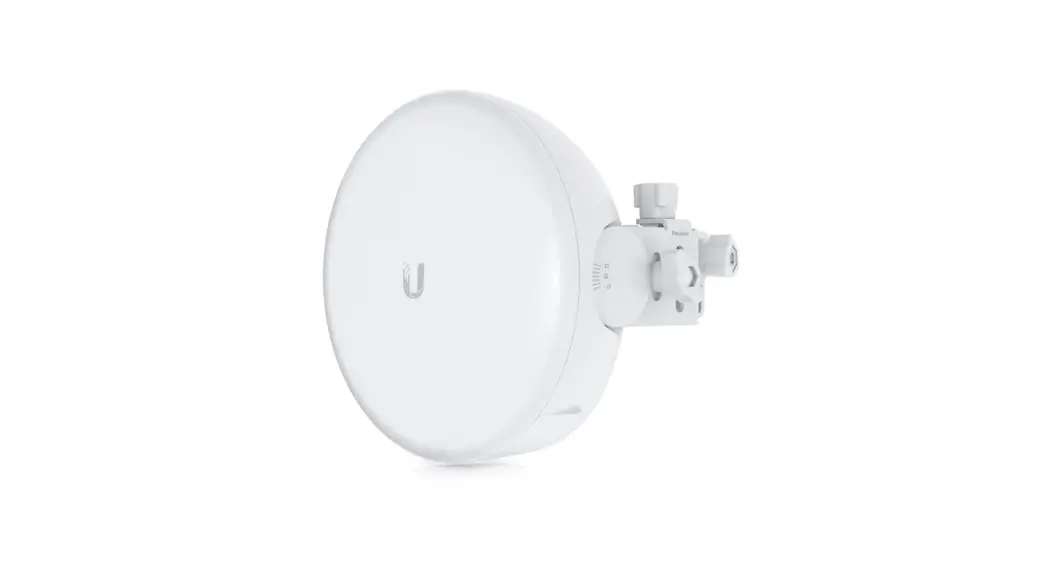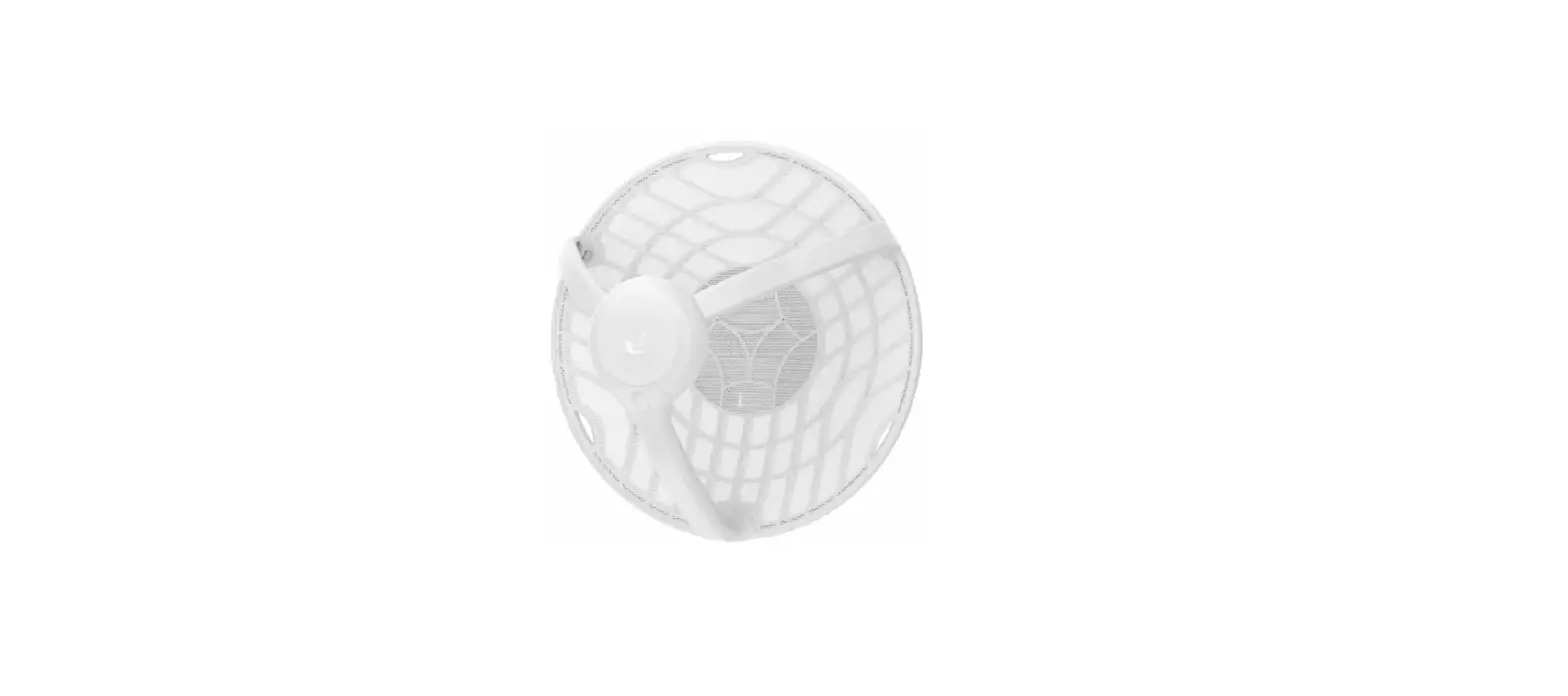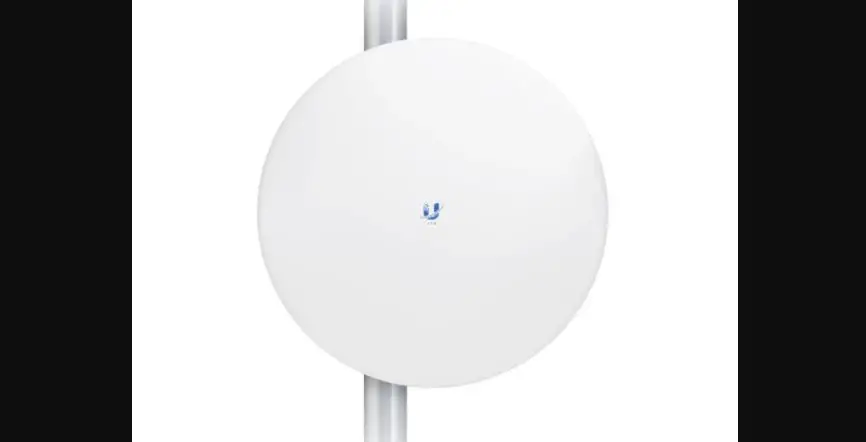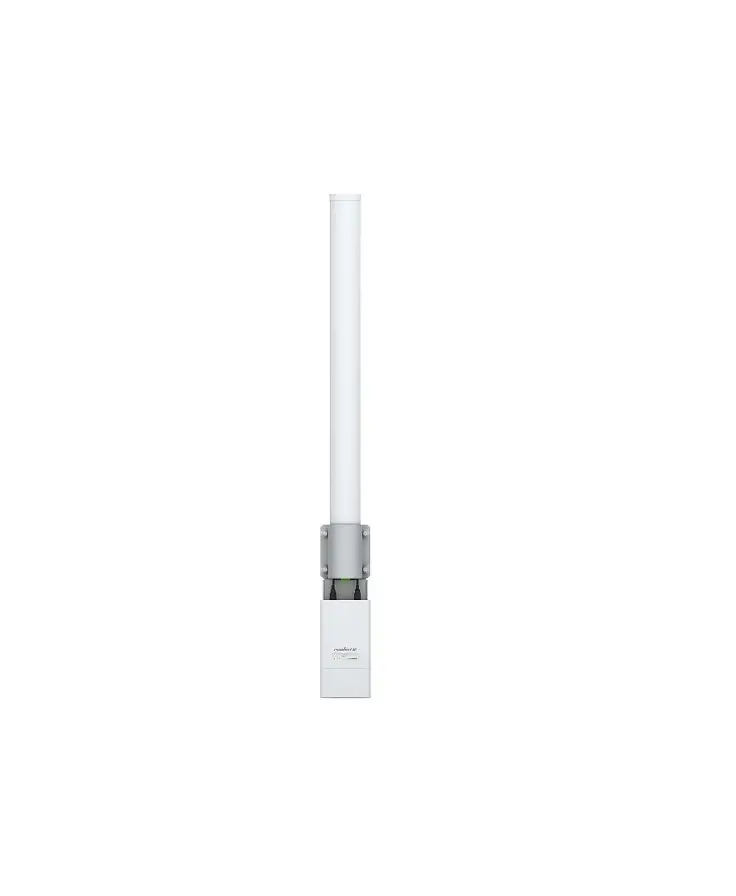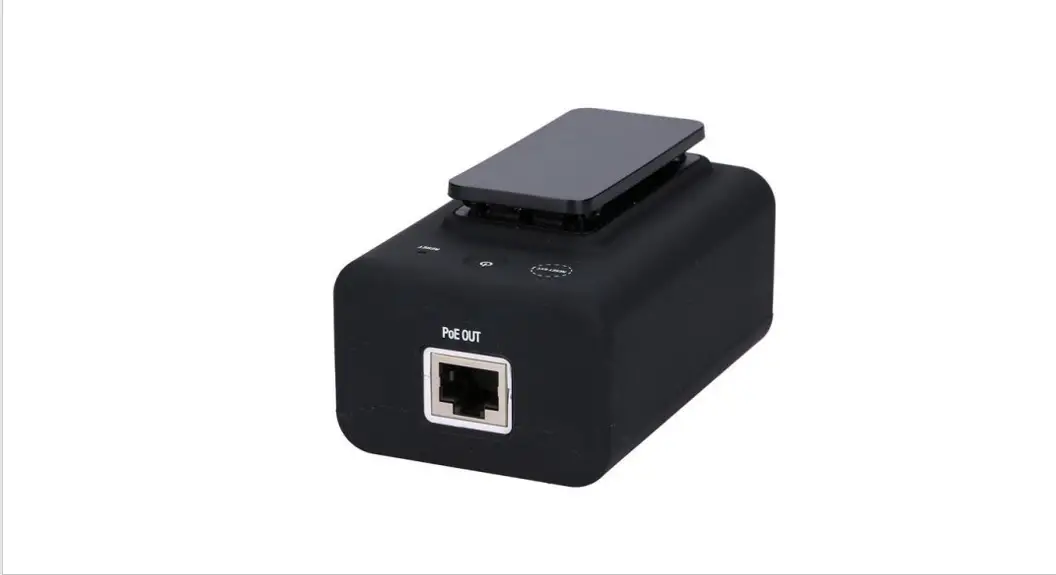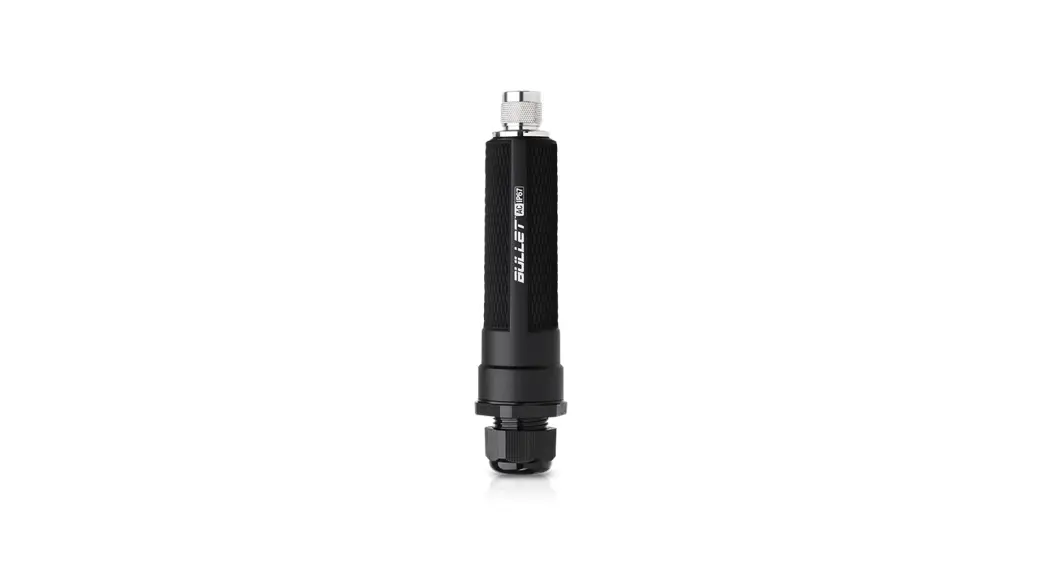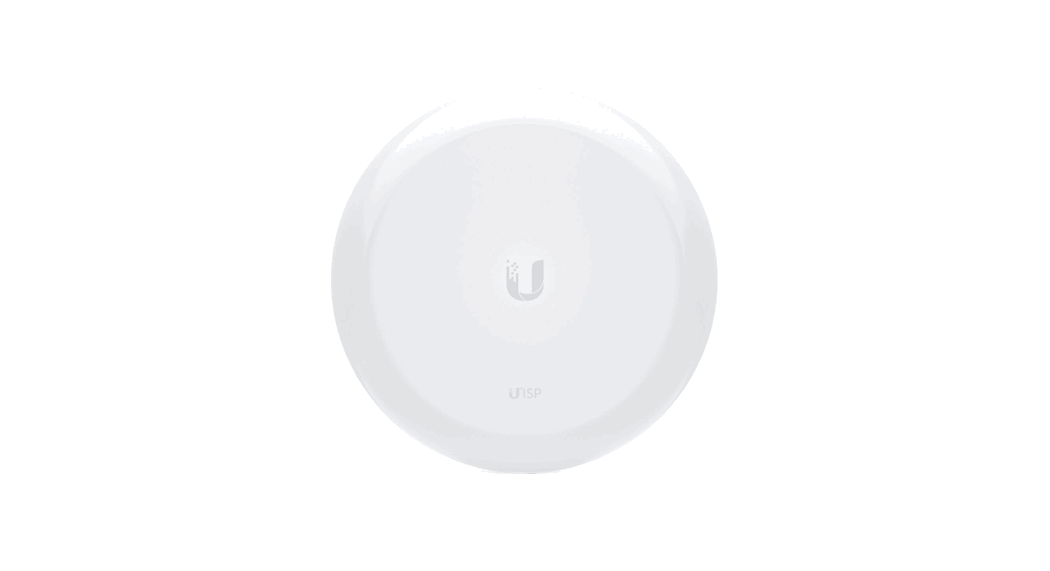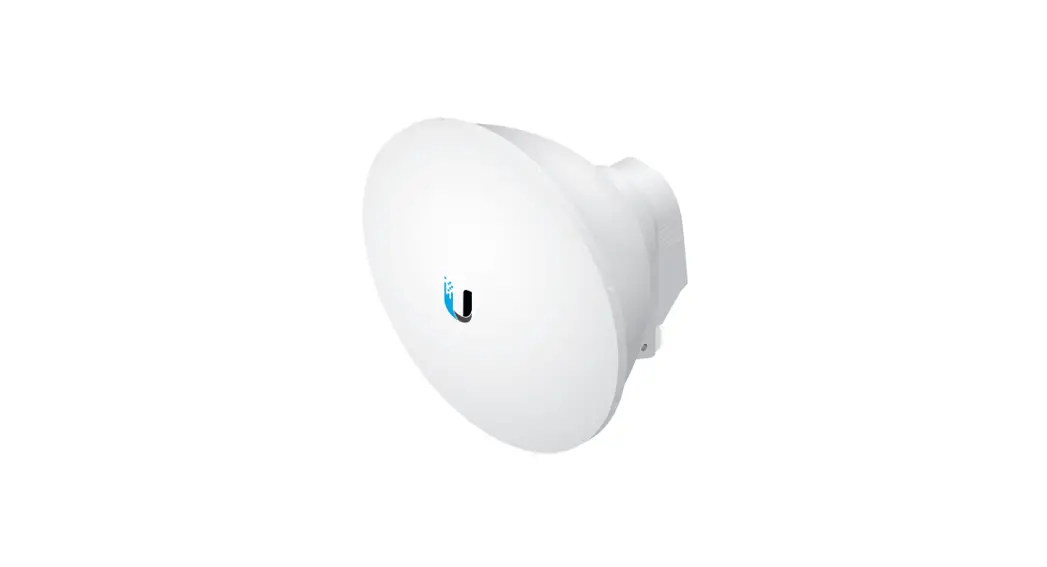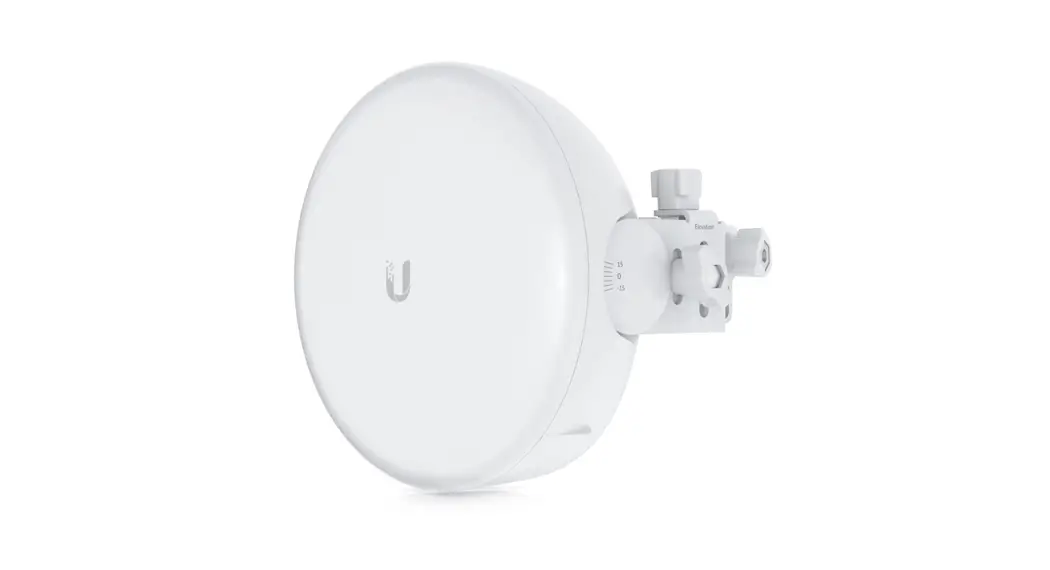
 GBE Quick Start Guide
11/13/2020
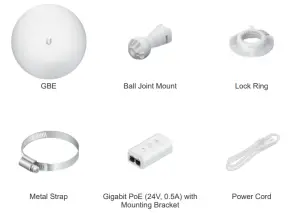
Package Contents
Installation Requirements
- A clear line of sight between GigaBeam AP and station
- Pole-mounting: 7 mm socket wrench or screwdriver
- Wall-mounting: wall fastener (not included)
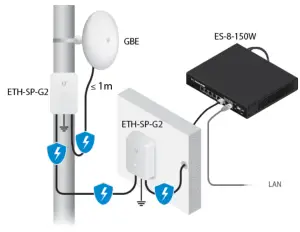
- Shielded Category 5 (or above) cabling with drain wire should be used for all wired Ethernet connections and should be grounded through the AC ground of the PoE.
We recommend that you protect your networks from harmful outdoor environments and destructive ESD events with industrial-grade, shielded Ethernet cable from Ubiquiti. For more details, visit http://ui.com/toughcable - Surge protection should be used for all outdoor installations. We recommend that you use two Ethernet Surge Protectors, model ETH-SP-G2, one near the device and the other at the entry point to the building. The ETH-SP-G2 will absorb power surges and safely discharge them into the ground.
 Note: For guidelines about grounding and lightning protection, follow your local electrical regulatory codes.
Hardware Overview
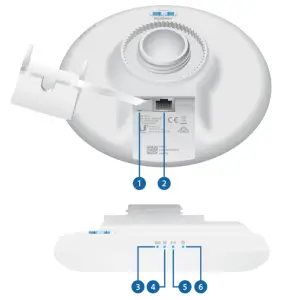
- Reset Button
seconds while the device is powered on. Alternatively, the device may be reset remotely via a Reset button located on the bottom of the Gigabit PoE Adapter. - PoE IN Port
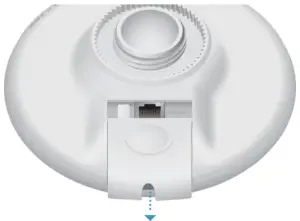
This Gigabit Ethernet port is used to connect the power and should be connected to the LAN and DHCP server. - 60 GHz LED
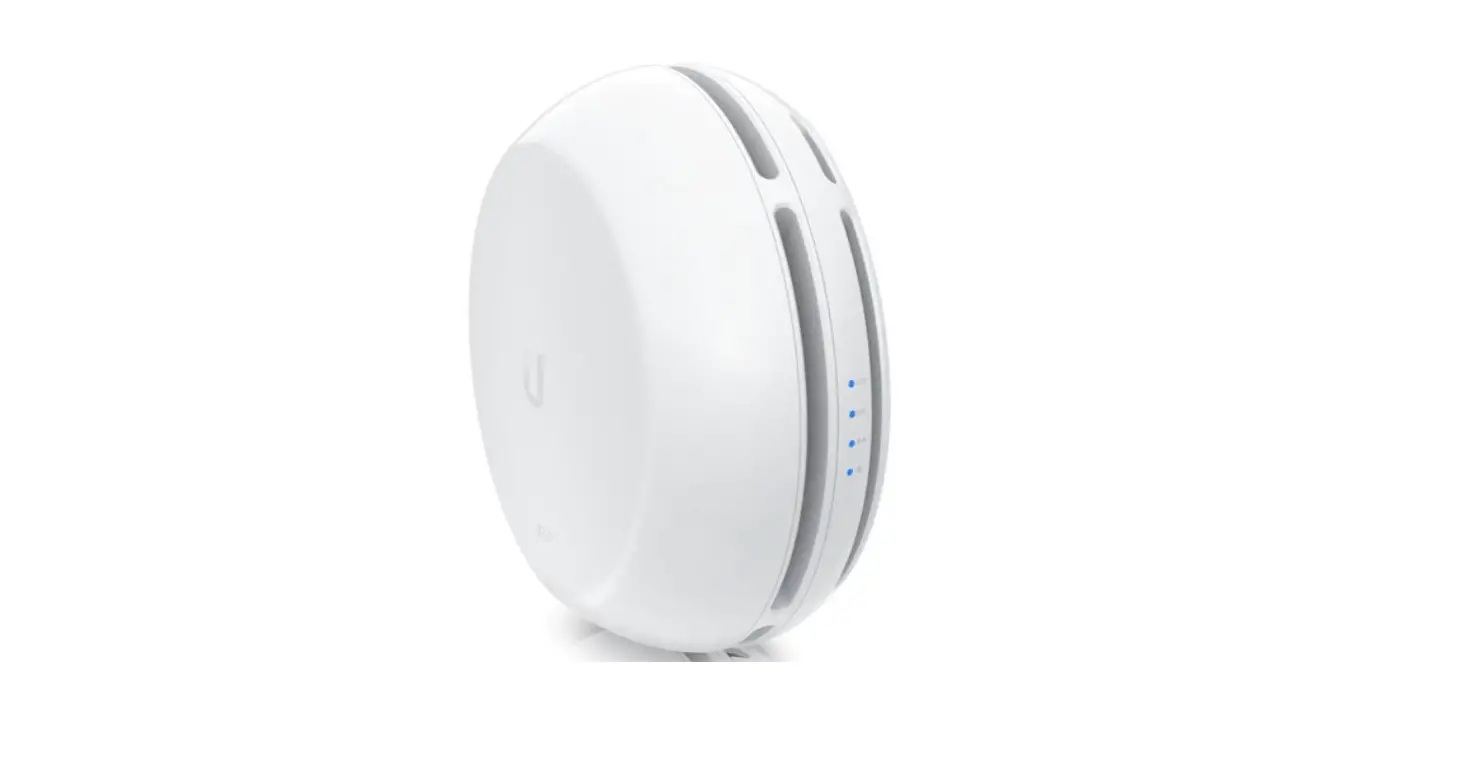
Lights steady blue when 60 GHz link is ready. - 5 GHz LED
Lights steady blue when the 5 GHz link is ready. - LAN LED
The LED will light steady blue when an active Ethernet connection is made to the Ethernet port and flash when there is activity. - Power/Status LED
| Flashing White | Bootup in progress. |
| White | Ready for use, not connected to Ubiquiti® Network Management System (UNMS™). See “UNMS Management”. |
| Blue | Ready for use, connected to UNMS. |
| Steady Blue with Occasional Flashing | Ready for use, unable to connect to UNMS, check the connection to UNMS server. |
| Quickly Flashing Blue | Used to locate a device in UNMS. |
| Alternating Blue/White | Firmware upgrade in progress. |
Hardware Installation
Go to the appropriate mounting instructions: Pole Mounting or “Wall Mounting”.
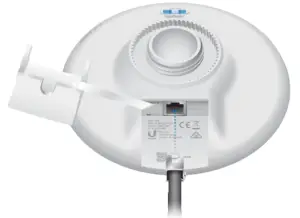
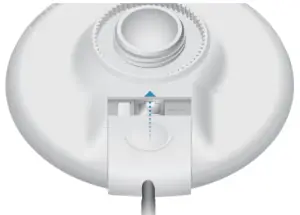
Pole-Mounting
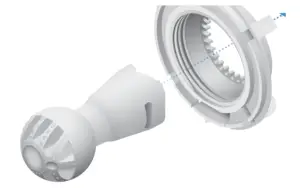 | 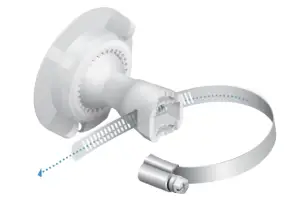 |
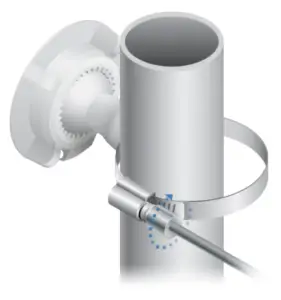 | 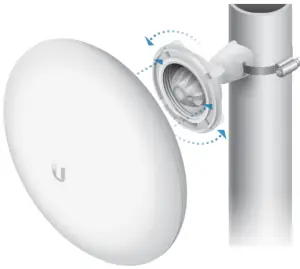 |
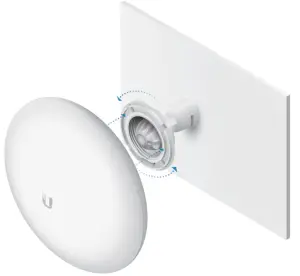
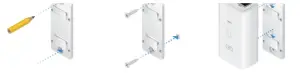
Wall Mounting
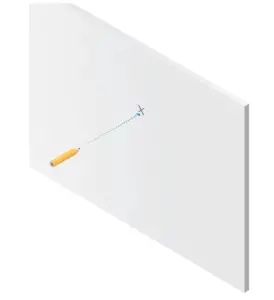
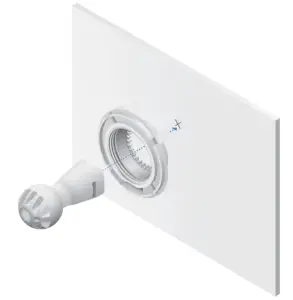
The device must be mounted directly to a wood stud or other structurally stable surface to avoid damage to the mounting hole when you adjust the aim.
Optional Accessory
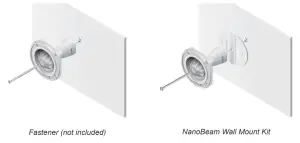
To enhance stability, you can use the NanoBeam® Wall Mount Kit, model NBEWMK (sold separately).
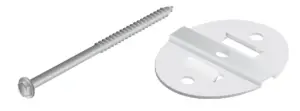
Note: Center screw included. Two optional screws (not included) provide additional stability.
Installation Instructions
 |  |
 |  |
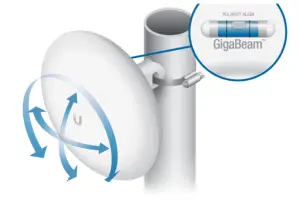
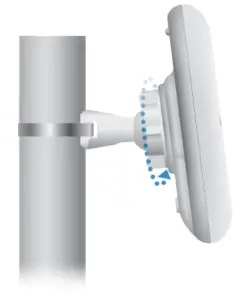
Aiming
Visually aim the GigaBeam radios at each other.
 |  |
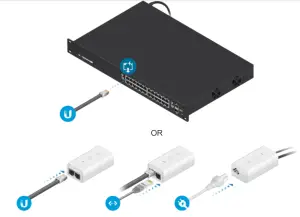
Connecting Power
 |  |
 |  WARNING: The switch port must comply with the power specifications listed in “Specifications”. WARNING: The switch port must comply with the power specifications listed in “Specifications”.
|
 | |
Configuration
The device is set to DHCP by default, so it will try to automatically obtain an IP address. If that fails, it will use the default fallback IP address, 192.168.1.20. Proceed to the appropriate section, DHCP or “Fallback IP Address”:
DHCP
Use one of the following methods:
Set up the DHCP server to provide a specific IP address to the device based on its MAC address (on the label).
Let the device obtain an IP address and then check the DHCP server to see which IP address was assigned.
- Connect a computer to your network and configure the Ethernet adapter on your computer with a static IP address on the 192.168.1.x subnet.
- Launch your web browser. In the address field, type: https://192.168.1.20 then press enter (PC) or Return (Mac).

- Select your Country and Language. You must agree to the Terms of Use to use the product. Click Continue.

- Enter a Username and Password, confirm the Password, and click Save.
- Click the
 icon.
icon.
- Configure the following settings:
a. For one device, enable Access Point mode. For the other device (the Station), keep Access Point disabled.
b. Enter a name in the SSID field. This must be the same on both the AP and the Station.
c. In the WPA2 Preshared Key field, enter a combination of alphanumeric characters (0-9, A-Z, or a-z). - Click Save Changes.
- Configure each device (AP and Station) with a unique IP address:
a. Click the icon.
icon. b. Review the Network settings to ensure that each device has a unique IP address. Each can get its IP address via DHCP, or use a static IP address.
• DHCP By default DHCP client is enabled; if there is a DHCP server on your network, the device will receive its address via DHCP. Note: If DHCP client fails, the device will use the fallback IP address: 192.168.1.20
• Static Select this option to disable the DHCP client and enter a static IP address.
c. Click Save Changes.

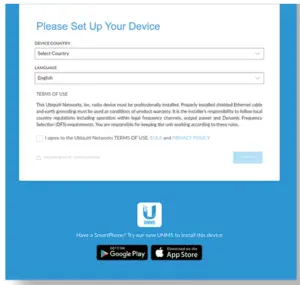
 icon.
icon. icon.
icon.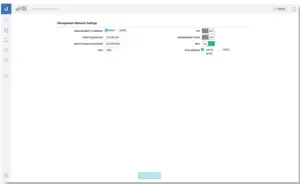 b. Review the Network settings to ensure that each device has a unique IP address. Each can get its IP address via DHCP, or use a static IP address.
Fallback IP Address
- Ensure that your computer (or another host machine) is connected to the same LAN as the GigaBeam.
- Configure the Ethernet adapter on your host system with a static IP address on the 192.168.1.x subnet.
- Launch your web browser. Type https://192.168.1.20 in the address field, and press enter (PC) or Return (Mac).

- Enter a Username and Password, confirm the Password, and click Save.
- Click the icon.
- Configure the following settings:
a. For one device, enable Access Point mode. For the other device (the Station), keep Access Point disabled.
b. Enter a name in the SSID field. This must be the same on both the AP and the Station.Note: The key is an alphanumeric password between 8 and 63 characters long. - Click Save Changes.
- Configure each device (AP and Station) with a unique IP address:
a. Click theicon. b. Review the Network settings to ensure that each device has a unique IP address. Each can get its IP address via DHCP, or use a static IP address.
• DHCP By default DHCP client is enabled; if there is a DHCP server on your network, the device will receive its address via DHCP.
Note: If DHCP client fails, the device will use the fallback IP address: 192.168.1.20
• Static Select this option to disable the DHCP client and enter a static IP address.
c. Click Save Changes.
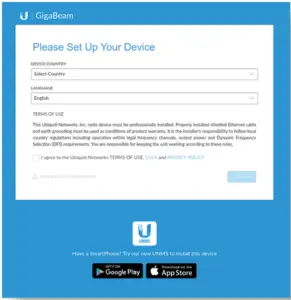
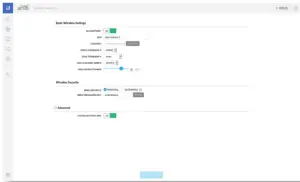
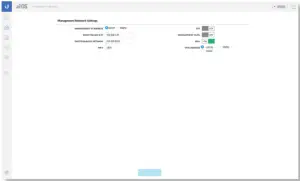 b. Review the Network settings to ensure that each device has a unique IP address. Each can get its IP address via DHCP, or use a static IP address.
Repeat the instructions in the “Configuration” section on the other GigaBeam.
UNMS Management
You can manage your device using UNMS, which lets you configure, monitor, upgrade, and back up your devices using a single application. Get started at www.unms.com
Installer Compliance Responsibility
Devices must be professionally installed and it is the professional installer’s responsibility to make sure the device is operated within local country regulatory requirements.
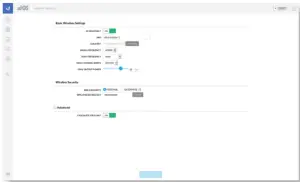
The 5GHz Output Power field is provided to the professional installer to assist in meeting regulatory requirements.
Specifications
GBE
| Dimensions | 140 x 140 x 44 mm (5.51 x 5.51 x 1.73) |
| Weight | 376 g (13.3 oz) |
| Enclosure | UV-Resistant Polycarbonate |
| Gain 5 GHz 60 GHz | 10 dBi 17.2 dBi |
| Networking Interface | 10/100/1000 Ethernet Port Wi-Fi for Management |
| Max. Power Consumption | 11W |
| Power Method | Passive PoE (Pairs 4, 5+; 7, 😎 |
| Power Supply | 24V, 0.5A Gigabit PoE Adapter (Included) |
| Mounting | Pole-Mount (Kit Included) Wall-Mount (Not Included) |
| ESD/EMP Protection | ± 24kV Contact/Air |
| Operating Temperature | -40 to 60° C (-40 to 140° F) |
| Operating Humidity | 5 to 95% Noncondensing |
| Certifications | CE, FCC, IC |
Radio
| Max. Conducted TX Power 5/60 GHz Combined | 25 dBm |
| Channel Bandwidth 60 GHz 5 GHz | 2160 MHz 20/40/80 MHz |
Operating Frequency (GHz)
| Worldwide | 5.180 – 5.875 57 – 66 | |
| US/CA | U-NII-1 | 5.180 – 5.250 |
| U-NII-2A | 5.250 – 5.350 | |
| U-NII-2C | 5.470 – 5.725 | |
| U-NII-3 | 5.725 – 5.850 | |
Management Radio (MHz)
| Worldwide | 2412 – 2472 |
| US/CA | 2412 – 2462 |
Safety Notices
- Read, follow, and keep these instructions.
- Heed all warnings.
- Only use attachments/accessories specified by the manufacturer.
 WARNING: Do not use this product in a location that can be submerged in water.WARNING: Avoid using this product during an electrical storm. There may be a remote risk of electric shock from lightning.
Electrical Safety Information
- Compliance is required with respect to voltage, frequency, and current requirements indicated on the manufacturer’s label. Connection to a different power source than those specified may result in improper operation, damage to the equipment, or pose a fire hazard if the limitations are not followed.
- There are no operator serviceable parts inside this equipment. Service should be provided only by a qualified service technician.
a. Do not substitute the power cord with one that is not the provided approved type.
Never use an adapter plug to connect to a 2-wire outlet as this will defeat the continuity of the grounding wire.
b. The equipment requires the use of the ground wire as a part of the safety certification, modification or misuse can provide a shock hazard that can result in serious injury or death.
c. Contact a qualified electrician or the manufacturer if there are questions about the installation prior to connecting the equipment.
d. Protective earthing is provided by a Listed AC adapter. Building installation shall provide appropriate short-circuit backup protection.
e. Protective bonding must be installed in accordance with local national wiring rules and regulations.
Limited Warranty
ui.com/support/warranty
The limited warranty requires the use of arbitration to resolve disputes on an individual basis, and, where applicable, specify arbitration instead of jury trials or class actions.
Compliance
FCC
Changes or modifications not expressly approved by the party responsible for compliance could void the user’s authority to operate the equipment.
This device complies with Part 15 of the FCC Rules. Operation is subject to the following two conditions.
- This device may not cause harmful interference, and
- This device must accept any interference received, including interference that may cause undesired operation.
This equipment has been tested and found to comply with the limits for a Class A digital device, pursuant to part 15 of the FCC Rules. These limits are designed to provide reasonable protection against harmful interference when the equipment is operated in a commercial environment. This equipment generates, uses, and can radiate radio frequency energy and, if not installed and used in accordance with the instruction manual, may cause harmful interference to radio communications. Operations of this equipment in a residential area are likely to cause harmful interference in which case the user will be required to correct the interference at his own expense.
This radio transmitter has been approved by FCC.
ISED Canada
CAN ICES-3(A)/NMB-3(A)
This device complies with ISED Canada licence-exempt RSS standard(s). Operation is subject to the following two conditions:
- This device may not cause interference, and his radio transmitter has been approved by ISED Canada.
The device for operation in the band 5150-5250 MHz is only for indoor use to reduce the potential for harmful interference to co-channel mobile satellite systems.
IMPORTANT NOTE
Radiation Exposure Statement
- This equipment complies with radiation exposure limits set forth for an uncontrolled environment.
- This equipment should be installed and operated with a minimum distance of 33 cm between the radiator and your body.
- This transmitter must not be co-located or operating in conjunction with any other antenna or transmitter.
Australia and New Zealand
 Warning: This equipment is compliant with Class A of CISPR 32. In a residential environment, this equipment may cause radio interference.
CE marking on this product represents the product is in compliance with all directives that are applicable to it.
 Country List
AT | BE | BG | CY | CZ | DE | DK | EE | EL | ES | Fl | FR | HR | HU |
| IE | IT | LV | LT | LU | MT | NL | PL | PT | RO | SE | SI | SK | UK |
BFWA (Broadband Fixed Wireless Access) members noted in blueNote: This device meets Max. TX power limit per ETSI regulations.Note: Fixed service or any restrictions for authorization of use shall follow local country regulations.
The following applies to products that operate in the 5 GHz frequency range:Note: This device is restricted to indoor use only when operating in the 5150 – 5350 MHz frequency range within all member states.Note: All countries listed may operate at 30 dBm. BFWA member states may operate at 36 dBm.Note: Operation in the 5.8 GHz frequency band is prohibited in BFWA member states. Other countries listed may use the 5.8 GHz, frequency band.
WEEE Compliance Statement
Declaration of Conformity
Online Resources
https://dl.ubnt.com/qsg/GBE/GBE_EN.html
© 2020 Ubiquiti Inc.
All rights reserved.