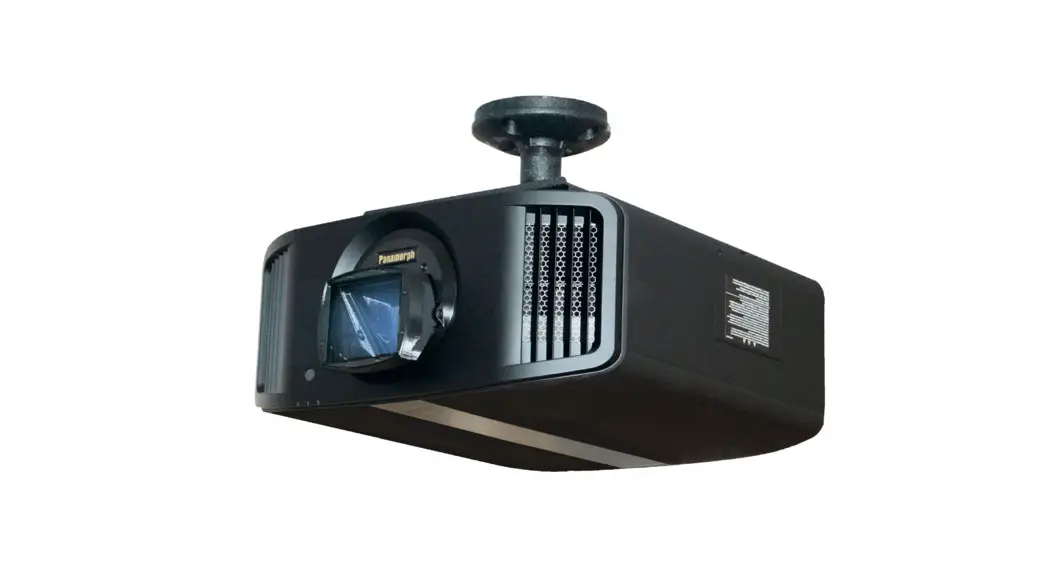
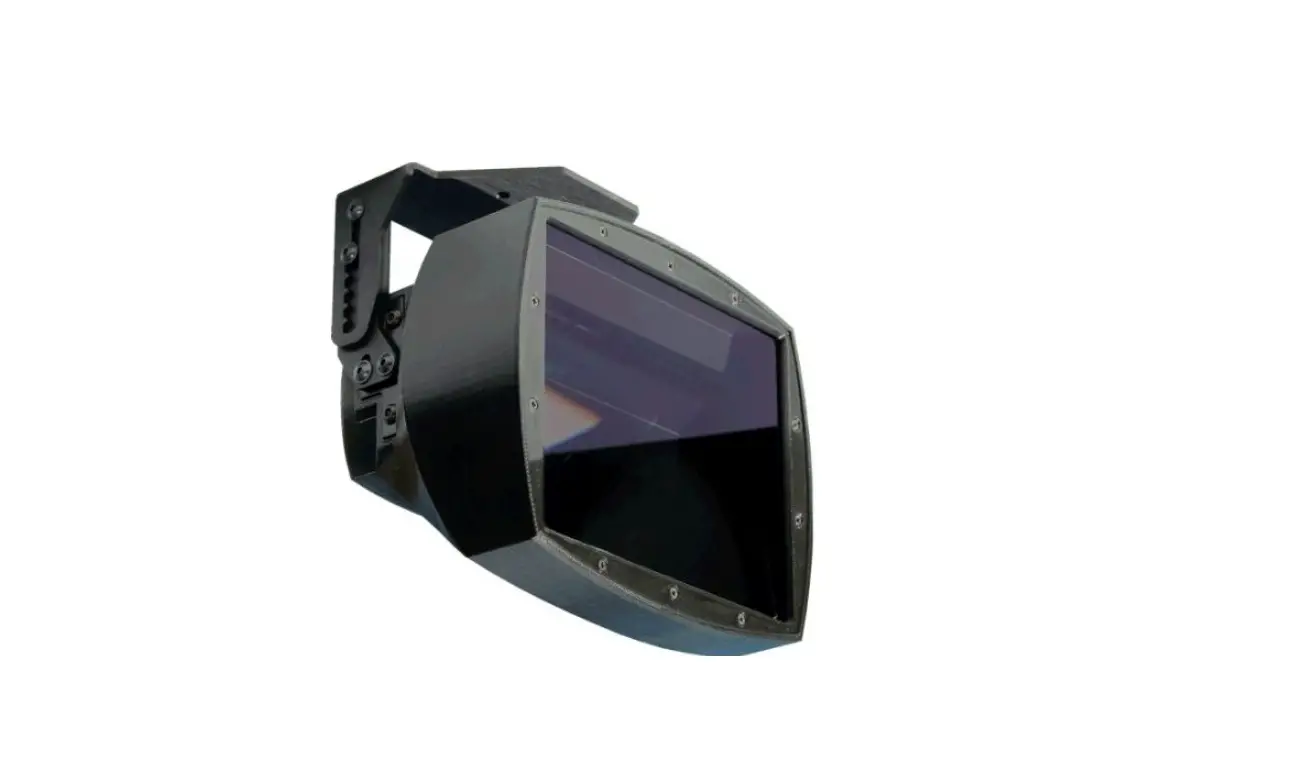
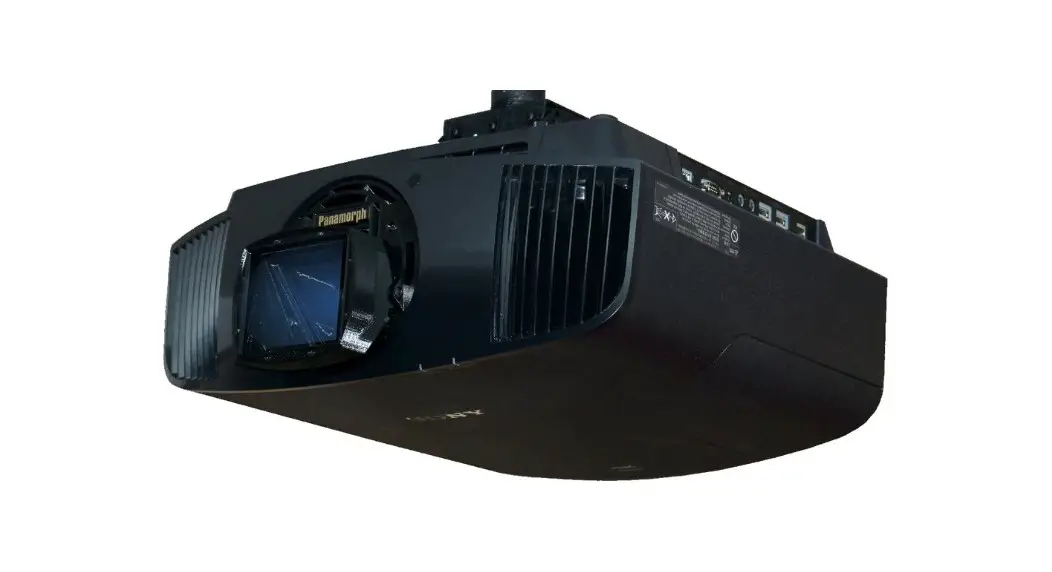
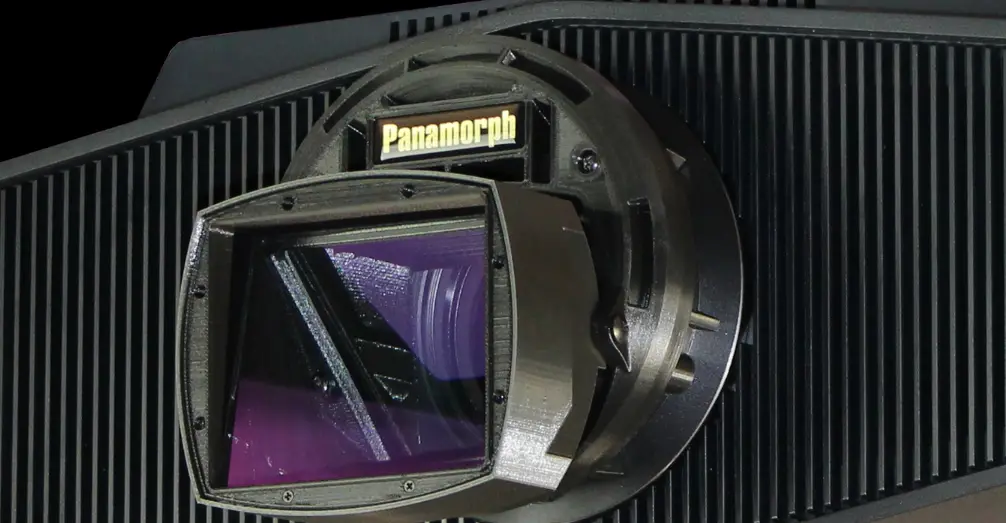
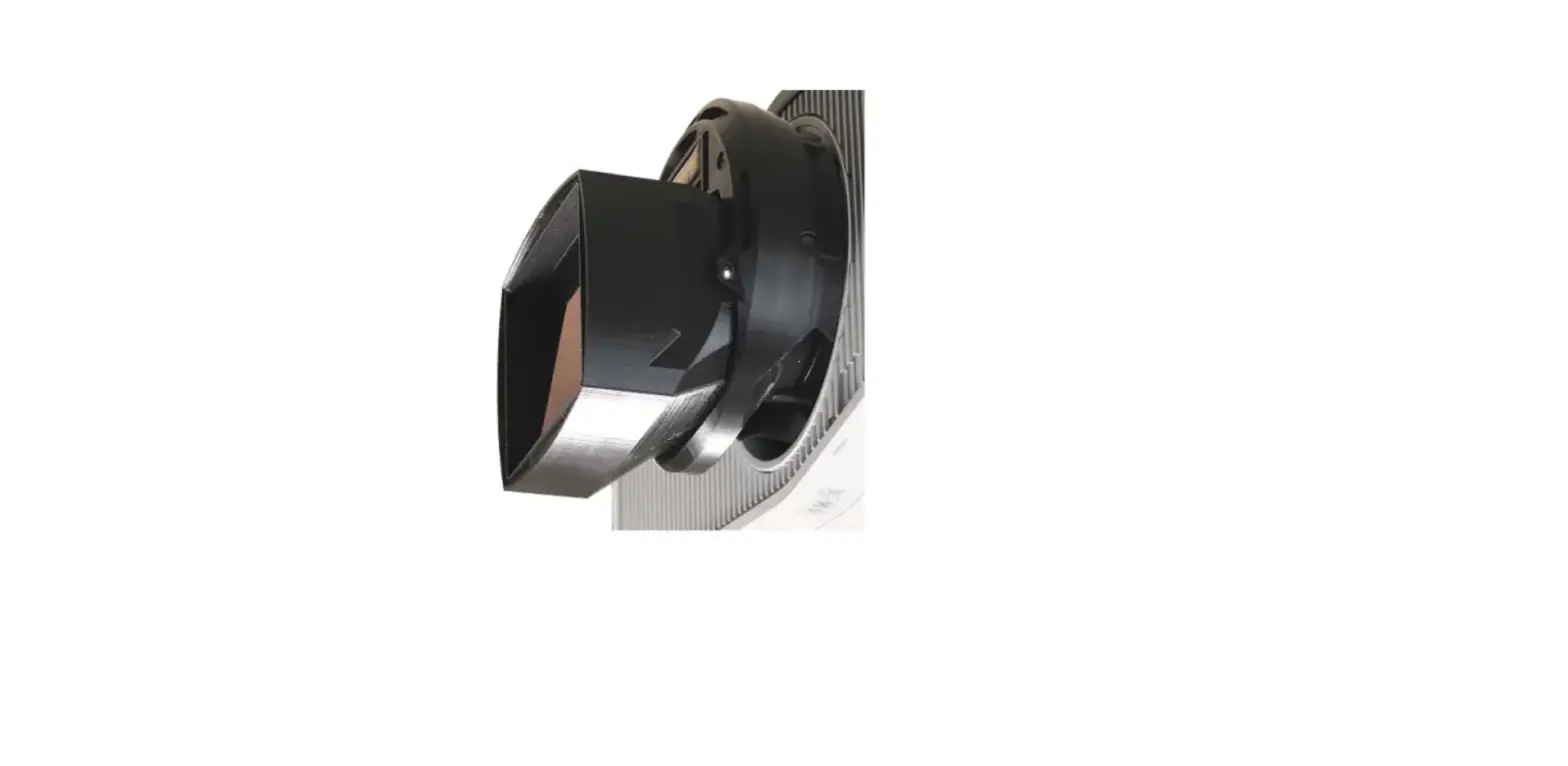
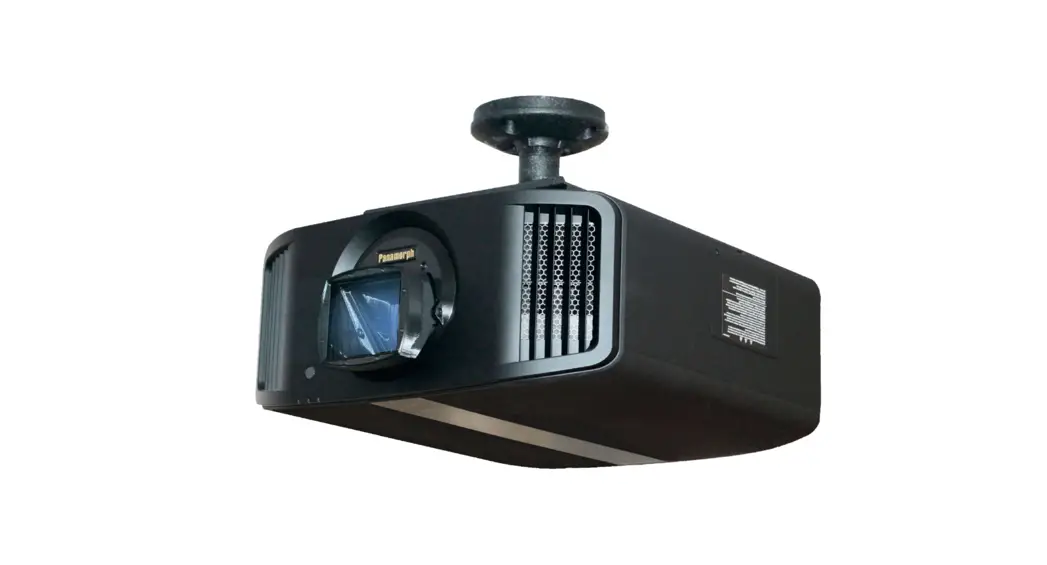
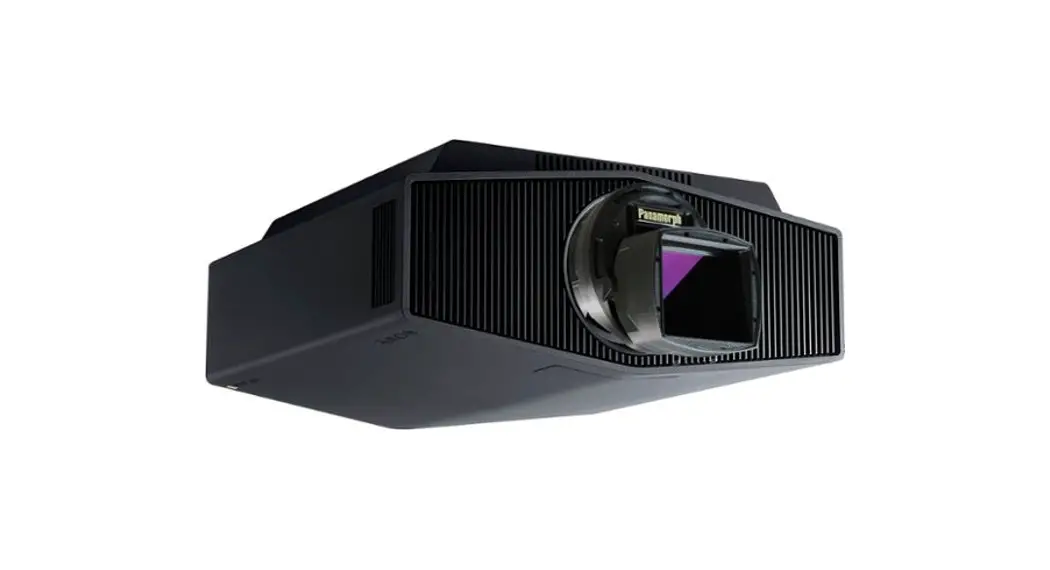
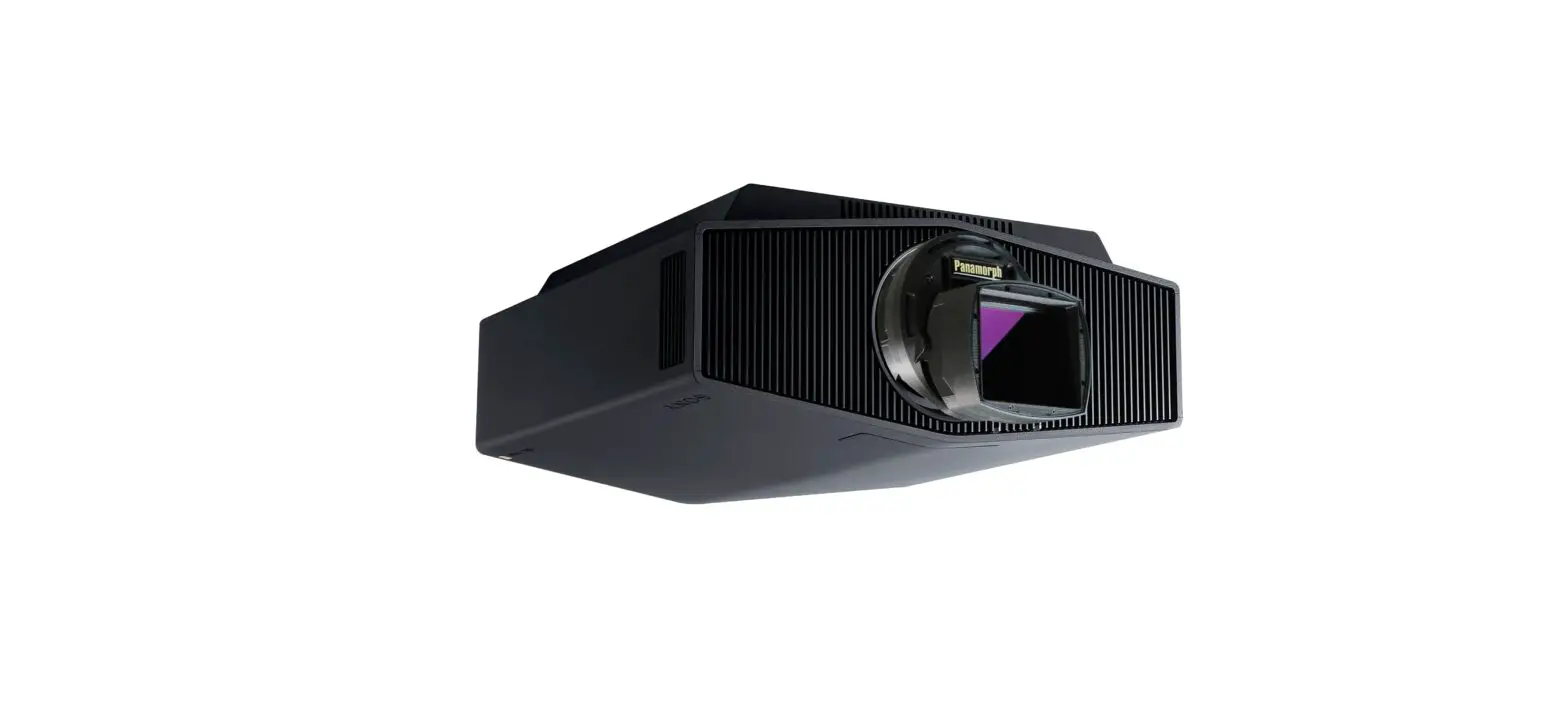
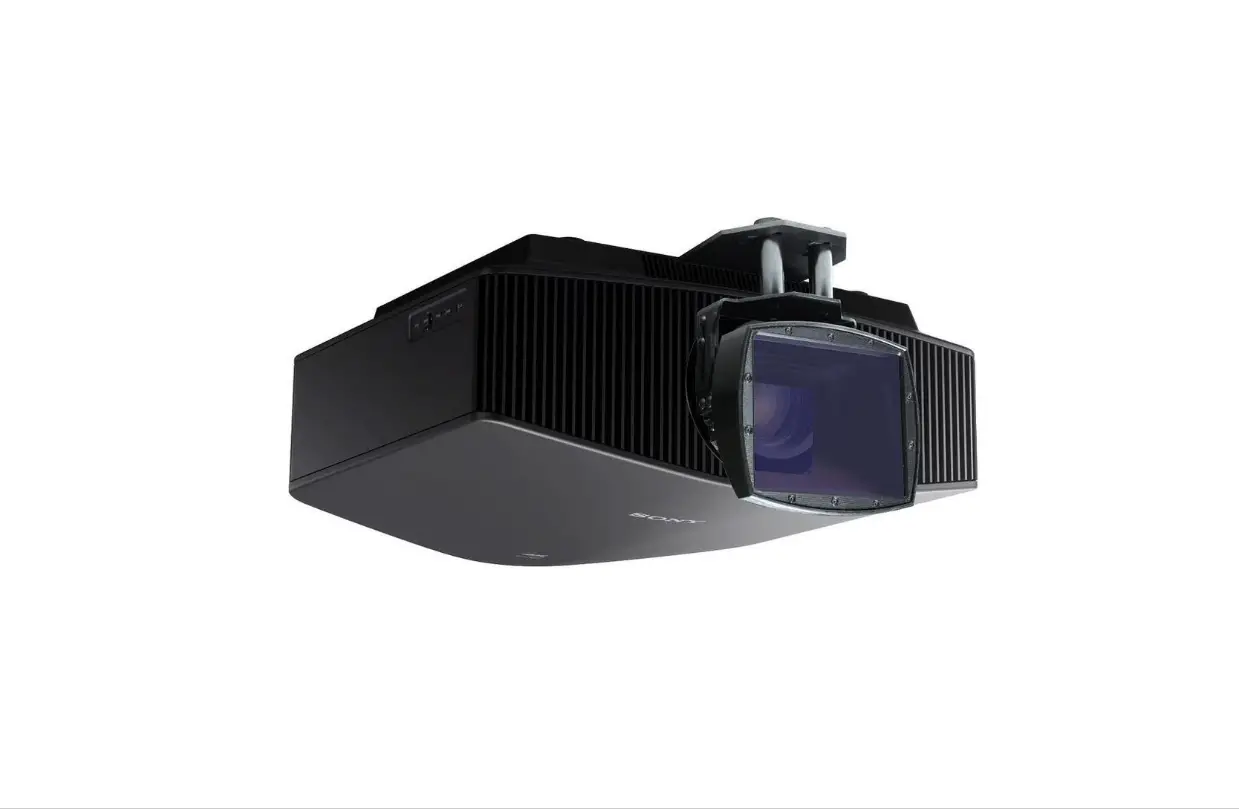
DCR-S4-ST-SST Paladin Direct Attach Anamorphic Lens
Product Information
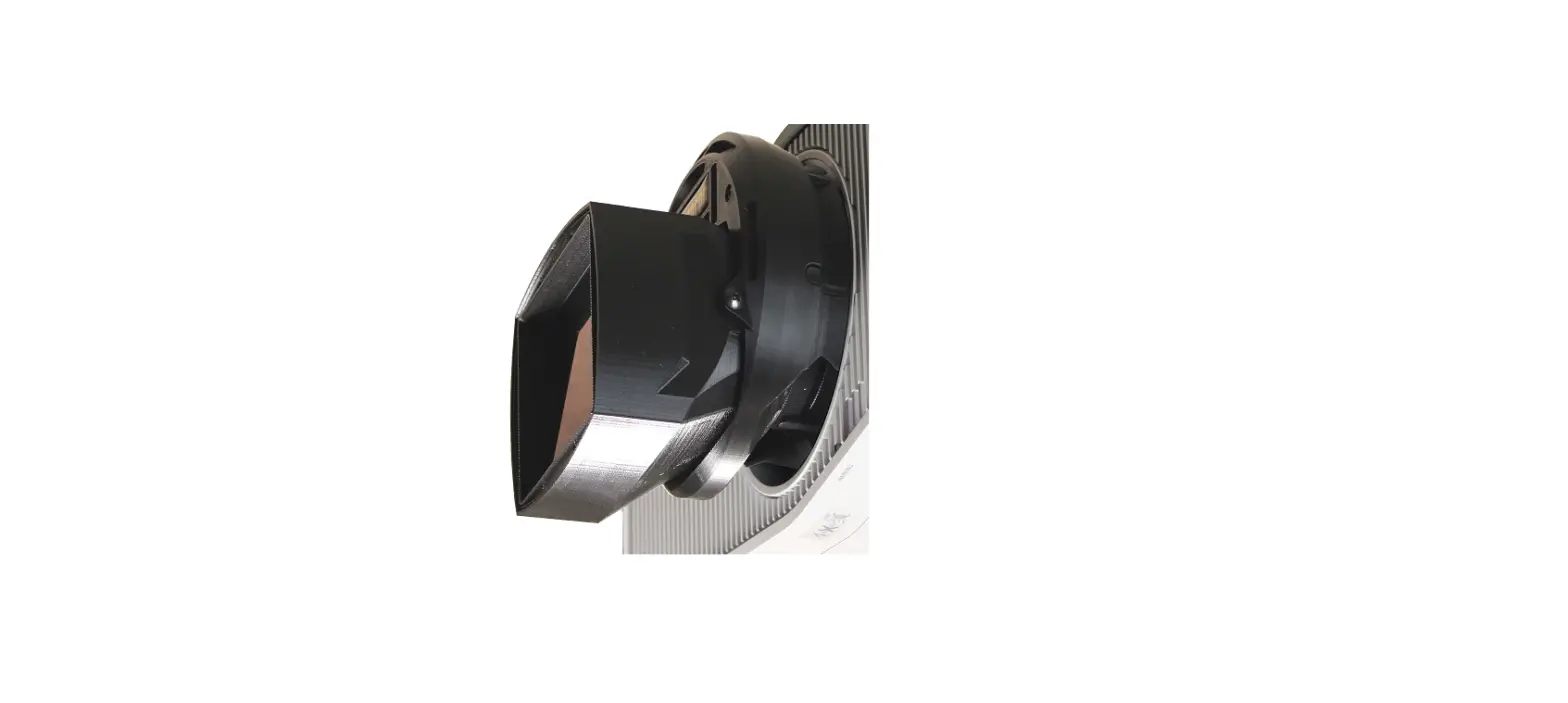
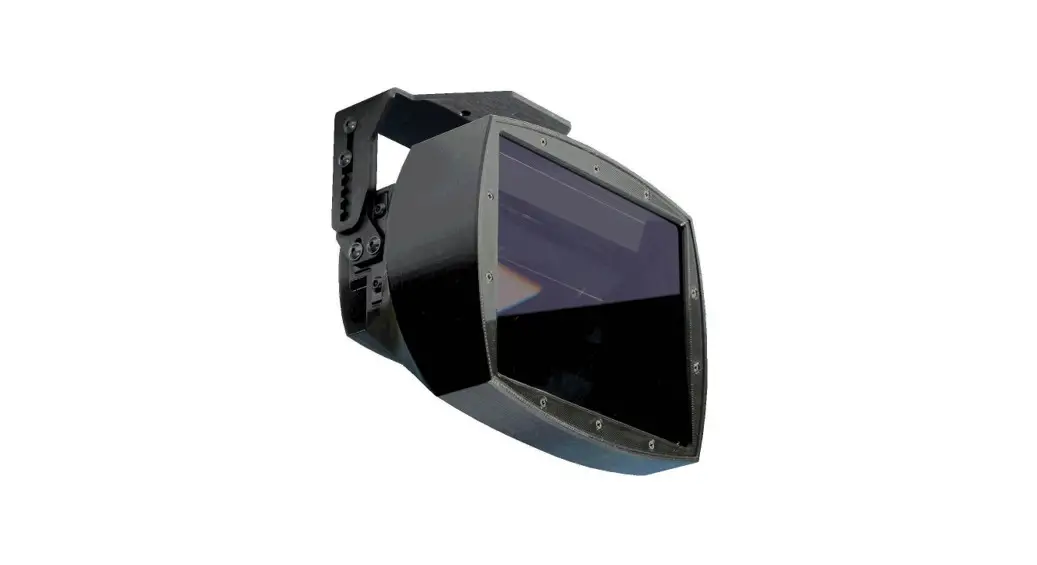
The DCR-S4-ST/SST is a Direct Attach Cinema Format Conversion
Lens designed for use only with Sony VPL-XW6000ES and VPL-XW7000ES
projectors. It has a diameter of 6.3 inches (160mm) and a depth of
5.2 inches (132mm), weighing 2 lbs (0.9 kg). The lens requires 4
inches (102mm) in front of the projector for installation.
The lens creates a slight pincushion shaped curvature, known as
Geometric Distortion, especially at the edges of the image. The
amount of distortion decreases as the projection distance is
increased for a given screen size. The Image Geometry estimator in
the Lens Selector at www.panamorph.com can be used to get an
approximate idea of the distortion to expect. Masking the edges of
the image by the screen border makes this distortion much less
noticeable, especially for dramatic content.
The product comes with an installation guide and requires a
Phillips #2 screwdriver for installation. The projector lens center
should be between 4 inches below and 12 inches above the top edge
of the screen surface and horizontally centered on the screen +/- 3
inches. The projection screen should have a minimum 2.5-inch border
and should be in the 2.25:1 aspect ratio for multimedia content. A
2.4:1 screen may also be used for primarily 2.4:1 content with
optical zoom adjustments or cropping for 16:9 content.
Product Usage Instructions
- Remove the two front assembly screws and remove the retainer.
Adjust the projector lens shift to vertically and horizontally
center the projector lens. - Prepare the projector by adjusting the projector roll, tilt,
and/or yaw so that the projector test pattern lines are square to
the screen edges. Adjust the zoom and vertical lens shift so the
test pattern is centered and fits the screen height. Now show a
2.4:1 movie instead of the test pattern. Set the Sony anamorphic
lens menu setting to 1.32x for a 2.25:1 screen or 1.24x for a 2.4:1
screen. Set the Sony Aspect button on the remote to V-Stretch. - After removing the rear DCR lens cover, install the DCR
lens/mount assembly over the retainer prongs. Insert and tighten
the two assembly screws to secure (do not over tighten). Remove the
front protective film. - Tilt the DCR lens in its mount to make any residual image top
curvature the same but opposite that at the bottom. Make final
adjustments to projector zoom and vertical lens shift to produce
the best fit of the image to the screen. Lock the DCR lens tilt by
tightening the single Phillips tilt lock screw.
ABOUT GEOMETRIC DISTORTION. Anamorphic horizontal expansion lenses create a slight “pincushion” shaped curvature especially at the edges of the image. The amount of this distortion decreases as the projection distance is increased for a given screen size. See the Image Geometry estimator in the Lens Selector at www.panamorph.com for approximate distortion to expect. Masking the edges of the image by the screen border makes this distortion much less noticeable especially for dramatic content.
CLEANING. Small amounts of dust and wipe marks are very noticeable on lens surfaces with a high brightness projection beam but typically will not impact the image as much as damage from excessive cleaning in pursuit of a “perfect” optical surface. Occasionally blowing off the lens surfaces with clean air is the best way to keep long term performance. If there is any excessive residue or build-up then it is recommended that you clean the optics with professional lens cleaning supplies such as from a camera store while the lens is in front of the lit beam of the projector. This will allow you to quickly see if the cleaning process is causing any damage.
LIMITED WARRANTY. Panamorph, Inc. warrants this product against any change in performance or functionality for a period of twenty-four months from our ship date. During this period, a unit may be repaired or replaced, at the discretion of Panamorph, Inc., by returning it in its original packaging with a copy of your receipt. This warranty does not cover damage resultant from lack of prudent care, accident or misuse (including use with other products in ways not intended); any cosmetic damage not reported within 15 days of purchase; or any performance change caused by the environment in which it is used. All damages are limited to the cost of the product. This warranty is not transferable.
See www.panamorph.com for projector viewing mode settings with illustrations for various content when using
either a 2.4:1 or 2.25:1 screen.
DCR-S3 Installation Guide Version 1.1
®
We bring cinema home
DCR-S4-ST/SST
Direct Attach Cinema Format Conversion Lens
INSTALLATION GUIDE (Phillips #2 screwdriver required)
For use only with Sony VPL-XW6000ES and VPL-XW7000ES projectors
Specifications: 6.3″ (160mm) diam x 5.2″ (132mm) depth. 2 lbs (0.9 kg). Allow 4″ (102mm) in front of projector for installation. See back page for warranty.
IMPORTANT THEATER GUIDANCE
1. Projection screen should have a minimum 2.5″ screen border and in the 2.25:1 aspect ratio for multimedia content. A 2.4:1 screen may also be used for primarily 2.4:1 content with optical zoom adjustments or cropping for 16:9 content. 2. Projector lens center should be between 4″ below and 12″ above the top edge of the screen surface (about +3 to +5 inches is ideal) and horizontally centered on the screen +/- 3 inches.
See the www.panamorph.com for compatible throw distances, screen sizes and projector viewing mode settings.
US Patent 11635676. Other US and international patents pending.
DCR-S4-ST/SST Installation Steps
1
INSTALL THE LENS RETAINER. Remove the two front assembly screws and remove the retainer. Adjust the projector lens shift to vertically and horizontally center the projector lens.
Squeeze the retainer and work it into the projector opening to
nest into the inside rim of the projector housing with prongs toward
the ceiling and bottom ridge aligned with the projector bottom-
front rib. Tighten the retainer screws just enough to prevent rotation.
Prongs to Ceiling
Assembly Screws
Tilt Lock Screw
Bottom Ridge
PREPARE THE PROJECTOR. Adjust the projector roll, tilt and/or yaw so the projector test pattern lines are square to the screen edges. Adjust the zoom and vertical lens shift so the test pattern is centered and fits the screen height. Now show a 2.4:1 movie instead of the test pattern. Set the Sony anamorphic lens menu setting to 1.32x for a 2.25:1 screen or 1.24x for a 2.4:1 screen. Set the Sony Aspect button on the remote to V-Stretch.
3
INSTALL THE DCR LENS. After removing the rear DCR lens cover, install the DCR lens/mount assembly over the retainer prongs. Insert and tighten the two assembly screws to secure (do not over tighten). Remove the front protective film.
4
ADJUSTMENTS. Tilt the DCR lens in its mount to make any residual image top curvature the same but opposite that at the bottom. Make final adjustments to projector zoom and vertical
lens shift to produce the best fit of the image to the screen.
Lock the DCR lens tilt by tightening the single Phillips tilt lock screw
(do not over tighten). As desired you may want to adjust the panel
alignment in the projector (see Sony instruction manual).
5
DECIDE HOW TO WATCH OTHER CONTENT. Use the Sony “Aspect” button to select Squeeze (anamorphic to 1.24x) to watch 16:9 content (including menus) in the screen center, or
Normal to stretch 16:9 content to fill the entire screen width.
On a 2.4:1 screen zoom down the image to avoid cropping the top and
bottom. Use V-Stretch with 1.24x for 2.0:1-2.2:1 content.
www.panamorph.com
 Lens Options