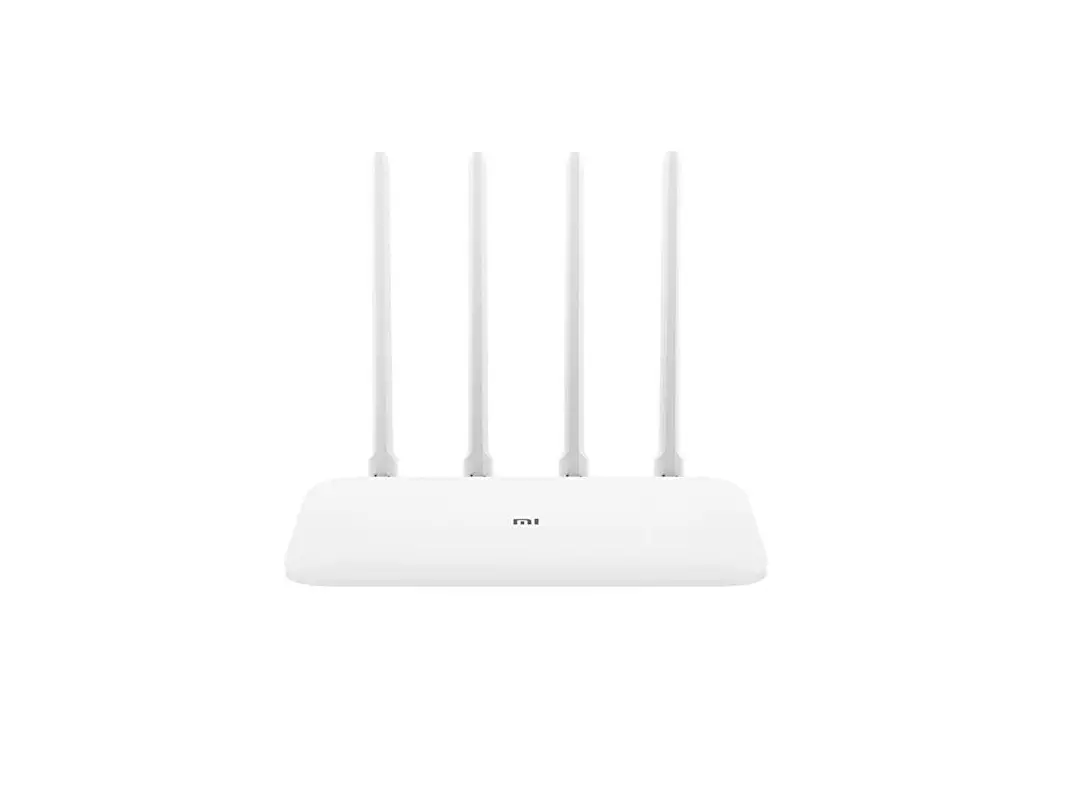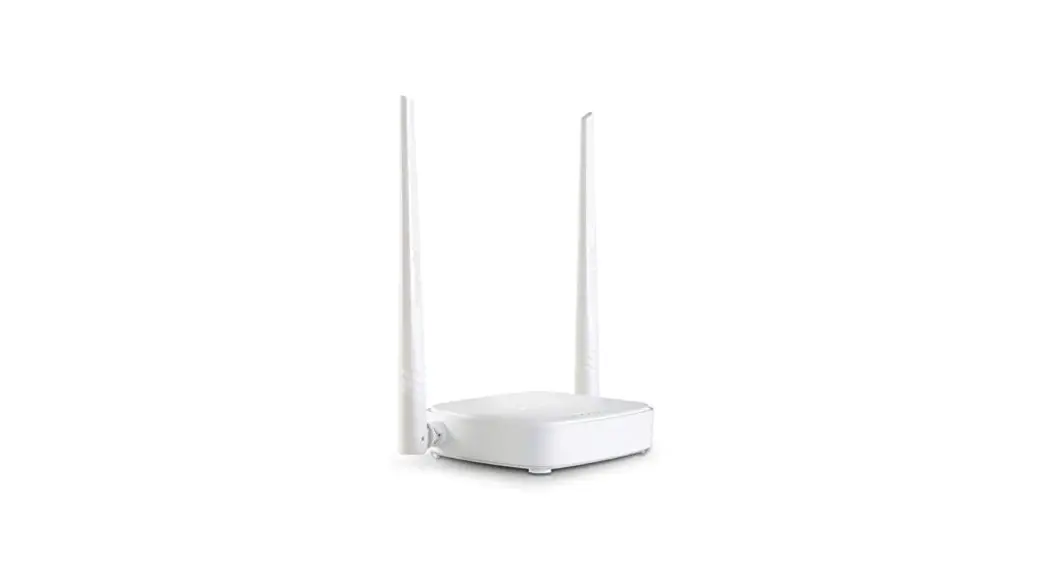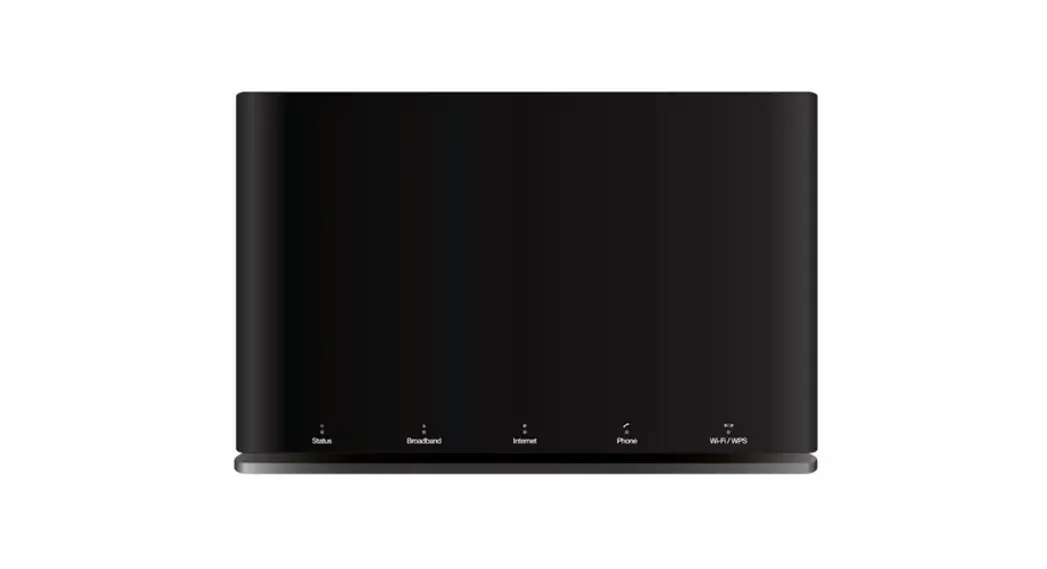
 Super router
Setup guide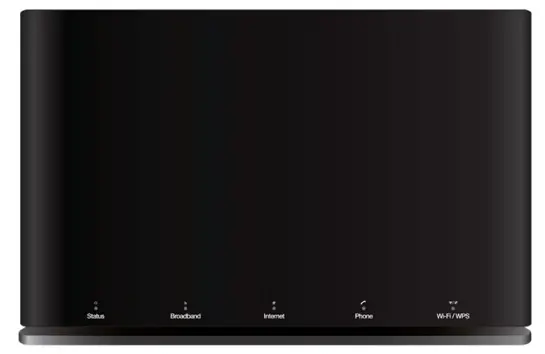
Thanks for choosing UW to provide your broadband
We know you want to get online quickly but please take a few minutes to read this guide. It’s full of useful information on how to set up your router and get the best possible service.
You can also watch our quick router setup video at uw.link/router-set-up
Check
Your activation date
Please wait until we’ve activated your broadband before you set up your router. You’ll find your activation date in the letter that came with your broadband router box. Your service could go live anytime up to midnight on this date.
What’s in the box?
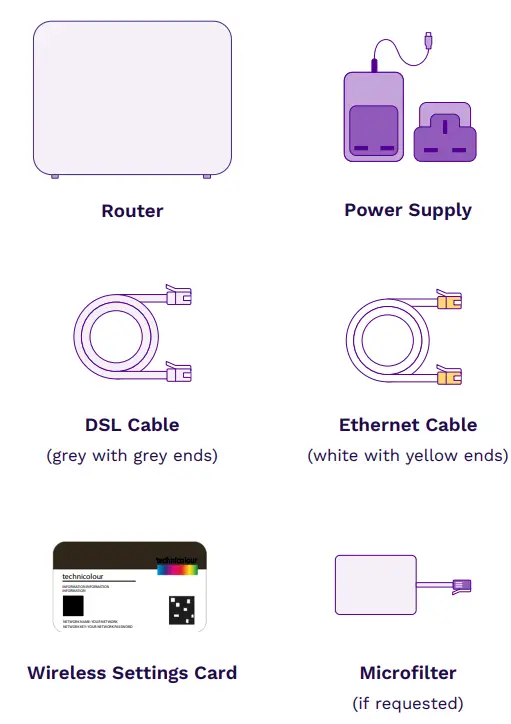
Find
Your master socket
Unplug any existing equipment from your master socket.
Connecting your router to the master socket will give you the best broadband speed.
The master socket is usually slightly larger than a normal phone socket and often has a horizontal line in the middle. It might also have a BT or Openreach logo.
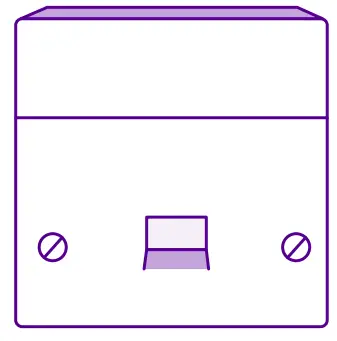
Can’t find your master socket?
Don’t worry, you can connect your router to a convenient phone socket. Your broadband should still work but may not perform as well.
Tip
You can find the master socket by following the phone line that comes into your property from outside.
Plug in
The way you set up your broadband equipment depends on the type of telephone socket you have installed in your property.
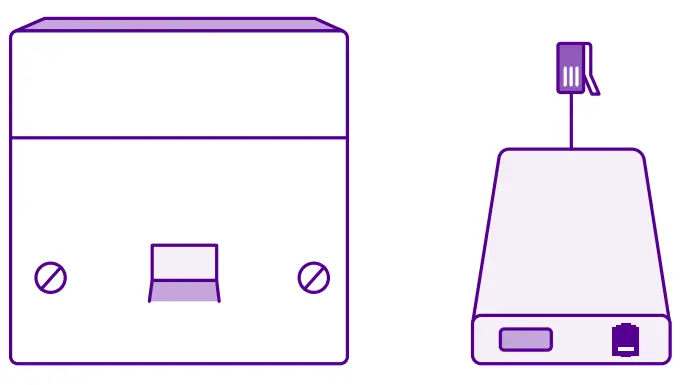
If you have a standard master
socket you’ll need to use a microfilter for every socket in your property that has a device connected to it.
- Insert the microfilter in the standard master socket.
- Connect your telephone cable to the microfilter socket labeled ‘phone’ and the DSL cable into the socket labeled ‘DSL’.
- Connect the other end of the DSL cable to the grey socket labeled ‘DSL’ on the back of the router.
- Assemble the power supply by sliding the plug into the slot on the power adaptor and connect it to the router.
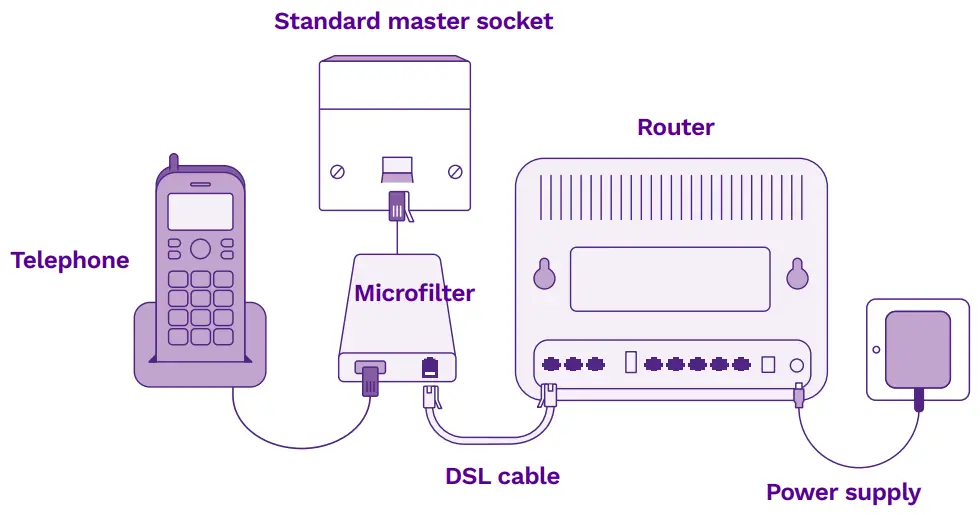
Turn on the main switch and push the black on/off button on the back of the router. A sequence of lights will come on and may take a minute or two to stabilise.
Remember
You’ll need to connect a filter to every telephone socket that is in use in your property.
If you have a pre-filtered master socket you won’t need to use microfilters on your property.
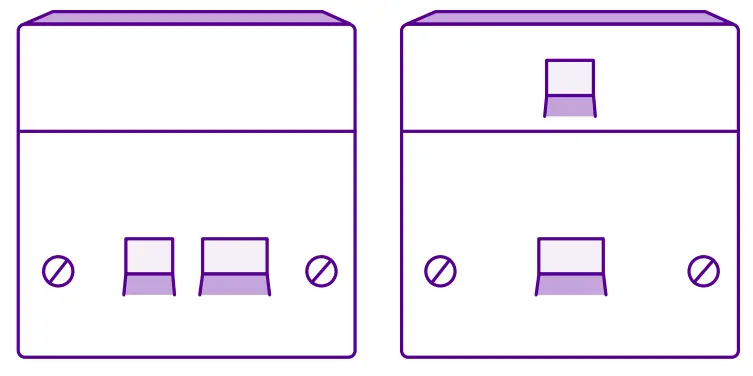
- 1. Connect your telephone cable to the larger of the two sockets on the pre-filtered master socket and the DSL cable to the smaller socket.
- Connect the other end of the DSL cable to the grey socket labeled ‘DSL’ on the back of the router.
- Assemble the power supply by sliding the plug into the slot on the power adapter and connect it to the router.
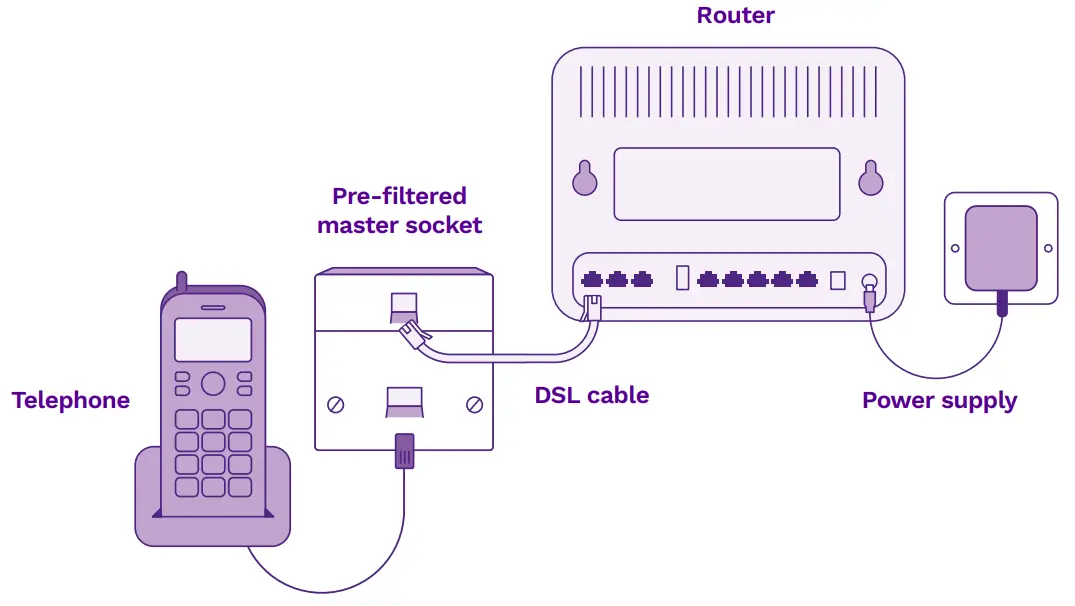
Turn on the main switch and push the black on/off button on the back of the router.
A sequence of lights will come on and may take a minute or two to stabilise.
Connect
Wireless Connections
- Go to your device settings and make sure your Wi-Fi is turned on.
- You’ll see all available wireless networks. Click on your wireless network (you can find your network name on the Wireless Settings Card).
- Enter the wireless key from your Wireless Settings Card when prompted. Click ‘Join’ or ‘Connect’.
How you connect to the internet varies from device to device. If you’re unsure, please check the manufacturer’s instructions.
If you have WPS (Wi-Fi Protected Setup) enabled on your device, you can connect automatically rather than searching for the network and typing in the wireless key. Just press the WPS button on the top of your router and then press the WPS button on your wireless device to connect to the internet.
Wired Connections
- Plug one end of the Ethernet cable into one of the yellow ports on the back of the router.
- Plug the other end into the port on your computer with this symbol
 on a PC or this symbol <…> on a Mac.
 on a PC or this symbol <…> on a Mac.
That’s it – you’re ready to go online.
Tip
Your network name and wireless key are also printed on the back of your router.
Help
Having trouble connecting?
There are some simple steps you can take before calling us.
- Check that everything is connected properly. Refer to pages 6 and 7 to see what your setup should look like.
- Check the power light on the router is on. If it’s not, please make sure that your power supply is plugged in properly.
- Check that Wi-Fi is enabled on your device if you’re connecting wirelessly.
- Check you’ve entered the details on your Wireless Settings Card correctly.
- Restart your equipment. Push the black on/off button on the back of the router. After 20 seconds, push the on/off button again. A sequence of lights will come on which may take a minute or two to stabilise. Now try connecting to the internet again.
Tip
We’ve put together a video tutorial that talks you through how to set up your router. Watch it here: uw.link/router-set-up
Still need help?
If you’ve followed all the steps in this guide and are still experiencing difficulties, please call us at 0333 777 0777. For more help setting up, visit help.uw.co.uk
What the lights on your router mean
| Power | Status | What it means |
| Green – solid | The router is on and ready to use. | |
| Green – flashing | Firmware upgrading. | |
| Orange | The router is starting up. Leave the router until the power light turns green. | |
| Red | There’s an error. If it remains red for more than a few minutes, simply turn off the router for a few moments and switch it back on. | |
| Off | Power is off. Double-check the power cables and ensure the router is switched on using the black button on the back. | |
| Broadband Signal | Green – solid | Broadband connection is detected and active. |
| Green – flashing | Broadband connection is detected and a line is synchronized. | |
| Off | No broadband connection. | |
| Internet | Red – solid | Connection failure (will normally revert to flashing as connection re-attempts continue). |
| Red – flashing | Trying to connect to the internet. | |
| Off | No internet connection. | |
| WPS | Green | Pairing complete. |
| Orange | Pairing is in progress. | |
| Red | Pairing failed. | |
| Wi-Fi | Green – flashing | Wi-Fi is enabled and traffic is present. |
| Off | Wi-Fi disabled |
Your UW Account
Manage your account, view your bills, submit meter readings, and much more, all in one place.
Save more
✓ Up to 10% cashback on your online shopping
✓ Up to 7% cash back at major UK retailers with the UW cashback card
Get your account at your fingertips
✓ View your monthly bills
✓ Give meter readings 24/7
✓ Top up your mobile and cashback card
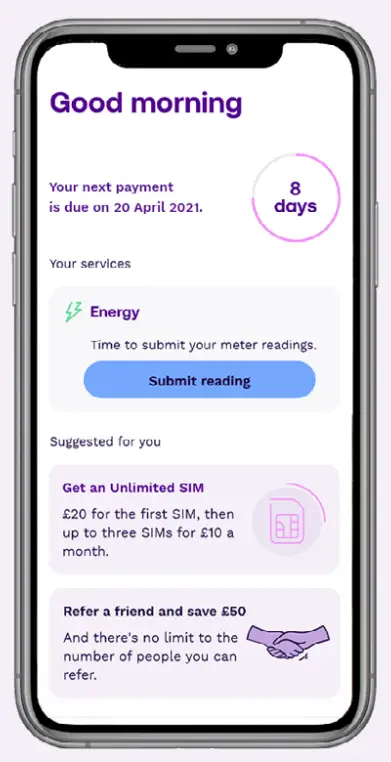
Not yet registered for your online account?
It’s easy – just visit uw.link/register
All you need is your account number and date of birth.
Already registered?
Just log in at uw.link/login
Download the free UW app
Manage your Utility Warehouse account on the go.

We’re here to help
You’ll find lots of useful information at help.uw.co.uk
Or if you’d prefer, you can call us:
Residential customers
For technical support please call: 0333 777 0777
Business customers
For technical support please call: 0344 815 0040
Our Technical Support team is here to help from 8am to 8pm
Monday to Friday and 9am to 4.30pm Saturday.
Calls to these numbers are free from a Utility Warehouse landline, or from any mobile as part of an inclusive call bundle; otherwise, 03 numbers are charged at standard national rates. Alternatively, please send us an email:
uw.co.uk/help/contact-us
Utility Warehouse
Network HQ,
508 Edgware Road,
The Hyde,
London,
NW9 5AB
UWSRSG1021
 Utility Warehouse help and support
 Contact UW