BIGASUO
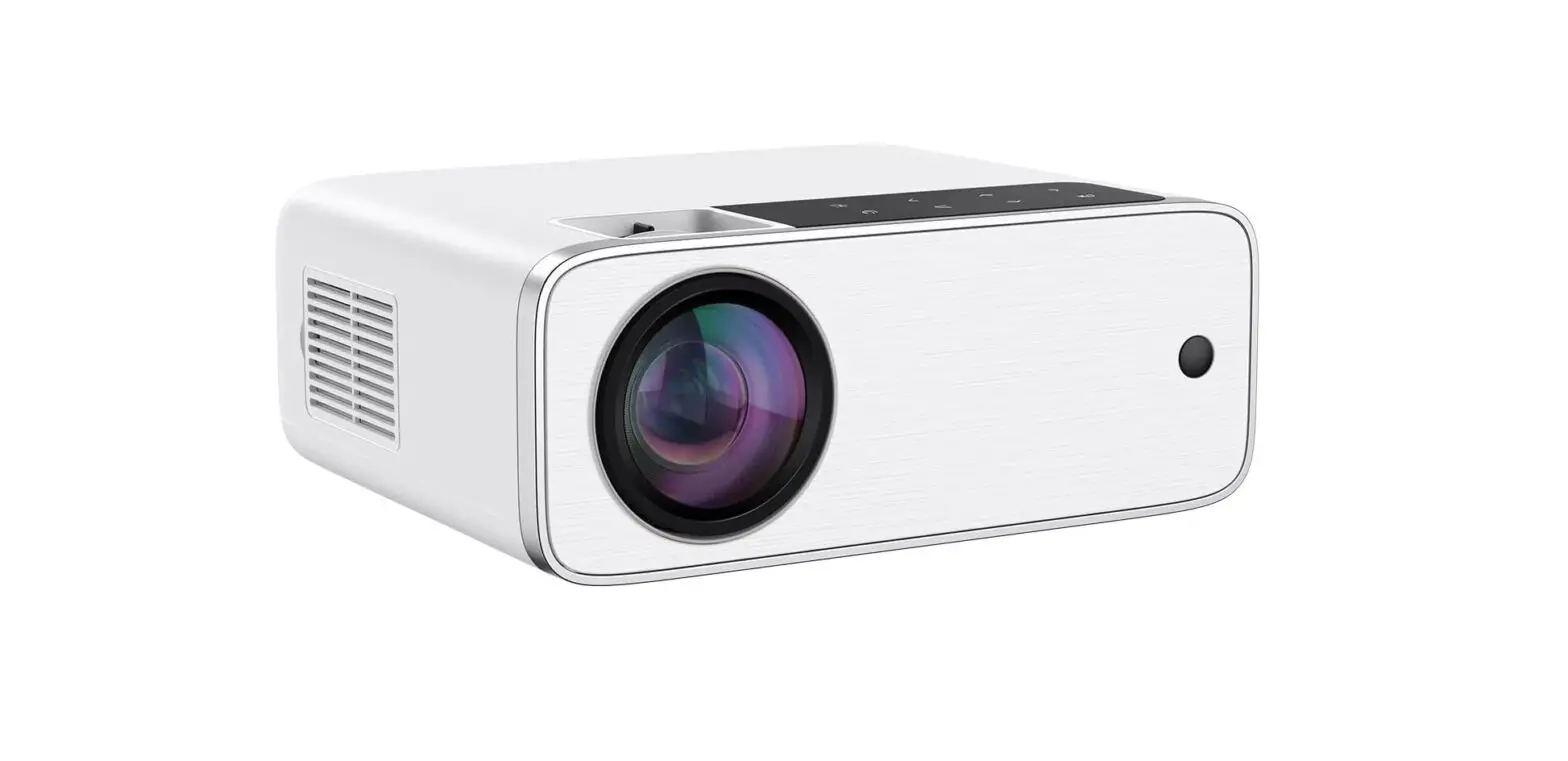
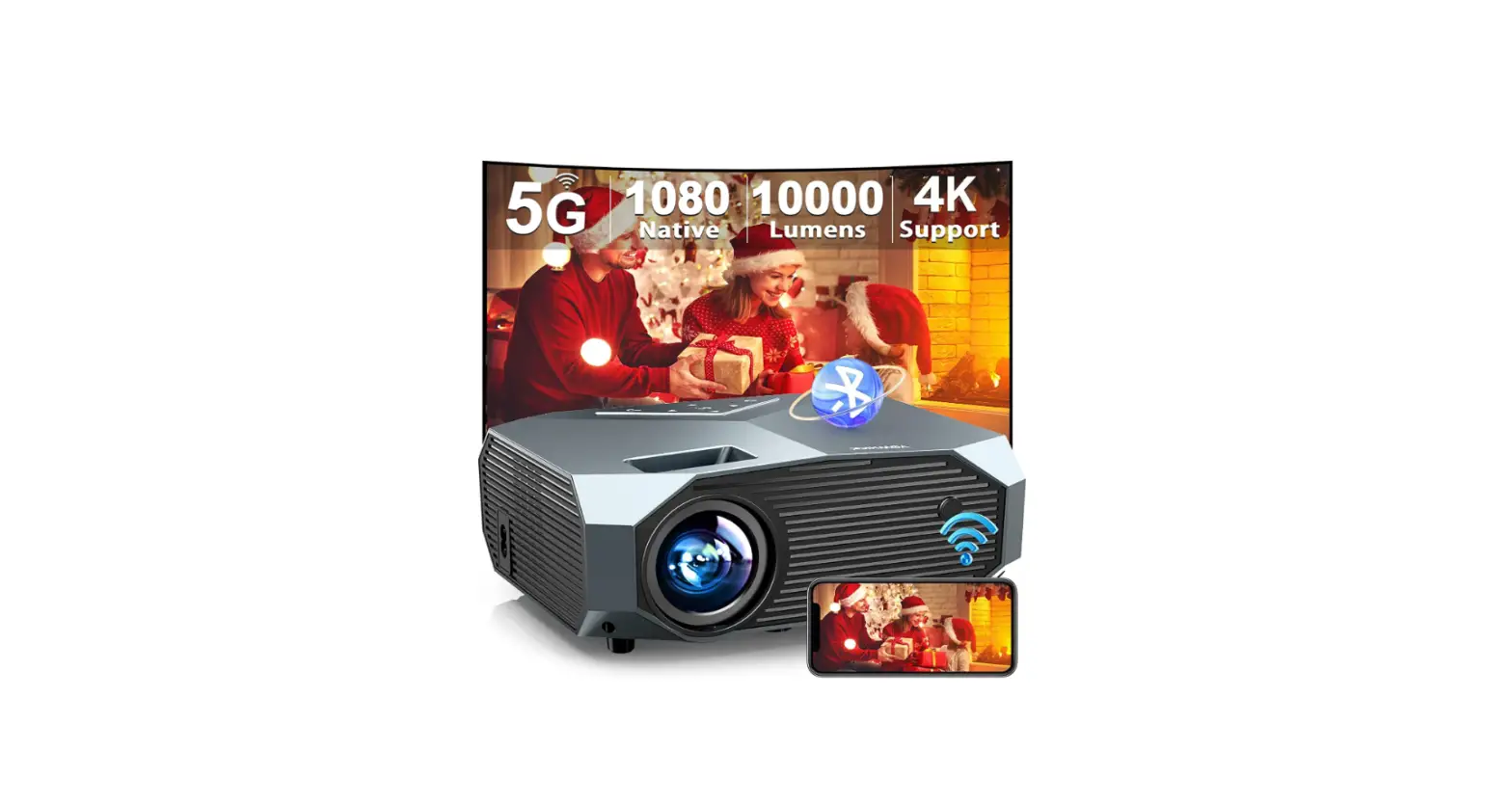
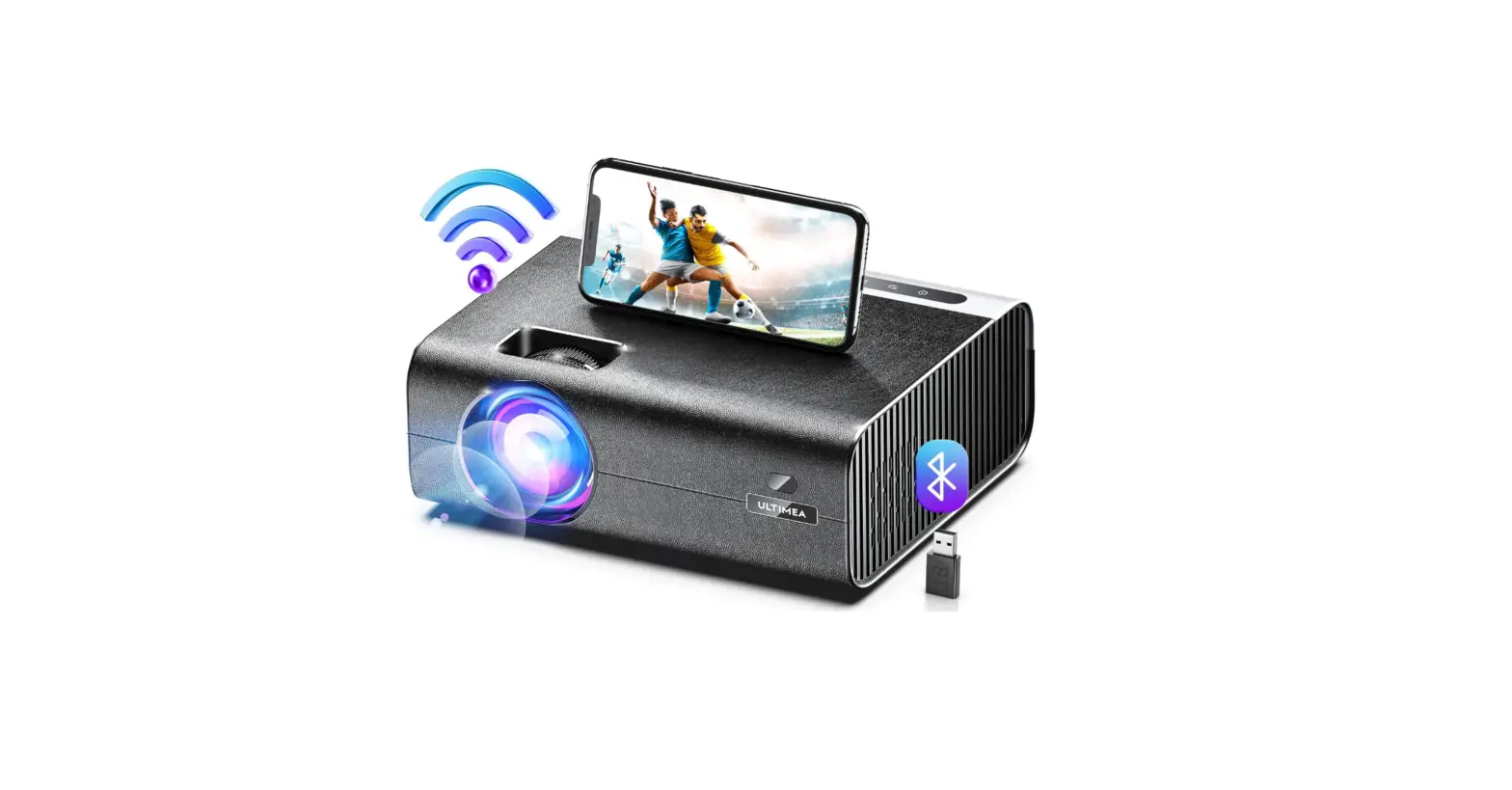
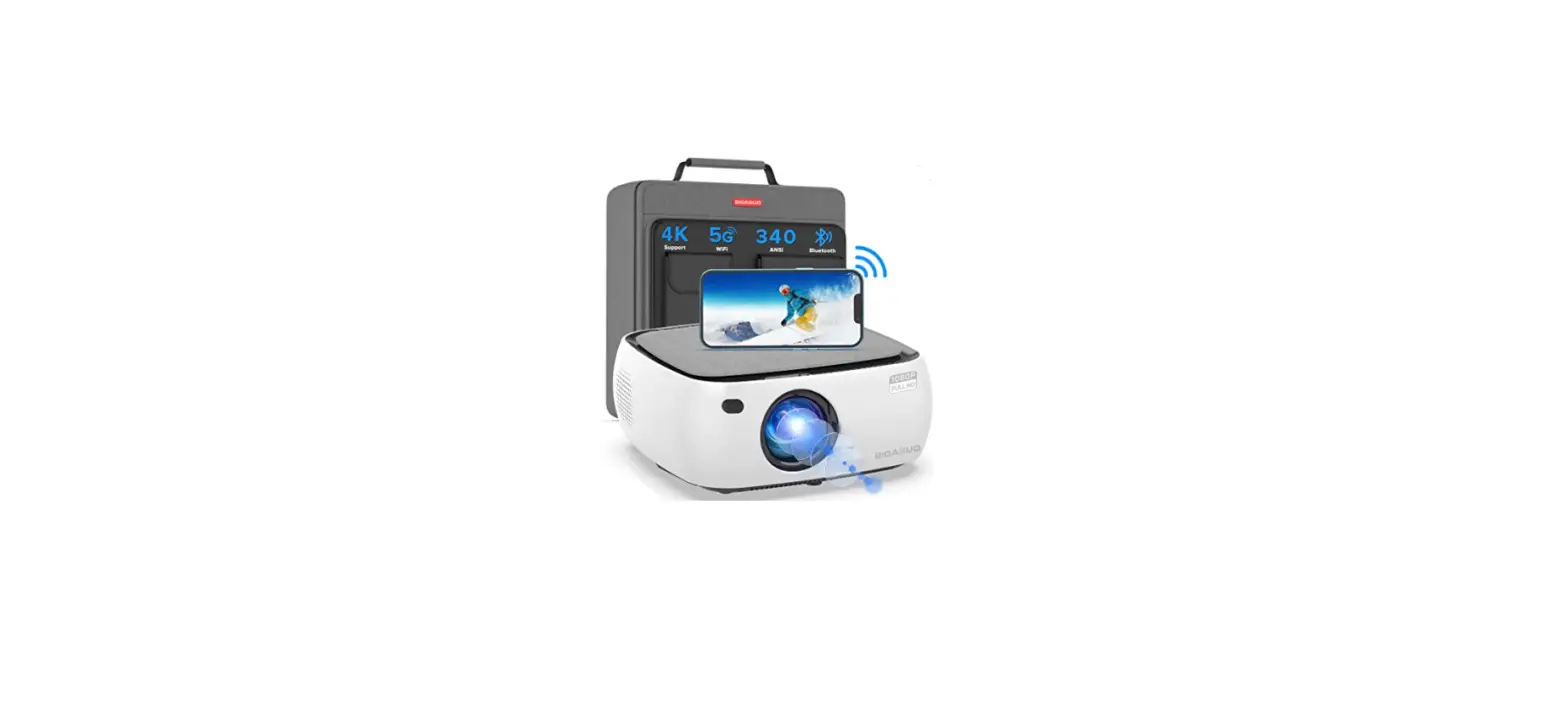
BIGASUO V511 340ANSI Outdoor Movie Projector
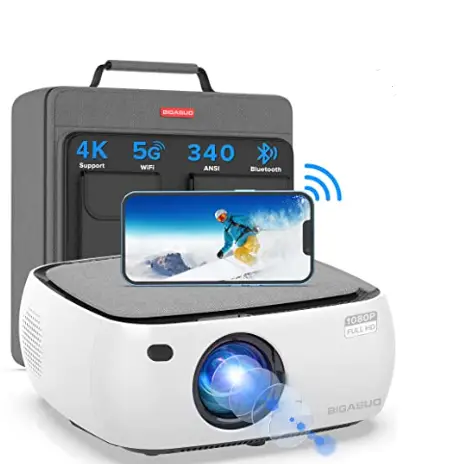
TURN ON THE PROJECTOR
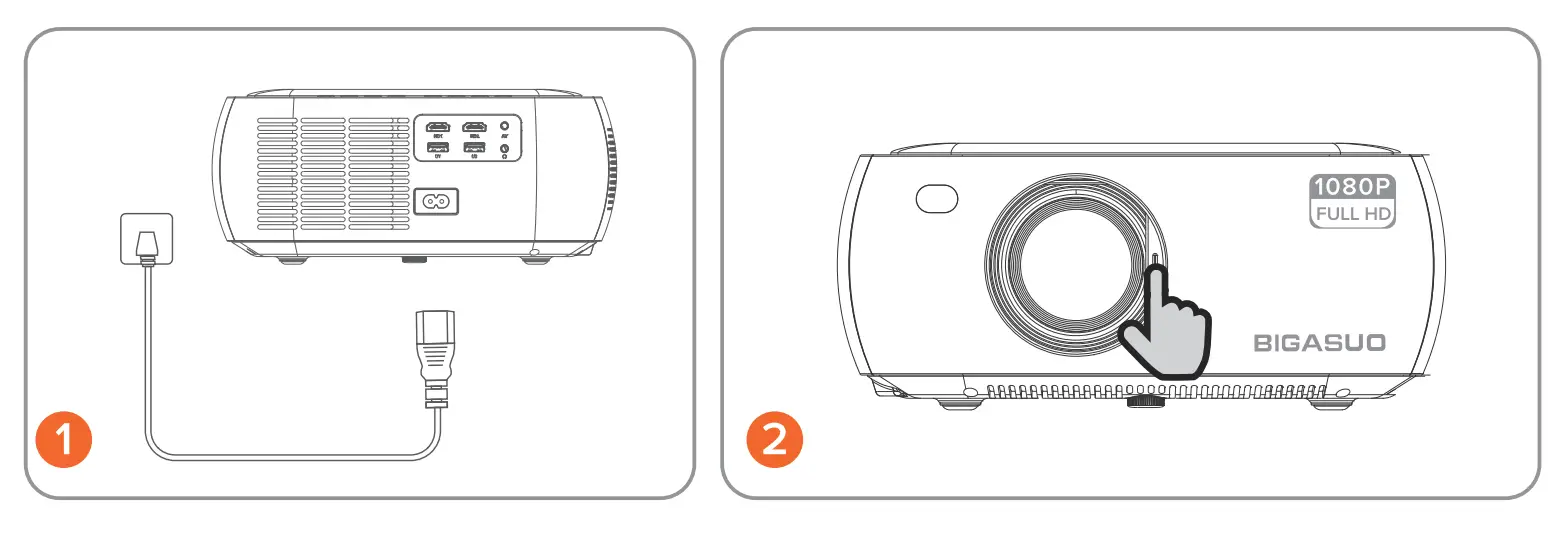
- (Plug the power cord into an outlet)

- (Push open the lens cover to turn on the projector)
- The projector will turn on in about 3- 5 seconds.
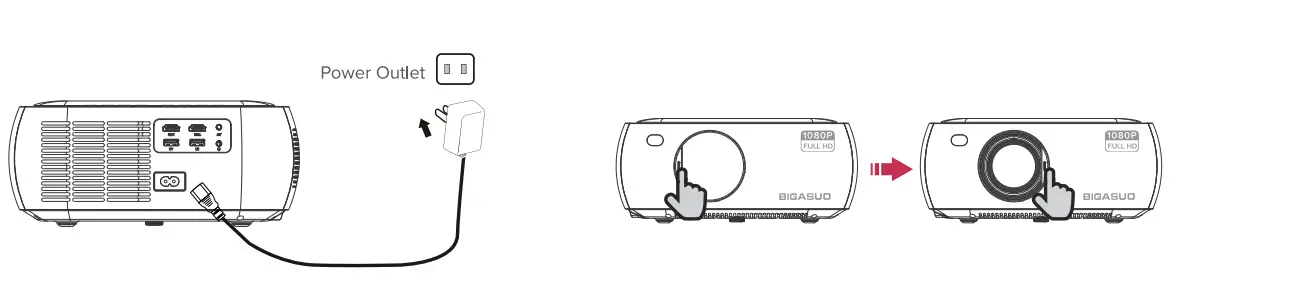
TURN OFF THE PROJECTOR
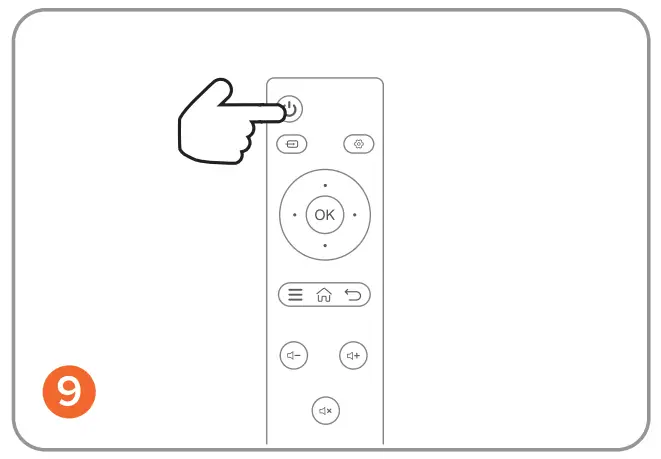
- Close the lens cover or press the power button C!!) on the remote control to turn off the projector

- Remember to unplug the power cord from outlet after each time of use.
Tips: Please don’t unplug the power adapter directly before turn the projector off, which may cause damage to the machine.
Actually, many problems can be easily solved by setting, without having to choose to return. If you have any issues, email your order number and the problem to [email protected]. We promise to quickly provide you with a satisfactory solution within 24 hours.

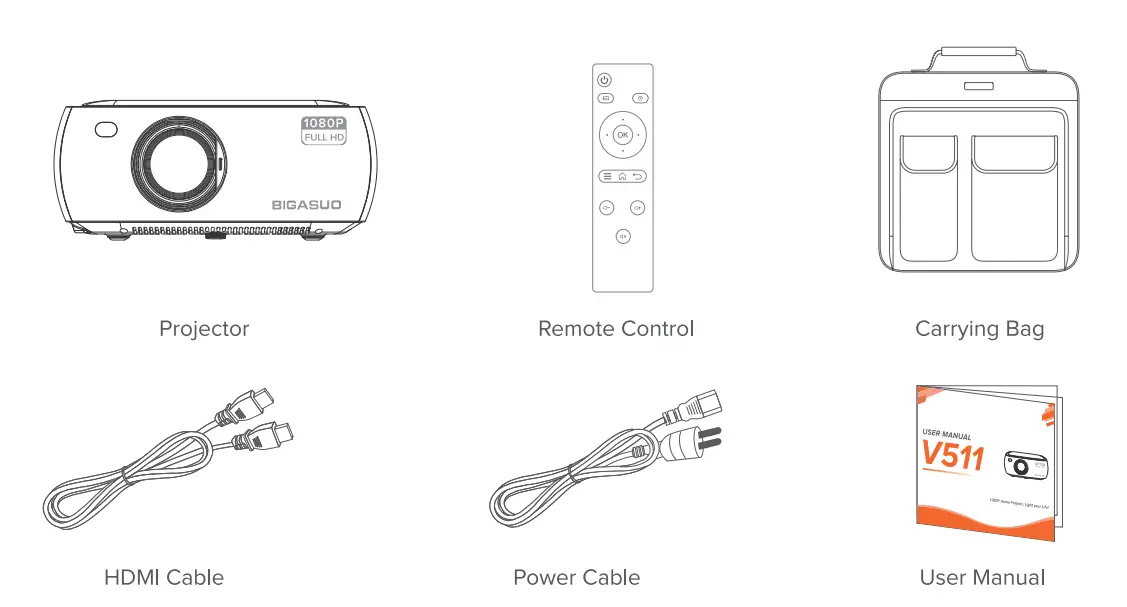
PACKING LIST
NOTICE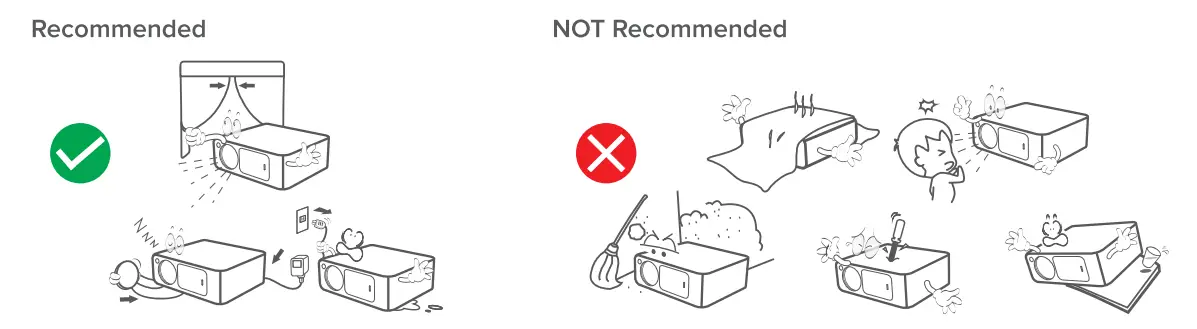
QUICK START
- Plug the power cord into an outlet

- Push Open the lens cover to turn on projector
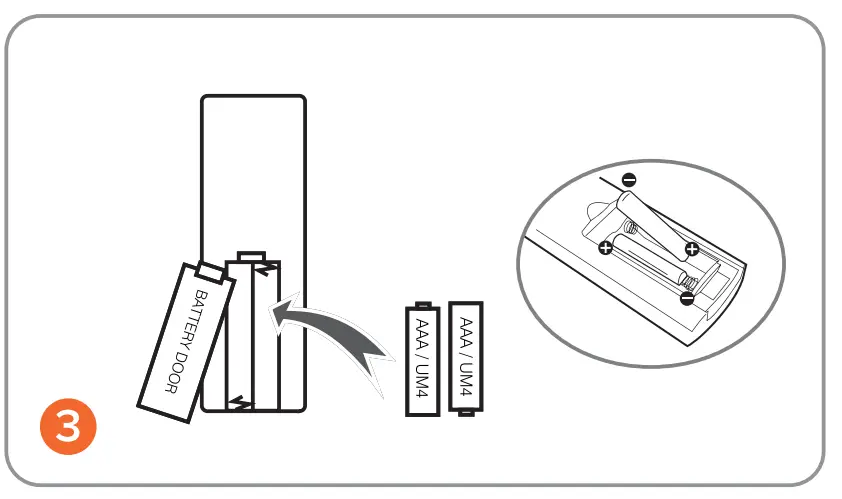
- Install Batteries (Not included) in the remote control

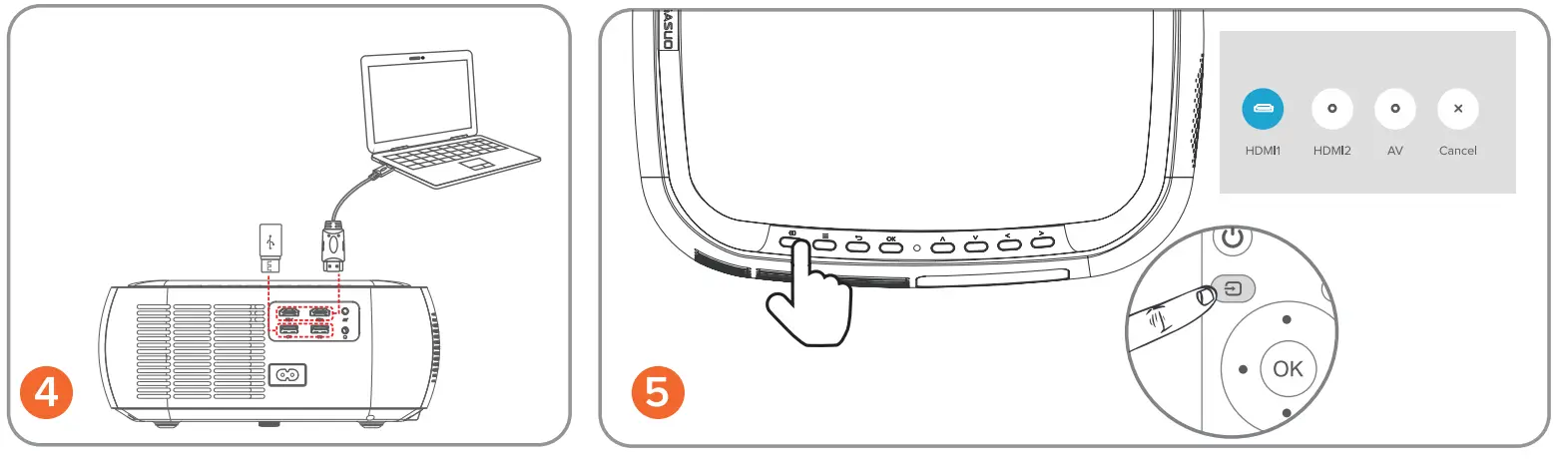
- Connect your device to the projector correctly

- Press Source Button and Select the correct input source
- Enter Image Setting to choose four sides (4D Keystone) /four corner (4P Keystone) to get rectangle image

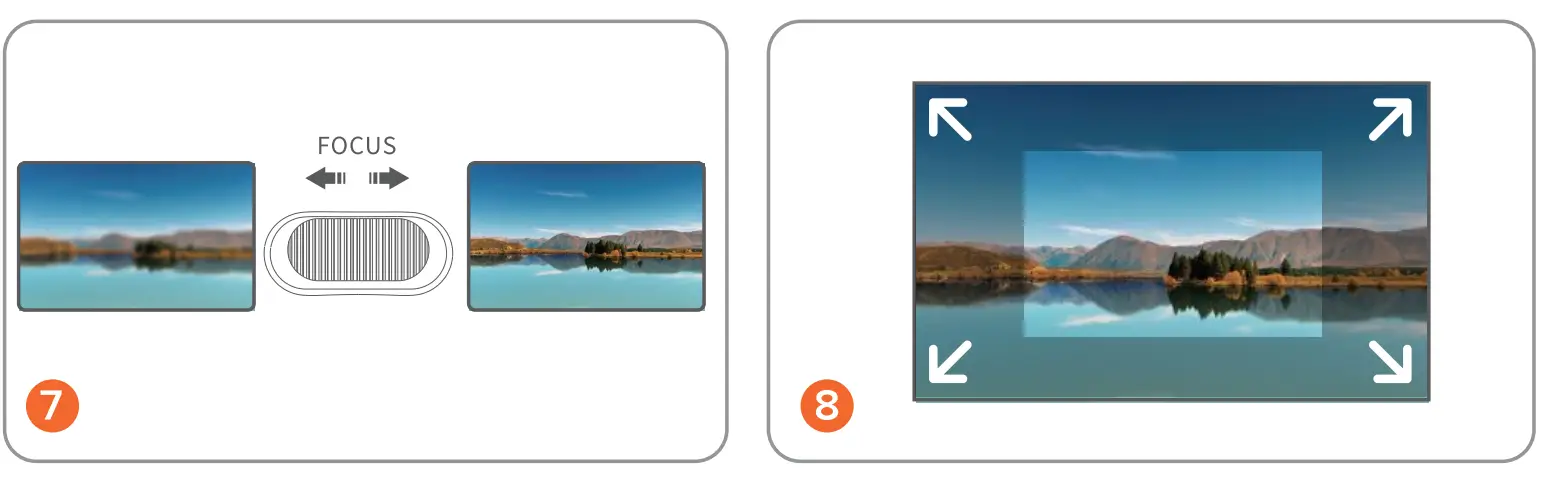
- Adjust the focus ring to get the best image performance.

- Enter Image Setting to choose digital zoom to a suitable size
- Press the power button to turn off get the projector

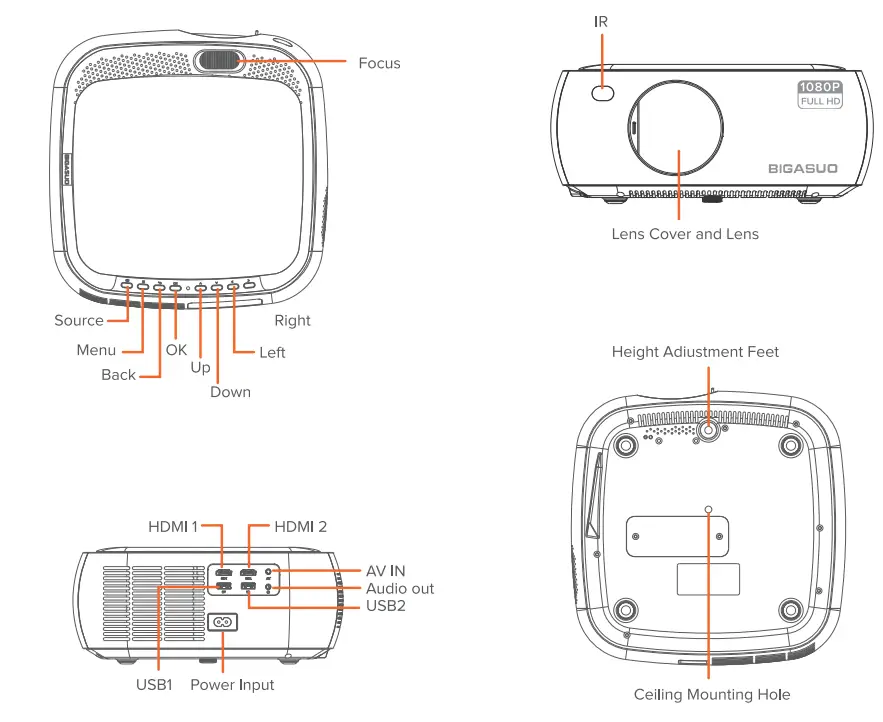
PROJECTOR OVERVIEW Remote Control
 Remote Control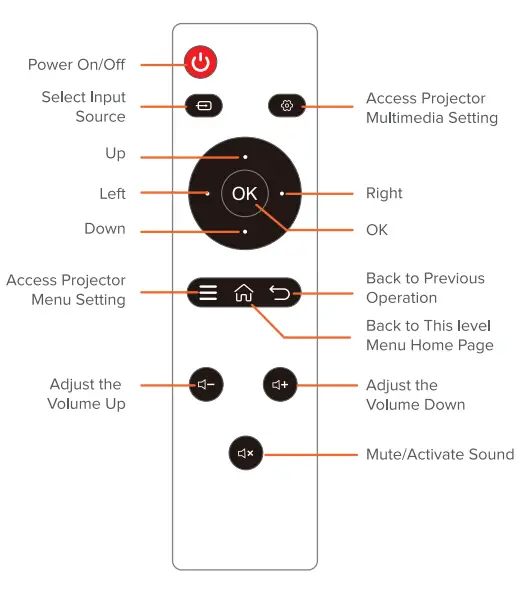
USING NOTICE
Note:
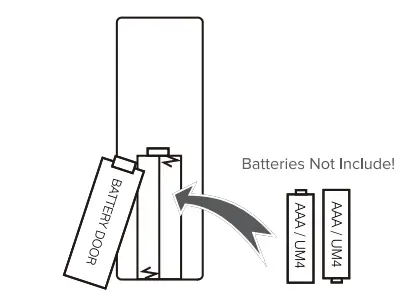
- Install 2 pieces of AAA batteries into the remote before using it. Do not combine new batteries with old ones in the remote controller, which can cause operation failure due to insufficient power supply.
- When using the remote controller, please make sure that the signal transmitter of the remote controller aims at the infrared signal receiver of the projector.
- If you are not using the remote controller for an extended period, please take out the batteries to prevent battery leakage.

for an extended period,please take out batteries to prevent battery leakage.
PROJECTION DISTANCE & SIZE
The recommended projection screen is around 80 inches with a distance of around 9.84ft.
Dark environment & a good project screen will improve the clarity of the projected images.
The image size depends on the actual projection environment and screen distance, there may be deviation among the following data, please understand! 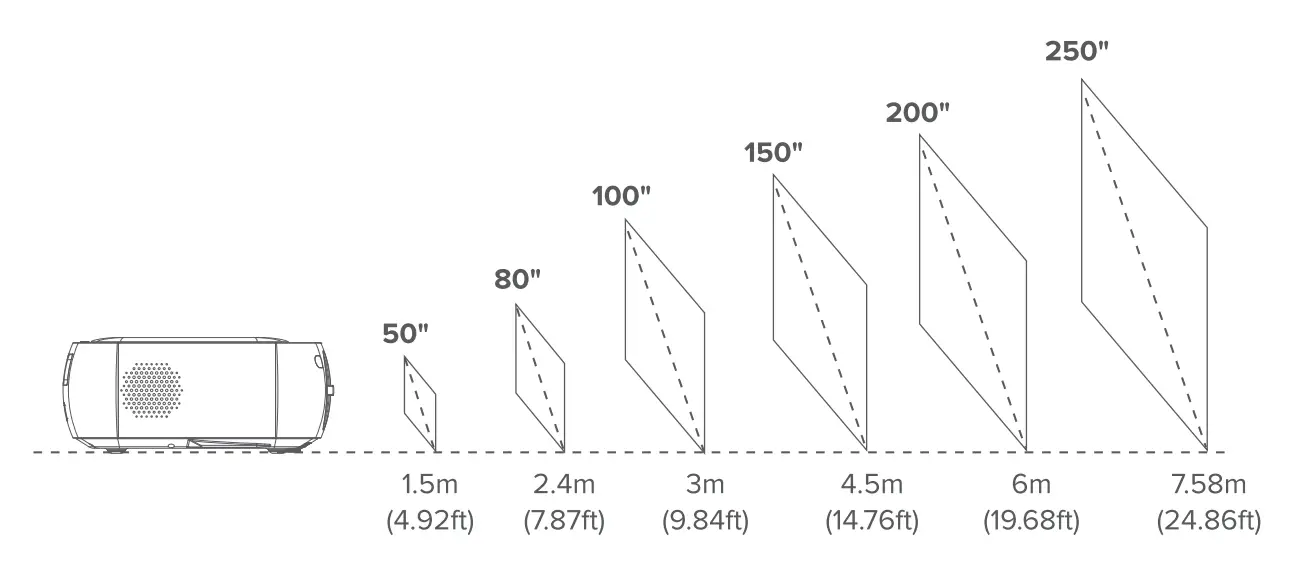
PROJECTION MODE
If you want to project in different way, please select corresponding mode in the setting page.
Keep the projector at a height where its lens is axial symmetry to the screen. If this is not possible, you can use the keystone correction function to adjust the projection image.
Ceiling mount
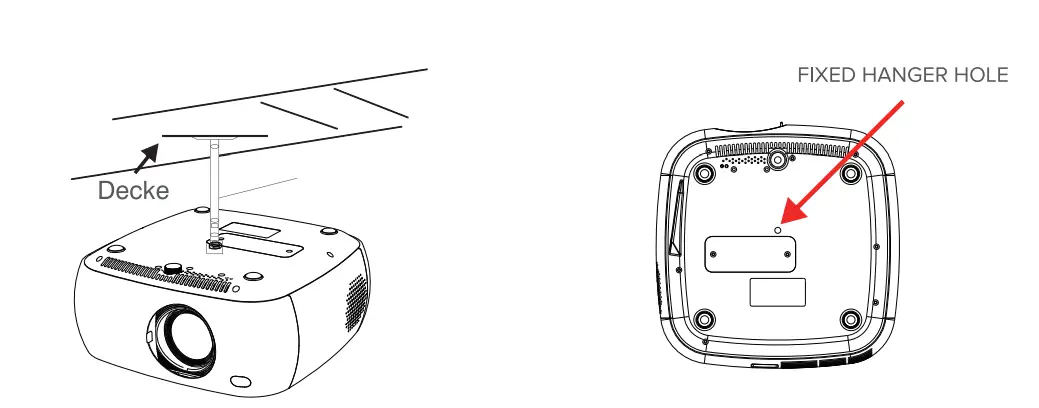
When installing the projector in the ceiling, please purchase a projector mount.
Recommended by an installation professional and follow the instructions that come with the mount.
NOTE: Projector mount and screw(s) not included!
PROJECTOR CONNECTION INSTRUCTION
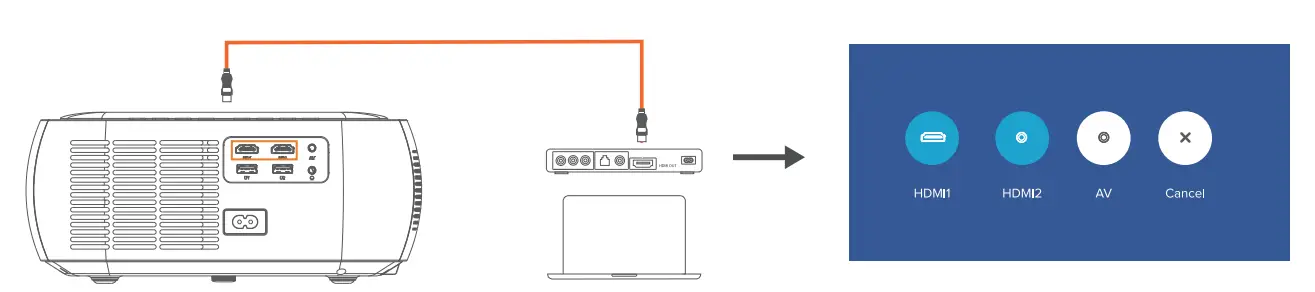
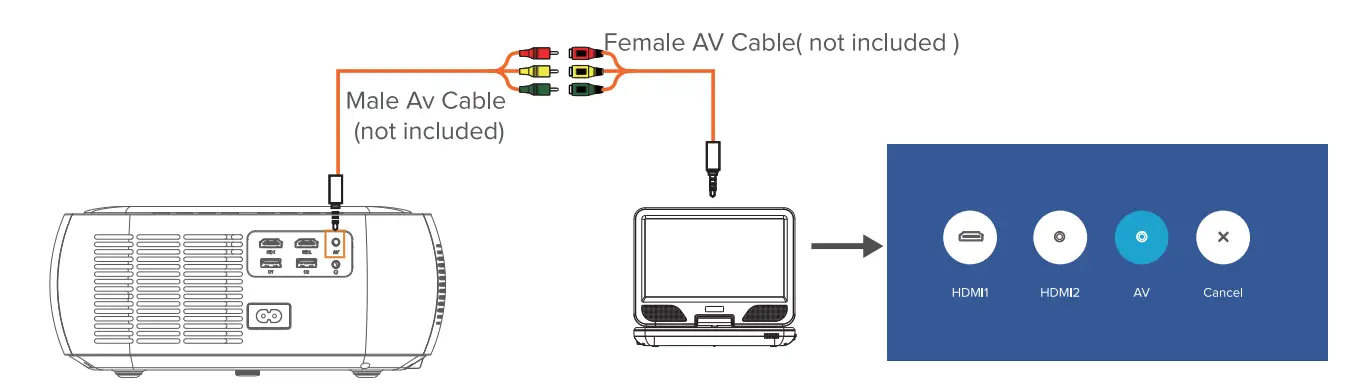
- Select an Input port
You can choose different ports (HDMI/AV/AUDIO/USB) to connnect you need devices , wihle please choose corresponding input source.- HDMI Connection
Connected with laptops, DVD players, Blu-ray players, Chromecast, TV Stick, etc.
- B. AV Connection
Connected with Portable DVD PlayersNideo Player/Set-Top BOX etc.
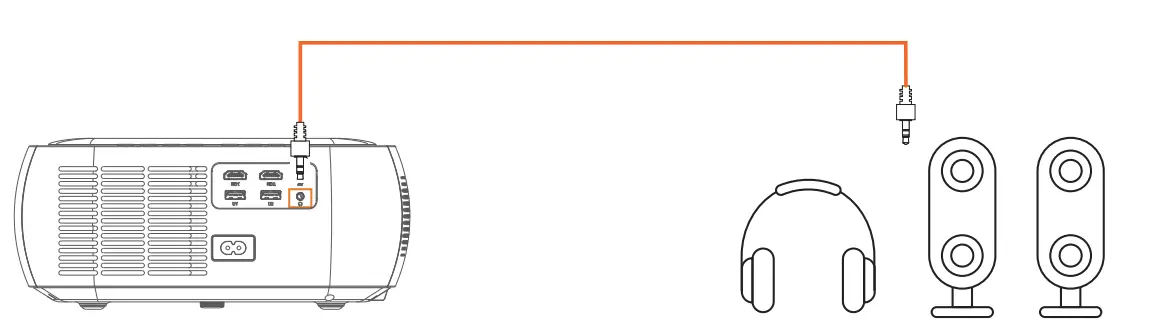
- Audio devices Connection
Using a 3.5 mm audio cable (not include), you can connect the projector with an external speaker.
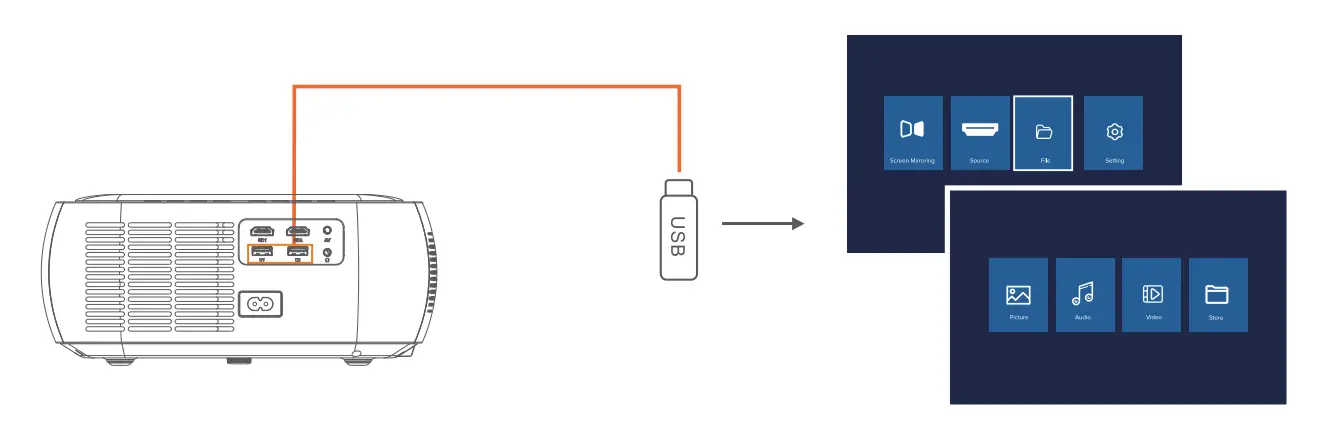
- USB Connection
Insert the USB into the accordingly slot. Go to Homepage>File , Choose the content which you needdisplay: Picture, Audio, Video, Store.
- HDMI Connection
- Media Player Setting ( Using Path: Homepage>File)
When you are using media player, please choose correct entrance in home page first. If you enter from Video, it will ONLY detect files of video format in the USB stick. (The other three interface and so on.)


note- Enter “Store”, all types of files in USB can be read, including PPT, Word, Excel, etc.
- Enter “Store”, this projector supports to connect a keyboard or mouse via the USB inteface for more detailed operations on the opened documents.
- Recommended projection size is within 80inches if enter”Store” to playback file to get the best effect.
- The file is bigger, the opening time will be longer, please wait with patience.
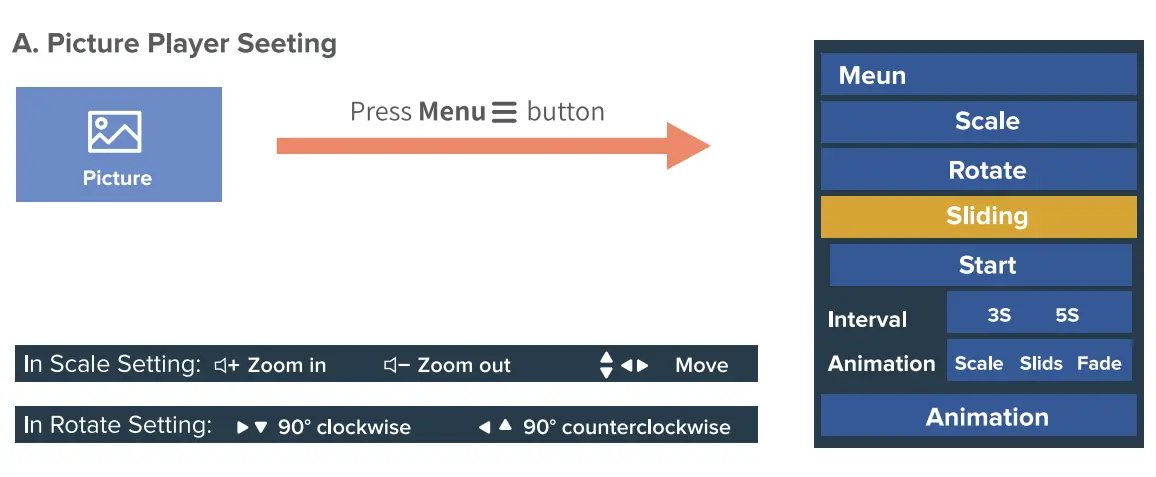
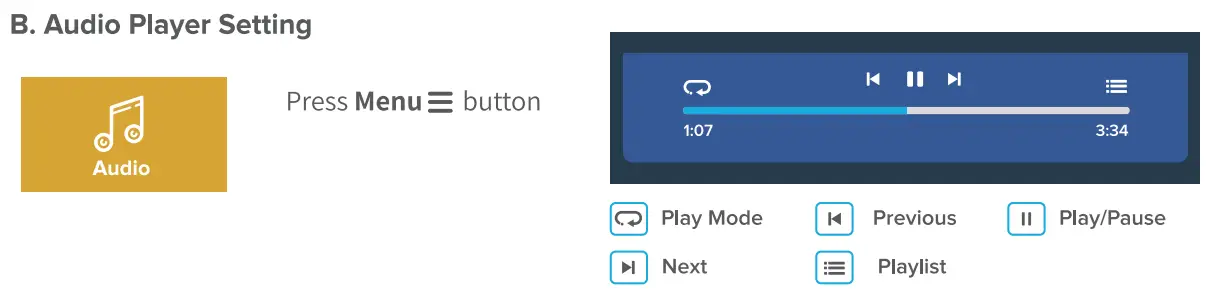
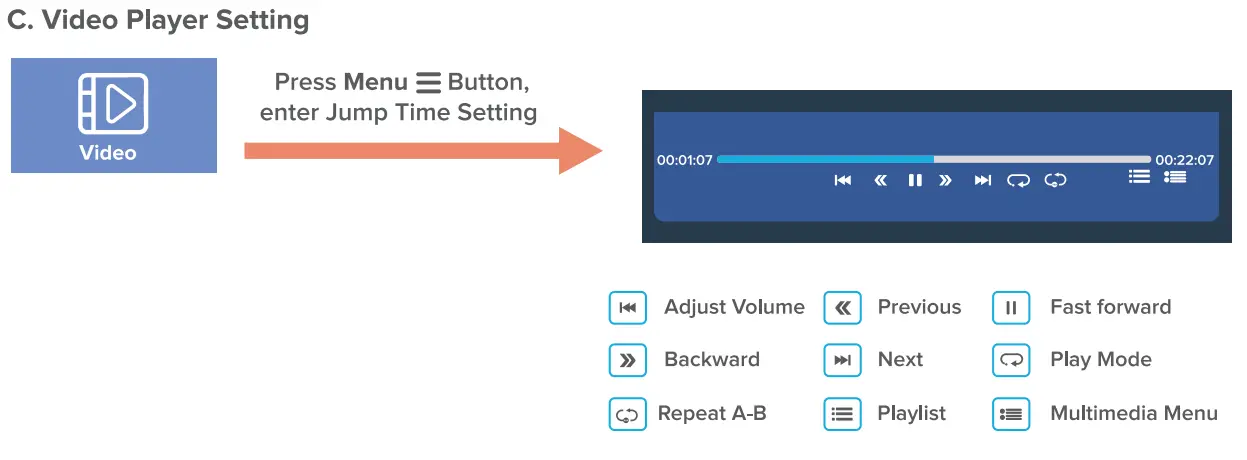
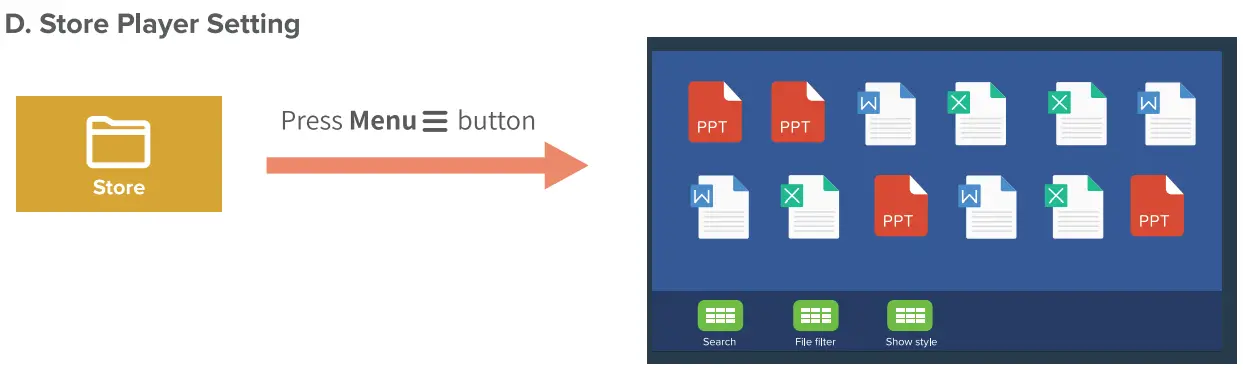
PICTURE AND SOUND SETTINGS
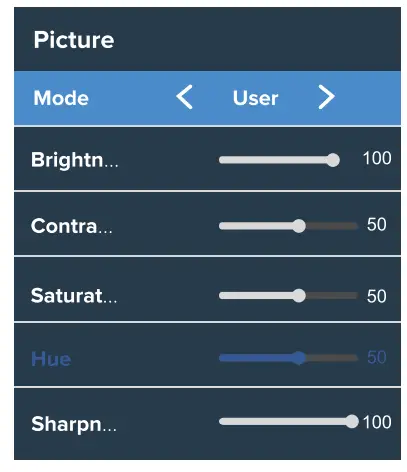
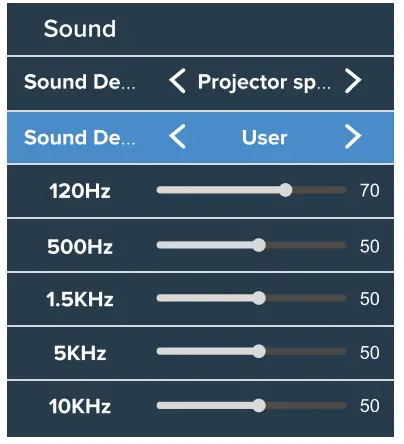
Press Setting Button  to enter picture and sound setting
- Picture Settings

Picture Mode
User/ Standard/ Vivid/ Soft
Brightness
0-100 Contrast 0-100 Saturation 0-100 HUE 0-100 Sharpness 0-100 - Sound Settings

Sound Style
User/ Standard/ News I Music/ Movie/ Sports Equalizer Detail
120Hz 0-100 500Hz 0-100 1.5KHz 0-100 5KHz 0-100 lOKHz 0-100
BLUETOOTH SETTING
- Bluetooth Connection Mode
- Go to

- Turn the Bluetooth function ON and Scan the Bluetooth devices nearby automatically
- Choose correct Bluetooth device to connect

Bluetooth Connection Mode: Connect the projector with external Bluetooth speakers
- Go to
- Bluetooth Speaker Mode
- Press the power button
 on remote control, select the Bluetooth Speaker Mode to enter;
 - Please Turn on the Bluetooth function on your mobile device and search projector devices ;
- after finding the projector device, click to complete the connection to use the projector as a speaker.

Bluetooth Speaker Mode: The projector works as a Bluetooth Speaker.
- Press the power button


 on remote control, select the Bluetooth Speaker Mode to enter;
NOTE
- Every time you connect to an external speaker using the Bluetooth function, you need to repair the connection.
- If you want to connect your headphone/ speaker with audio port or enter bluetooth speaker mode,please disconnect the Bluetooth audio device from the projector first.
- Bluetooth Function is ONLY transmitted audio, Not support video sync with a smartphone.
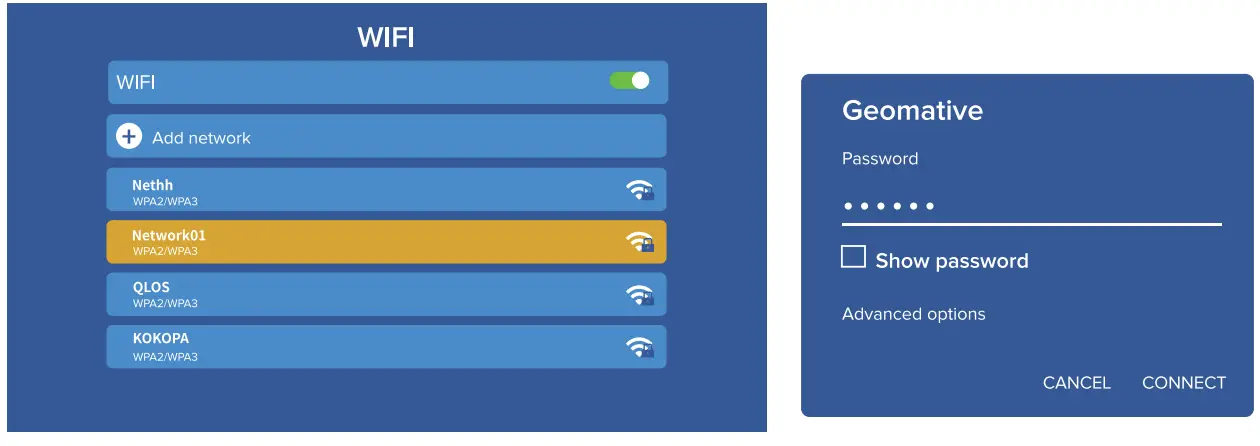
Wifi Connection
- Go to

- Turn the WIFI ON and search out the WIFI list by “Add WIFI”
- choose your WIFI, then enter the password to connect.

notes
The V511 projector has built-in 5G module, but for have 5G WiFi speed, it also requires the network and router to support 5G.

Screen Mirroring
please attention
- You need to ensure that the projector and user equipment (10S / Android Devices) are in the same wifi environment;
- The user device must download the “eShare” App


Screen mirroring for 105 / Android Devices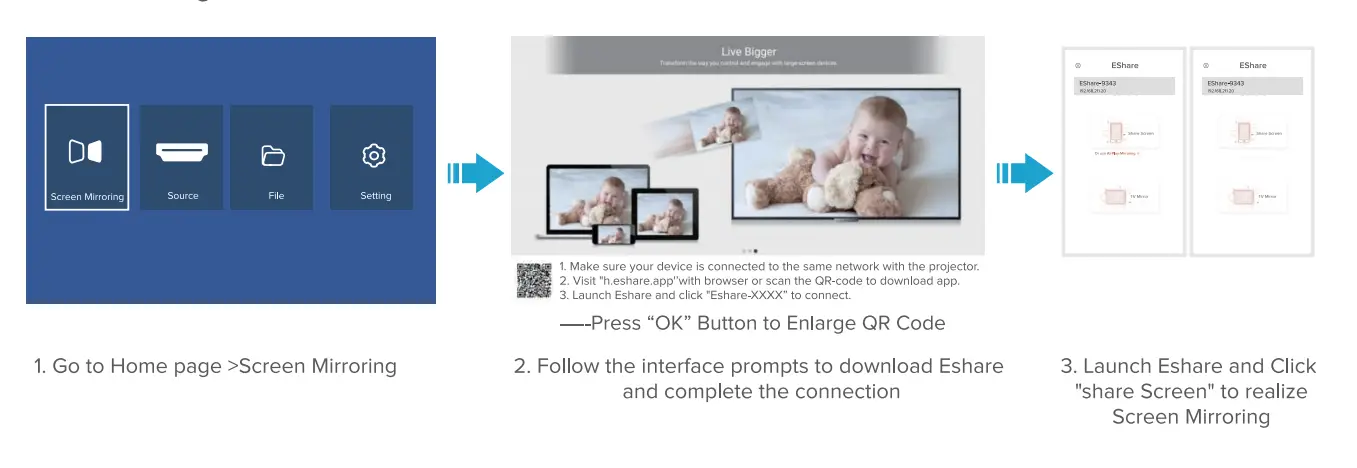 tips
tips
In Eshare App
- “Share Screen”—-Tap “Share Screen” to mirror your device screen to the projector and realize large display
- “TV Mirror”—-Tap “TV Mirror” to mirror the screen of the large display to your device. and control the large display on your device side.
- When you use “Eshare”to start the screen mirroring, the phone will be automatically silenced. In order to ensure the sound quality, if you want to increase or decrease the sound, please adjust it through the volume buttons on the remote control or the projector machine.
Projector Image Setting
Keystone Settings
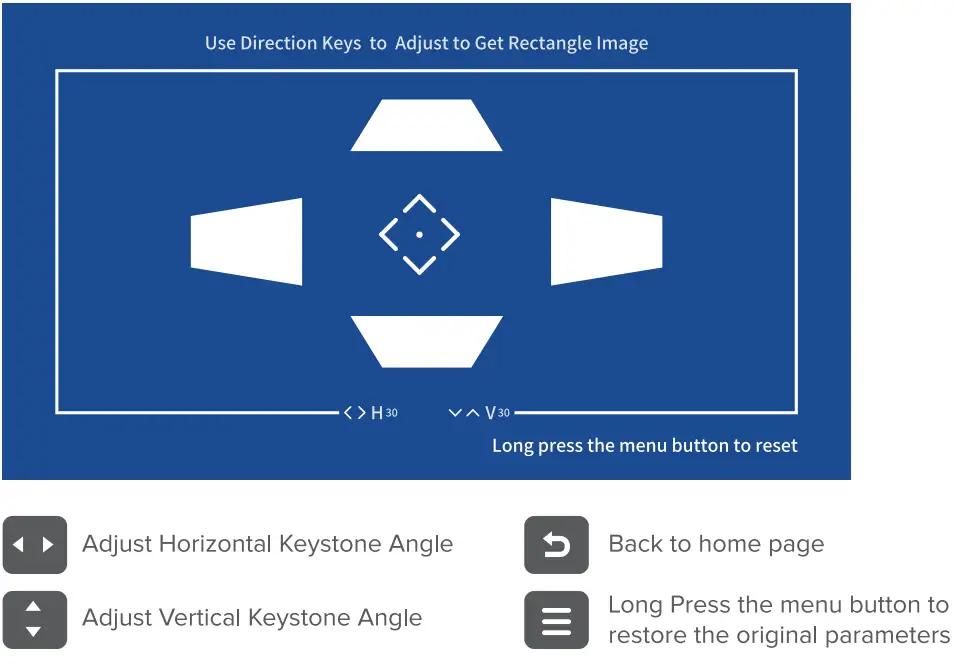
V511 Projector designed with 4P/4D keystone correction, which can help you adjust the rectangular picture more accurately , which brings you better picture experience!
4D Keystone
- Go to[Setting] > [Image Setting] >[Keystone]> [Four sides]
- Press Right ► or Left ◄ button to adjust the Horizontal keystone angle
- Press Up “‘ or Down.., to adjust the vertical keystone angle

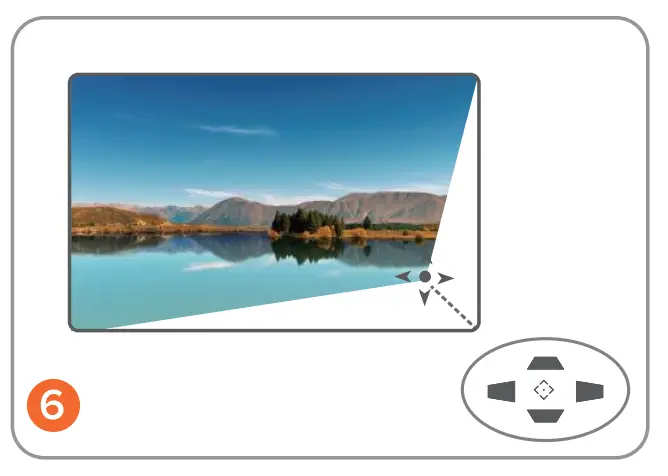
4 Point Keystone
- Go to

- Press Direction Buttons ◄:► to adjust the angle, press OK button to jump to the next corner adjustment.


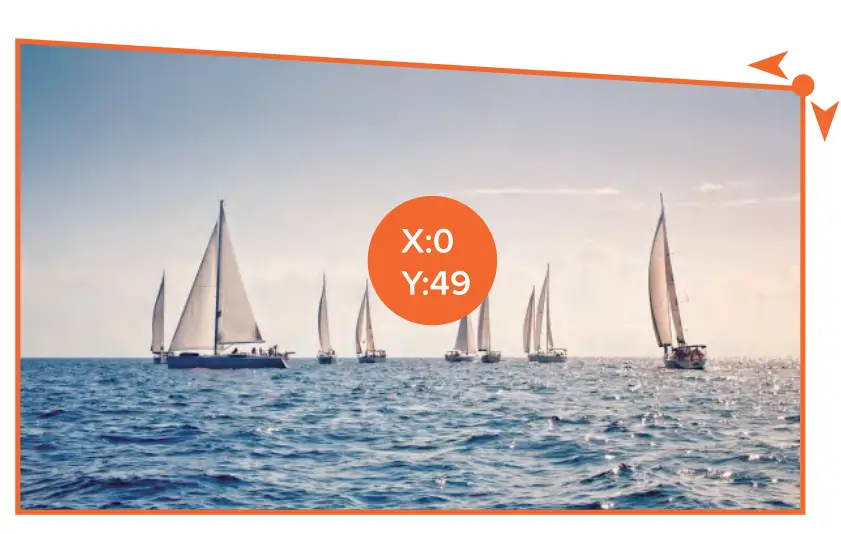
Press Ok button to select point you need adjust
Back to home page
Press the arrow keys to adjust Horizontal or Vertical parameters
Long Press the menu button on remote control to restore the original parameters
Digital Zoom

- Choose the Zoom method you need (Horizontal/ Vertical/ Whole Zoom)
- Press Left button ◄ to Zoom out (100-0) and Right ► to Zoom in(0-100)


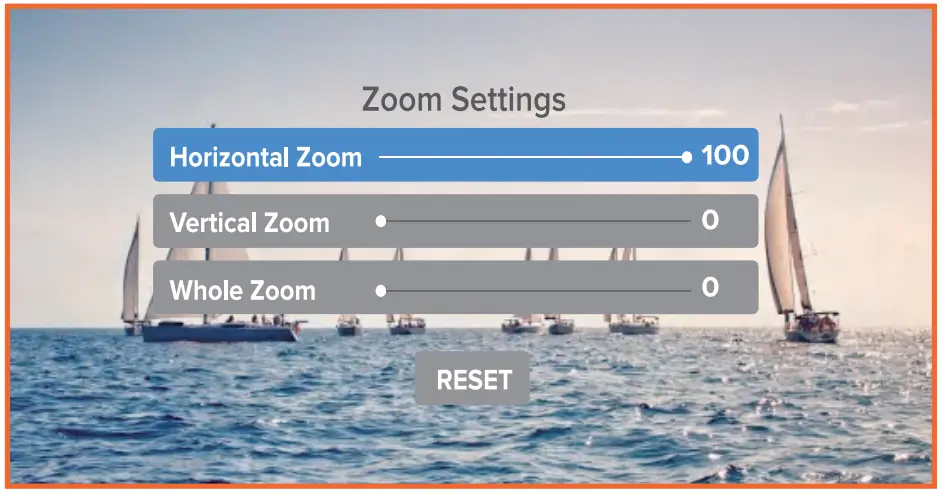
- A. Horizontal Zoom (Only Adjust Height of projection size)

- B. Vertical Zoom( Only Adjust Width of projection size)

- C. Whole Zoom (Adjust Heght and Width of projection size)



Trouble Shooting
NO SOUND
- Check if you pressed ‘Mute’ accidentally.
- Check if the Bluetooth connected to your Bluetooth device automatically.
- The projector can’t support Dolby.please turn off the Dolby audio In your device.
NO IMAGE
- Make sure the power adapter is connected and the working light Is on.
- Please make sure your device is connected to the correct projector interfaces.
- Check the lens cover has been removed.
- Check If the Input signal source is correct
AUTOMATIC SHUT-DOWN
- Please checking the power cable firmly connected
- It’s Overheating protection to protect the machine from damage.Please turn the projector off to let it cool down for a while, and check if there is anything blocked the ventilation vents.
- It is recommended to unplug the power supply after use to prolong the service life.
SPOTS ON THE SCREEN
- Check if there is stain on the lens, if yes, wipe it with a clean & dry cloth.
- Check If there Is small dust inside the lens, if yes, please shake the projector or slightly beat the front panel on the machine a few times to remove the dust.\
THE SCREEN KEEPS FLICKING OR STRIPES APPEARED ON SCREEN
- Try update the firmware version, please contact the supplier to obtain the firmware update file.
- Reset the factory setting and restart again
BLUETOOTH NOT WORK
- Please first confirm whether the Bluetooth is connected to other devices
- Please note the Bluetooth function is not support to connect with a smartphone or pad etc.
- If the bluetooth cannot be connected, it may be a compatibility problem, please send the model of the bluetooth speaker to us for confirmation.
Stuttering when using the wifi function?
- The fluency of screen mirroring with wireless connection will be affected by your router’s network
- please make sure to connect to good internet, which the WiFi network should be greater than 50M
- And prevent the WiFi stream gets overloaded with too many devices connected to it.
The content form HULU, Netflix, and similar services can not be mirrored or cast?
- Due to the copyright restriction from Hulu, Netlix, and similar services, the contents can’t be mirrored or cast.
- If needed to play these videos, please prepare a TV stick, Roku or Chromecast (not included).
Missing accessories or damaged package?
- Please contact us first time
- If you have missed any parts or received the broken item in the package, we will send a new one to you for free
Specification
- Display Technology: LCD
- Keystone: 4D /4P Keystone
- Aspect Ratio:16:9 / 4:3
- Bluetooth: Bidirectional Bluetooth
- Wifi Tech:2.4G/5G dual-band
- Photo Format Supported :jpg .bmp jpeg .png .webp .gif
- Audio Format Supported :aac adpcm ape dts dtshd eac3 falc mid mpeg pcm vorbis ogg avi mp3 mp4 wav mka m4a mov mpg
- Total power:75W
- Voltage :AC100-240V /50-60Hz
- Light Source: LCD
- Native Resolution :1920’1080
- Internal Speaker:5W
- Installation Type :Table Mount/ Ceiling Mount / Tripod Mount
- Unit Dimension :266* 266* 110mm (10.47’10.47’4.33inch)
- Unit Net Weight:2.4kg (5.29Ib)
- Video Format Supported: AVI.TS.TP.MOV.DAT.MPG.MPEG. MKV.3GP.MP4.VOB.M2TS.XVID. 3GP2.MPEG1.MPEG2.MPEG3. MPEG4.H.263,H.264, H.265, VPS. RV30.RV40
- USB Supported Memory:128G
- PORT :HDMl1/ HDMl2/ USB1/ USB2/AV/ 3.5mm Audio
WARRANTY
BIGASUO provides the following service for each customer:
- 30-day full refund or free replacement
- 1-year technology support
- Lifetime professional consult
If you need any help or want to extend the warranty time for your order, please email us:
[email protected]
FAQS
Picture quality is solid at 1080p with a 60Hz refresh rate, they’re a fun addition to an entertainment space.
Yes, as described by the seller, in order to get a clear picture, the minimum projector distance is 1.5 meters, and the minimum picture is about 50 inches.
First you can distinguish them by appearance, secondly you can pay attention to their brightness, and whether they have wifi, bluetooth, keystone correction, zoom and other functions.
Yes, the projector come with bag, which is very convenient to store and carry the projector.Very practical, lots of storage space
of course. But not directly on the projector, all projects not support. You should play Netflix from PC or TV Sticks, plugged it into HDMI port on projector.
No it doesn’t, you need to have it dark
They are under the rubber feet on the bottom. you remove the rubber part of the feet and you can attach to a mount.
The firestick plugs directly into the projector.
No way to do this
The image quality is quite good. It is full 1080p, and the projection is very bright, visible in a brightly lit room.
Yes, as long as your device (PC/Android/iPhone) display png file, it will also to be projected to screen.
There is no battery, so you have to use the charger cable.
The label on the bottom of the projector simply says 1080P Projector; Model No. V6; Power: 120W; Input: AC 100240V.
It’s about a foot square and maybe 3 inches tall.
You may have to download an app to cast.
The HDMI port does not support HDMI ARC and CEC.
No. It has two HDMI inputs but no outputs.