 User Guide
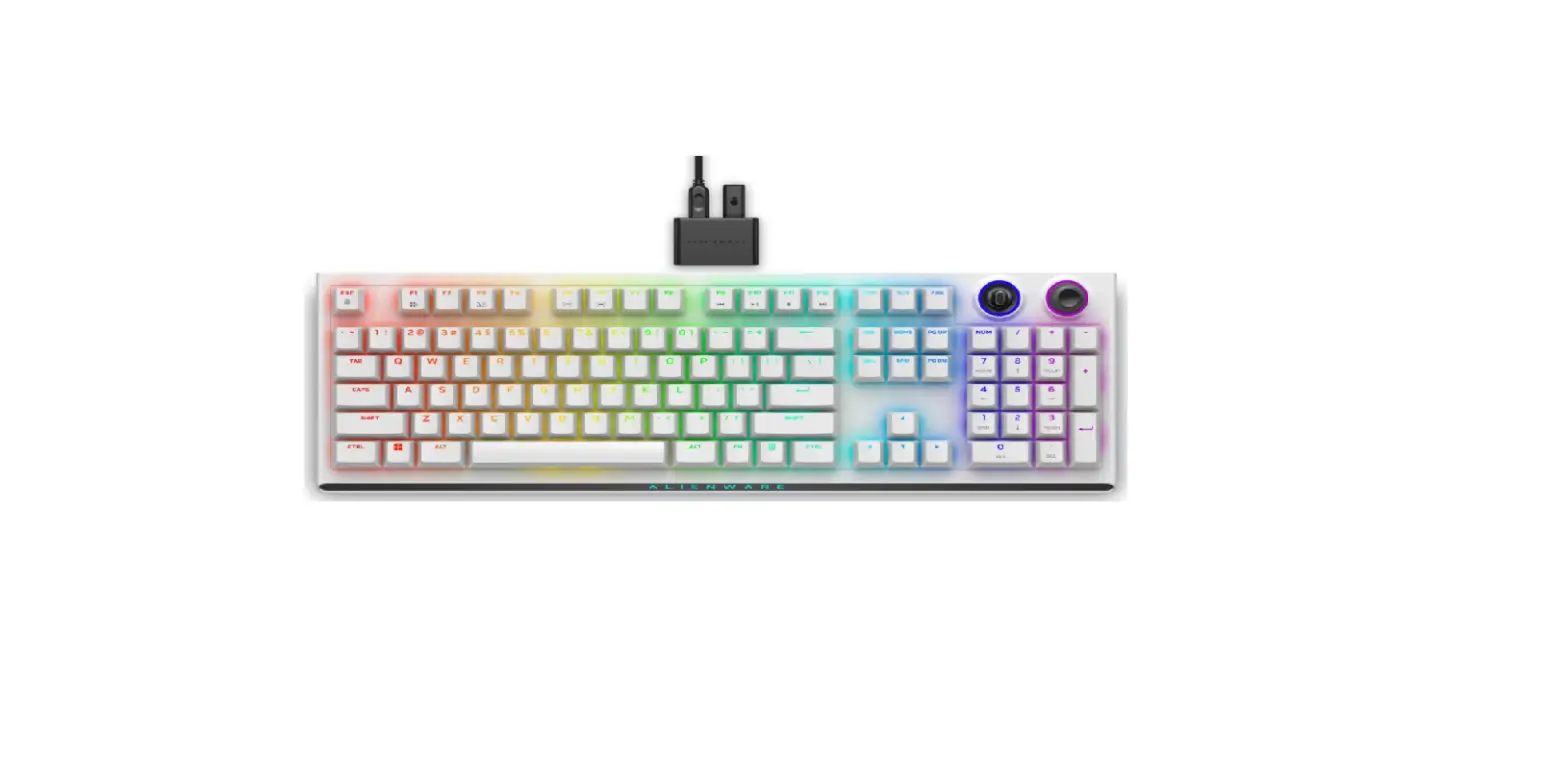
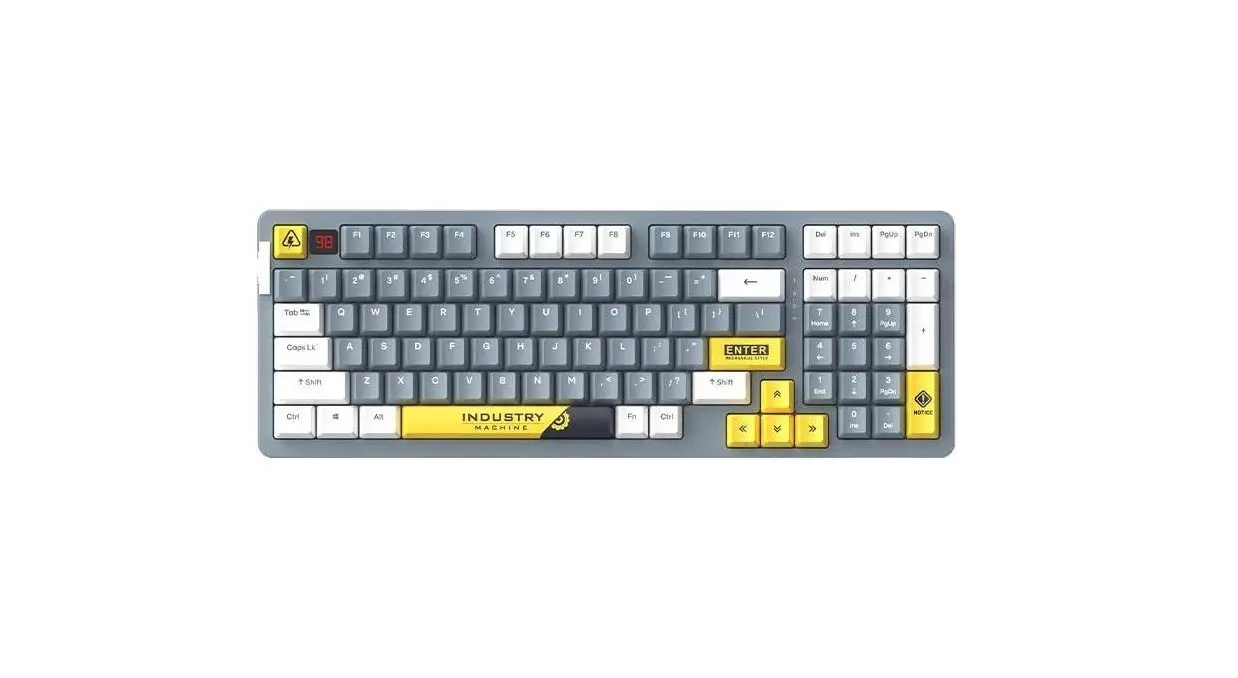
F97 SERIES
MECHANICAL KEYBOARDS
Please read this manual guide and cautions to ensure that using this product correctly.
Start Reading
 Details
 Details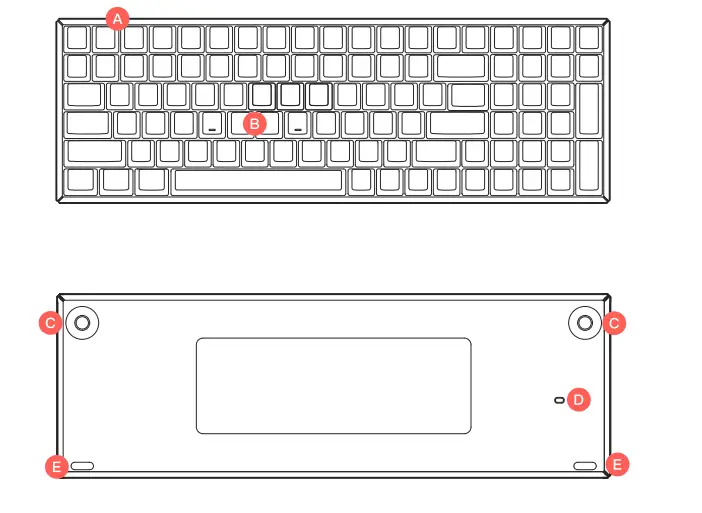
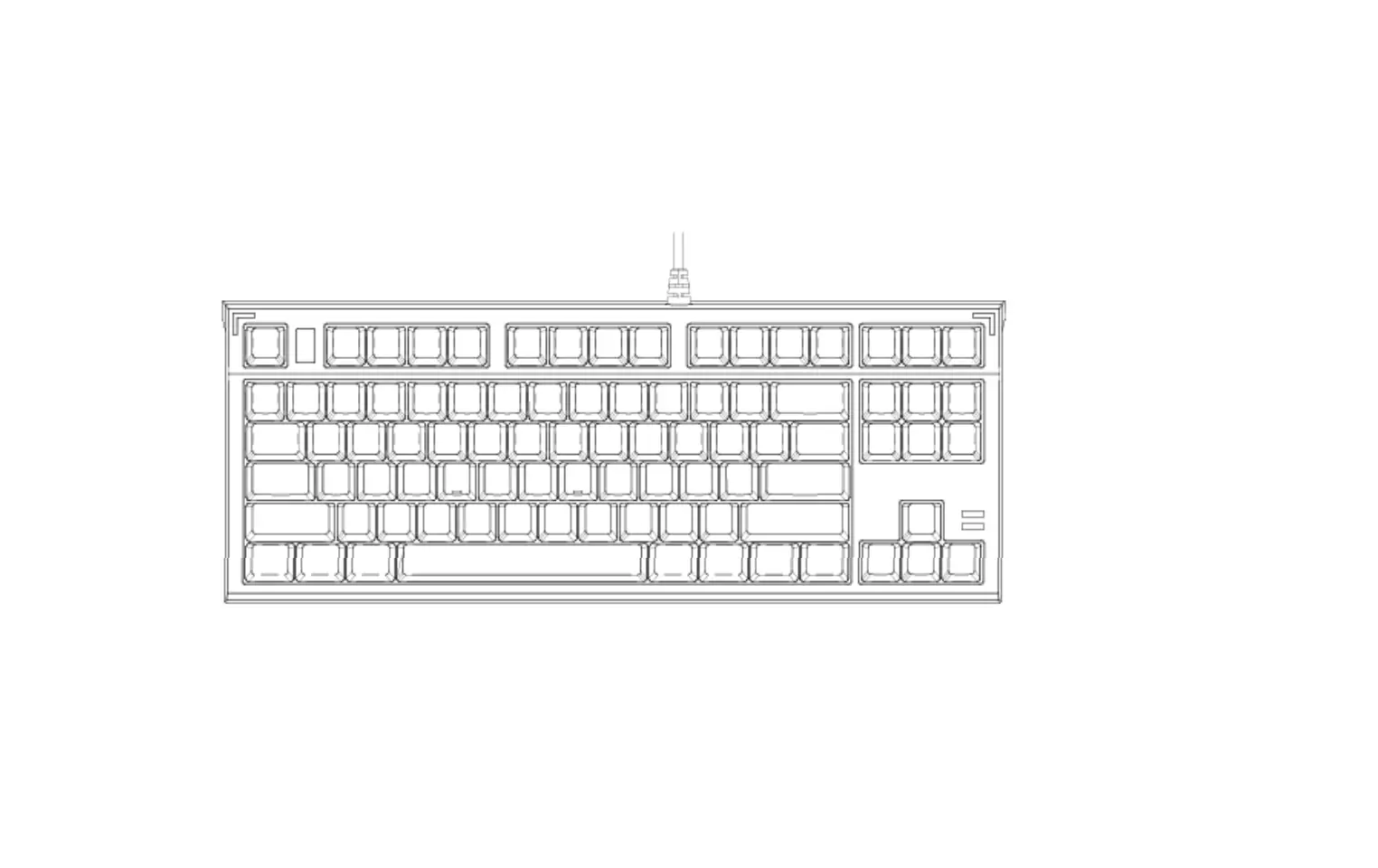
A Type-C Port
B Indicator
C Feet
D Mode Switch
E Silicone Pads
 Product Specification
 Product Specification
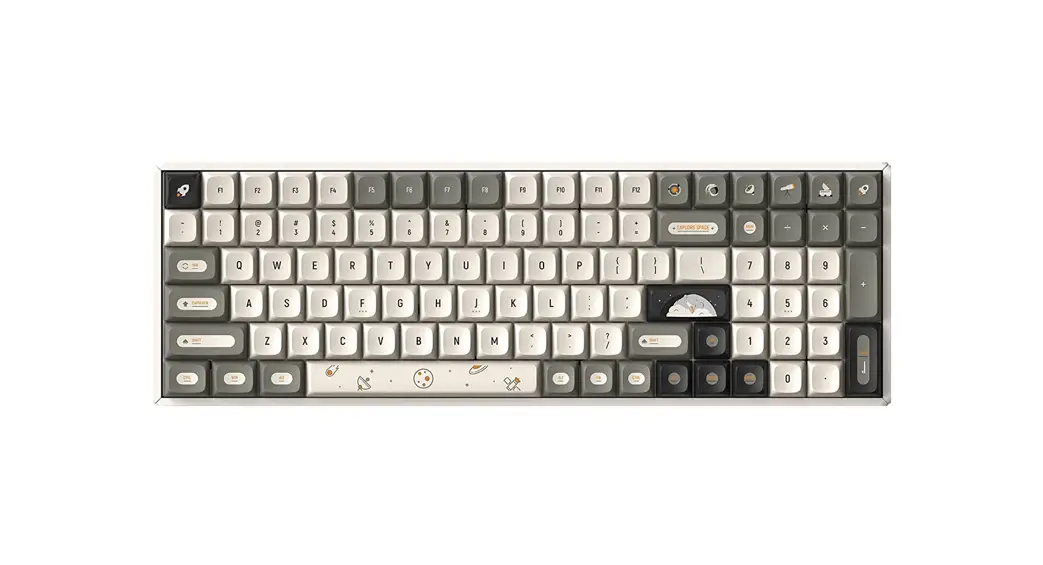
Product Name: F97
Keyboard Type: Mechanical Keyboard
Key Quantity: 100 Keys
Connect Interface: USB Type-C
Dimensions: 372*123.5*43mm
Brand: IQUNIX
Origin: China
Web: www.IQUNIX.store
Support E-mail: [email protected]
 Three Ways of Connecting Devices
 Three Ways of Connecting Devices
Bluetooth Mode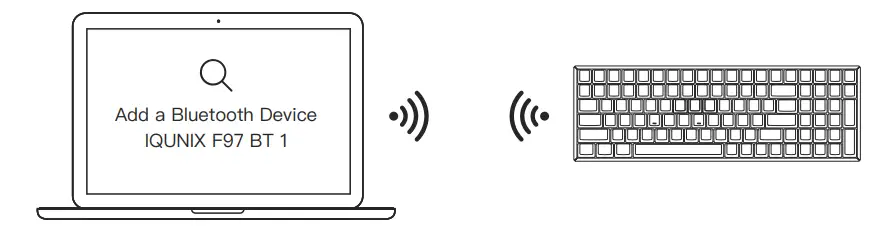
- Toggle the keyboard Mode Switch to the wireless side.

- Press FN+1, then hold FN+1 for 5 seconds if the indicator blinks in blue light.(Bluetooth pairing mode on when blue light blinks.)
- Enable Bluetooth Pairing (Computer / Phone / Tablet)
- Select the pairing device 【IQUNIX F97 BT 1】
- Indicator light turns off when the keyboard is paired successfully.
In order to complete the pairing of the keyboard with a second or third new Bluetooth device, repeat the instructions from Step ② and replace the “FN+1” with “FN+2” or “FN+3”.The devices will be shown as 【IQUNIX F97 BT 2】and 【IQUNIX F97 BT 3】.

2.4GHz Mode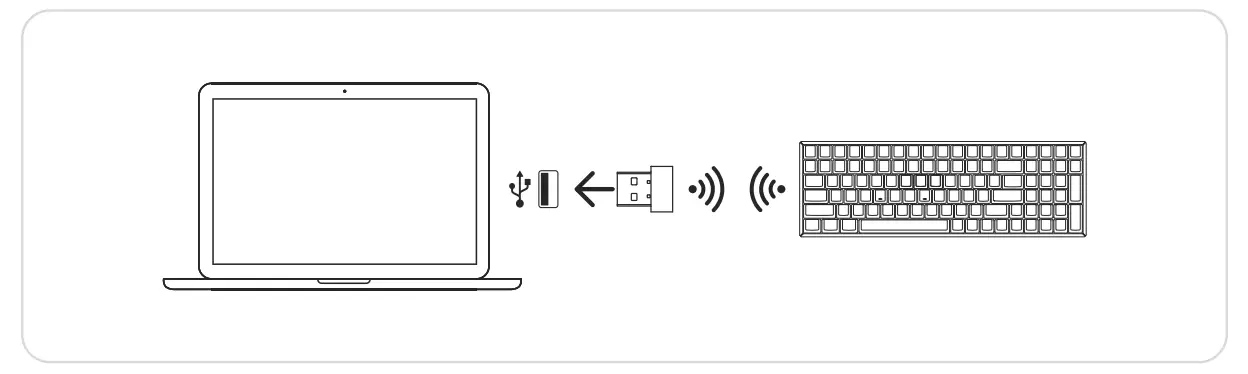
- Toggle the keyboard Mode Switch to the wireless side.
- Plug the 2.4GHz receiver into your computer.
- Press FN+4 to enter 2.4GHz pairing mode (2.4GHz pairing mode on when pink light blinks.)
- Indicator light turns off when the keyboard is paired successfully.
Wired Mode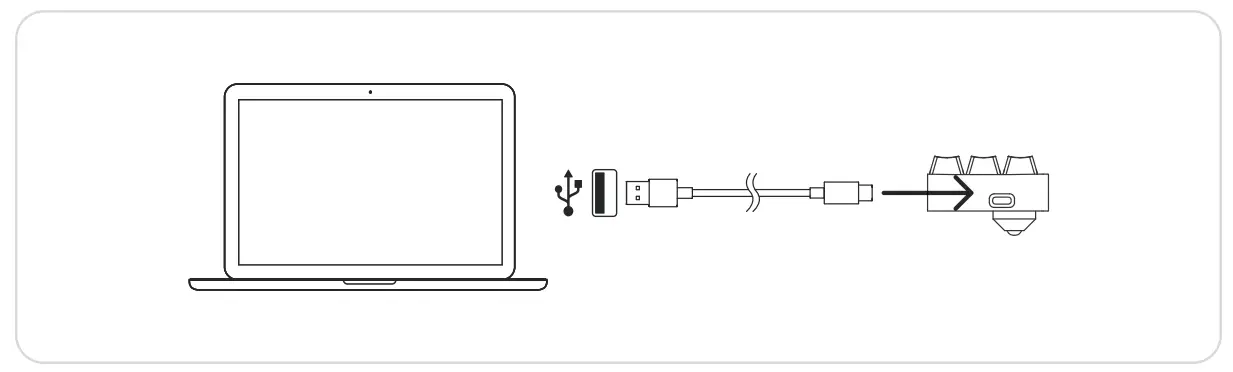
- For Wireless Version, toggle the keyboard Mode Switch to wired side.
- Plug the USB cable into your device.
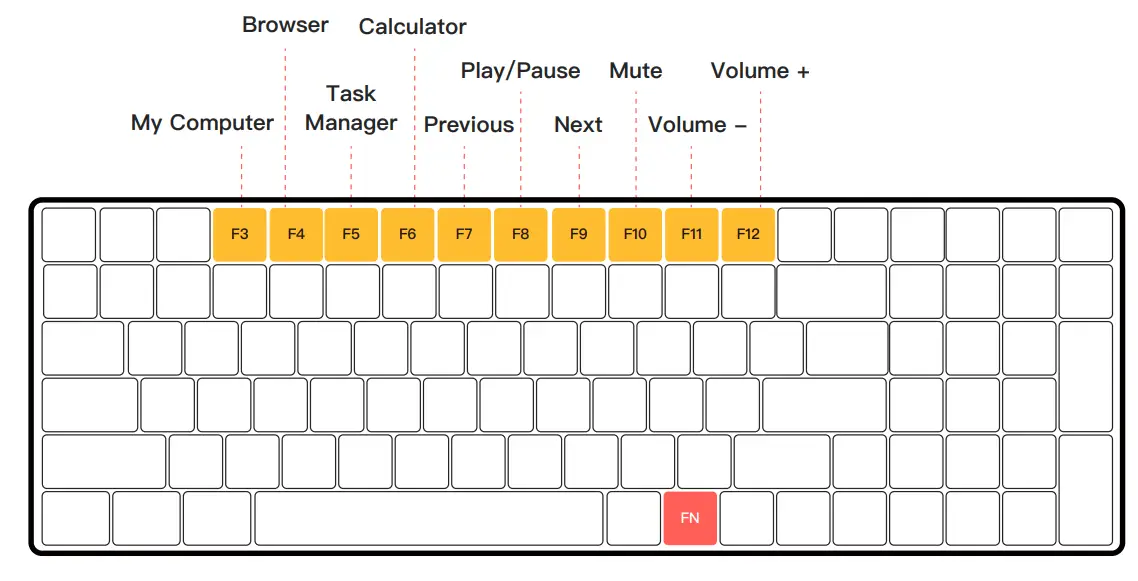
Function Keys Combinations(Windows)
 Hold FN First, then Yellow Keys
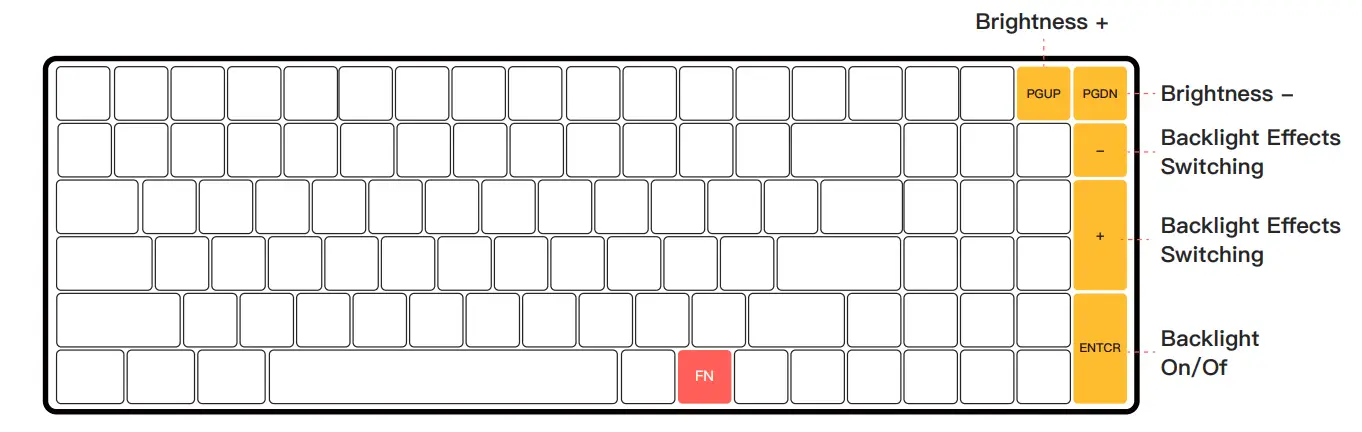
Backlightn Keys Combinations (RGB Version)
Hold FN First, then Yellow Keys
Special Keys Combinations (Wireless Mode)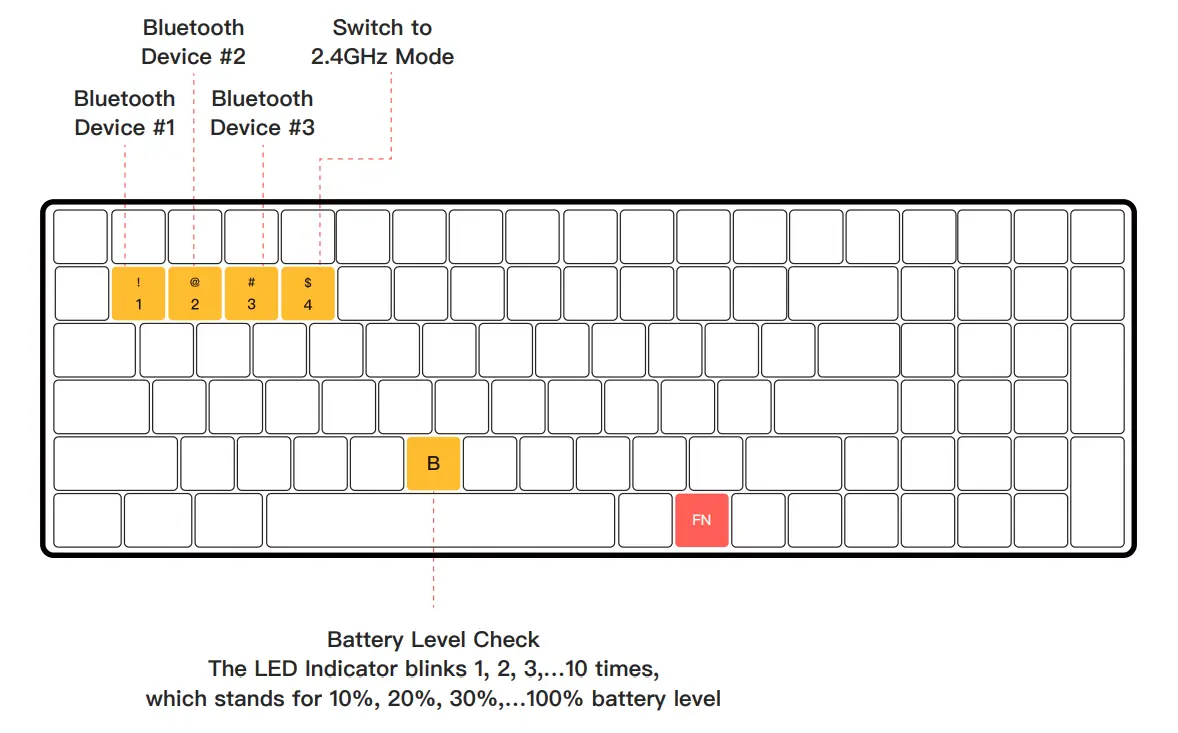
Special Keys Combinations (Hold for 5 Seconds)Hold FN First, then Yellow Keys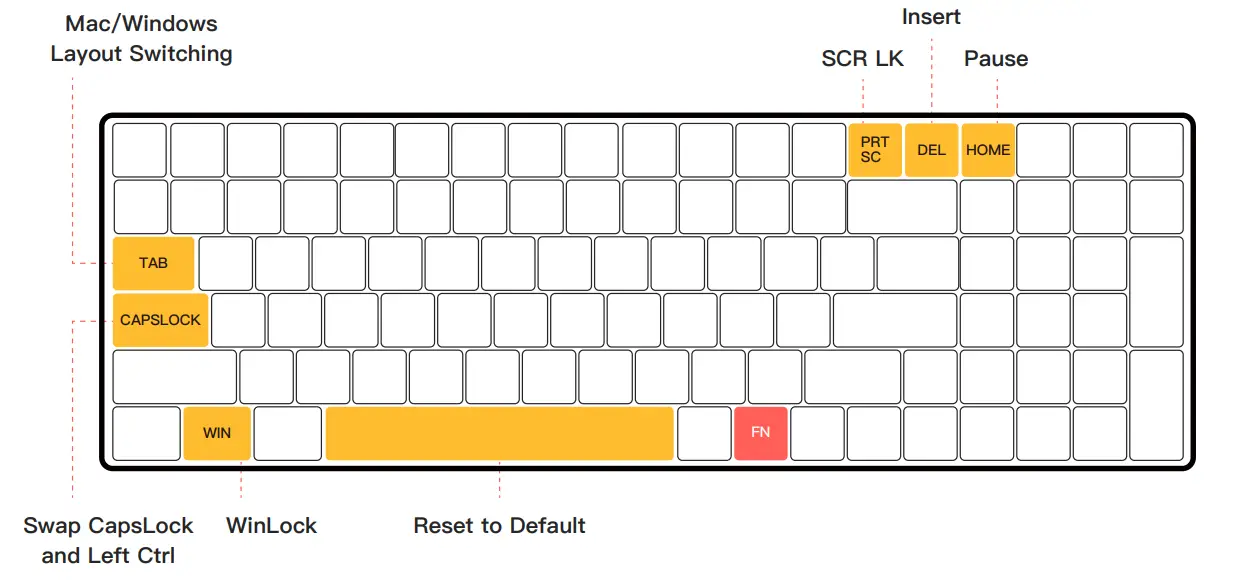
 LED Indicator Status Description
 LED Indicator Status Description
Device Charging and Battery Status
 |  |  |  |
| Yellow Light Blinking 3 Times | Green Light Blinking 3 Times | Green Light On | Red Light Blinking |
| Charging | Charging Completed (Wired Mode) | Charging Completed (Wireless Mode) | Less than 10% (Wireless Mode) |
Bluetooth Device Pairing
 |  | |
| Blue Light Flashing | Turquoise Light Flashing | Yellow Light Flashing |
| Bluetooth Device #1 Pairing On | Bluetooth Device #2 Pairing On | Bluetooth Device #3 Pairing On |
2.4GHz Mode
 |
| Pink Light Flashing |
| Entering 2.4GHz Mode |
Devices Re-Connecting
| | | |
| Blue Light Blinking | Turquoise Light Blinking | Yellow Light Blinking | Pink Light Blinking |
| Bluetooth Device #1 Re-Connecting | Bluetooth Device #2 Re-Connecting | Bluetooth Device #3 Re-Connecting | 2.4GHz Device Re-Connecting |
Special Status
 | |  |
| White Light Blinking 3 Times | White Light Blinking 5 Times | White Light On |
| Special Keys Combination Enabled | Reset to Default | CapsLock On |
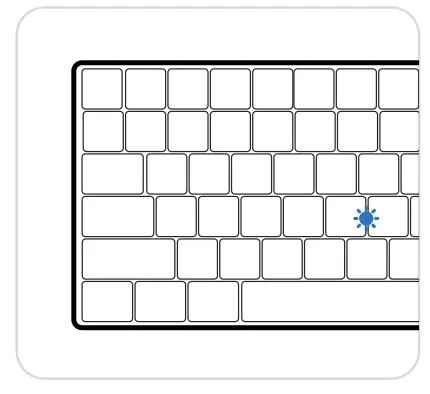
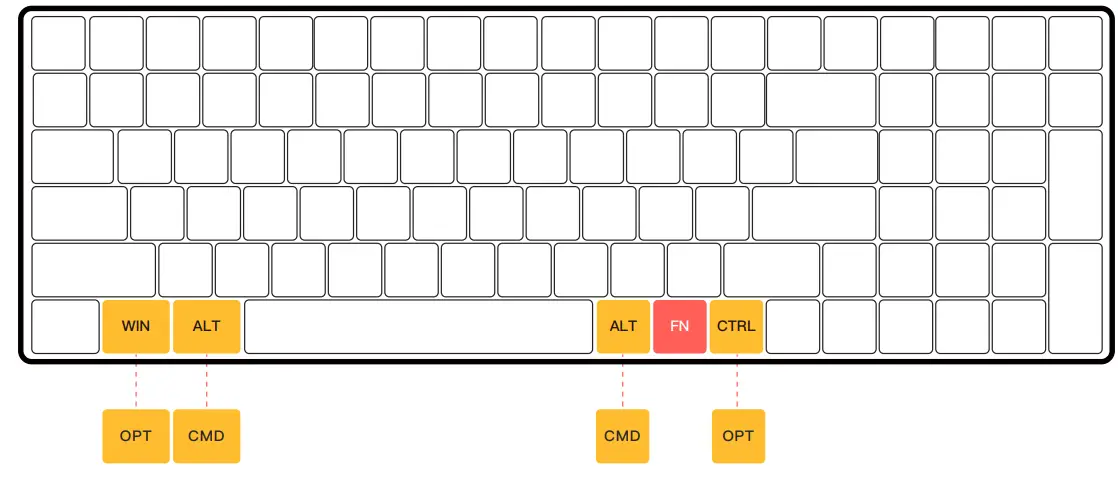
Mac/Windows Layout Switch
 Hold for 5 seconds to switch the layout between macOS and windows systems
To learn more details, please reach out to us on official website or social media.
Official website: www.IQUNIX.store
Follow us: IQUNIX