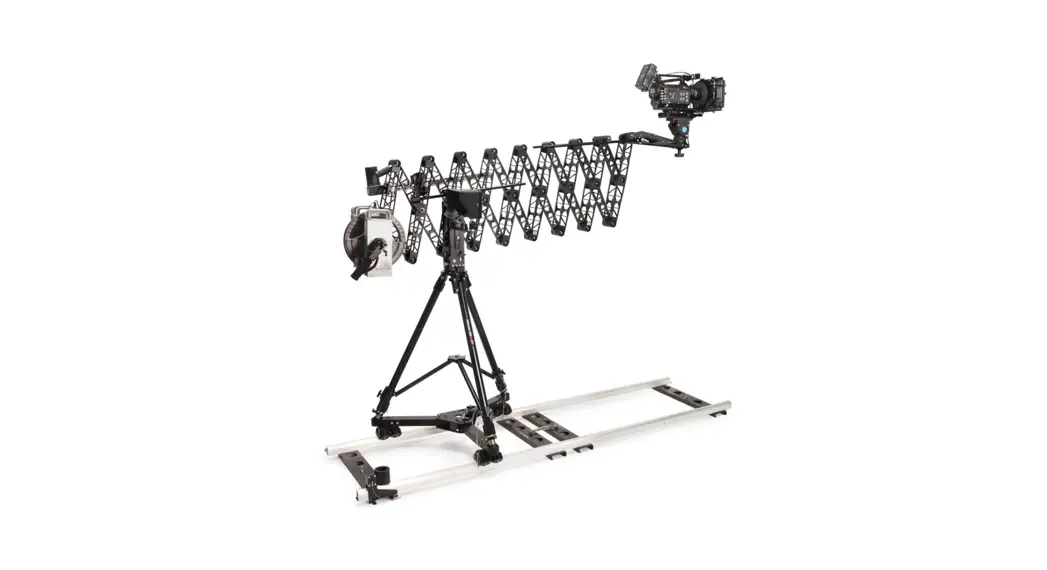
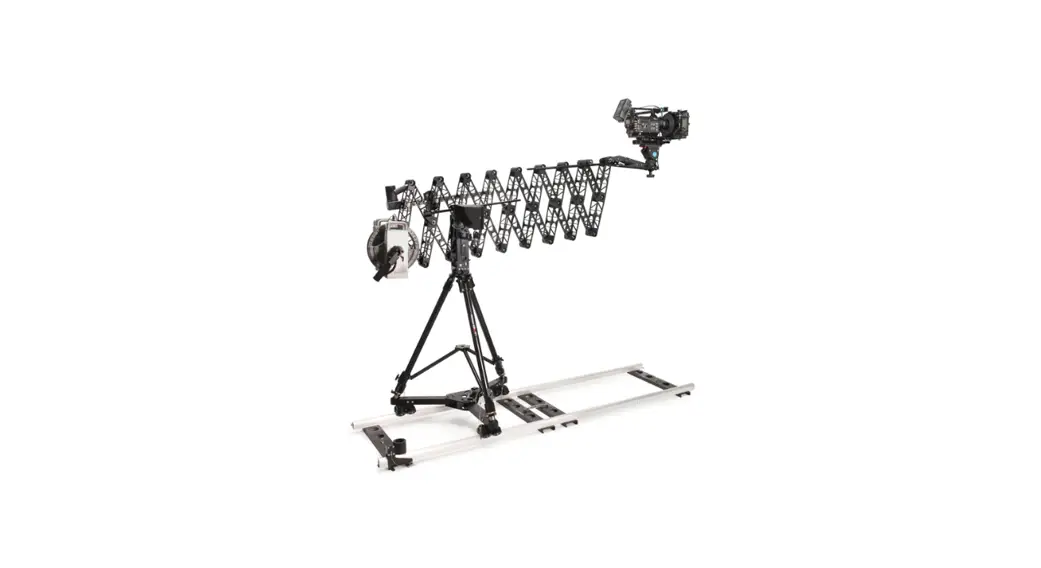
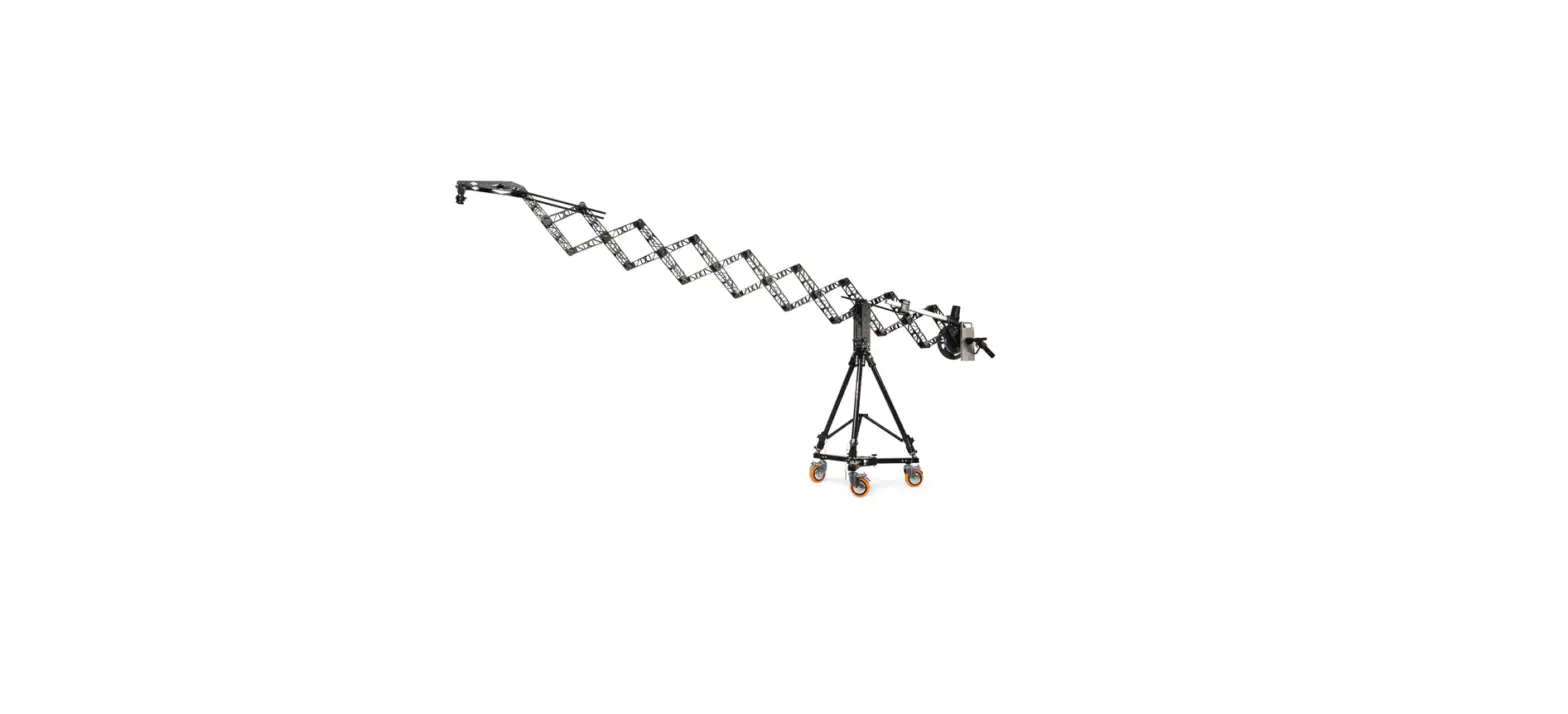
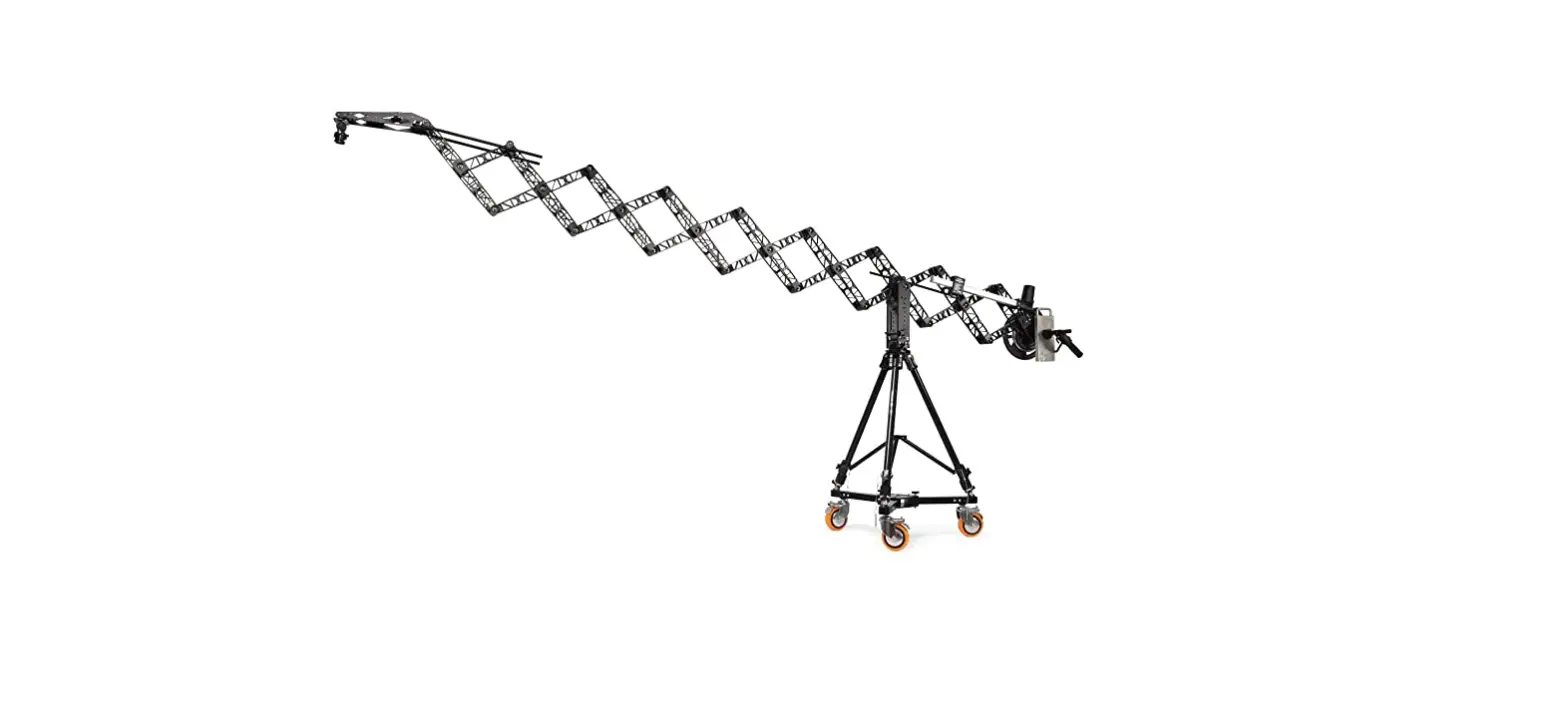
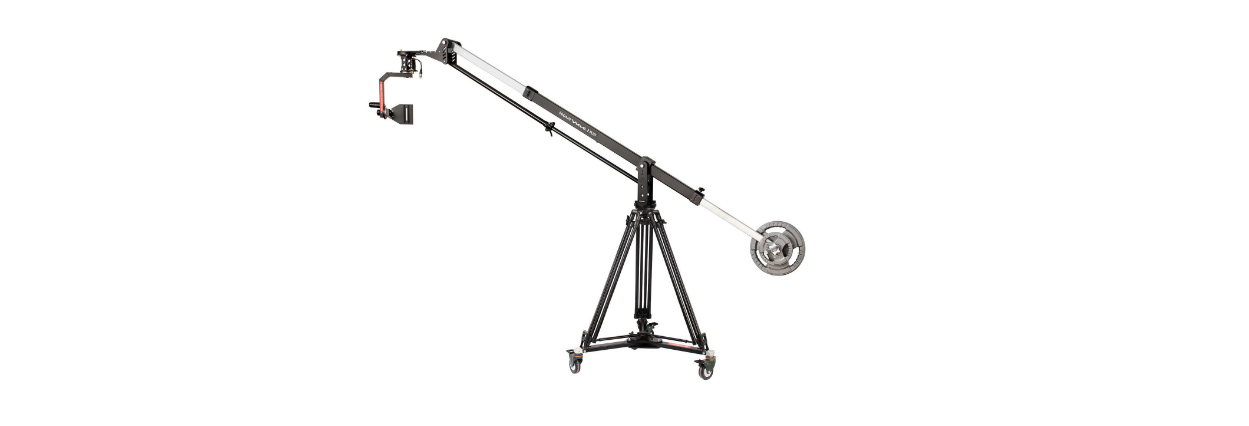
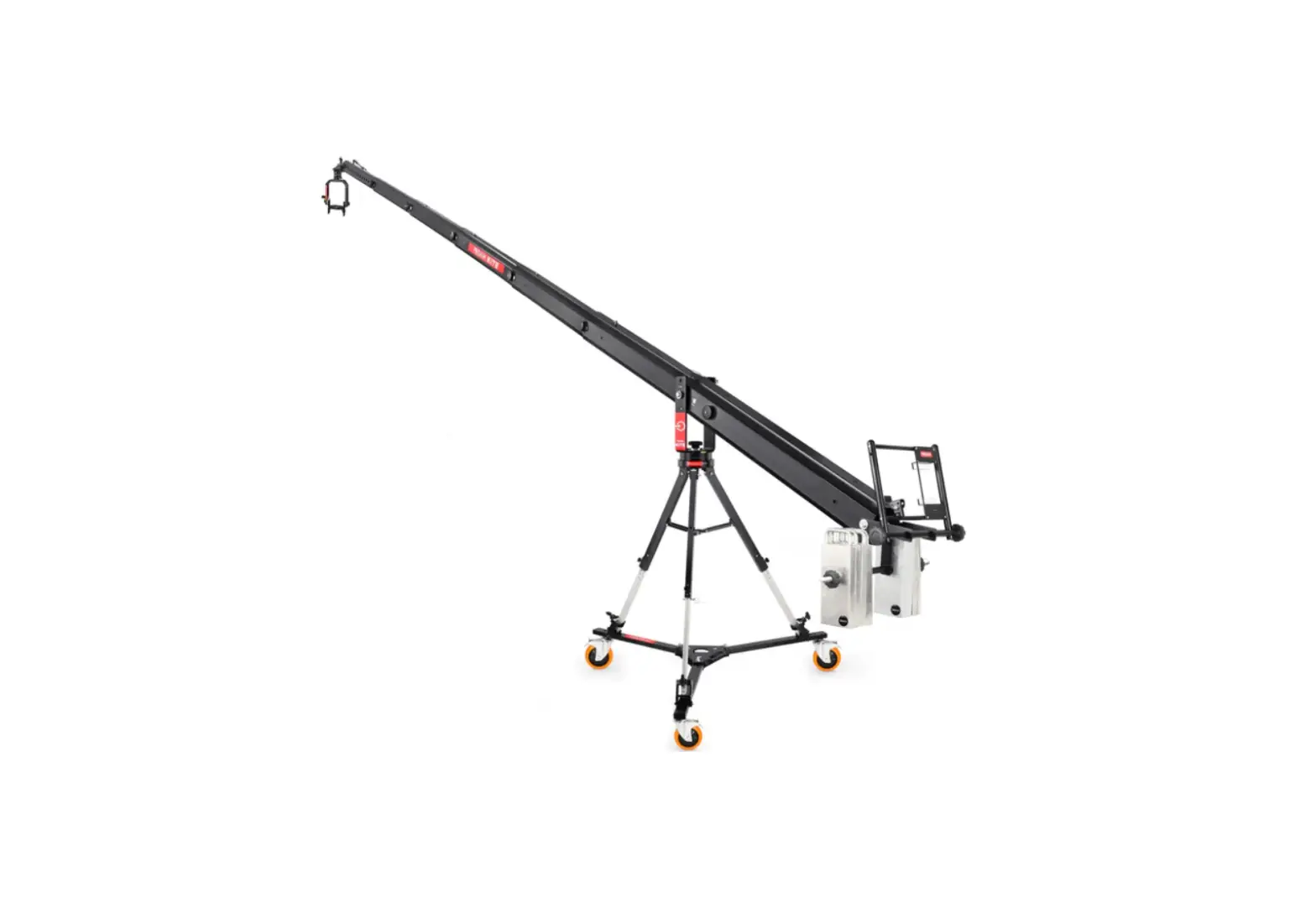
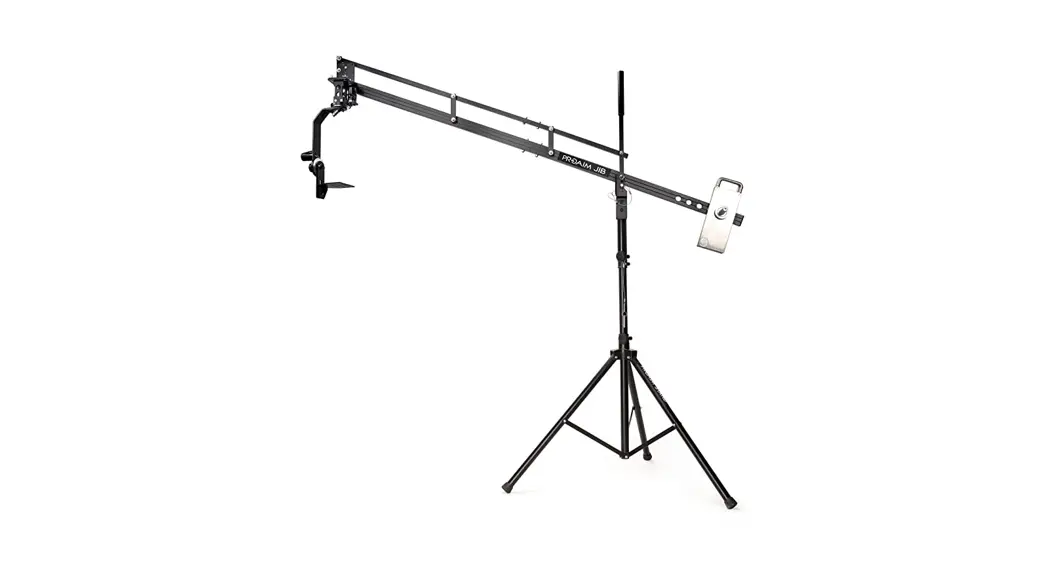
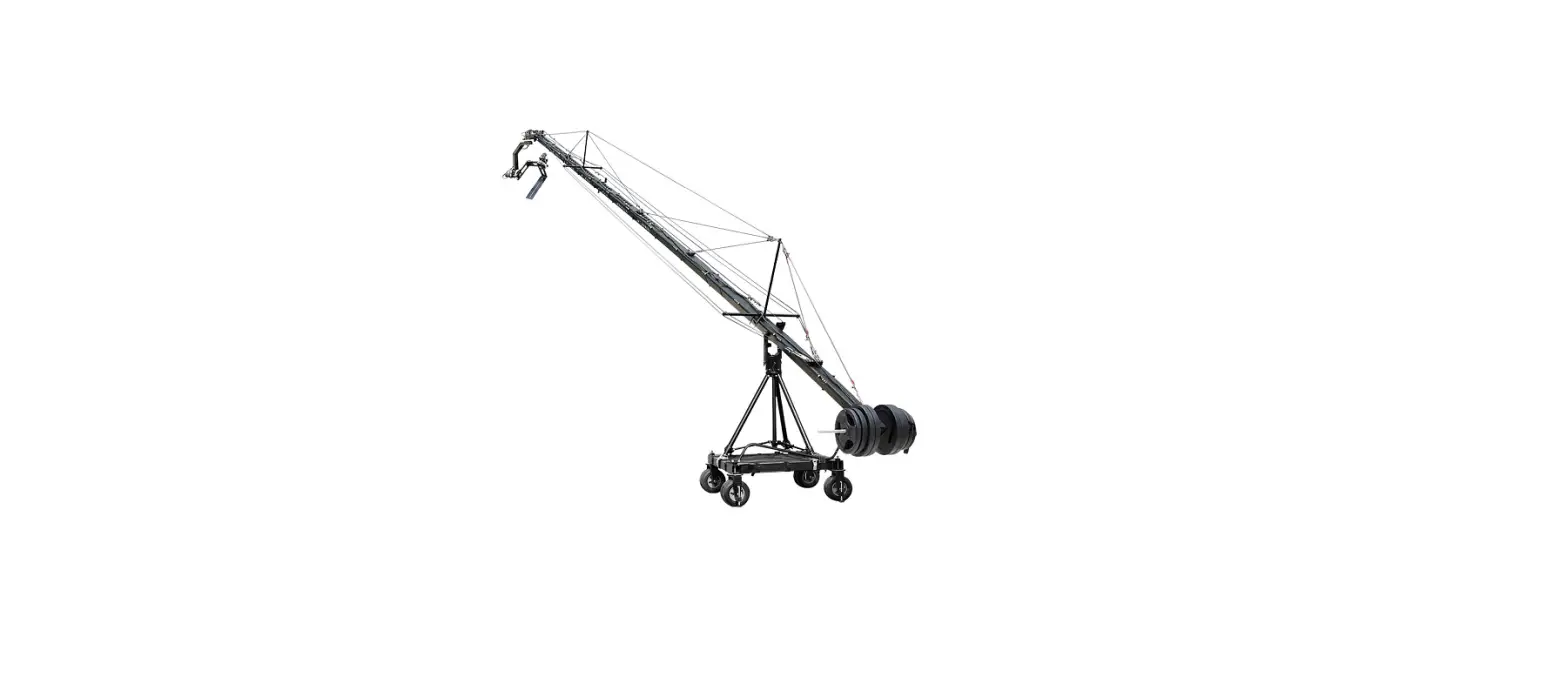
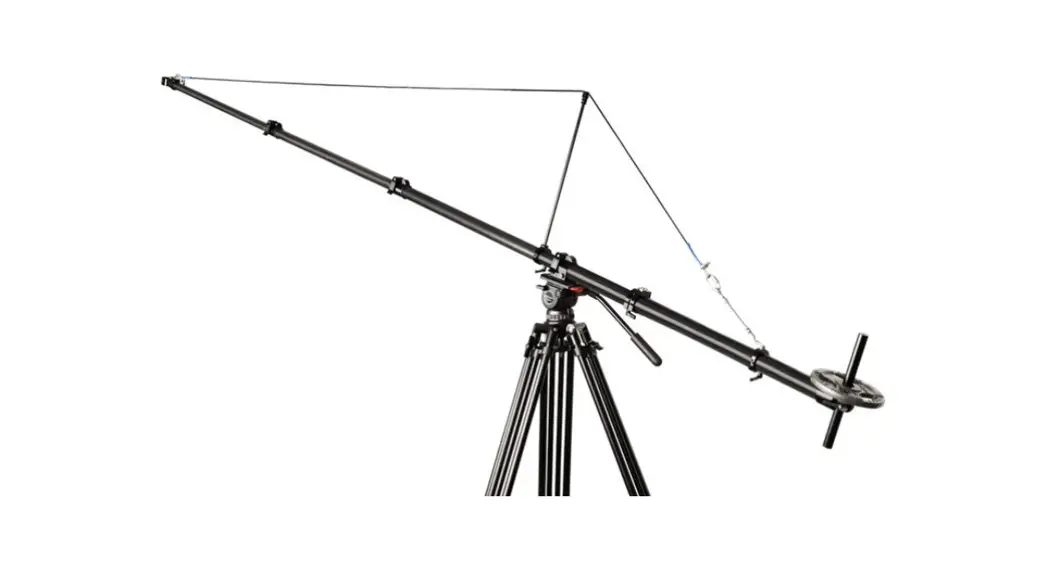
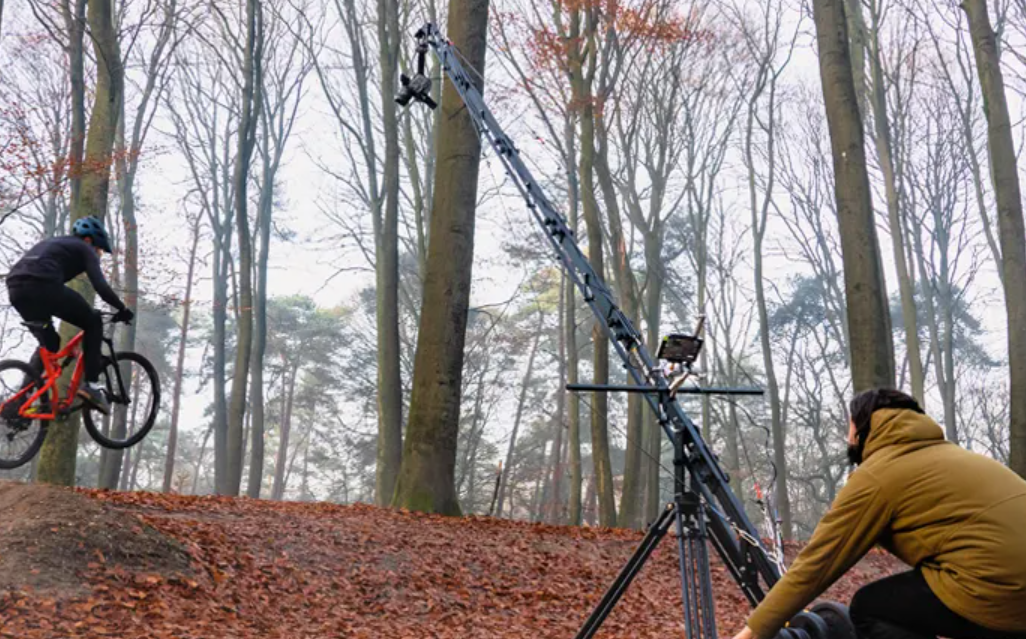
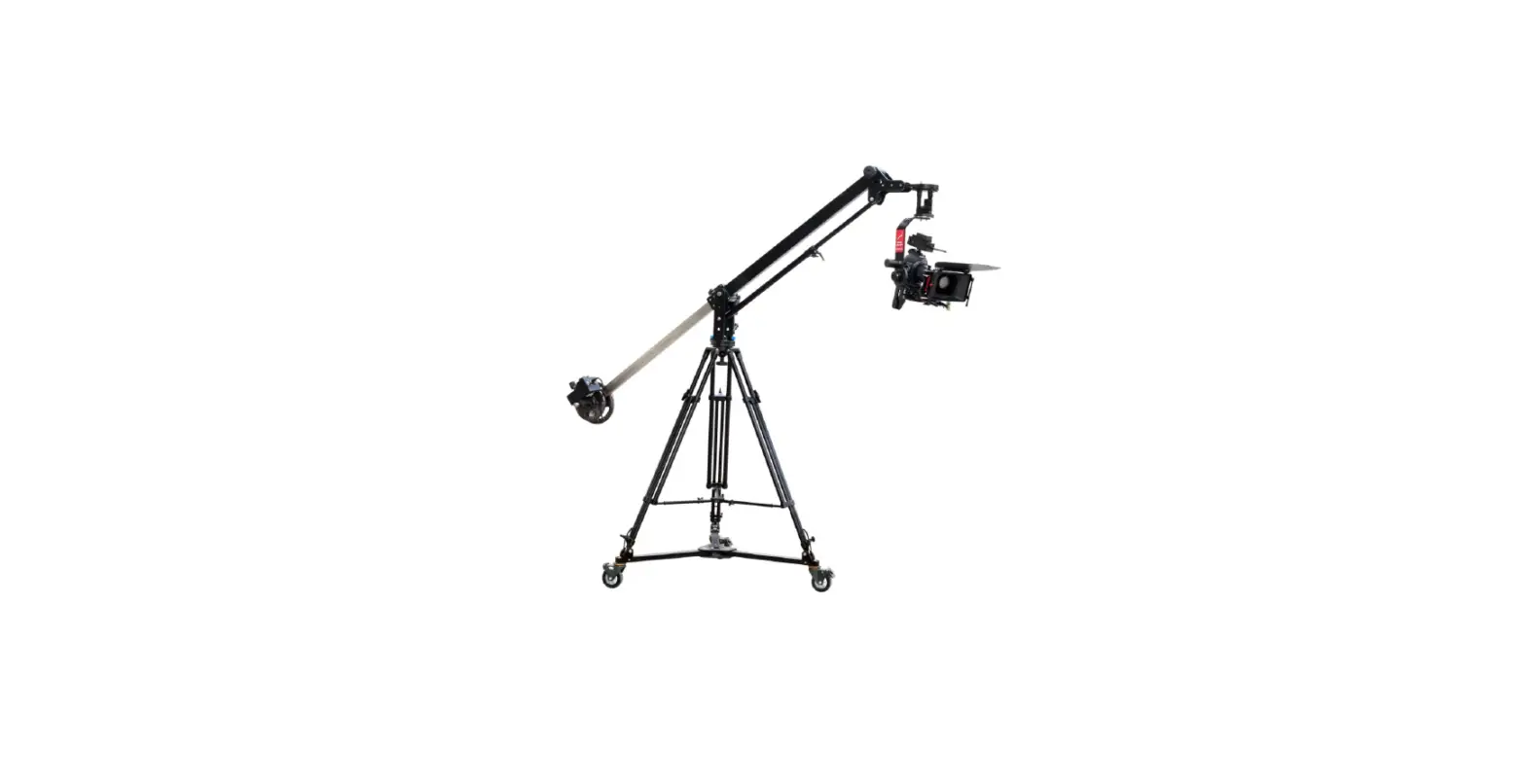
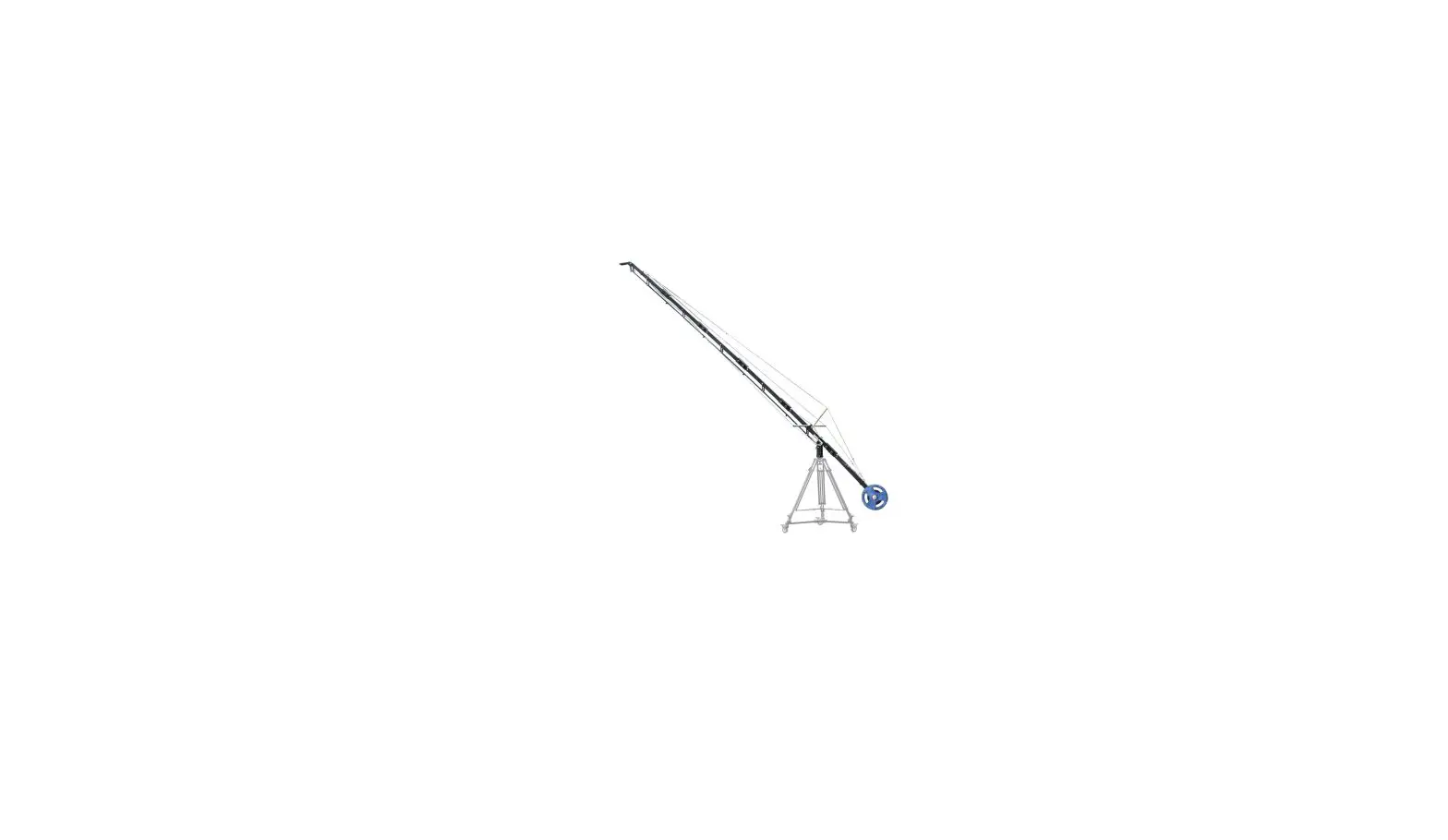
JB-SCSR-02 Scissor Pro 17ft Telescopic Camera Jib Crane
Product Information: Powermatic Scissor Pro 17ft Telescopic
Camera Jib Crane
The Powermatic Scissor Pro 17ft Telescopic Camera Jib Crane is a
professional camera jib crane that comes with a new remote
controller. The package includes 3 guide rods, weight rod, hub
locking knob, 17ft Powermatic Scissor Jib with Gimbal Fluid Head,
monitor arm speed controller remote, 2 weight closers, Ronin
controller bracket, 15V AC adapter, 2 fuses, BNC wire, HDMI male to
male wire, controller box with battery plate, D-Tap wire, female to
female connector, controller spiral cable, 50 x piece, 4 x T-Type
Allen Key size: (2.5mm, 3mm, 4mm, 3/16), cable tie spanner (Size:
13mm), and a flight case for easy transport.
Product Usage: Scissor Telescopic Camera Jib Crane Setup
Follow the steps below to set up the Powermatic Scissor Pro 17ft
Telescopic Camera Jib Crane:
- Insert the bolt into the hub mounting hole of the Scissor Jib
crane and secure it with a wrench. - Place the Scissor Jib with Hub Mounting on top of the Jib Stand
and insert the Hub Locking Knob. - Secure the Hub Locking Knob properly.
- Check the Scissor Jib level with a Bubble Leveler and adjust
the height of the jib stand to keep it levelled. - Loosen the gimbal bracket bolts and insert two guide rods on
either side. Tighten them with the bolts. - Insert another guide rod into the boom lock bracket and lock it
in place to secure it correctly. - Use the Pan Lock to enable locking the jib’s pan movement for
achieving high/low angle shots. Use the Tilt Lock to fix the jib’s
tilt angle to get linear tracking shots. - While using the jib at an extremely high position, adjust the
angle of Gimbal Bracket by loosening the bolt of Guide Rod
Mount.
Before using the crane, make sure to follow the safety hints
provided in the manual. Be highly vigilant while assembling,
cautiously operate to avoid pinching your hand/fingers between the
arms, inspect the surroundings prior to operation, establish the
correct balance, carefully attach HDMI cable to prevent its
interference with gimbal, keep check on battery levels, fold the
crane while transferring, and fix the legs with locking pins when
you assemble the stand & adjust its height. Following these
guidelines will provide better shots and trouble-free operation. If
you need additional information or technical assistance, contact
your sales representative online.
1
Powermatic Scissor Pro 17ft Telescopic Camera Jib Crane w New Remote Controller (JB-SCSR-02)
Assembly Manual
What’s In The Box
Please inspect the contents of your shipped package to ensure you have received everything that is listed below.
3 x Guide Rods Weight Rod
Hub Locking Knob
17ft Powermatic Scissor Jib with Gimbal Fluid Head
Monitor Arm Speed Controller Remote
2 x Weight Closers
Ronin Controller Bracket
All rights reserved.
No part of this document may be reproduced, stored in a retrieval system, or transmitted by any form or by any means, electronic, mechanical, photo-copying, recording, or otherwise, except as may be expressly permitted by the applicable copyright
statutes or in writing by the Publisher.
15V AC Adapter 2 x Fuse
BNC Wire
HDMI Male to Male Wire
Controller Box with Battery plate
D-Tap wire
Female to Female
Connector
Controller Spiral cable
50 x piece
4 x T-Type Allen Key size: (2.5mm, 3mm, 4mm, 3/16″)
Cable Tie Spanner
(Size: 13mm)
Flight Case
Safety Hints
ATTENTION: PLEASE READ THIS BEFORE USING TO PREVENT DAMAGE TO CRANE!
BE HIGHLY VIGILANT WHILE ASSEMBLING Lack of attention while attaching Dolly, Tripod & Crane together can cause substantial damage to equipment.
BE WATCHFUL OF THE HANDS Cautiously operate to avoid pinching your hand/fingers between the arms.
INSPECT THE SURROUNDINGS PRIOR TO OPERATION The operating area of the crane and its accessories must be kept clear.
ALWAYS ESTABLISH THE CORRECT BALANCE Adjust the weight balance before telescoping the length.
CAREFULLY ATTACH HDMI CABLE To prevent its interference with gimbal, leave appropriate space while connecting to the camera.
KEEP CHECK ON BATTERY LEVELS If you work at low battery, it may affect the telescopic functionality.
FOLD THE CRANE WHILE TRANSFERING When you want to move the crane for longer distance, fold it completely then move.
FIX THE LEGS WITH LOCKING PINS When you assemble the stand & adjust its height, insert the locking pins for additional safety.
FOLLOWING THESE GUIDELINES WILL PROVIDE BETTER SHOTS AND TROUBLE FREE OPERATION. SHOULD YOU NEED ADDITIONAL INFORMATION, TECHNICAL ASSISTANCE IS AVAILABLE `ONLINE’ BY CONTACTING YOUR SALES REPRESENTATIVE.
4
Scissor Telescopic Camera Jib Crane Setup
Insert the bolt into the hub mounting hole of the Scissor Jib crane and properly secure it with the help of a wrench.
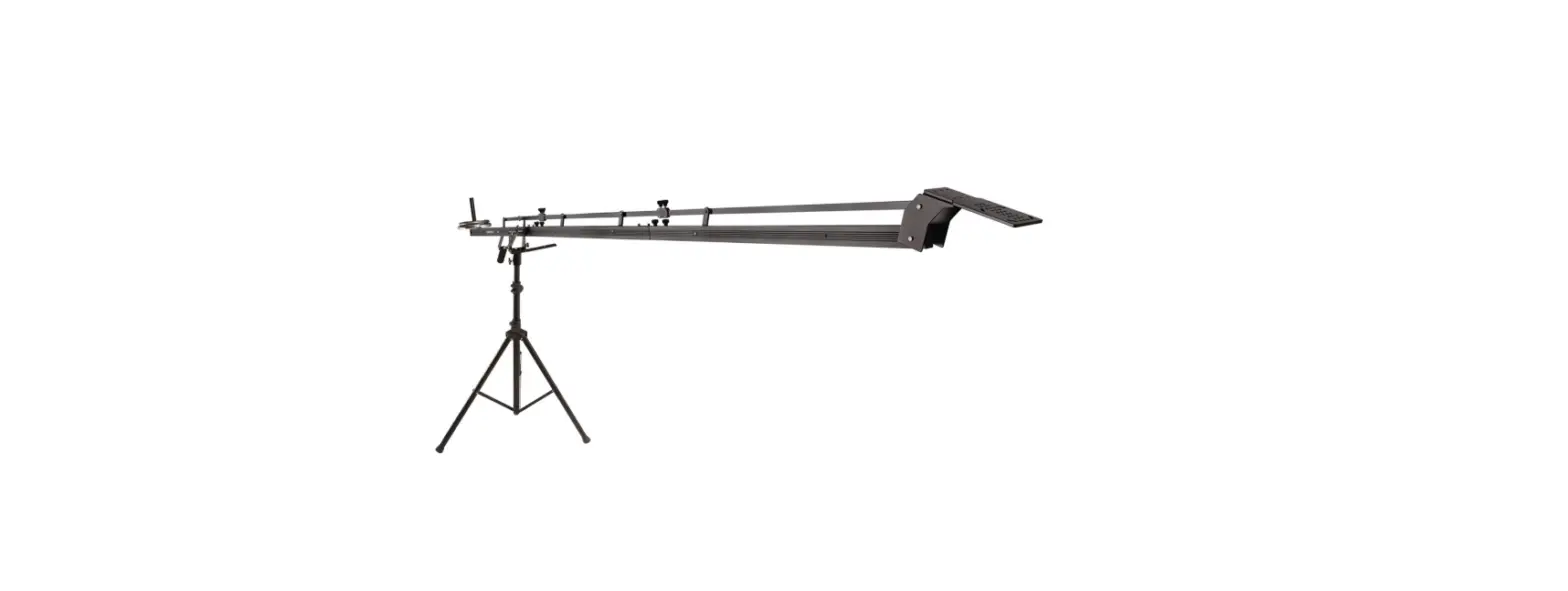
Place Scissor Jib with Hub Mounting on top of the Jib Stand, and then insert the Hub Locking Knob, as shown in the image.
After attaching the hub locking knob, secure it properly.
NOTE: Check the Scissor Jib level with the help of a Bubble Leveler. You can adjust the height of jib stand to keep your jib levelled.
Loosen the gimbal bracket bolts then insert the two guide rods on either side.
After inserting two guide rods tighten them with the help of the bolts.
Then insert another guide rod into the boom lock bracket and then lock it in place to secure it correctly.
NOTE: Pan Lock enables locking the jib’s pan movement for achieving high/low angle shots. Tilt Lock allows you to fix the jib’s tilt angle to get linear tracking shots.
NOTE: While using the jib at extremely high position, the rear part of Gimbal will touch Gimbal Bracket. Therefore, adjust the angle of Gimbal Bracket by loosening the bolt of Guide Rod Mount.
Weight Rod Setup
Insert the weight rod and secure it properly with a knob.
Insert weights into the weight rod. NOTE: Weight will be added according to the setup required to balance the camera properly.
Both ends are now secured with closers.
5
Guide Rod
Boomlock Bracket
6
Install Jib Controller on the weight rod, and then secure it with the provided knob.
NOTE: Telescope / Retract the length of Scissor Jib using Jib Controller. Precise Controller conveniently pushes out / pulls in the jib length and controls the movements.
Connect the Jib Controller cable to the right and Motor Driver cable to the left of the Battery Plate.
Now mount your V-Mount Battery (Not Included) onto the Battery Plate.
NOTE: The system is integrated with a V-Mount Battery Plate, which adapts a 14.8V V -Mount battery to power the drive system.
After attaching the V-mount battery, you can operate the scissor jib in 2 alternate ways. If you press the button to the battery side, it will be operated by the scissor jib battery, and if you press it to the power side, it will run on the power.
You can rotate your scissor crane 360° by loosening the knob, as shown in the image.
7
LCD Monitor Arm Setup
Connect the Monitor Arm and tighten it with the help of provided screws.
NOTE: LCD Mounting Arm helps in attaching an LCD monitor for better viewing of shots; the arm can be mounted left/right as per your requirement.
Fix LCD Monitor (Not Included) on Monitor Arm directly and lock it with the help of the provided screw.
To power your LCD, insert its wire’s first port to power plug in the motor and the second port to the back side of the LCD.
LCD is assembled properly with the wire, as shown in the image.
Gimbal Fluid Head Setup
Attach the Gimbal Fluid Head and lock it with the help of provided knob.
NOTE: Gimbal Fluid Head comes attached with jib plate. If in case it gets detached, you can easily mount it. Steady Fluid Head ensures perfect alignment of your 3-Axis Gimbal on Scissor Crane. Mount your Gimbal (Not Included) and adjust
the tension of the Fluid Head as per the requirement.
8
NOTE: Without camera setup this jib gets balanced at 24kg weight. If the camera weight is 1kg, the jib is balanced with 24+3.5 = 27.5kg. For more details we provided balancing tips on Page-no: 12
Install Ronin controller bracket on the weight rod. Then attach the Ronin controller with the bracket and lock it.
Attaching the Cable Tie
After completing the installation, retract the jib arm, and then attach cable ties to the hole of each frame.
From the back, put the cables into the holes in the same direction, then tighten the cables tie to the marked position. Make sure that the cables do not move from these frame.
NOTE: Maximize the length of scissor jib arm to check the cable so that it should remain spiral like in the image .
Controller Kit Setup
Loosen & remove the bolts of an already attached Controller box with a battery plate of the Scissor Jib Crane (Not Included) using an Allen key, and then remove the Controller box.
Attach the Controller box to the Scissor Jib crane (Not Included), as shown in the image.
9
Then insert the Allen bolt into the Controller box, and secure it using the Allen key.
Similarly, secure all the bolts using the same process as above, and attach The Controller Box with Battery plate to the Scissor Jib (Not Included).
Loosen the flower knob of the Controller box, and then insert the weight rod (Not Included).
After positioning the weight rod (Not Included) centrally, re-tighten and secure it using the flower knob.
Loosen the ratchet knob (red) of the Speed Controller Remote and then slide the Speed Controller Remote Clamp according to your requirement. After setting the position of the clamp, re-tighten the knob to secure it.
10
Speed Controller The speed dial, as the name suggests, lets you control the speed intensity of the jib movements.
Damping Adjustment The damping adjustment dial lets you control the level of damping and facilitate smooth, stabilized
movements as the jib expands & retracts.
Loosen the ratchet knob (Black) of the Speed Controller Remote.
Insert the Speed Controller Remote by sliding it into the weight rod (Not Included), and then properly tighten it using the provided knob.
After attaching the Speed Controller Remote to the weight rod (Not Included), affix the pin of a spiral cable to the Speed Controller Remote.
Tighten the pin of the spiral cable.
11
Connect the Jib Controller cable to the right and Motor Driver Cable to the left of the Battery Plate.
Now mount your V-Mount Battery (Not Included) onto the Battery Plate.
NOTE: The system is integrated with a V-Mount Battery Plate, which adapts a 14.8V V -Mount battery to power the drive system.
After attaching the V-mount battery, you can operate the scissor jib in 2 alternate ways. If you press the button to the battery side, it will be operated by the scissor jib battery, and if you press it from the power side, it will run on the power.
To power the Scissor Jib (Not Included), connect a 15AC Adapter pin to the Controller box with battery plate.
Retraction/Expansion The forward/reverse buttons let you
conveniently push out and pull in the jib arm.
Direction Control The direction button lets you lock the
direction in which you want your jib to moveforward or in reverse.
12
Upgraded Controller Kit has now been properly attached to the Scissor Jib Crane (Not Included).
Maintenance
Bearing Maintenance
If after a period of time your bearings don’t smoothly, lubricate with light machine oil. Be sure to keep oil away from your camera, & clean up any over-spill.
Cleaning
Do not use solvents or harsh cleaners of any kind on your crane. If the unit becomes dirty, use a damp soft cloth or sponge and a mild detergent to gently clean external parts.
Balancing Tips :
Jib self balancing With 24kg Weight
If the camera weight is 1kg, the jib is balanced with 24+3.5 = 27.5kg
If the camera weight is 2kg, the jib is balanced with 24+7= 31kg
If the camera weight is 10kg, the jib is balanced with 24+35= 59kg
13
YOUR PROAIM POWERMATIC SCISSOR PRO 17FT TELESCOPIC CAMERA JIB CRANE W NEW REMOTE CONTROLLER ALL DRESSED UP AND READY TO GO!
(SHOWN WITH OPTIONAL ACCESSORIES)
Warranty: We offer one year warranty for our products from date of purchase. Within this period of time, we will repair it without charge for labor or parts. Warranty doesn’t cover transportation costs nor does it cover a product subjected to misuse or accidental damage. Warranty repairs are subjected to inspection and evaluation by us. Liability: We are not liable for damage caused by products that we do not supply or from mishandling in transit, accident, misuse, neglect, lack of care of the product, or service by anyone other than our company. Contact Us: In case of any kind of dissatisfaction, please Contact us immediately and we promise our utmost support and care until you use our product.