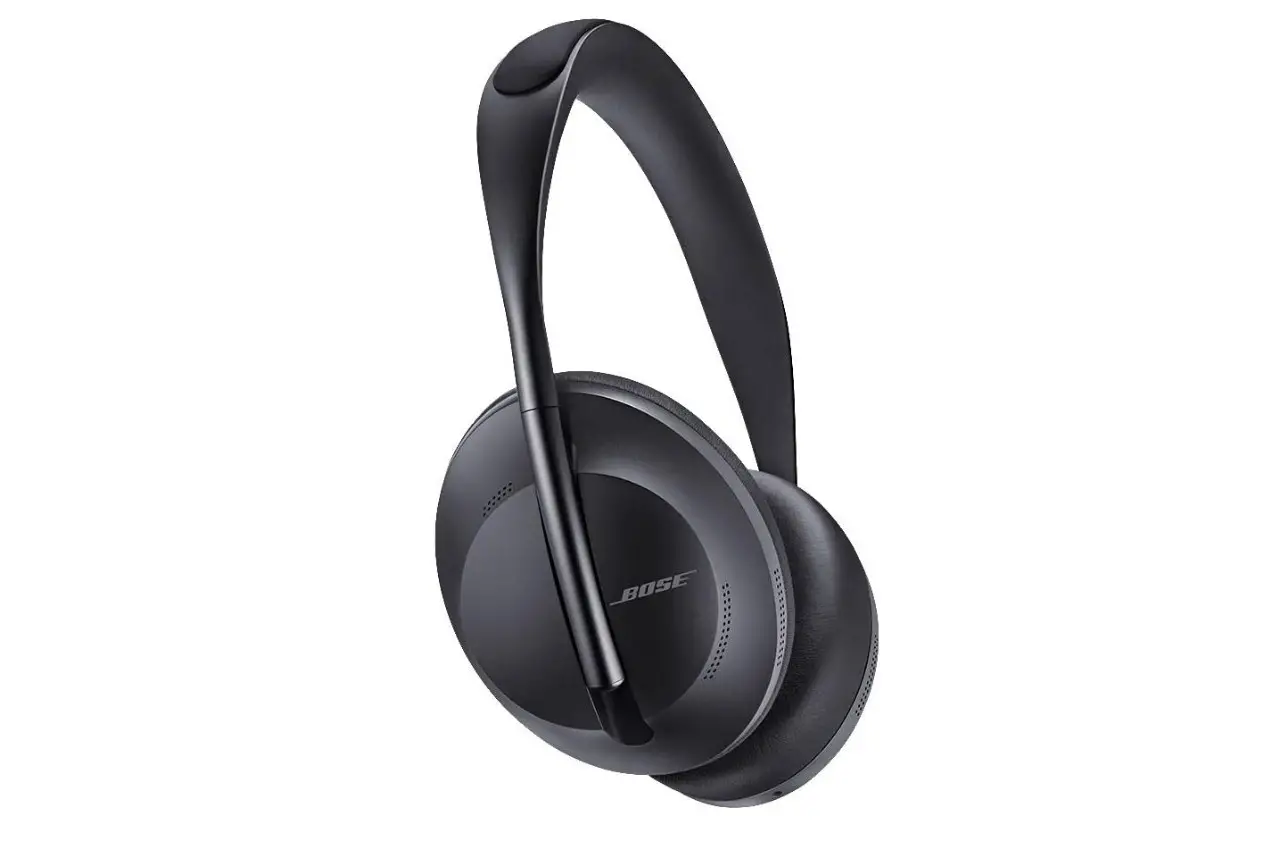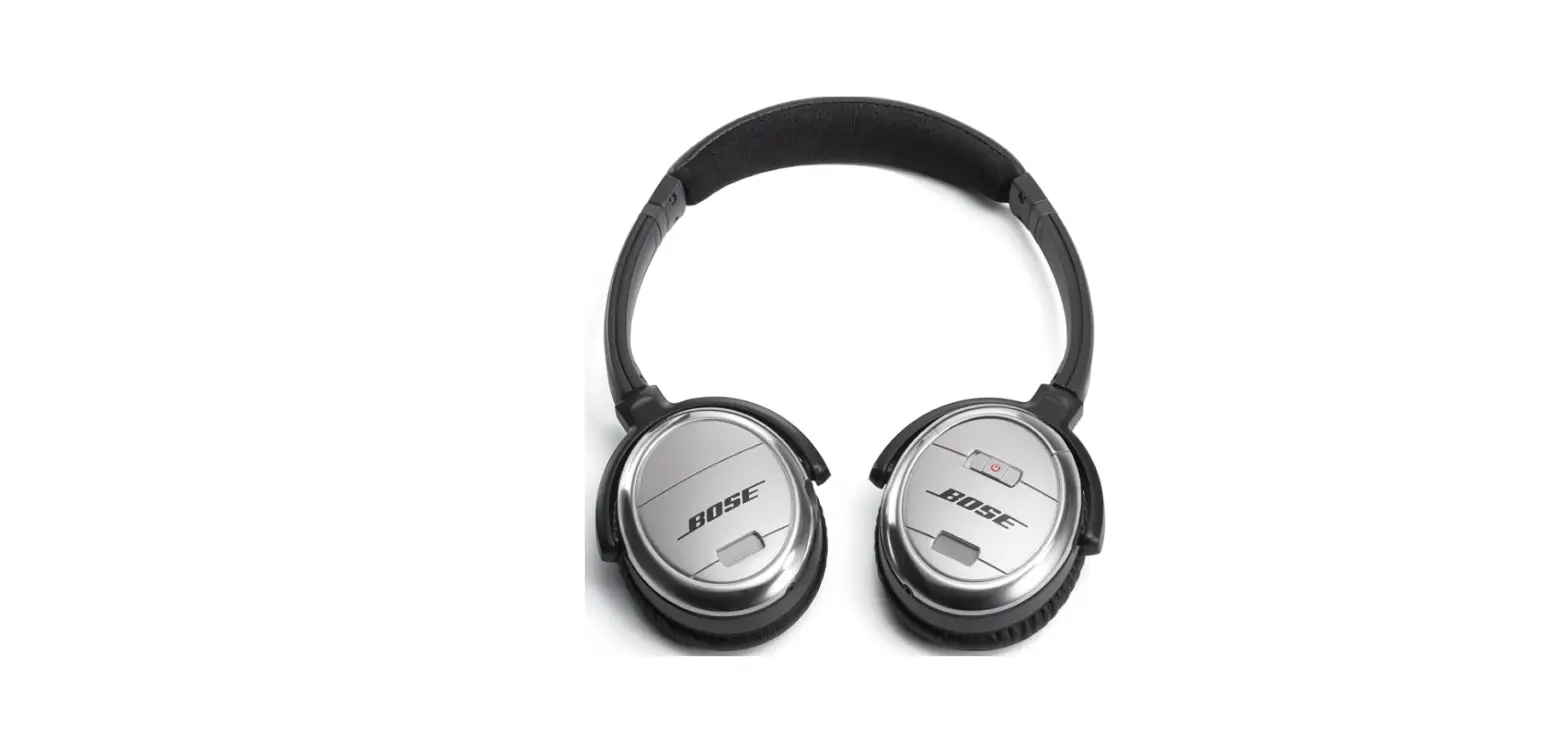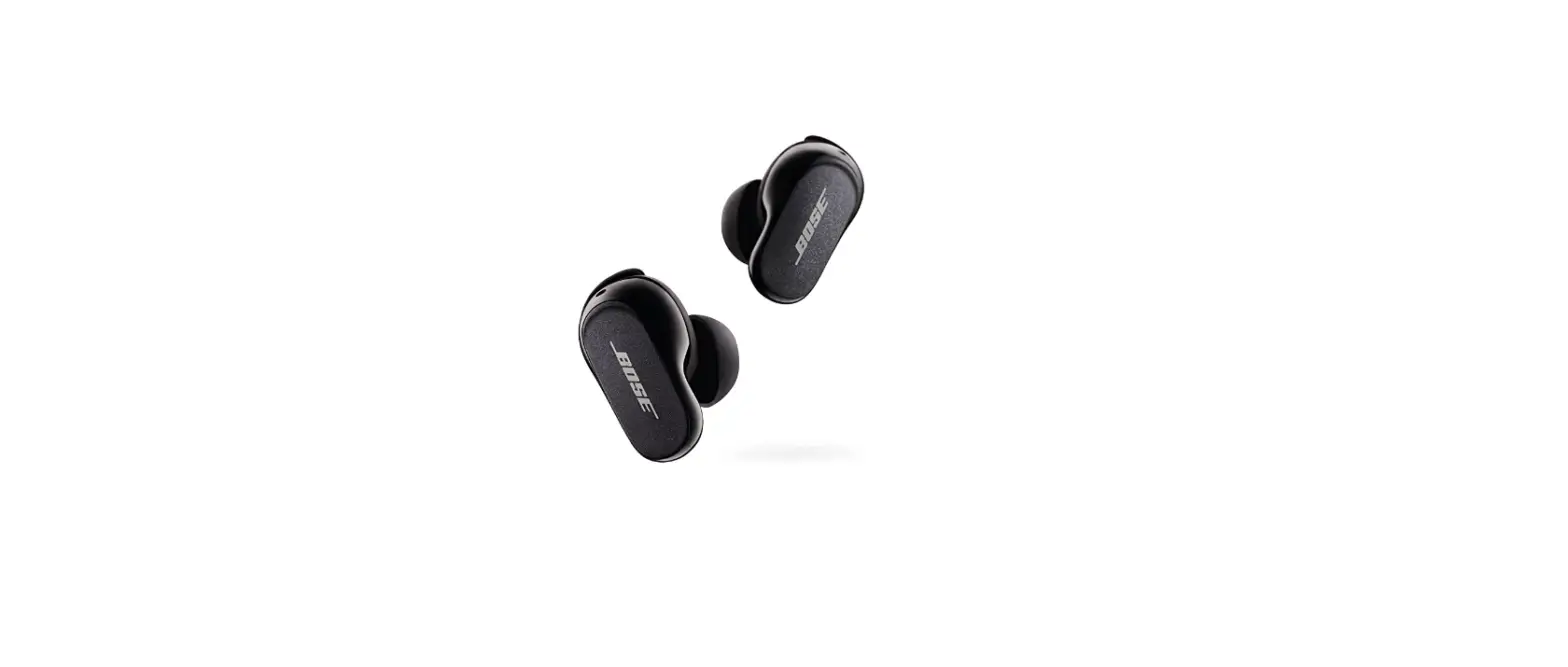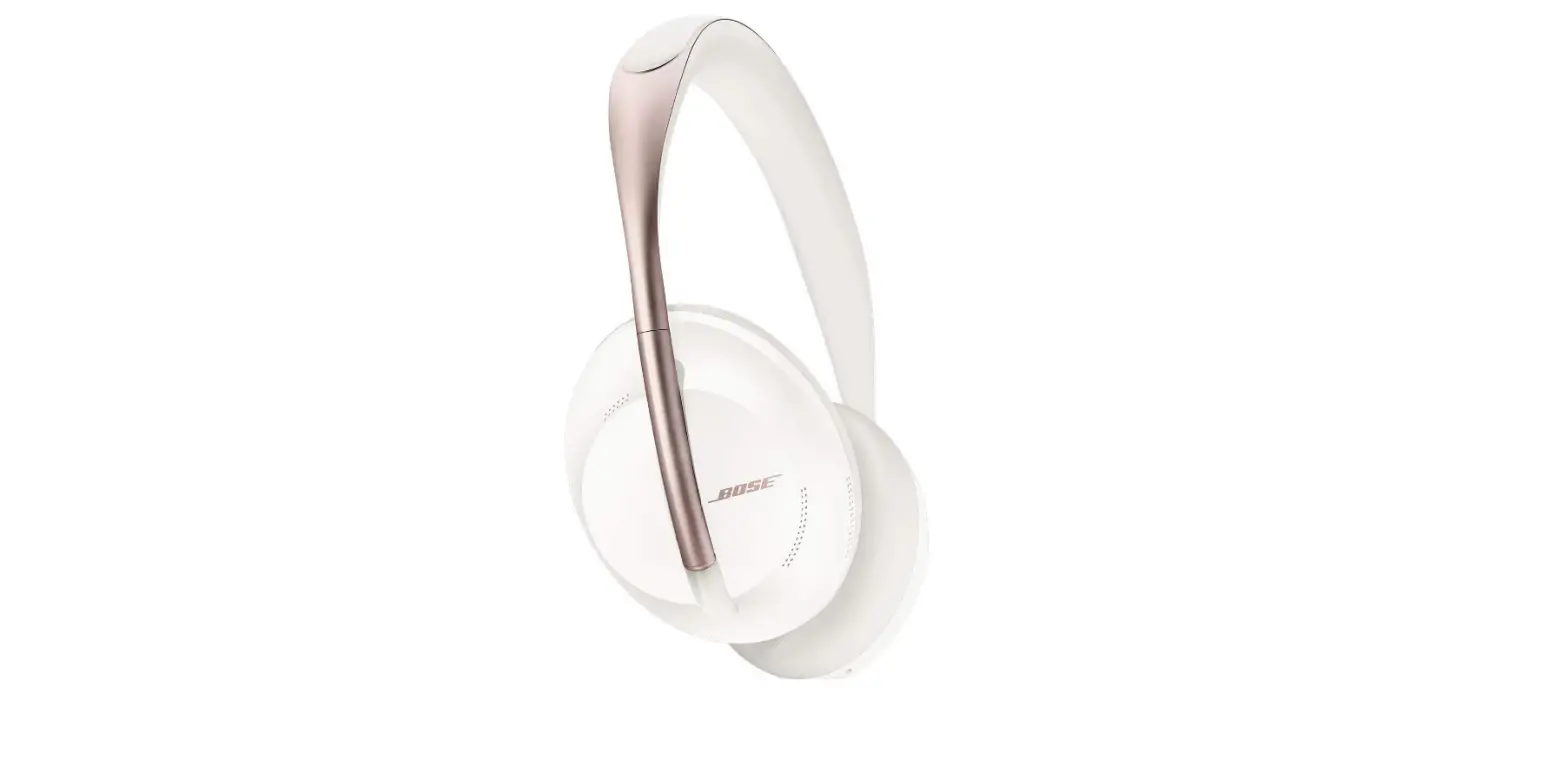
Bose Noise Cancelling Headphones
Specifications
- DIMENSIONS: 2 x 6.5 x 8 inches,
- WEIGHT: 8.8 ounces,
- BLUETOOTH VERSION: V5.0,
- BLUETOOTH RANGE: 30 ft,
- AUDIO CABLE LENGTH: 42”,
- USB CABLE LENGTH: 20”,
- BATTERY LIFE: 20 hrs.,
- MANUFACTURER: Bose
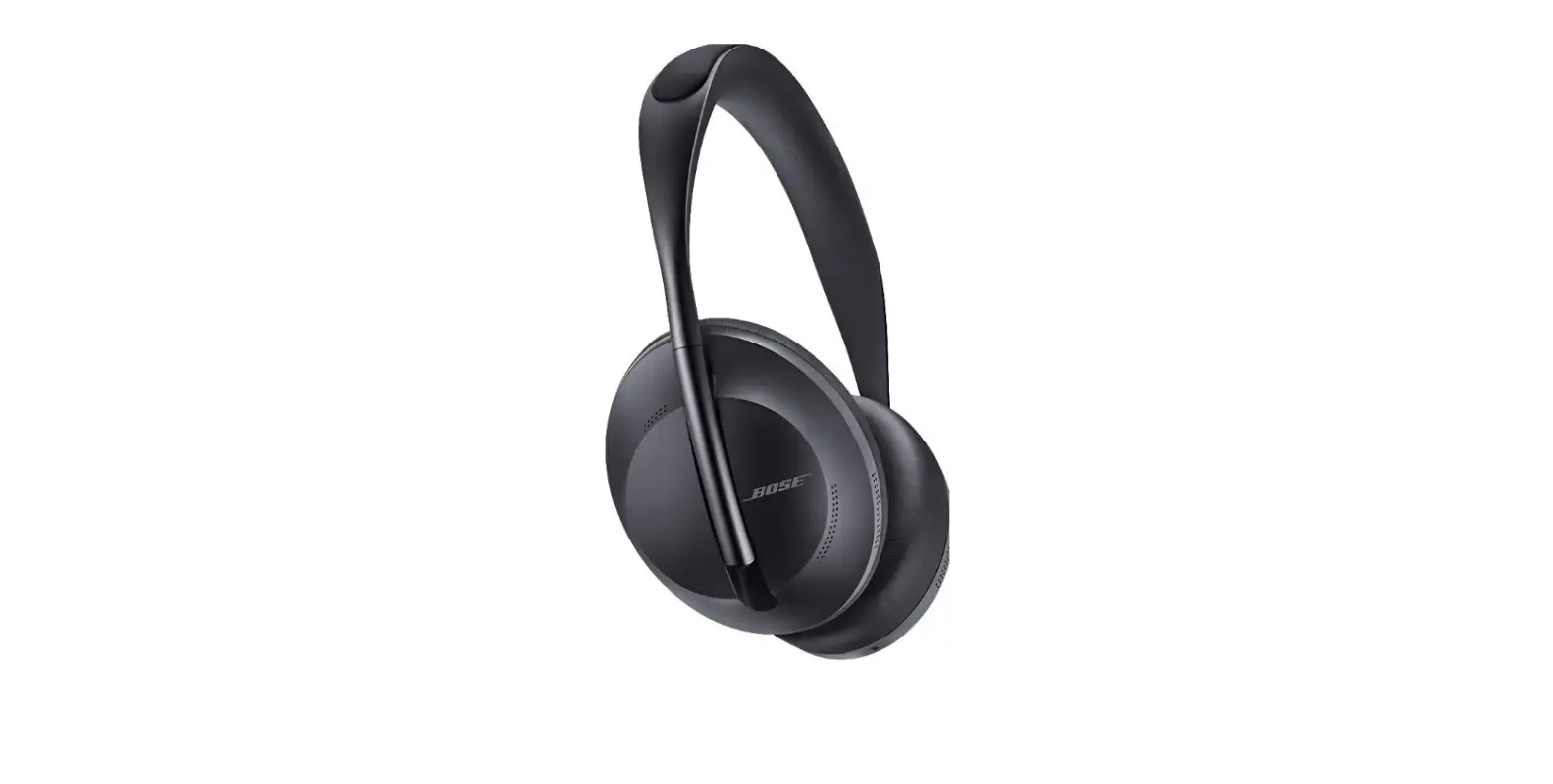
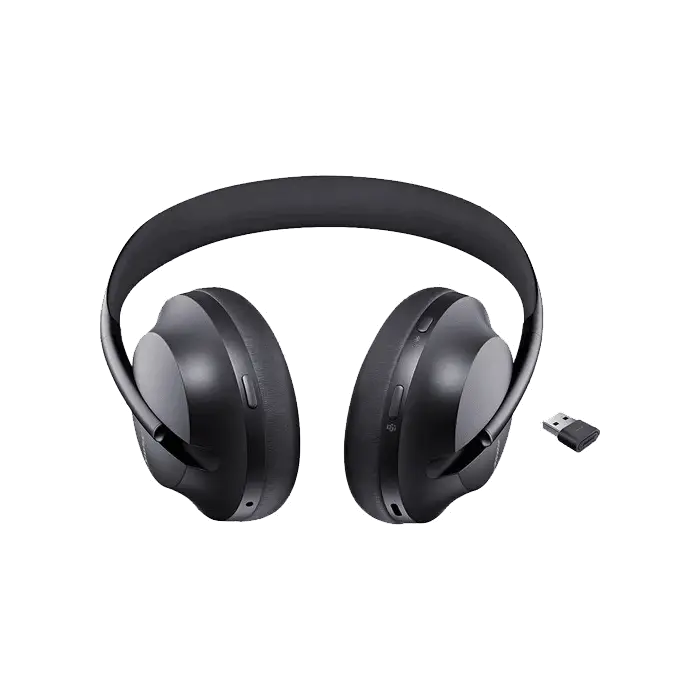
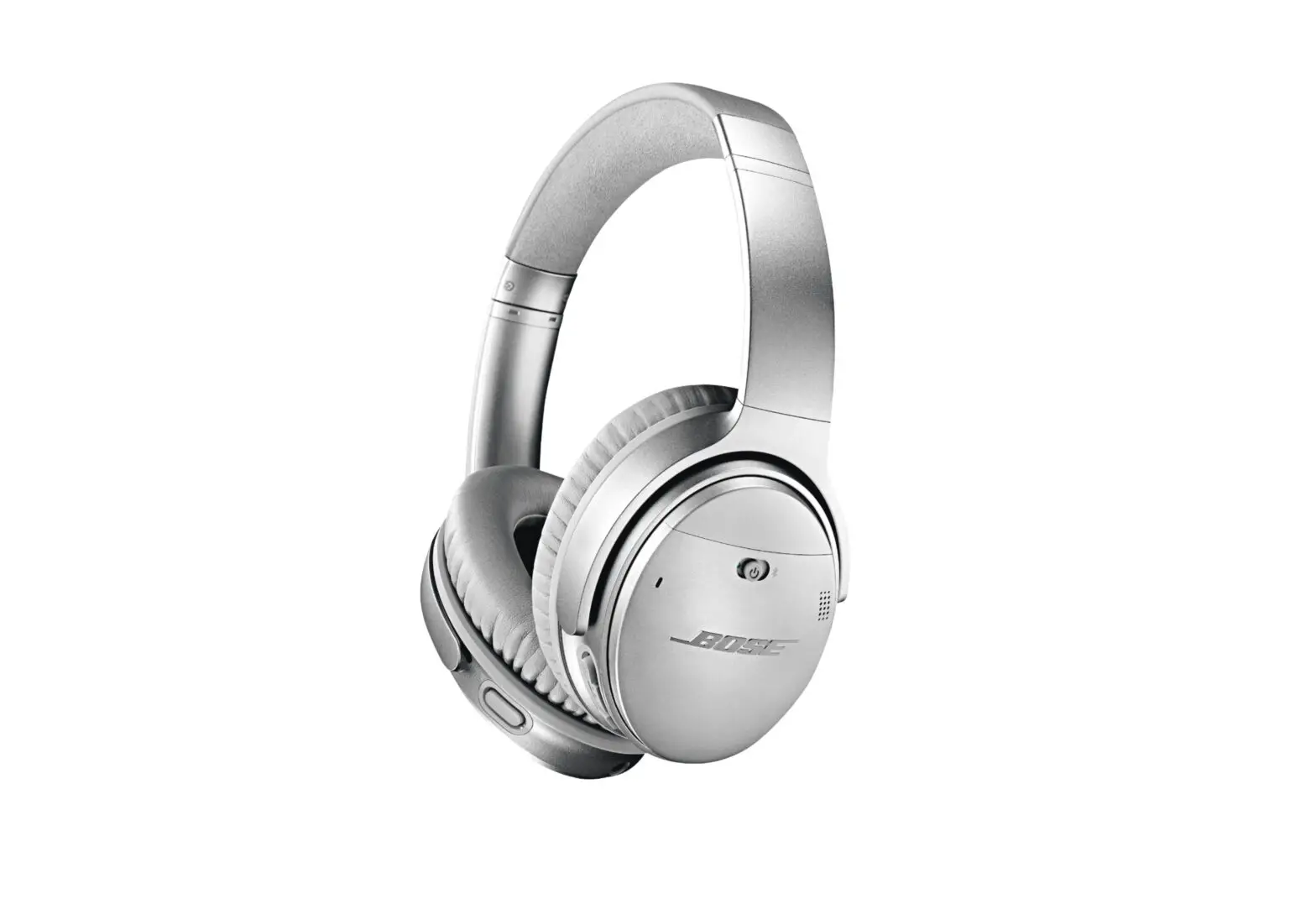
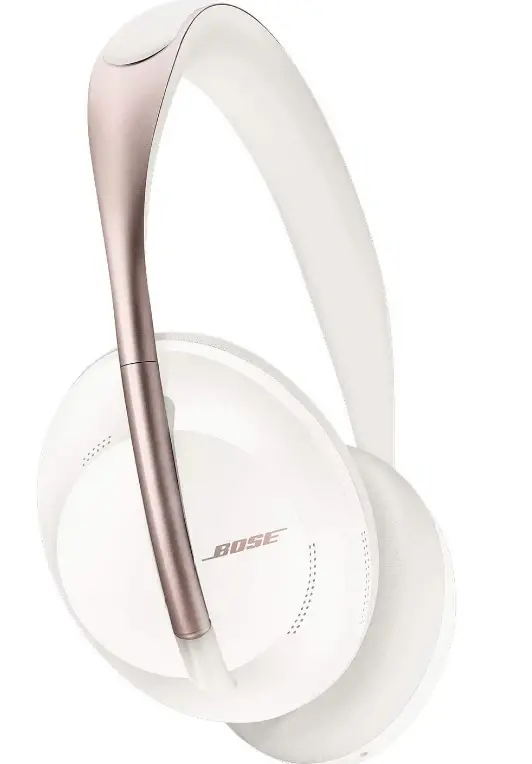
Bose is one of the most popular manufacturers of Audio Devices. The Bose Noise Cancelling Headphones 700 features active noise cancellation feature. These headphones have an improved design, with better sound quality, touch-sensitive gesture pad for controlling the tracks and a USB-C charging cable. They are easy to use, well-built and really good-looking headphones. The headphones might be a bit costly for some but the quality and the experience is top-notch with its premium build quality, better noise cancellation, better voice quality and type C fast charging.
DESIGN
One of the prominent features of these headphones is that they have a minimal design. They have three control buttons to adjust and carry out various functions. They are well-padded and allow you to wear them for long periods of time. They are made of premium quality materials. The headphones are also quite flexible.
SOUND QUALITY
The sound produced by these headphones is of really good quality. They produce a well-balanced audio. These headphones have the ability to handle most music genres providing easy listening and enhanced quality sound. They provide precise audio, with balanced highs, mids and lows.
BATTERY LIFE
This is the first model of the Bose headphones that feature USB Type-C charging cable and not the micro-USB charging port. They have a good battery life. A charge of 15 minutes provides a play time of about 3.5 hours.
WHAT’S IN THE BOX?
- Bose Noise Cancelling Headphones 700 x 1
- Carry Case x 1
- USB-C to USB-A x 1
- Audio Cable x 1
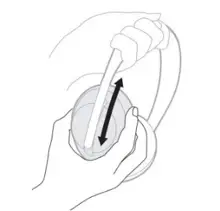
How to Adjust the Headphones?
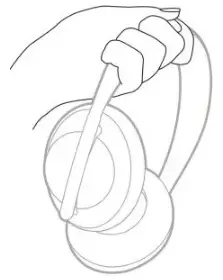
- Firmly hold the side of the headband with the outer earcup facing towards you.

- Grip the earcup, with your other hand and move the earcup up or down to adjust the position.

- Repeat the same steps for the other earcup.
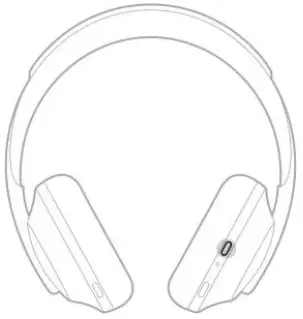
Bose Noise Cancellation Headphones Controls
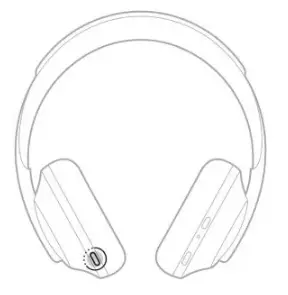
- To Power ON/OFF: Press the Power/Bluetooth button. You will hear a voice prompt and the status light will start glowing.

If the headphones have been left unused for 10 minutes, they will turn off automatically.
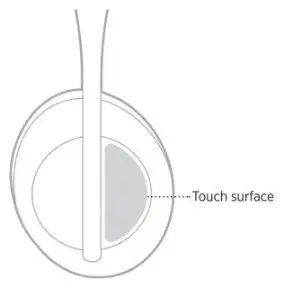
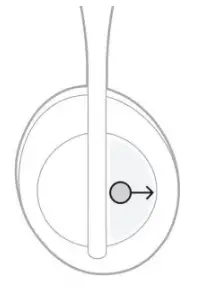
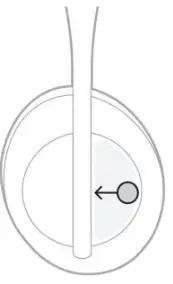
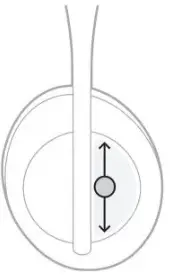
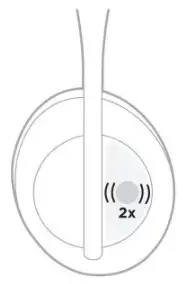
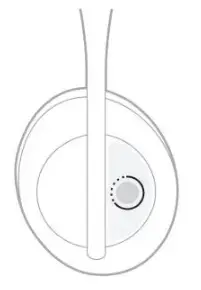
- Touch Surface Area: You will control all the functions using the touch surface area which is present on the front of the right earcup.

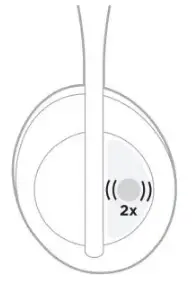
- To Play/Pause Tracks: Double Tap the Touch Surface.

- To Skip Forward: Swipe the Touch Surface forward.

- To Skip Backward: Swipe the Touch Surface backward.

- To Increase Volume: Swipe up to increase the volume.
- To Decrease Volume: Swipe up to decrease the volume.

- To Answer/End a call: Double-tap the touch surface.

- To decline an incoming call: Tap and hold for one second the touch surface.

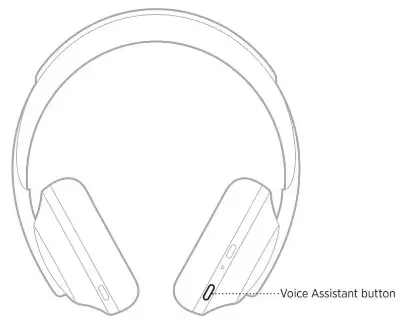
- To Mute a call: While on call, hold and release the Voice Assistant button.

- Call Notifications:
The incoming calls and call status are announced by the voice prompt. You can disable this feature using the Bose Music App.
Voice Assistant Controls
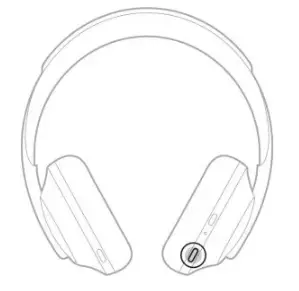
Use the voice assistant button to activate the voice assistant.
How to Adjust Noise Cancelling Levels
You can do this using the Bose Music App. There are 3 different Noise Cancelling Levels: At 0, Full transparency. At 5, Blocks low-frequency noises. At 10, Blocks all external noises.
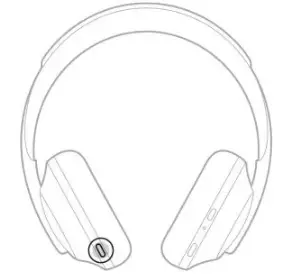
- Quick press the Noise Control Button.

- Repeat until you hear your preferred level.
How to Turn on/off Conversation Mode
- Press and Hold the Noise Control button for one second to turn on conversation mode.

- Press any button or tap the touch surface to turn off the conversation mode.
How to Charge the Headphones
- On the right earcup connect the small end of the USB cable in to the USB-C port.
- Connect the other side to the wall charger.
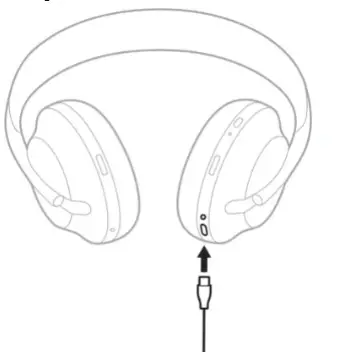
The LED light will blink white while charging. When its fully charged the battery will stay solid white.
How to Connect the Headphones to your Device Using Bluetooth
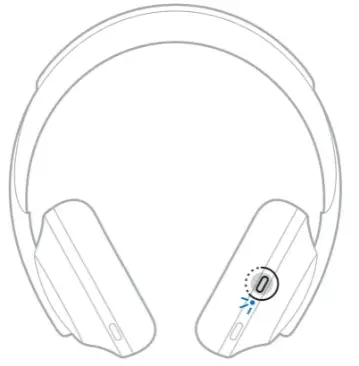
- Press and hold the Power/Bluetooth Button. You will hear a voice prompt saying “Ready to connect another device” and the Bluetooth light will slowly flash blue light.

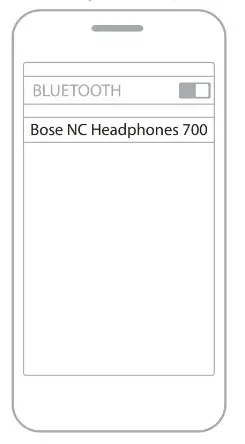
- Turn on the Bluetooth of your device. Select the “Bose NC Headphones 700” to connect to the headphones.
 The light will glow solid blue. When the headphones are turned on, they will automatically reconnect to the last connected device.
 The light will glow solid blue. When the headphones are turned on, they will automatically reconnect to the last connected device.
How to Switch Between Two Connected Devices
- Pause the audio from your device.
- Play the audio on your second device.
How to Clear the Headphones Device List
- Press and hold Power/Bluetooth button. You will hear the voice prompt saying “Bluetooth Device List Cleared” and Bluetooth light will slowly pulse blue.
- Delete them from the Bluetooth devices list of your device.
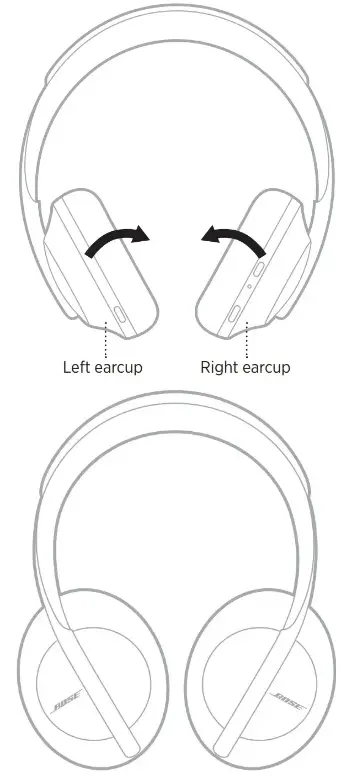
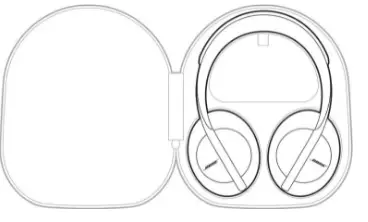
Storing the Headphones
- Adjust the earcups to their smallest size.
- Rotate the earcups inwards.

- Place them flat inside the case.
PROS
- Extra Ordinary Noise Cancellation
- Better Voice Quality for Calls
- Multi-Device Connectivity
CONS
- A bit Heavy
VERDICT
These headphones a perfect choice for travelers, students, and anyone who is looking for an above-average audio experience. They have fantastic noise cancellation and are inexpensive. However, they are not the best ones from Bose but still provide good audio experience.
FREQUENTLY ASKED QUESTIONS
- Is it as easy to switch between devices as the QC 35?
You can simply switch by first connecting both the devices using Bluetooth and then pausing the music on the first one and playing the track from the second one. - Would this work well for canceling out the sound of a lawnmower?
Yes, they have an active noise cancellation feature which will cut out the noise of the lawnmower. - Do they fold?
No, they don’t fold and aren’t compatible. - Does wind cause noise in these headphones?
No, the active noise cancellation feature and the large ear cushions cut out most of the noise caused by wind. - Do they track your location, or is there a way to turn off the location?
No, they don’t track location.