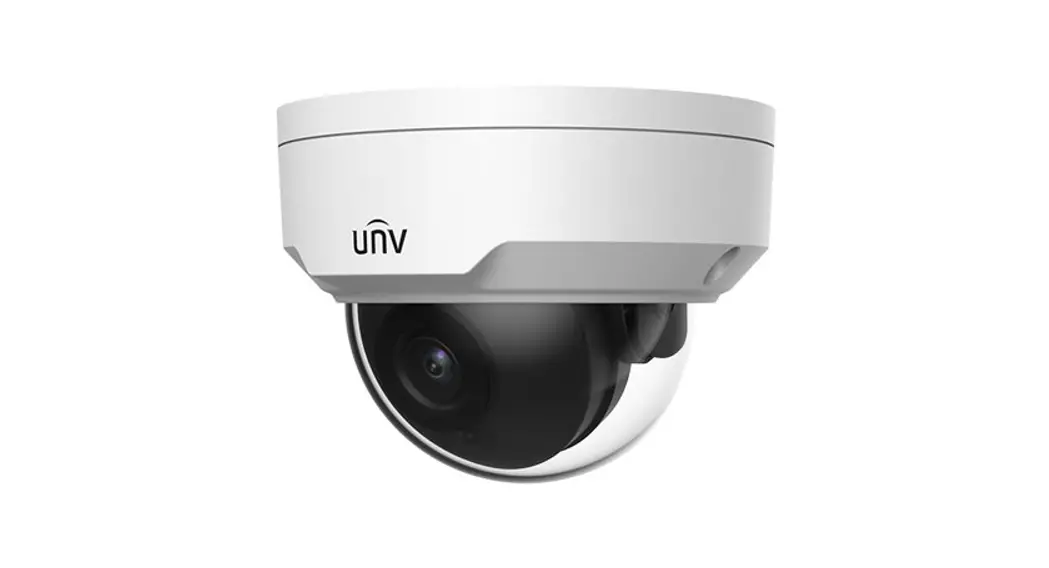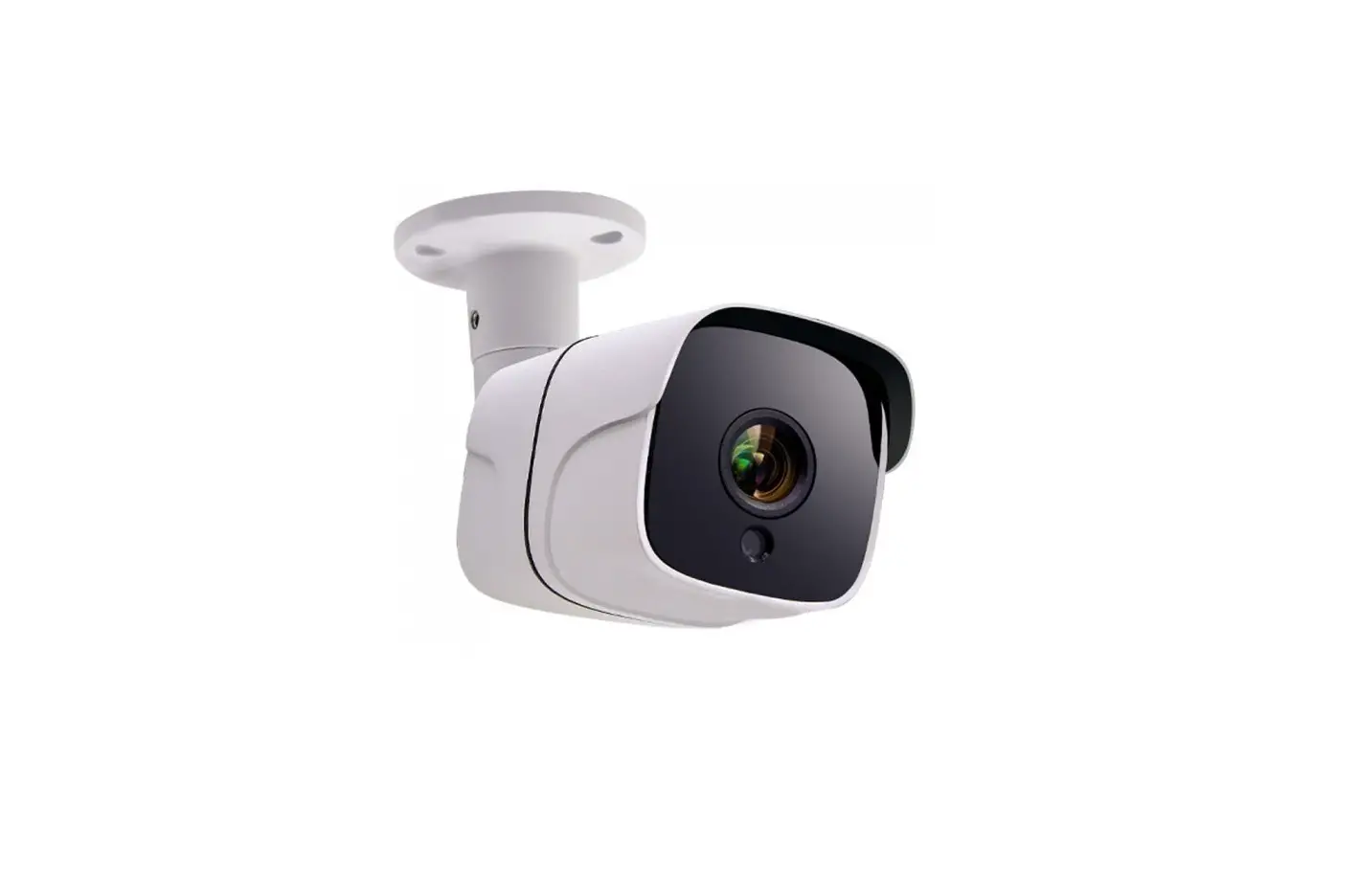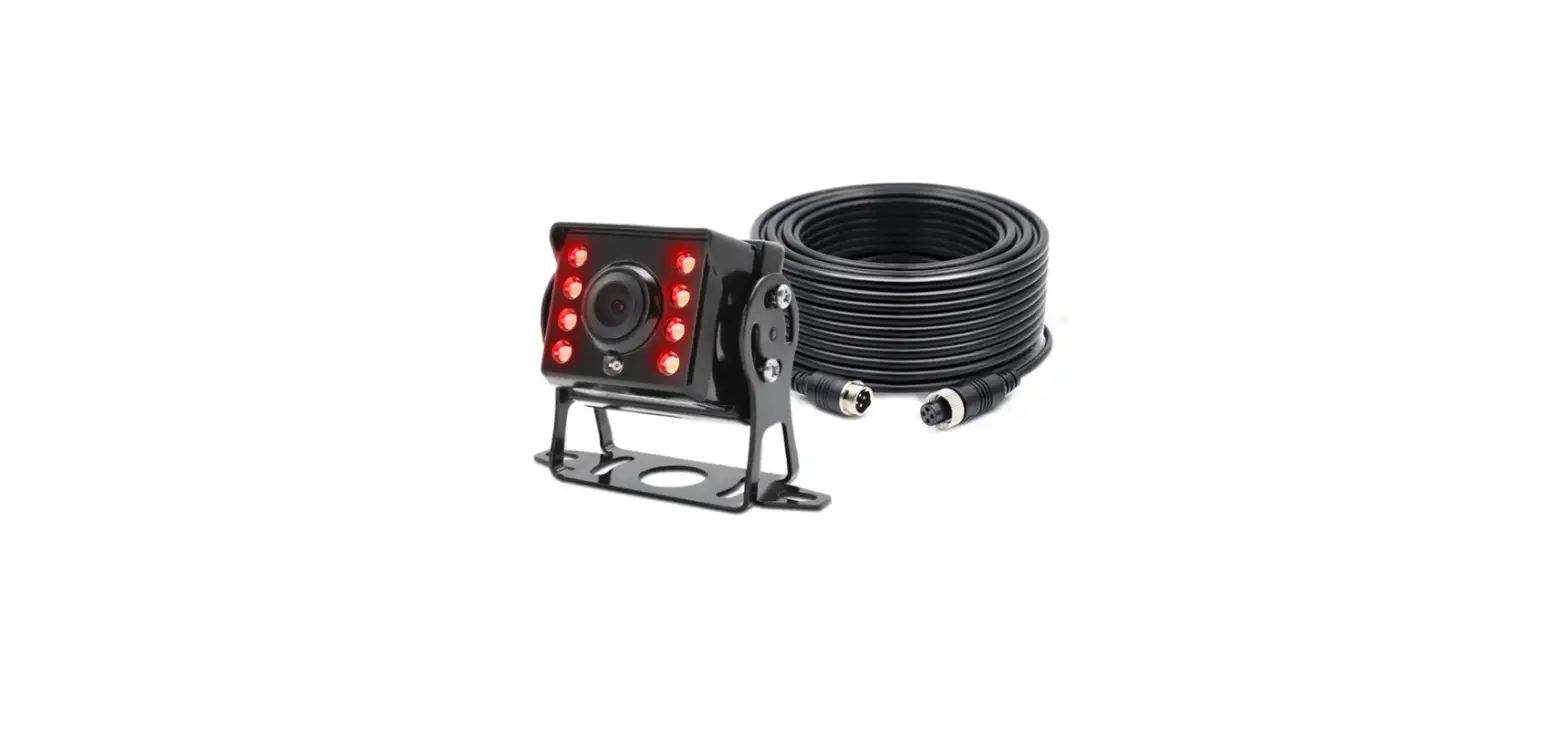

Falcon 1080P Heavy Duty Bracket Cam with 18 IR Lights 30′ Cable
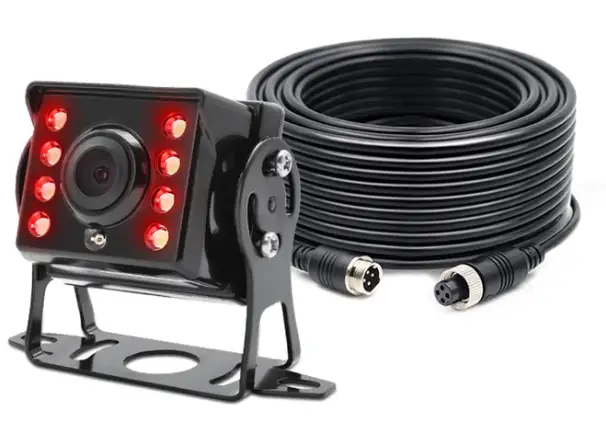
How to disable IR lights for heavy duty bracket camera
This should be only performed by customer with adequate tools and knowledge and must be follow instructions EXACTLY as referenced below. This does void standard 1 year manufacturer warranty & extended warranties if you make a mistake performing this process. Make sure you review the process below to ensure that you completely understand and you are willing to take all risk. Call us before if you need to at 512-251-8472 to ask further instructions.
Please look at the pictures provided for reference
- Step 1. Start with a heavy duty square bracket camera.
- Step 2. Remove 4 screws from the back of the camera
- Step 3. Remove the front glass cover.
- Step 4. Remove 2 screws on the left and right side of pcb.
- Step 5. Turn the pcb around so that you can see the 2 white connectors.
- Step 6. Very carefully remove the larger white connector that has the red and black wire attached to it from the white connector attached to the board. Once you have the connector removed then test the camera before you close it back up to make sure that the IR lights are disabled.
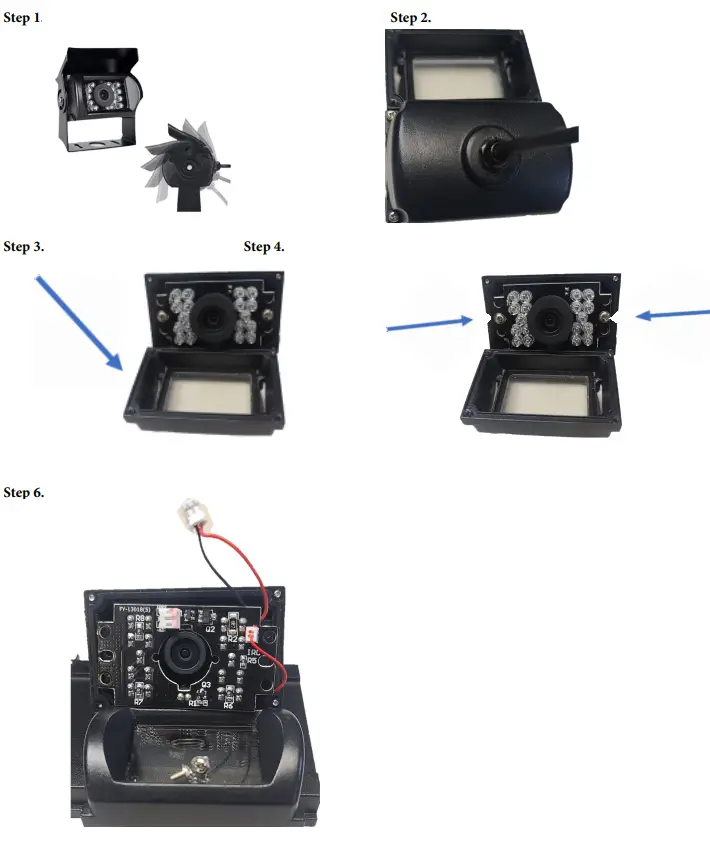
Remember if you damage the unit internally the warranty will no longer apply to the camera and you will have to pay in order to replace it