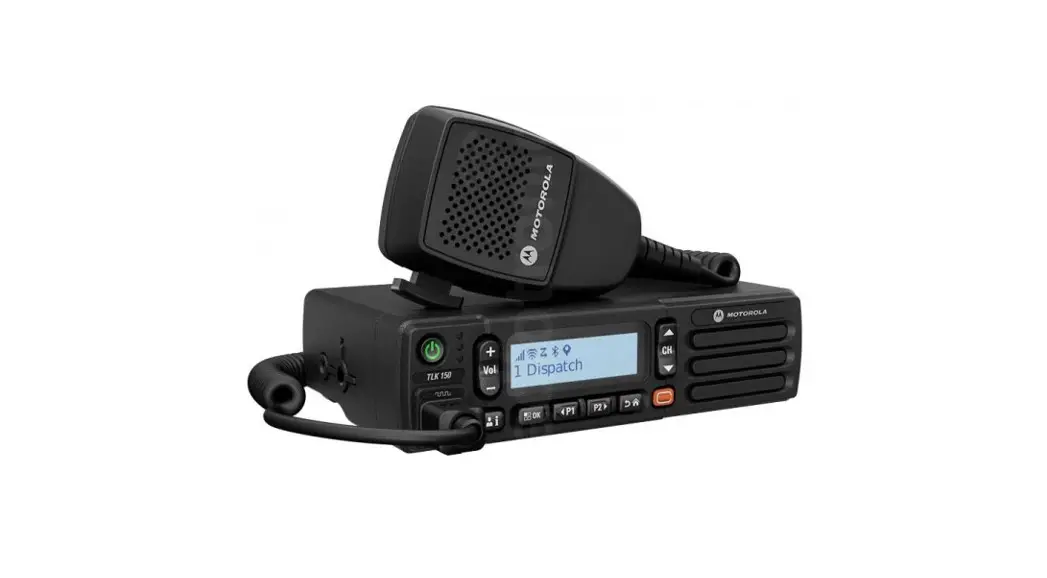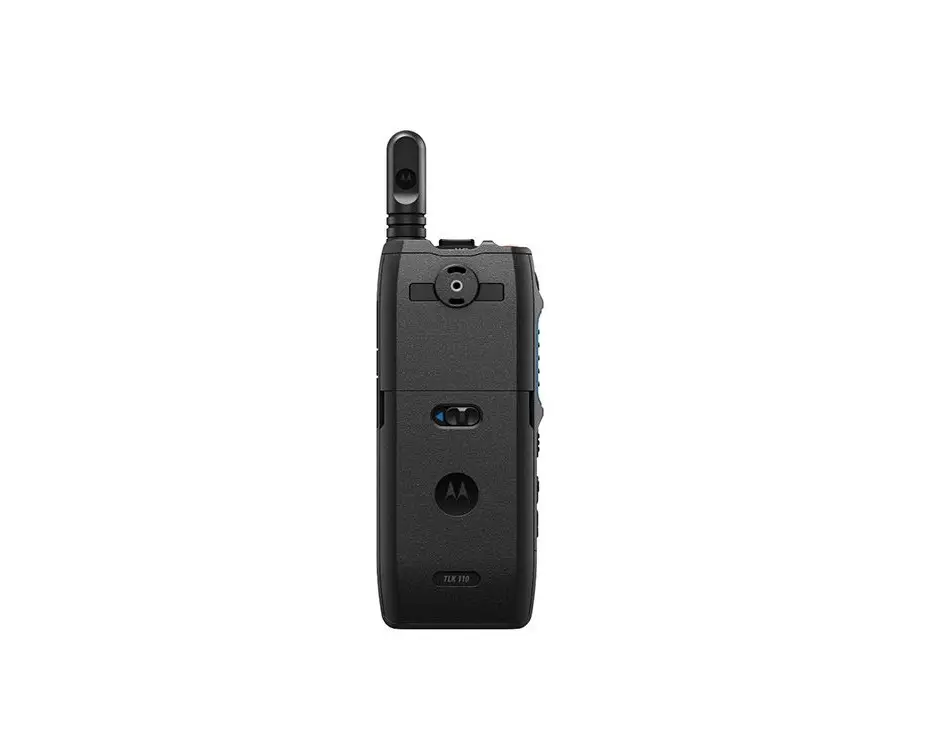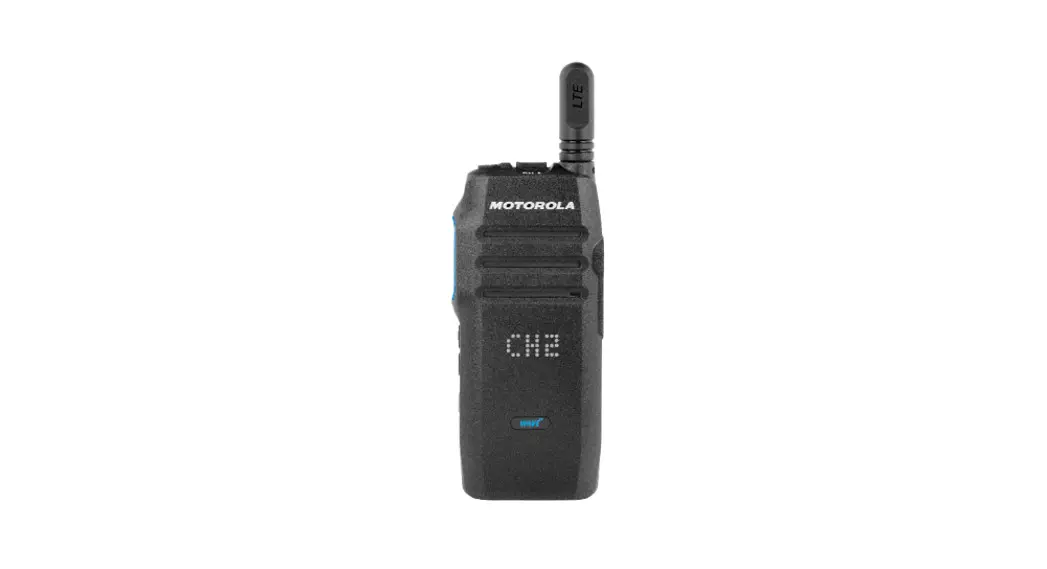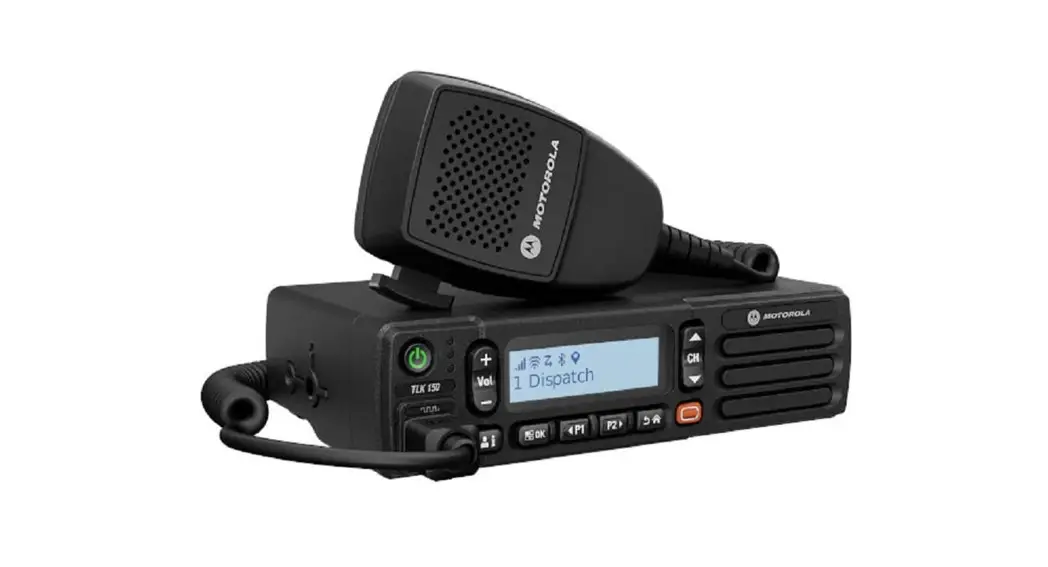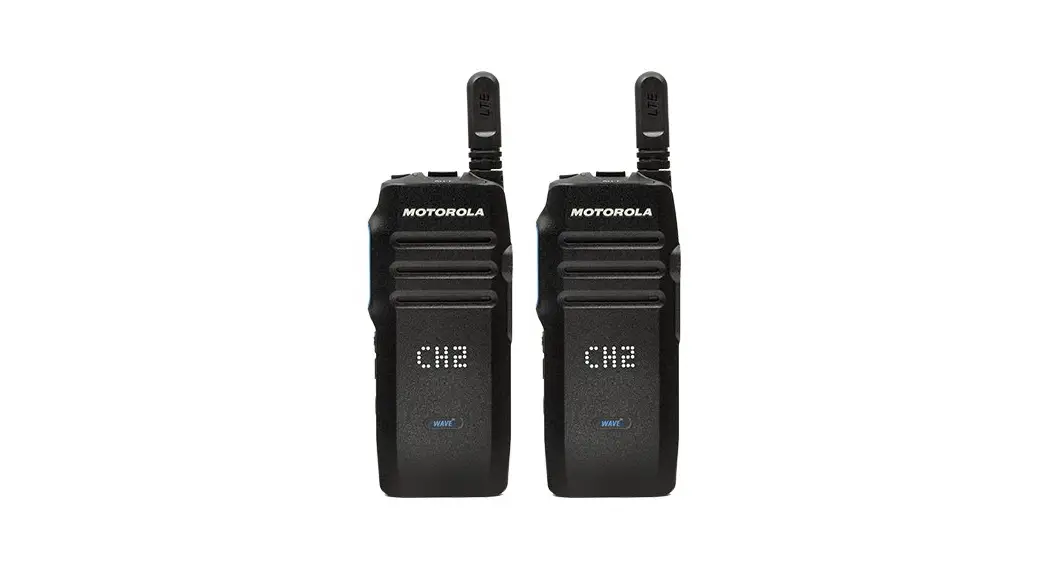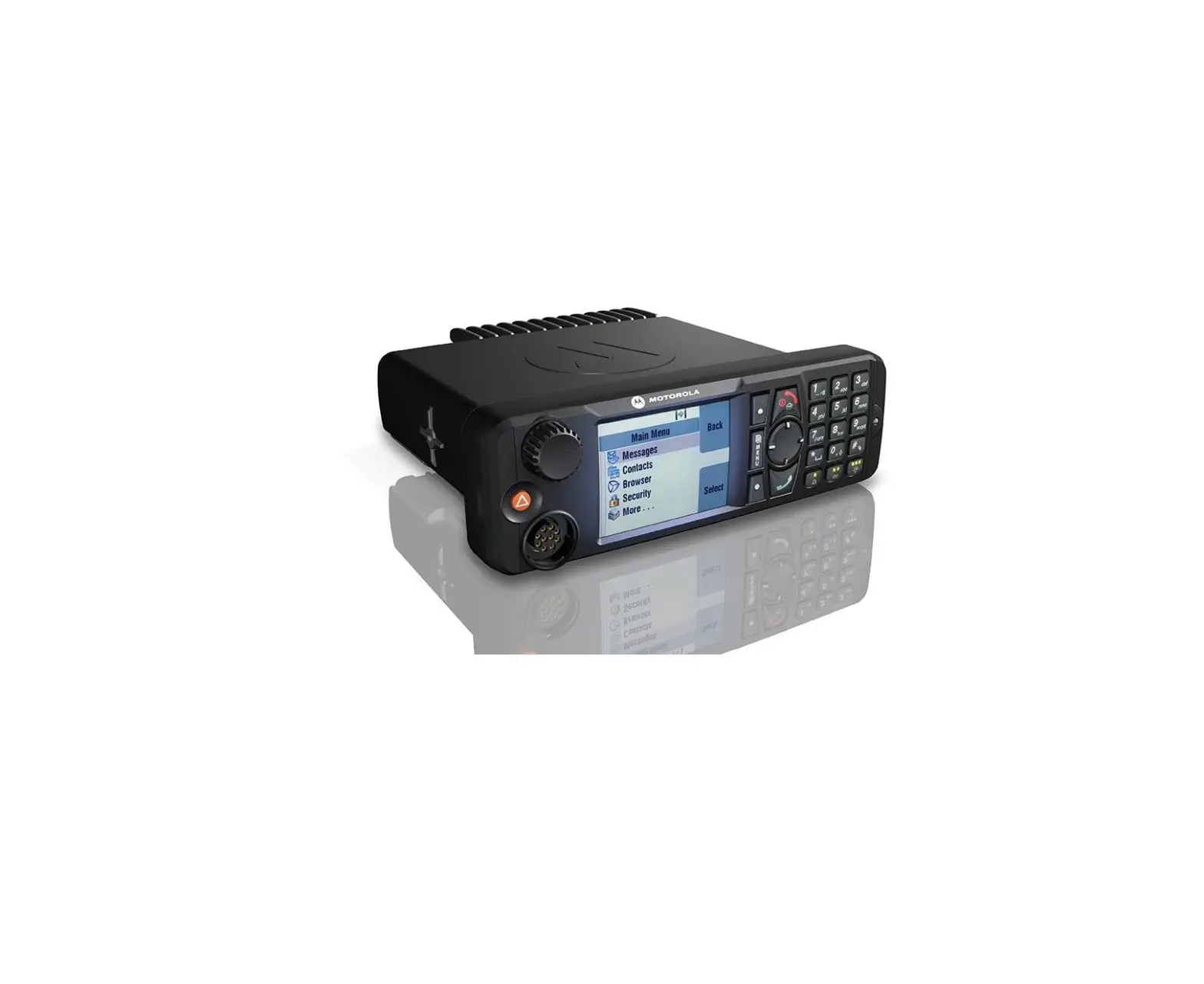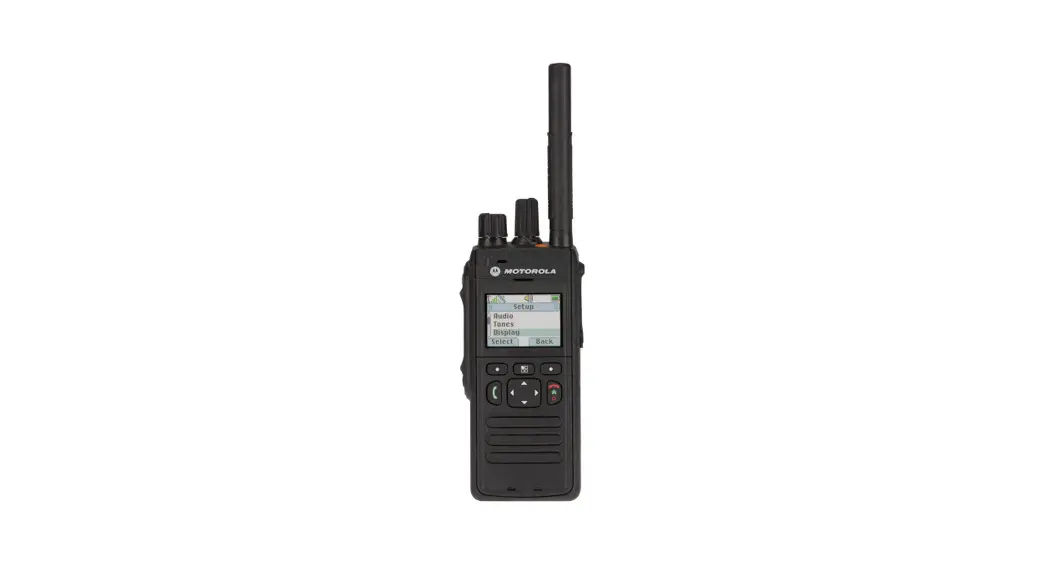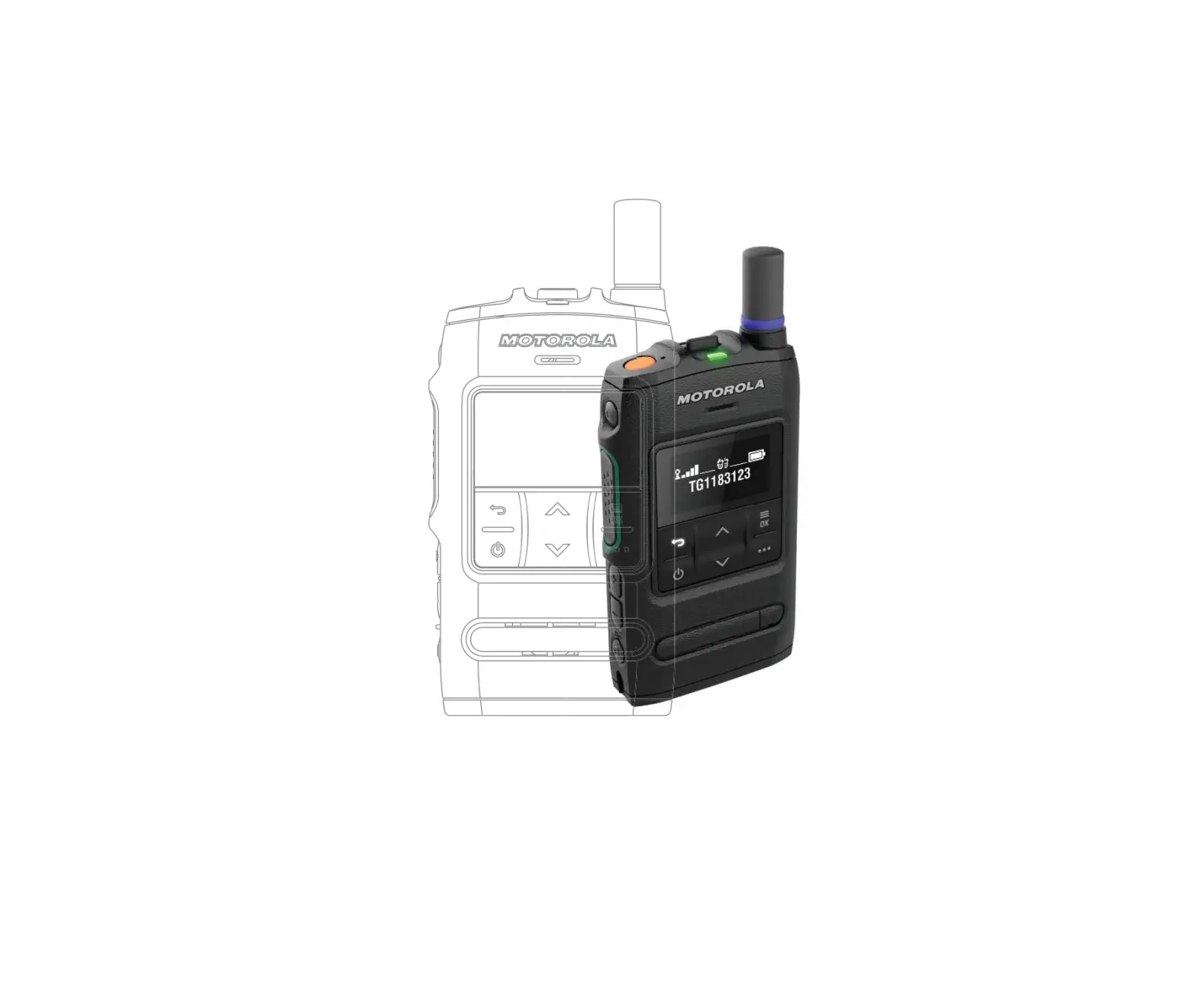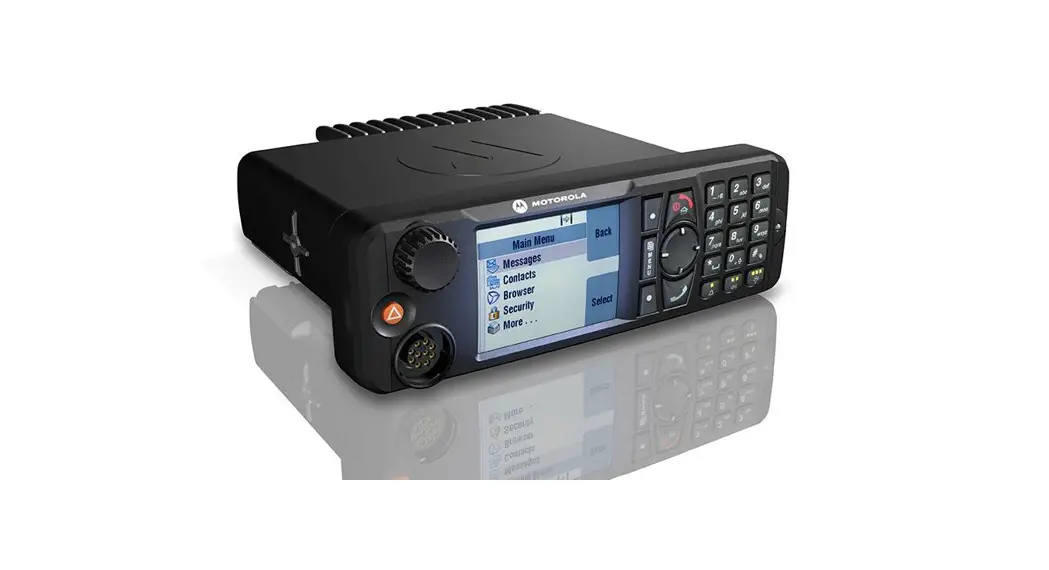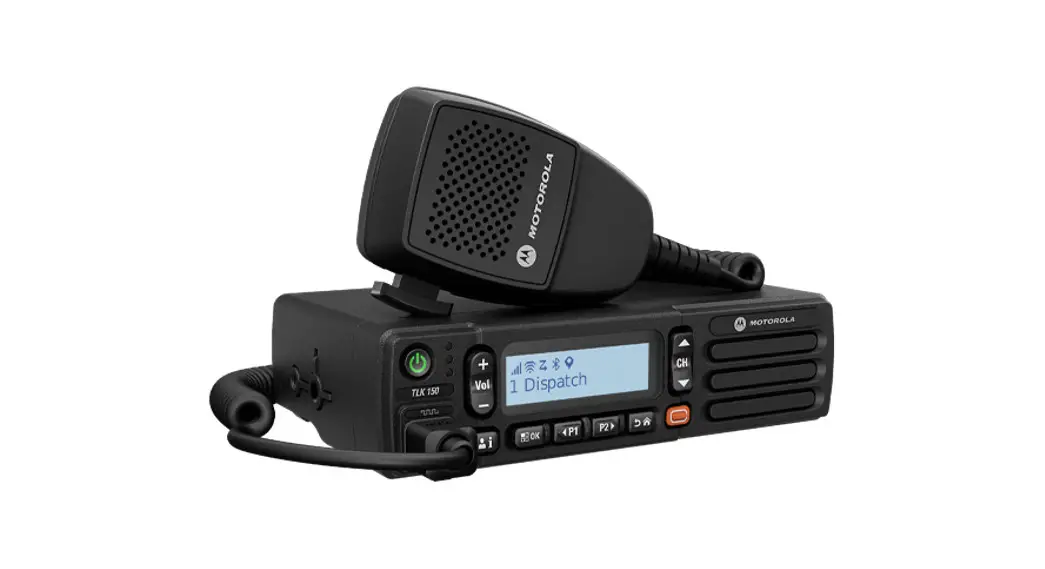
 WAVE™ MOBILE RADIO
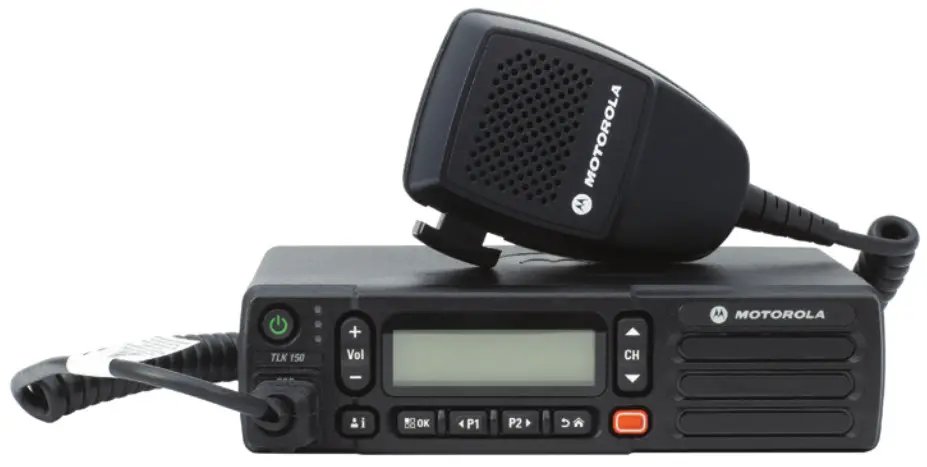
TLK 150
QUICK REFERENCE GUIDE
MARCH 2020
© 2020 Motorola Solutions, Inc. All rights reserved.
Your Quick Reference Guide
This Quick Reference Guide covers the basic operation of the radio.
Check with your dealer because your radio may have been customized for your specific needs.
For more operational details and information, refer to the User Guide at https://learning.motorolasolutions.com/.
Important Safety Information
ATTENTION!
This radio is designed to meet General Population usage. Before using the radio, read the RF Energy Exposure and Product Safety Guide for Mobile Two-Way Radios which contains important operating instructions for safe usage and RF energy awareness and control for compliance with applicable standards and Regulations.
Any modification to this device, not expressly authorized by Motorola Solutions, may void the user’s authority to operate this device.
Computer Software Copyrights
The Motorola Solutions products described in this manual may include copyrighted Motorola Solutions computer programs stored in semiconductor memories or other media. Laws in the United States and other countries preserve for Motorola Solutions certain exclusive rights for copyrighted computer programs including, but not limited to, the exclusive right to copy or reproduce in any form the copyrighted computer program.
Accordingly, any copyrighted Motorola Solutions computer programs contained in the Motorola Solutions products described in this manual may not be copied, reproduced, modified, reverse-engineered, or distributed in any manner without the express written permission of Motorola Solutions. Furthermore, the purchase of Motorola Solutions products shall not be deemed to grant either directly or by implication, estoppel, or otherwise, any license under the copyrights, patents, or patent applications of Motorola Solutions, except for the normal nonexclusive license to use that arises by operation of law in the sale of a product.
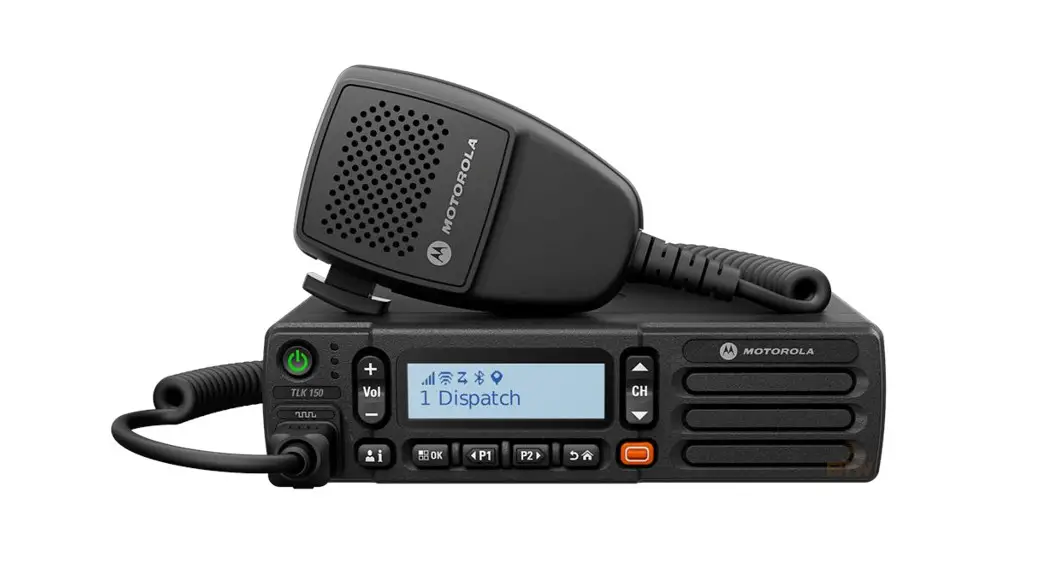
Radio Controls
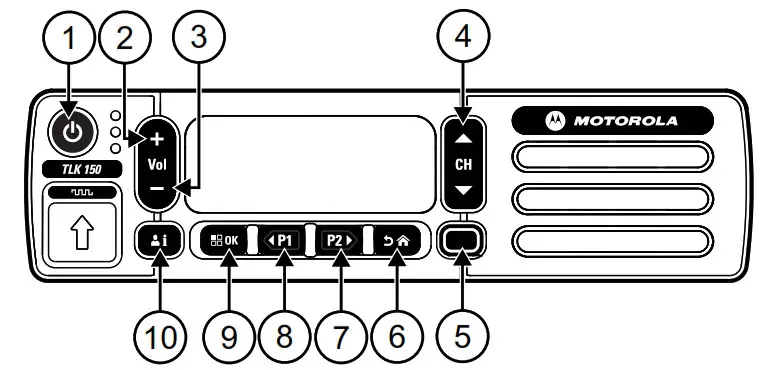
| 1. Power button 2. Volume Up button 3. Volume Down button 4. Channel button 5. Emergency button | 6. Back/Home button 7. P2 button 8. P1 button 9. Menu/OK button 10. Contacts/Info button |
Turning Radio On or Off
Press and hold the Power button.
Adjusting the Volume
Press the Volume Up or Volume Down button.
LED Indicators
Blinking red
Radio is out of range.
Solid green
Radio is powering up, or transmitting voice calls.
Fast blinking green
Radio a call hang-time.
Blinking green slowly
The radio enters into Area Talkgroup.
Solid amber
An emergency is declared.
Blinking amber
Instant Personal Alert is received.
Fast blinking amber
Emergency Alert is received
Blinking amber slowly
The radio is in scan mode.
Blinking green and amber
Radio is in Do Not Disturb (DND) mode.
No indication
Radio is off, killed, or in idle mode.
Display Icons
The following icons appear on the status bar at the top of the radio display. The icons are arranged left most in order of appearance or usage and are channel-specific.
Table 1: Display Icons
| Icon | Description |
 | Cellular Signal Level |
 | Wi-Fi Signal Level |
 | Bluetooth |
 | Bluetooth Connected |
 | Global Navigation Satellite System (GNSS) |
 | Scan |
 | Software Available |
 | Downloading Software |
 | Logs Available |
 | Uploading Logs |
 | Emergency |
 | Instant Personal Alert |
 | Do Not Disturb |
 | Area Talk Group |
 | More |
www.motorolasolutions.com
Motorola Solutions, Inc.
1303 East Algonquin Road
Schaumburg, Illinois 60196 U.S.A.
Printed in the U.S.A.
MOTOROLA, MOTO, MOTOROLA SOLUTIONS, and the Stylized M Logo are trademarks or registered trademarks of Motorola Trademark Holdings, LLC and are used under license. All other trademarks are the property of their respective owners. © 2020 Motorola Solutions, Inc. All rights reserved.

 Mission Critical Communications - Motorola Solutions
 Motorola Solutions