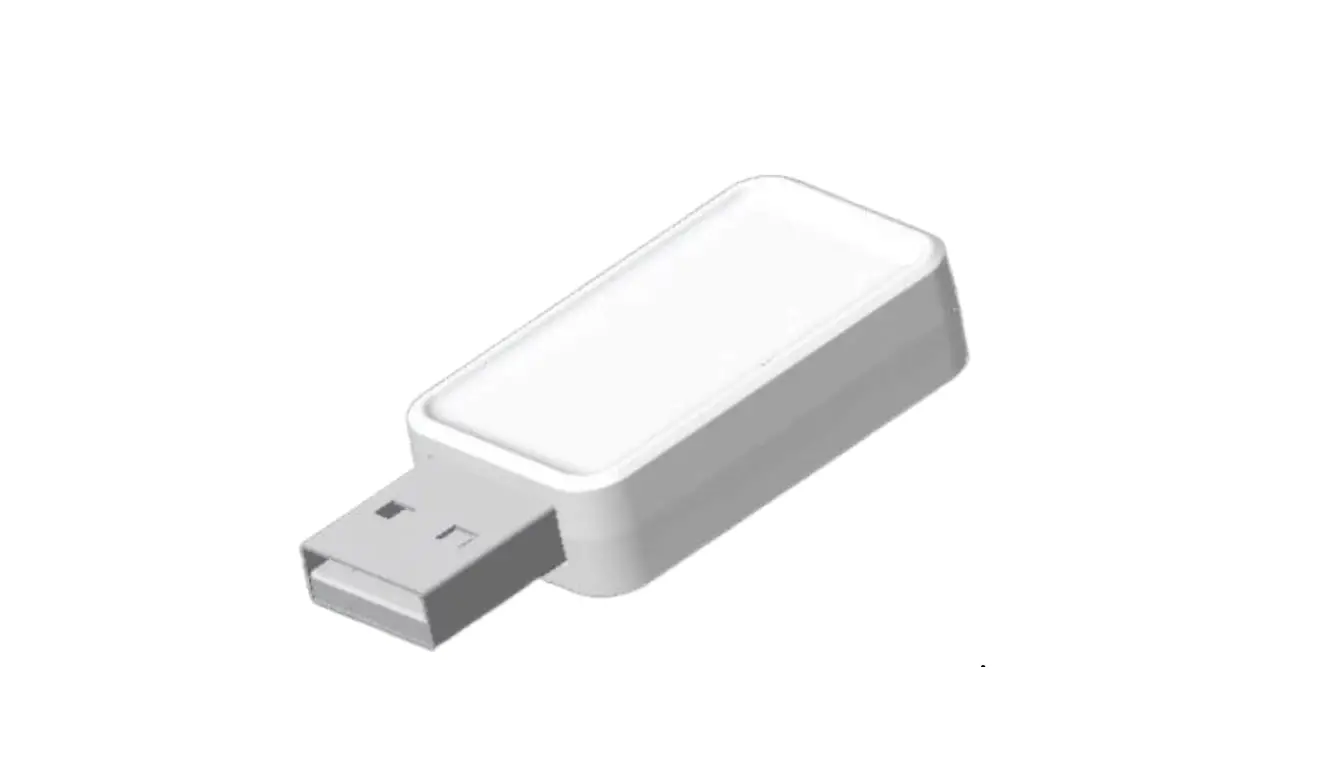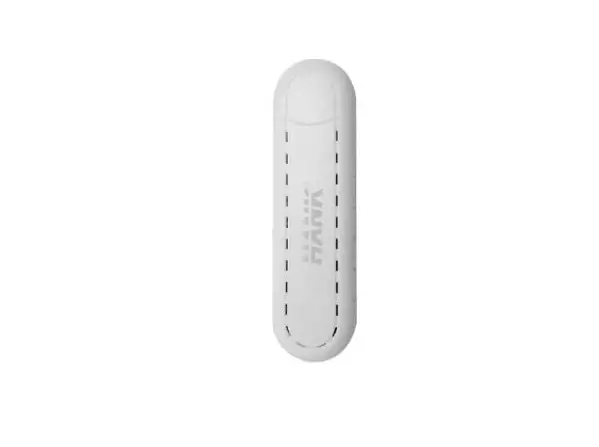
 Marantec BlueFi Stick
User Manual
Marantec BlueFi Stick
Product Evaluation Requirements
PLEASE READ THIS IN IT’S ENTIRETY
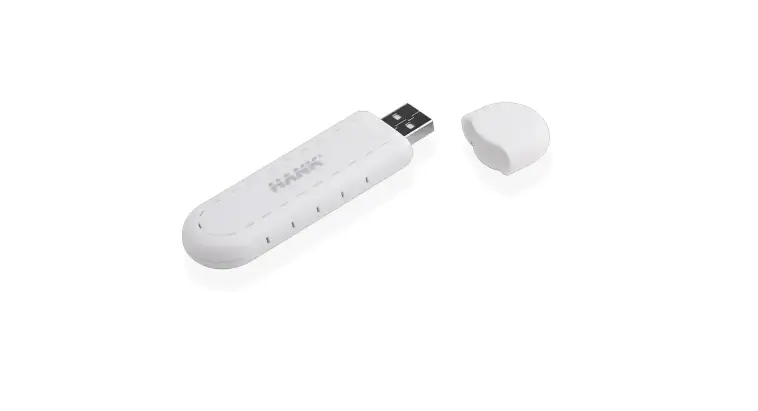
The maveo BlueFi™ Stick offers a quick and convenient way to add Wi-Fi connectivity to your existing Marantec garage door opener and when programmed, provides a two-way communication between the garage door opener and a smartphone with the maveo app installed.
Pre-Installation – read before continuing:
The maveo BlueFi™ Stick is compatible with select Marantec Garage Door Models including: M55, Synergy 200 Series and Synergy 300 Series.
Make sure your home Wi-Fi router is powered on and working and configured to send and receive data at 2.4 GHz. Please have your network ID (SSID) and network password handy. It is required for the installation process.
Before starting the installation process, please download the Maveo BlueFi Stick app from Apple TestFlight App in the Apple App Store and or the Google Play App store to your smartphone. Do not configure the app until instructed to do so during the installation process.
NOTE: If you did not receive an email invite to join the Apple or Android test environments, please contact Mike Joseph and/or Marc Hellweg.
The Bluetooth® word mark and logos are registered trademarks owned by the Bluetooth SIG, Inc. and any use of such marks by Marantec Antriebs-und ISteuerungstechnik GmbH & Co. KG is under license. Other trademarks and trade names are those of their respective owners.
Need Help?
Go to: www.marantecamerica.com/maveo
One Year Limited Warranty
Marantec America Corporation warrants to the first consumer purchaser of this product that it is free from defect in materials and/or workmanship for a period of 1 year from the date of purchase.
FCC/IC Statement
This device complies with FCC Part 15 rules and with Industry Canada license-exempt RSS standard(s). Operation is subject to the following two conditions: (1) This device may not cause interference, and (2) This device must accept any interference, including interference that may cause undesired operation of this device.
Copyright 2022, All Rights Reserved. Marantec America Corporation | No part of this manual may be reproduced without our prior written approval. Marantec reserves the right to design and technical specification subject to change without notice | Document No: 189114 Version 1.0
OVERVIEW
The maveo BlueFi Stick offers a quick and convenient way to add maveo technology to your existing Marantec garage door opener and when programmed, provides a two-way communication between the garage door opener and a smartphone with the maveo app installed. WARNING
Install maveo BlueFi™ Stick within sight of garage door, out of reach of children at a minimum height of 5 feet (1.5 m), and away from ALL moving parts of door. NEVER permit children to operate or play with door control push buttons or remote control transmitters.
Activate door ONLY when it can be seen clearly, is properly adjusted, and there are no obstructions to door travel.
ALWAYS keep garage door in sight until completely closed.
NEVER permit anyone to cross path of closing garage door.
PRE-INSTALLATION
The maveo BlueFi™ Stick is compatible with select Marantec garage door models including: M55, Synergy 200 Series and Synergy 300 Series.
Make sure your home Wi-Fi router is powered on and working and configured to send and receive data at 2.4 GHz. Please have your network ID (SSID) and network password handy. It is required for the installation process.
Before starting the installation process, please download the maveo BlueFi™ Stick app from the Apple App Store or the Google Play App store to your smartphone.
Do not configure the app until instructed to do so during the installation process. To install and program the maveo BlueFi™ Stick, follow the graphical programming steps as indicated in the next section.
INSTALL THE BLUEFI™ STICK
For more help, visit www.marantecamerica.com/maveo to watch a short installation video.
Step 1
Unplug your Marantec Garage Door Opener for 30 Seconds. If you are using a backup battery, remove the blue fuse.
Step 2
Insert the Maveo BlueFi stick into your Marantec garage door opener as indicated below.
Step 3
Re-plug your Marantec garage door opener and replace the blue battery backup fuse. You may see the display on your garage door opener count down from 24 to zero – this is normal.
NOTE
If any point of the initial setup process is not successful, power down and restart your smartphone and your Marantec garage door opener. Disconnect and reconnect battery backup, if one is used. Then restart the setup process.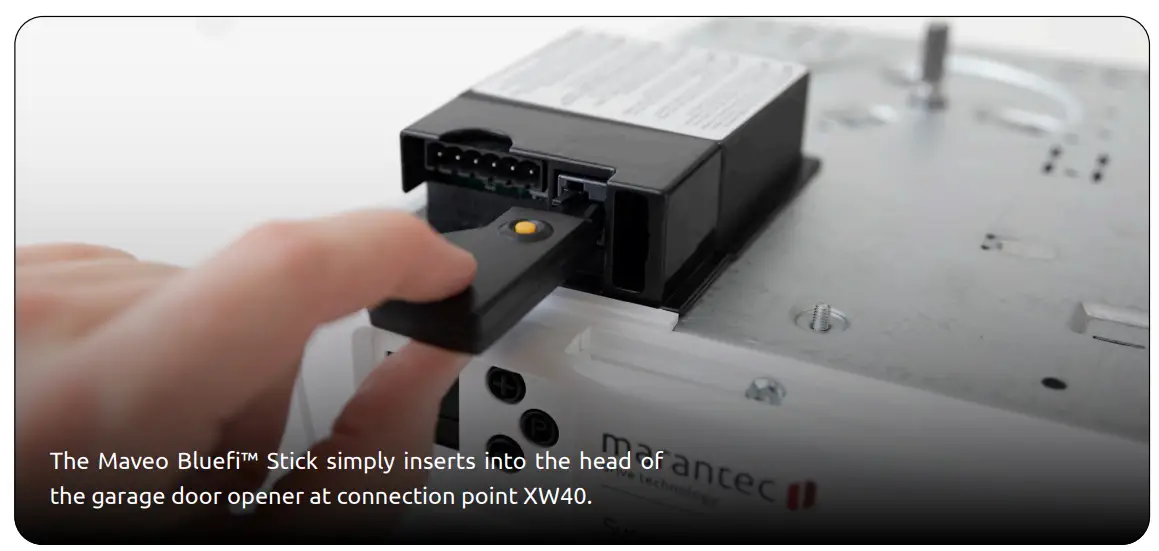 APP SETUP
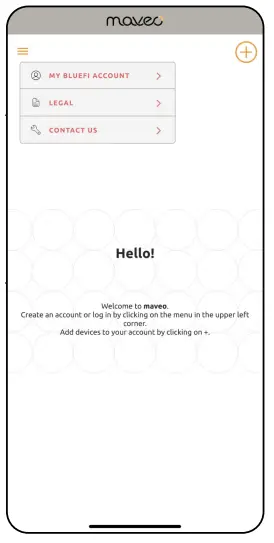
NAVIGATE TO YOUR ACCOUNT
- Tap 3 horizontal bars in the upper left corner.
- Select MY BLUEFI ACCOUNT.

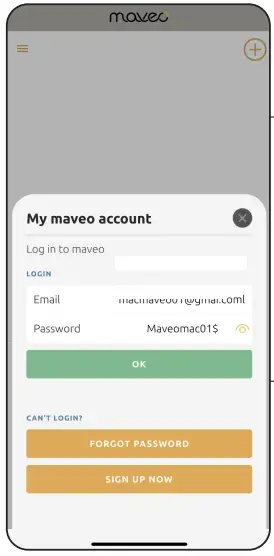
 LOGIN & SIGN-UP
 - Follow the prompts to login or create your maveo account. A validation code will be sent to your email for verification.
- Once logged in, tap the “X” in the top right corner to continue the setup process.
ADD A BLUEFI™ STICK - Tap the circle with a “+” symbol in the upper right corner.
- Then tap “maveo BlueFi Stick”. You can also create a guest access key by tapping that option.

 ENABLE PERMISSIONS
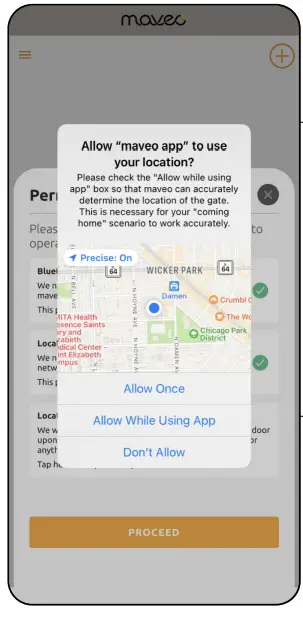
 - Enable bluetooth and location services on your phone.
Note: The maveo app requires bluetooth and location services. Enabling location using the “Allow While Using App” option allows you to use the “Coming Home Scenario” feature.
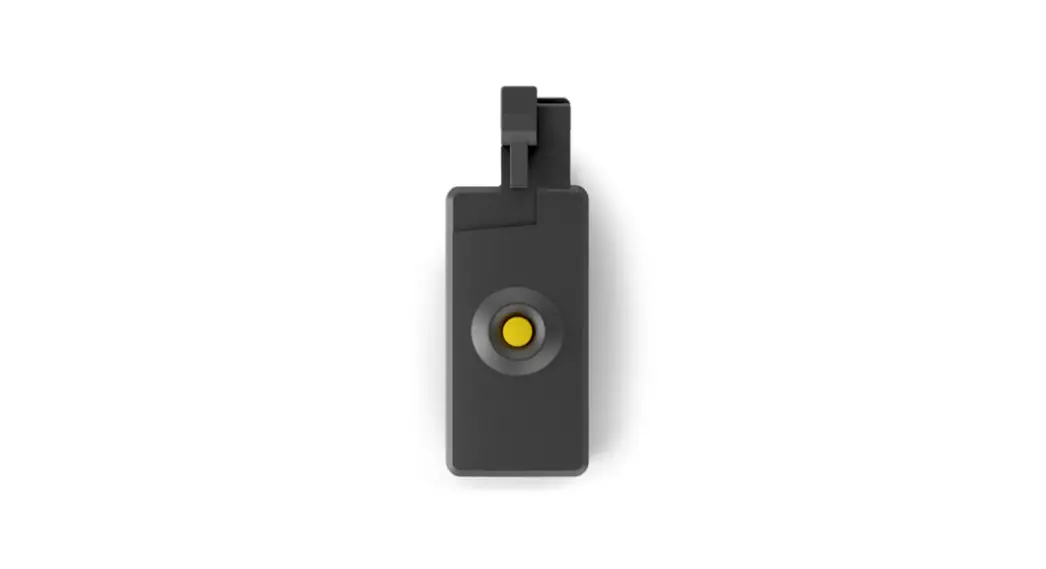
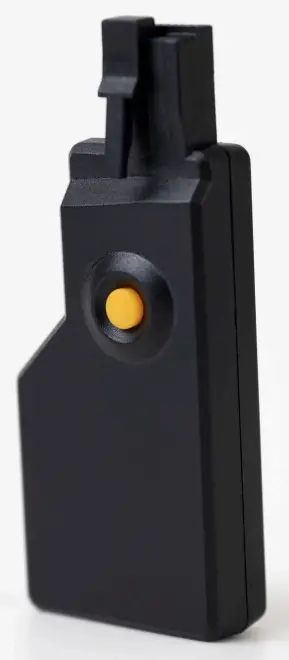
PAIR THE BLUEFI™ STICK - Press and release the yellow bluetooth pairing button. The light on the BlueFi™ stick will blink blue and the pairing process will begin.

 COMPLETE PAIRING
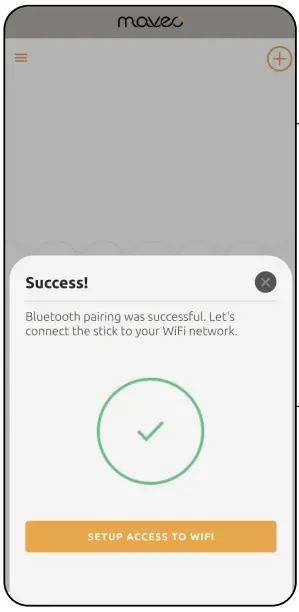
 - Upon a successful pairing, you will see the this screen. The light on the BlueFi™ stick will change to solid blue.
- Tap “SETUP ACCESS TO WIFI” and proceed. If bluetooth paring is not successful, repeat step
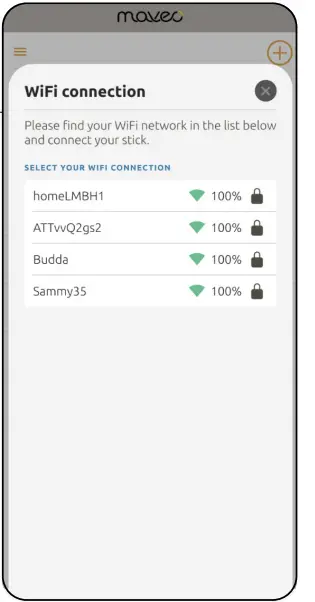
CONNECT TO WI-FI - Tap the desired 2.4GHz Wi-Fi network then enter your Wi-Fi password, the light on the BlueFi™ stick will blink green while connecting. Connecting may take a couple of minutes.
- If the Wi-Fi connection is successful, you will see the light on the maveo BlueFi™ stick change to solid green.
- (Optional) Tap the black check box if you want to rename your Bluefi™ stick. If Wi-Fi connection is not successful, repeat steps 11-13.
 NOTE: An ‘Over The Air’ firmware update (if one is available) may occur after an initial successful connection to the maveo cloud. The stick will blink red while the firmware is being updated. Once complete, the stick will blink green while it connects to the cloud, then the stick will change to a solid green light when fully connected.
TEST YOUR DOOR – OPEN - The maveo app is now ready to test. Tap the red circle with the up arrow to open the garage door.

 TEST YOUR DOOR – CLOSE
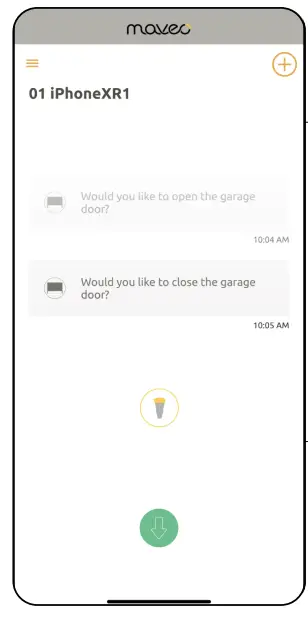
 - Click the green circle with the down arrow to close the garage door. Note the blinking lights and beeping sound – this is normal.
- Once the GDO lights turn off (default setting is 255 seconds), tap the light icon to turn off and on the lights on the GDO head.SETUP ACCESS KEYS
NAVIGATE TO SETTINGS - Tap the 3 vertical bars in the upper left corner and then tap ‘SETTINGS’. Here you can rename your door, if desired, and copy the stick’s serial number to your device’s clipboard.
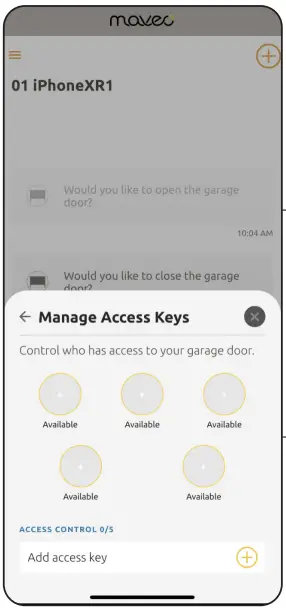
- To setup Access Keys, tap ‘Manage Access Keys’.

 ADD ACCESS KEYS
 - Tap one of the five available access key slots.
- Select ‘Add Access Keys’ at the bottom.
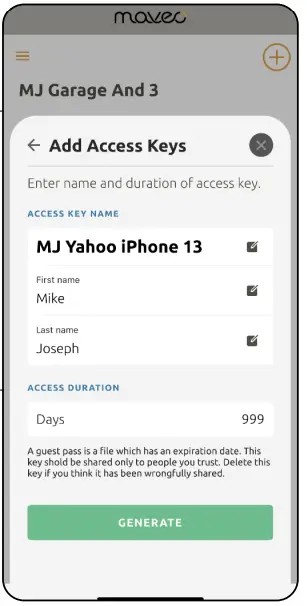
ASSIGN GUEST KEY - Enter email address and name of the contact.
- Select the duration, in days, the access key will be valid for. An Access Key can only be valid for a max of 999 days. Tap ‘Generate’ when complete.

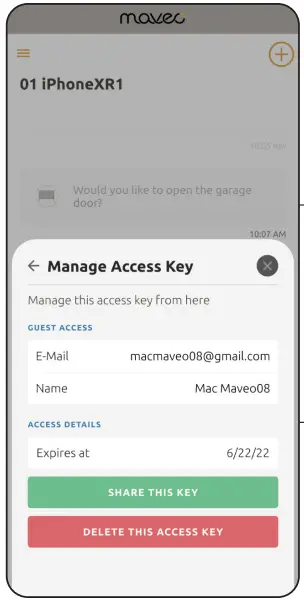
 SHARE THE GUEST KEY
 - Tap ‘Share This Key’ to send the file to your contact.
- You can also delete an access key from this screen.
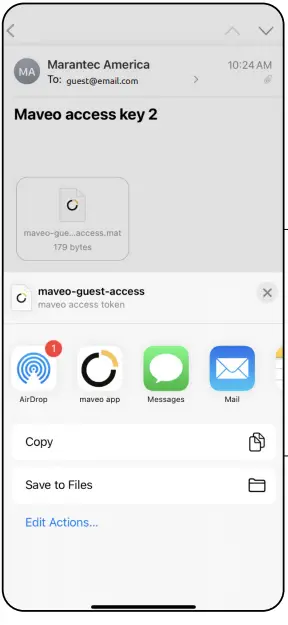
SHARE THE ACCESS KEY – iOS DEVICES - On an iOS device, select the preferred method for sending your guest key access. You can send the guest access key to as many users as you want.

 OPEN THE ACCESS KEY – iOS DEVICES
 - On an iOS device, an Access Key may be opened by selecting the file and then choosing the ‘maveo app’ in the list.
GUEST ACCESS OPERATION - When guest access is completed on guest’s smartphone, the main screen will look similar to this.
NOTE: You do not need to use or create a maveo account for guest access.
 GUEST ACCESS SETTINGS
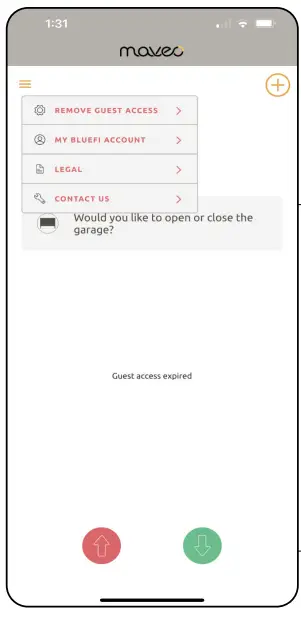
 - On a smartphone connected by guest access, there are 2 main differences:
- The settings menu is disabled.
- A new menu choice is added: “REMOVE GUEST ACCESS”. Tapping this will remove guest access on the guest smartphone and you will no longer be able to monitor or control the garage door opener.
SHARE THE ACCESS KEY – ANDROID DEVICES
- On an Android device, select the preferred method for sending your guest key access. You can send the guest access key to as many users as you want.

 OPEN THE ACCESS KEY – ANDROID DEVICES
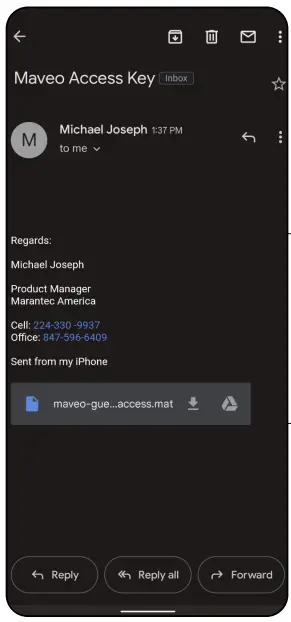
 - On an Android, open and install the app directly from whatever method it is received on the guest access phone
MANAGE ACCESS KEYS
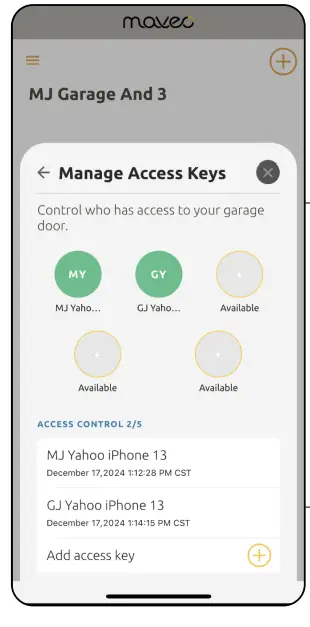
NAVIGATE TO SETTINGS - To manage existing access keys, click the 3 horizontal bars in the upper left corner, then tap settings, then tap “Manage access keys”.

 EDIT/MANAGE KEYS
 - You can manage existing access keys or create new access keys. Tap any existing access key to either share with additional individuals or delete the access key completely.
NOTE: Individuals that are given guest key access do not require login to a Maveo account and do not have access to the settings menu
SETUP GEO-FENCING FEATURE (COMING HOME SCENARIO)
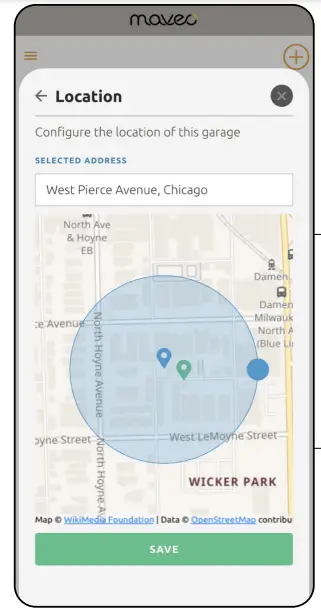
NAVIGATE TO SETTINGS - To setup the geo-fencing feature (COMING HOME SCENARIO), tap “Set the location of this door). When enabled, this proximity-based feature, sends a push message to the user’s smartphone asking if they wish to open their garage door prior to their arrival at their residence.

 CONFIGURE GEO-FENCE
 - Note the blue circle and the blue and green tear drop icons within. Using your fingers move the blue circle to get the 2 icons to align on top of one another. This improves range accuracy.
ADJUST DETECTION RANGE - To increase the detection range, pinch the blue circle out with your fingers. To decrease the detection range, pinch the blue circle in with your fingers.`

 SAVE LOCATION SETTINGS
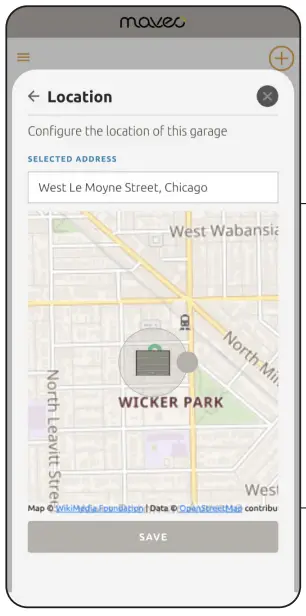
 - When the desired setting are complete, tap the “SAVE” box. The box color will change from green to grey.
NOTE: “SELECTED ADDRESS”. This field, is auto-populated. In upper right corner of this window, Tap the black circle with an “X” to close the window and return to the SETTINGS window.
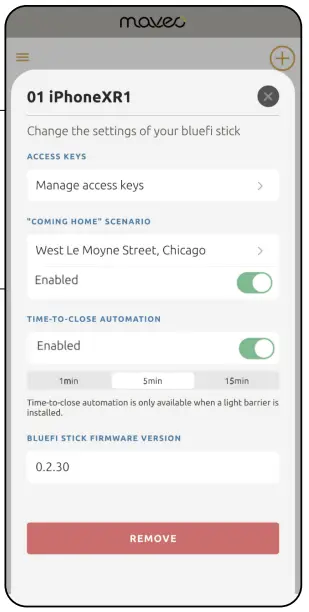
ADDITIONAL SETTINGS & FEATURES NAVIGATE TO SETTINGS - To remove a maveo BlueFi™ stick, tap the ‘Remove’ button. You will then receive another confirmation to remove your BlueFi stick.
NOTE: This is permanent. Once a stick is removed from the Maveo app, you will need to reinstall the same stick (hold the yellow button for 6 seconds to reset the stick) or insert a new stick. Setup must be completed again.
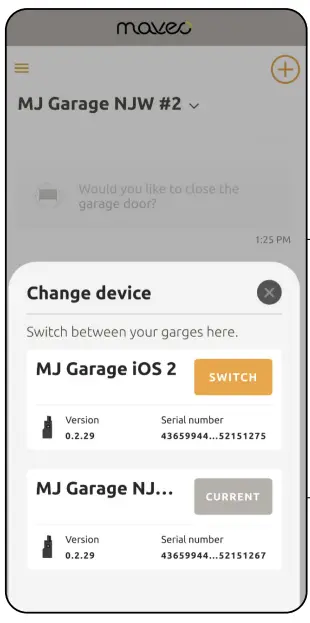
 SWITCH BETWEEN STICKS
 - To switch between active sticks (i.e. you have more than one garage door/garage door In your residence), tap the ‘Down Arrow’ next to door name.
- Next, tap “SWITCH” to change to the desired maveo BlueFi™ stick.
TIMER TO CLOSE FEATURE - To enable the timer-to-close feature, slide “Enabled” toggle switch to right. Then tap one of 3 pre-set time increments.
 LOGOUT / DELETE PROFILE
 - Tap “LOGOUT” to logout out of your maveo account. The maveo app will no longer recognize your stick(s) until you log back into your maveo account.
If you check the “Delete my maveo cloud account” when logging out, you will permanently delete your maveo account, and your stick will no longer work. You can go through the setup process once again to get the maveo app and stick setup.
Note: It is recommended that once you insert the stick and power up the GDO, you reset the stick. This can be done by pressing the yellow Bluetooth paring button for 7 seconds then releasing.
 LOGIN & SIGN-UP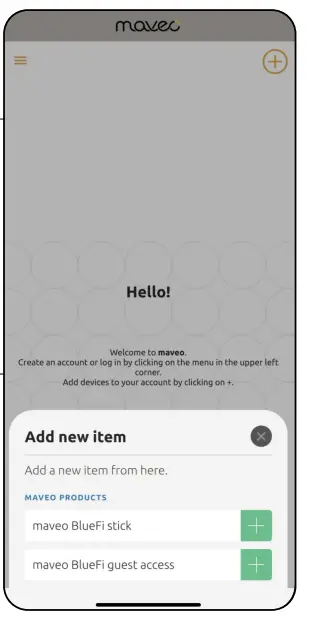
 ENABLE PERMISSIONS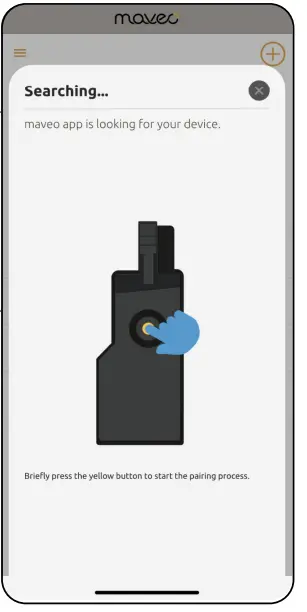
 COMPLETE PAIRING
 NOTE: An ‘Over The Air’ firmware update (if one is available) may occur after an initial successful connection to the maveo cloud. The stick will blink red while the firmware is being updated. Once complete, the stick will blink green while it connects to the cloud, then the stick will change to a solid green light when fully connected.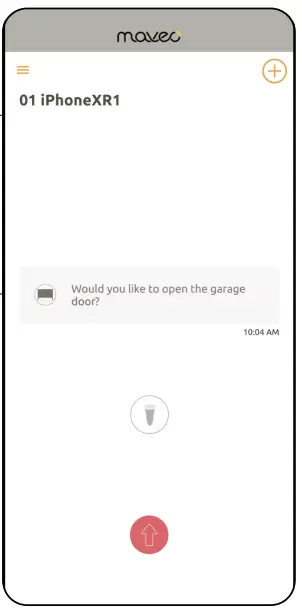
 TEST YOUR DOOR – CLOSE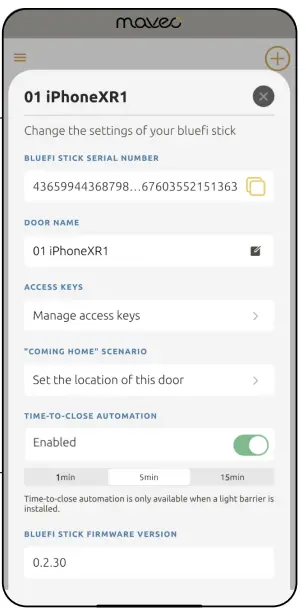
 SHARE THE GUEST KEY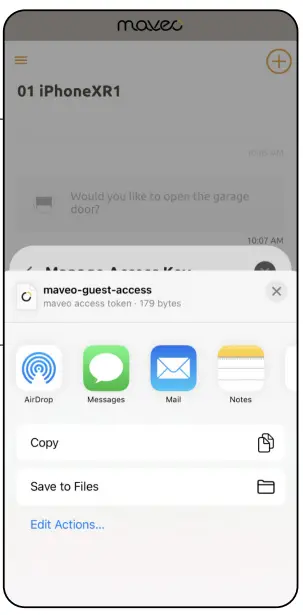
 OPEN THE ACCESS KEY – iOS DEVICES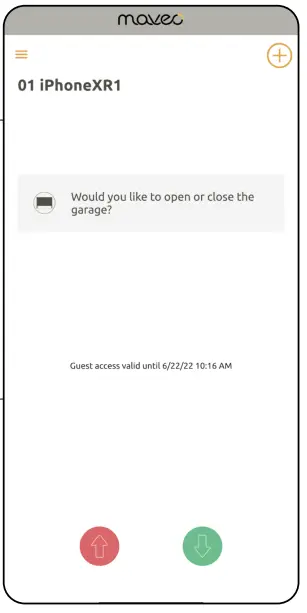
 GUEST ACCESS SETTINGS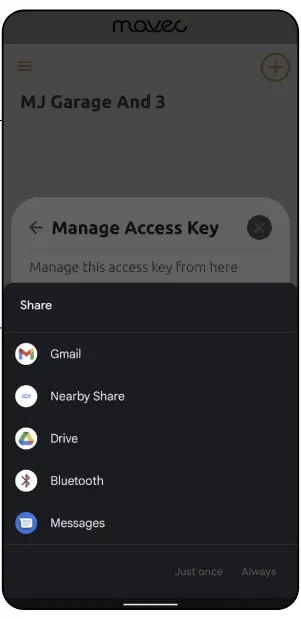
 OPEN THE ACCESS KEY – ANDROID DEVICES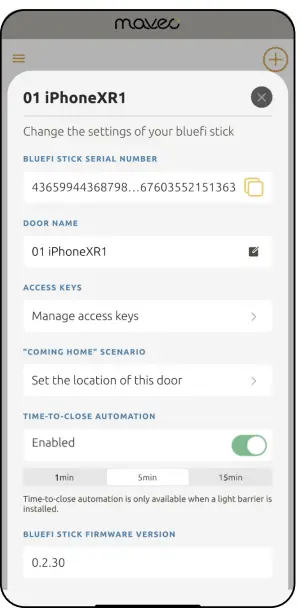
 EDIT/MANAGE KEYS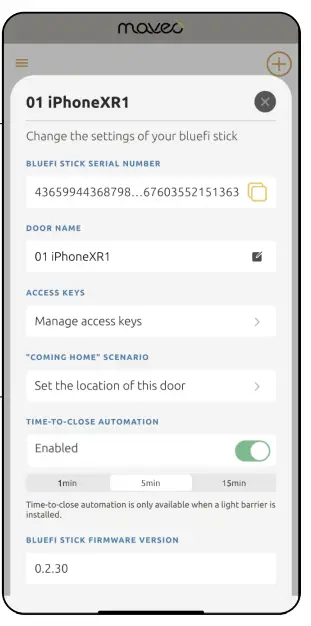
 CONFIGURE GEO-FENCE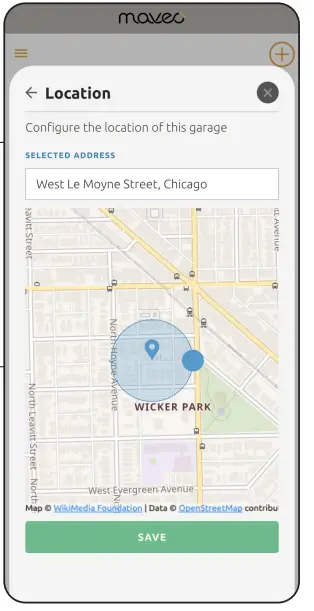
 SAVE LOCATION SETTINGS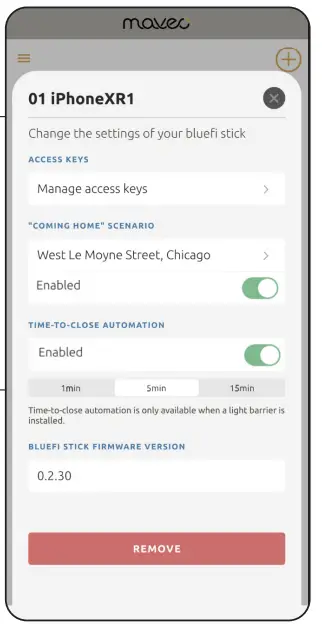
 SWITCH BETWEEN STICKS
 LOGOUT / DELETE PROFILE
 Marantec America | Garage Door Openers