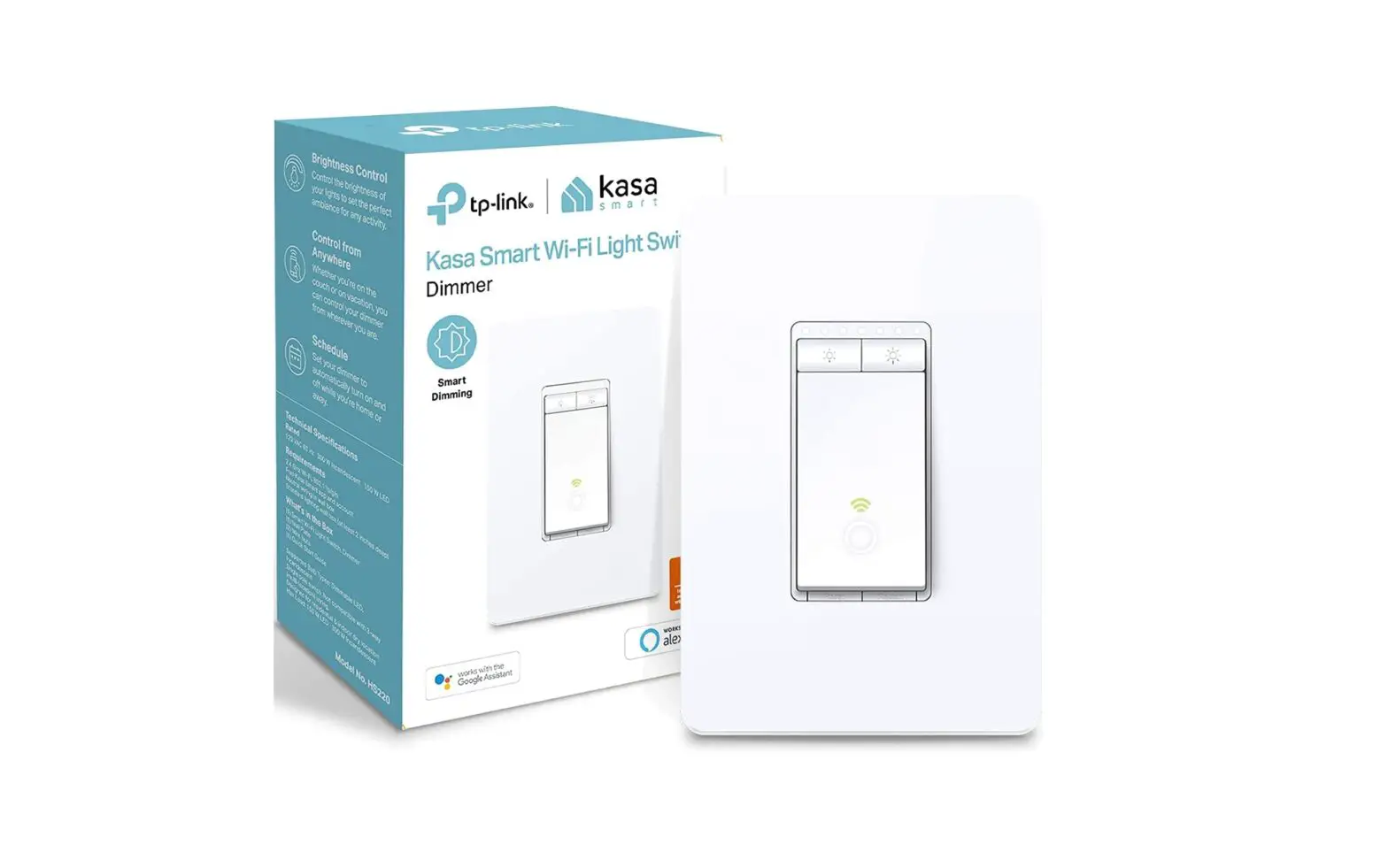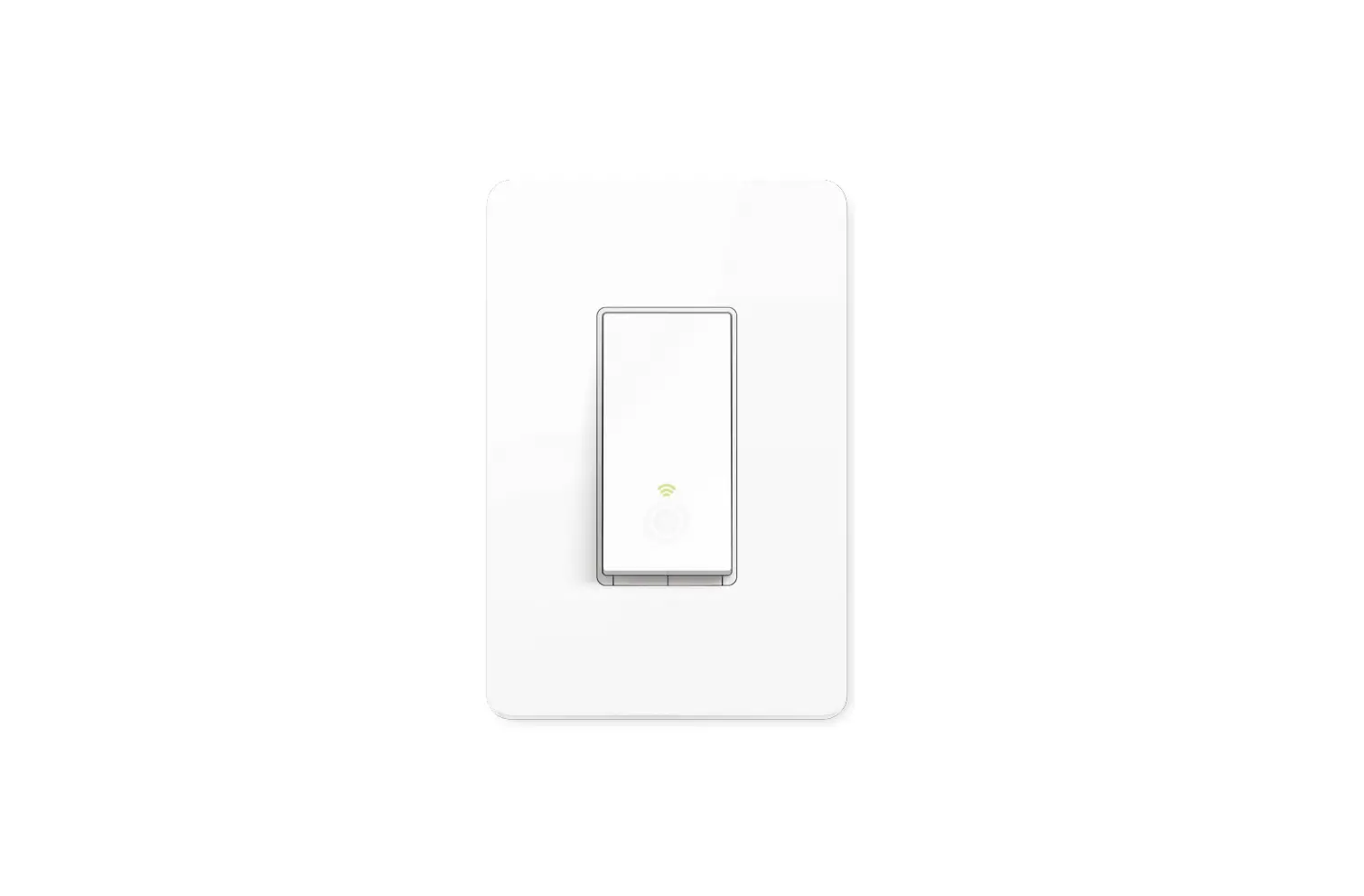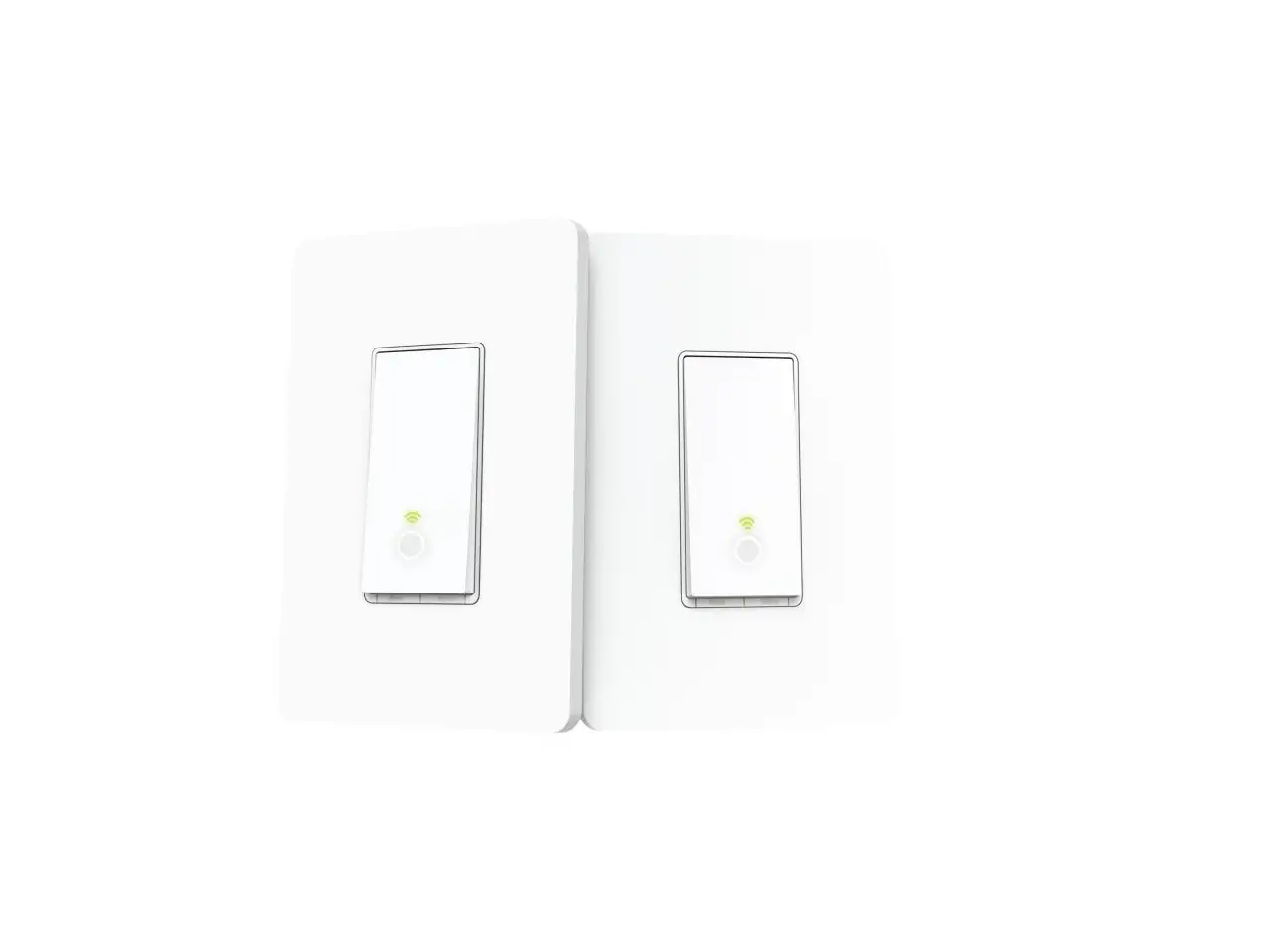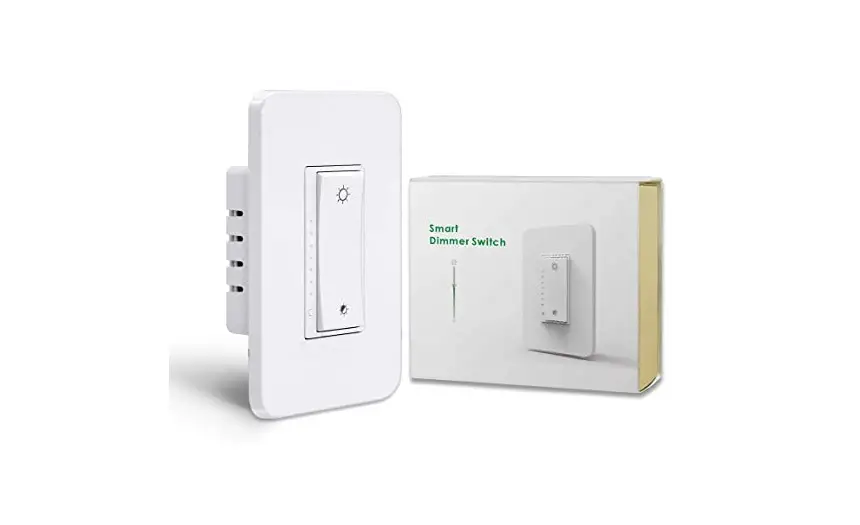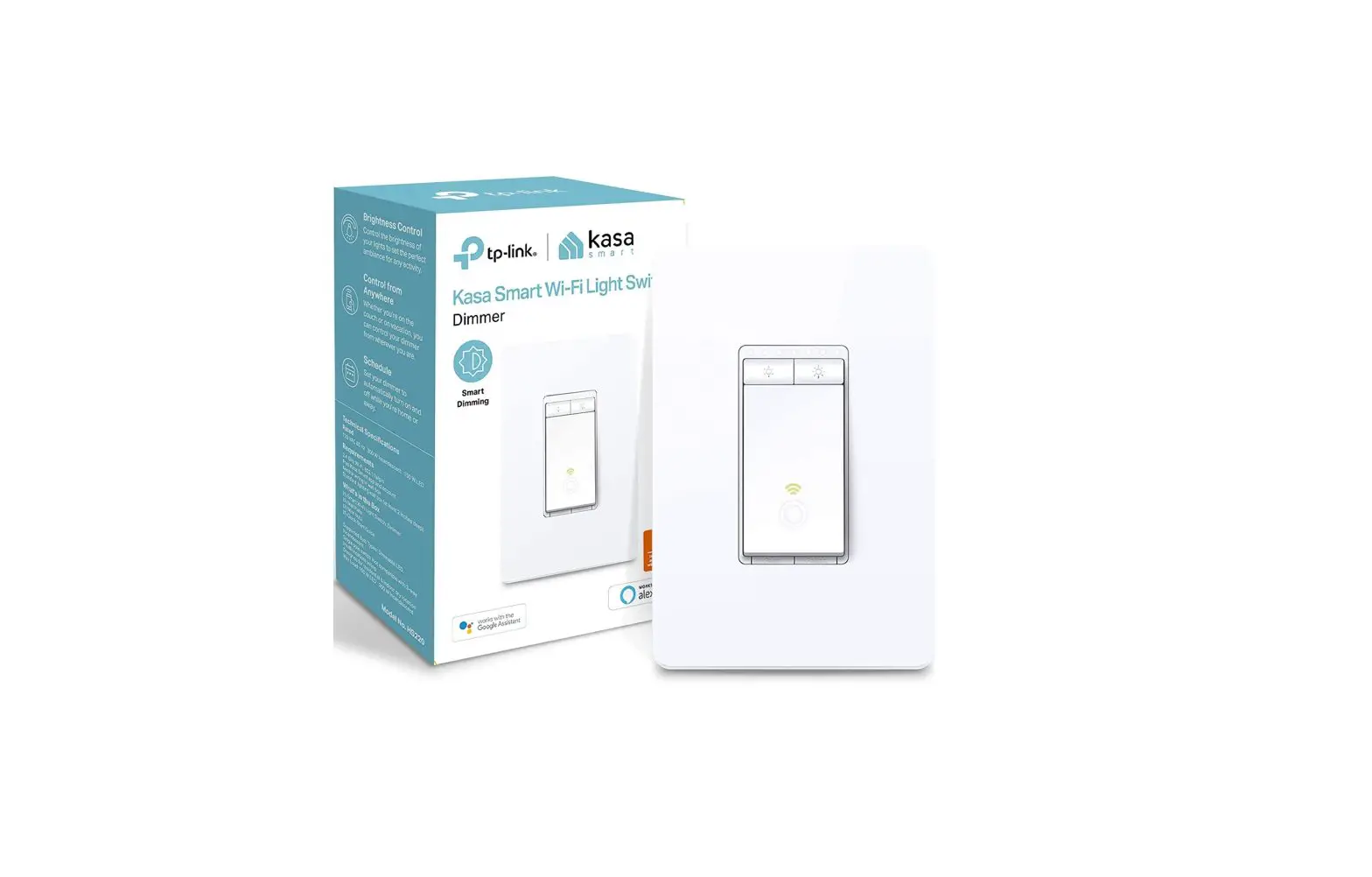
tp-link HS220 Kasa Smart Wi-Fi Dimmer Switch User Guide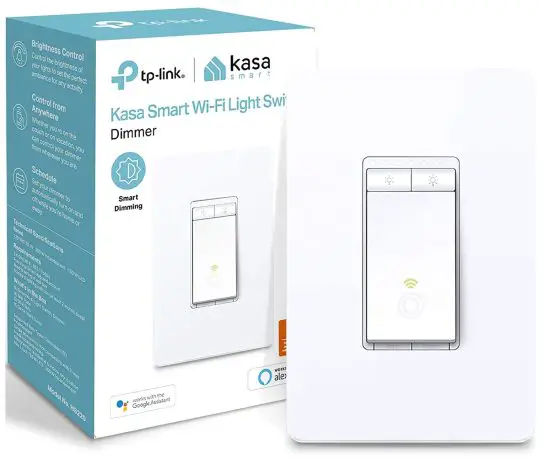
Product Introduction
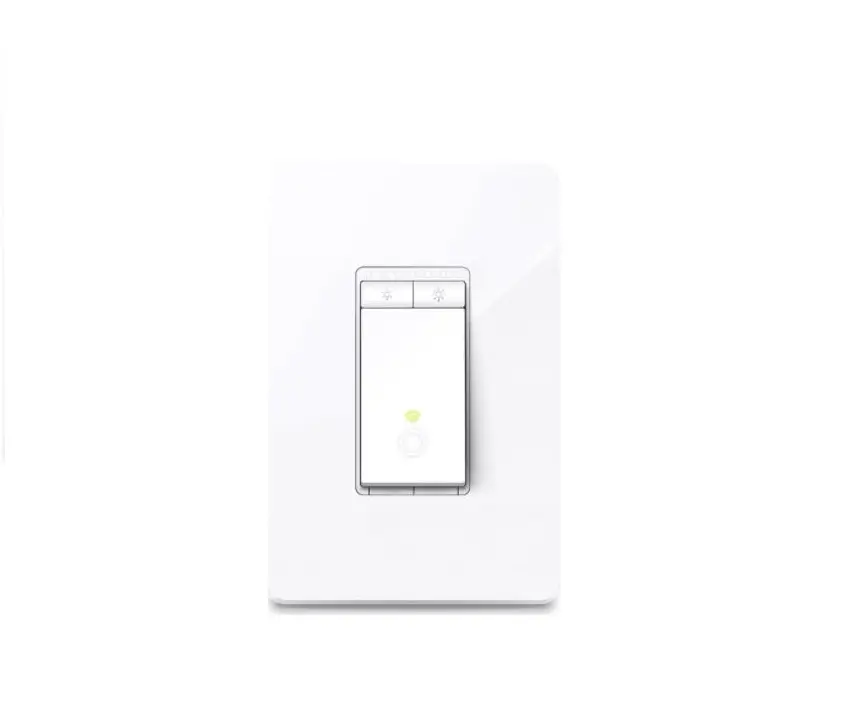
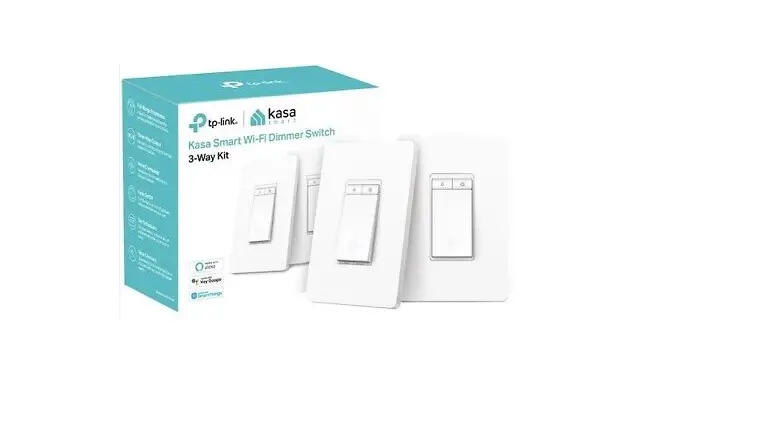
Replace your traditional 3-way switches commonly found in living rooms, hallways, or stairways where two switches control the same light. Dim the light from 100% to 1% via your phone or simple voice commands to set the perfect ambiance for any activity.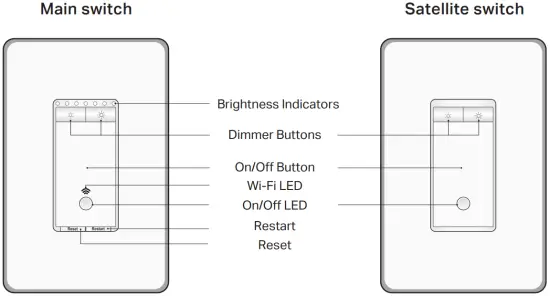
Wire Your Switch
You can find step-by-step instructions in the Kasa Smart app.
Remove the two old switches.
- Turn off the circuit breaker.
- Remove the old wallplates.
- Take a picture of the wires in case you want to go back to the old switch.

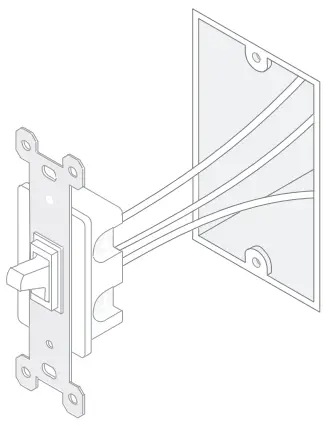
Get to know the wires.
- Line: Usually black. One end is connected to the circuit breaker, the other to your first 3-Way switch.
- Neutral: Usually white, not connected to the dumb switch.
Traveler 1 / 2: Usually one is black and the other is red.
They connect the two 3-Way switches. - Ground: Usually green or copper. Ground wire is needed if you use a metal wallplate.
- Load: Usually black. One end is connected to the light fixture, the other to your second 3-Way switch.
If you are unsure, consult a qualified electrician or contact our technical support.
Identify Line wire to locate the main switch.
- Disconnect the wires from the two old switches. Make sure they’re not touching when circuit breaker is on.
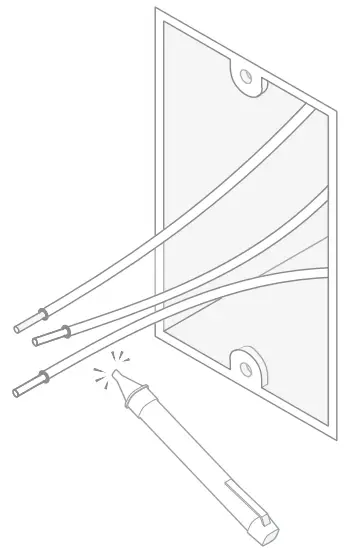
- Turn on the circuit breaker and use a voltage detector to identify the energized wire (line wire).
Take care to avoid electric shocks.
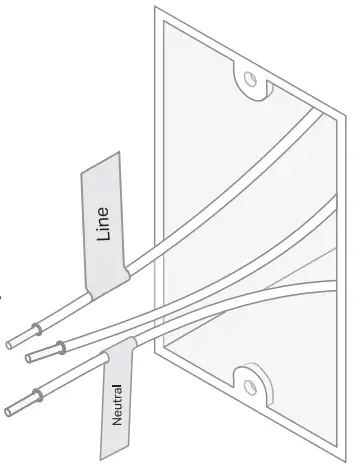
- Turn off the circuit breaker and label the Line wire.
- Check if there is Neutral wire in the wall box with Line wire. If yes, label the Neutral wire. This wall box is the place for the Main dimmer switch.
The other is for the Satellite dimmer switch. If not, you cannot install the smart dimmer switch here.
Identify and label other wires
Connect the wires to the main dimmer switch as shown below.
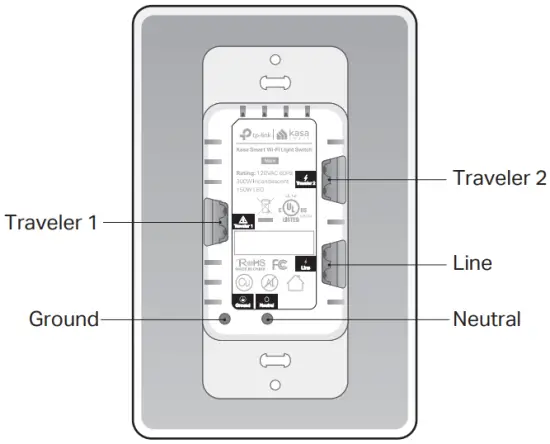
Secure the dimmer switch with screws.
Connect the wires to the satellite dimmer switch as shown below.
Do not cross Traveler 1 and Traveler 2 wires between the two dimmer switches.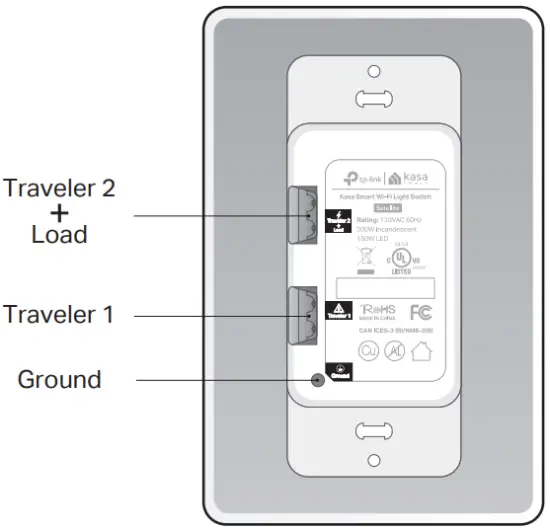
Secure the dimmer switch with screws
Set Up Your Dimmer Switch
STEP 1 DOWNLOAD APP
Get the Kasa Smart app from the Apple App Store or Google Play.


STEP 2 SET UP
Tap the button  in the app and select Smart Switches. Then follow the step-by-step app instructions to set up your smart dimmer switch.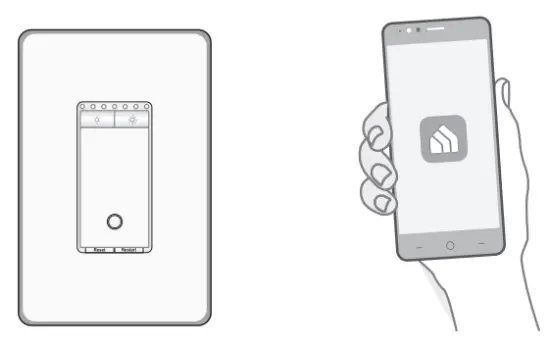
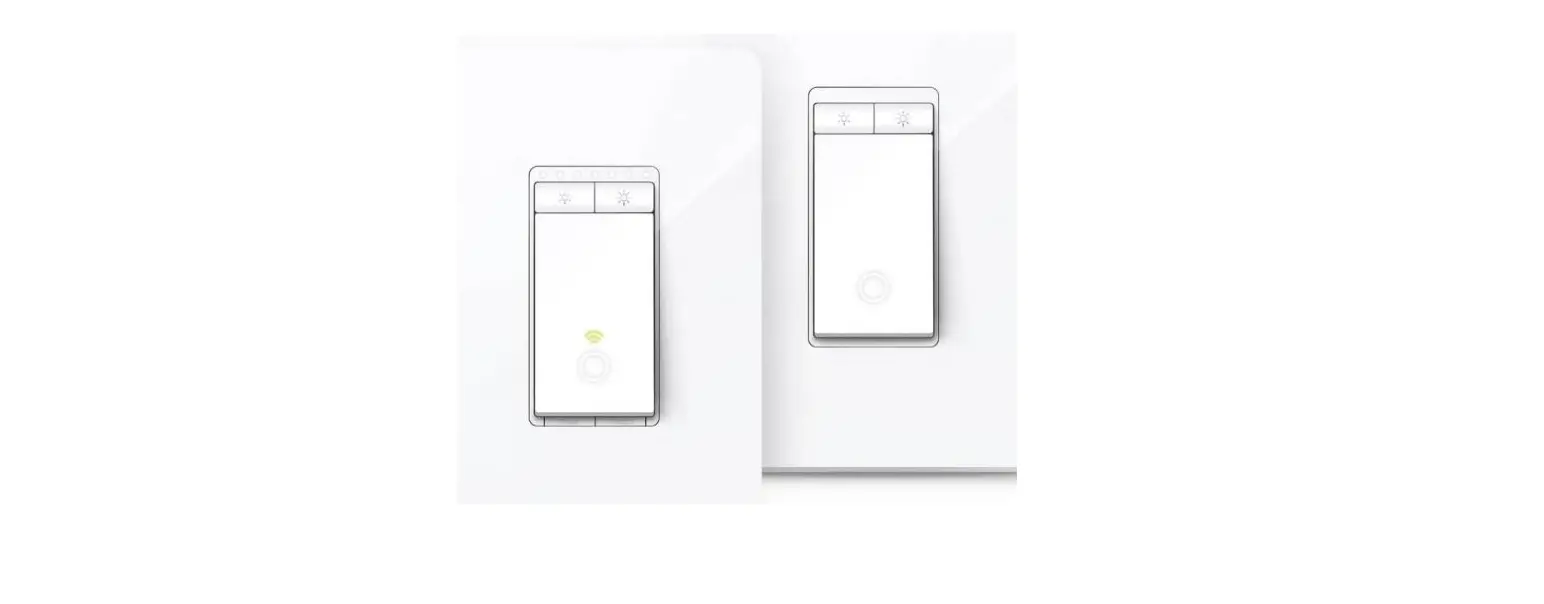
Main Switch
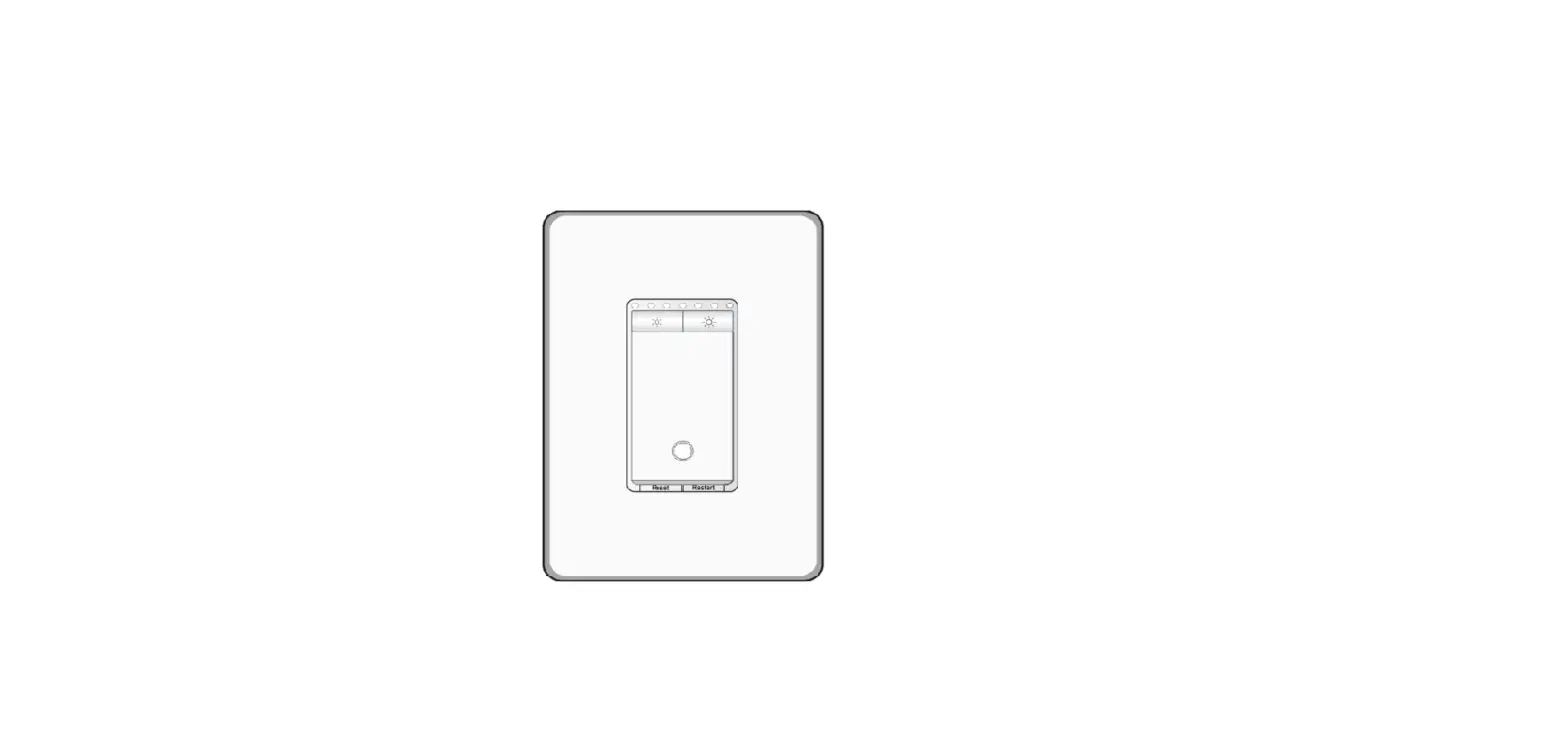
 | Decrease or increase the brightness. |
| Reset | Press and hold for about 5s to reset your switch with configuration saved. Press and hold for about 10s to restore your switch to factory default settings. |
| Restart | Press to restart your switch. |
| On/Off Button | Press to turn on / off your switch. |
Satellite Switch
| Decrease or increase the brightness. |
| On/Off Button | Press to turn on / off your switch. |
LED status
Wi-Fi LED – Main Switch
| Solid amber | Starting up. |
| Flashing amber & green | Ready for setup. |
| Flashing green | Connecting to Wi-Fi. |
| Stay green for 30s | Connected to Wi-Fi. |
| Solid red | Disconnected from Wi-Fi. |
| Flashing amber | The switch is being reset to factory default settings. |
Brightness Indicators – Main Switch
- Brightness Indicators:
Indicate the brightness of the light.
On/Off LED – Main & Satellite Switch
- White
Light Fixture is off.
Specifications
Rating: 120V~ 60Hz
Load: 300W Incandescent 150W LED
Operation temperature: 0~40℃
Safety Notice
Before installing, servicing or removing the switch, read and follow all safety precautions including the following:
- CAUTION – Risk of Electric Shock – More than one disconnect switch may be required to de-energize the equipment before servicing. A circuit breaker which disconnects the Line and Neutral conductor simultaneously is suitable. Ensure power is off at the circuit breaker before removing or installing any switch. Use a non-contact voltage tester to ensure the power is off.
- The Smart Switch must be installed and used in accordance with the National Electric Code (NEC) or your local electrical code. If you are unfamiliar with these codes and requirements, or are uncomfortable performing the installation, consult a qualified electrician.
- Do not install the Smart Switch with wet hands or when standing on wet or damp surfaces.
- Install only in a suitable UL Listed outlet box (suitable dimensions: H > 2.95 in./75 mm, W > 1.81 in./46 mm, D > 2 in./51 mm).
- Tighten terminal screws to 13 lbf-in.
Need some help?
Visit www.tp-link.com/support for technical support, user guides, FAQs, warranty & more

 TP-Link Product Support - Wireless Networking Equipment Support