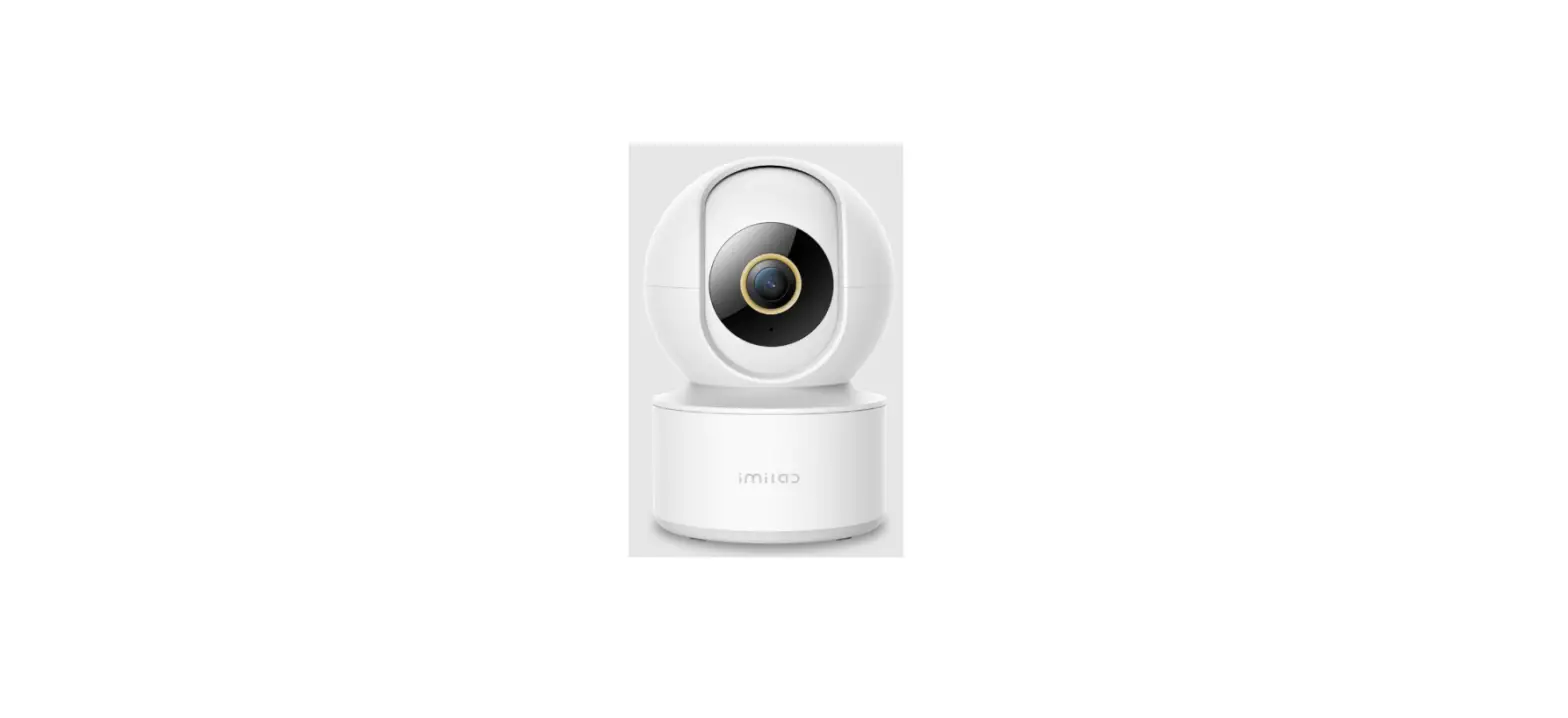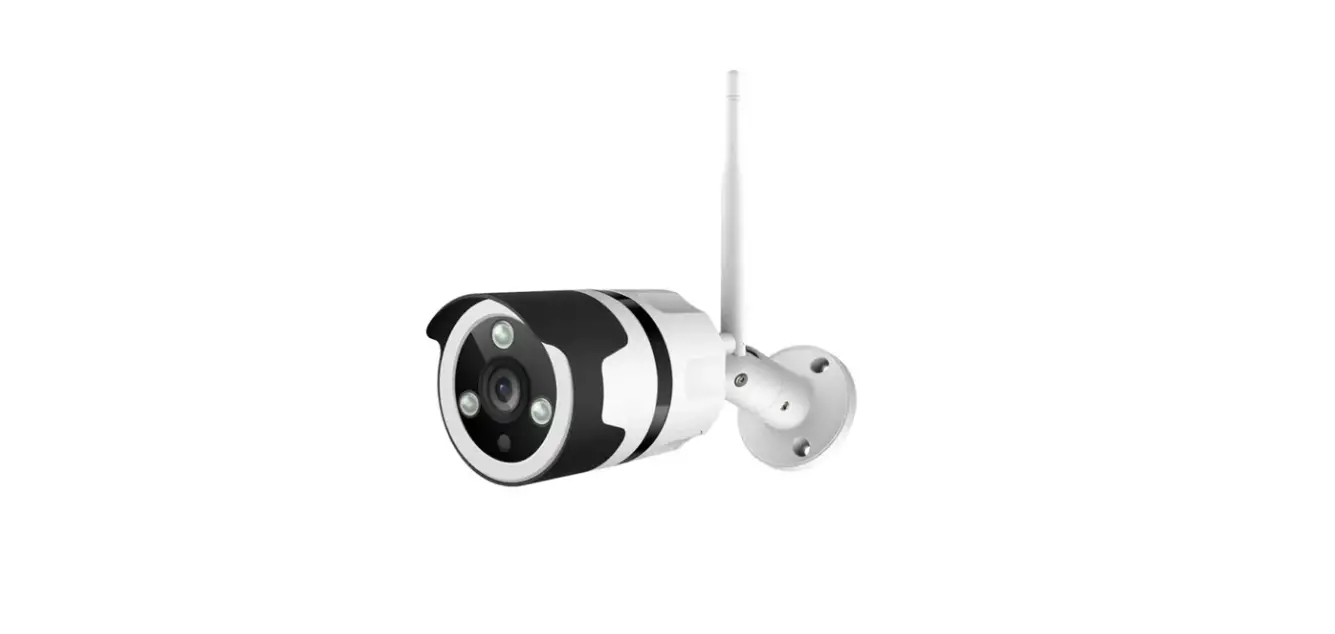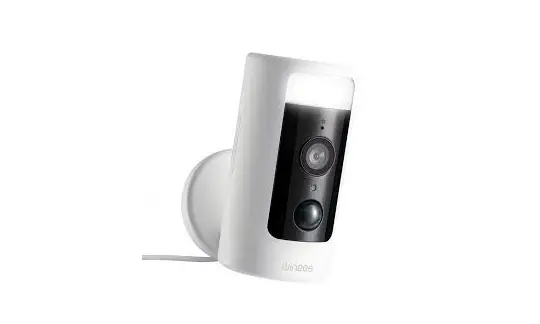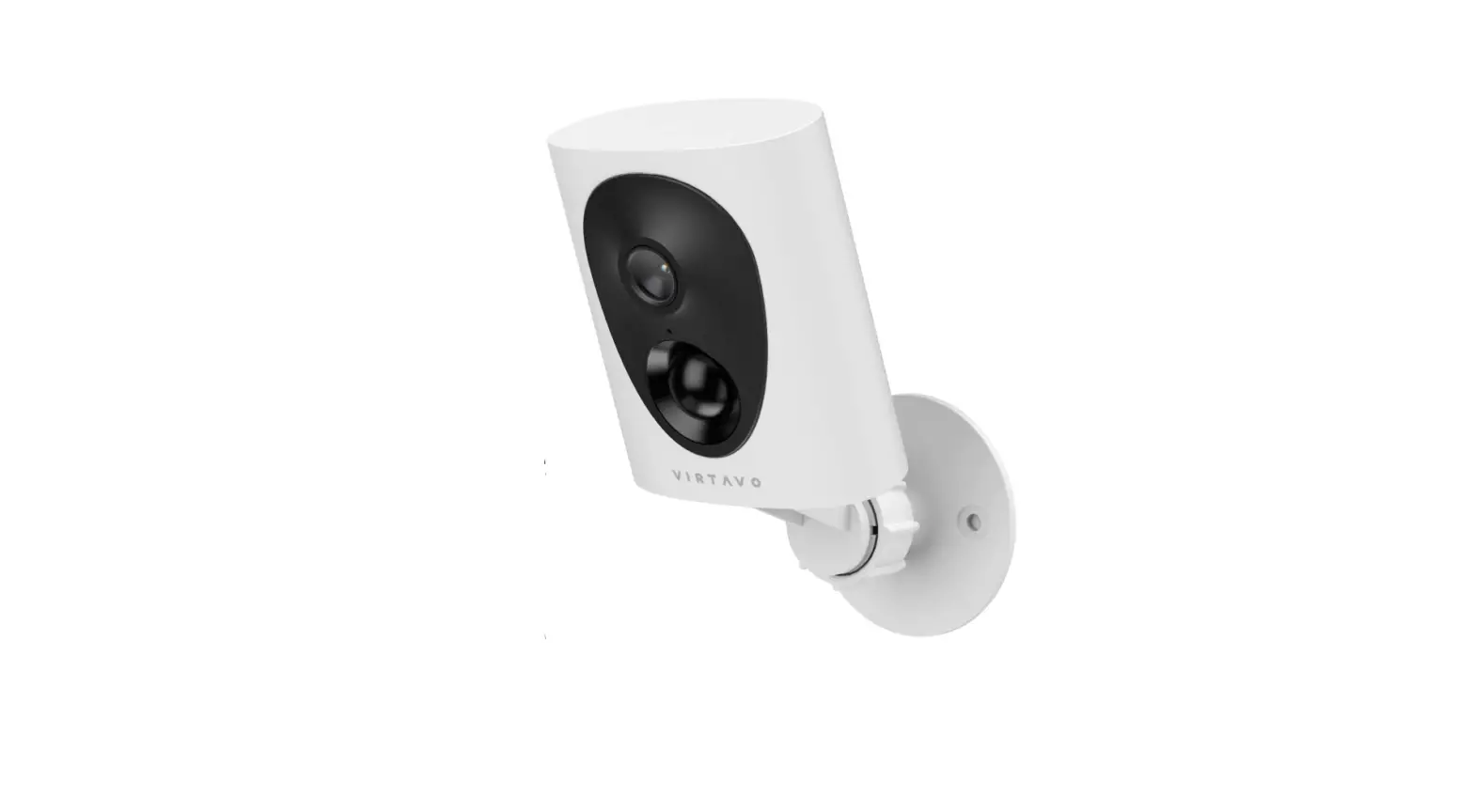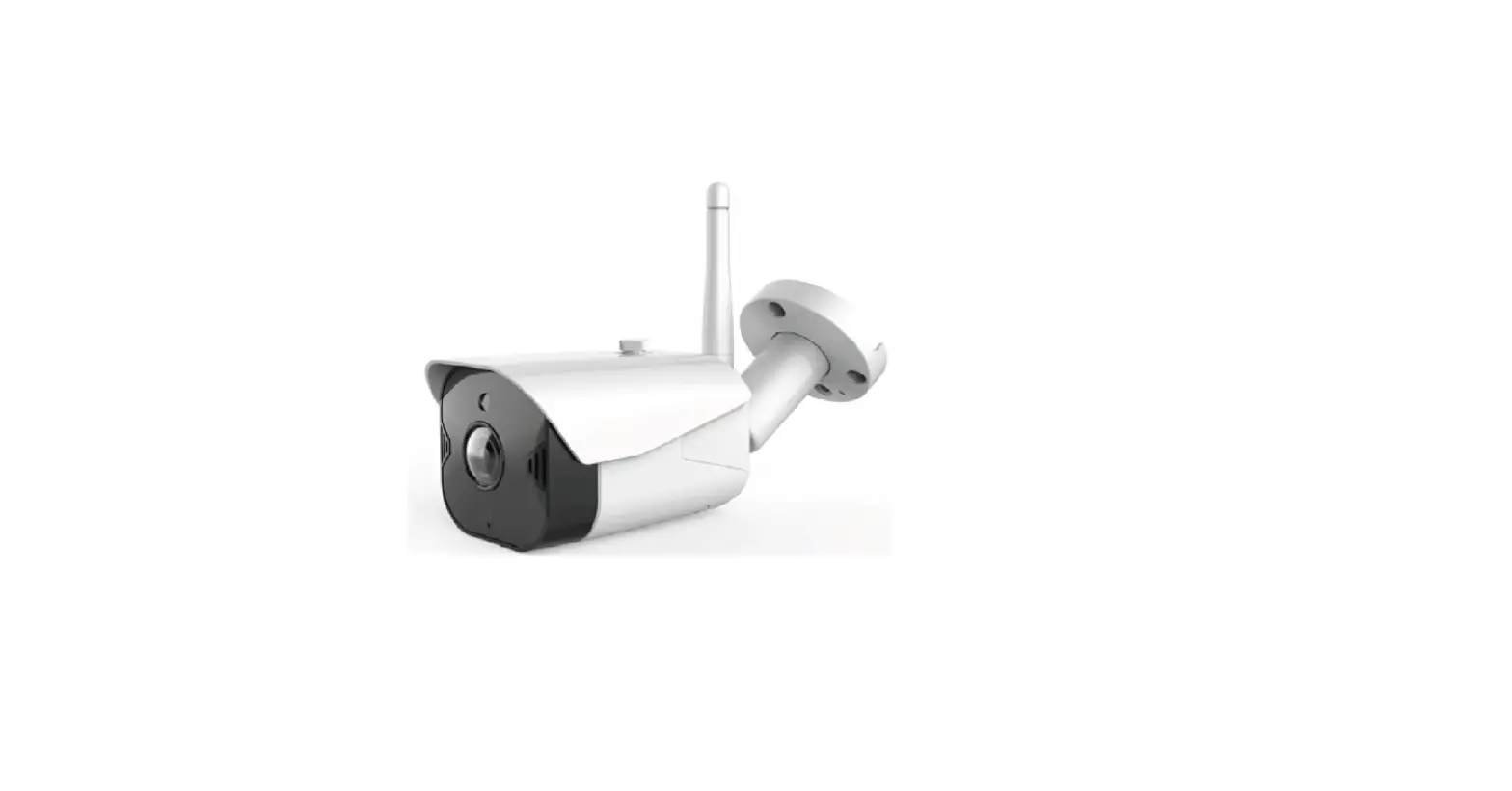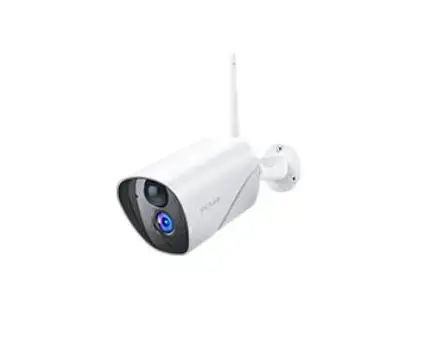

Victure PC730 Outdoor Security Camera
Introduction
Thank you for choosing the Victure PC730 outdoor security camera. We provide 30 days return policy and 12 months limited warranty. Send order number to [email protected] and you can extend the return period from 30 days to 90 days. Any problem about our camera please contact timely customer service via [email protected] You can find guide video about the setting of our camera via searching Victure IPC on Youtube or just scan the QR code below to enter our Youtube channel.
Product Overview 
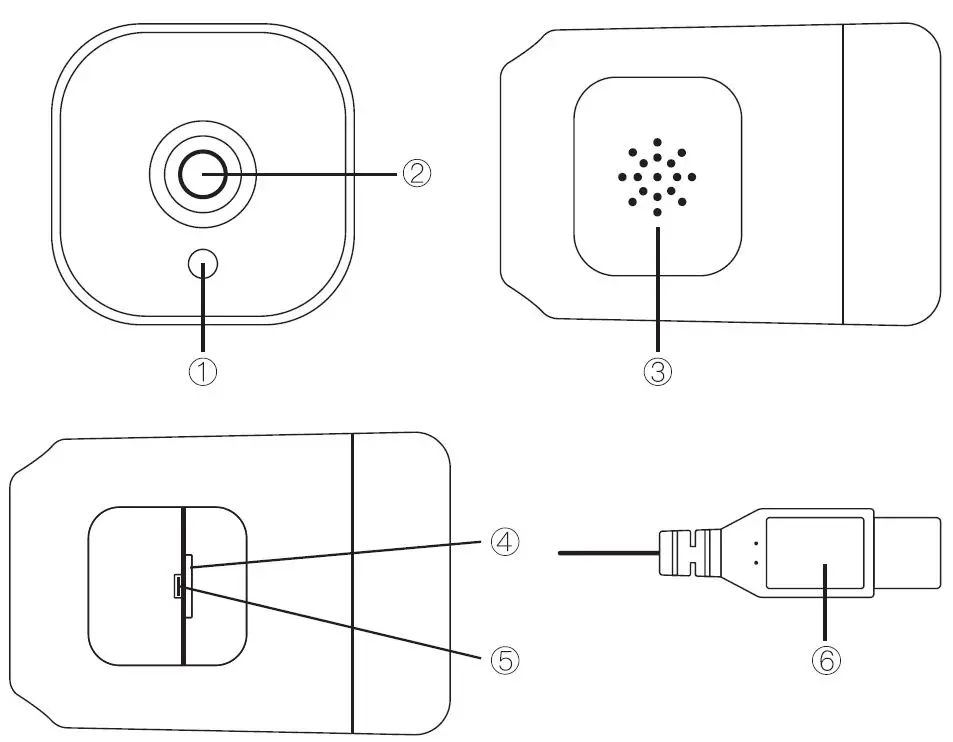
- Photoresistance
- Lens
- SD Card Slot Cover
- Micro SD Card Slot
- Reset Button
- USB Power Port
Note: The micro SD card slot and reset button is at the bottom of the camera, open the cover with a screwdriver to insert or take out the micro SD card. The reset button is designed inside.
Product Specification
| Model | PC730 |
| Resolution | 1920*1080@25FPS |
| Pixel | 2 MP |
| Storage | Micro SD card (16G/128G). Cloud Storage |
| Power | 5V/1A |
| Wi -Fi | 2.4G |
| APP | Victure Home |
| Infrared LED | 850nm*18 |
| Lens | Focal length: 3.6mm |
| Sensor: F37 | |
|
Wi-Fi | Protocol: 802.11 b/g/n |
| Frequency band: 2.4G | |
| Channel: lT X/1RX | |
|
Video | Format: H.264 |
| Resolution: 1920*1080 | |
| Max.frame rate: 25FPS 1080P |
Setting up 
- Download Victure Home App by scanning the OR code below and creating an account.
- Connect the camera to a power outlet and wait for 15 seconds until red status light flashes.
- Connect your phone to 2.4G Wi-Fi and login into Victure Home App and click “+” on the front page.
- Follow the instruction on the app to finish the steps of connection.
Indicator light
| Indicator light | Status |
| Steady red light | The device is powered on and initializing |
| Flashing red light | The device is ready to connect |
| Flashing between green and red | Wi-Fi account or password is wrong |
| Flashing green light | Connection is in progress |
| Steady green light | The device is working properly |
Question asked frequently
Q: How can i get the camera connected?
A: Here are some tips about connection below.
- make sure the Wi-Fi is 2.4G, please.
- make the camera 1-3m to the router.
- make sure the protective film of the lens is removed.
- reset the camera and try to connect it again, please.
- you will hear a promotion when the camera is connected successfully Please contact us via [email protected] if can’t get the camera connected.
Q: What if the camera can’t record video to micro SD card inserted?
A
- Make sure the micro SD card is not inserted when the camera is powered on.
- Please format the micro SD card to FAT32 firstly on a computer or do that in the app.
- Please make sure your time zone setting in the app is correct and the recording time be set to a whole day.
- Try to delete and install the app again, allow the various permissions requested, and set the right region. Please contact us via [email protected] if still no good.
FCC
This device complies with Part 15 of the FCC Rules. Operation is subject to the following two conditions: (1) this device may not cause harmful interference, and (2) this device must accept any interference received, including interference that may cause undesired operation
NOTE: This equipment has been tested and found to comply with the limits for a Class B digital device, pursuant to Part 15 of the FCC Rules. These limits are designed to provide reasonable protection against harmful interference in a residential installation. This equipment generates, uses and can radiate radio frequency energy and, if not installed and used in accordance with the instructions, may cause harmful interference to radio communications. However, there is no guarantee that interference will not occur in a particular installation.
If this equipment does cause harmful interference to radio or television reception, which can be determined by turning the equipment off and on, the user is encouraged to try to correct the interference by one or more of the following measures:
- Reorient or relocate the receiving antenna.
- Increase the separation between the equipment and receiver. — Connect the equipment into an outlet on a circuit different from that to which the receiver is connected.
- Consult the dealer or an experienced radio/TV technician for help.
This equipment complies with FCC radiation exposure limits set forth for an uncontrolled environment. This equipment should be installed and operated with a minimum distance of 20cm between the radiator and your body.