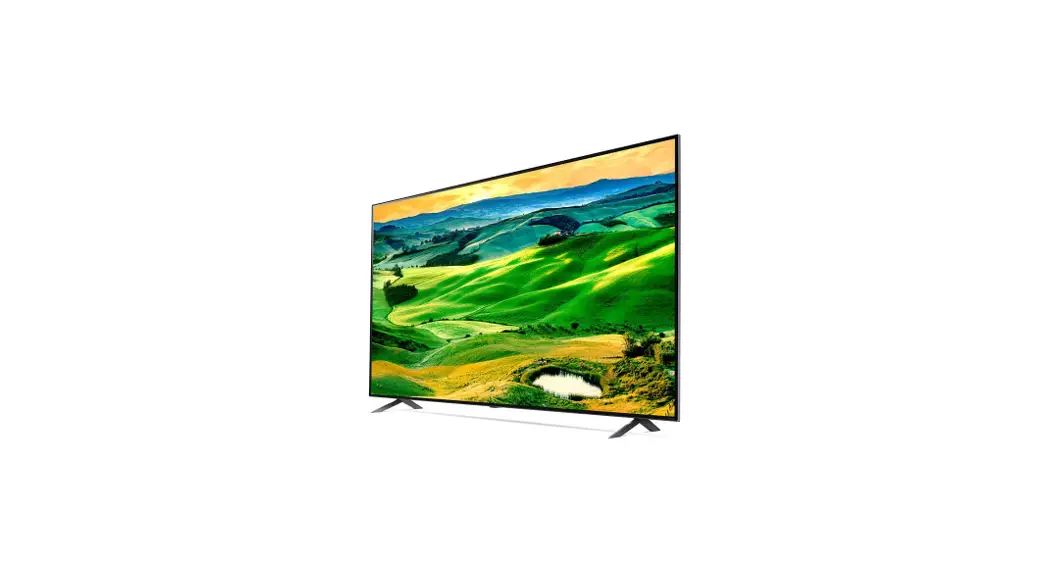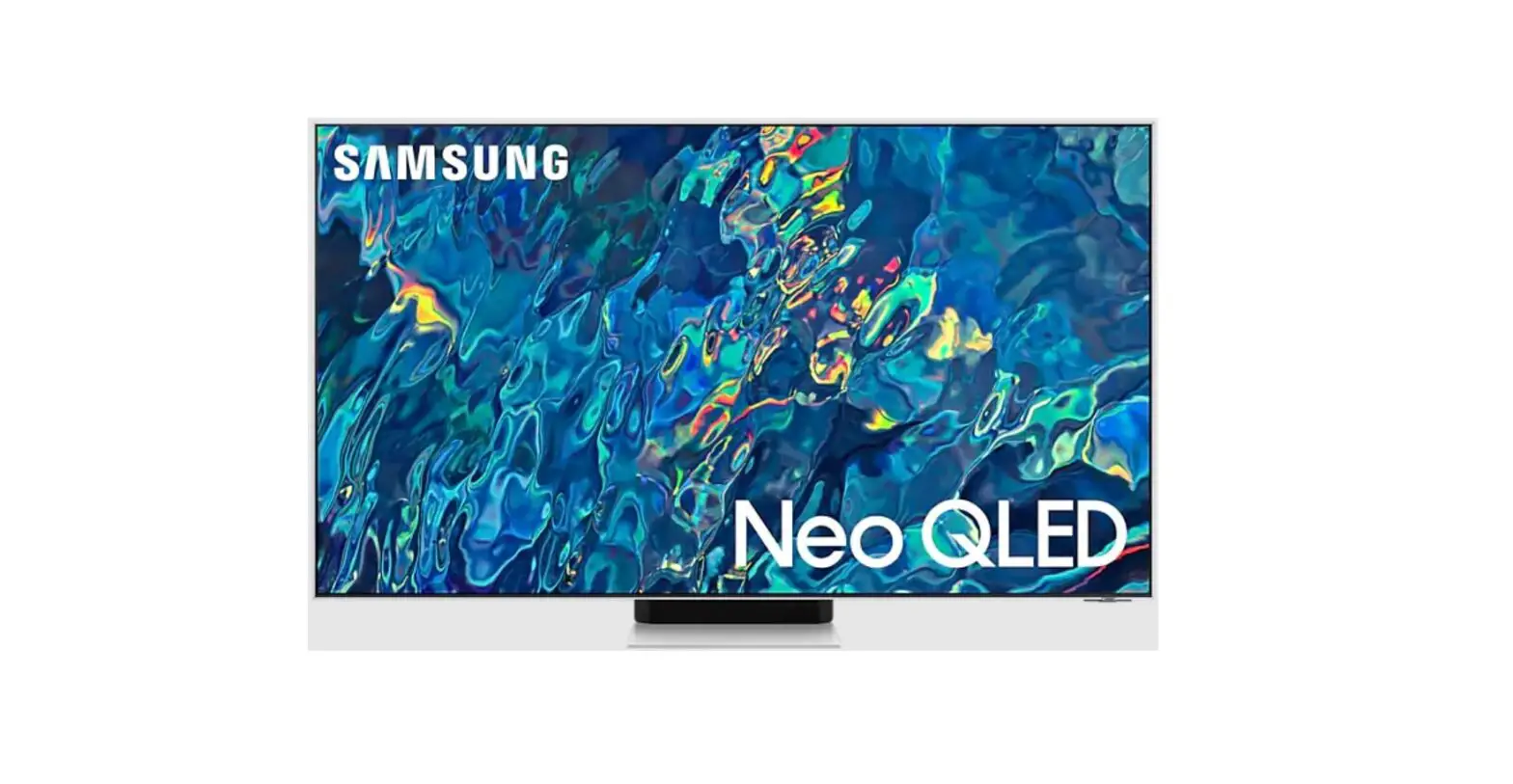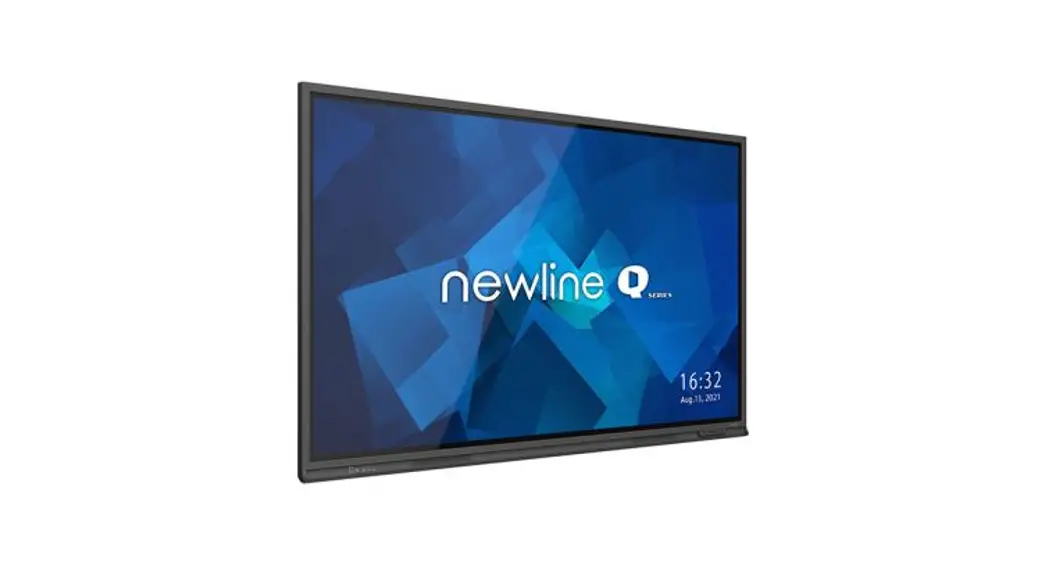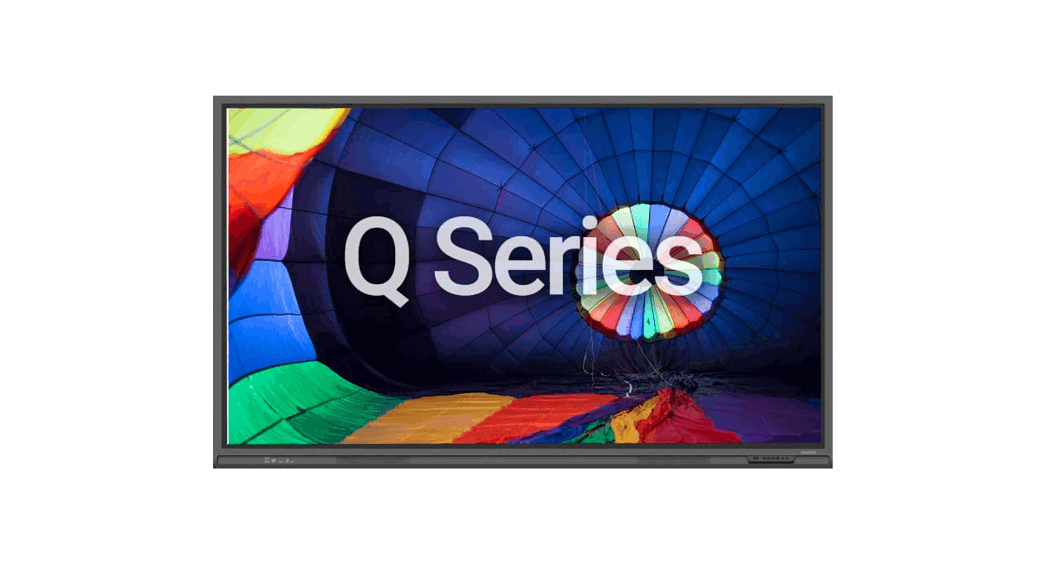
 Q Series 4K LED
User Guide
Turning On the Display
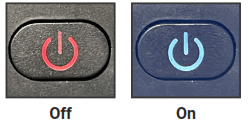
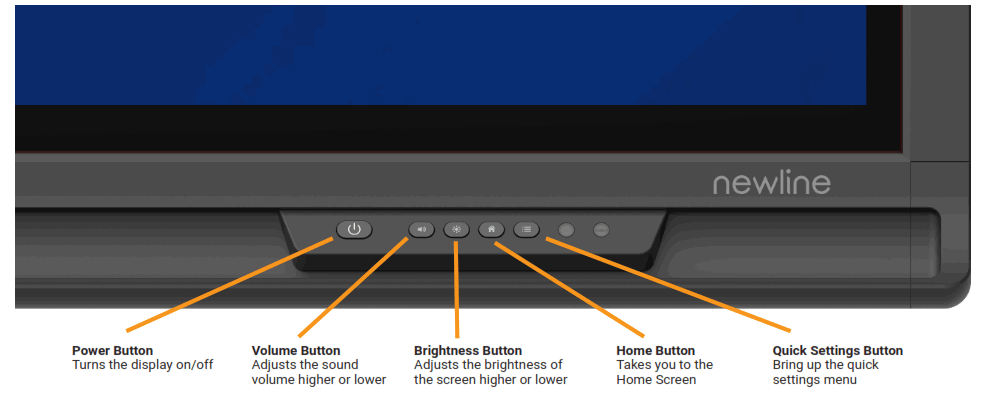
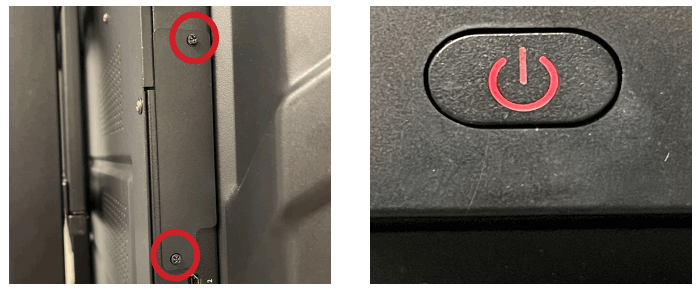
- Press the Power button on the bottom right side of the display.
- The button will change color from red to white once the display is powered on.
The Home Screen Shortcuts
Adding Home Screen Shortcuts
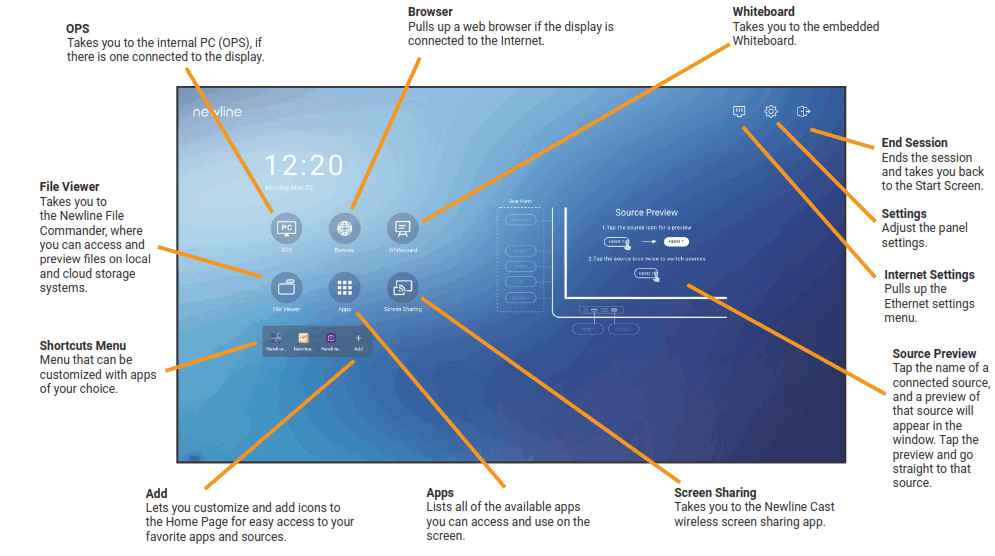
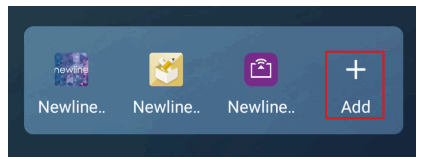
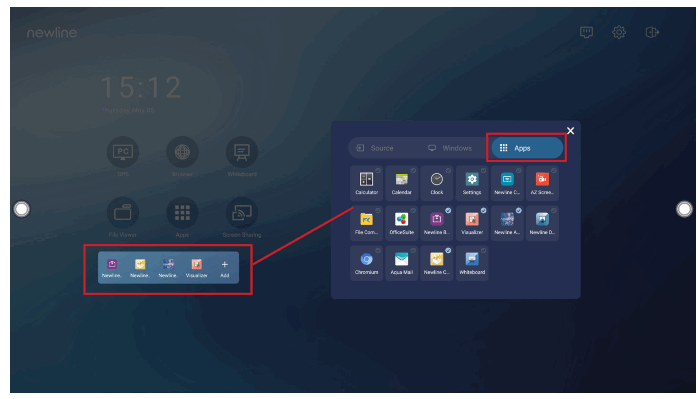
- On the home screen, click the + Add button in the Shortcuts menu.

- In the pop-up menu, select “Apps” on the right side of the menu.
- Tap to choose which apps to add to the Shortcuts menu. A blue check mark will apear in the upper right corner of the selected app.
- Once you have chosen which apps to add, click the X in the upper right to exit. You can add up to five apps to the Shortcuts menu.
The Quick Settings Toolbar
The Quick Access Toolbar can be accessed by tapping the Quick Settings button on the front of the panel or by swiping up with two fingers from the bottom of the touch isplay.
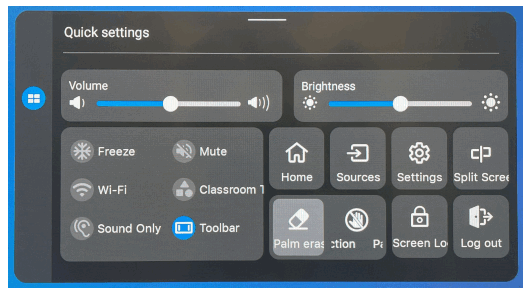 | |
| Volume Slider Adjusts the sound volume higher or lower. | Brightness Slider Adjusts the brightness of the screen higher or lower. |
Freeze – Freezes all activity on the display. Tap anywhere on the display to unfreeze.
Mute – Mutes the sound on the panel. Tap again to unmute.
Wi-Fi – Turns the Wi-Fi on/off.
Classroom Tools – Opens the Classroom Tools menu.
Sound Only – Turns off the panel display, while leaving the sound on. Tap anywhere on the display to turn display back on.
Toolbar – Tap to hide or show the Quick Access Toolbar.
Home Shortcut – Takes you to the main Home Screen.
Sources – Takes you to the Source Preview Screen.
Settings – Open the Settings menu.
Split Screen – Tap to select two apps to use in Split Screen mode.
Palm Erase – Select to erase using your palms.
Palm Rejection – Select to reject palm contact with panel.
Screen Lock – Select to lock the screen.
Log Out – Logs out the current User.
The Quick Access Toolbar
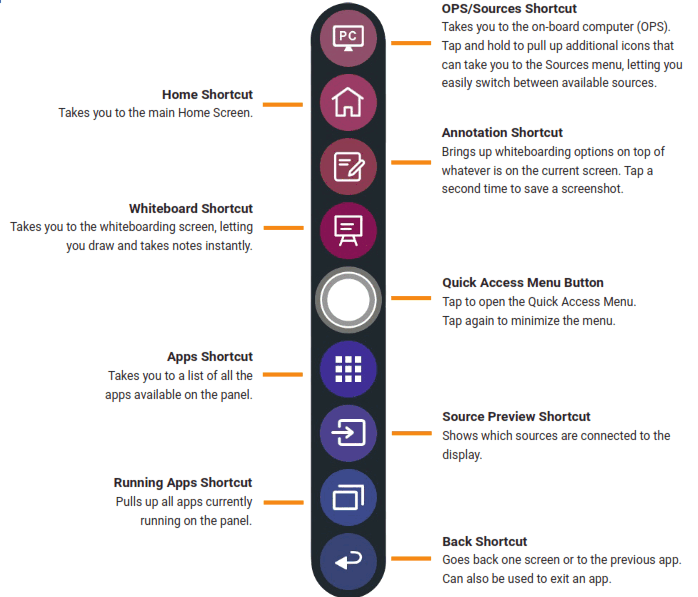
The Quick Access Toolbar can be accessed by tapping the white circle on either the left or right side of the screen. To minimize the Quick Access Toolbar, tap the button gain.
Switching Sources
To Access Any Source Connected to the Display
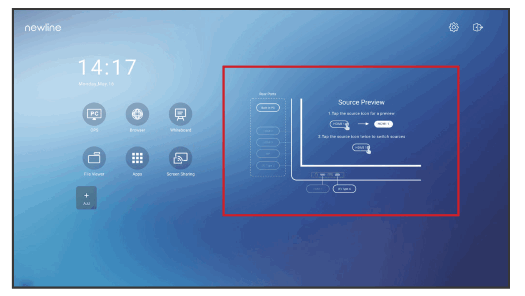
- Any device currently connected to the display will light up in white in the Source Preview window on the home screen.
- Tap the icon of the Source you want to switch to.

- The Source Preview window will show a preview of what is currently on the screen of that connected device.
- Tap the icon of the Source a second time or tap the Preview window and you will be taken to that source.
- Plugging your device into the front ports will automatically bring up the device on screen.
Accessing the Built-In OPS Computer
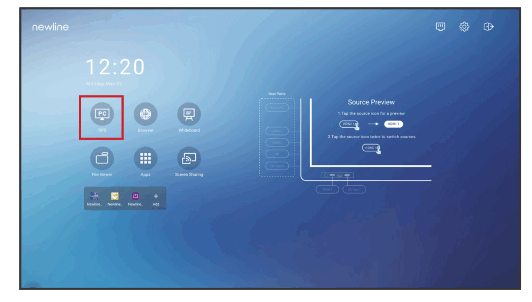
- Turn on the display.
- Touch the “Tap to Start” message on the first screen.
- Tap the “OPS” button on the home screen.

- You will now be viewing and using the built-in OPS Computer.
 Bonus Tips:
You can also quickly navigate to different sources using these icons on the floating menu on both sides of the display:
 | |
| Quick Access to the OPS | Quick Access to the Sources Page |
The Front Ports
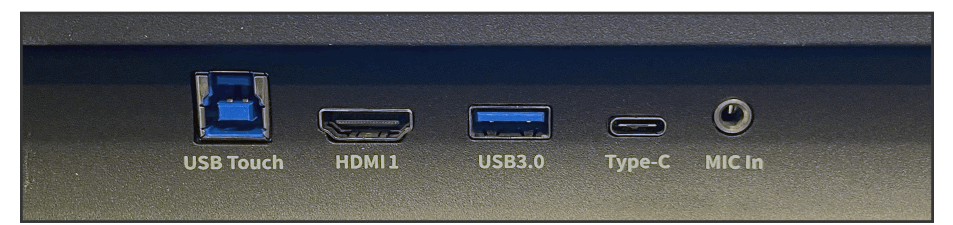
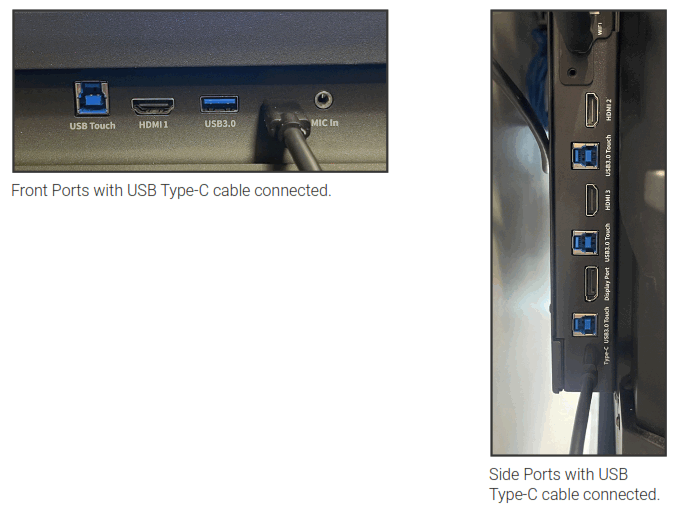
There are five ports located on the bottom left-hand side of the front of the panel: USB Touch, HDMI, USB 3.0, USB Type-C with 65 watts power delivery, and mic-in.
The Side Ports
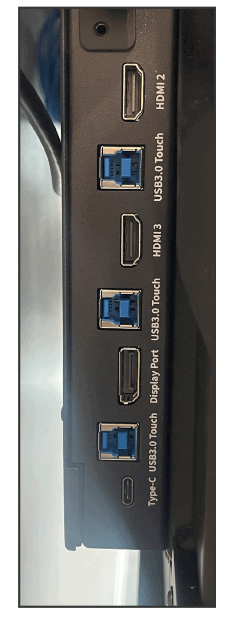
There are seven ports located on the left side of the panel: one USB Type-C port, three USB Touch ports, one Display port, and two HDMI ports.
Switching Sources
Connecting a Computer with USB-C
- You will need a USB Type-C cable to connect a computer.
- Plug in one end of the USB-C cable into the front or side USB-C port.
- Take the other end of the USB-C port and plug it into the USB-C port on your computer.
- Once both cables have been plugged into the display and the computer, the matching port should turn white on the Source Preview on the Home Screen.
Connecting a Computer with USB & HDMI
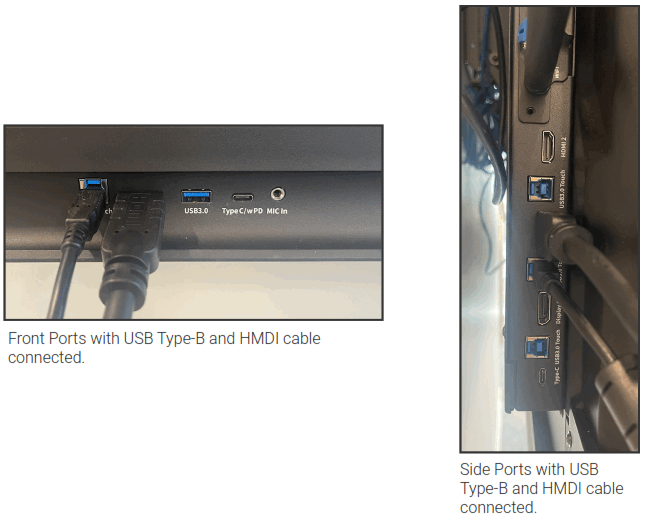
- You will need an HDMI cable and a USB A to B cable to connect a computer.
- On the front or side ports of the Q Series, plug in one end of the HDMI cable into one of the HDMI ports.
- Take the other end of the HDMI port and plug it into the HDMI port on your computer.
- Plug in the USB-B end of the USB cable into one of the front or side ports labeled “USB Touch.”
- Take the USB-A end of the USB cable and plug it into the USB port on your computer.
- Once both cables have been plugged into the display and the computer, the matching port should turn white on the Source Preview on the Home Screen.
Installing the Wi-Fi Module
- Unscrew the 2 screws on the Wi-Fi Module port and remove the shielding cover.

 Caution
The Wi-Fi Module does not support hot plugging. Therefore, you must insert or remove the Wi-Fi Module when the display is powered off. Otherwise, the displays or Wi-Fi odule may be damaged. - Insert the Wi-Fi Module into the port on the rear of the panel until firmly seated, using the 2 screws to secure it.
 Caution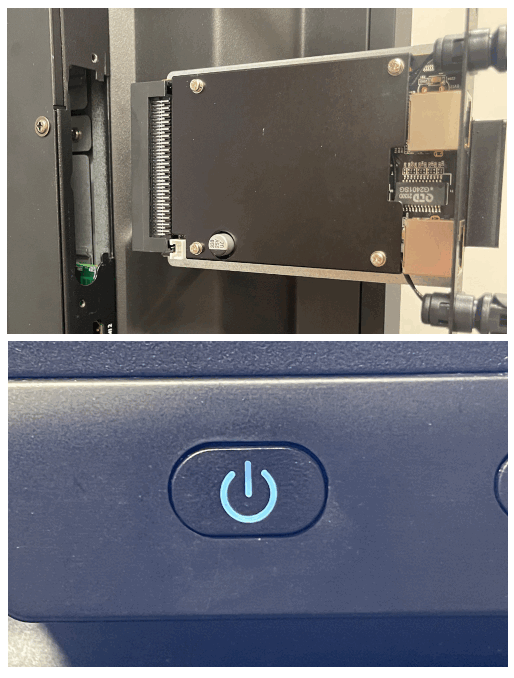
Changing the Settings
 In the upper right hand corner of the home screen select the icon.
- From the Settings menu, you can adjust things like the Power settings, Internet Network settings, Date & Time, etc.
 In the upper right hand corner of the home screen select the icon.
Settings Network
wi.siData ussooklmom Languages &input
klka keyword Date & Time
Gmt- 04.00Eastern Daylight Time Storage
6 GB Free APPS
APPS
Permissions,Default Apps Display & Theme
wollwerThems,o Tool Bar
Customiaze ,size Input and Output
Signal Source Change.CEC Power
Power
Power oson.Enersy Saving
Launching Updates
Updates to Firmware and Apps launch automatically “over the air.” A pop-up item will appear on the screen when the update is ready to be downloaded.
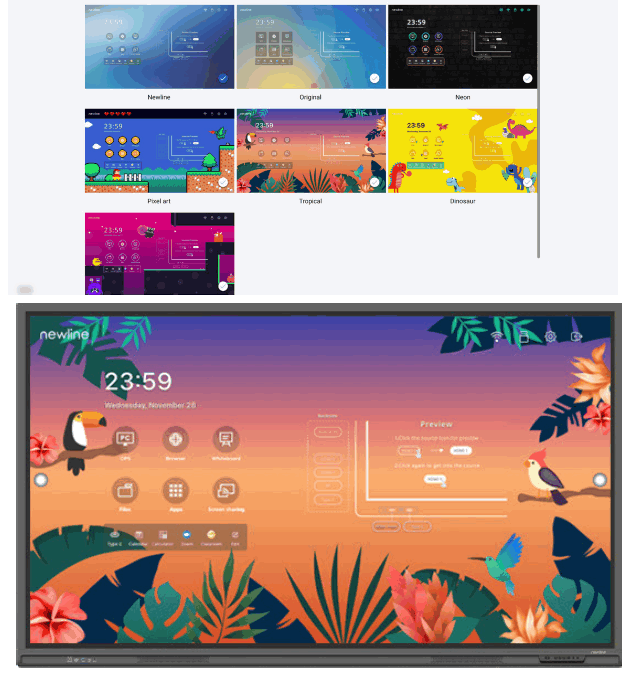
Changing Panel Themes
- In the Settings menu select “Display & Theme”
- Choose “Theme” from the menu options.
- Choose the theme you would like to set on the panel Home Screen.
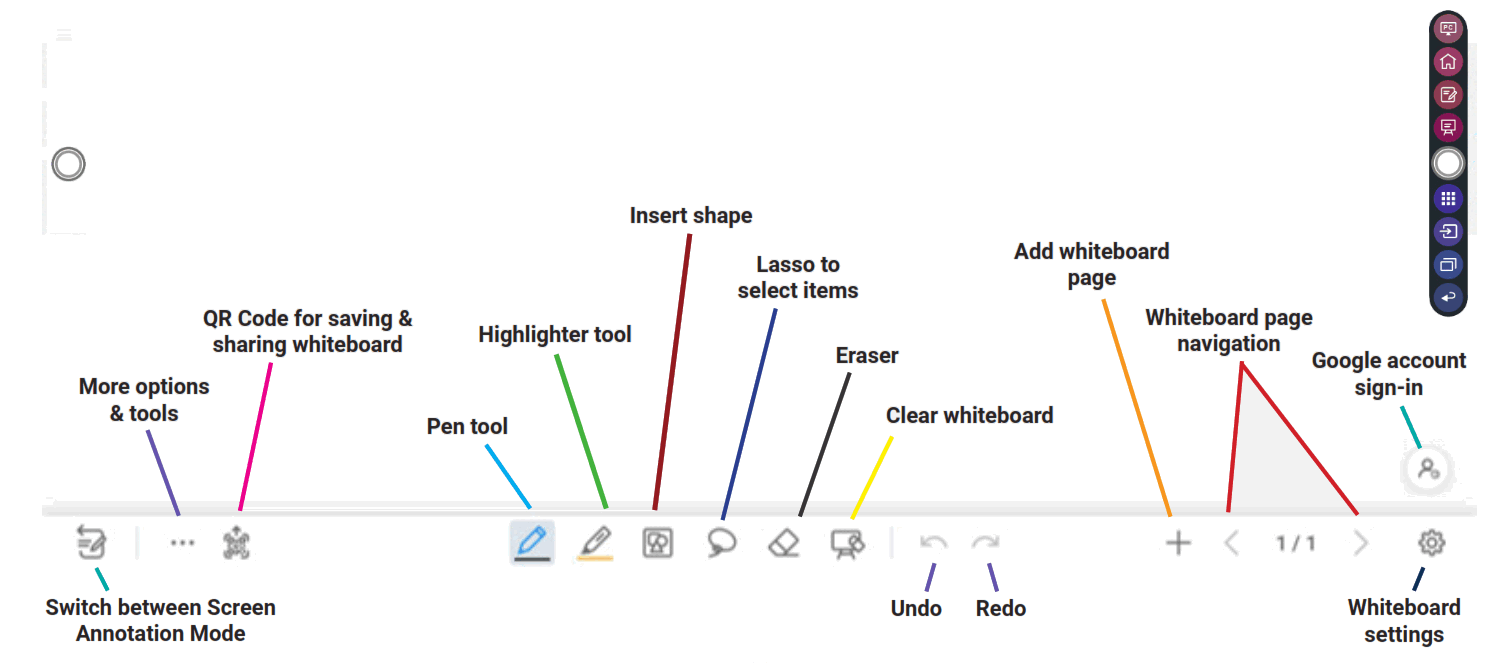
Whiteboard Tools
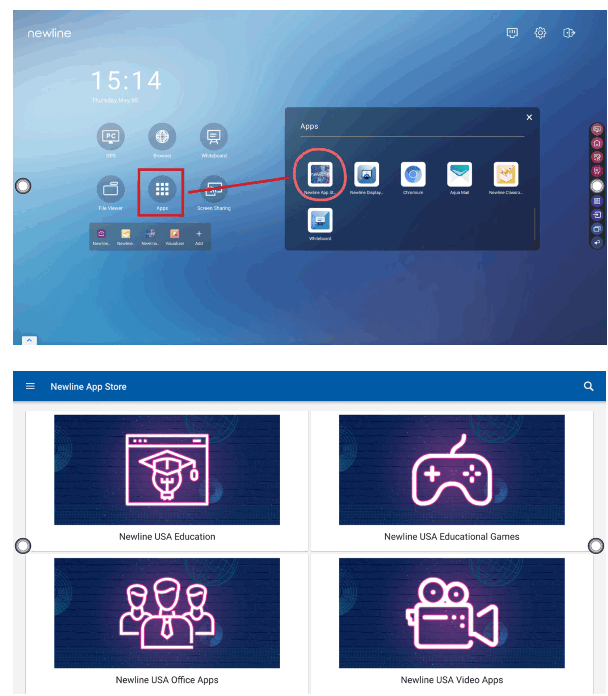
Accessing the Newline App Store
- On the Home Screen, tap on the “Apps” button
- In the Apps Menu, tap “Newline App Store” to launch.

- In the App Store, select the App you want to download.
- On the App details screen, tap Install.
 Looking for a fun, free, and simple educational app to help your toddler learn phonics and trace letters of the alphabet? Look no further than ABC Kids.
ABC Kids is a free phonics and alphabet teaching app that makes learning fun for children, from toddlers all the way to preschoolers and kindergartners. It features a series of tracing games to help kids recognize letter shapes, associate them with phonic sounds, and put their alphabet knowledge to use in fun matching exercises. Any toddler, kindergartener or preschool age child can learn English and the English alphabet simply by following the arrows with their finger. They can even collect stickers and toys as they complete tracing games!
ABC Kids is more than just a kid-friendly educational app, it was designed with adult participation in mind, too. The interface keeps toddlers focused on alphabet reading and writing, tucking menu commands away from moving fingers. Adults can easily access settings to engage Teacher Mode, look at report cards, or toggle tracing and phonics games to better facilitate learning. - Once installed, the App will appear in the Apps menu on the Home Screen.

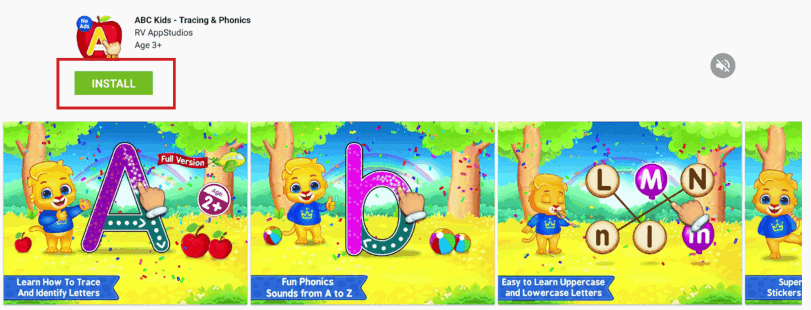 Looking for a fun, free, and simple educational app to help your toddler learn phonics and trace letters of the alphabet? Look no further than ABC Kids.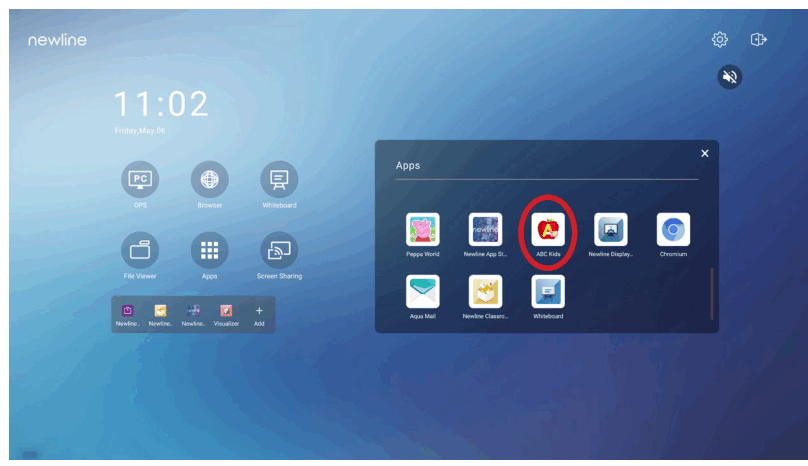
Using Newline Cast
Connecting to Newline Cast Using the DisplayNote Windows App
- Open the Newline Cast app on your display

- Download the DisplayNote Windows App from displaynote.com/join on your computer
- Open the DisplayNote app on your laptop
- Type in the Session ID you see on the display and your name
- Select “Join” once both Session ID and Name are filled in
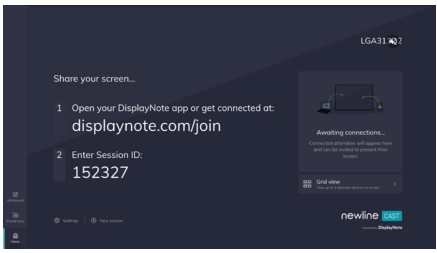
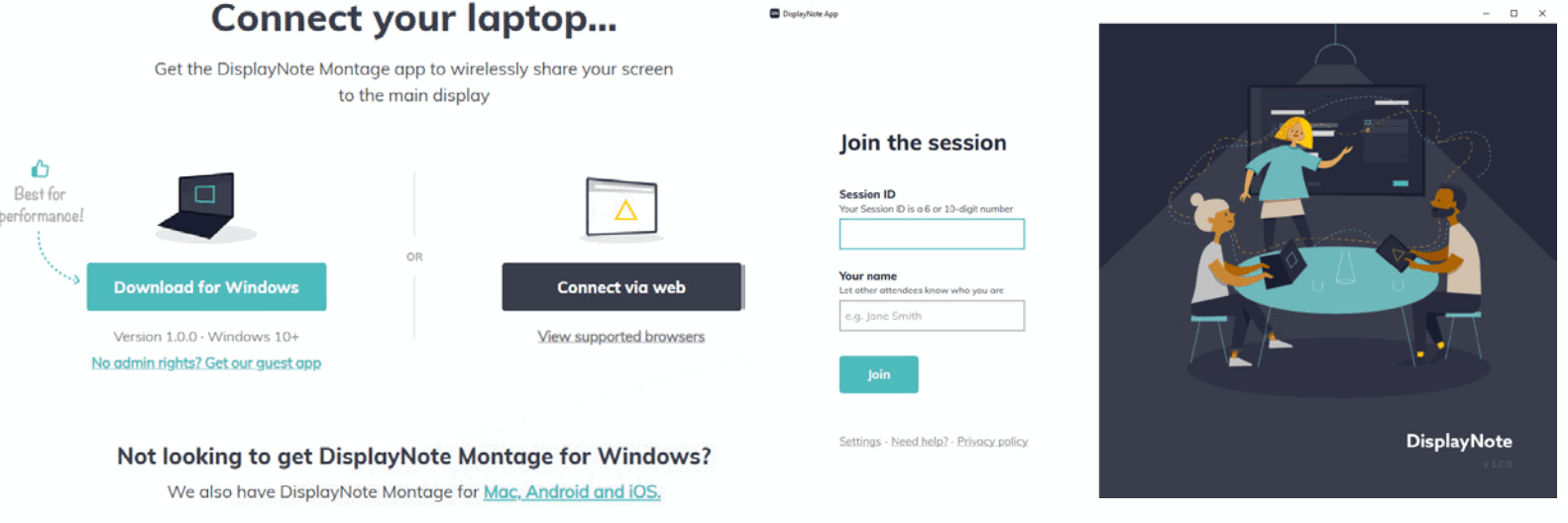
Connecting to Newline Cast from a Web Browser
- Open the Newline Cast app on your display
- Visit www.displaynote.com/join on your laptop and select “Connect via web”
- Type in the Session ID you see on the display and your name
- Select “Join” once both Session ID and Name are filled in
- When asked, select whether you want to share your entire screen, or just a specific application window.
- Click “Share”
Using Newline Broadcast
Share your Panel Screen to Student Devices
- Turn on the display.
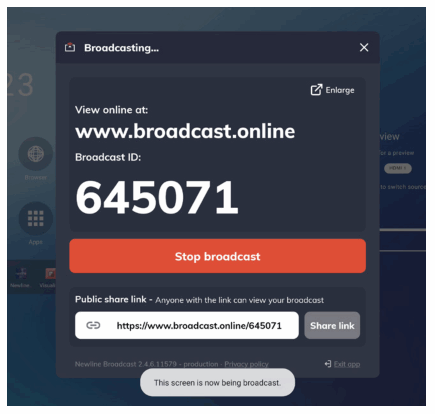
- Begin a session by opening the Broadcast application and pressing the “Start broadcast” button
- Share the public share link with your viewers.
- Begin your presentation.
- To end the Broadcast, press the Stop Broadcast button.
Viewing a Broadcast
- Click the link sent by the broadcast host, or go to broadcast.online, enter the 6-digit Broadcast ID and press Connect.
- Users can interact with the “Enlarge” option to enlarge the broadcast information. This is designed to help users view the broadcastinformation from afar.
- To leave a broadcast, press the Stop button at any time.

350 W Bethany Dr: 1-888-233-0868
Suite 330: [email protected]
Allen, TX 75013 To learn more, visit: www.newline-interactive.com
 DisplayNote
 Interactive - The Power of Communication - Interactive - The Power of Communication
 DisplayNote
 Newline - Global Leader in Interactive Displays