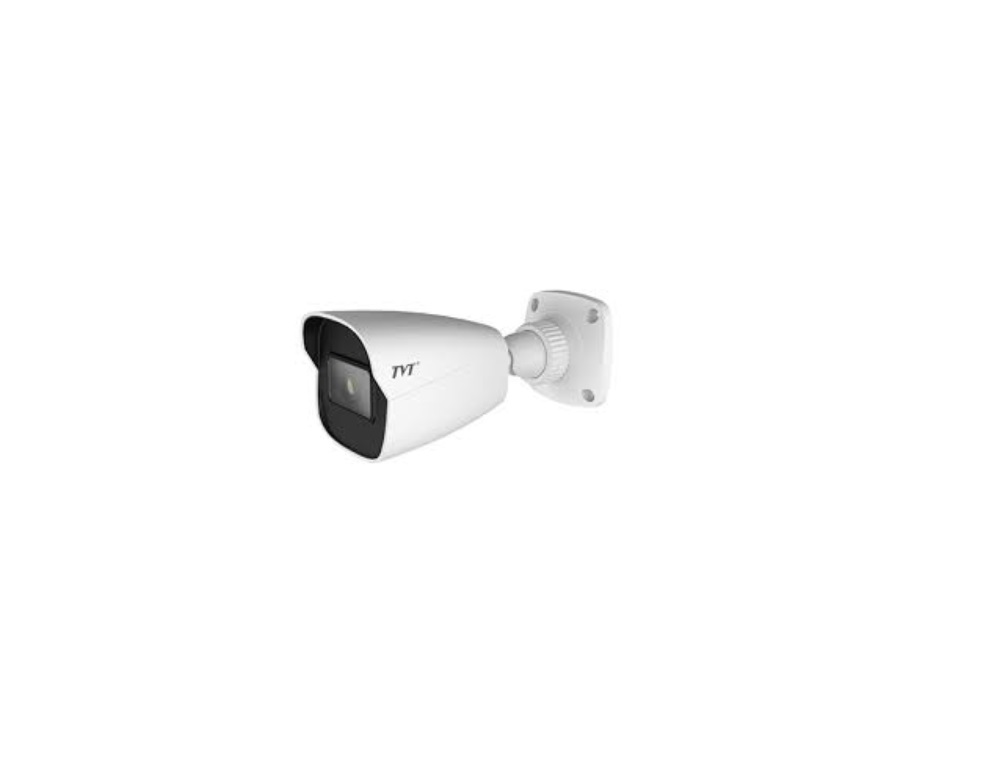
TD-9527E3 Network Camera
Product Information
Network Camera
This product is a network camera used for surveillance and
monitoring purposes. It comes with various features and components
to ensure high-quality video recording and easy installation.
Package Contents
- Camera
- 2 tapping screws
- CD Drill template
- Screwdriver
Please read the instruction manual carefully before using the
product and keep it for further reference. All the examples and
pictures used in the manual are for reference only. The contents of
the manual are subject to change without notice.
Overview
- Micro SD card slot
- Light sensor
- Reset button
- Ethernet connector (PoE)
- Audio input
- Power connector
- Lower Dome
- Ground
- Microphone
* It is recommended to install the security cap for outdoor
installation.
* If the PoE switch is used to power the camera, DC12V power supply
is not required.
Product Usage Instructions
Connecting Network Cable
- Loosen the nut from the main element.
- Run the network cable (without RJ 45 connector) through both
elements. - Crimp the cable with an RJ 45 connector.
- Connect the cable to the hermetic connector.
- Tighten the nut and the main cover.
Installation
Please make sure that the wall or ceiling is strong enough to
withstand 3 times the weight of the camera. Install and use the
camera in a dry environment. It is recommended to reinstall the
lower dome within 4 hours after removing it. Drill the screw holes
and the cable hole on the wall according to the drill template
provided.
Network Connection
- Access the camera through IP-Tool on a computer connected to
the same network as the camera. - Preview the image of the camera on a monitor.
- Adjust the camera’s position using the three-axis adjustment
for an optimum angle. - Replace the lower dome ensuring that the light sensor can be
seen from the outside. If the light sensor is hidden, re-adjust the
lens. Fix the lower dome with screws.
Camera Configuration
- Make sure that the camera and the PC are connected via
LAN. - Find the IP-Tool from the CD and install it on the
computer. - Run the IP-Tool to search for the camera’s IP address.
- Double-click the camera information listed in the IP-Tool to
open the web browser. - Download and install any required plugins if prompted.
- Activate and log in to the camera using the default username
“admin” and default password “123456”. Alternatively, you can
self-define the password.
Network Camera
Quick Start Guide
Camera
Quick start guide
2 tapping screws
Please read this instruction carefully before using the product and keep it for further reference. All the examples and pictures used here are for reference only. The contents of this manual are subject to change without notice.
CD Drill template
Screwdriver
Plastic plug ×2
1 Warning and Caution
If the product does not work properly, please contact your dealer or the nearest service center. Never attempt to disassemble the camera yourself. (We shall not be responsible for any problems caused by unauthorized repair or maintenance.) Do not allow water or liquid intrusion into the camera. In the use of the product, you must be strict compliance with the electrical safety regulations of the nation and region. When the product is mounted on wall or ceiling, the device shall be firmly fixed. Do not use camera beyond specified voltage range. Do not drop the camera or subject it to physical shock. Do not directly touch the camera when installing. The product must be grounded to reduce the risk of electric shock. You must wear anti-static gloves or discharge static electricity before removing the lower dome (bubble). Avoid touching the camera lens. If cleaning is necessary, please use clean cloth to wipe it gently. Do not aim the camera at the sun or extra bright place. Do not place the camera in extremely hot, cold (the operating temperature shall be -30°C~60°C), dusty or damp locations, and do not expose it to high electromagnetic radiation. To avoid heat accumulation, good ventilation is required for operating environment.
2 Package
3 Overview
1
2
3
1 Micro SD card slot
4
2 Light sensor
5
3 Reset
6
4 Ethernet connector (PoE)
5 Audio input
7
6 Power connector
7 Lower Dome
8
8 Ground
9 Microphone
9
Security Cap
DC12V
* 1 It is recommended to install the security cap for outdoor installation. * 2 If the PoE switch is used to power the camera, DC12V power supply is not required.
Connecting Network Cable
1
2
3
Loosen the nut from the main element. Run the network cable (without RJ 45 connector) through the both elements. Then crimp the cable with RJ 45 connector. Connect the cable to the hermetic connector. Then tighten the nut and the main cover.
4 Installation
Please make sure that the wall or ceiling is strong enough to withstand 3 times the weight of the camera. Please install and use the camera in the dry environment. You’d better install back the lower dome less than 4 hours after removing it. Drill the screw holes and the cable hole on the wall according to the drill template.
39.4mm
30°
39.8mm
110 91.36
4.5
Loosen the screws to remove the lower dome from the camera.
Lower Dome
Route and connect the cables. Secure the mounting base with camera to the wall with screws as shown below.
5 Network Connection
Here we take accessing IP camera via LAN for example. Access the camera through IP-Tool
IPC
Switch
Network Cable
Router
Network Cable
MENU
Computer
Three-axis adjustment. Before adjustment, preview the image of the camera on a monitor and then adjust the camera according to the figure below to get an optimum angle.
Pan 0°~360° Rotate 0°~350°
Tilt 0°~70°
Replace the lower dome to the camera and make sure the light sensor can be seen from the outside. If the light sensor is hidden, please re-adjust the lens. After that, fix the lower dome with the screws.
Make sure that the camera and the PC are connected via LAN. Find the IP-Tool from the CD and then install it in the computer. After that, run the IP-Tool as shown below.
Device Network Search
Immediate Refresh
Device Name Device Type Product Model IP Address Http Port
name name
IPC
unknown 192.168.226.201
80
IPC
unknown 192.168.1.2
80
name
IPC
unknown 192.168.1.3
80
About
Data Port Subnet Modify Network Parameter
9008 9008 9008
255.255. Mac Address CE :98 :23 :75 :35 :22 255.255. IP Address 192 .168 . 226 . 201
255.255. Subnet Mask 255 . 255 . 255 . 0
Gateway
192 .168 . 226 . 1
Modify i Tip: Enter the administrator password, and
then modify the network parameters.
Restore IPC Default Configuration
Total Device: 3
Local IP Address:192.168.1.4 Subnet Mask:255.255.255.0 Gateway: 192.168.1.1 DNS210.21.196.6
Double click the camera information listed in the IP-Tool to open the web browser. The default IP address of this camera is 192.168.226.201. Then follow directions to download and install the plugin if prompted. Activate and log in the camera. The default username is admin; the default password is 123456 or you need to self-define the password. Please operate according to the actual situation.
Tips
Transparent Dome Maintenance Transparent dome is an optical element. As dirt, dust or fingerprints on the dome will reduce the clarity of the image, please don’t touch or wipe the cover surface directly during installation and use. Please refer to the following cleaning tips to clean it. * If there is dust on the dome, please use a dry soft brush to gently brush it . * If there is water or grease on the dome, please gently wipe off the water drop or grease with a soft cloth and then use oil-free cotton cloth with neutral detergent to wipe it several times from the center outward. Finally, change the cloth to dry it. * If there are fingerprints on the dome, please use oil-free cotton cloth or paper soaked with neutral detergent to wipe it several times from the center outward and then dry it with a soft cloth.
Light Sensor
450043001517 A2