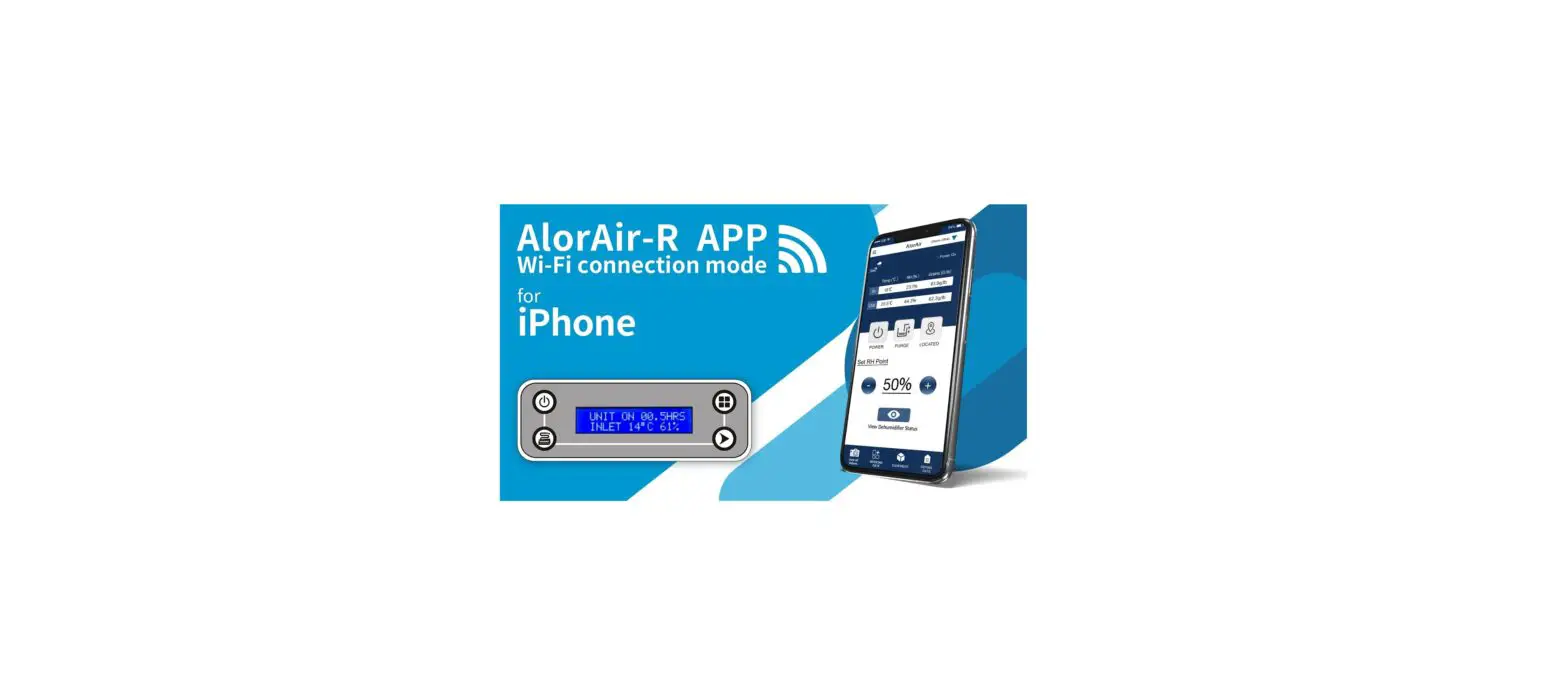
AlorAir-R WiFi Connection App
Product Information:
The AlorAir -R is a smart dehumidifier that can be controlled
using the AlorAir-R mobile app. It features a simple and smart
design, making it easy to use and operate. The dehumidifier model
used in the instructions is the STORM LGR Extreme.
Product Usage Instructions:
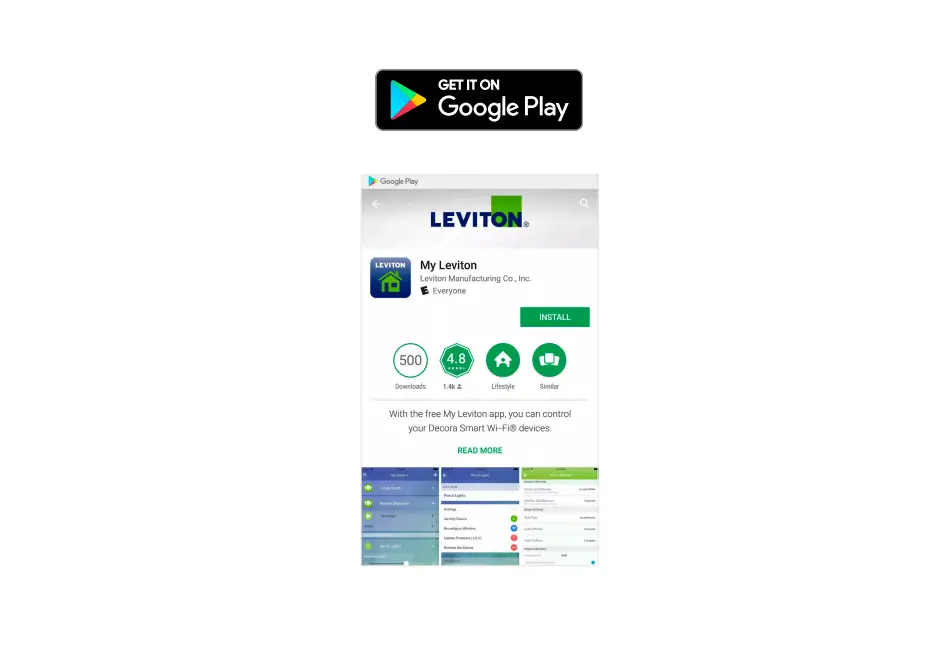
- Download and install the AlorAir-R app from the App Store (for
Apple users) or Google Play Store (for Android users). - Sign up and log in to your account within the app.
- Follow the steps provided in the app to locate your
dehumidifier model (STORM LGR Extreme). - On the dehumidifier, press the MENU key to switch off the
hotspot. - Reset your device by simultaneously pressing the PURGE key and
the MENU key for 3-5 seconds. Once you hear a beep, the WI-FI icon
on the upper right of the board will start flashing. - Turn on your phone’s Bluetooth and return to the app. Click the
Switch button to connect to the Bluetooth-BK-alorair. - Connect to your home Wi-Fi network. Make sure to enter the
correct password, as an incorrect password will result in
connection failure. - If the connection is successful, you can now start controlling
the device through the app. - If the connection fails, follow the app’s prompts to
troubleshoot and restart the connected device. - To add a new device, enter the device list within the app and
click the + button to continue adding new devices.
More simple, More Smart
V1
New AlorAir -R APP WI-FI Connection Guide
For Android and Apple users, the operation method and process are the same.
Download and install AlorAir-R from the App Store or Google Play Store.
1 Sign up and loggin your account.
How it works?
2
Find your dehumidifier model. Let’s take STORM LGR Extreme as an example
3
Follow the steps on the App, press the “MENU” key of the board
to switch the hotspot to “OFF”.
4 Follow the App steps to reset your device
Press the “PURGE” key and the “MENU” key at the same time for 3-5 seconds.
After the system beeps, the WI-FI icon will start flashing on the upper right of the board .
5 Turn on your phone’s Bluetooth, return to the app, click the “Switch button”, and connect to the Bluetooth-BK-alorair.
6
Connect to the home Wi-Fi. Wrong password will cause subsequent connection failure.
Connection Successed
Once the app has finished Connection, you can start controlling the device
Connection Failure
If it fails, follow the APP prompts to troubleshoot and restart the connected device.
Add New Device
Enter the device list, you can click the “+” button to continue adding new