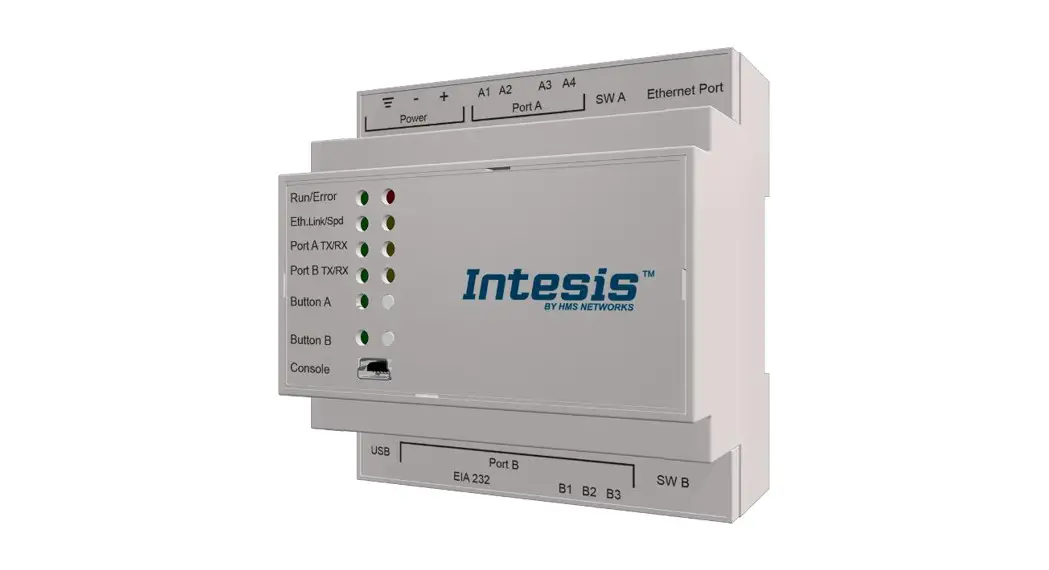
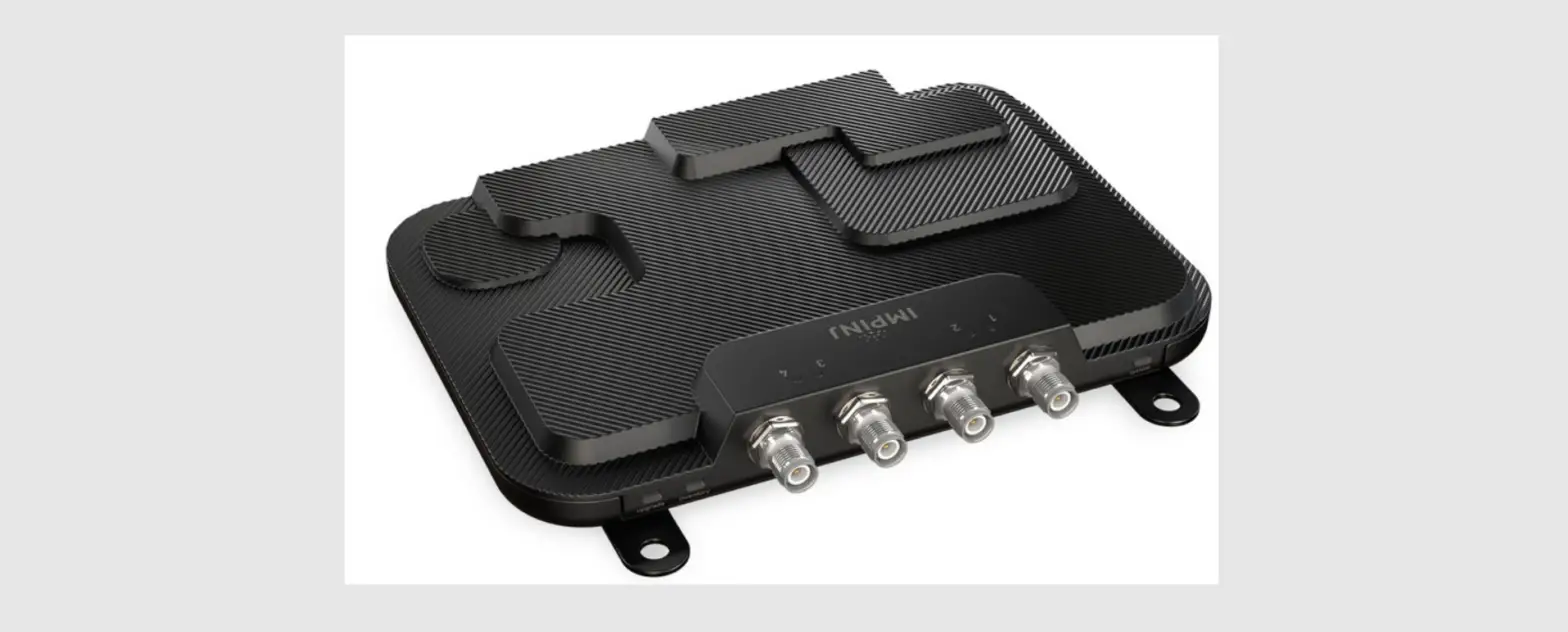
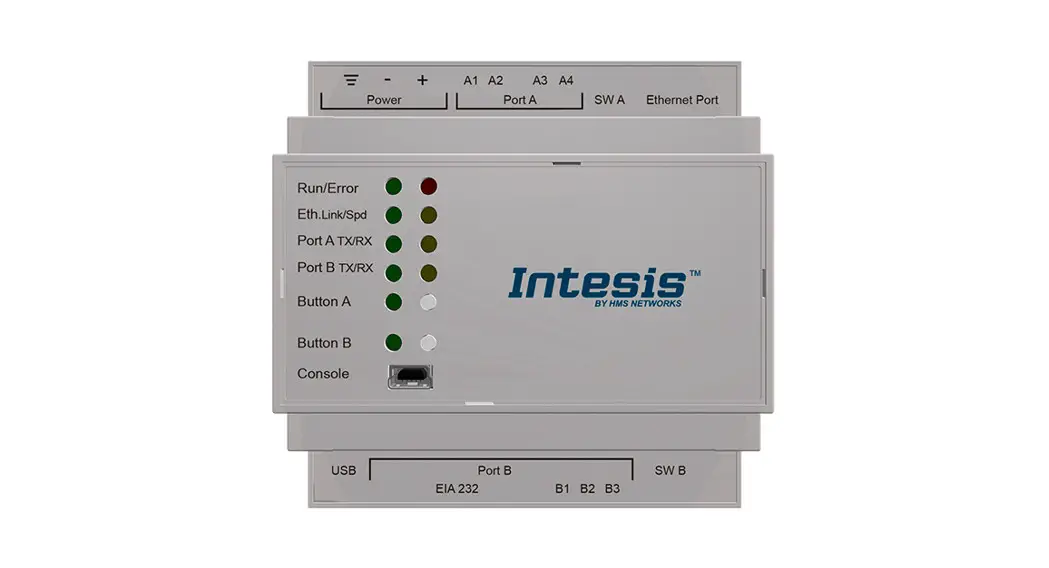
IN700-485 Series Protocol Translator
Product Information
Product Name: IN700-485 Series Intesis Protocol
Translator with Serial and IP Support
User Manual Version: 1.2
Publication Date: 2023-01-09
Disclaimer: The information in this document is
for informational purposes only. Please inform HMS Networks of any
inaccuracies or omissions found in this document. HMS Networks
disclaims any responsibility or liability for any errors that may
appear in this document. HMS Networks reserves the right to modify
its products in line with its policy of continuous product
development. The information in this document shall therefore not
be construed as a commitment on the part of HMS Networks and is
subject to change without notice. HMS Networks makes no commitment
to update or keep current the information in this document.
Table of Contents
- Order Codes
- General Introduction
- BACnet Server to Modbus Client
- Specific Gateway Introduction
- Functionality
- Modbus Server to BACnet Client
- Specific Gateway Introduction
- Functionality
- ASCII Server to BACnet Client
- Specific Gateway Introduction
- Functionality
- Gateway Capacity
- User Manual Version 1.2
- IN700-485 Series
- Mounting
- Connections
- User Manual Version 1.2
Order Codes
ORDER CODE IN7004851000000, IN7004852500000,
IN7004856000000, IN7004851K20000, IN7004853K00000, INMBSBAC1000000,
INMBSBAC2500000, INMBSBAC6000000, INMBSBAC1K20000, INMBSBAC3K00000,
LEGACY ORDER CODE INBACMBM1000000, INBACMBM2500000,
INBACMBM6000000, INBACMBM1K20000, INBACMBM3K00000, INASCBAC6000000,
INASCBAC3K00000
PRODUCT NAME: IN700-485
Product Usage Instructions
To use the IN700-485 Series Intesis Protocol Translator, follow
the steps below:
- Mount the device according to the instructions provided in the
user manual section “Mounting” (page 21). - Make the necessary connections as described in the user manual
section “Connections” (page 22). - Refer to the specific gateway introduction for the desired
functionality:- If using BACnet Server to Modbus Client functionality, refer to
section 4.1 and 4.2. - If using Modbus Server to BACnet Client functionality, refer to
section 5.1 and 5.2. - If using ASCII Server to BACnet Client functionality, refer to
section 6.1 and 6.2.
- If using BACnet Server to Modbus Client functionality, refer to
- Ensure that the device is within its gateway capacity, as
explained in section 7 of the user manual.
ENGLISH
IN700-485 Series INTESIS PROTOCOL TRANSLATOR WITH SERIAL AND IP SUPPORT
USER MANUAL Version 1.2
Publication date 2023-01-09
Copyright © 2022 Intesis
Disclaimer
The information in this document is for informational purposes only. Please inform HMS Networks of any inaccuracies or omissions found in this document. HMS Networks disclaims any responsibility or liability for any errors that may appear in this document.
HMS Networks reserves the right to modify its products in line with its policy of continuous product development. The information in this document shall therefore not be construed as a commitment on the part of HMS Networks and is subject to change without notice. HMS Networks makes no commitment to update or keep current the information in this document.
The data, examples and illustrations found in this document are included for illustrative purposes and are only intended to help improve understanding of the functionality and handling of the product. In view of the wide range of possible applications of the product, and because of the many variables and requirements associated with any particular implementation, HMS Networks cannot assume responsibility or liability for actual use based on the data, examples or illustrations included in this document nor for any damages incurred during installation of the product. Those responsible for the use of the product must acquire sufficient knowledge in order to ensure that the product is used correctly in their specific application and that the application meets all performance and safety requirements including any applicable laws, regulations, codes and standards. Further, HMS Networks will under no circumstances assume liability or responsibility for any problems that may arise as a result from the use of undocumented features or functional side effects found outside the documented scope of the product. The effects caused by any direct or indirect use of such aspects of the product are undefined and may include e.g. compatibility issues and stability issues.
IN700-485 Series
Table of Contents
1. Order Codes …………………………………………………………………………………………………………… 1
2. General Information …………………………………………………………………………………………………. 2 2.1. Intended Use of the User Manual ……………………………………………………………………………. 2 2.2. General Safety Information …………………………………………………………………………………… 2 2.3. Admonition Messages and Symbols …………………………………………………………………………. 2
3. General Introduction …………………………………………………………………………………………………. 4
4. BACnet Server to Modbus Client …………………………………………………………………………………… 5 4.1. Specific Gateway Introduction ………………………………………………………………………………… 5 4.2. Functionality ……………………………………………………………………………………………………. 5
5. Modbus Server to BACnet Client …………………………………………………………………………………… 6 5.1. Specific Gateway Introduction ………………………………………………………………………………… 6 5.2. Functionality ……………………………………………………………………………………………………. 6
6. ASCII Server to BACnet Client ………………………………………………………………………………………. 7 6.1. Specific Gateway Introduction ………………………………………………………………………………… 7 6.2. Functionality ……………………………………………………………………………………………………. 7
7. Gateway Capacity …………………………………………………………………………………………………….. 8
8. BACnet Interface ……………………………………………………………………………………………………… 9 8.1. General Description ……………………………………………………………………………………………. 9 8.2. BACnet Client ………………………………………………………………………………………………….. 10 8.2.1. Description ………………………………………………………………………………………………. 10 8.2.2. Points Definition ………………………………………………………………………………………… 11 8.3. BACnet Server ………………………………………………………………………………………………….. 12 8.3.1. Description ………………………………………………………………………………………………. 12 8.3.2. BACnet IP ………………………………………………………………………………………………… 13 8.3.3. BACnet MSTP ……………………………………………………………………………………………. 13
9. Modbus Interface ……………………………………………………………………………………………………. 14 9.1. General Description …………………………………………………………………………………………… 14 9.2. Modbus Server Interface ……………………………………………………………………………………… 14 9.2.1. Description ………………………………………………………………………………………………. 14 9.2.2. Functions Supported …………………………………………………………………………………… 14 9.2.3. Modbus RTU …………………………………………………………………………………………….. 15 9.2.4. Modbus TCP …………………………………………………………………………………………….. 15 9.2.5. Modbus Server Interface Points Definition ………………………………………………………….. 16 9.3. Modbus Client Interface ……………………………………………………………………………………… 16 9.3.1. Description ………………………………………………………………………………………………. 16 9.3.2. Points Definition ………………………………………………………………………………………… 17
10. ASCII Interface ……………………………………………………………………………………………………… 18 10.1. Description ……………………………………………………………………………………………………. 18 10.2. ASCII Serial ……………………………………………………………………………………………………. 18 10.3. ASCII TCP ………………………………………………………………………………………………………. 18 10.4. Address Map …………………………………………………………………………………………………. 18 10.5. Points Definition ……………………………………………………………………………………………… 19 10.6. Messages ……………………………………………………………………………………………………… 20
USER MANUAL Version 1.2
IN700-485 Series
11. Mounting ……………………………………………………………………………………………………………. 21 12. Connections …………………………………………………………………………………………………………. 22
12.1. Power Supply …………………………………………………………………………………………………. 23 12.2. Connection Diagrams for each Application ……………………………………………………………….. 24 12.3. Connection to Modbus ……………………………………………………………………………………… 26 12.4. Connection to BACnet ………………………………………………………………………………………. 28 12.5. Connection to ASCII ………………………………………………………………………………………….. 29 12.6. Console and USB Connections ……………………………………………………………………………… 30 13. Set-up Process with the Configuration Tool ……………………………………………………………………. 31 13.1. Prerequisites ………………………………………………………………………………………………….. 31 13.2. Intesis MAPS: Configuration and Monitoring Tool ……………………………………………………….. 31
13.2.1. Introduction ……………………………………………………………………………………………. 31 13.2.2. Template Selection ……………………………………………………………………………………. 32 13.2.3. Connection Tab ………………………………………………………………………………………… 32 13.2.4. Configuration Tab ……………………………………………………………………………………… 33 13.2.5. Signals Tab ……………………………………………………………………………………………… 33 13.2.6. Receive/Send Tab ……………………………………………………………………………………… 33 13.2.7. Diagnostic ………………………………………………………………………………………………. 34 14. Technical Specifications …………………………………………………………………………………………… 35 15. Dimensions ………………………………………………………………………………………………………….. 36
USER MANUAL Version 1.2
Order Codes
IN700-485 Series
1. Order Codes
ORDER CODE IN7004851000000 IN7004852500000 IN7004856000000 IN7004851K20000 IN7004853K00000
INMBSBAC1000000 INMBSBAC2500000 INMBSBAC6000000 INMBSBAC1K20000 INMBSBAC3K00000
LEGACY ORDER CODE INBACMBM1000000 INBACMBM2500000 INBACMBM6000000 INBACMBM1K20000 INBACMBM3K00000
INASCBAC6000000 INASCBAC3K00000
PRODUCT NAME ORDER CODE
IN700-485
IN700485xxx*0000
DESCRIPTION
Intesis Protocol Translator with Serial and IP Support
*xxx defines the Intesis gateway capacity.
INTESIS MAPS TEMPLATE IN-BAC-MBM IN-MBS-BAC IN-ASCII-BAC
APPLICATION Modbus client to BACnet server BACnet client to Modbus server BACnet client to ASCII server
USER MANUAL Version 1.2
Page 1 of 36
IN700-485 Series
General Information
2. General Information
2.1. Intended Use of the User Manual
This manual contains the main features of this Intesis gateway and the instructions for its appropriate installation, configuration, and operation.
The contents of this manual should be brought to the attention of any person who installs, configures, or operates this gateway or any associated equipment.
Keep this manual for future reference during the installation, configuration, and operation.
2.2. General Safety Information
IMPORTANT Follow these instructions carefully. Improper work may seriously harm your health and damage the gateway and/or any other equipment connected to it.
Only technical personnel, following these instructions and the country legislation for installing electric equipment, can install and manipulate this gateway.
Install this gateway indoors, in a restricted access location, avoiding exposure to direct solar radiation, water, high relative humidity, or dust.
All wires (for communication and power supply, if needed) must only be connected to networks with indoor wiring. All communication ports are considered for indoor use and must only be connected to SELV circuits.
Disconnect power wires before manipulating and connecting them to the gateway.
Use SELV-rated NEC class 2 or limited power source (LPS) power supply.
Supply always a correct voltage to power the gateway. See Technical Specifications (page 35).
Respect the expected polarity of power and communication cables when connecting them to the gateway.
CAUTION Only an authorized installer is allowed to replace the battery. There’s a risk of explosion if the battery is replaced by an incorrect type. Dispose of used batteries according to local legislation.
Safety instructions in other languages can be found at https://intesis.com/docs/manuals/v6-safety
2.3. Admonition Messages and Symbols
DANGER Instructions that must be followed to avoid an imminently hazardous situation that, if not avoided, will result in death or severe injury.
WARNING Instructions that must be followed to avoid a potentially hazardous situation that, if not avoided, could result in death or severe injury.
Page 2 of 36
USER MANUAL Version 1.2
Admonition Messages and Symbols
IN700-485 Series
CAUTION Instruction that must be followed to avoid a potentially hazardous situation that, if not avoided, could result in minor or moderate injury.
IMPORTANT Instruction that must be followed to avoid a risk of reduced functionality and/or damage to the equipment or to avoid a network security risk.
NOTE Additional information which may facilitate installation and/or operation.
TIP Helpful advice and suggestions.
NOTICE Remarkable Information.
USER MANUAL Version 1.2
Page 3 of 36
IN700-485 Series
General Introduction
3. General Introduction
This Intesis® gateway allows you to integrate Serial and IP protocols easily. This document describes the available applications for this gateway: · Modbus® TCP & RTU Client to BACnet®/IP & MSTP Server · BACnet/IP & MSTP Client to Modbus TCP & RTU Server · BACnet/IP & MSTP Client to ASCII IP & Serial Server
IMPORTANT This document assumes that the user is familiar with BACnet, Modbus, and ASCII technologies and their technical terms.
NOTE Some sections provide general information common to all applications, while others highlight specific differences, capacities, or limitations.
In general terms, you must have a BACnet, Modbus, or ASCII control and monitoring system on one side and a Modbus or BACnet installation or device on the other side (only one at a time).
IMPORTANT The Intesis gateway can act as a server or client for BACnet and Modbus but only as a server for ASCII.
As always, the configuration process is fast and easy: 1. Launch the configuration tool. 2. Select the template. 3. Connect the Intesis gateway to the PC. 4. Adjust the configuration and signals to your project. 5. Send the configuration to the gateway.
And you are ready to go!
Page 4 of 36
USER MANUAL Version 1.2
BACnet Server to Modbus Client
IN700-485 Series
4. BACnet Server to Modbus Client
4.1. Specific Gateway Introduction
This section describes the integration of Modbus RTU and/or Modbus TCP installations into BACnet IP or MSTP control and monitoring systems using the BACnet Server to Modbus Client application.
This integration allows a Modbus control system to access the signals and resources of BACnet systems as if they were part of the Modbus system itself and vice versa.
The gateway configuration is carried out through the configuration tool.
Figure 1. Integration of Modbus RTU or TCP devices into BACnet IP or MSTP control and monitoring systems
4.2. Functionality
From the Modbus point of view, the gateway continuously polls the installation or devices, storing in its memory the values of the points that you previously configured to be read. On the other hand, from the BACnet point of view, the control and monitoring system reads and writes those stored points.
This is possible because, inside the gateway, all Modbus registers of the server devices are associated with BACnet objects. This makes the BACnet control and monitoring system perceive the Modbus installation (all the server devices) as if it were a single BACnet device.
When the gateway polls the Modbus devices, if a non-response is detected, the corresponding virtual signal inside the gateway will be activated, indicating the communication error to the BACnet system.
The gateway has two EIA-485 ports for Modbus RTU integration: Port A and Port B. This function allows you to integrate up to 64 devices (32 in each port) with no additional repeaters in the network.
This functionality is disabled when BACnet MSTP is selected in Intesis MAPS, leaving only Port A available for Modbus RTU connectivity and Port B for BACnet MSTP devices.
By default, Port A is configured for Modbus RTU and Port B for BACnet MSTP.
USER MANUAL Version 1.2
Page 5 of 36
IN700-485 Series
Modbus Server to BACnet Client
5. Modbus Server to BACnet Client
5.1. Specific Gateway Introduction
This section describes the integration of BACnet MSTP and BACnet IP devices or installations into Modbus RTU or TCP systems using the Modbus server to BACnet client application of the Intesis gateway. This integration allows a Modbus system to access the signals and resources of BACnet devices as if they were part of the Modbus system itself and vice versa.
The gateway configuration is carried out through the configuration tool.
Figure 2. Integration of BACnet IP or MSTP devices into Modbus TCP or RTU control and monitoring systems
5.2. Functionality
From the BACnet point of view, the gateway continuously polls the installation or devices, storing in its memory the values of the points that you previously configured to be read. With the change of value (COV) system, the gateway can also subscribe to configured BACnet points, automatically receiving their values when they change. On the other hand, from the Modbus point of view, the control and monitoring system reads and writes those stored points.
This is possible because, inside the gateway, all BACnet objects of the server devices are associated with Modbus registers. This makes the Modbus control and monitoring system perceive the BACnet installation (all the server devices) as if it were a single Modbus device.
When the gateway polls the BACnet devices, if a non-response is detected, the corresponding virtual signal inside the gateway will be activated, indicating the communication error to the Modbus system as error registers.
Page 6 of 36
USER MANUAL Version 1.2
ASCII Server to BACnet Client
IN700-485 Series
6. ASCII Server to BACnet Client
6.1. Specific Gateway Introduction
This section describes the integration of BACnet/IP and MSTP devices into ASCII IP or Serial control and monitoring systems using the ASCII Server to BACnet Client application. This integration allows any ASCII system to access the signals and resources of BACnet devices as if they were part of the system itself and vice versa.
The gateway configuration is carried out through the configuration tool.
Figure 3. Integration of BACnet/IP or MSTP devices into ASCII TCP/IP or Serial control and monitoring systems
6.2. Functionality
From the BACnet point of view, the gateway continuously polls the installation or devices, storing in its memory the values of the points that you previously configured to be read. On the other hand, from the ASCII point of view, the control and monitoring system reads and writes those stored points.
This is possible because, inside the gateway, all BACnet objects of the server devices are associated with ASCII objects. This makes the ASCII control and monitoring system perceive the BACnet installation (all the server devices) as if it were a single ASCII device.
When the gateway polls the BACnet devices, if a non-response is detected, the corresponding virtual signal inside the gateway will be activated, indicating the communication error to the ASCII system.
USER MANUAL Version 1.2
Page 7 of 36
IN700-485 Series
Gateway Capacity
7. Gateway Capacity
Table 1. For BACnet server to Modbus client
Element
Type of BACnet devices
Maximum number of BACnet objects
Maximum number of BACnet Subscriptions (COV) requests
Type of Modbus server devices
Number of Modbus server devices supported by the device
100 version
250 version
600 version
1200 version
Those supporting communication with BACnet/IP and MSTP
100
250
600
1200
200
500
1200
2400
3000 versions
3000 6000
Those supporting communication over Modbus TCP/IP and RTU (EIA-485) Up to 5 Modbus TCP nodes/devices Up to 255 Modbus RTU devices per TCP/RTU node
Table 2. For Modbus server to BACnet client
Element Type of BACnet devices Maximum number of BACnet devices Maximum number of Modbus Registers Modbus link layers supported
100 version
250 version
600 version
1200 version 3000 version
Those supporting communication with BACnet/IP and MSTP
256
100
250
600
1200
3000
Those supporting communication over Modbus TCP/IP and RTU (EIA-485)
Table 3. For ASCII server to BACnet client
Element Type of BACnet devices Maximum number of BACnet devices Maximum number of ASCII Registers ASCII link layers supported
100 version
250 version
600 version
1200 version 3000 version
Those supporting communication with BACnet/IP and MSTP
256
100
250
600
1200
3000
Those supporting communication with ASCII client with simple messages through a TCP/IP or serial (EIA-232/EIA-485) connection
Page 8 of 36
USER MANUAL Version 1.2
BACnet Interface
IN700-485 Series
8. BACnet Interface
8.1. General Description
BACnet is a solid standard with many detailed concepts, but for this manual purposes, we will focus on the two most fundamental concepts:
· BACnet client, which is the device that sends service requests to the server. · BACnet server, which is the device that performs the requested service and reports the result back to the
client.
BACnet server devices are represented in the form of devices holding objects. Usually, every physical device corresponds to a logical one. The objects can be of different types depending on the data and functionality they represent: Analog input, Analog output, Digital input, etc.
NOTE · Output objects are objects meant to be written in the direction BACnet network to the device. · Input objects are meant to offer status information of the BACnet device. · Value objects are bidirectional.
Every object has different properties. The most meaningful one is the Present_Value property, which indicates the real value of the object. Also, the gateway uses this property to read and write values. Every object of the same type in a device is identified with its associated object instance.
USER MANUAL Version 1.2
Page 9 of 36
IN700-485 Series
BACnet Client
8.2. BACnet Client
8.2.1. Description
The gateway implements a single BACnet object of its own: its BACnet Device Object, which contains its BACnet Device Identifier and basic properties of the gateway as a BACnet device (name, firmware version, etc.).
NOTICE When acting as a client device, the Intesis gateway is classified under the device profile of a BACnet Application Specific Controller (B-ASC). For further details, check out the product website for the BACnet client PIC statements.
The gateway emulates a client device in the BACnet system. These are the possible BACnet objects supported by the Intesis gateway:
Object Type Analog Input Analog Output Analog Value
Property Present Value Present Value Present Value
Binary Input Binary Output Binary Value
Present Value Present Value Present Value
Multistate Input
Multistate Output
Multistate Value
Accumulator
Loop
Present Value Present Value Present Value Present Value Present Value
Description Analog signal, for example, Ambient temperature Analog signal Analog signal, for example, Temperature set point value Digital signal, for example, ON/OFF status Digital signal, for example, ON/OFF command Digital signal, for example, ON/OFF status/ command Multistate signal, for example, Working mode status Multistate signal
Multistate signal, for example, Working mode command
Every signal is identified with its associated Device + Object Type + Object Instance.
IMPORTANT Though BACnet IP and BACnet MSTP physical layers are supported, only one physical layer can be used at a time, i.e., if communicating to BACnet using BACnet IP, BACnet MSTP cannot be used, and vice versa.
NOTE Using the configuration tool, it’s possible to scan the BACnet network for available devices and their objects, which can later be directly added to your configuration. This feature facilitates the configuration process, avoiding entering them manually.
Page 10 of 36
USER MANUAL Version 1.2
BACnet Client
IN700-485 Series
8.2.2. Points Definition
Every point defined in the Intesis gateway has the following BACnet features associated with it:
Feature BACnet Device
BACnet object type
Description
BACnet device to which the point belongs (a list of 256 BACnet devices can be defined in the Intesis gateway).
For every BACnet device defined, a virtual signal is created automatically in the gateway to report the communication status with the BACnet device. Like the rest of the points, this signal is also available from the other protocol’s interface.
· AI: Analog Input · AO: Analog Output · AV: Analog Value · DI: Digital Input · DO: Digital Output · DV: Digital Value · MI: Multistate Input · MO: Multistate Output · MV: Multistate Value · LOOP: Loop · ACUM: Accumulator
BACnet object instance
IMPORTANT Please read the documentation of the BACnet devices you’re willing to integrate to know their object types.
BACnet object instance for the point on the external BACnet device.
IMPORTANT Please read the documentation of the BACnet devices you’re willing to integrate to know their object types.
USER MANUAL Version 1.2
Page 11 of 36
IN700-485 Series
BACnet Server
8.3. BACnet Server
8.3.1. Description
NOTICE When the Intesis gateway acts as a server device, it is classified under the device profile of a BACnet Advanced Application Controller (B-AAC). For further details, check out the product website for the BACnet client PIC statements.
Using the configuration tool, you can configure the object type associated with the signal on the other protocol. To facilitate the translation towards BACnet, the following object type options are available:
Object Type
ID
Analog-Input
0
Analog-Output
1
Analog-Value
2
Binary-Input
3
Binary-Output
4
Binary-Value
5
Calendar
6
Device
8
Multistate-Input
13
Multistate-Output
14
Multistate-Value
19
Notification-Class
15
Schedule
17
Trend-Log
20
Trend-Log-Multiple
27
Every signal of the Intesis gateway can have several objects. These objects and their properties can be configured with the configuration tool.
Depending on the field device protocol, you can define the signals using one of the following options:
· Configuring them manually for each or multiple signals at the time. · Importing a file with the signals of the field devices. · Scanning the network of the devices if this is supported.
Example 1. Signals compatibility You can choose an object from the BACnet server column that is compatible with this signal. For example, a writable register in the Modbus device can be an output object type on the BACnet server side; a readable and writable register can be a value object type, etc.
NOTICE The configuration tool provides default templates that make this signals assignment process easier. Also, you only have to click the Check table button on the bottom right corner of the window to know if everything is correct or if there’s some mistake. The project is also automatically checked before you transfer it to the gateway.
All objects definition, BIBBs, and details about the implementation can be found on the BACnet server PICS on the product website.
Page 12 of 36
USER MANUAL Version 1.2
BACnet Server
IN700-485 Series
8.3.2. BACnet IP
The UDP communication port is the main setup parameter for BACnet IP, besides basic IP settings (IP, netmask, default gateway). The Intesis gateway uses the 47808 (0xBAC0) port by default, which you can change through the configuration tool.
When using BACnet IP, the gateway can also act as a foreign device to communicate with devices in another network domain. Alternatively, you can set it as a BBMD (Bacnet IP Broadcast Management Device). This functionality facilitates the communication of devices placed in other networks with the devices in the gateway network.
IMPORTANT BACnet IP and BACnet MSTP communication can not be used simultaneously.
8.3.3. BACnet MSTP
When you choose BACnet MSTP (serial communication), you have to use the configuration tool to associate the gateway with a MAC address within the MSTP network segment.
Baud rates supported for MSTP line are: 9600, 19200, 38400, 76800, 115200, or Autobauding (autodetect).
Standard wiring guidelines for EIA-485 apply to the BACnet MSTP line.
IMPORTANT BACnet MSTP and BACnet IP communication can not be used simultaneously.
USER MANUAL Version 1.2
Page 13 of 36
IN700-485 Series
Modbus Interface
9. Modbus Interface
9.1. General Description
The Modbus protocol is an application-layer messaging protocol developed by Modicon in 1979. It is used to establish master-slave/client-server communication between intelligent devices over different types of buses or networks. The Intesis gateway supports Modbus TCP and RTU.
Modbus is a request/reply protocol and offers services specified by function codes. Modbus function codes are elements of Modbus request/reply PDUs (Protocol Data Unit).
9.2. Modbus Server Interface
9.2.1. Description
The gateway acts as a server device in its Modbus interface, which can be:
· The Ethernet port for Modbus TCP. · The EIA-485/EIA-232 ports for Modbus RTU.
NOTICE Modbus RTU and TCP modes can be active in the gateway one at a time or both simultaneously.
To access the gateway’s points and resources from a Modbus client device, you must specify as Modbus register addresses those configured inside the gateway corresponding to the signals on the field device protocol.
9.2.2. Functions Supported
NOTICE This part is common for both Modbus TCP and Modbus RTU.
Table 4. Modbus functions
#
Function
01
Read Coils
02
Read Discrete Inputs
03
Read Holding Registers
04
Read Input Registers
05
Write Single Coil
06
Write Single Register
15
Write Multiple Coils
16
Write Multiple Registers
Read/Write R R R R W W W W
If poll records are used to read or write more than one register, the range of addresses requested must contain valid addresses; if not, the Intesis gateway will return the corresponding Modbus error code.
All registers are of 2 bytes, even if they are associated with signals of bit type on the other protocol’s side. Its content is expressed in MSB .. LSB.1
Modbus error codes are fully supported. They are sent whenever a non-valid Modbus action or address is required.
1MSB: most significant bit; LSB: less significant bit
Page 14 of 36
USER MANUAL Version 1.2
Modbus Server Interface
IN700-485 Series
9.2.3. Modbus RTU
Using the configuration tool, you can set these parameters:
· Baud rate: 1200, 2400, 4800, 9600, 19200, 38400, 56700 and 115200 bps · Data Bits: 8 bits · Parity: none, even, or odd · Stop Bits: 1 and 2 bits · Modbus server address · Physical connection (EIA-232 or EIA-485)
IMPORTANT · EIA-232 connector uses RX, TX, and GND lines. · EIA-485 connector uses B-, A+, and SNGD.
9.2.4. Modbus TCP
Modbus TCP communication is characterized basically by the embedding of the Modbus RTU protocol into TCP/IP frames, which allows faster communication and a longer distance between client and server devices in comparison with RTU communication over a serial line. Another benefit is using common TCP/IP infrastructure in buildings and transmitting over WAN or the internet. It also allows the coexistence of one or more clients and, of course, one or more server devices in a given network, all interconnected through a TCP/IP-based network.
Use the configuration tool to configure the IP settings of the gateway (DHCP status, own IP, netmask, and default gateway) and the TCP port.
NOTE The default port is 502.
USER MANUAL Version 1.2
Page 15 of 36
IN700-485 Series
Modbus Client Interface
9.2.5. Modbus Server Interface Points Definition
The Modbus registers are fully configurable through the configuration tool; any point in the gateway can be freely configured with the desired Modbus register address.
Every point defined in the gateway has the following Modbus features associated with it:
Feature #Bits
Data Coding Format
Byte Order
Register Address Bit inside the register
Read/Write
· 1 bit · 16 bits · 32 bits
Description
· 16/32 unsigned · 16/32 bits signed (one’s complement C1) · 16/32 bits signed (two’s complement C2) · 16/32 bits Float · 16/32 bits Bitfields · Error comm.
· Big Endian · Little Endian · Word Inverted Big Endian · Word Inverted Little Endian
The Modbus register address inside the server device for the point.
Bit inside the Modbus register (optional). The Intesis gateway allows bit decoding from generic 16 bits input/holding Modbus registers.
Some devices use the bit coding into 16 bits input/holding Modbus registers to encode digital values. These registers are generally accessible using Modbus function codes 03 and 04 (read holding/input registers).
0: Read 1: Write 2: Trigger
9.3. Modbus Client Interface
9.3.1. Description
The Intesis gateway acts as a client device in the Modbus TCP network, Modbus RTU client, or both.
IMPORTANT Other Modbus devices connected to the network communicating with the gateway must always be server devices.
The gateway supports communication with up to five Modbus TCP server devices.
For every defined point belonging to a particular Modbus TCP server device, a server address from 0 to 255 can also be freely configured. This feature offers great flexibility for installations. For example, when integrating several Modbus RTU server devices connected in a serial line, with an RTU/TCP converter on top of this serial line, it enables access to the RTU server points through TCP/IP. In this case, the RTU/TCP converter communicating in TCP identifies the destination of the point (server address in the RTU network) by the contents of the server address field.
Modbus TCP server devices are characterized by their IP address and predefined registers address map. This address map specifies the address, type, and characteristics of the Modbus server device’s internal points (commonly called registers). These registers are accessible using the Modbus TCP protocol.
Communication parameters of the Intesis gateway (IP address, netmask, default router address, and TCP port) are fully configurable to adapt to any IP network and server device.
Page 16 of 36
USER MANUAL Version 1.2
Modbus Client Interface
IN700-485 Series
The Modbus TCP protocol defines different function code types to read/write different register types from the Modbus devices. It also defines different data formats to encode values.
Also, the data encoding used for 16 bits registers (big-endian or little-endian) can be configured in the Intesis gateway. This is the byte order for data encoding (MSB..LSB or LSB..MSB)2. Although specified as big-endian in the Modbus protocol specification, this data encoding varies depending on the manufacturer/type of server.
9.3.2. Points Definition
Every point defined in the Intesis gateway has the following Modbus features associated with it:
Feature Modbus device
Function code Read func. Write func.
#Bits Data coding format
Byte order
Register address Bit inside the register
Description Modbus TCP device to which belongs the point, from a list of Modbus TCP server devices that can be defined in the Intesis gateway (up to 5). For every defined Modbus TCP server device, a virtual signal is automatically created in the Intesis gateway to report the communication with the device. Like the rest of the points, this signal is also available from the field device interface. 01 Read Coils 02 Read Discrete Inputs 03 Read Holding Registers 04 Read Input Registers 05 Write Single Coil 15 Write Single Register 06 Write Multiple Coils 16 Write Multiple Register Number of bits to be used by this signal. · 16/32/48/64 bits unsigned · 16/32/48/64 bits signed (one’s complement C1) · 16/32/48/64 bits signed (two’s complement C2) · 16/32/48/64 bits Float · 16/32/48/64 bits Bitfields · Error comm
· Big-endian · Little-endian · Word inverted big-endian · Word inverted little-endian
The Modbus register address inside the server device for the point.
Bit inside the Modbus register (optional). The Intesis gateway allows bit decoding from generic 16 bits input/holding Modbus registers.
NOTICE Some devices use the bit coding into 16 bit input/holding Modbus register to encode digital values. These registers are generally accessible using Modbus function codes 03 and 04 (read holding/input registers).
2MSB: most significant bit; LSB: less significant bit USER MANUAL Version 1.2
Page 17 of 36
IN700-485 Series
ASCII Interface
10. ASCII Interface
10.1. Description
The Intesis gateway can be connected to any ASCII-enabled device via its EIA-232, EIA-485, or TCP/IP (Ethernet) connectors, supervising and controlling its internal points through this interface by using simple ASCII messages.
When the gateway receives a new value for a point from the other protocol system, its ASCII interface sends the corresponding message indicating the new value to the ASCII system.
IMPORTANT · This functionality is only possible if the point is configured to send these “spontaneous messages.”
If it doesn’t, the new value will remain available in the gateway for a later poll of the ASCII system. · You can configure this behavior for every gateway point through the configuration tool.
10.2. ASCII Serial
The ASCII interface and the ASCII master device serial connection type must be the same.
10.3. ASCII TCP
The Intesis gateway allows the configuration of:
· TCP port (5000 by default) · IP address · Subnet mask · Default router address
10.4. Address Map
The ASCII address map is fully configurable; any point in the gateway can be freely configured with the desired internal register address.
Page 18 of 36
USER MANUAL Version 1.2
Points Definition
10.5. Points Definition
Every point defined in the gateway has the following ASCII features associated with it:
Feature Signal ASCII string Read/Write
Spontaneous A/D (Analog/ Digital)
Description Signal or point description. Only for information purposes at the user level.
Defines the ASCII string that will be used to access this register.
Max. length: 32 characters
Defines the current function (read, write, or both) to be used from the ASCII side with this register. It can’t be configured as it is directly set when selecting the current BACnet type object.
Function
Read
Write
Read/Write
BACnet object
Analog input
Analog output
Analog value
Binary input
Binary output
Binary value
Multistate input
Multistate output Multistate value
Loop
Accumulator
Determines the creation and sending of an ASCII message when any point from the BACnet side changes its value.
Defines the current variable type for this register from the ASCII side. It can’t be configured as it is directly set when selecting the current BACnet type object.
Type BACnet object
Analog Analog input Analog output Analog value Multistate input Multistate output Multistate value Loop Accumulator
Digital Binary input Binary output Binary value
IN700-485 Series
USER MANUAL Version 1.2
Page 19 of 36
IN700-485 Series
Messages
10.6. Messages
The ASCII side communicates through simple ASCII messages.
NOTE You can configure these messages to match the ASCII master device using the configuration tool.
The ASCII messages used to read/write points have the following format:
Message to read a point value:
ASCII_String?r
Where: · ASCII_String is the string indicating the point address inside the Intesis gateway. · ? is the character used to indicate that this is a reading message (configurable with
Intesis MAPS).
· r is the carriage return character (HEX 0x0D, DEC 13).
Message to write a point value:
ASCII_String=vvr
Where: · ASCII_String is the string indicating the point address inside the Intesis gateway. · = is the character used to indicate that this is a reading message (configurable with
Intesis MAPS).
· vv is the current point value. · r is the carriage return character (HEX 0x0D, DEC 13).
Message about a point value: sent spontaneously when the Intesis gateway receives a change from the BACnet side or in response to a previous poll for the point.
ASCII_String=vvr
Where: · ASCII_String is the string indicating the point address inside the Intesis gateway. · = is the character used to indicate where the point data starts. · vv is the current point value. · r is the carriage return character (HEX 0x0D, DEC 13).
Page 20 of 36
USER MANUAL Version 1.2
Mounting
IN700-485 Series
11. Mounting
IMPORTANT Before mounting, please ensure that the chosen installation place preserves the gateway from direct solar radiation, water, high relative humidity, or dust.
IMPORTANT Ensure the gateway has sufficient clearances for all connections when mounted. See Dimensions (page 36).
NOTE Mount the gateway over a DIN rail, preferably inside a grounded metallic industrial cabinet.
DIN rail mounting The back panel has a groove to fit the gateway to the DIN rail using two static tabs (top side) and a mobile clip (bottom side). 1. Push down the mobile clip until you hear a click. 2. Fasten the gateway to the DIN rail. 3. Push up the clip again to lock the gateway to the rail.
USER MANUAL Version 1.2
Page 21 of 36
IN700-485 Series
Connections
12. Connections
Please find in the following table the gateway’s ports and their use depending on the configuration.
Configuration IN-BAC-MBM
IN-MBS-BAC
IN-ASCII-BAC
Port A EIA-485 Modbus RTU
BACnet MSTP
BACnet MSTP
Port B EIA-485 Bacnet MSTP, Modbus RTU
Modbus RTU
ASCII
Port B EIA-232 NA
Modbus RTU
ASCII
Ethernet
Modbus TCP, BACnet IP, and Console*
Modbus TCP, BACnet IP, and Console*
BACnet IP, ASCII TCP, and Console*
*Console: you can use the Ethernet port to connect the gateway to the PC for configuration purposes. The following table shows the pinout correspondence for each serial port.
Port A EIA-485 A4 A3
A1 and A2
Port B EIA-485 B1 B2 B3
Pin-out BA+
SNGD
Page 22 of 36
USER MANUAL Version 1.2
Power Supply
IN700-485 Series
12.1. Power Supply
NOTE The way to supply power to the gateway is the same for all applications.
CAUTION Before manipulating any equipment, including this gateway, ensure the system is disconnected from mains electric power.
The power supply connector is a plug-in screw terminal block green (3 poles) labeled as Power.
IMPORTANT · Use SELV-rated NEC class 2 or limited power source (LPS) power supply only. · A wrong connection may cause earth loops that can damage the Intesis gateway and/or any other
system equipment.
· If using a DC power supply:
IMPORTANT Observe polarity on the power connection. Ensure the voltage applied is within the admitted range (see
Technical Specifications (page 35)).
· If using an AC power supply:
IMPORTANT Ensure the voltage applied is 24 Vac (+/-10%). Ensure the same power supply is not powering any other device. Do not connect any of the terminals of the AC power supply to earth.
Once connected, the Run LED of the gateway will turn on.
USER MANUAL Version 1.2
Page 23 of 36
IN700-485 Series
Connection Diagrams for each Application
12.2. Connection Diagrams for each Application
Look for the appropriate diagram depending on your application:
Page 24 of 36
Figure 4. BACnet server to Modbus client
USER MANUAL Version 1.2
Connection Diagrams for each Application
IN700-485 Series
Figure 5. Modbus server to BACnet client
USER MANUAL Version 1.2
Page 25 of 36
IN700-485 Series
Connection to Modbus
Figure 6. ASCII server to BACnet client
12.3. Connection to Modbus
· Ethernet port for Modbus TCP and Console connection Connect the communication cable from the Modbus TCP network to the Ethernet port of the gateway.
Page 26 of 36
USER MANUAL Version 1.2
Connection to Modbus
IN700-485 Series
IMPORTANT Use a straight Ethernet UTP/FTP CAT5 or higher cable.
IMPORTANT If communicating through the LAN of the building, contact the network administrator and make sure traffic on the used port is allowed through all LAN paths.
NOTE After powering up the Intesis gateway for the first time, DHCP will be enabled for 30 seconds. After that time, if a DHCP server provides no IP, the default IP 192.168.100.246 will be set.
· Port B EIA-485 connection for Modbus RTU Connect the EIA-485 bus to connectors B1 (B-), B2 (A+), and B3 (SNGD) of the gateway’s Port B.
IMPORTANT Respect the polarity.
IMPORTANT Remember the characteristics of the standard EIA-485 bus:
Maximum distance of 1200 meters. Maximum of 32 devices connected to the bus. A termination resistor of 120 is needed at each end of the bus. The gateway has an internal
bus biasing circuit already incorporating the termination resistor. It can be enabled using the DIP switches: · Switch 1
ON: 120 termination active OFF: 120 termination inactive · Switches 2-3 ON: Polarization active OFF: Polarization inactive If the termination resistor is enabled and you install the gateway at one of the ends of the bus, do not install an additional termination resistor at that end.
NOTE Only for the Modbus client to BACnet server application, you can also use Port A for the Modbus RTU connection (see Figure 4 (page 24)).
· Port B EIA-232 Connect the serial cable EIA-232 from the external serial device to the EIA-232 connector of the gateway Port B.
NOTE This is a DB9 male (DTE) connector that only uses the TX, RX, and GND.
IMPORTANT Respect the maximum distance of 15 meters.
USER MANUAL Version 1.2
Page 27 of 36
IN700-485 Series
Connection to BACnet
12.4. Connection to BACnet
· Ethernet connection for BACnet IP Connect the BACnet IP network to the Ethernet port of the gateway. The correct cable to use depends on where the gateway is connected: Connecting directly to a BACnet IP device: use a crossover Ethernet UTP/FTP CAT5 or higher cable. Connecting to a hub or switch of the LAN of the building: use a straight Ethernet UTP/FTP CAT5 or higher cable.
IMPORTANT If there is no response from the BACnet devices to the frames sent by the gateway:
Check that they are operative and reachable from the network connection used by the gateway. Check the gateway Ethernet interface sending Pings to its IP address using a PC connected to
the same Ethernet network. Contact the network admin to be sure there are no limitations regarding UDP communication or
ports blocked.
IMPORTANT If communicating through the LAN of the building, contact the network administrator and make sure traffic on the used port is allowed through all LAN paths.
NOTE After powering up the Intesis gateway for the first time, DHCP will be enabled for 30 seconds. After that time, if a DHCP server provides no IP, the default IP 192.168.100.246 will be set.
· Port B EIA-485 connection for BACnet MSTP Connect the EIA-485 bus to connectors B1 (B-), B2 (A+), and B3 (SNGD) to the Port B of the gateway.
IMPORTANT Respect the polarity.
IMPORTANT Remember the characteristics of the standard EIA-485 bus:
Maximum distance of 1200 meters. Maximum of 32 devices connected to the bus. A termination resistor of 120 is needed at each end of the bus. The gateway has an internal
bus biasing circuit already incorporating the termination resistor. It can be enabled using the DIP switches: · Switch 1
ON: 120 termination active OFF: 120 termination inactive · Switches 2-3 ON: Polarization active OFF: Polarization inactive
IMPORTANT If the termination resistor is enabled and you install the gateway at one of the ends of the bus, do not install an additional termination resistor at that end.
Page 28 of 36
USER MANUAL Version 1.2
Connection to ASCII
IN700-485 Series
12.5. Connection to ASCII
· Ethernet port for ASCII TCP Connect the communication cable from the ASCII TCP network to the Ethernet port of the gateway.
IMPORTANT Use a straight Ethernet UTP/FTP CAT5 or higher cable.
IMPORTANT If communicating through the LAN of the building, contact the network administrator and make sure traffic on the used port is allowed through all LAN paths.
NOTE After powering up the Intesis gateway for the first time, DHCP will be enabled for 30 seconds. After that time, if a DHCP server provides no IP, the default IP 192.168.100.246 will be set.
· Port B EIA-485 connection for ASCII serial Connect the EIA-485 bus to connectors B1 (B-), B2 (A+), and B3 (SNGD) to the Port B of the gateway.
IMPORTANT Respect the polarity.
IMPORTANT Remember the characteristics of the standard EIA-485 bus:
Maximum distance of 1200 meters. Maximum of 32 devices connected to the bus. A termination resistor of 120 is needed at each end of the bus. The gateway has an internal
bus biasing circuit already incorporating the termination resistor. It can be enabled using the DIP switches: · Switch 1
ON: 120 termination active OFF: 120 termination inactive · Switches 2-3 ON: Polarization active OFF: Polarization inactive If the termination resistor is enabled and you install the gateway at one of the ends of the bus, do not install an additional termination resistor at that end.
· Port B EIA-232 for ASCII serial Connect the serial cable EIA-232 from the external serial device to the EIA-232 connector of the gateway Port B.
NOTE This is a DB9 male (DTE) connector that only uses the TX, RX, and GND.
IMPORTANT Respect the maximum distance of 15 meters.
USER MANUAL Version 1.2
Page 29 of 36
IN700-485 Series
Console and USB Connections
12.6. Console and USB Connections
· Console port Connect a mini-type B USB cable from the gateway console port to a computer running the configuration tool. NOTICE With this software tool, you can configure and monitor the gateway.
NOTE If your computer has an Ethernet port, you can also use the Ethernet port of the gateway to connect both. · USB port TIP You can connect a USB storage device to the USB port of the gateway to store logs.
IMPORTANT The USB port doesn’t support HDD devices.
Page 30 of 36
USER MANUAL Version 1.2
Set-up Process with the Configuration Tool
IN700-485 Series
13. Set-up Process with the Configuration Tool
13.1. Prerequisites
For this integration, you need:
· The items delivered by HMS Networks: The Intesis IN700485xxxO000 protocol translator gateway. A mini-type B USB to USB cable. Link to download the configuration tool. Product documentation.
· The respective client or server devices connected to either the EIA-485/EIA-232 Port B or to the Ethernet port.
13.2. Intesis MAPS: Configuration and Monitoring Tool
13.2.1. Introduction
To configure the gateway, you need a PC running Intesis MAPS. You can download this configuration tool from https://www.intesis.com/products/intesis-maps#download.
Intesis MAPS is a Windows® compatible software explicitly developed to monitor and configure Intesis gateways.
NOTE The following sections provide some primary and general information to configure this gateway. Although Intesis MAPS is an easy-to-manage user-friendly tool, you may need more specific and comprehensive information about the different parameters and how to configure them. If so, please refer to these specific Intesis MAPS user manuals depending on the protocol you are working with:
· BACnet · Modbus
NOTICE The Intesis MAPS user manual referring to ASCII protocol will come soon.
USER MANUAL Version 1.2
Page 31 of 36
IN700-485 Series
Intesis MAPS: Configuration and Monitoring Tool
13.2.2. Template Selection
When opening the software, you will see the main window, called Getting started. Here you can select the template for your application:
1. Click Create New Project in the left menu. 2. Select the appropriate template for your application. To filter the selection:
· Click on the protocol logos. · Type the order code in the Order Code field, · Check out the list to find the template you need.
Figure 7. The three possibilities for the template selection
3. Select the template and click Next or double-click it in the list.
13.2.3. Connection Tab
1. On the Connection Type parameter select the way you connected the gateway to your PC: · Select IP if you are using the Ethernet port of the Intesis gateway.
IMPORTANT Make sure you have an internet connection.
NOTE When using IP connection, the device’s name is listed in black if it’s compatible with the selected template and red if it’s not.
· Select USB Port if you are using the Console port of the gateway. 2. Select your gateway from the Discovered Gateways list on the left. 3. Click Connect.
NOTE If your Intesis gateway firmware doesn’t match the selected template, a pop-up window will prompt you to upload the correct firmware.
Page 32 of 36
USER MANUAL Version 1.2
Intesis MAPS: Configuration and Monitoring Tool
IN700-485 Series
IMPORTANT This function is only available for the 700 Series platform.
13.2.4. Configuration Tab
In the Configuration tab, you can configure general parameters and parameters for both protocol interfaces of the Intesis gateway.
On the left side of the window, three submenus are shown:
· Submenu 1: General configuration parameters for the gateway. · Submenus 2 and 3: BMS and Device respective protocols configuration parameters.
13.2.5. Signals Tab
This menu lists all available signals and parameters for both protocols.
NOTE You can find more information on every parameter and how to configure it in the Intesis MAPS user manual:
· BACnet · Modbus
13.2.6. Receive/Send Tab
Send
Once you have finished setting the parameters, you have to send the configuration to the gateway.
Follow these steps:
1. Click the Send button. a. If the gateway is still factory-set, you will be prompted to save the project on your PC. Once you save it, the configuration is automatically sent to the gateway. b. If you have already saved the project, the configuration is automatically sent to the gateway.
2. Connect again with the gateway after sending the file.
NOTICE The gateway will reboot automatically once the new configuration is loaded. This process may take a few seconds.
Receive
Use this function to get the configuration of a gateway, for example, when you need to change some parameters of a gateway already mounted in an installation.
Once the configuration is completed and sent, the gateway is already operative. Even so, you should check that everything is working correctly by entering the Diagnostic tab.
USER MANUAL Version 1.2
Page 33 of 36
IN700-485 Series
Intesis MAPS: Configuration and Monitoring Tool
13.2.7. Diagnostic
IMPORTANT Connection with the gateway is required to use the diagnostic tools.
Figure 8. Diagnostic tab window. Find the ToolBox between the upper tabs bar and the Console view. Below it, from left to right: Console viewer, Protocol viewers (one above the other), and the Signals viewer
This section has two main parts:
ToolBox Viewers
Use the tools section to: · Check the current hardware status of the gateway. · Save communication logs to a ZIP file for diagnostic purposes. · Get information on the gateway. · Reset the gateway.
Intesis MAPS provides several viewers: · A generic console viewer for general information about communications and the gateway status. · A viewer for both protocols to check their current status. · A signals viewers to simulate the BMS behavior or check the system’s current values.
Page 34 of 36
USER MANUAL Version 1.2
Technical Specifications
14. Technical Specifications
Enclosure Mounting Terminal blocks
wiring Power
Ethernet Port A
SW A
Port B
SW B
Battery Console port
USB port Push buttons Operational
conditions LED indicators
Plastic, type PC (UL 94 V-0) / Color: light grey. RAL 7035 DIN rail EN60715 TH35 Solid wires or stranded wires (twisted or with ferrule) are allowed. Per terminal: One core: 0.5 .. 2.5 mm2 / Two cores: 0.5 .. 1.5 mm2 / Three cores: not allowed 1 x plug-in screw terminal block (3 poles) 9 to 36 Vdc, 2.4 W 24 Vac +/-10 %, 50-60 Hz, 2.4 W Recommended: 24 Vdc 1 x Ethernet RJ45 10/100BASE-T 1 x serial EIA-485 orange plug-in screw terminal block (2 poles) · A, B 1 x green plug-in screw terminal block (2 poles) · SGND (reference ground or shield) 1500 Vdc isolation from other ports 1 x DIP switch for serial EIA-485 configuration: Switch 1: · ON: 120 termination active · OFF: 120 termination inactive Switches 2-3 · ON: polarization active · OFF: polarization inactive (default) 1 x serial EIA-232 DB9 male Pinout from a DTE device / 1500 Vdc isolation from other ports (except Port B: EIA-485) 1 x serial EIA-485 green plug-in screw terminal block (3 poles) · A, B, SGND (reference ground or shield) 1500 Vdc isolation from other ports (except Port B: EIA-232) 1 x DIP switch for serial EIA-485 configuration: Switch 1: · ON: 120 termination active · OFF: 120 termination inactive Switches 2-3: · ON: polarization active · OFF: polarization inactive (default) Size: coin 20 mm x 3.2 mm / Capacity 3 V – 255 mAh / Type: Manganese Dioxide Lithium Mini Type-B USB 2.0 compliant / 1500 Vdc isolation Type-A USB 2.0 compliant / Only for USB flash storage devices (USB pen drive) / HDD connection not allowed / Power consumption limited to 150 mA Button A and button B: Factory reset Temperature: 0 .. +60ºC / Humidity: 5 .. 95 % (no condensation)
10 x Onboard LED indicators: 1 x Power / 1 x Error / 2 x Ethernet / 2 x Port A / 2 x Port B / 1 x Button A / 1 x Button B
IN700-485 Series
USER MANUAL Version 1.2
Page 35 of 36
IN700-485 Series
15. Dimensions
Dimensions
Figure 9. Gateway dimensions Figure 10. Space needed for connections
Page 36 of 36
USER MANUAL Version 1.2
 intesis.com/docs/manuals/v6-safety
 MAPS | Multi Addressing Points Solution | Intesis