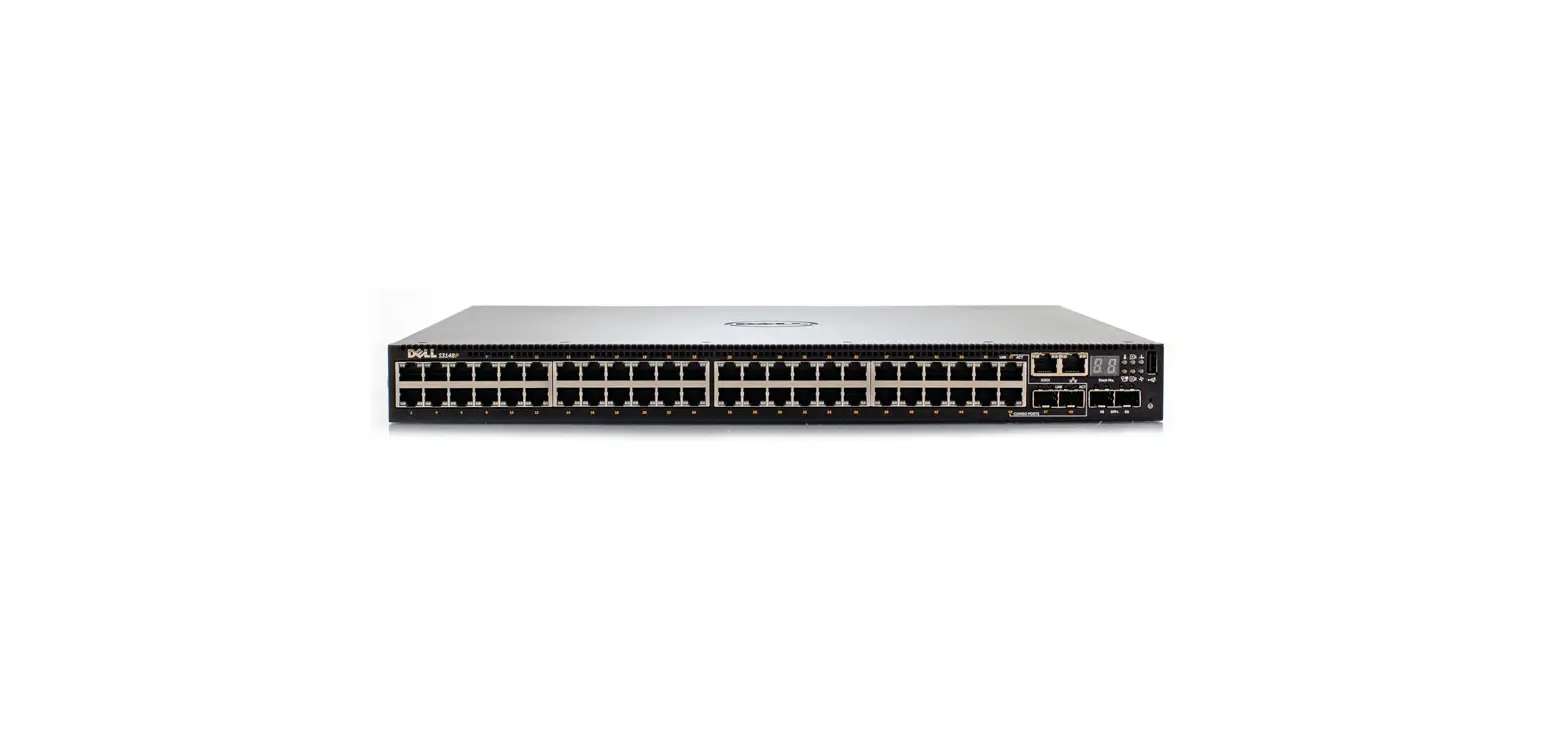
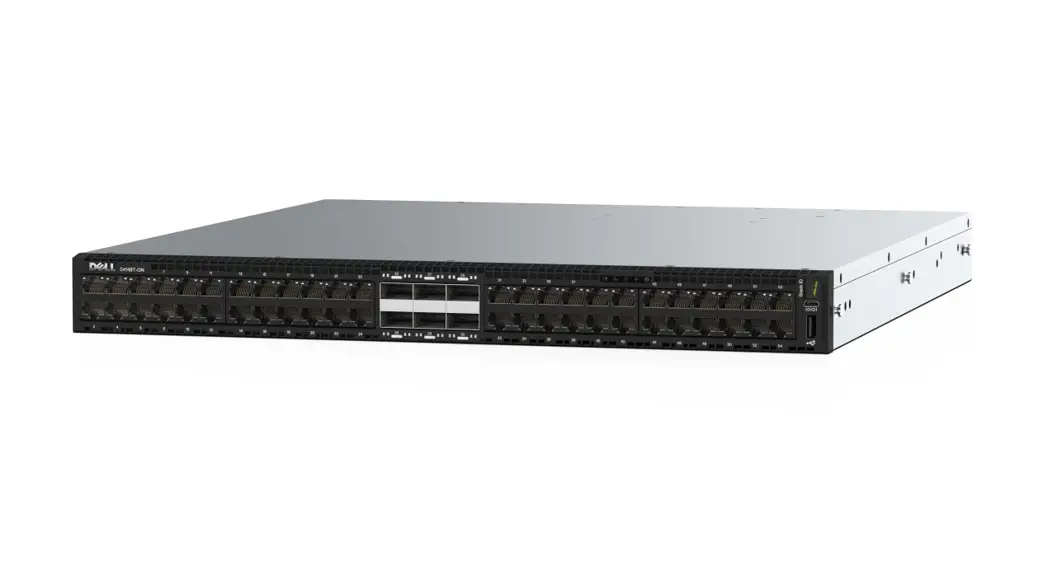
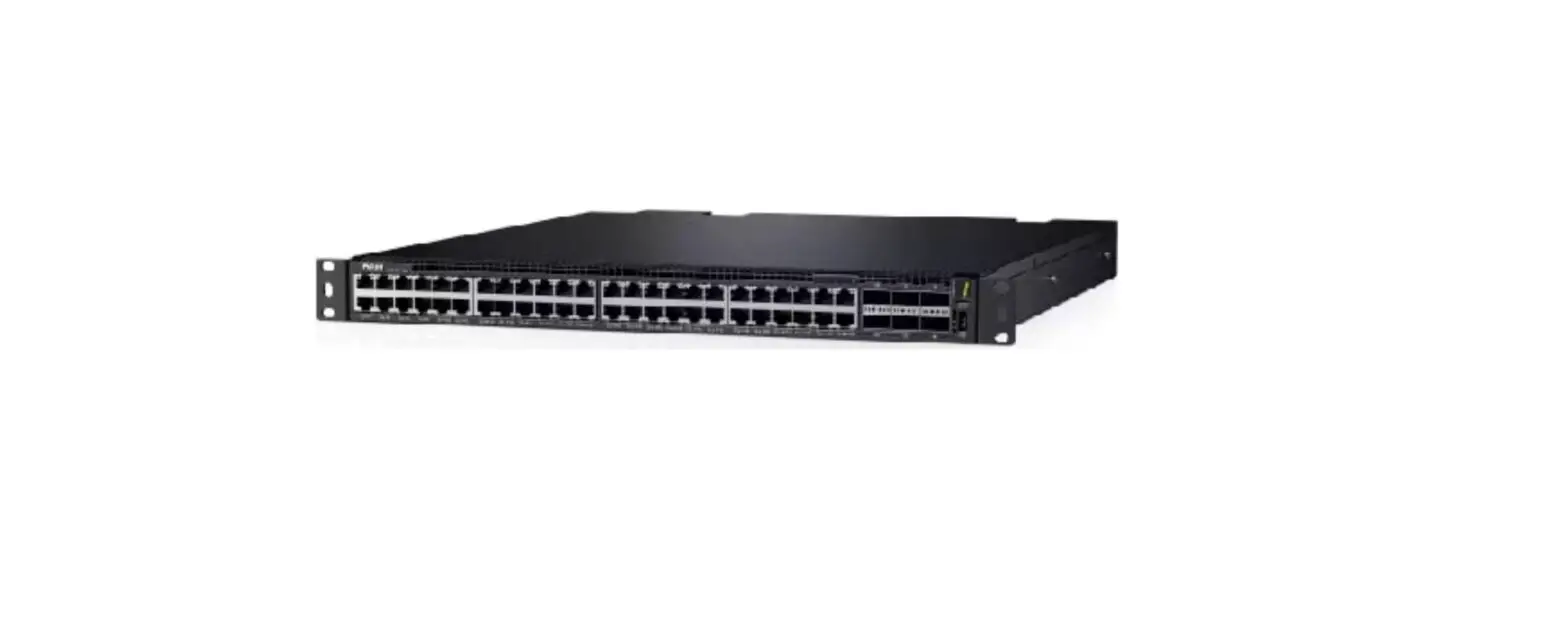
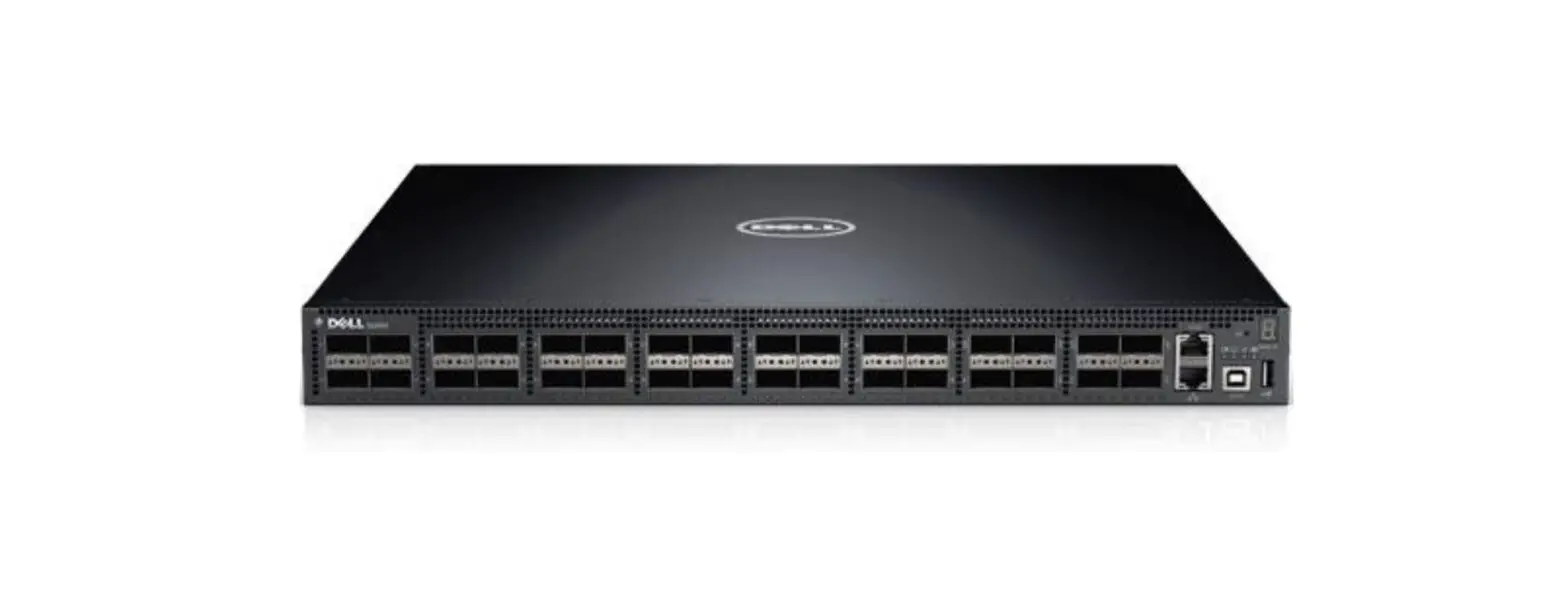
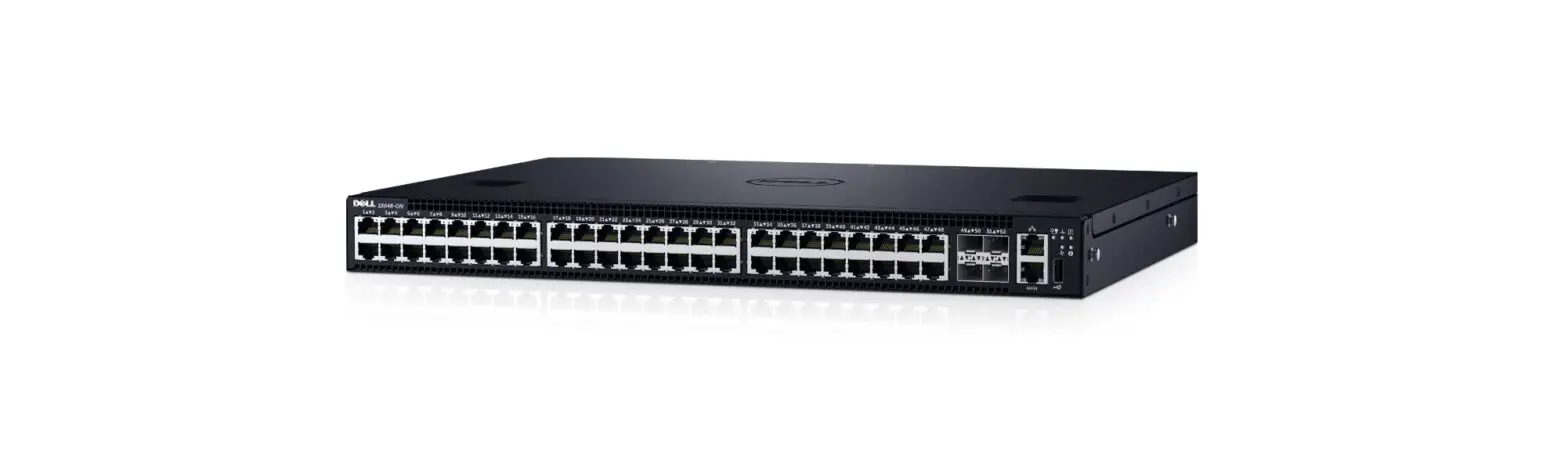
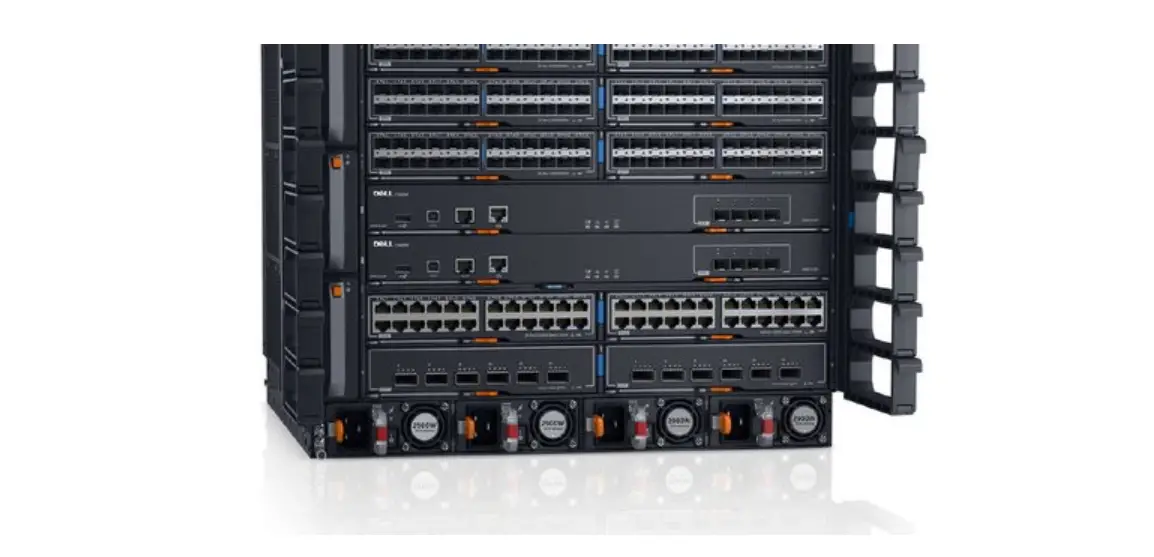
S3100 Series Networking Switch
Product Information
The Dell Networking S3100 Series is a platform that operates on
the Dell Networking operating software (OS). It is designed to
provide reliable and high-performance networking solutions for
various applications.
The current release version of the Dell Networking S3100 Series
is 9.14(2.20), released on April 14, 2023. This version includes
updates and improvements over the previous release version,
9.14(2.18).
The user manual contains information about open and resolved
issues, as well as operational information specific to the Dell
Networking OS and the S3100 Series platform. It also provides
hardware and software features, commands, and capabilities.
For more detailed information and support, please visit the Dell
Networking support website at https://www.dell.com/support.
Product Usage Instructions
Hardware Requirements:
The Dell S3100 Series has different hardware requirements based
on the chassis:
- S3124 chassis: Twenty-four Gigabit Ethernet 10/100/1000BASE-T
RJ-45 ports, two SFP 1G combo ports, two SFP+ 10G ports, 20G
expansion slot, and two fixed mini-SAS stacking ports. - S3124F chassis: Twenty-four Gigabit Ethernet
100BASEFX/1000BASE-X SFP ports, two 1G copper combo ports, two SFP+
10G ports, 20G expansion slot, and two fixed mini-SAS stacking
ports. - S3124P chassis: Twenty-four Gigabit Ethernet 10/100/1000BASE-T
RJ-45 ports, two SFP 1G combo ports, two SFP+ 10G ports, supports
PoE+, 20G expansion slot, and two fixed mini-SAS stacking
ports. - S3148P chassis: Forty-eight Gigabit Ethernet 10BASE-T,
100BASE-TX, 1000BASE-T RJ-45 ports, two SFP 1G combo ports, two
SFP+ 10G ports, supports PoE+, 20G expansion slot, and two fixed
mini-SAS stacking ports. - S3148 chassis: Forty-eight Gigabit Ethernet 10BASE-T,
100BASE-TX, 1000BASE-T RJ-45 ports, two SFP 1G combo ports, two
SFP+ 10G ports, 20G expansion slot, and two fixed mini-SAS stacking
ports.
Note: The expansion slot supports optional small form-factor
pluggable plus (SFP+) or 10GBase-T modules.
Product Usage:
1. Ensure that you have the appropriate S3100 Series chassis
based on your requirements.
2. Connect the necessary Ethernet cables to the RJ-45 ports or
SFP/SFP+ ports of the chassis.
3. If required, insert the optional small form-factor pluggable
plus (SFP+) or 10GBase-T module into the expansion slot.
4. If you have multiple S3100 series switches, use the fixed
mini-SAS stacking ports (HG[21]) to connect and stack up to twelve
switches together.
5. Power on the S3100 Series switch and wait for it to
initialize.
6. Once the switch is initialized, you can configure and manage
it using the Dell Networking operating software (OS).
7. Refer to the user manual for detailed information on
configuration, management, and troubleshooting of the S3100 Series
switch.
Note: For any support or further assistance, refer to the Dell
Networking support website mentioned earlier.
Rev. A00 April 2023
Dell Networking S3100 Series 9.14(2.20)
Release Notes
This document contains information about open and resolved issues, and operational information specific to the Dell Networking operating software (OS) and the S3100 Series platform. Current Release Version: 9.14(2.20) Release Date: 2023-04-14 Previous Release Version: 9.14(2.18)
Topics:
· Document Revision History · Requirements · New Dell Networking OS Version 9.14(2.20) Features · Restrictions · Changes to Default Behavior and CLI Syntax · Documentation Corrections · Deferred Issues · Fixed Issues · Known Issues · Upgrade Instructions · Support Resources
NOTE: This document may contain language that is not consistent with current guidelines of Dell Technologies. There are plans to update this document over subsequent releases to revise the language accordingly.
Incorrect behavior or unexpected caveats are listed as the Problem Report (PR) numbers within the appropriate sections.
For more information on hardware and software features, commands, and capabilities, refer to the Dell Networking support website at: https://www.dell.com/support
Document Revision History
Table 1. Revision History
Date
Description
202304
Initial release.
Requirements
The following requirements apply to the S3100 Series.
Hardware Requirements
The following table lists the Dell S3100 Series hardware requirements:
1
Table 2. System Hardware Requirements Platforms S3124 chassis
S3124F chassis S3124P chassis
S3148P chassis
S3148 chassis
Hardware Requirements
Twenty-four Gigabit Ethernet 10/100/1000BASE-T RJ-45 ports that support auto-negotiation for speed, flow control, and duplex.
Two SFP 1G combo ports. Two SFP+ 10G ports. 20G expansion slot that supports an optional small form-factor
pluggable plus (SFP+) or 10GBase-T module. Two fixed mini Serial Attached SCSI (mini-SAS) stacking ports
HG[21] to connect up to twelve S3100 series switches.
Twenty-four Gigabit Ethernet 100BASEFX/1000BASE-X SFP ports. Two 1G copper combo ports. Two SFP+ 10G ports. 20G expansion slot that supports an optional small form-factor
pluggable plus (SFP+) or 10GBase-T module. Two fixed mini Serial Attached SCSI (mini-SAS) stacking ports
HG[21] to connect up to twelve S3100 series switches.
Twenty-four Gigabit Ethernet 10/100/1000BASE-T RJ-45 ports for copper that support auto-negotiation for speed, flow control, and duplex.
Two SFP 1G combo ports. Two SFP+ 10G ports. Supports PoE+. 20G expansion slot that supports an optional small form-factor
pluggable plus (SFP+) or 10GBase-T module. Two fixed mini Serial Attached SCSI (mini-SAS) stacking ports
HG[21] to connect up to twelve S3100 series switches.
Forty-eight Gigabit Ethernet 10BASE-T, 100BASE-TX, 1000BASE-T RJ-45 ports that support auto-negotiation for speed, flow control, and duplex.
Two SFP 1G combo ports. Two SFP+ 10G ports. Supports PoE+. 20G expansion slot that supports an optional small form-factor
pluggable plus (SFP+) or 10GBase-T module. Two fixed mini Serial Attached SCSI (mini-SAS) stacking ports
HG[21] to connect up to twelve S3100 series switches.
Forty-eight Gigabit Ethernet 10BASE-T, 100BASE-TX, 1000BASE-T RJ-45 ports that support auto-negotiation for speed, flow control, and duplex.
Two SFP 1G combo ports. Two SFP+ 10G ports. 20G expansion slot that supports an optional small form-factor
pluggable plus (SFP+) or 10GBase-T module. Two fixed mini Serial Attached SCSI (mini-SAS) stacking ports
HG[21] to connect up to twelve S3100 series switches.
Software Requirements
The following table lists the Dell S3100 Series software requirements:
Table 3. System Software Requirements Software Dell Networking OS
Minimum Release Requirement 9.14(2.20)
2
New Dell Networking OS Version 9.14(2.20) Features
The following features are integrated into the Dell Networking 9.14.2 branch through this release: None
Restrictions
Prerequisite steps to upgrade the Dell Networking OS from earlier version to 9.14.2.0 or later: 1. Uninstall the older version of the Open Automation (OA) package 2. Upgrade the Dell Networking OS to 9.14.2.0 or later version 3. Install the following OA packages from the respective upgraded version: a. SmartScripts b. Puppet c. Open management infrastructure (OMI) d. SNMP MIB Prerequisite steps to downgrade the Dell Networking OS from 9.14.2.0 or later to the earlier version: 1. Uninstall the OA package of 9.14.2.0 or later version 2. Downgrade the Dell Networking OS to an earlier version 3. Install the respective OA package from an earlier version For more information about installing, uninstalling and upgrading the Dell Networking OS and OA package, refer the respective Dell System Release Notes.
If you downgrade the Dell Networking OS version from 9.14.2.20 to 9.11.0.0 or any older versions, the system displays the following error message even though there is no functional impact:
CDB boot error: C.cdb file format
Before downgrading, save the current configuration and then remove the CDB files (confd_cdb.tar.gz.version and confd_cdb.tar.gz). To remove the files, use the following steps:
DellEMC#write memory DellEMC#delete flash://confd_cdb.tar.gz.version DellEMC#delete flash://confd_cdb.tar.gz DellEMC#reload While deploying the system in the normal-reload mode in BMP configuration, use the ip ssh server enable command at the beginning of the startup configuration if the write memory command is used at the end of the configuration. REST API does not support AAA authentication. The following features are not available in the Dell Networking OS from version 9.7(0.0): PIM ECMP Static IGMP join (ip igmp static-group) IGMP querier timeout configuration (ip igmp querier-timeout) IGMP group join limit (ip igmp group join-limit) Half-Duplex mode is not supported. When FRRP is enabled in a VLT domain, no flavor of Spanning tree should concurrently be enabled on the nodes of that specific VLT domain. In essence FRRP and xSTP should not co-exist in a VLT environment.
Changes to Default Behavior and CLI Syntax
From 9.14(2.4P1) onwards, a new nand chip ships on the S3100 series switch. This chip supports the new UBoot version 5.2.1.10.
3
Documentation Corrections
This section describes the errors identified in the current release of the Dell Networking OS. The router bgp command allows you to configure only one L3 interface with an IPv4 address. The Configuration guide
does not mention this limitation and will be corrected in the next release of the guide.
Deferred Issues
Issues that appear in this section were reported in a previous version of Dell Networking OS version as open, but have since been deferred. Deferred issues are the issues that are found to be invalid, not reproducible, or not scheduled for resolution.
Deferred issues are reported using the following definitions.
Category
PR# Severity
Description
Problem Report number that identifies the issue.
S1 — Crash: A software crash occurs in the kernel or a running process that requires a restart of AFM, the router, switch, or process.
S2 — Critical: An issue that renders the system or a major feature unusable, which can have a pervasive impact on the system or network, and for which there is no work-around acceptable to the customer.
S3 — Major: An issue that affects the functionality of a major feature or negatively effects the network for which there exists a work-around that is acceptable to the customer.
S4 — Minor: A cosmetic issue or an issue in a minor feature with little or no network impact for which there might be a work-around.
Synopsis Release Notes Work around
Synopsis is the title or short description of the issue.
Release Notes description contains more detailed information about the issue.
Work around describes a mechanism for circumventing, avoiding, or recovering from the issue. It might not be a permanent solution. Issues listed in the “Closed Caveats” section should not be present, and the work-around is unnecessary, as the version of code for which this release note is documented has resolved the caveat.
Deferred S3100 series 9.14(2.0) Software Issues
Issues that appear in this section were reported in Dell Networking OS version 9.14(2.0) as open, but have since been deferred. Deferred caveats are those that are found to be invalid, not reproducible, or not scheduled for resolution. None.
Fixed Issues
Fixed issues are reported using the following definitions.
Category
Description
PR# Severity
Problem Report number that identifies the issue.
S1 — Crash: A software crash occurs in the kernel or a running process that requires a restart of AFM, the router, switch, or process.
S2 — Critical: An issue that renders the system or a major feature unusable, which can have a pervasive impact on the system or network, and for which there is no work-around acceptable to the customer.
S3 — Major: An issue that affects the functionality of a major feature or negatively effects the network for which there exists a work-around that is acceptable to the customer.
4
Category
Synopsis Release Notes Work around
Description
S4 — Minor: A cosmetic issue or an issue in a minor feature with little or no network impact for which there might be a work-around.
Synopsis is the title or short description of the issue. Release Notes description contains more detailed information about the issue.
Work around describes a mechanism for circumventing, avoiding, or recovering from the issue. It might not be a permanent solution. Issues listed in the “Closed Caveats” section should not be present, and the work-around is unnecessary, as the version of code for which this release note is documented has resolved the issue.
Fixed S3100 Series 9.14(2.20) Software Issues
NOTE: Dell Networking OS 9.14(2.20) includes fixes for caveats addressed in the previous 9.14 releases. See the respective release notes documentation for the list of caveats fixed in the earlier 9.14 releases.
The following caveats have been fixed in Dell Networking OS version 9.14(2.20):
PR# 170395 Severity: Synopsis:
Release Notes:
Workaround:
Sev 2
In certain scenarios, MAC addresses previously learned are re-initialized to zero when some CAM table entries are modified resulting in ping failure.
In certain scenarios, MAC addresses previously learned are re-initialized to zero when some CAM table entries are modified resulting in ping failure.
None
Known Issues
Known issues are reported using the following definitions.
Category
Description
PR# Severity
Problem Report number that identifies the issue.
S1 — Crash: A software crash occurs in the kernel or a running process that requires a restart of AFM, the router, switch, or process.
S2 — Critical: An issue that renders the system or a major feature unusable, which can have a pervasive impact on the system or network, and for which there is no work-around acceptable to the customer.
S3 — Major: An issue that affects the functionality of a major feature or negatively effects the network for which there exists a work-around that is acceptable to the customer.
S4 — Minor: A cosmetic issue or an issue in a minor feature with little or no network impact for which there might be a work-around.
Synopsis Release Notes Work around
Synopsis is the title or short description of the issue. Release Notes description contains more detailed information about the issue.
Work around describes a mechanism for circumventing, avoiding, or recovering from the issue. It might not be a permanent solution.
5
Category
Description
Issues listed in the “Closed Caveats” section should not be present, and the work-around is unnecessary, as the version of code for which this release note is documented has resolved the caveat.
Known S3100 Series 9.14(2.20) Software Issues
The following caveats are open in Dell Networking OS version 9.14(2.20): None.
Upgrade Instructions
The following upgrades are available for the Dell Networking operating system (OS) on S3100 series switches: 1. Upgrade the Dell Networking OS image on S3100 series switches. 2. Upgrade the UBoot from Dell Networking OS. 3. Upgrade the CPLD image. 4. Upgrade the PoE controller.
Upgrading the Operating Software Image
Upgrade the OS image on S3100 series switches by following the procedure in this section. NOTE: The configurations shown here are examples only and are not intended to duplicate any real system or network.
NOTE: If you installed the Open Automation (OA) package on the S3100 series switch, Dell Networking strongly recommends uninstalling the OA package before you upgrade the Dell Networking OS image. Then reinstall a compatible OA package. In this way, the system installs enhancements and uninstalls incompatible OA packages after the Dell Networking OS upgrade.
NOTE: Dell Networking strongly recommends using the Management Interface to upgrade the new image in both BMP mode and the Upgrade System CLI. Using front-end ports takes more time (approximately 25 minutes) to download and install new image due to the large file size.
NOTE: If you are using bare metal provisioning (BMP), see the Bare Metal Provisioning chapter in the Open Automation Guide.
1. Save the running configuration on the switch. EXEC Privilege mode write memory
2. Back up your startup configuration to a secure location (for example, an FTP server as shown here). EXEC Privilege mode copy startup-config destination
DellEMC# copy running-config ftp: Address or name of remote host []: 10.10.10.10 Destination file name [startup-config]: startup-config User name to login remote host: host Password to login remote host: xxxx ! 5179 bytes successfully copied DellEMC#
3. Upgrade the Dell Networking OS on a S3100 series switch. EXEC Privilege mode
6
upgrade system {flash: | ftp: | nfsmount: | scp: | stack-unit: | tftp:| usbflash:} fileurl [A: | B:]
Where {flash: | ftp: | scp: | tftp:| usbflash:} file-url specifies the file transfer method and location of the software image file used to upgrade the S3100 series, and is in one of the following formats:
flash://directory-path/filename — Copy from flash file system. ftp://user-id:password@host-ip/file-path — Copy from remote (IPv4 or IPv6) file system. nfsmount://mount-point/filepath — Copy from NFS mount file system. scp://user-id:password@host-ip/file-path — Copy from remote (IPv4 or IPv6) file system. stack-unit: — Synchronize image to the specified stack unit. tftp://host-ip/file-path — Copy from remote (IPv4 or IPv6) file system. usbflash://directory-path/filename — Copy from USB flash file system.
NOTE: Dell Networking recommends using FTP to copy the new image with the upgrade system command due to
the large file size.
DellEMC#upgrade system ftp: a: Address or name of remote host []: 192.168.1.1 Source file name []: FTOS-S3100-9.14.2.20.bin User name to login remote host: ftpuser Password to login remote host: !!!!!!!!!!!!!!!!!!!!!!!!!!!!!!!!!!!!!!.!………………………………………. ………………………………………………………………………….. ………………………………………………………………………….. ……………………! 50155103 bytes successfully copied System image upgrade completed successfully.
4. In case of a stack setup, upgrade the Dell Networking OS for the stacked units.
EXEC Privilege mode
upgrade system stack-unit [112 | all] [A: | B:]
If A: is specified in the command, the Dell Networking OS version present in Management unit’s A: partition will be pushed to the stack units. If B: is specified in the command, the Management unit’s B: will be pushed to the stack units. Upgrade of stack units can be done on individual units by specifying the unit id [112] or on all units by using all in the command.
DellEMC#upgrade system stack-unit all A: !!!!!!!!!!!!!!!!!!!!!!!!!!!!!!!!!!!!!!!!!!!!!!!!!!!!!!!!!!!!!!!!!!!!!!!!!!!!!!!!!!!!!! !!!!!!!!!!!!!!!!!!!!!!!!!!!!!!!!!!!!!!!!!!!!!!!!!!!!!!!!!!!!!!!!!!!!!!!!!!!!!!!!!!!!!! !!!!!!!!!!!!!!!!!!!!!!!!!!!!!!!!!!!!!!!!!!!!!!!!!!!!!!!!!!!!!!!!!!!!!!! Image upgraded to all DellEMC#
5. Verify the Dell Networking OS has been upgraded correctly in the upgraded flash partition
EXEC Privilege mode
show boot system stack-unit [1-12 | all]
The Dell Networking OS versions present in A: and B: can be viewed for individual units by specifying the stack unit id [112] in the command or for all the stack units by specifying all in the command.
DellEMC#show boot system stack-unit all
Current system image information in the system:
=======================================================
Type
Boot Type
A
B
——————————————————-
stack-unit 1 FLASH BOOT 9.14(2.20)
9.14(2.18) [boot]
stack-unit 2 FLASH BOOT 9.14(2.20)
9.14(2.18) [boot]
stack-unit 3 FLASH BOOT 9.14(2.20)
9.14(2.18) [boot]
stack-unit 4 is not present.
stack-unit 5 is not present.
stack-unit 6 is not present.
stack-unit 7 is not present.
stack-unit 8 is not present.
stack-unit 9 is not present.
stack-unit 10 is not present.
stack-unit 11 is not present.
7
stack-unit 12 is not present. DellEMC#
6. Change the primary boot parameter to the upgraded partition (A: or B:). CONFIGURATION mode boot system stack-unit {1-12 | all} {default | primary | secondary} {flash://file-name | ftp://file-url | system: {A: | B:} | tftp://file-url }
DellEMC(conf)#boot system stack-unit all primary system: a: DellEMC(conf)#
7. Save the upgrade configuration so that it is retained after a reload. EXEC Privilege mode write memory
DellEMC#write memory
!!! Nov 21 17:01:33: %STKUNIT2-M:CP %FILEMGR-5-FILESAVED: Copied running-config to startup-config in flash by default ..Synchronizing data to peer stack-unit !!!!!!!!!!!!!!!!!!
DellEMC#
8. Reload the switch so that the Dell Networking OS image is retrieved from flash. EXEC Privilege mode reload
DellEMC#reload
Proceed with reload [confirm yes/no]: yes…
9. Verify that the switch is upgraded to the latest Dell Networking OS version. EXEC Privilege mode show version
DellEMC#show version Dell EMC Real Time Operating System Software Dell EMC Operating System Version: 2.0 Dell EMC Application Software Version: 9.14(2.20) Copyright (c) 2000-2021 by Dell Inc. All Rights Reserved. Build Time: Mon Nov 21 11:34:10 2022 Build Path: /build/build01/SW/SRC Dell EMC Networking OS uptime is 1 hour(s), 31 minute(s)
System image file is “system://A”
System Type: S3124P Control Processor: Broadcom 56340 (ver A0) with 2 Gbytes (2147483648 bytes) of memory, core(s) 1.
1G bytes of boot flash memory.
1 52-port GE/TE (S3100) 1 28-port GE/TE (S3100) 1 28-port GE/TE (S3100) 96 GigabitEthernet/IEEE 802.3 interface(s) 8 Ten GigabitEthernet/IEEE 802.3 interface(s) DellEMC#
10. Check if all the stack units are online after reload. EXEC Privilege mode
8
show system brief
DellEMC#show system brief
Stack MAC Reload-Type
: 00:11:33:44:77:86 : normal-reload [Next boot : normal-reload]
— Stack Info —
Unit UnitType
Status
ReqTyp
CurTyp
Version
Ports
————————————————————————————
1 Member
online
S3148
S3148
9.14(2.20) 54
2 Management online
S3124P
S3124P
9.14(2.20) 30
3 Standby
online
S3124F
S3124F
9.14(2.20) 30
Upgrade the UBoot from Dell Networking OS
To upgrade the UBoot from Dell Networking OS, perform the following steps: 1. Upgrade the S3100 Series Boot Flash (UBoot) image.
EXEC Privilege mode
upgrade boot bootflash-image stack-unit [<id> | all] [booted | flash: | ftp: | scp: | tftp: | usbflash:]
Dell Networking OS version 9.14(2.20) requires S3100 Series Boot Flash (UBoot) image version 5.2.1.10. The booted option is used to upgrade the Boot Flash (UBoot) image to the image version packed with the loaded Dell Networking OS image. The Boot Flash (UBoot) image version packed with the loaded Dell Networking OS can be found using the show os-version command in EXEC Privilege mode.
To upgrade the Boot Flash image of all stack-units, the option all can be used.
DellEMC#upgrade boot bootflash-image stack-unit all booted
Current Boot information in the system:
========================================================================
Card
BootFlash
Current Version New Version
————————————————————————
Unit1
Boot Flash
5.2.1.8
5.2.1.10
Unit2
Boot Flash
5.2.1.8
5.2.1.10
Unit3
Boot Flash
5.2.1.8
5.2.1.10
***********************************************************************
* Warning – Upgrading boot flash is inherently risky and should only *
* be attempted when necessary. A failure at this upgrade may cause *
* a board RMA. Proceed with caution !
*
***********************************************************************
Proceed Boot Flash image for all units [yes/no]: yes
!!!!!.!.!! Bootflash image upgrade for all completed successfully. DellEMC#
DellEMC#show system brief
Stack MAC Reload-Type
: 00:11:33:44:77:86 : normal-reload [Next boot : normal-reload]
— Stack Info —
Unit UnitType
Status
ReqTyp
CurTyp
Version
Ports
————————————————————————————
1 Member
online
S3148
S3148
9.14(2.20) 54
2 Management online
S3124P
S3124P
9.14(2.20) 30
3 Standby
online
S3124F
S3124F
9.14(2.20) 30
2. Reload the unit. EXEC Privilege mode
9
reload
3. Verify the UBoot image. EXEC Privilege mode show system stack-unit <id>
DellEMC#show system stack-unit 1
— Unit 1 —
Unit Type
: Management Unit
Status
: online
Next Boot
: online
Required Type
: S3124F – 28-port GE/TE (S3100)
Current Type
: S3124F – 28-port GE/TE (S3100)
Master priority
: 0
Hardware Rev
: 5.0
Num Ports
: 30
Up Time
: 4 min, 27 sec
Dell EMC Networking OS Version : 9.14(2.20)
Jumbo Capable
: yes
POE Capable
: no
FIPS Mode
: disabled
Boot Flash
: 5.2.1.10
Boot Selector
: Present
Memory Size
: 2147483648 bytes
Temperature
: 38C
Voltage
: ok
Serial Number
:
Part Number
: Rev
Vendor Id
:
Date Code
:
Country Code
:
Piece Part ID
: N/A
PPID Revision
: N/A
Service Tag
: N/A
Expr Svc Code
: N/A
Auto Reboot
: disabled
Burned In MAC
: f8:10:16:17:18:17
No Of MACs
: 3
— Module 1 —
Status
: not present
— Power Supplies —
Unit Bay Status
Type FanStatus FanSpeed(rpm)
———————————————————–
1
1 up
AC
up
0
1
2 absent
absent
0
— Fan Status —
Unit Bay TrayStatus Fan1
Speed Fan2
Speed
—————————————————-
1
1
up
up
6956 up
7058
Speed in RPM
DellEMC#
Upgrading the CPLD
The S3100 series with the Dell Networking OS Version 9.14(2.20) requires System CPLD revision 24. NOTE: If your CPLD revisions are higher than the ones shown here, DO NOT make any changes. If you have questions regarding the CPLD revision, contact technical support:
10
Verify that a CPLD upgrade is required
Use the following command to identify the CPLD version:
DellEMC#show revision
— Stack unit 1 -S3124F SYSTEM CPLD : 24 DellEMC#
Use the following command to view CPLD version that is associated with the Dell Networking OS image:
DellEMC#show os-version
RELEASE IMAGE INFORMATION :
———————————————————————
Platform
Version
Size
ReleaseTime
S-Series:S3100
9.14(2.20) 50155103 Nov 21 2022 12:52:25
TARGET IMAGE INFORMATION :
———————————————————————
Type
Version
Target
checksum
runtime
9.14(2.20)
Control Processor
passed
BOOT IMAGE INFORMATION :
———————————————————————
Type
Version
Target
checksum
boot flash
5.2.1.6
Control Processor
passed
FPGA IMAGE INFORMATION :
———————————————————————
Card
FPGA Name
Version
stack-unit 1
S3148 SYSTEM CPLD
24
PoE-CONTROLLER IMAGE INFORMATION
———————————————————————
Type
Version
PoE Controller
2.65
DellEMC#
Upgrading the CPLD Image
NOTE: The upgrade fpga-image stack-unit 1 booted command is hidden when using the FPGA Upgrade feature in the CLI. However, it is a supported command and is accepted when entered as documented.
NOTE: Ensure that the uBoot version is 5.2.1.8 or above. You can verify this version using show system stack-unit 1 command.
To upgrade the CPLD image on S3100 Series, follow these steps: 1. Upgrade the CPLD image.
EXEC Privilege mode upgrade fpga-image stack-unit <id> booted
DellEMC#upgrade fpga-image stack-unit 1 booted
Current information for the system:
========================================================================
Card
Device Name
Current Version
New Version
————————————————————————
Unit1
S3124F SYSTEM CPLD
23
24
***********************************************************************
* Warning – Upgrading FPGA is inherently risky and should
*
* only be attempted when necessary. A failure at this upgrade may *
* cause a board RMA. Proceed with caution !
*
***********************************************************************
11
***********************************************************************
* When the upgrade has successfully completed, the system will
*
* be automatically rebooted to reload the upgraded components.
*
***********************************************************************
Upgrade image for stack-unit 1 [yes/no]: yes
System fpga upgrade in progress!!! Please do NOT power off the unit!!!
Upgrade result : ================ Unit 1 System fpga upgrade in progress. It will take a few minutes for the upgrade to complete. Unit 1 will auto reboot once the the upgrade is complete.
Please do NOT power off or reload the unit!!!
2. The system reboots automatically and waits for the Dell prompt. The CPLD version can be verified using show revision command output.
EXEC Privilege mode
show revision
DellEMC#show revision
— Stack unit 1 -S3124F SYSTEM CPLD
DellEMC#
: 24
NOTE: Do not power off the system while FPGA upgrade is in progress. For any queries, contact technical support
NOTE: When you upgrade the standby and member units of CPLD, the following message displays in the management unit. The unit automatically reboots once the upgrade is complete and joins the stack with the upgraded CPLD.
DellEMC#upgrade fpga-image stack-unit 3 booted
Current information for the system:
========================================================================
Card
Device Name
Current Version
New Version
————————————————————————
Unit3
S3124F SYSTEM CPLD
23
24
***********************************************************************
* Warning – Upgrading FPGA is inherently risky and should
*
* only be attempted when necessary. A failure at this upgrade may *
* cause a board RMA. Proceed with caution !
*
***********************************************************************
***********************************************************************
* When the upgrade has successfully completed, the system will
*
* be automatically rebooted to reload the upgraded components.
*
***********************************************************************
Upgrade image for stack-unit 3 [yes/no]: yes
System fpga upgrade in progress!!! Please do NOT power off the unit!!!
Upgrade result : ================ Unit 3 System fpga upgrade in progress. It will take a few minutes for the upgrade to complete. Unit 3 will auto reboot once the the upgrade is complete.
Please do NOT power off or reload the unit!!!
12
DellEMC#
Upgrading the PoE Controller
Upgrade the PoE controller image on a stack unit of the S3100 series switch. 1. Upgrade the PoE controller image on a specified stack unit.
EXEC Privilege mode upgrade poe-controller stack-unit unit-number
DellEMC#upgrade poe-controller stack-unit 1
Current PoE-Controller information in the system:
=======================================================
Stack Unit
Current Version
New Version
——————————————————-
1
2.65
2.65
***********************************************************************
* Warning – Upgrading PoE Controller should only be attempted
*
* when necessary. Stack-unit will be reset automatically after
*
* upgrade. PoE to all ports of the unit would be suspended until
*
* upgrade completes and unit gets reloaded successfully. Please do not*
* Reset/Powercyle or Reload. Proceed with caution !
*
***********************************************************************
Upgrade PoE Controller Firmware for stack-unit 1 ? [yes/no]: yes
PoE Controller upgrade in progress. Please do NOT POWER-OFF the card. ! Upgrade result : ================ Slot 1 PoE Controller FirmWare upgrade successful. Resetting the stack-unit. DellEMC#
Support Resources
The following support resources are available for the S3100 Series.
Documentation Resources
For information about using the S3100 Series, see the following documents at http://www.dell.com/support: Dell Networking S3100 Series Installation Guide Quick Start Guide Dell Command Line Reference Guide for the S3100 Series Dell Configuration Guide for the S3100 Series For more information about hardware features and capabilities, see the Dell Networking website at https://www.dellemc.com/ networking.
Issues
Incorrect behavior or unexpected caveats are listed in order of Problem Report (PR) number within the appropriate sections.
13
Finding Documentation
This document contains operational information specific to the S3100 Series. For information about using the S3100 Series, see the documents at http://www.dell.com/support. For more information about hardware features and capabilities, see the Dell Networking website at https://
www.dellemc.com/networking.
Contacting Dell
NOTE: If you do not have an active Internet connection, you can find contact information on your purchase invoice, packing slip, bill, or Dell product catalog. Dell provides several online and telephone-based support and service options. Availability varies by country and product, and some services may not be available in your area. To contact Dell for sales, technical support, or customer service issues: Go to www.dell.com/support.
14
Notes, cautions, and warnings
NOTE: A NOTE indicates important information that helps you make better use of your product. CAUTION: A CAUTION indicates either potential damage to hardware or loss of data and tells you how to avoid the problem. WARNING: A WARNING indicates a potential for property damage, personal injury, or death.
© 2023 Dell Inc. or its subsidiaries. All rights reserved. Dell Technologies, Dell, and other trademarks are trademarks of Dell Inc. or its subsidiaries. Other trademarks may be trademarks of their respective owners.
 Computers, Monitors & Technology Solutions | Dell USA
 Support | Dell US
 Dell Networking Solutions | Dell USA