User Manual
1684361
Thank you for using the keyboard provided, please read this manual carefully before using this product.
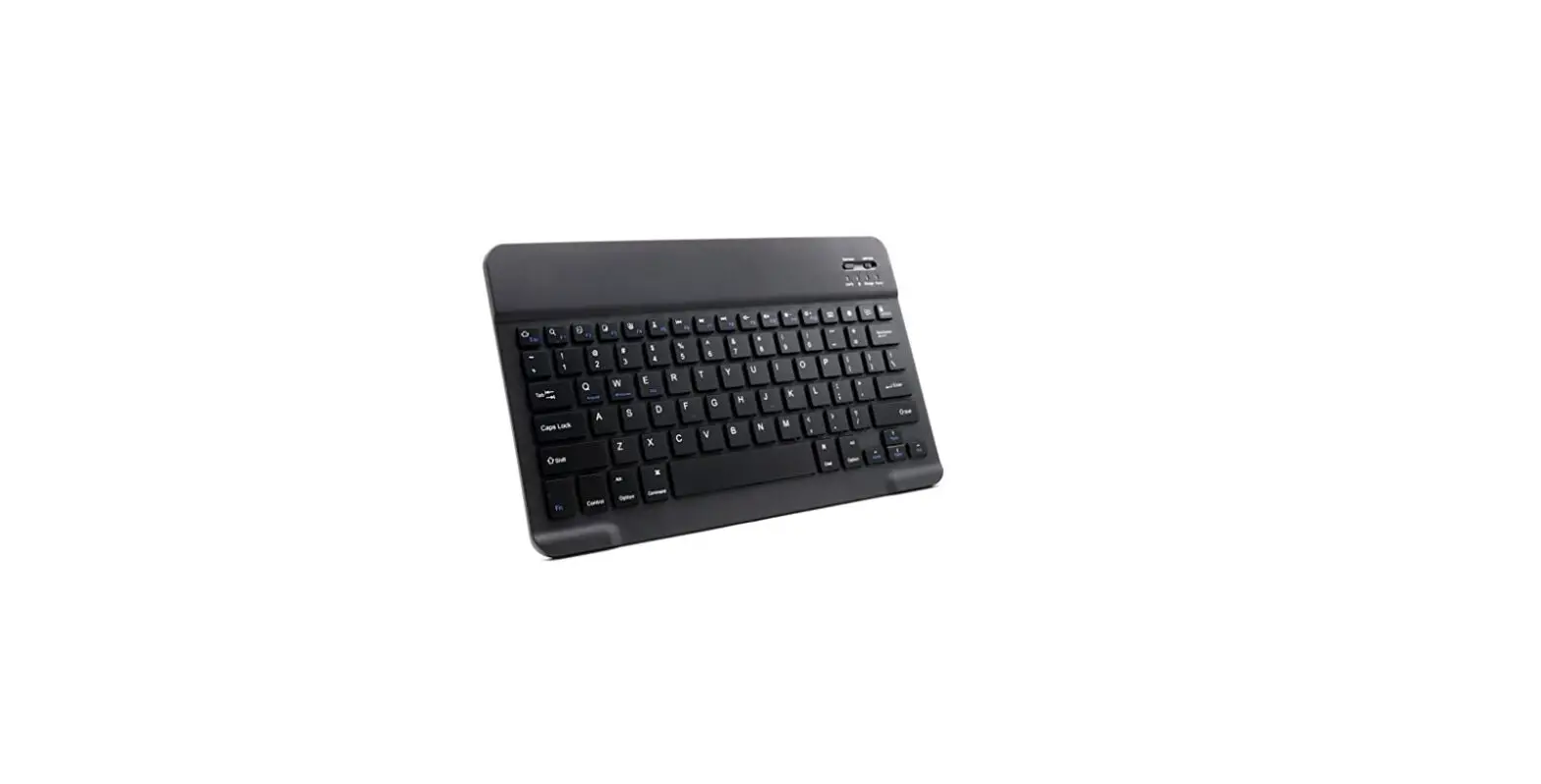
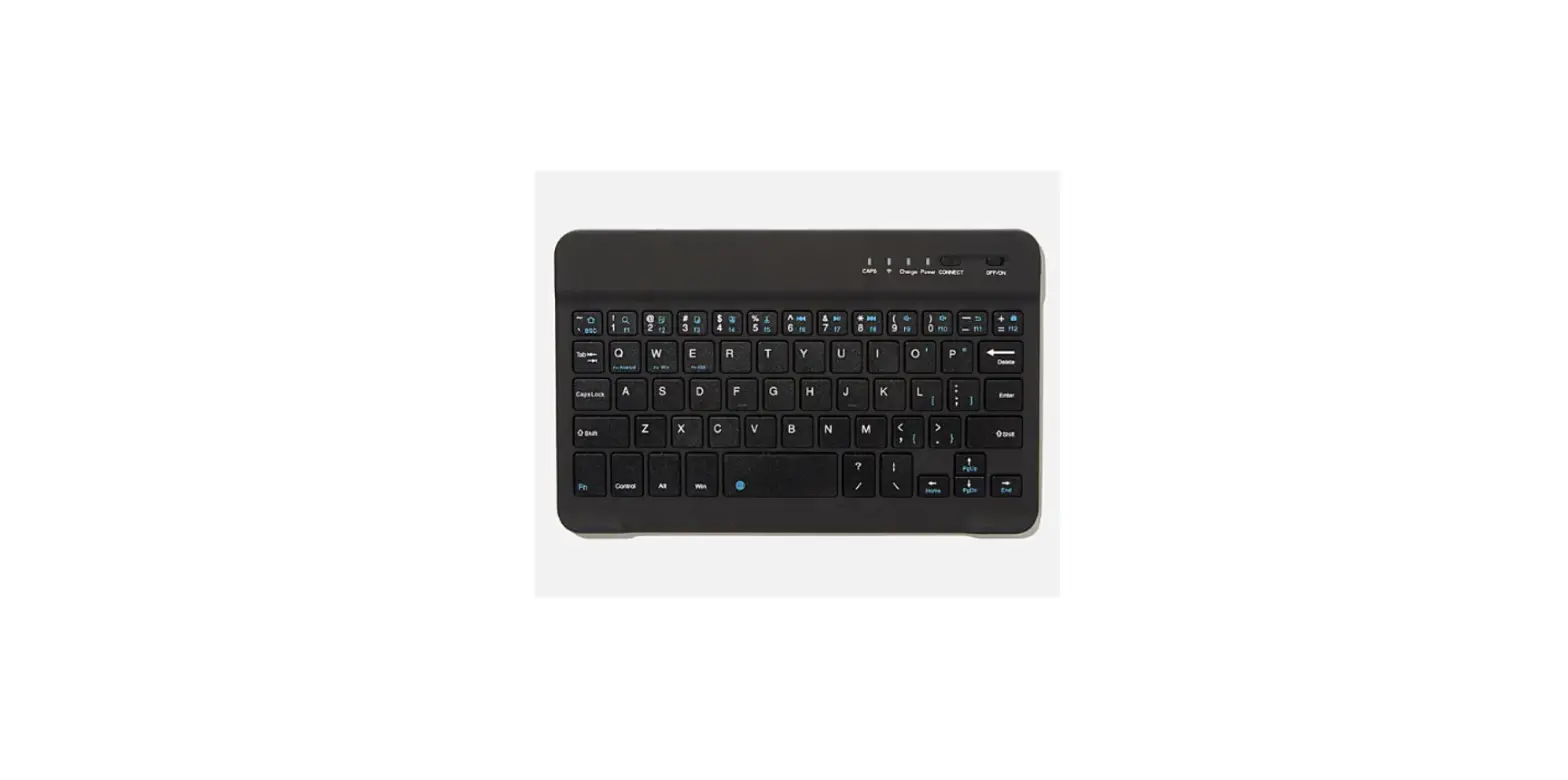
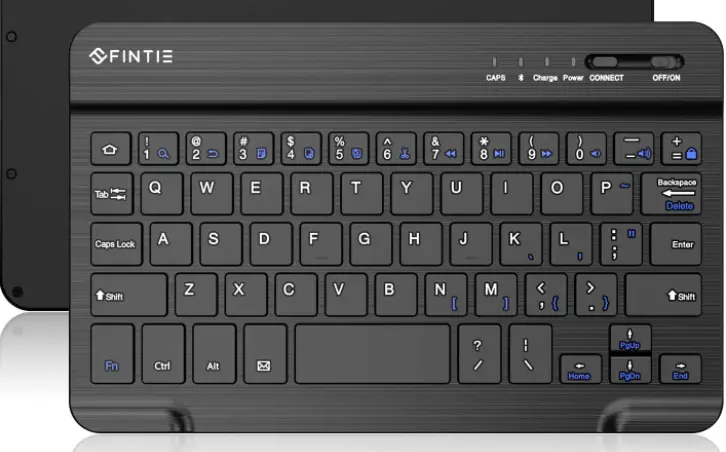
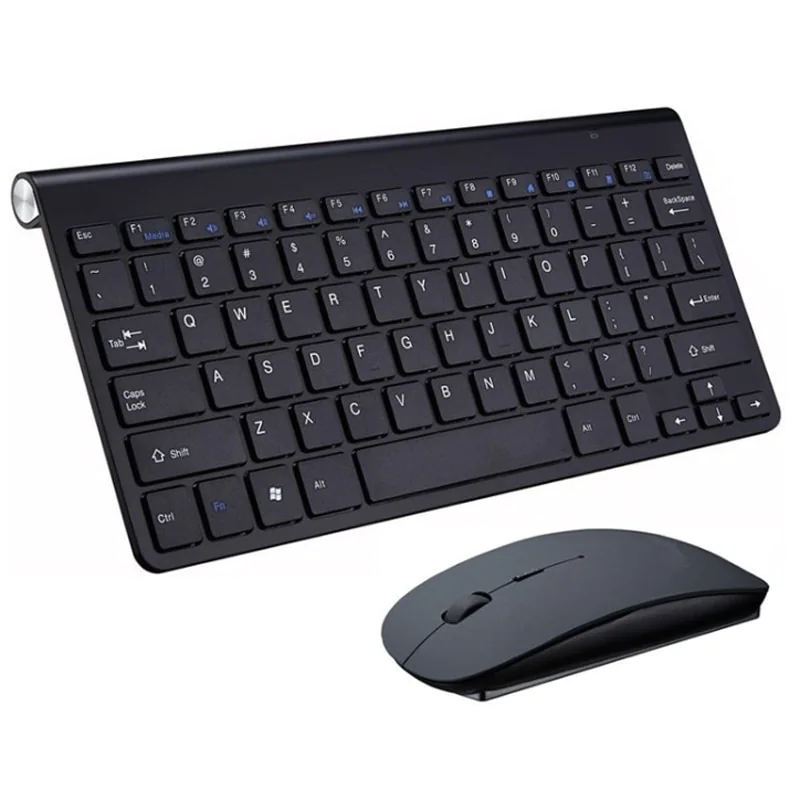
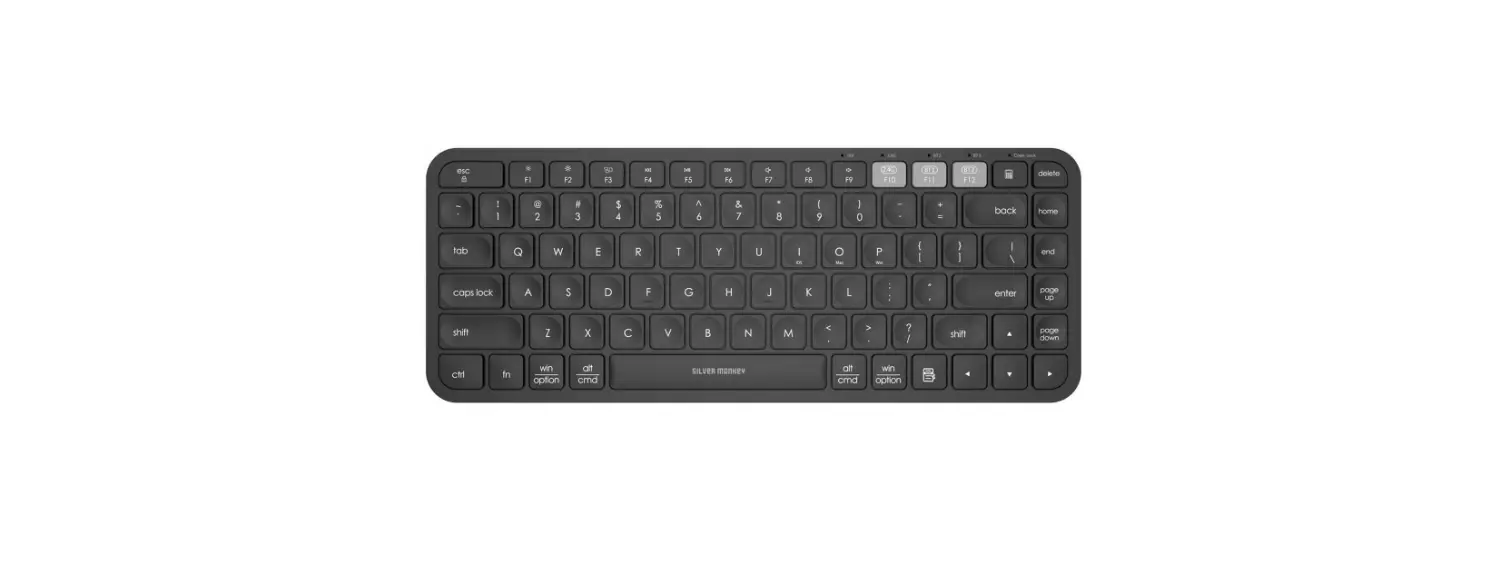
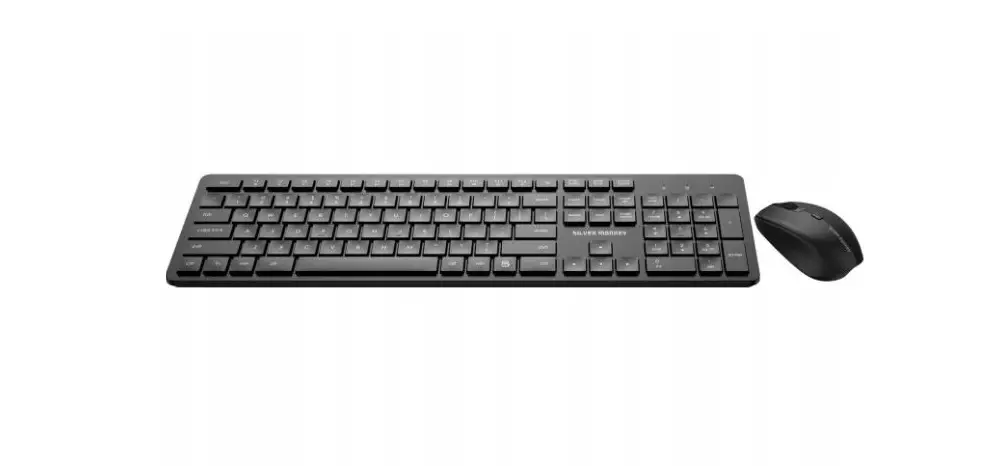
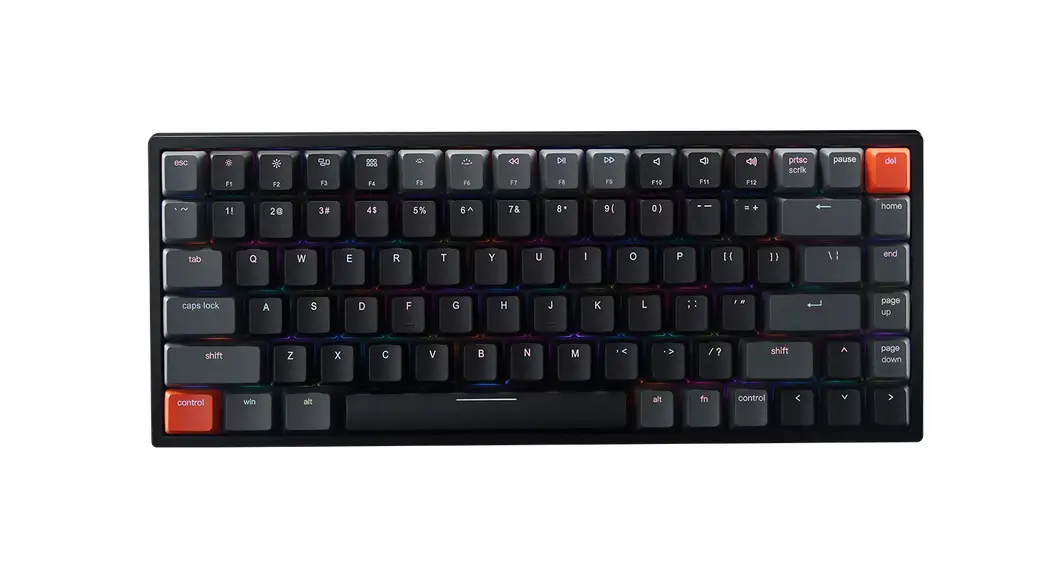
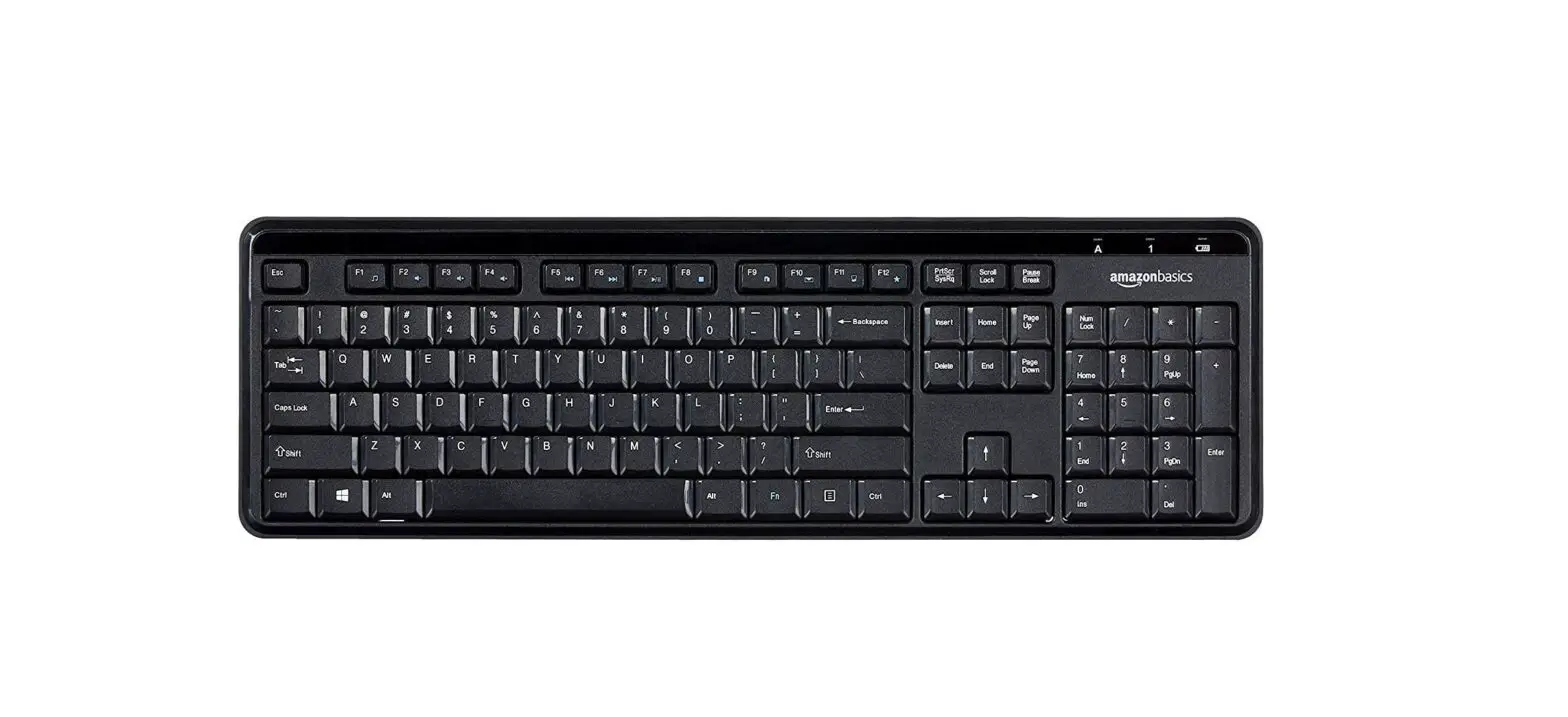
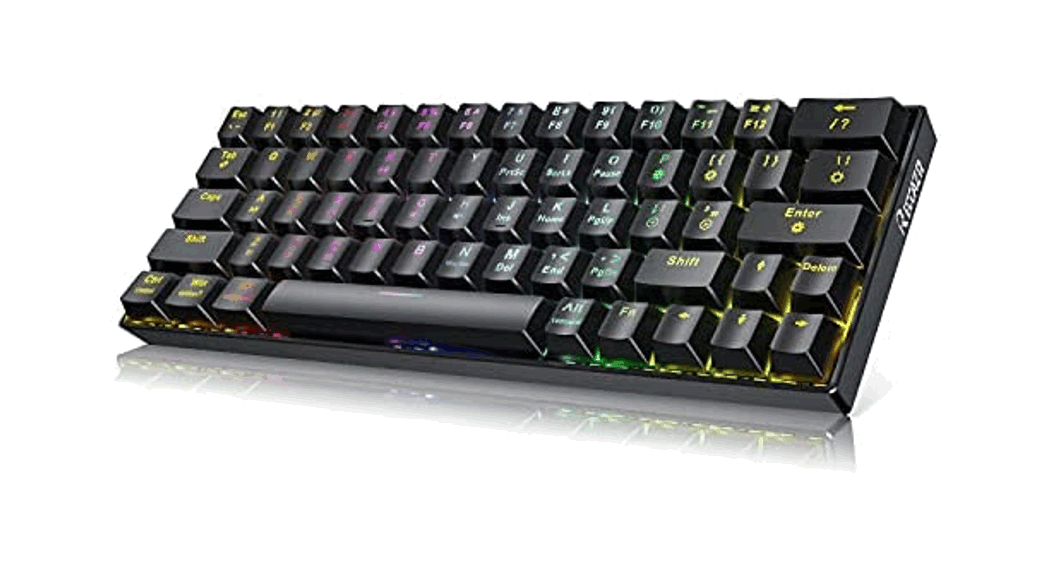
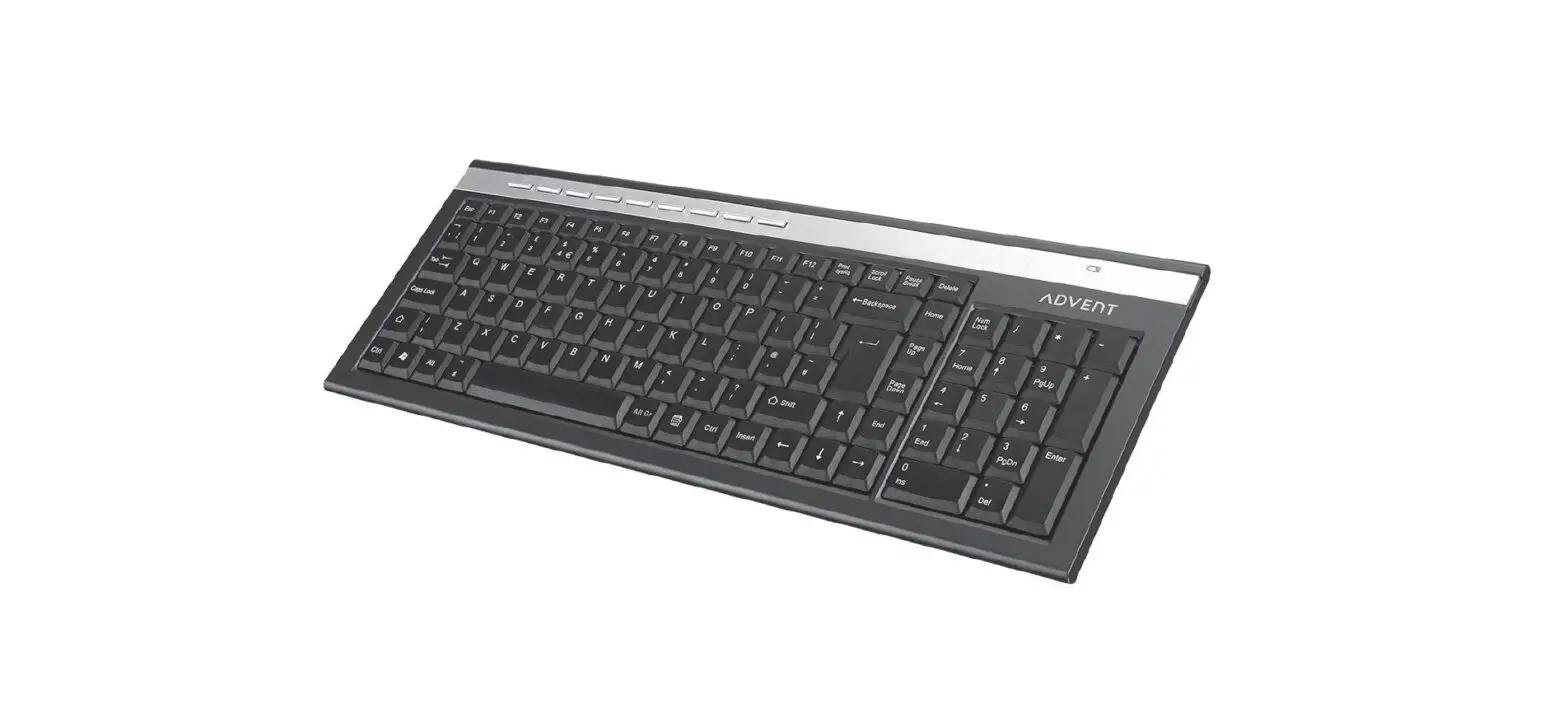
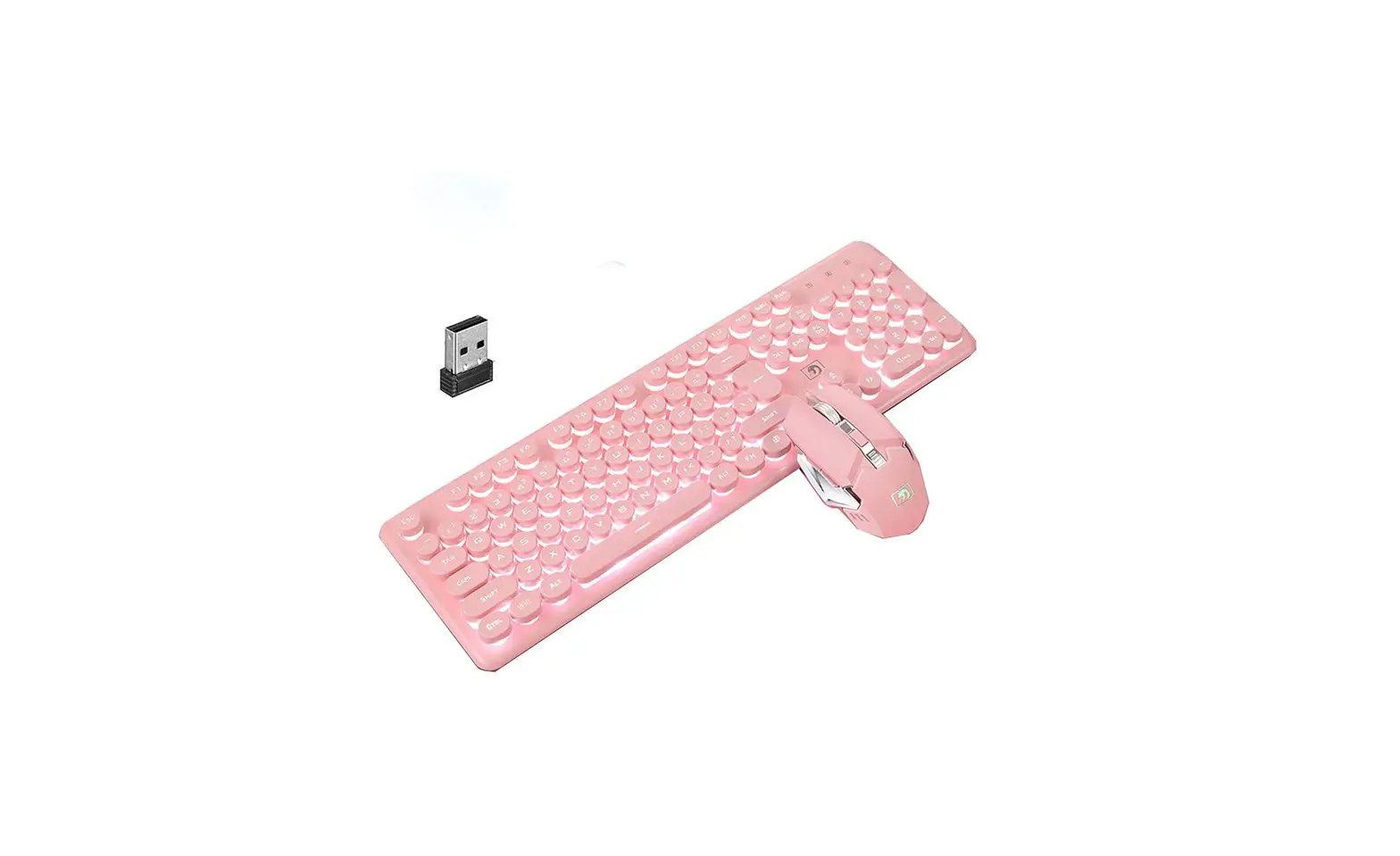
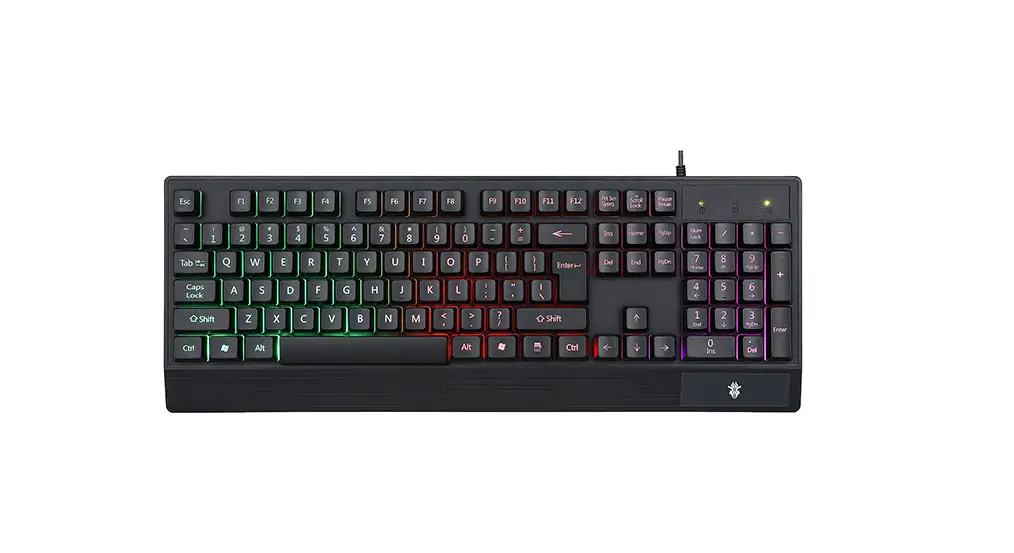
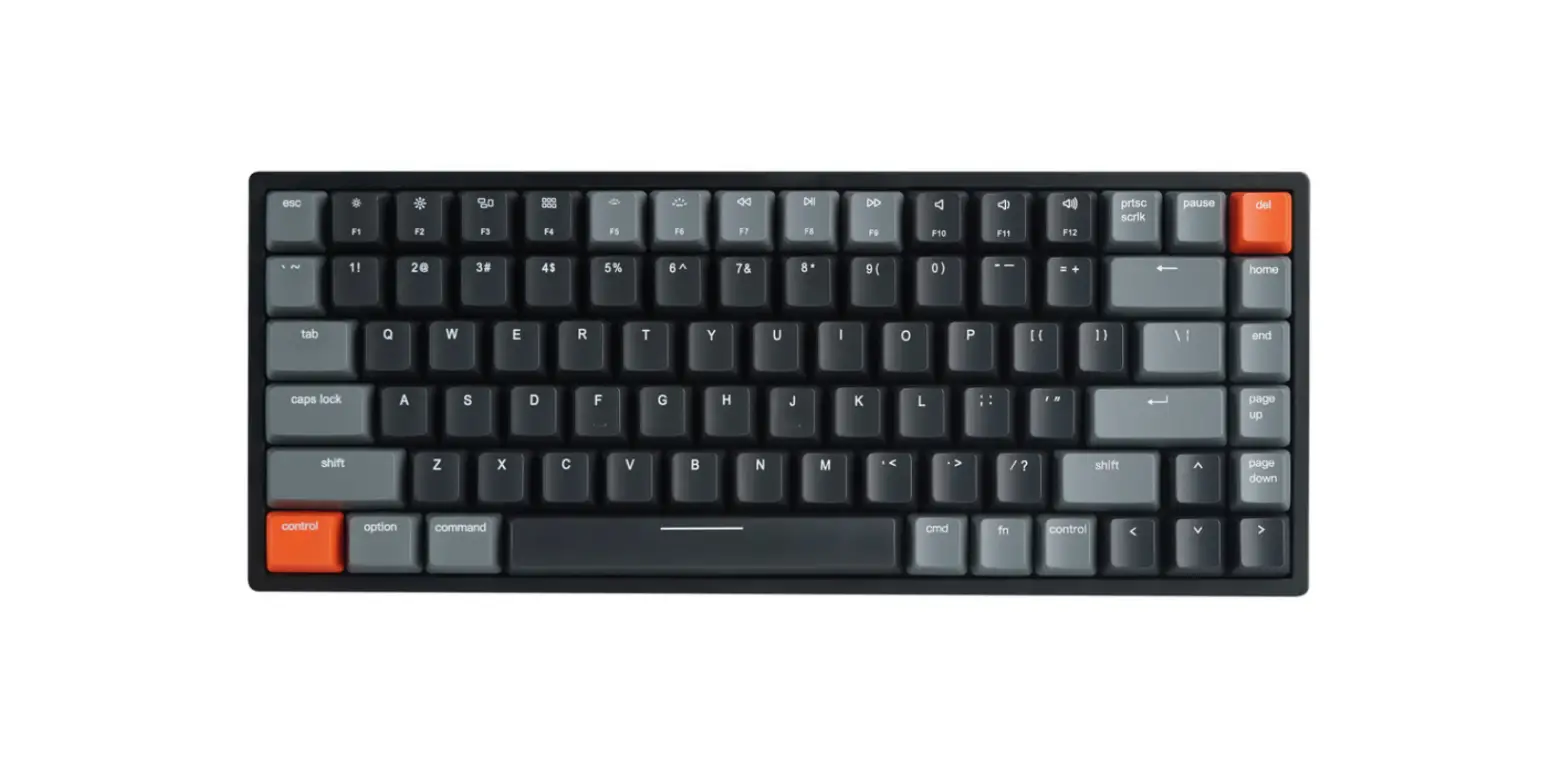
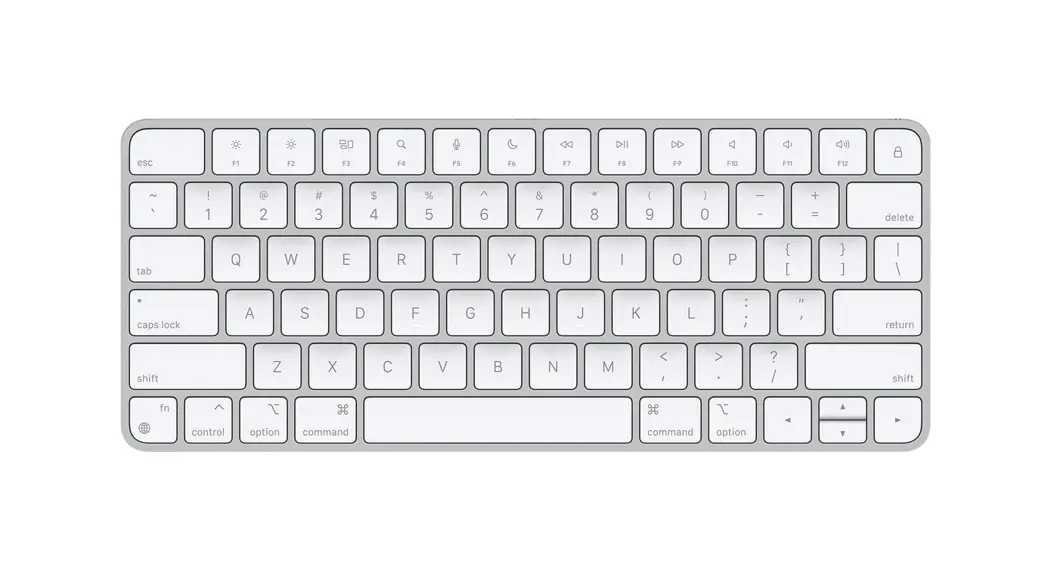
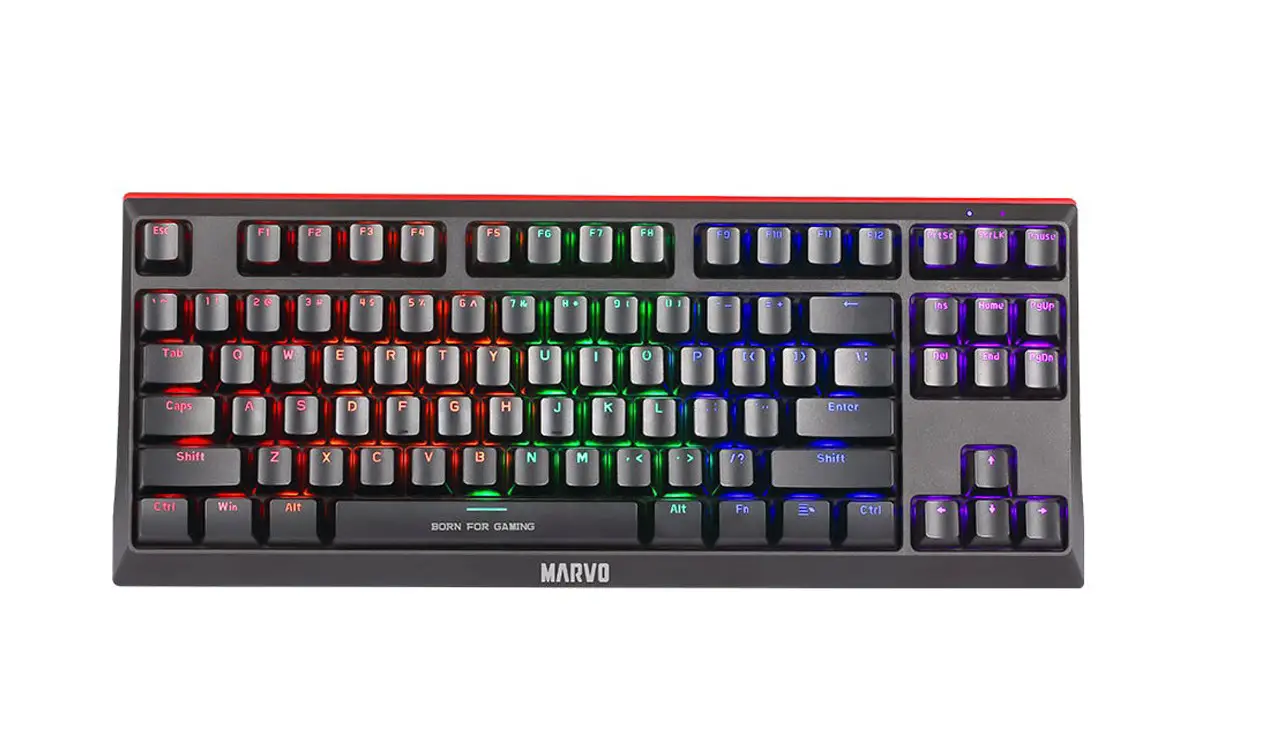
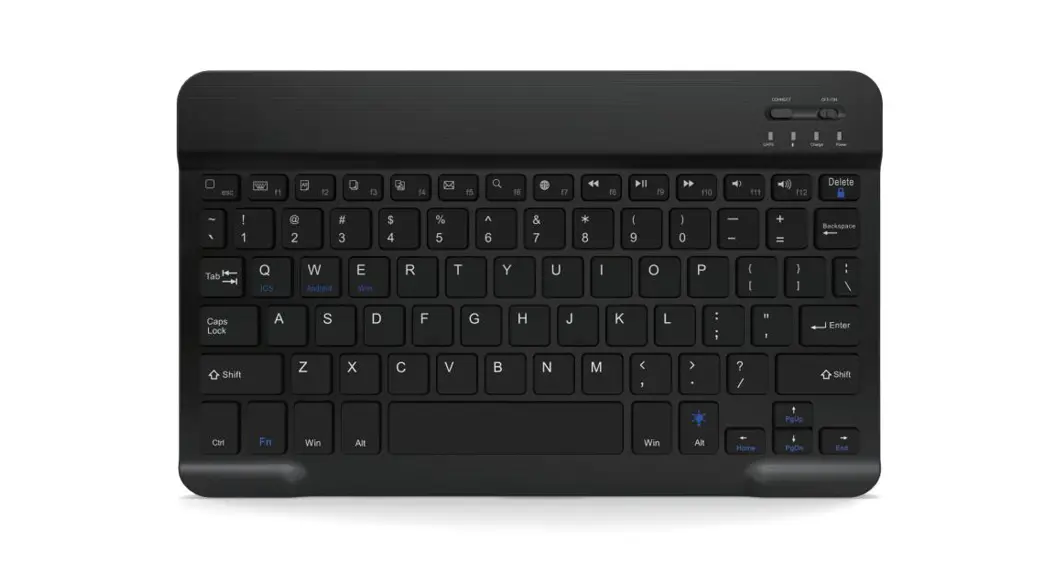
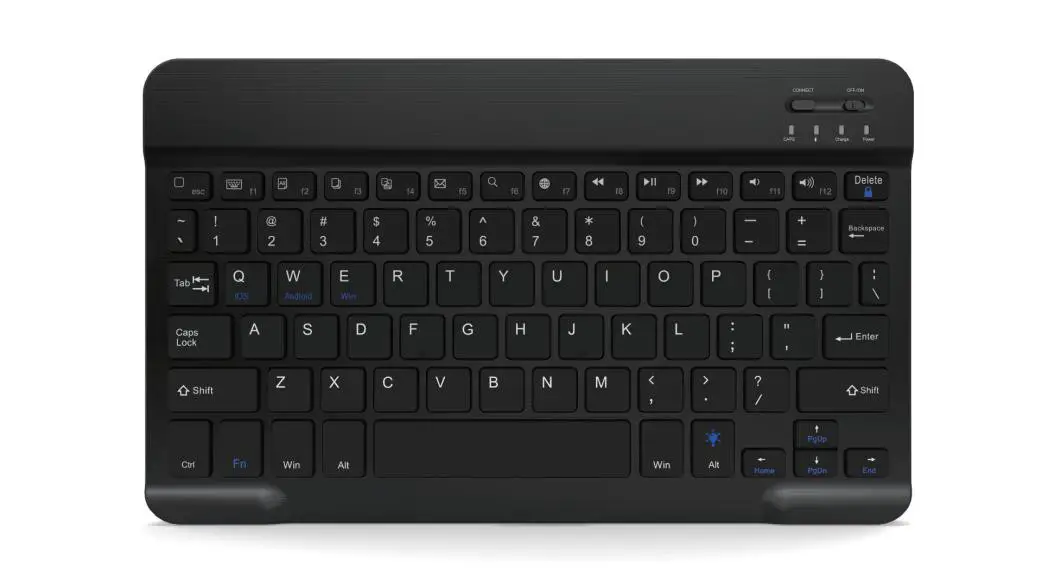
Product display
Bluetooth with HID agreement can be the input device for iOS, Android, Windows.
Keyboard Characteristics
- Support HID Bluetooth connection
- Support Android, iOS, windows.
- Dealing with drawing lines on the surface case.
- Lightweight portable
- Adopt Yichaowei Bluetooth chip, steady and rapid connection.
- Adopt a scissor-feet structure, comfortable for use.
 | Power switch: Slider switch ON or OFF to control the device power turn on or turn off. |
 | Bluetooth connection key: The On/Off switch is already in the On position, Press the [connect]button, The keyboard is now ready to be connected to your device. |
 | Power indicator: slider the power button on. The red status light will illuminate for four seconds and then turn off to save power. Your keyboard is still on |
 | Charging indicator: blinking when using a USB power cord to charge. |
 | Bluetooth connection indicator: Press on the [connect]button, the [Bluetooth] status light will blink blue, the status light will stay on until the keyboard connects with your device. |
 | Capital letter indicator: blinking when keyboard on the status of capital letter input. |
Bluetooth keyboard pairing
Step 1: Turn on the keyboard, status indicator blinking 5s then off.
Step 2: Press the ‘connect’ key, Bluetooth indicator blinking.
Step 3: Open the Bluetooth and search, tablet PC search the keyboard (Bluetooth name: Bluetooth keyboard) automatically or manual, click connection.
Step 4: Connect successfully, Bluetooth indicator goes out.
Note: For other Bluetooth equipment which can be activated, be careful to check the Bluetooth standard and compatibility before connecting.
Function Keys
| OS | Android | Windows | Windows Function (tablet PC) | |
 | Home | Home | ESC | Web Browser |
 | Virtual keyboard | Virtual keyboard | Fl | N/A |
 | Select all | Select all | F2 | Select all |
 | Copy | Copy | F3 | Copy |
 | Paste | Paste | F4 | Paste |
 | N/A | F5 | ||
 | Search | Search | F6 | Search |
 | Language exchange | Language exchange | F7 | Language exchange |
 | Previous track | Previous track | F8 | Previous track |
 | Play/pause | Play/pause | F9 | Play/pause |
 | Next track | Next track | F10 | Next track |
 | Volume down | Volume down | F11 | Volume down |
 | Volume up | Volume up | F12 | Volume up |
 | Page Up | Page Up | N/A | Page Up |
 | Page Down | Page Down | N/A | Page Down |
 | Top of Line | Top of Line | N/A | Top of Line |
 | Bottom of Line | Bottom of Line | N/A | Bottom of Line |
Keyboard Specification
| Bluetooth version | Bluetooth 3.0 |
| Effective operating range | Within 10m |
| Modulation system | GFSK |
| Operation voltage | 3.1-4.2V |
| Operation current | <3-45mAh |
| Standby time | >120 days |
| Charging time | <4 hours |
| Lithium battery capacity | 400mAh |
| Standby operation time | 5 hours (Backlit open) |
| Lithium battery life | 3 years |
| Support system | iOS, Android, Windows |
| Keyboard size | 247.5x150x5mm |
Backlit of keyboard guide
- Press the
 lighting key the first time is turning on the light. Press the second time is increasing brightness. Press third time is lighting off. (single color backlight)
 - ( +
 ) / ( + ) to change the backlight colors.(3-color backlit)
 - When the battery is less than 20%, the backlights will turn off.
 lighting key the first time is turning on the light. Press the second time is increasing brightness. Press third time is lighting off. (single color backlight)
 ) / (
) / (Saving energy module
Keyboard saving energy design: it will be a sleeping module when it does not has been touched, but it will be working when you press any key.
Charging
When the battery power is low, and the power indicator will flicker, it’s time to charge.
Step 1: Connect the B port of the origin USB wire to the keyboard charging port.
Step 2: Connect the A pod to the power port or the electric USB port.
Step 3: When charging, the red light will be on until at the end of charging.
Tip
- To make the battery much more lift time, it should be charged when the low power indicator light.
- When you are using the keyboard and charging at the same time, please use the original USB wire, if the keyboard is used another USB wire to charge, maybe it be a mistake within working.
FCC Statement
This device complies with Part 15 of the FCC rules. Operation is subject to the following two conditions:
1) this device may not cause harmful interference, and
2) this device must accept any interference received, including interference that may cause undesired operation.
Note: This equipment has been tested and found to comply with the limits for a Class B digital device, pursuant to part 15 of the FCC Rules. These limits are designed to provide reasonable protection against harmful interference in a residential installation. This equipment generates uses and can radiate radio frequency energy and, if not installed and used in accordance with the instructions, may cause harmful interference to radio communications. However, there is no guarantee that interference will not occur in a particular installation. If this equipment does cause harmful interference to radio or television reception, which can be determined by turning the equipment off and on, the user is encouraged to try to correct the interference by one or more of the following measures:
–Reorient or relocate the receiving antenna.
–Increase the separation between the equipment and receiver.
–Connect the equipment into an outlet on a circuit different from that to which the receiver is connected.
–Consult the dealer or an experienced radio/TV technician for help.
Changes or modifications not expressly approved by the party responsible for compliance could void the user’s authority to operate the equipment.
FCC Radiation Exposure Statement
This device complies with FCC RF radiation exposure limits set forth for an uncontrolled environment. This transmitter must not be co-located or operating in conjunction with any other antenna or transmitter.