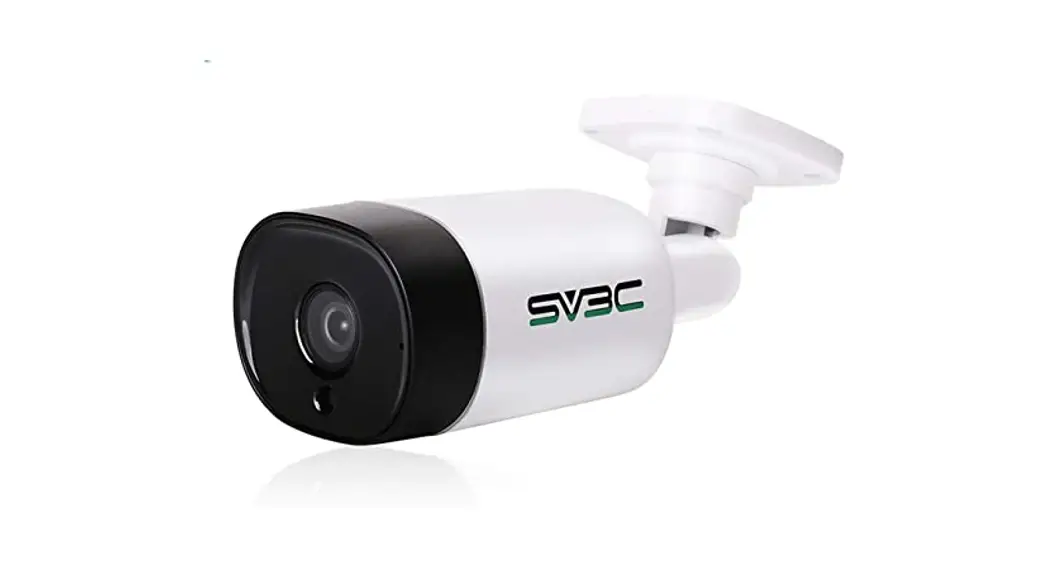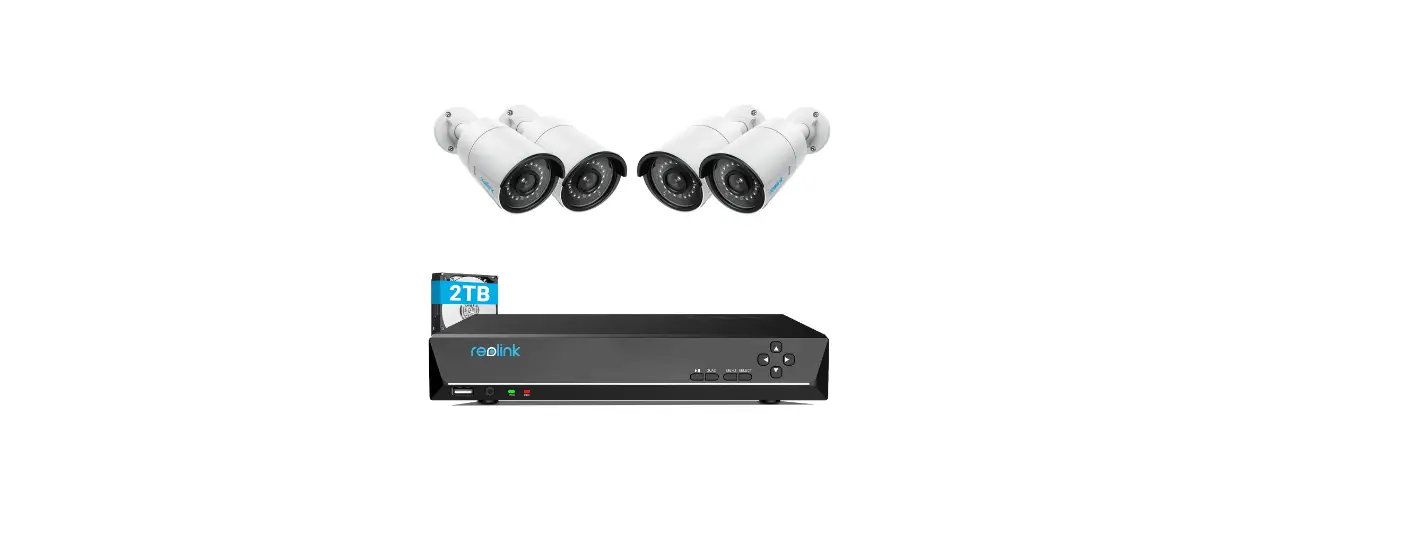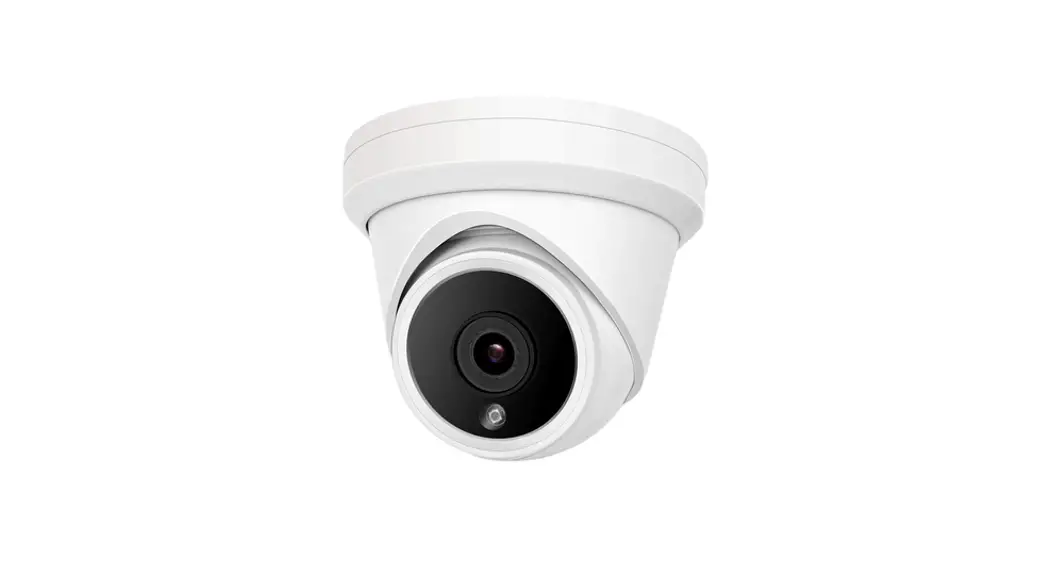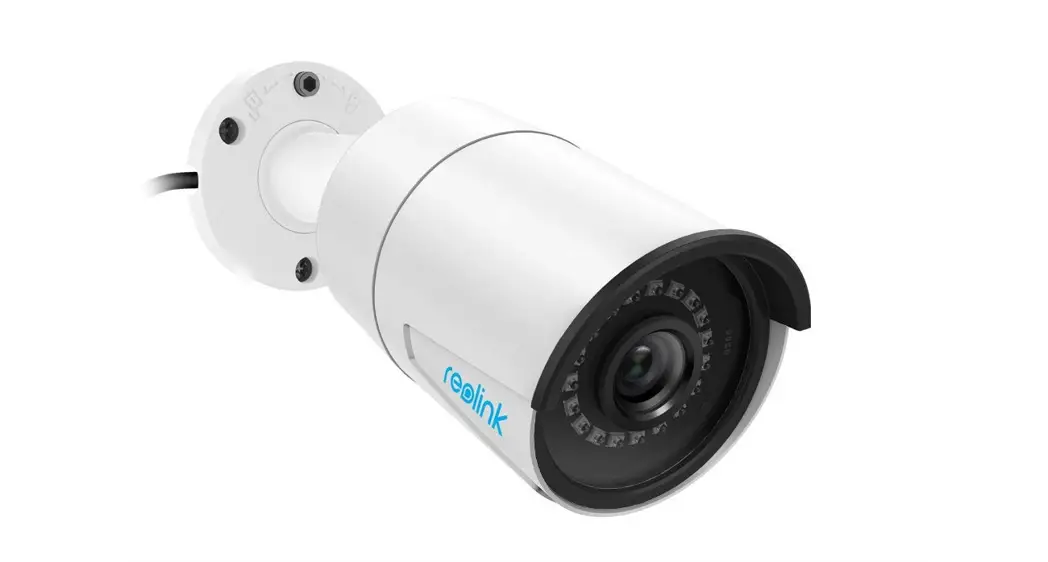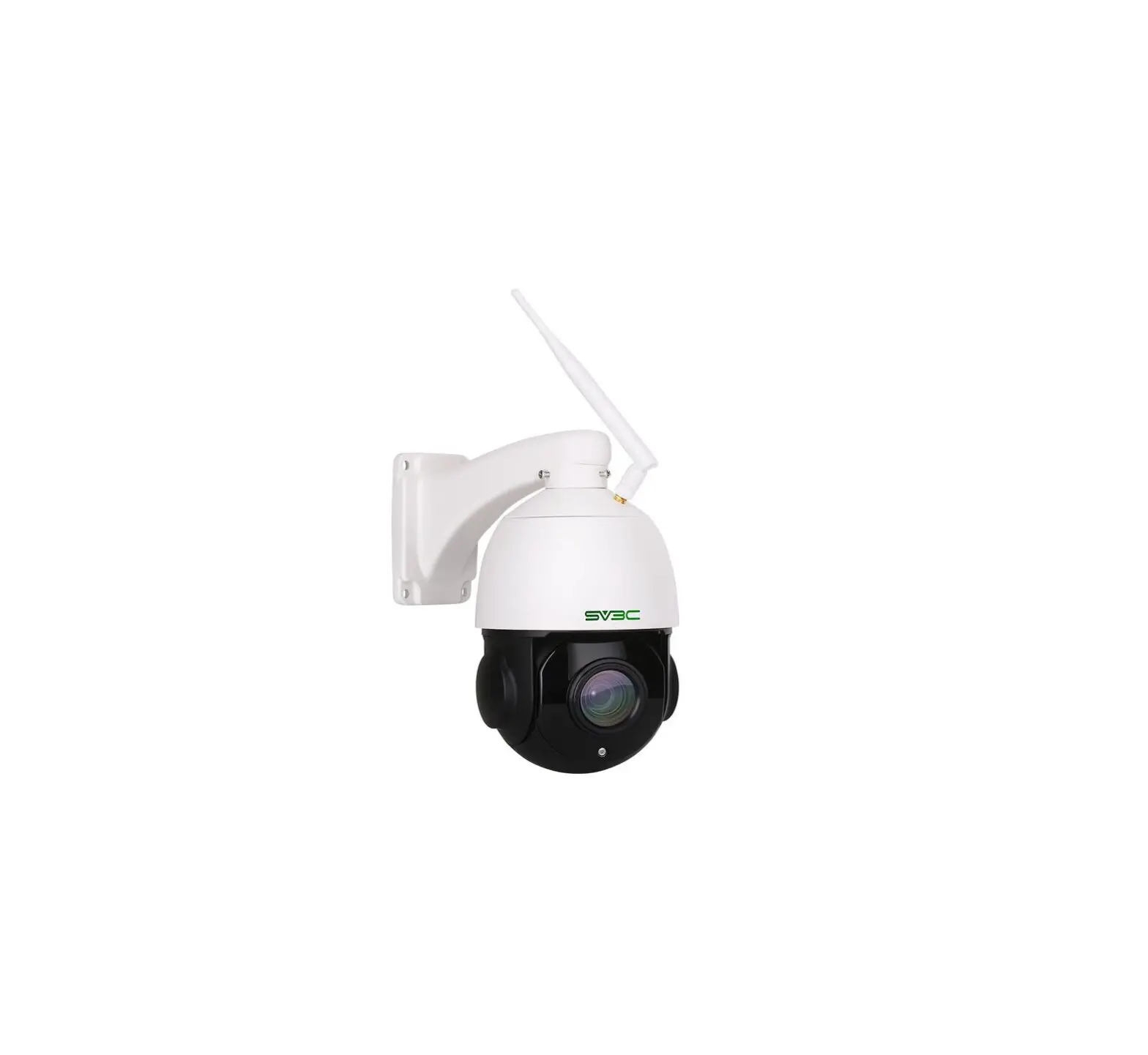
SV3C POE HX Series Camera
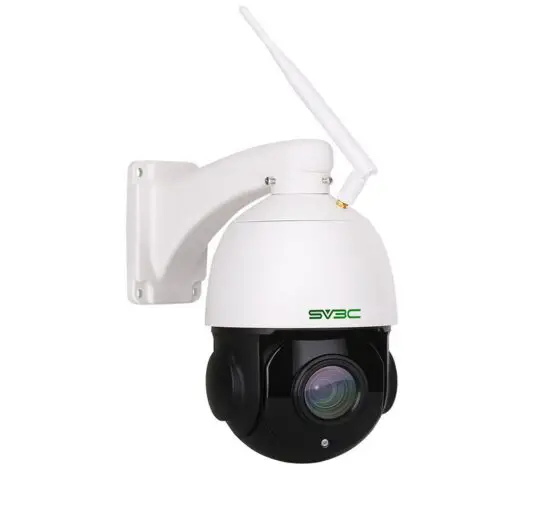
About Camera
Product should contain
- IP Camera* 1
- User manual* 1
- Screws bag * 1
- Power adapter* 1
- Network cable* 1
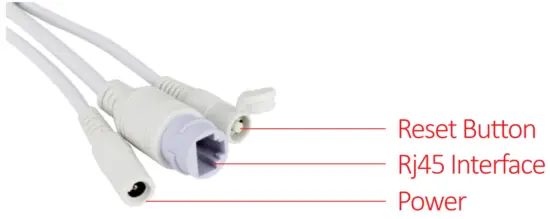
Product interface
How to fit Waterproof lid

Connect camera
Connect network cable to router and plug in power adapter
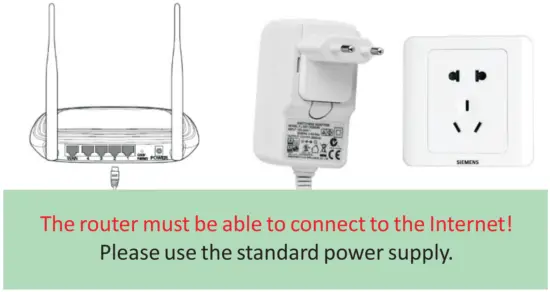
Connect LAN cable and power to camera, it needs about one minute to self checking and then start working

Network indicator light (green): always flashing means network data transmission is normal.
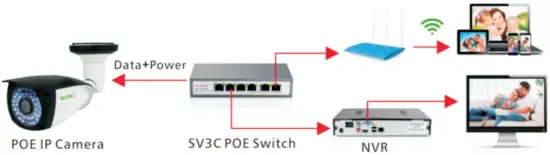
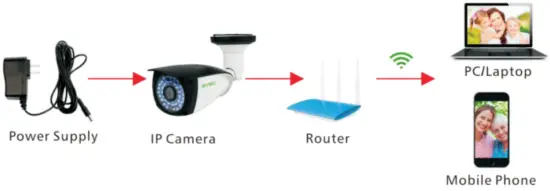
Two-ways Connect Camera
- Use POE Switch for power supply

- Use Power Adapter for power supply

Note:
This is a POE(Power Over Ethernet) Camera:
There are two types of charging with the POE camera
- Single cat5 cable for both Power and Data transmission, no need power adapter. (It requires a separate PoE Injector or PoE Switch (both not included).)
- There are three types of Poe power supply on the market, 48V, 24V, 12V. Our poe cameras are using the standard Poe type: 48V Poe power supply. Its security level is higher than the other two. The POE function of our camera can work with 48V POE switch with IEEE 802.3af.
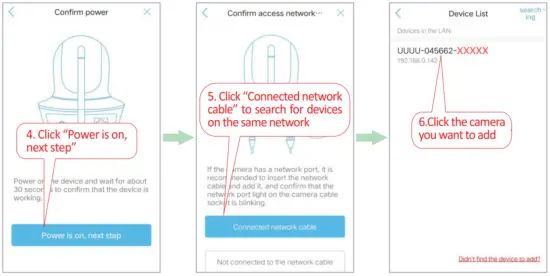
Add Camera via LAN Cable
Download “CamHipro” from Google Play (Android Phone) / App Store(iPhone) or scan the QR code below to get APP information
 Android Android |
|

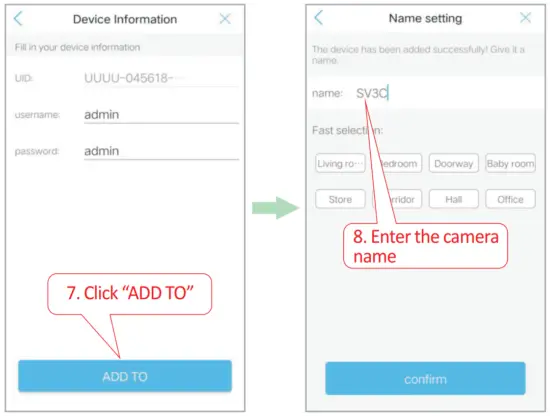
Add Camera
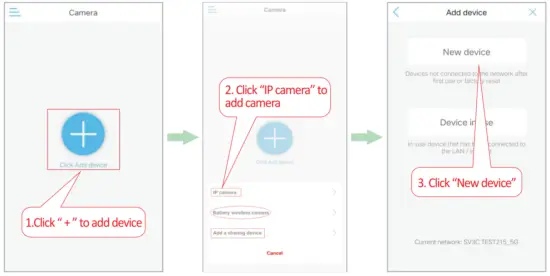
| Please click “Device in use” to add a camera via UID number if you have connected the camera on other devices, UID is in this format ZZZZ-123456-ABCDE |
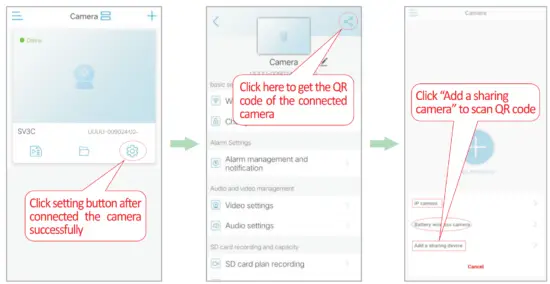
Add a sharing device
Share camera, please click “Add a sharing device” to scan camera UID QR code, then you can add the camera on a different device.
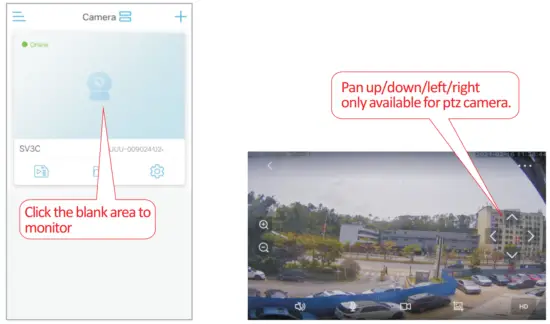
View Camera
Set Micro SD Card Recording
SD Card Setting and Alarm Setting
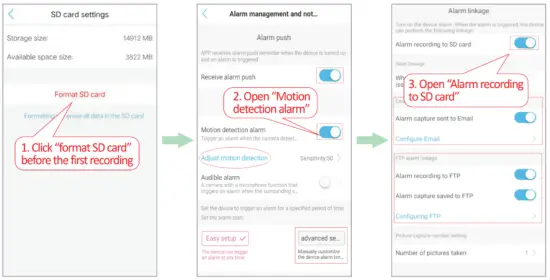
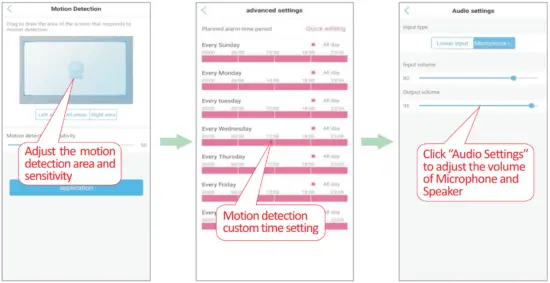
|
Schedule Recording Setting
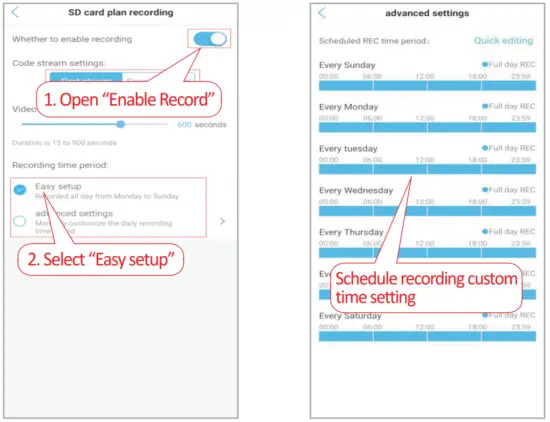
| If you select “Easy setup”, the camera will record for 7/24 all days. Click “advanced settings” to set recording schedule for the camera. |
Playback Record
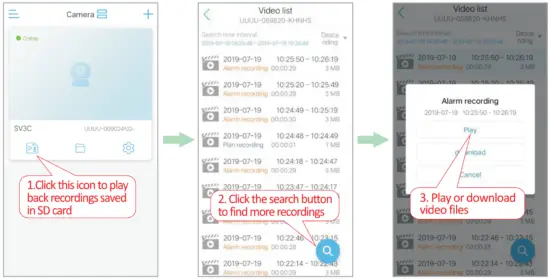
Set Camera Time Zone
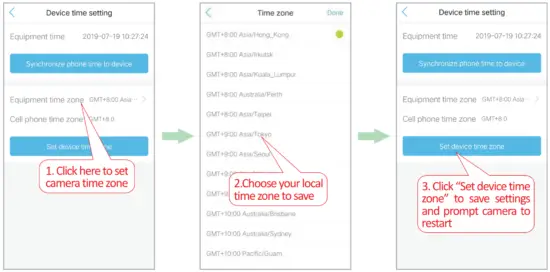
| Note: When your time is DST(daylight saving time), please turn on DS button, otherwise the recording time will be incorrect. |
View Via PC
Access to the camera through browser on PC
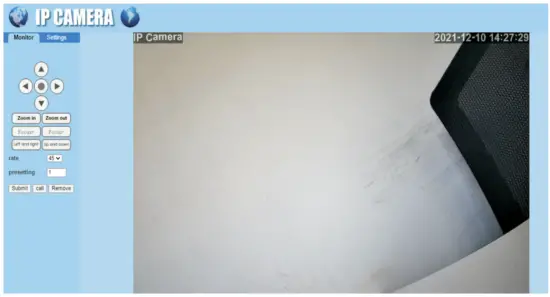
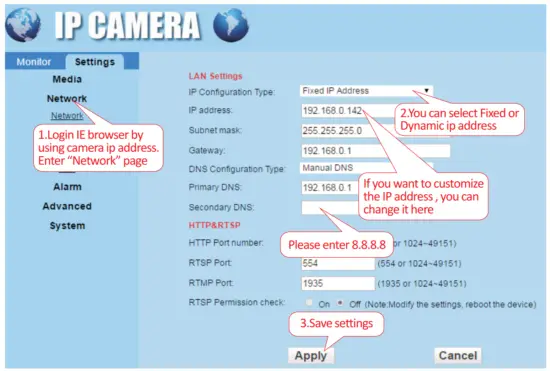
Set POE camera via browser on PC
| Note: If you can’t connect this camera with your NVR, Please try to change your IP Address Keep Fixed, please refer to next page on how to change cameras’ IP Address keep Fixed. |
| If you want to reset factory about your cameras, just pls restart or reset the camera via mobile phone or PC. |
| Please download PC software on SV3C website: www.sv3c.com |
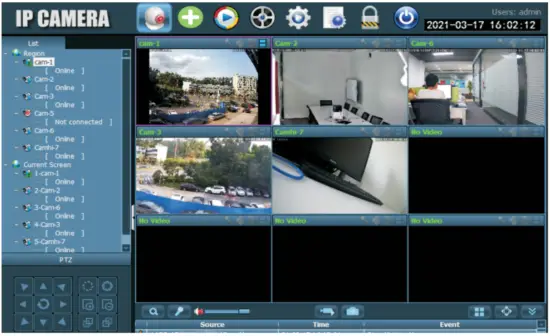
Connect and manage multiple cameras at a same time via P2P PC Client software on windows and MAC PC!
More Info
This manual is to help customers to know and use the camera quickly, For detailed instructions and video tutorials please refer to SV3C www.sv3c.com
This manual may have descriptions and operations that do not match the product, If you have any questions or need technical support Please feel free to contact us.
US Email address: [email protected]
UK Email address: [email protected]

 SV3C | SV3C TECHNOLOGY LIMITED was found in 2013, which was specialized in intelligent and security home devices.