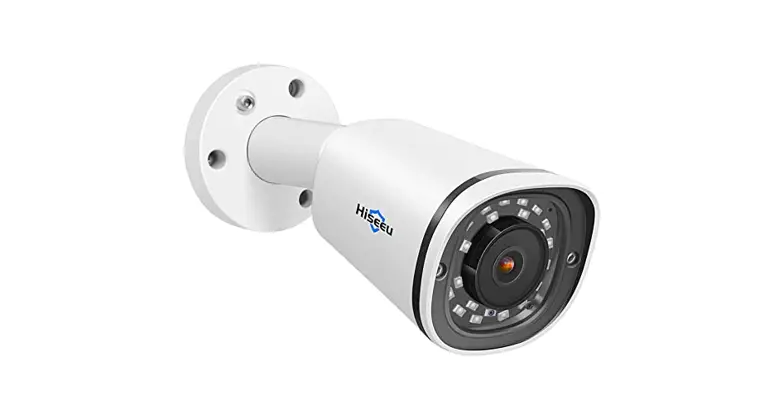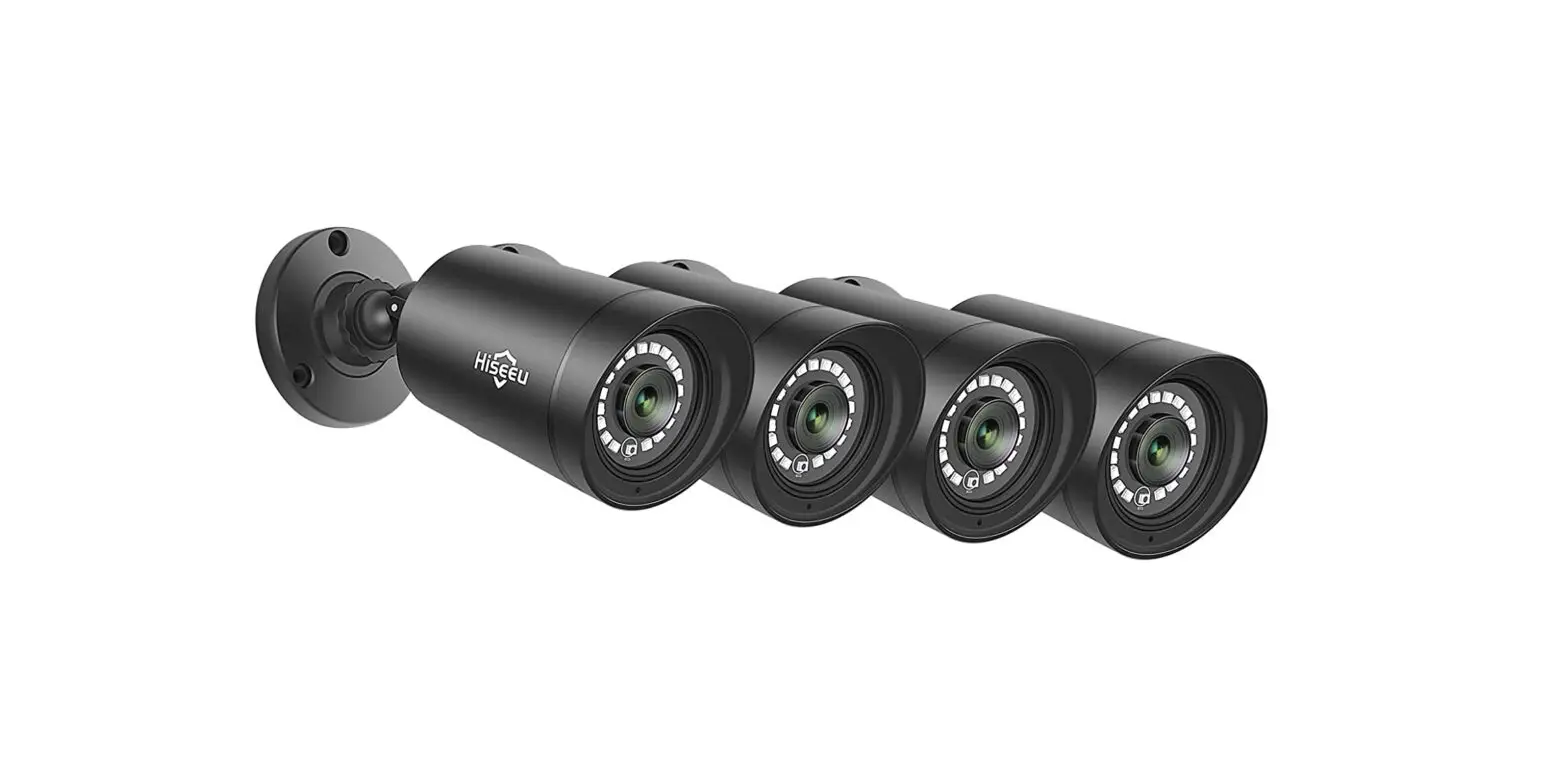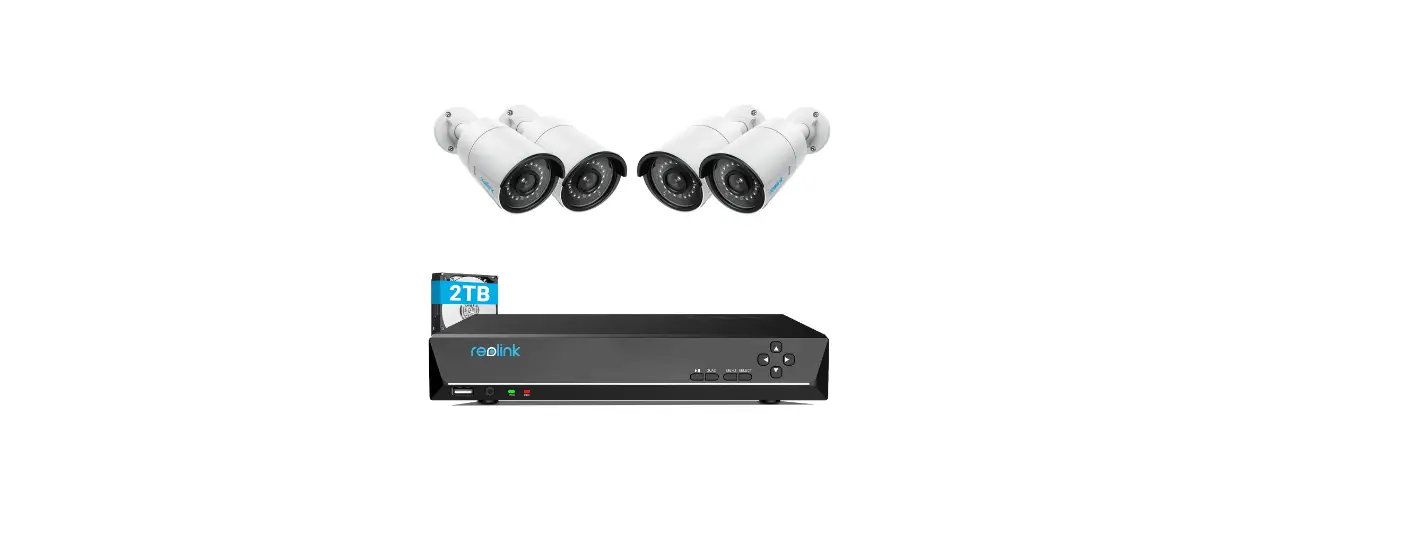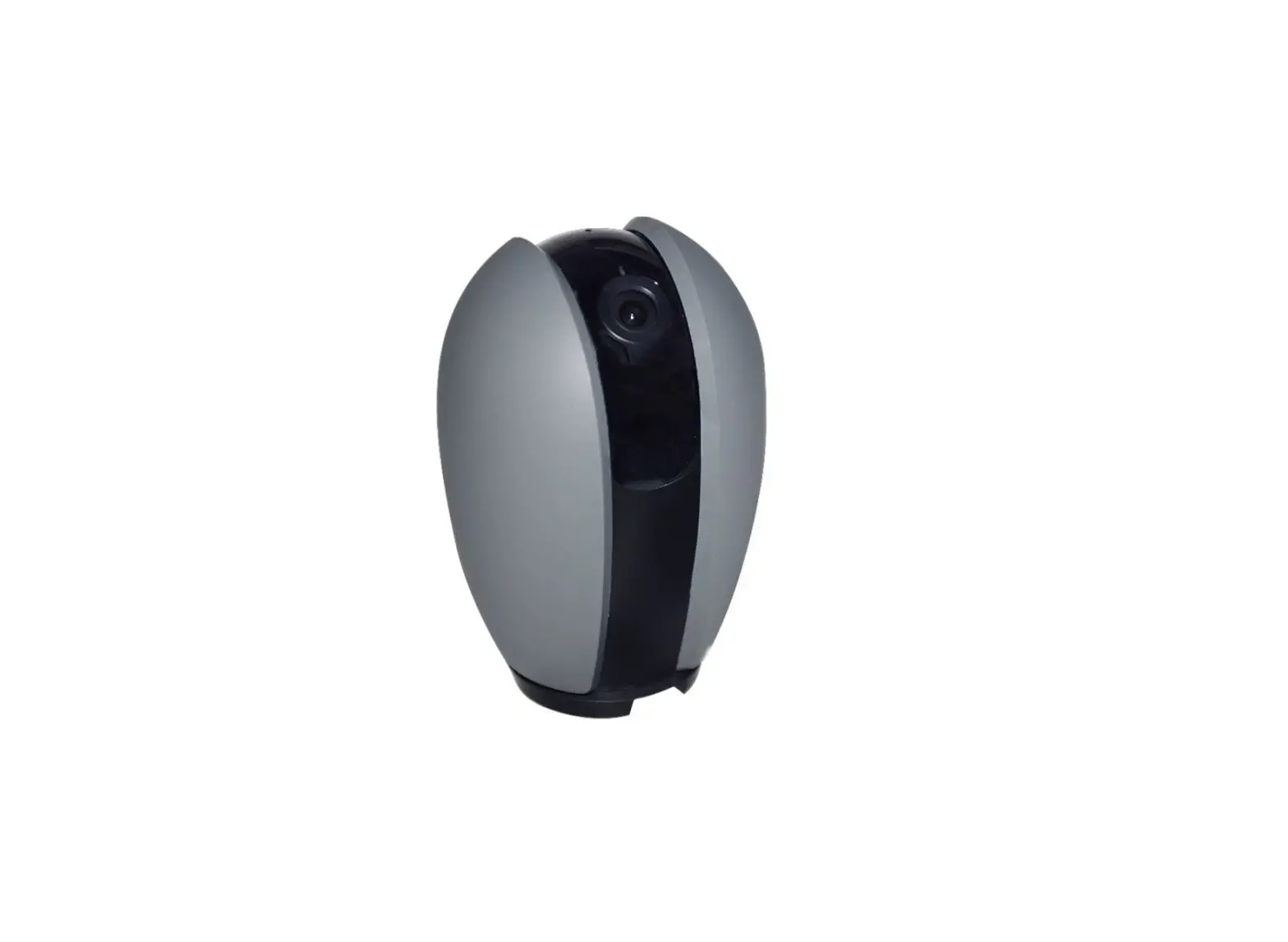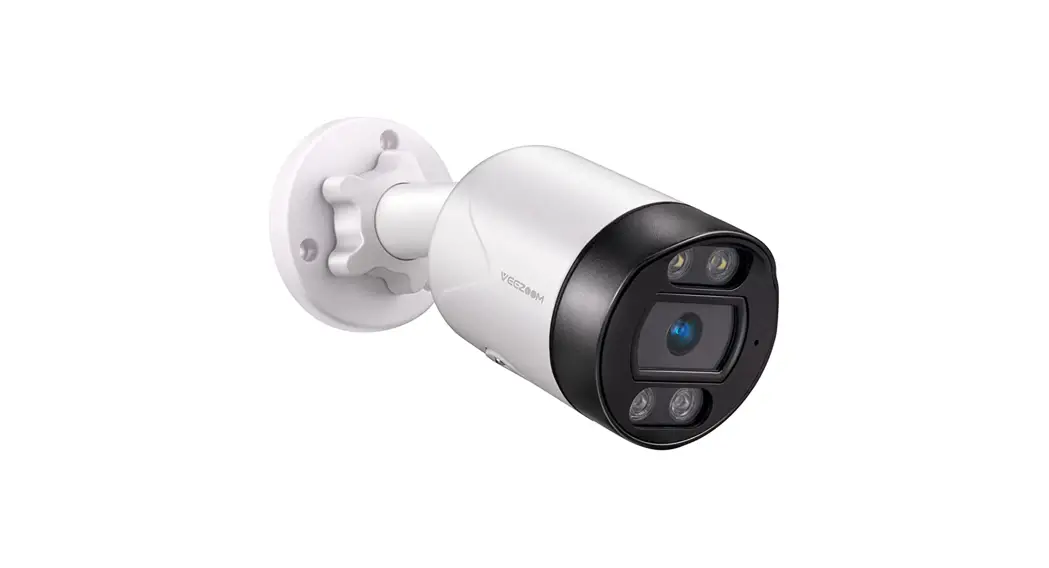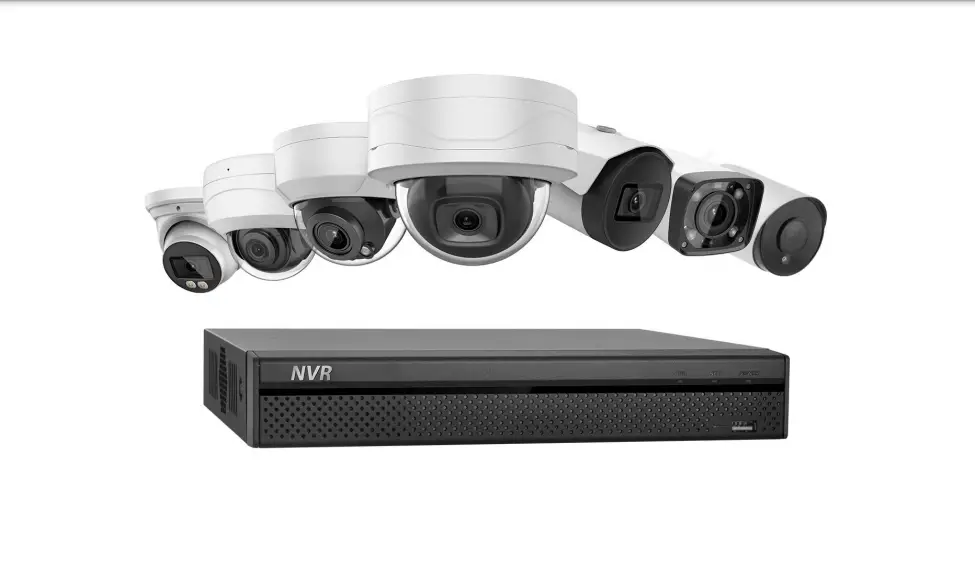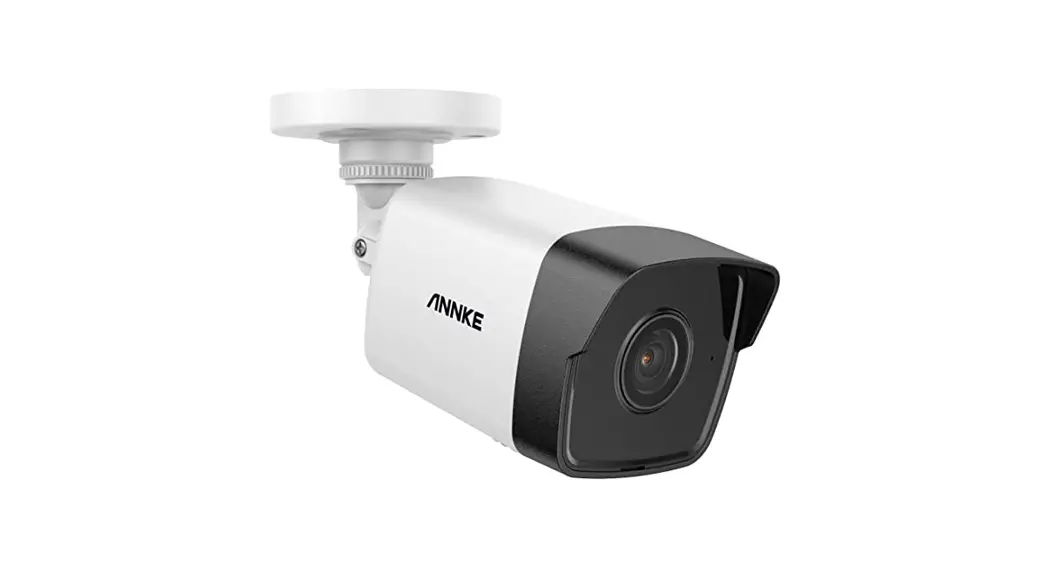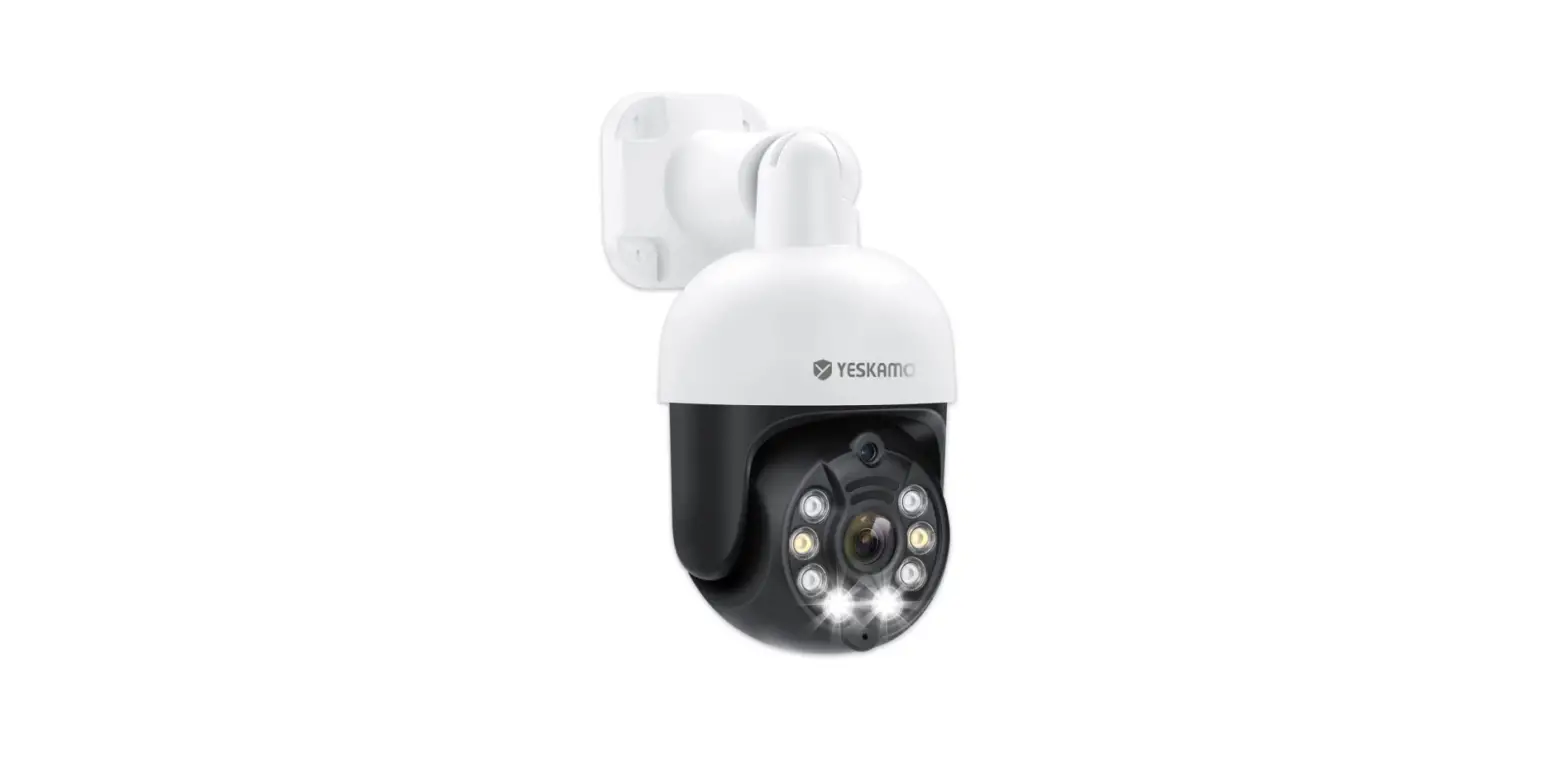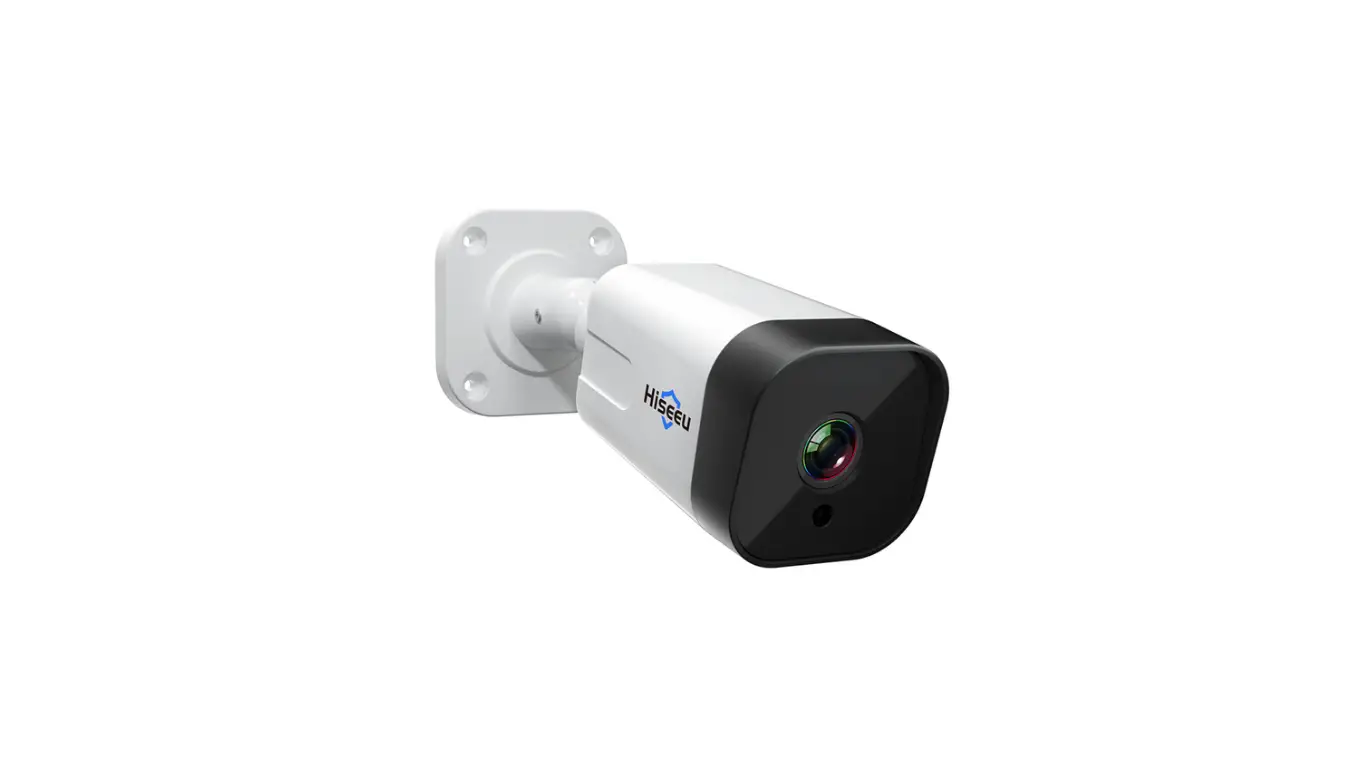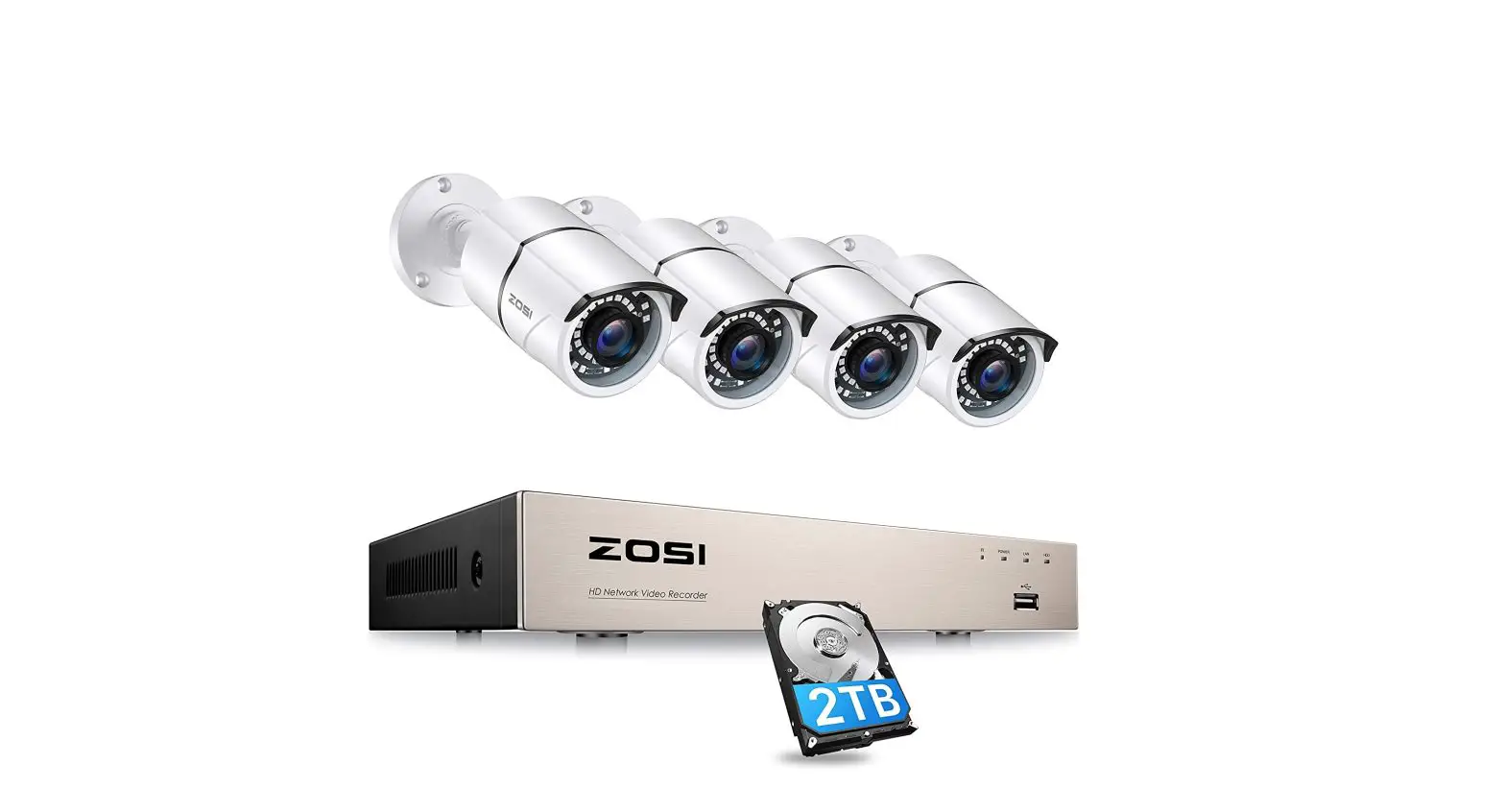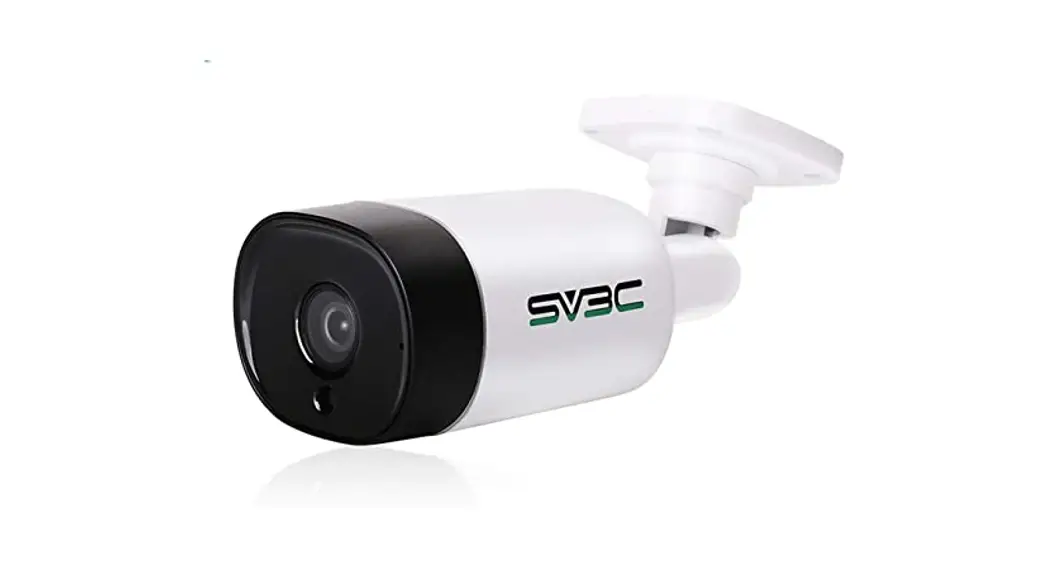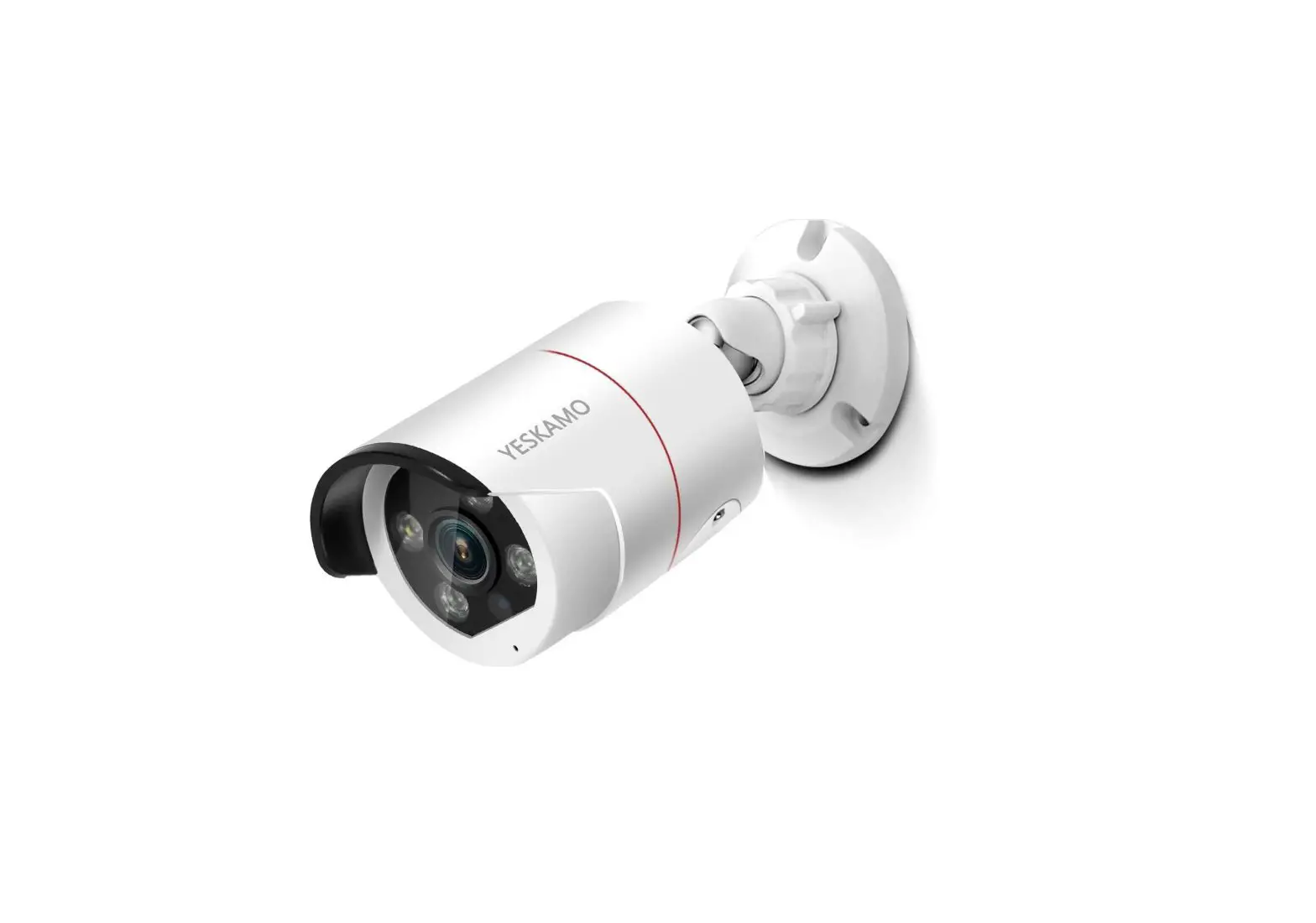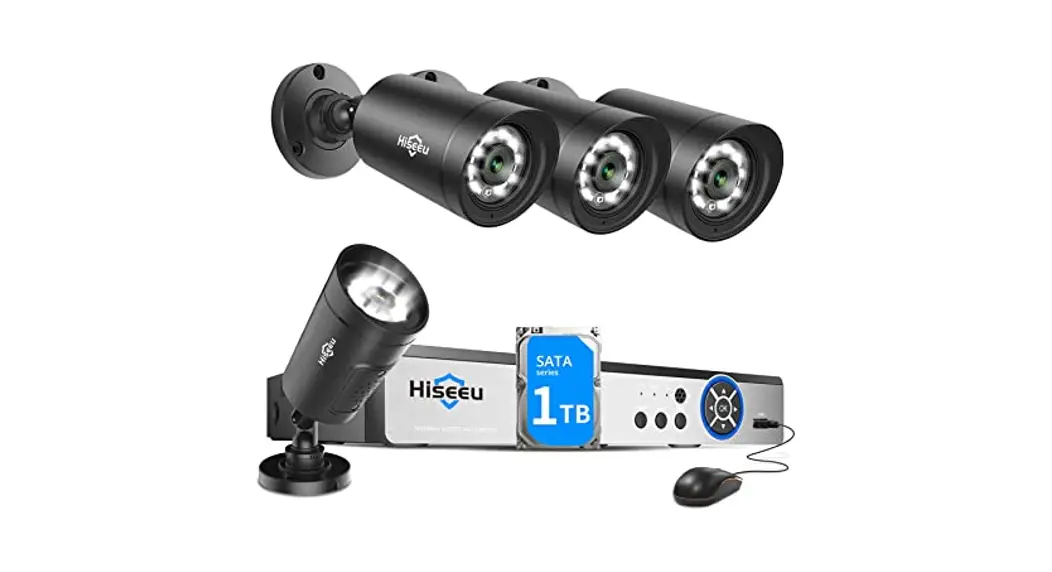
 PoE Security Camera System
Guick Guide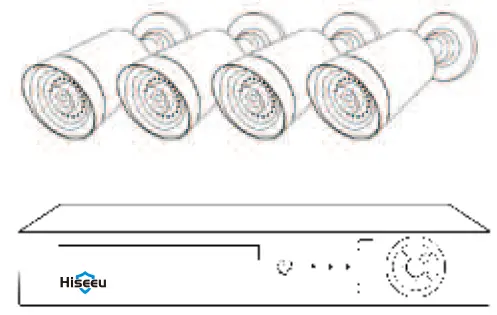
PACKAGE CONTENTS
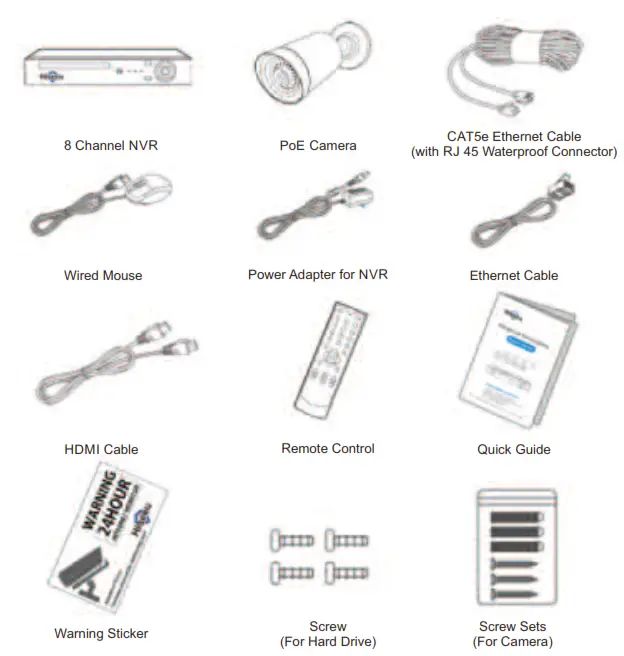
PRODUCTS REVIEW
NVR Details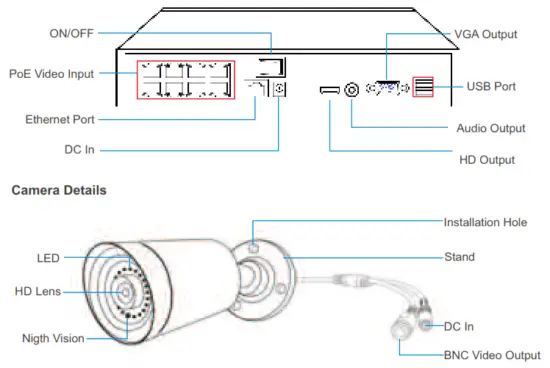
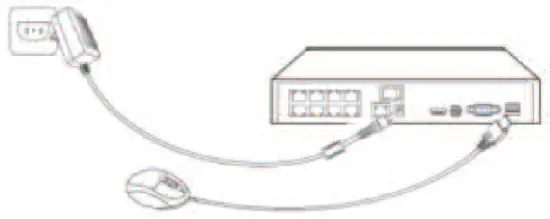
System Connection
 Please test the camera before installation.
- Connect Cameras to NVR box by CAT5e Ethernet Cable provided.

- Hook NVR box to TV monitor via HDMI cable provided.

- Hook NVR box to Network via Ethernet cable provided.

- Connect NVR’s mouse and power on the NVR by original power adapter
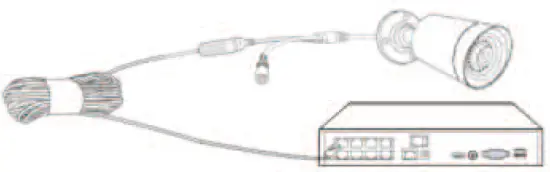
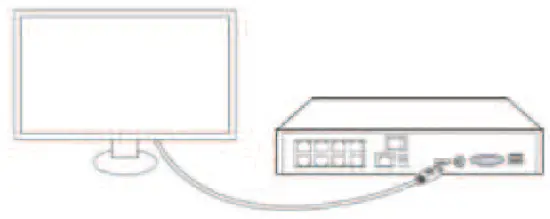
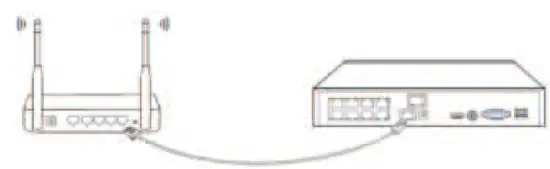
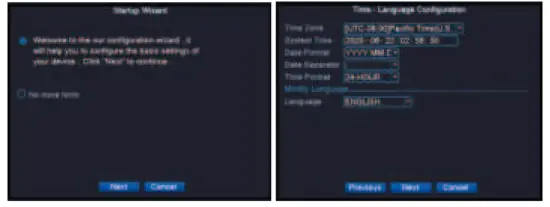
System Wizard
- Hit “No more hints” to exist system wizard .

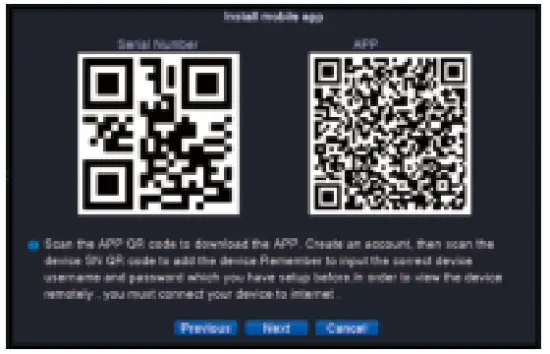
- Mobile APP name is “XMeye”, you can scan the “APP” QR Code to download it or go to Google Play/APP store to download it.
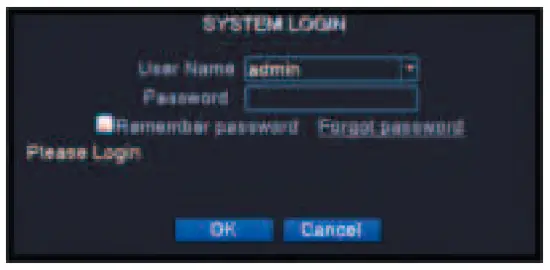
System Login
- Default password is blank (no password)


- If you don’t want to set “Security Question”, please reboot the NVR by press the ON/OFF button.
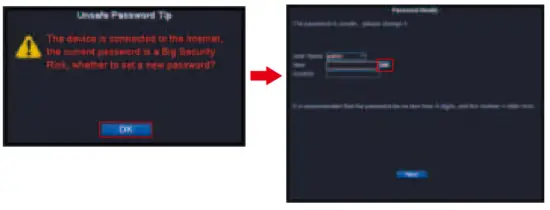
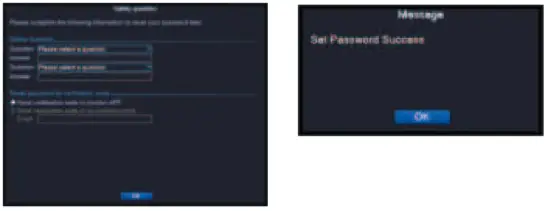
Internet Connection
- Please connect NVR box to Router via Network Cable;
- Right-Click Mouse Navigate to Main Menu > Network > Enable DHCP;
- After that, please go to “Net Service”, if the “Cloud Status” shows online, means NVR is online and ready for remote access.
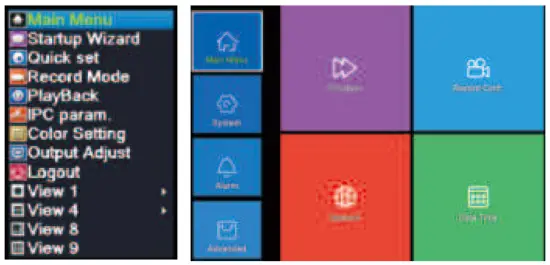
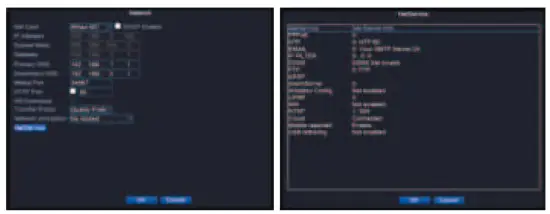
If the “Cloud Status” shows “Probing DNS”, please reboot NVR device by press ON/OFF button.
If the problem remains, please contact the vendor.
※ How to setup video record?
24/7 Video Record
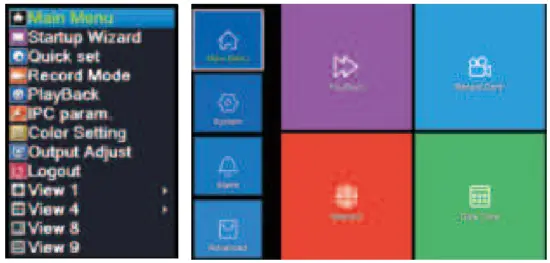
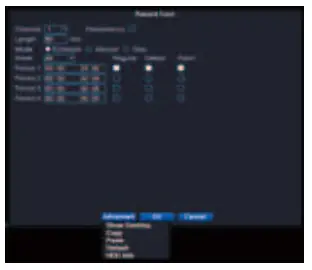
Please right-click mouse navigates to Main Menu > Record Conf. Tips:
Tips:
- You can customize schedule recording based on your needs
- Default Setting is for Channel 1, hit “Advanced” > ”Copy”, Copy the settings to other channels.
Motion Detect Recording
Please right-click mouse navigates to Main Menu > Alarm > Intelligent Alert > Tick of “Enable”.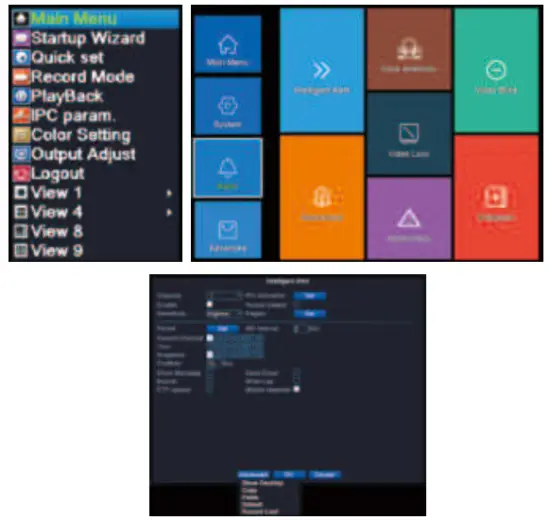
Tips:
- The device will be only recording when motion detected.
- Please Tick off “Mobile Reported” if you need alert push to Mobile APP.
- Default Setting is for Channel 1, hit “Advanced” > ”Copy”, Copy the settings to other channels.
How to playback video?
1 Right-Click Mouse, hit “Playback”, Or go to Main Menu > Playback
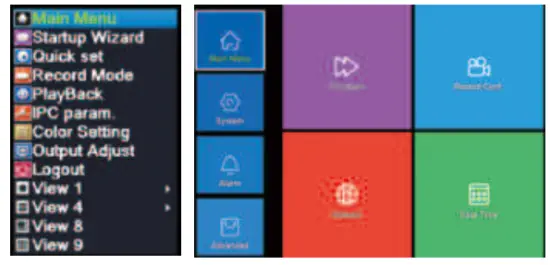
2 Select Channel, Period, date, then click “OK”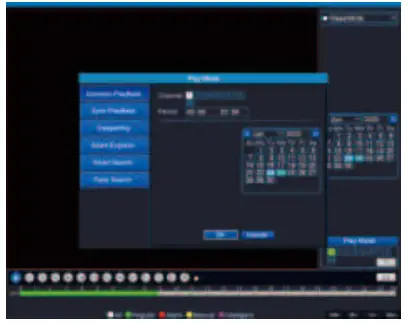
Green: Regular Recording
Red: Alarm Recording
How to backup video?
- Insert your USB Device to NVR’s USB port.
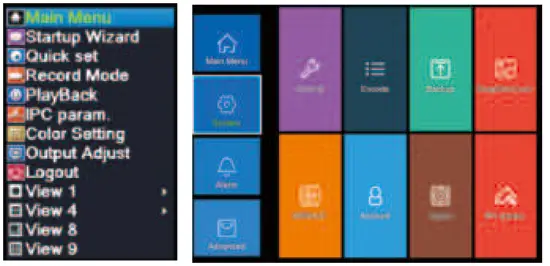
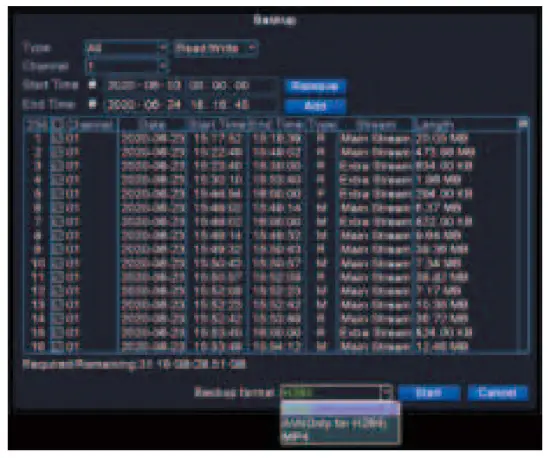
- Right-Click Mouse, navigates to Main Menu > System > Backup.

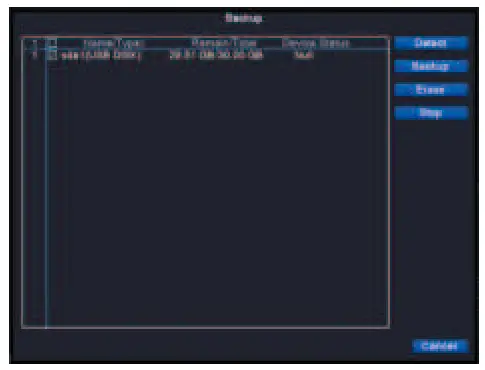
- NVR will Detect available USB device. Click “Backup”.If your USB Device didn’t show up, click “Detect”.

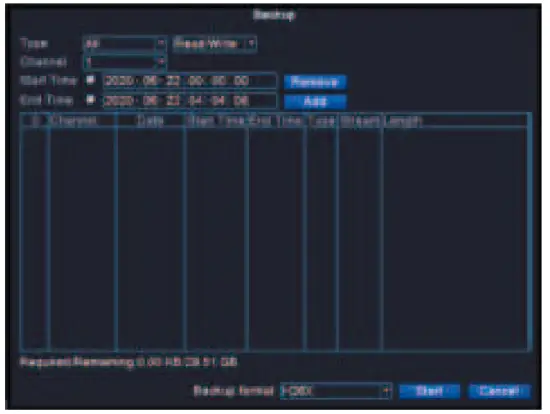
- Select Record Type > Select Channel > Set the Time > Click Add

- Select the video Files> Choose Backup format > Start.
Please choose “MP4”, it’s compatible with most of video player.
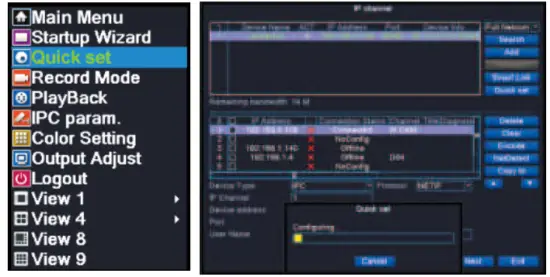
Add new camera or replace defective camera
- Please connect camera to NVR box via Ethernet cable, make sure camera and NVR are powered.
- Right-click mouse > Quick Set (Normally NVR will be configuring automatically)

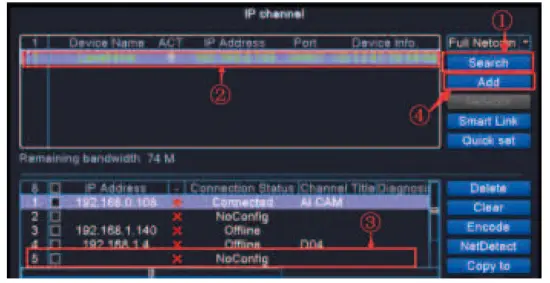
- If your camera still not connected, please manual add as below.
a) Click “Search”, NVR will search camera with same IP segment, then select the new camera’s IP address
b) Select an empty Channel for the new camera (for example #5), then click “Add”
c) After the configuration is successful, click “Apply” to save settings then click “Exit”.
Restore to Factory Setting
Please right-click mouse navigates to Main Menu > Advanced > Restore.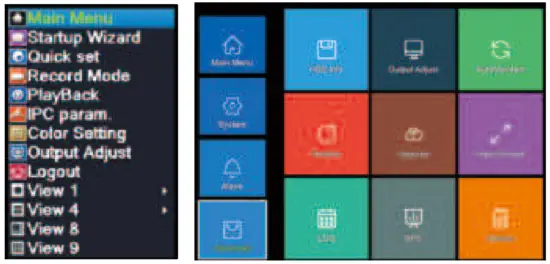
Tick of “Select all” > Click “OK”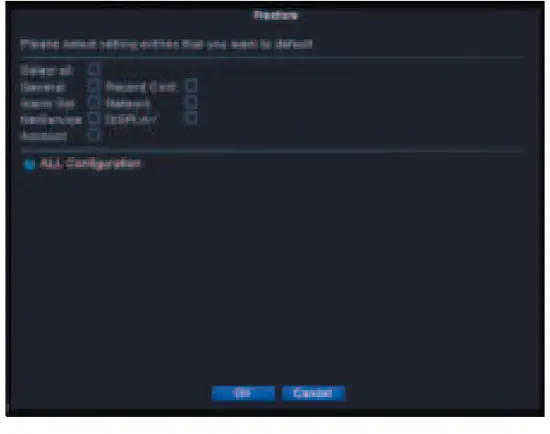
Explanation of Icons
| CAM01 | Channel’s Name |  | Motion Detected(Default) |
 | Recording |  | Play the video recorded for latest 5 minutes |
 | Mute/Unmute |  | Face Detected(Display only after enabling) |
 | Human Shape Detected(Default) |  | Video Feed Loss Detected(Display only after enabling) |
 | Camera Blocked Detected(Display only after enabling) |
 | Play/Pause |  | Reverse to play |
| Stop |  | Play in slow motion |
 | Fast Reverse | | Fast Forward |
| Previous Frame | | Next Frame |
 | Previous Video | | Next Video |
 | Repeat to play all the videos recorded on the selected day |  | Full Screen |
 | Start/End video cutting |  | Backup |
Remote Access on Mobile Device
Download Mobile APP “XMeye” from “Google Play” or “APP Store”.
 |  |
| http://d.xmeye.net/XMEye | http://d.xmeye.net/XMEye |
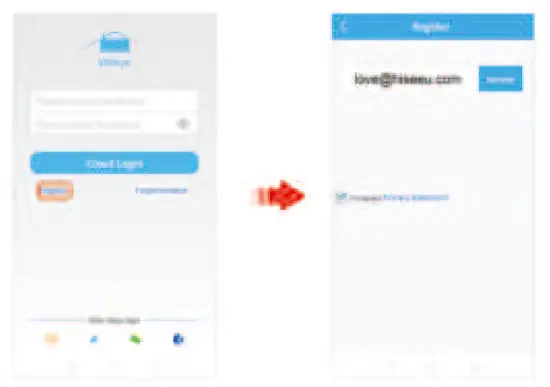
- Open the APP and follow on-screen instructions to register an account by your email.

- Click “+”to add device > Advanced.
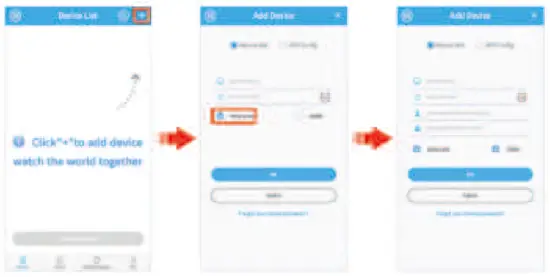
Device Name:
Name Your Device as You Like.
Serial Number:
Click the “Scan” icon to Scan NVR’s QR Code. (Navigate to Main Menu > Advanced > Version)
User Name:
admin
Password:
Input your NVR login password.
Remote Access on PC Client
Please contact vendor for PC Client download Link and video instructions.
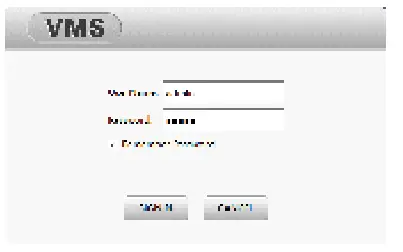
- Download PC Client “VMS” and installed it.
- Remain the default User Name and Password. Click “SIGN IN”.

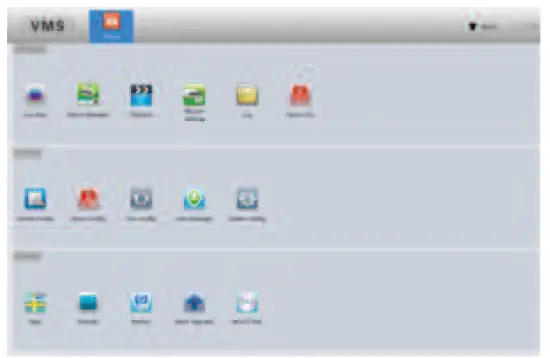
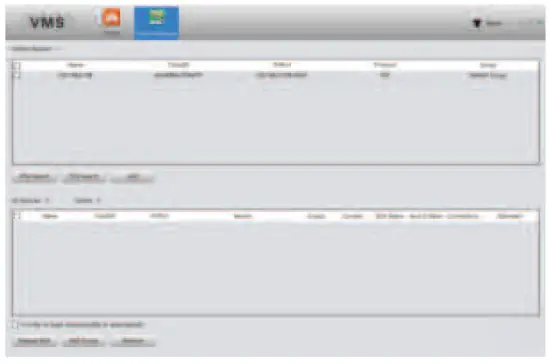
- Navigate to “Device Manager”.

- Manual Add.

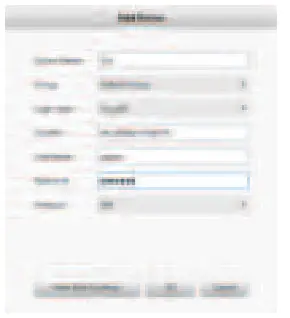
Device Name:
Name Your Device as You Like.
Serial Number:
Click the “Scan” icon to Scan NVR’s QR Code. (Navigate to
Main Menu > Advanced > Version)
User Name:
admin
Password:
Input your NVR login password.
Navigate to Home > Live View.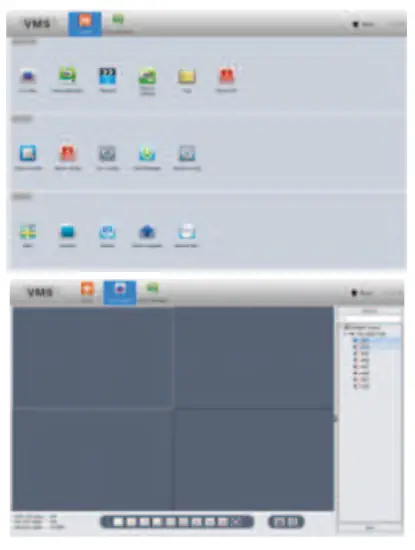
FAQ
Q1. What’s the warranty?
All of our products with 2-year warranty, any difficulties please contact the vendor.
Q2. How to modify NVR password?
Please Right-Click Mouse Navigates to Main Menu > System > Account > Modify Password.
Q3. What should I do if I forget my password?
Please Click Forget Password > Forget Answer, you will get the “CAPTCHA” QR code.
Open the mobile APP “XMeye”, click “+” icon > Forget Your Device Password (FIND PWD).
Scan the “CAPTCHA” QR code, you will get a super passcode.
Use the super passcode to login your device and modify password. (If device ask for old password, let it blank)
Q4. How to find my NVR’ serial number?
Please right-click mouse navigates to Main Menu > Advanced > Version.
Q5. How to change my camera’s name?
Please Right-Click mouse navigates to Main Menu > System > Display > Channel Title “Set”.
Q6. What if the hard drive is full?
Hard drive will overwrite itself when it’s full. You also can format hard drive by navigate to Main
Menu > Advanced > HDD info > Format.
Q7. How to get motion alerts on my phone?
Please make sure “Motion Detect” was setup properly and enabled “Mobile Report” (Refer to Motion Detect Recording in Page 07).
Open “XMeye” mobile App, navigate to Alarm > Alarm Push > Enable “Allow Notifications”.
Q8. What should I do if I got too many push notifications from App?
Please right-click mouse navigates to Main Menu > Alarm > Intelligent Alert.
Customize “Sensitivity”, “Region” and “Period” settings, set alerts for certain areas and period to reduce unnecessary alerts.
CUSTOMER SUPPORT
Amazon: [email protected]
Aliexpress: [email protected]
Web: www.hiseeu.com
Tel: +1 917 688 2228
※Please read this quick guide thoroughly before using and keep it well for future reference. Official Website
www.hiseeu.com
Shenzhen Hiseeu Technology Co., Ltd
How canI get product and technical support?
US Toll Free:1-917-688-2228(Available Pacific Time5:00pm -12:00pm)
AmazonEmail:[email protected]
AliexpressEmail:[email protected]
WeChat ID: +8613392810296
Skype ID: johnny.chen1204
Website: www.hiseeu.com
Whatsapp: +8613392810296
Facebook:facebook.com/cctv.hiseeu
 Hiseeu|CCTV|IP Camera|Network camera|Video surveillance|Analoge|AHD|CVI|NVR|DVR - Powered by 51Mxjz