 Set-up Options for Connecting Your Smart Downlight
Choose your method to connect
User Guide
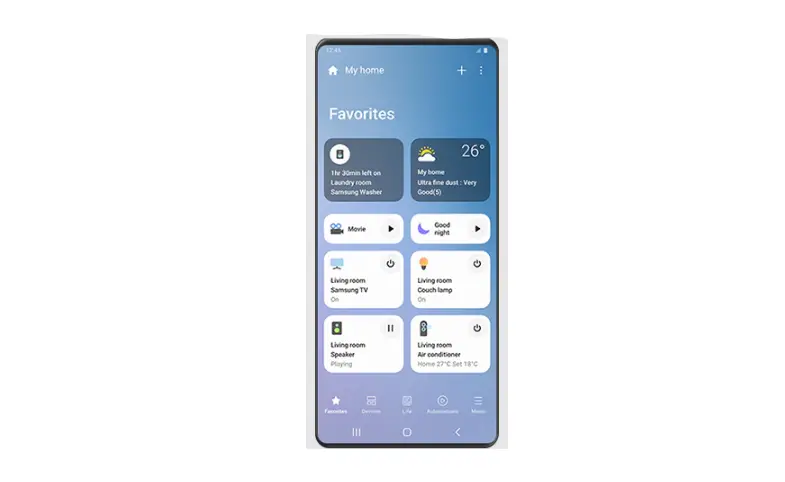
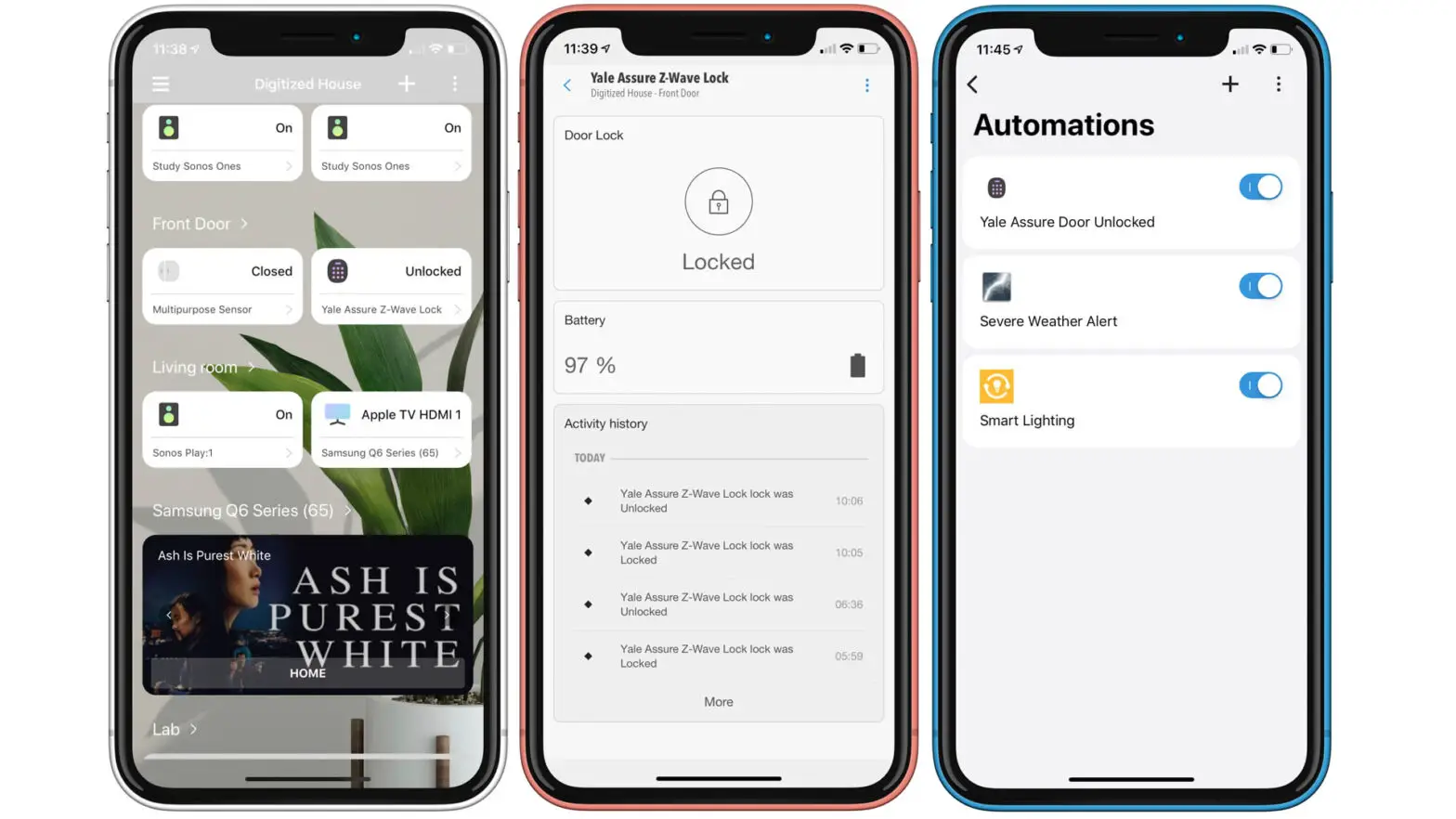
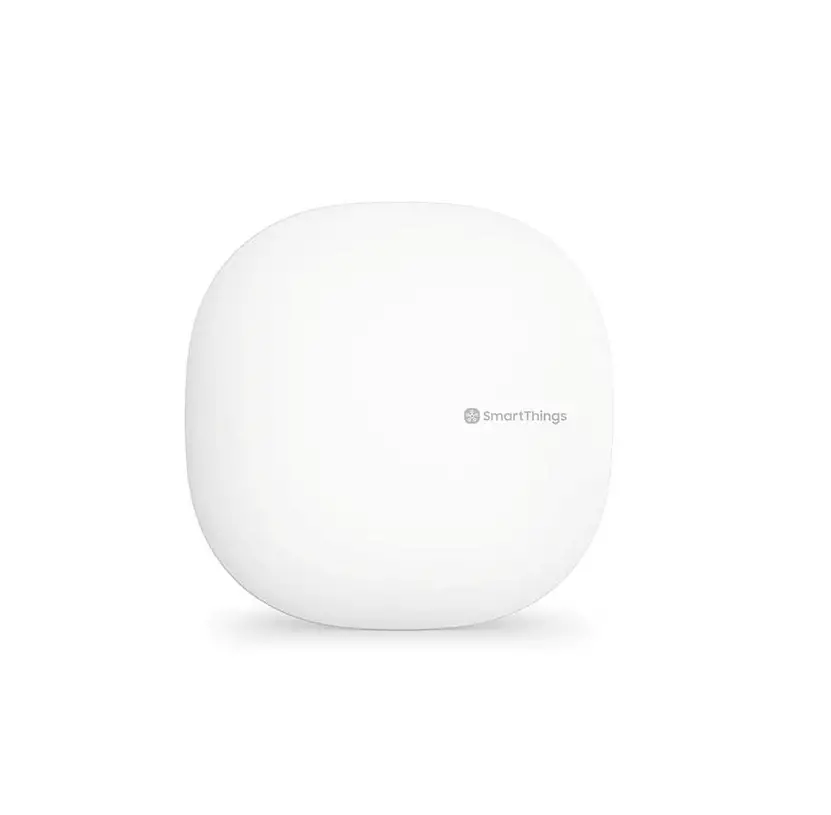
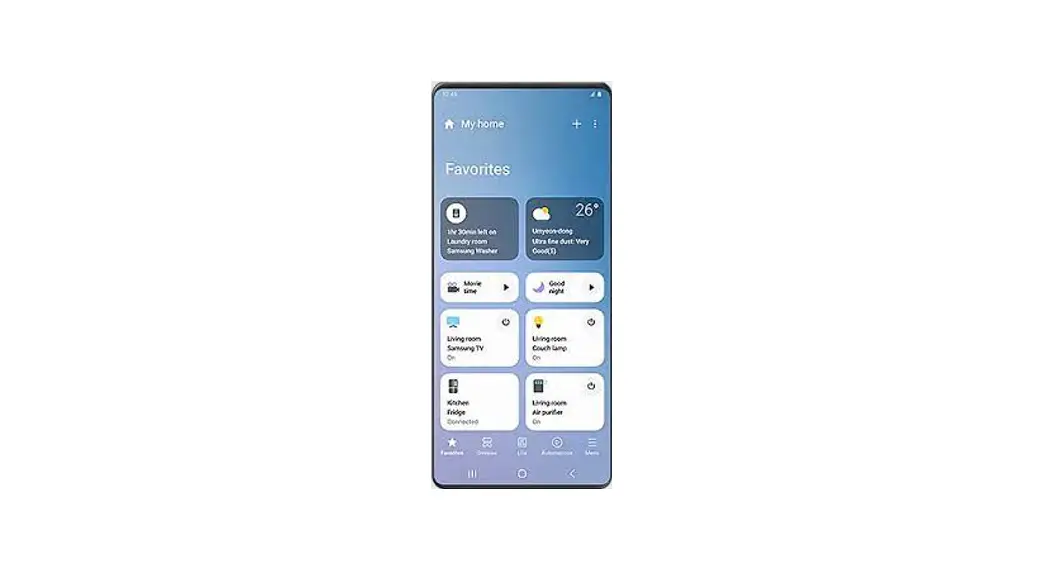
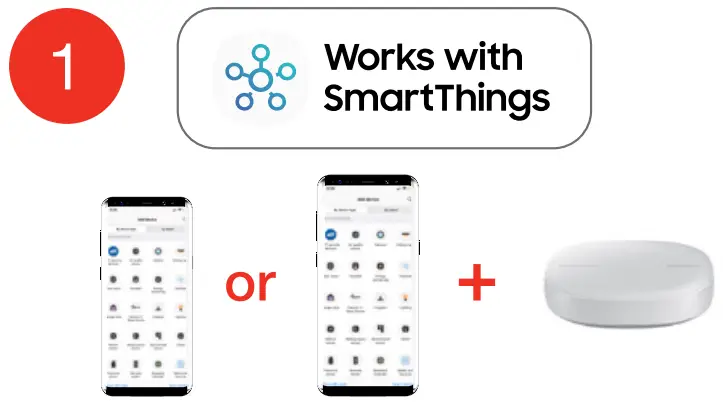
SmartThings App
- Download and launch Samsung® SmartThings app and pick Juno® “By Brand”. Follow instructions for direct to phone or hub set-up.

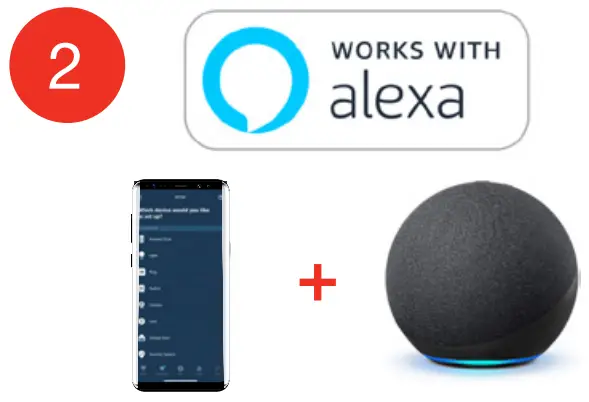
- Ask Alexa “Alexa, discover my devices”.
* Echo (4th Gen.), Echo plus, Echo Show 10 required.
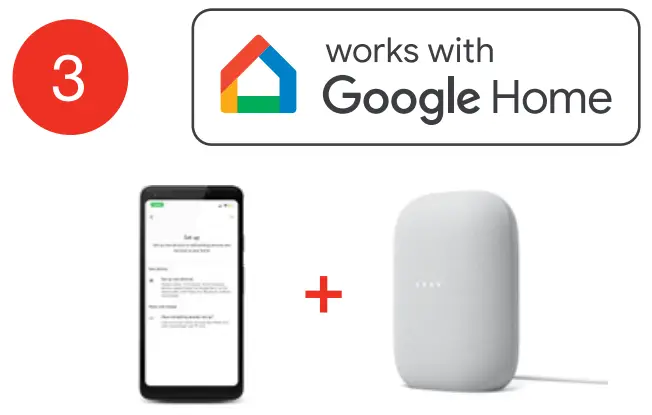
- Open the Google Home App. At the top left, select “+” > “Set up device” > “New devices”, and follow the prompts.
* Nest® Audio or equivalent speaker device required.
To factory reset Smart Downlights, turn on and off five times slowly.
For more information and detailed instructions
Para obtener más información e instrucciones detalladas.
https://juno.acuitybrands.com/connected
 | Amazon, Alexa and all related logos are trademarks of Amazon.com, Inc. or its affiliates. |
 | The Works with SmartThings words and logo are trademarks of Samsung Electronics Co. Ltd. |
 | Google, Google Home and Google Nest Audio are trademarks of Google LLC. |
Scan to learn more
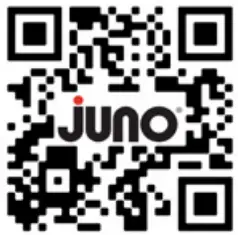 https://qrco.de/bd1jIB
For general or technical product questions, please contact
1-800-705-SERV (7378)
[email protected]
RD303661
© 2022 Acuity Brands Lighting, Inc. All Rights Reserved.
 Amazon.com. Spend less. Smile more.
 Smart Home Lighting | Products & Resources | Juno Lighting