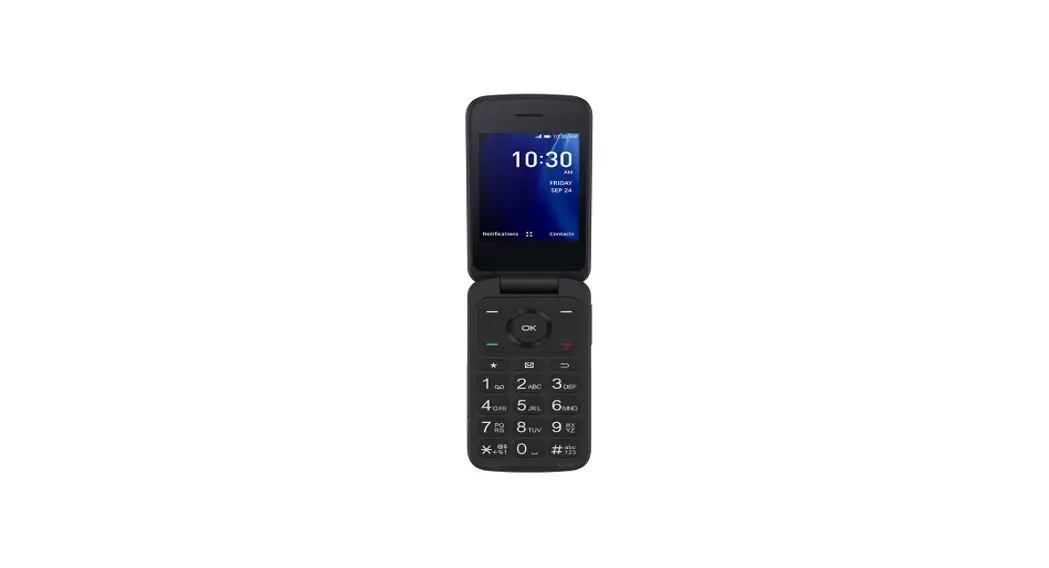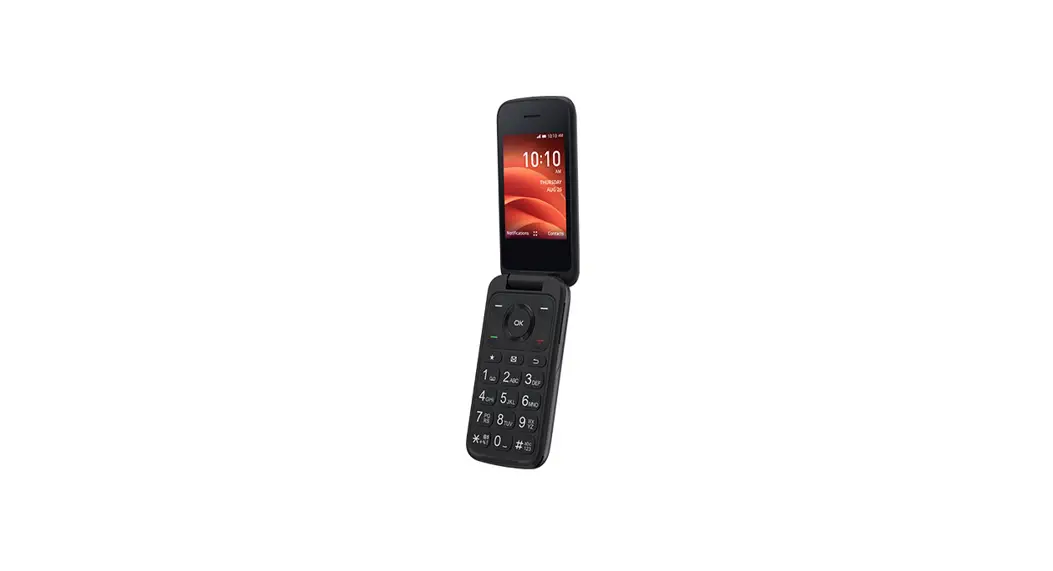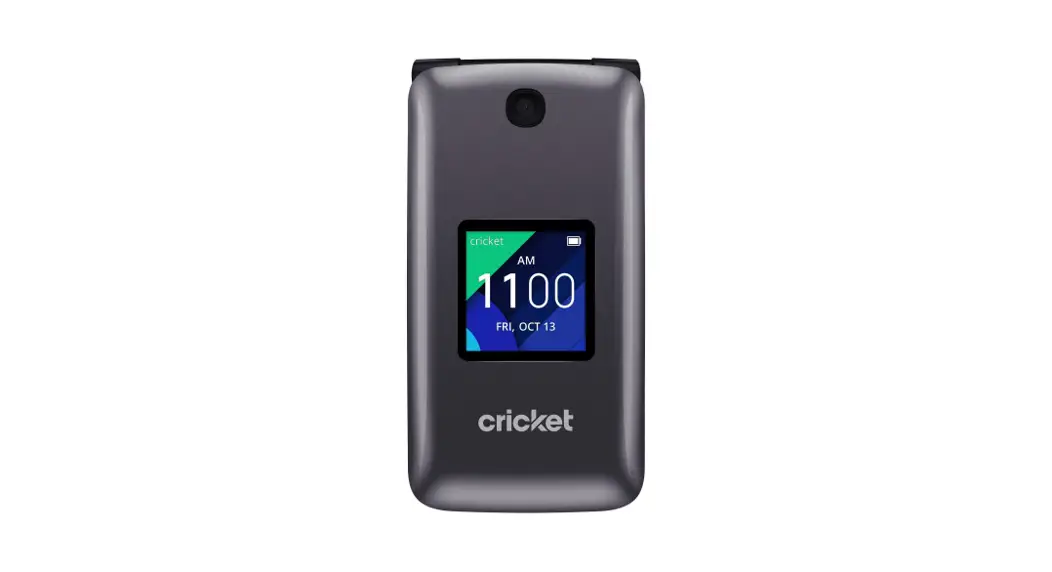

Clear and Simple
Quick Start Guide
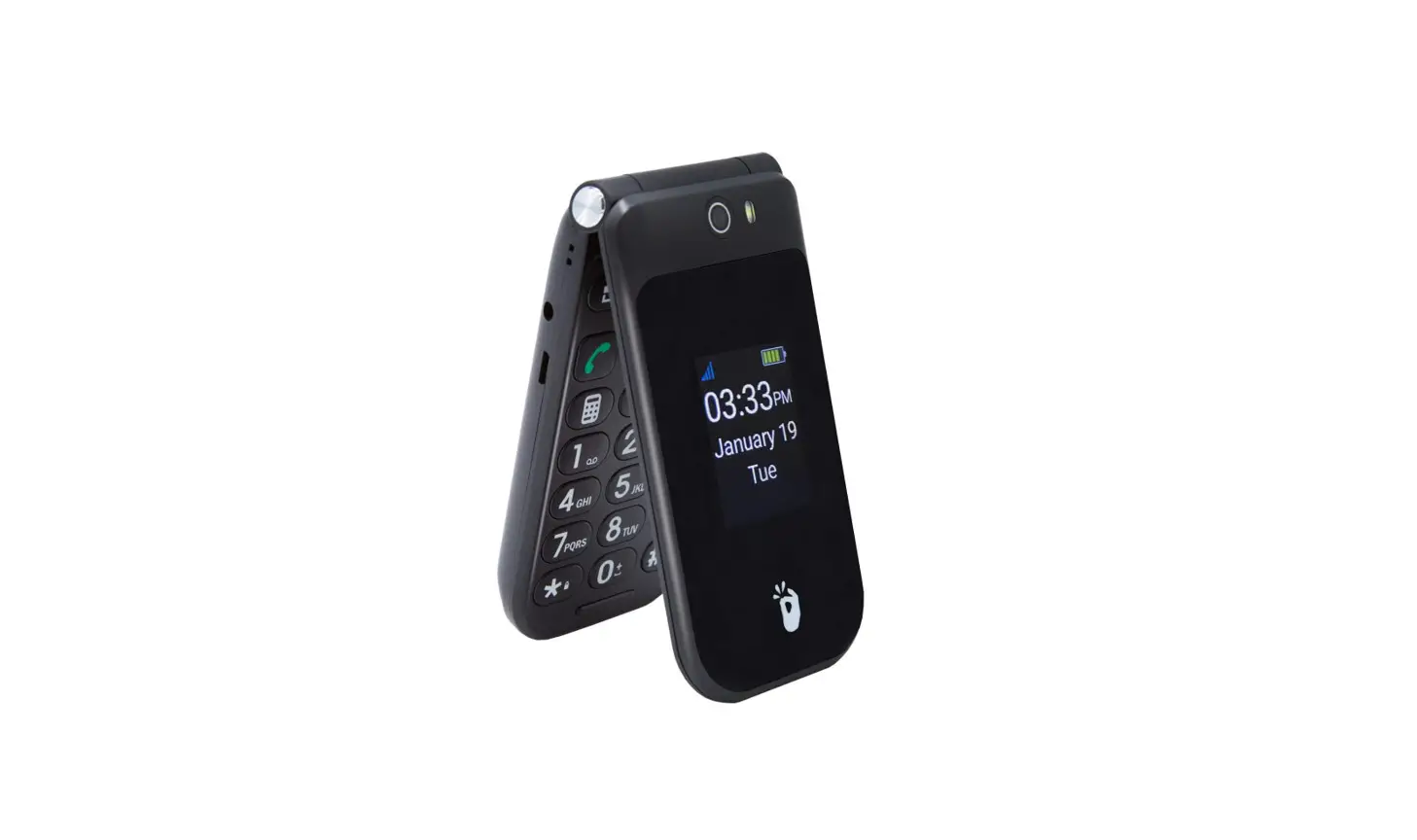
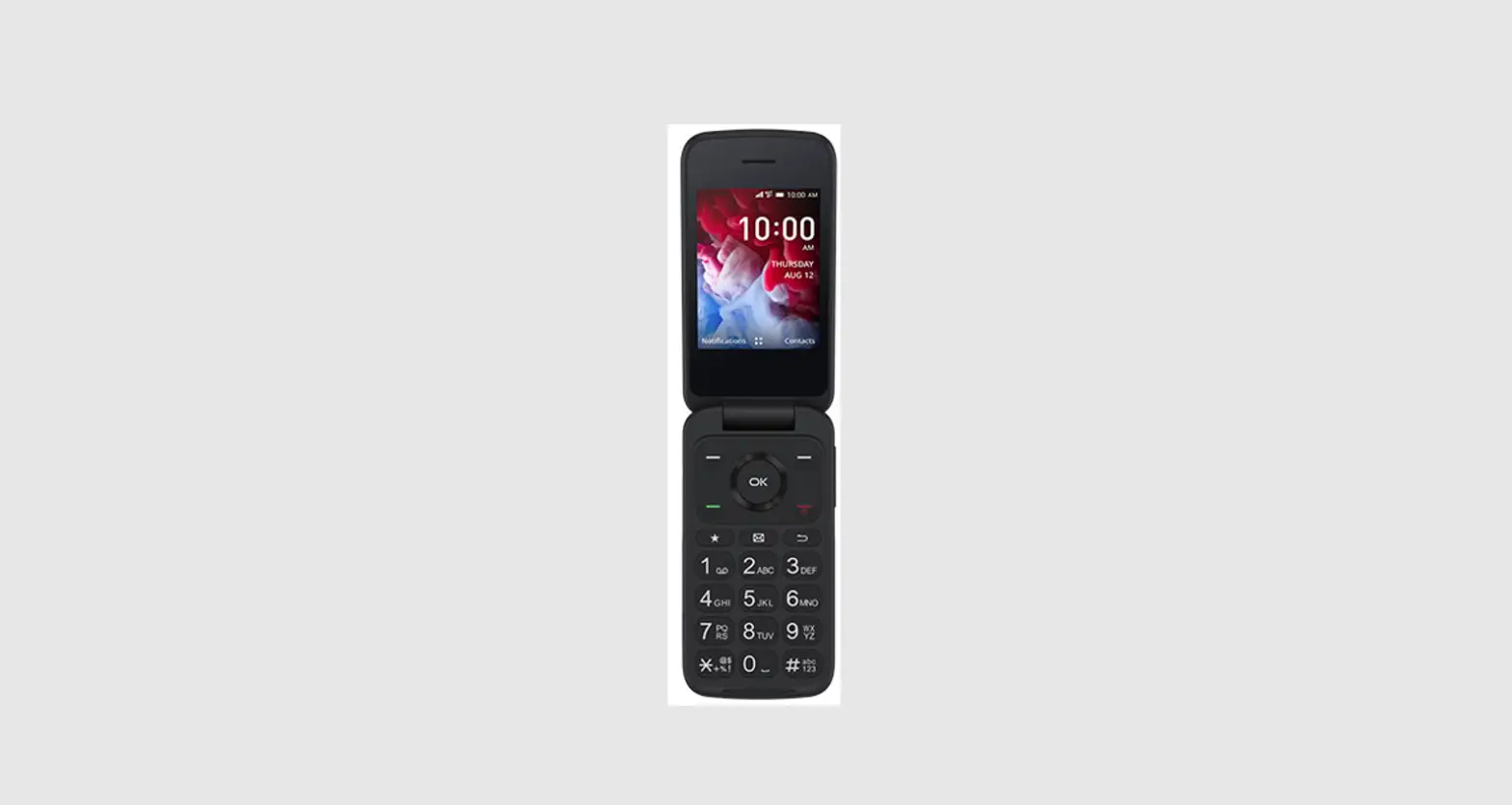
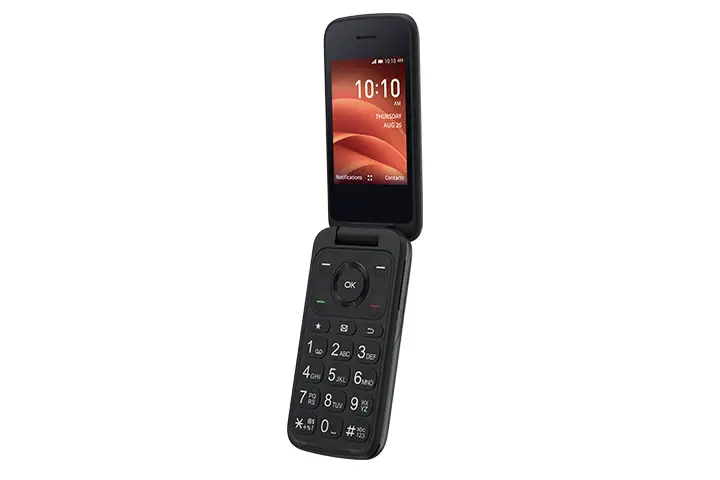
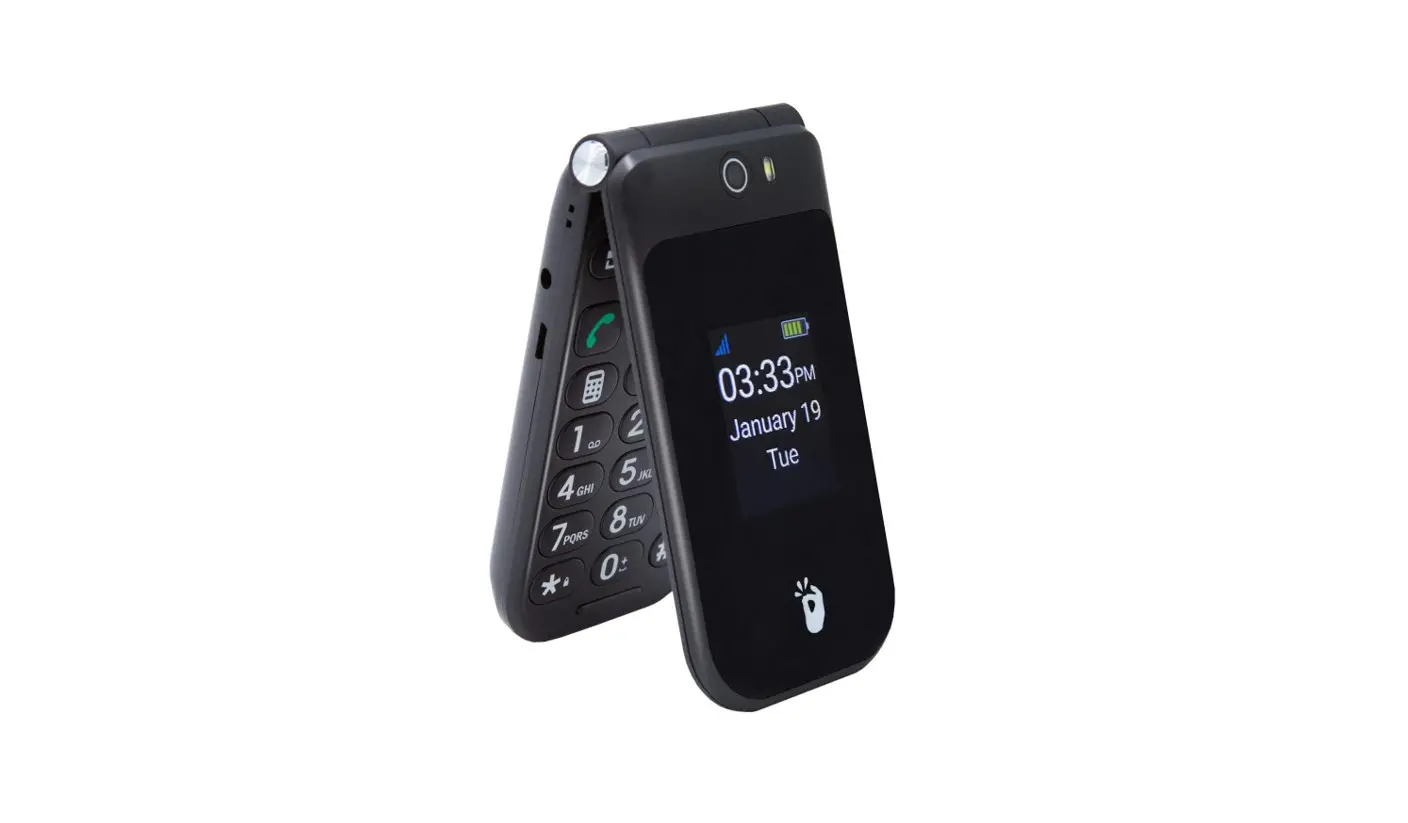
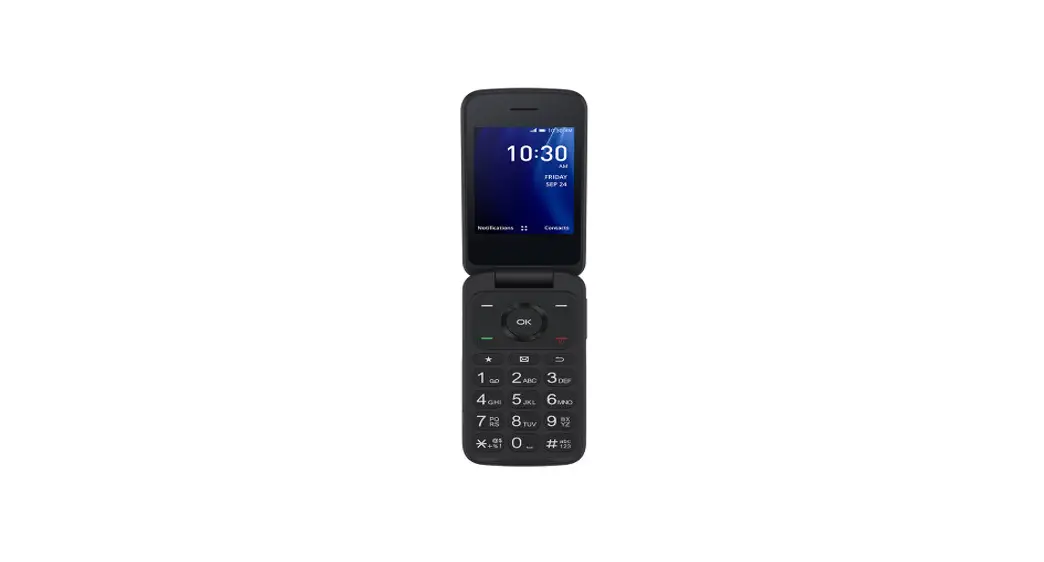
 Alcatel QUICKFLIP™
More information
On the web
Detailed support information including device
specifications and troubleshooting are available at www.cricketwireless.com/support/devices.
On the phone
- Call Customer Care at 1-855-246-2461 or
- Dial 611 from your cell phone

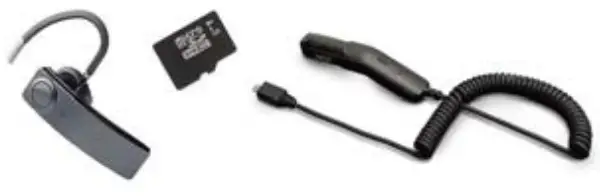
Accessories
For more information about accessories, please visit your local Cricket store or go to www.cricketwireless.com/shop/accessories.
Note: Store and online inventories may vary.
Product meets FCC Radio Frequency Exposure Guidelines–FCC ID 2ACCJN012. This device complies with Part 15 of the FCC Rules. Operation is subject to the following two conditions: (1) this device may not cause harmful interference, and (2) this device must accept any interference received, including interference that may cause undesired operation.
© 2017 Cricket Wireless LLC. All rights reserved. Cricket and the Cricket logo are registered trademarks under license to Cricket Wireless LLC. Other marks are the property of their respective owners. microSDHC logo is a trademark of SD-3C, LLC.
Alcatel is a trademark of Alcatel-Lucent and is used under license by TCL Communication Ltd. © Copyright 2017
TCL Communication Ltd. All rights reserved. TCL Communication Ltd. reserves the right to alter material or technical specifications without prior notice.
All “Signature” ringtones embedded in this phone have been composed, arranged, and mixed by NU TROPIC (Amar Kabouche).
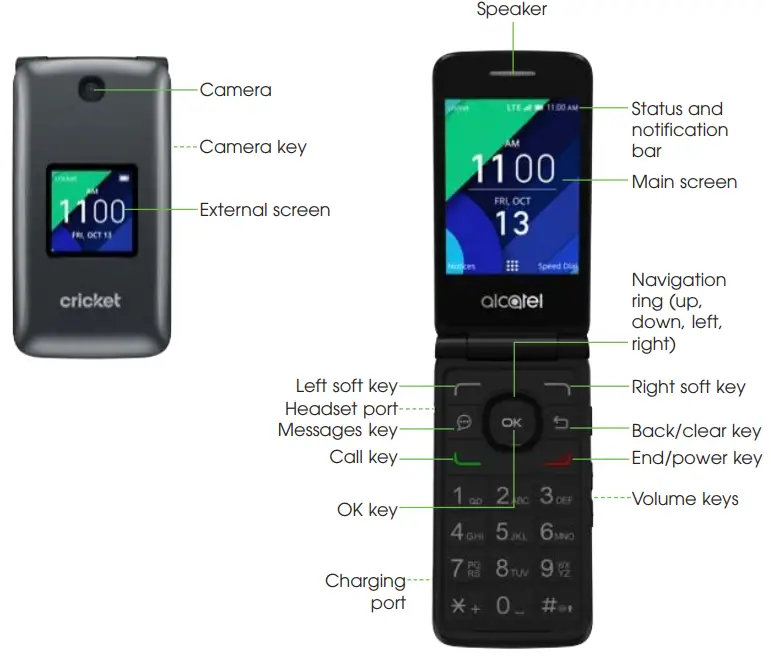
Getting to Know your Alcatel QUICKFLIP™
Camera and video
Take a picture
- Press the Camera key or press

- Use the Navigation ring
 to scroll to the right until the Camera
  is highlighted. Press to select Camera
 - Press the Right Softkey
 to display camera options and settings
 - Zoom in and out by tapping the Navigation ring up (+) to zoom in, tap Navigation ring down (-) to zoom out
- Press to take a picture. After taking the picture, press the Left Softkey to preview

 to scroll to the right until the Camera
  is highlighted. Press
  to display camera options and settings
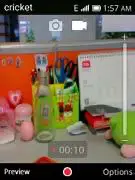
Take a video
- Press the Camera key or press from the Home screen and select Camera
- Use the Navigation ring to scroll to the right until the Camera is highlighted. Press to select Camera
- Use the Navigation ring to scroll to the right to switch to Video mode
- Press to start and stop recording video

View pictures
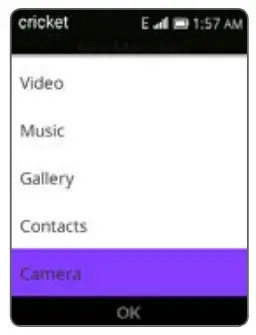
- From the Home screen, press to open the Main Menu
- Use the Navigation ring to scroll down and to the right until Gallery
 is highlighted. Press to select Gallery
 - Press to view the selected picture
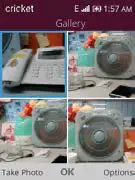
Send a picture
- In Gallery, use the Navigation ring to scroll up or down to select a picture to send
- Once your desired picture has been selected press the Right Softkey to open an options menu
- Use the Navigation ring to scroll down to Share and press
- Using the Navigation ring, choose to send pictures via E-mail,Messages or Bluetooth then press to make your selection
Phone setup
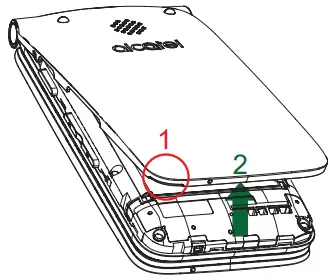
- Remove the back cover by gently pulling up on the indentation on the bottom left of the cover

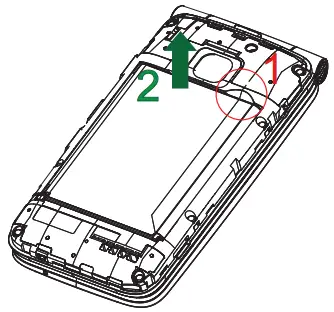
- Remove the battery by gently pulling up on the indentation on the upper right of the battery

- Insert the SIM card by carefully sliding it into the “SIM” slot on the right with the gold contacts facing down and the slanted corner to the right
- Insert the microSD card (not included) into the “microSD” slot on the right, ensuring that the gold contacts are facing down and the flat edge is facing the top. Reattach back cover of phone Micro SD SIM
 Please see the illustration to verify the correct card insertion orientation. To remove the SIM or MicroSD card, push down on the plastic spring and pull the SIM or microSD card out.
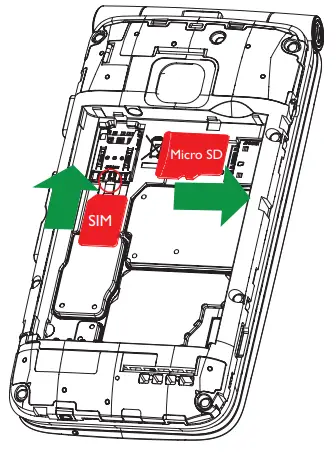 Please see the illustration to verify the correct card insertion orientation. To remove the SIM or MicroSD card, push down on the plastic spring and pull the SIM or microSD card out.
WARNING: To avoid damage to the phone, only use a standard nano-SIM card provided by your service provider.
Email setup (Hotmail™, Gmail™, Yahoo! ®, etc.)
- From the Home screen, press
- Use the Navigation ring to scroll down until the Email
 is highlighted. Press to select Email
 - Press the Right Softkey to navigate to the Next menu to set up your email account
- Enter your email name, address, and password by scrolling up or down using the Navigation ring . Once complete, press Right Softkey Next to set up an account

 is highlighted. Press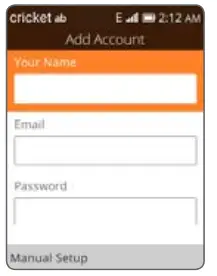
Note: To set up a corporate email, contact your IT administrator.
Create and send an email message
- From the Home screen, press
- Use the Navigation ring to scroll down until the E-mail is highlighted. Press to select E-mail
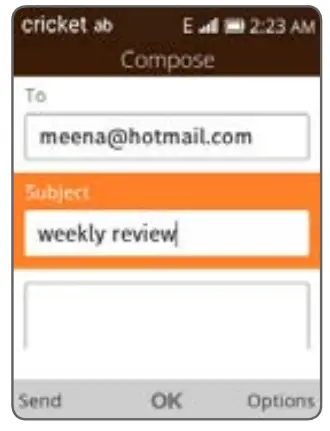
- Press the Left Softkey to compose a new email from the Inbox screen
- Scroll down using the Navigation ring to enter a subject, scroll down once more to enter an email message
- To attach files to the email message, press the Right Softkey and make your selection
- To attach a file to your email message, press the Right Softkey to enter the options menu. Using the Navigation ring scroll up or down to select Add Attachment then press to select the file type, once your file type is highlighted, press to select
- Using the Navigation ring scroll up or down to select the file you would like to attach to the email message, once highlighted press . Press Right Softkey once more to attach a file to email message
Personalize
Set wallpaper
- From the Home screen, press
- Use the Navigation ring to scroll down and to the right until Settings
 are highlighted. Press to select Settings
 - Scroll right to the Personalization menu, and then scroll down to Display and press to select
- Press once more and then scroll to select Wallpaper picture location. Press to select
- Use the Navigation ring to scroll through photos. When you have one you like, press the Right Softkey to save it to your Home screen
 are highlighted. Press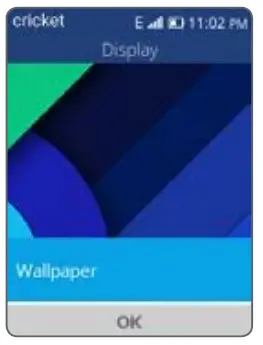
Lock and unlock your screen
To create a passcode
- From the Home screen, press
- Use the Navigation ring to scroll down and to the right until Settings is highlighted. Press to select Settings
- Use the Navigation ring to the right until Privacy & Security is highlighted
- Use the Navigation ring to scroll down until Screen Lock is highlighted. Press to select Screen Lock
- Within the Lock Screen menu, use the Navigation ring to scroll down until Screen Lock is highlighted. Press to select Screen Lock once again.
- Press to select On
 to turn on enable passcode
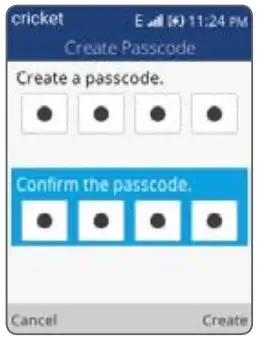
 - Create a passcode using the dial pad, enter the passcode once again to confirm the passcode
- Press the Right Softkey to create
 to turn on enable passcode
To lock the phone screen
Closing the phone will lock the screen.
To unlock the phone screen
Open the phone and enter your password using the dial pad to unlock the screen.
Mobile Web
Browsing the web is easier with QUICK FLIP. Read, scroll, view pictures and videos, more like on a computer or smartphone.
- From the Home screen, press
- Use the Navigation ring to scroll down and right to Browser and press to select Browser
- Press the Left Soft Key
 to select Search
 - Use the keypad to enter Search criteria or an URL address
- Press to search or the Left Soft Key to Cancel search
- Once on a webpage, use the Navigation ring to scroll the page and use to select links
- Press the End/Power key
 at the lower right of a keypad or tap the Back/Clear key
  to return to the main menu
 at the lower right of a keypad or tap the Back/Clear key
  to return to the main menu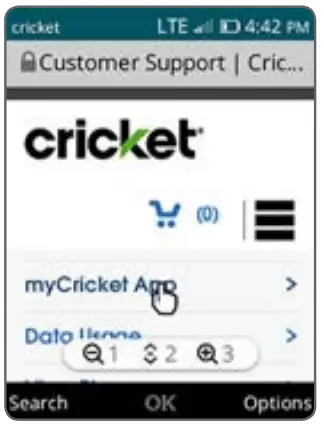
Calls and Voicemail
HD voice
HD Voice means clearer conversations with reduced background noise when both participants are using HD Voice compatible phones and the call is made over Cricket’s
LTE network or a compatible network*.
Make a call
- From the Home screen, press
- Enter the desired number then press the Call key
 to place the call
 - You can also press the Call key to access your call log. Use the Navigation ring to scroll down and select the desired number
- Once the desired number is highlighted, press to place the call
- If you make a mistake, press the Back/Clear key to delete the incorrect digits
- To end the call, press the End/Power key

 to place the call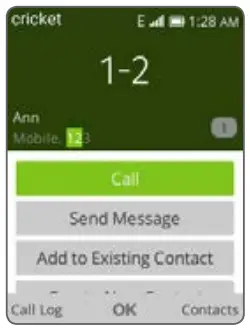
Check voicemail
- Simply press and hold the 1 key


Call waiting
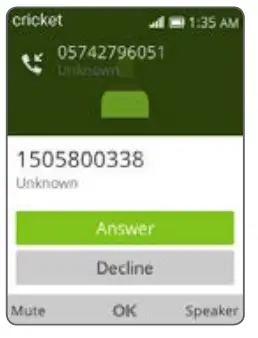
Call waiting allows you to answer a second call while you are on an existing call. While on a call, your phone will vibrate if another call comes in.
- Use the Navigation ring to scroll up to answer or scroll down to decline. Press to select
- Press the Left Softkey to mute
- Press the Right Softkey to enable the speaker

* To experience Cricket HD Voice, both callers must have a compatible HD Voice capable smartphone and make the call over Cricket’s LTE Network or a compatible network. Cricket’s LTE coverage is not equivalent to its overall network coverage. HD Voice calls made on a compatible device and on the LTE network may not experience an HD Voice connection at times of network congestion. Other carriers’ networks may interoperate with Cricket’s LTE network to support an HD Voice call.
Connectivity
Connect a Bluetooth headset or speaker for hands-free communication or access Wi-Fi to surf the Web and save on data use.
Connect your Bluetooth device
- From the Home screen, press
- Use the Navigation ring to scroll down and right to Settings and press to select
- Use the Navigation ring to scroll down to Bluetooth under the Network & Connectivity sub-menu and press to select
- Press to turn Bluetooth ON (or OFF) to view nearby devices
- Use the Navigation ring to scroll down to view Nearby Devices and press to start searching for devices to pair with
- Once your desired Bluetooth device shows in the list, press to select the device. If asked, confirm passkey to complete pairing
- Once your device is paired, it will show up in Paired Devices list in the Bluetooth menu
Connect to a WiFi network
- From the Home screen, press
- Use the Navigation ring to scroll down and right to Settings and press to select
- Use the Navigation ring to scroll down to Wi-Fi under the Network & Connectivity sub-menu and press to select
- Press to turn ON (or OFF) Wi-Fi
- Use the Navigation ring to scroll down to Available Networks and press to see a list of available Wi-Fi connections
- Tap the Navigation ring to highlight the desired Wi-Fi connection and press to select
- Use the Navigation ring to scroll down to Password and use the keypad to enter the Wi-Fi password
- Press the Right Soft Key to Connect. If successful, you will see the word Connected listed under the network name
Text and picture messaging
Send a text message
- From the Home screen, press
- Use the Navigation ring to scroll down and until Messages
 is highlighted. Press to select Messages or press the Messages key
  from the home screen to enter Messages
 - Press the Left Softkey to select New Message.
- Enter the phone number of the recipient in the To bar or press the Right Softkey to add a contact
- Scroll down to the Message bar using the Navigation ring to compose the message
- Press the Left Softkey to send a text message
 is highlighted. Press
  from the home screen to enter Messages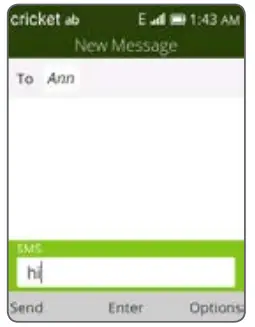
Send a picture message
- Follow steps 1-4 above
- Press the Right Softkey to access the options menu, then press to add an attachment
- Select Gallery to choose your desired picture or Camera to take a picture to attach.
- Using the Navigation ring, scroll up or down to the image you would like to attach. Once the image is highlighted, press o select then confirm by pressing Right Softkey
- Once your image has been attached, press the Left Softkey to send the message
WARNING: Please don’t text and drive.
Useful Tools
Use these tools to keep you organized and entertained.
Notices: From the home screen, press the Left Softkey  to see missed calls, text messages, calendar reminders, and other notifications.
 | Alarm: Set alarms, use the timer or stopwatch to keep you on track. |
 | Gallery: View photos and organize your photos. |
 | Calendar: Keep your schedule in your pocket. Track your events with notes and get schedule reminders. |
 | Music: Listen to music loaded on or downloaded to your phone. |
 | My Cricket: Sign in to view your account, features. |
 | Calculator: Figure out tips, add up your bills, and do other calculations. |
 | FM Radio: Listen to your favorite radio stations on the go (Wired headset required). |
 Cell Phone Accessories: Cases, Chargers & More | Cricket Wireless