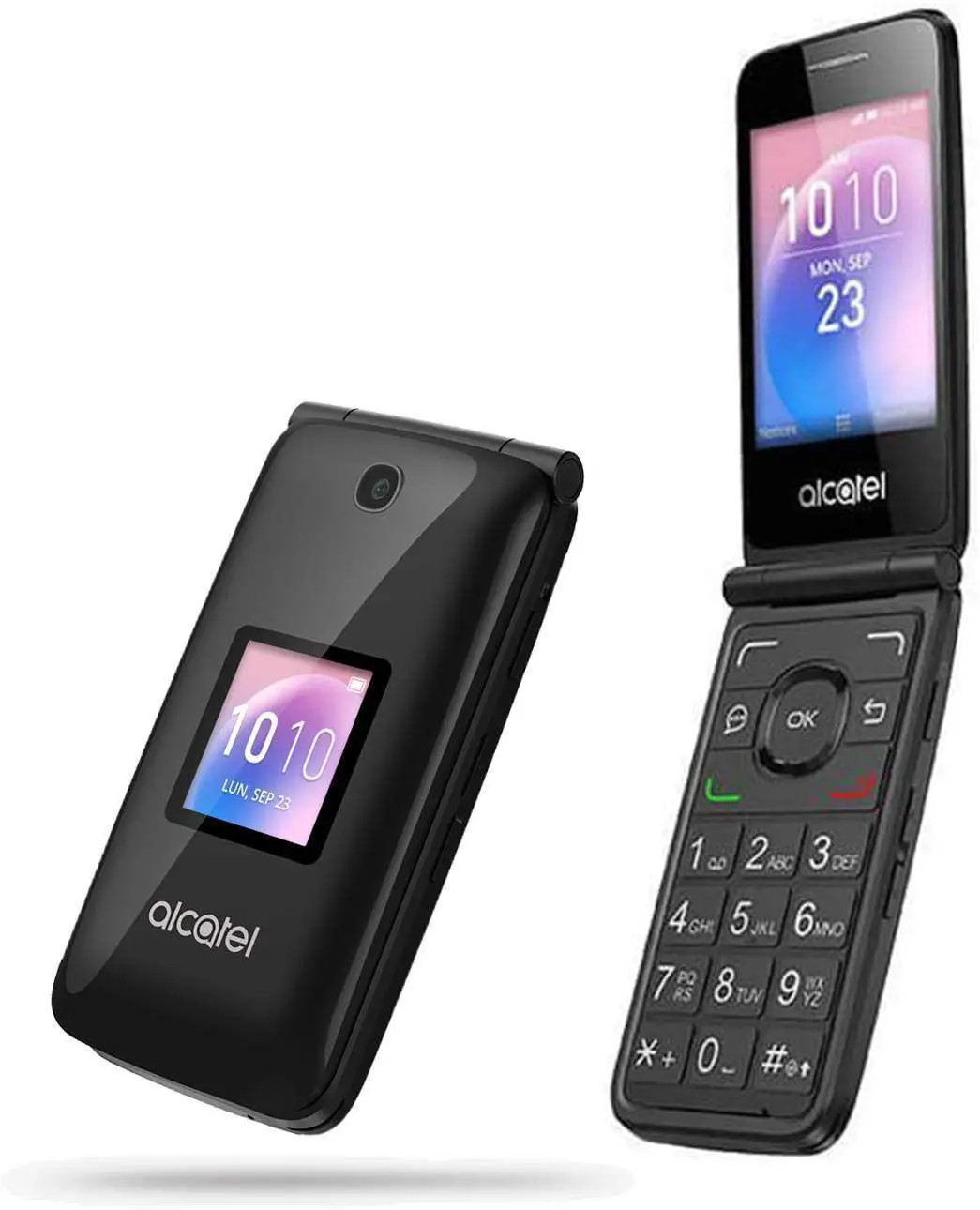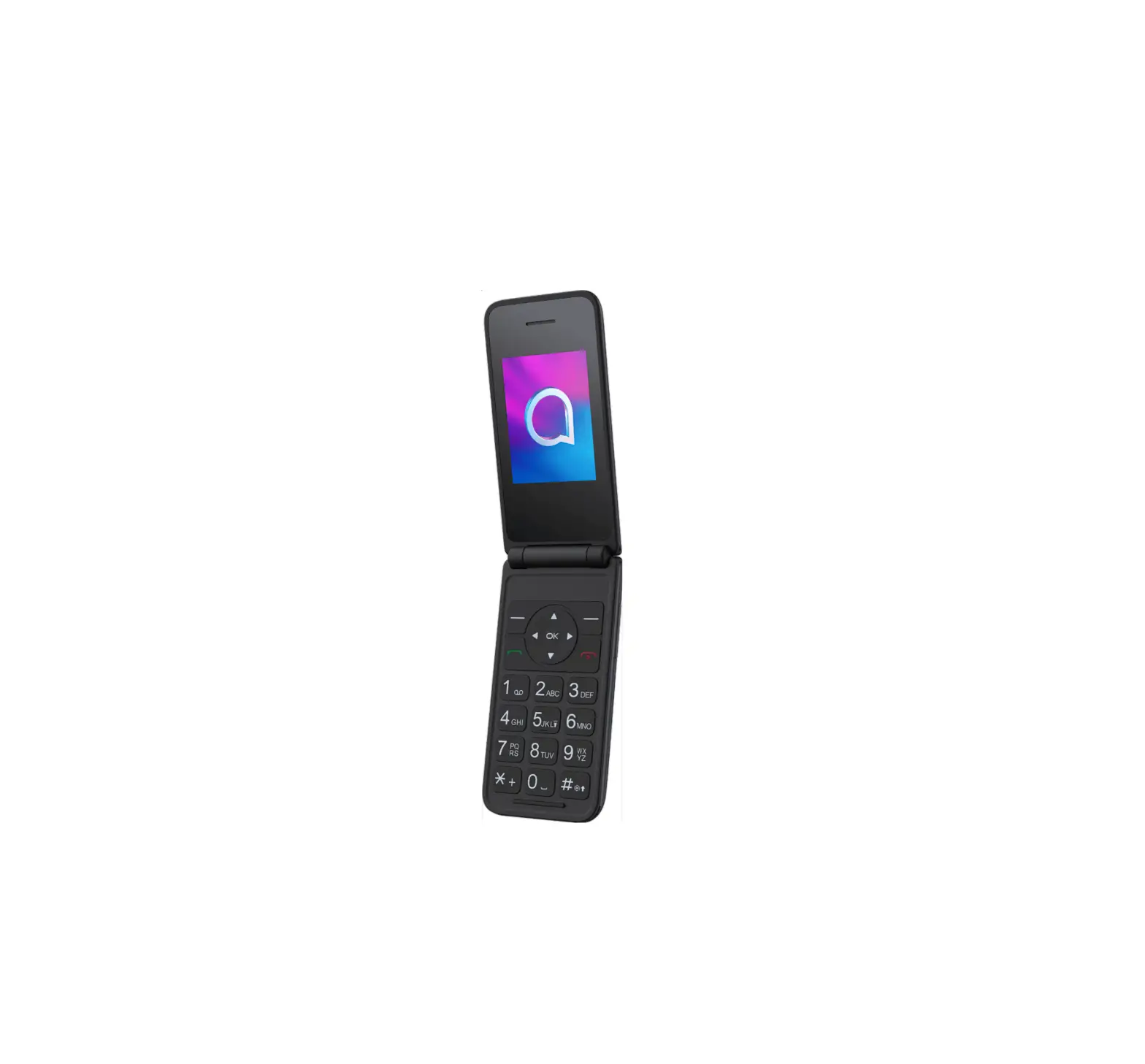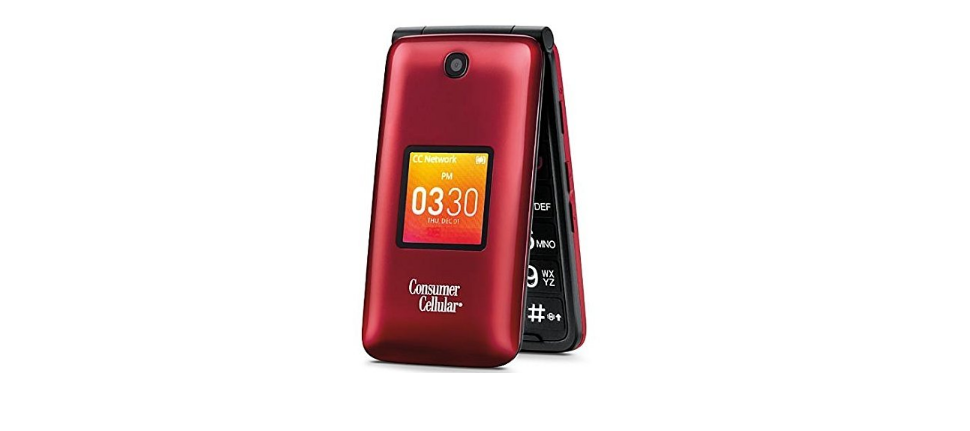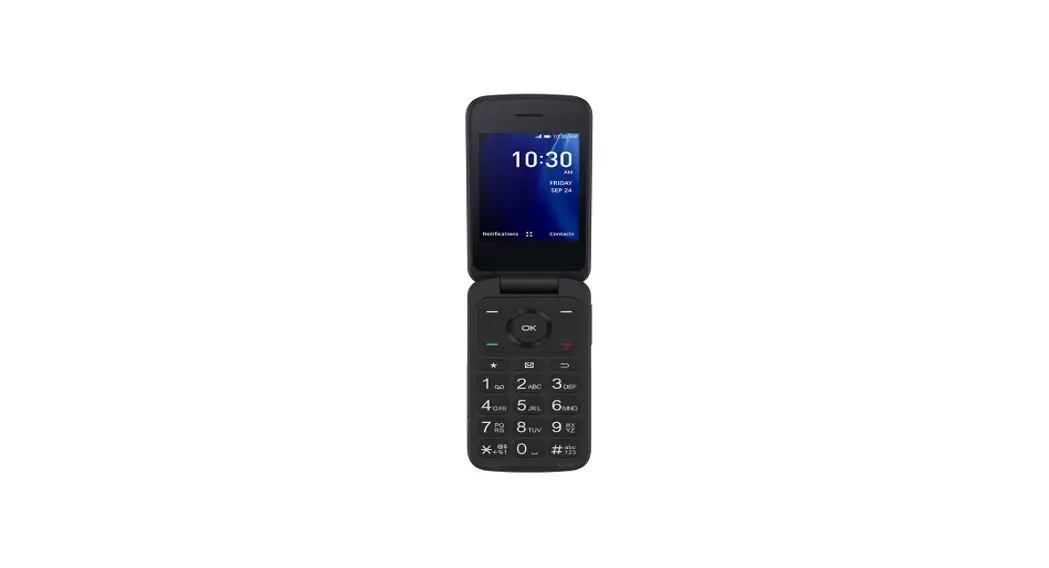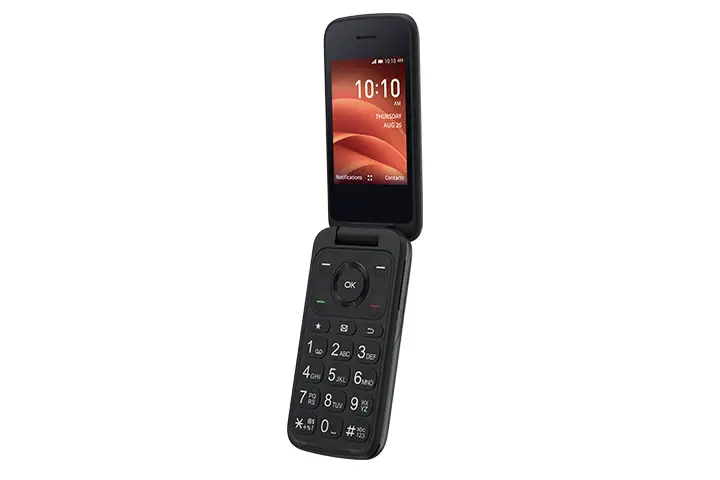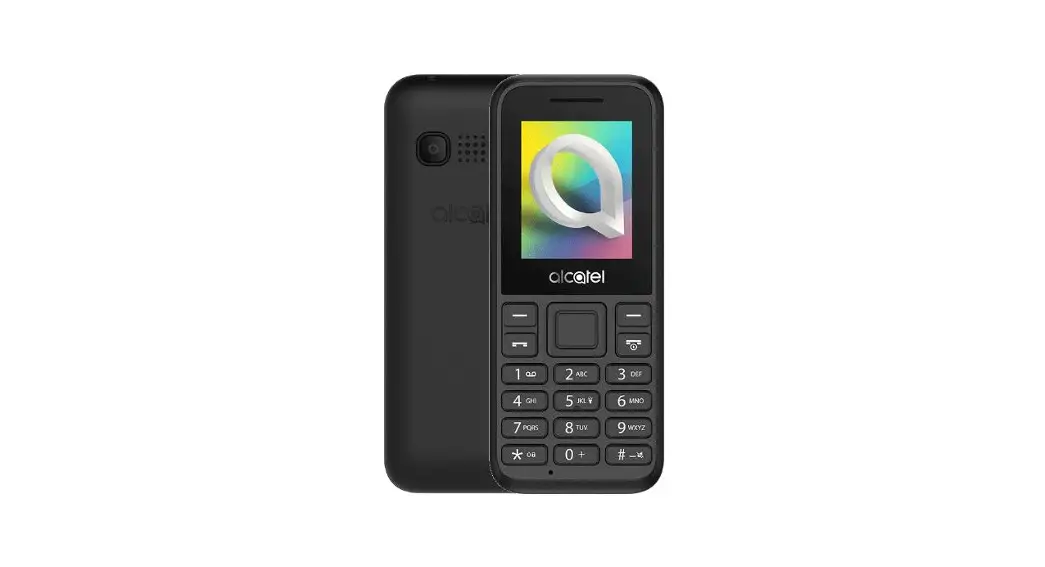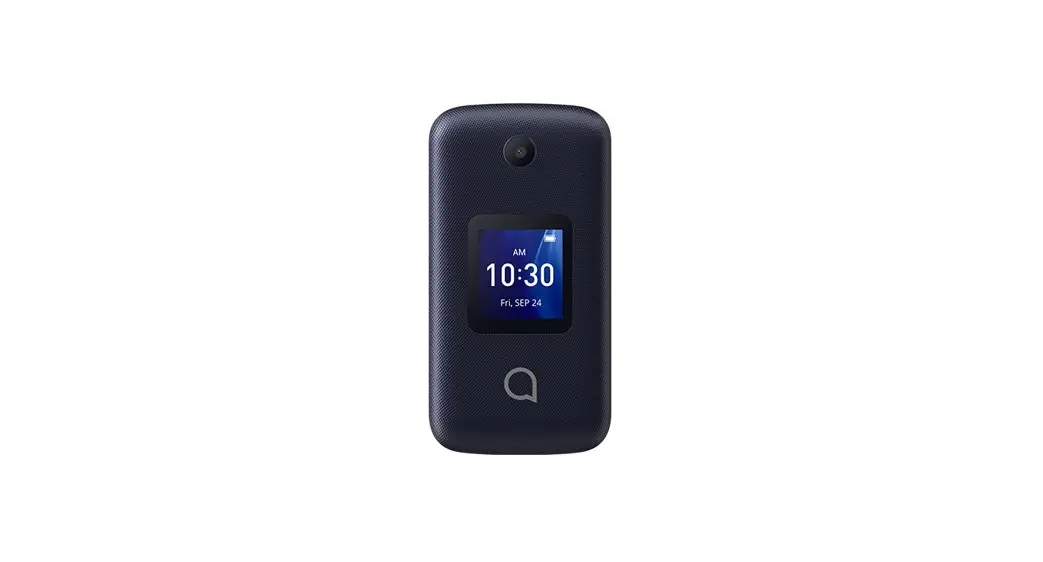
alcatel 4044v Go Flip Phone
QUICK START GUIDE
- Removing or installing the back cover.

- Removing or installing battery.

- Charging the battery.
- To insert a SIM or MicroSD card, push the SIM or MicroSD card into the card slot with the gold-colored contacts facing down.

- To remove the SIM or MicroSD card, push down the plastic spring and pull the SIM or MicroSD card out.
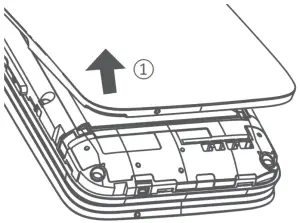
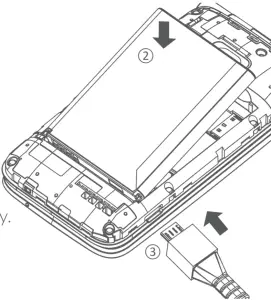
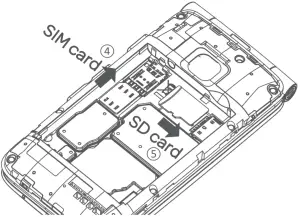
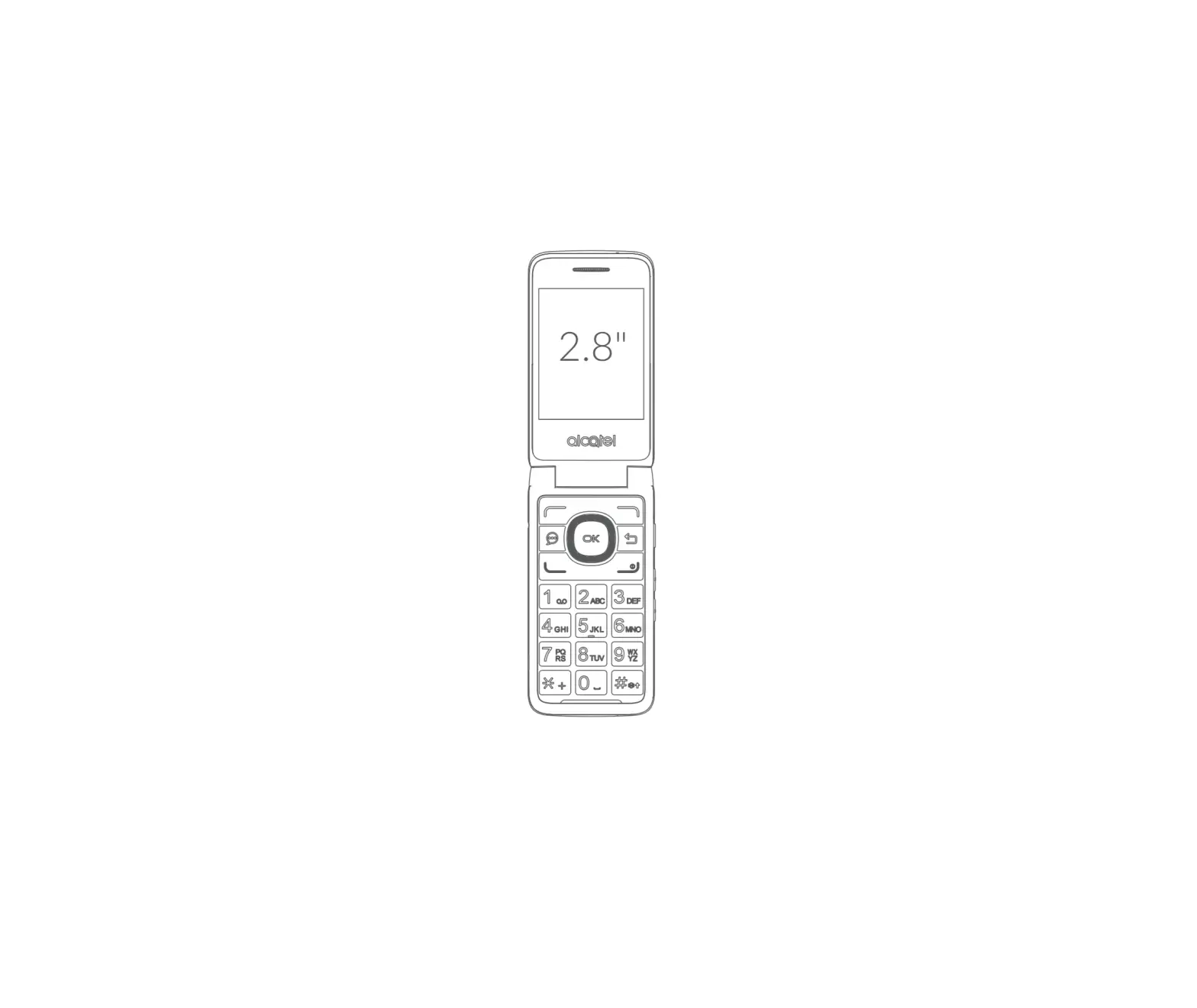
Your Mobile
Keys
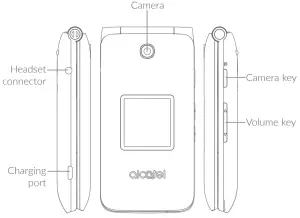
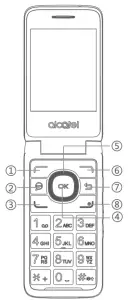
| 1 | Left soft key | |
| 2 | Messages key | Enter the messages screen from any screen. |
| 3 | Call key |
|
| 4 | Center soft key |
|
| 5 | Navigation key ( up, down, left, right) | Goes to up, down, left or right menu. |
| 6 | Right soft key | |
| 7 | Back/clear key | Lets you return to the previous screen, |
| 8 | End/power key |
|
Home screen
Press the End/power key to get instant access to the Home screen.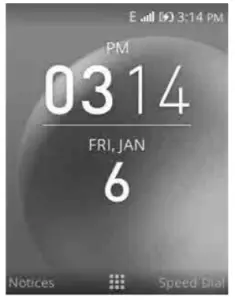
App list
Press the Center soft key from the Home screen to access the App list.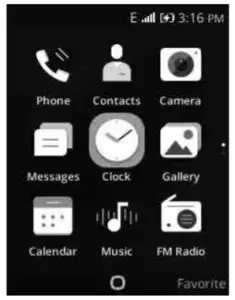
Status bar
The Status bar appears at the top of your Home screen. Icons indicating your phone’s status and new notification alerts appear in the Status bar.
Status and Notification icons
 | New text or multimedia message |  | Missed call |
 | New Email message |  | Upcoming event |
 | 4G LTE connected |  | Alarm is set |
 | EDGE connected |  | Bluetooth is on |
 | 4G connected |  | Transferring files via Bluetooth |
 | 2G connected |  | Headset connected |
 | Silent mode |  | GPS is on |
 | Connected to a Wi-Fi network |  | Vibrate mode |
 | Signal strength |  | Battery is very low (red bar) |
 | No signal |  | Battery is low |
 | Airplane mode |  | Battery is full |
 | Roaming |  | Battery is charging |
 | Song is playing |  | New voicemail |
 | No SIM card installed |
Making a Call
Placing a call
Dial the desired number then press the key to place the call. If you make a mistake, press the
 key to delete the incorrect digits.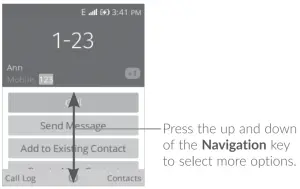
You can also make a call from your call log: First, press the key from Home screen to access the call log and choose the contact you want to dial, press key to make the call.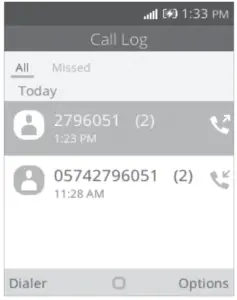
If you want to make a call from Contacts, please select Contacts from app list. Choose the contact you want to dial, press the key or key to make the call.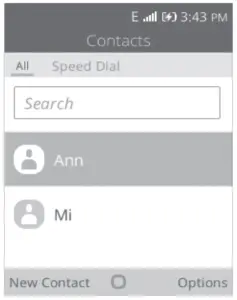
To hang up the call, press the key.
key.
Making an emergency call
If your phone has network coverage, dial emergency number and press the key to make an emergency call. This works even without a SIM card and without typing the PIN code.
International call
To dial an international call, press and hold to enter “+”, then enter the international country prefix followed by the full phone number and finally press the key.
Calling your voicemail
To access your voicemail, press and hold  key. To edit your voicemail, from Home screen press the
  key to select Speed Dial, select Voicemail Edit Voice Mail Options Change Voice Mail Number, then you can edit the voicemail number. Finally, press the key to save.
2.3 Answering or rejecting a call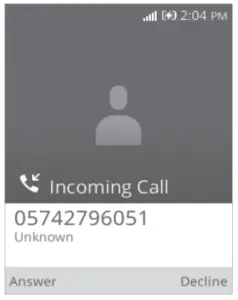
When you receive a call:
- Press the
 key or
  key to answer;
 - Press the
 key or
  key to reject;
(1) Contact your network operator to check service availability
To mute the ringtone volume of an incoming call, press the Volume up/down key.
Consulting your call history
You can access your call memory by pressing the key to view call history in categories of incoming calls, outgoing calls, and missed calls.
Contacts
You can access this function by selecting Contacts from the app list. Searching for a contact You can search for a contact by typing the initial of their name. Subsequent letters may be added to refine the search. Viewing a contact Select a name from your contacts to read the contact information.
Add a contact
You can add a new contact to your phone:
- From the app list select Contacts .
- Press the key in the Contacts list to create a new contact.
- Enter contact’s name and other contact information.
- When finished, press the key and select Save.
Delete a contact
Select the contact you want to delete and press the key to select Delete contact option and press the key and then the key to delete.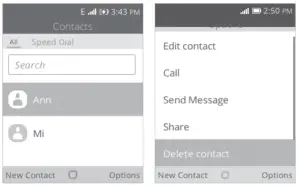
Available options
From the contact list, you can access the following options:
| Modify the contents of a contact |
| Make a call to the selected contact |
| Send an SMS/MMS to a contact. |
| Share the selected contact via E-Mail, Messages and Bluetooth. |
| Delete the selected contact. |
| Enter more contacts settings. |
Messages
You can create, edit and receive SMS and MMS with this phone. To access this feature, select  from the app list.
Write message
- From the app list select Messages icon Messages. or press
 to enter
 - Press the key to write new text messages.
- Enter the phone number of the recipient in the To bar or press the key to add recipients from Contacts.
- Press the SMS bar to enter the text of the message.
- Press the key to send text messages.

 to enter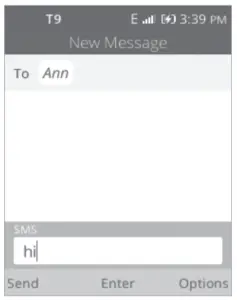
How to type a message
You can enter text using predictive text input.
For normal text input, press a number key, 2-9, repeatedly until the desired character is displayed. If the next letter you want is located on the same key as the present one, please wait until the cursor is displayed.
Press the  key to switch among “T9/abc/ABC/123/Abc” mode.
To insert a punctuation mark or special character, please press the key.
If you want to delete the already typed letters or symbols please press the key to delete them one by one. An SMS of more than 160 characters will be charged as several SMS. Specific letters with accents will also increase the size of the SMS. This may cause multiple SMS to be sent to your recipient.
Sending a multimedia message
MMS enables you to send video clips, images, photos, and sounds to other compatible phones and email addresses.
An SMS will be converted to MMS automatically when media files (image, video, audio, etc.) are attached.
FM Radio

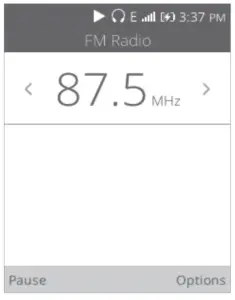
Your phone is equipped with a radio1 with RDS2 functionality. You can use the application as a traditional radio with saved channels. In FM radio interface, press the  key to play/pause the playing process of the current channel, press the Navigation Left/Right key to search the channel. Press the key to open Options menu. You can listen to it while running other applications.
- The quality of the radio depends on the coverage of the radio station in that particular area.
- Depending on your network operator and market.

Media
Camera
Your mobile phone is fitted with a camera for taking photos and shooting videos by selecting Camera. Press the key to take the picture. You can send them directly by Bluetooth, set as wallpaper or select them as incoming call image to a contact in your Contacts
Gallery
Using the Gallery application, you can view pictures that you’ve taken with your phone’s camera.
For pictures that stored on your phone, you can do basic editing such as rotating or cropping. You can also easily assign a picture as your contact picture or wallpaper and share pictures with your friend.
Video
Use this function to play video files. Press the key to play/pause the video player, press the key to open Options menu.
Music
Use the Music app to listen to all your music on your phone. Compatible music file formats include: mp3, wav, aac, etc.
Getting connected
To connect to the Internet with this phone, you can use GPRS/ EDGE/3G/4G/4G LTE networks or Wi-Fi, whichever is most convenient.
Connecting to the Internet
GPRS/EDGE/3G/4G/4G LTE
The first time you turn on your phone with your SIM card inserted, it will automatically configure your network service: GPRS, EDGE, 3G, 4G, 4G LTE.
To check the network connection you are using, press Settings Network & Connectivity Cellular & Data, and press Carrier Network Type.
Wi-Fi
Using Wi-Fi, you can connect to the Internet when your phone is within range of a wireless network. Wi-Fi can be used on your phone even without a SIM card inserted.
To turn Wi-Fi on and connect to a wireless network
- Press Settings Network & Connectivity Wi-Fi.
- Select the On/Off icon
 to turn on/off Wi-Fi.
 - The detailed information of detected Wi-Fi networks is displayed in the Available Networks section.
- Touch a Wi-Fi network to connect. If the network you selected is secured, you will need to enter a password or other credentials (you can contact the network operator for details). When finished, press the key to connect.
 to turn on/off Wi-Fi.