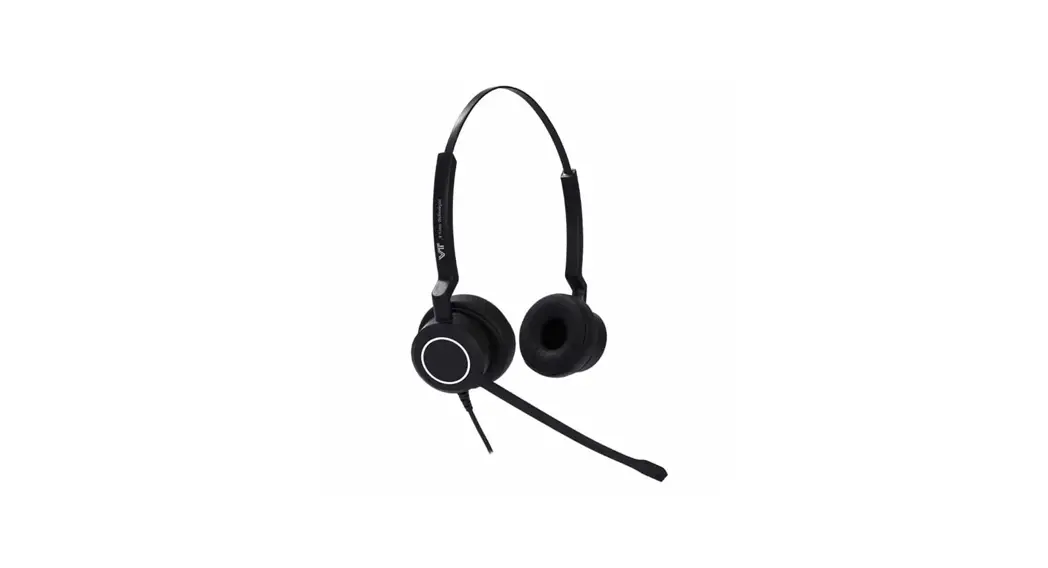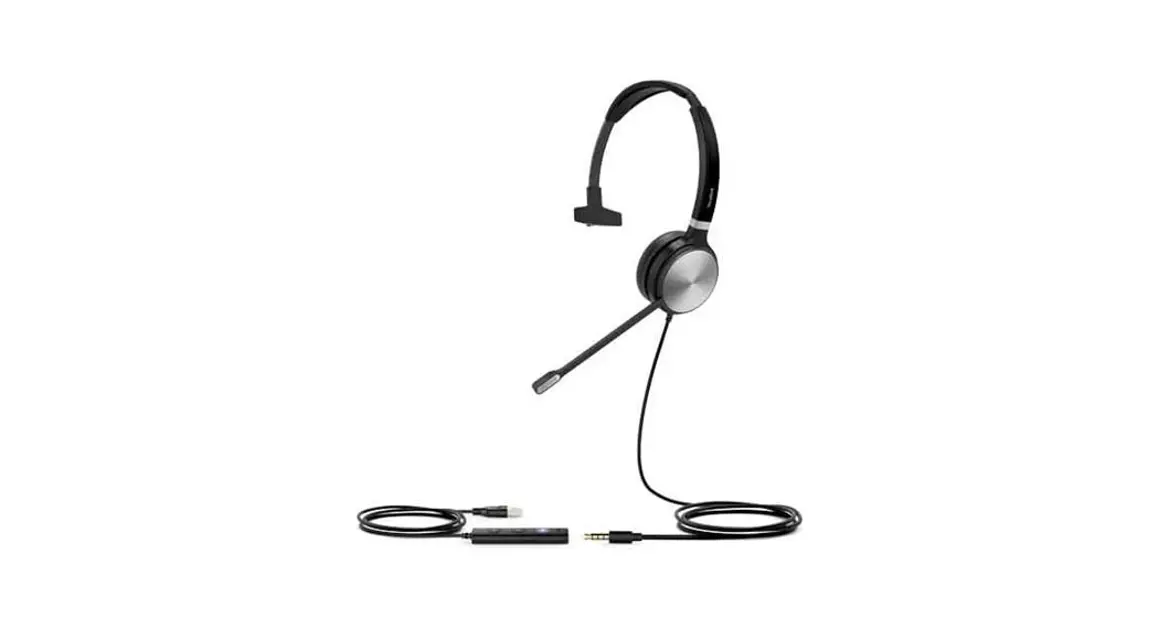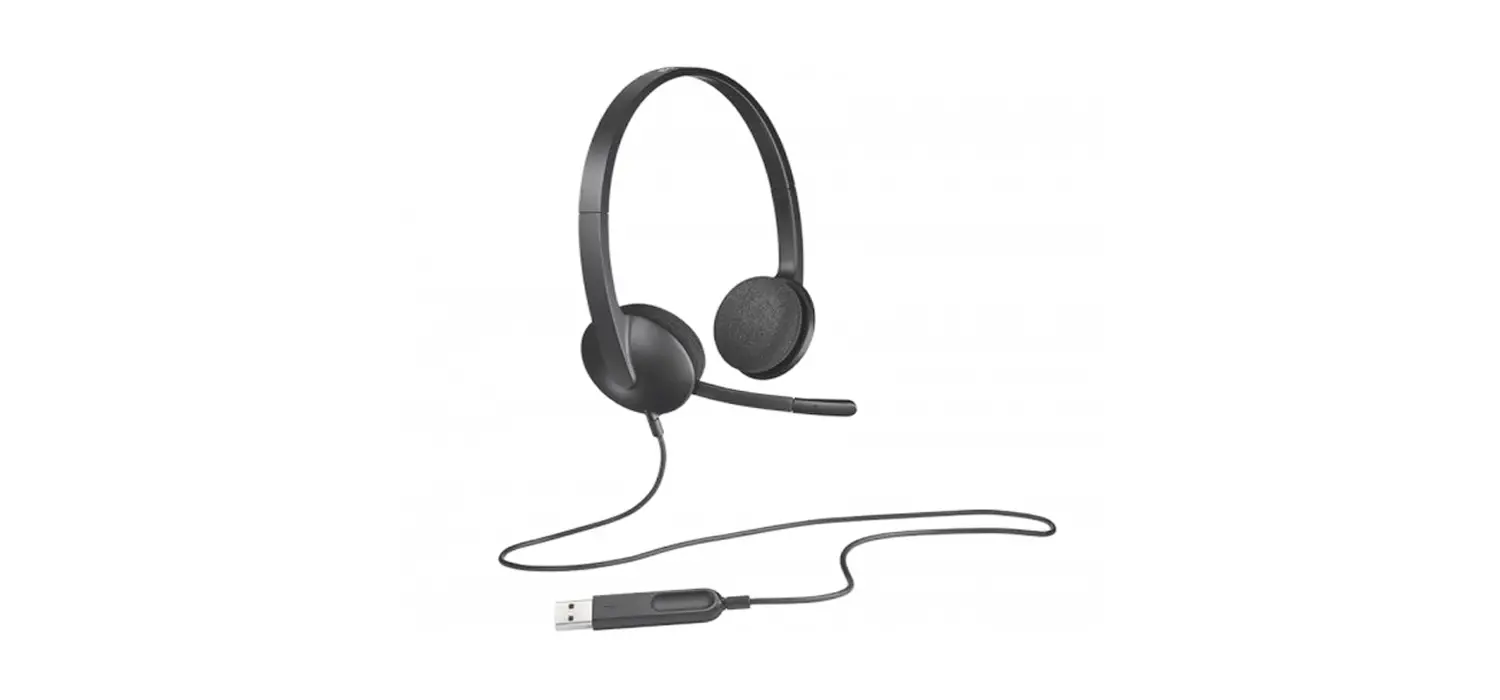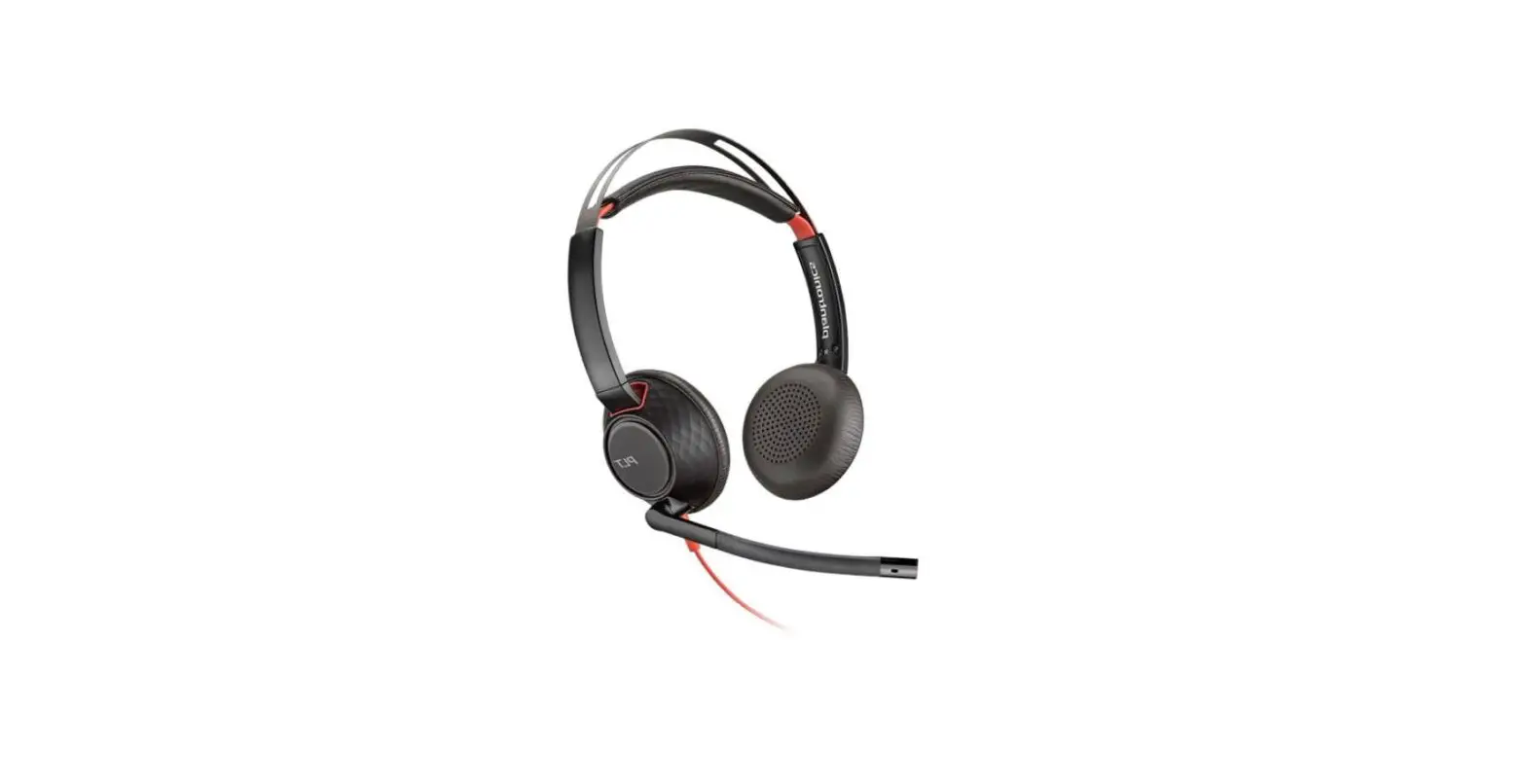

GUV3000
USB Corded Headset
Quick User Guide
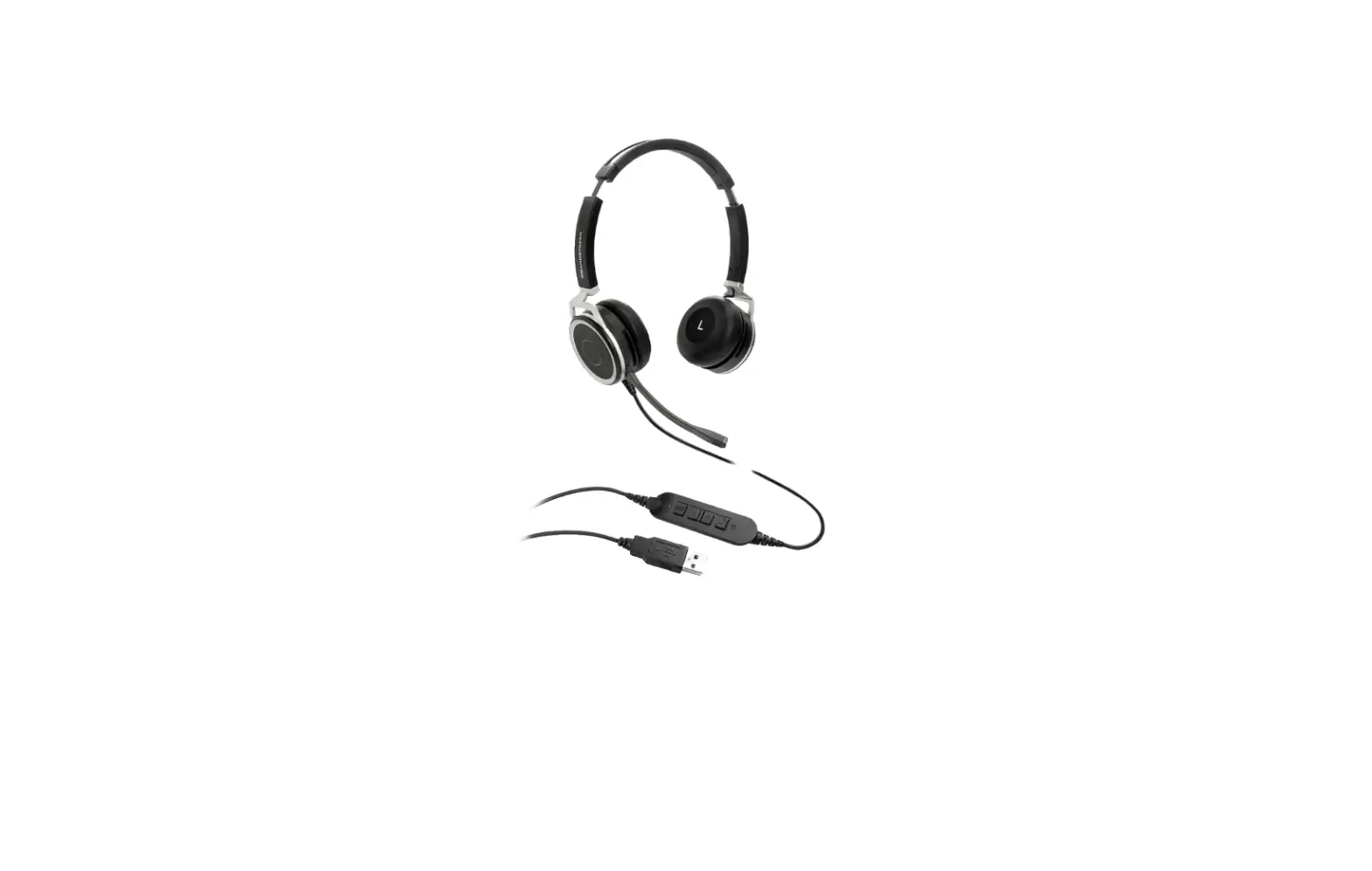
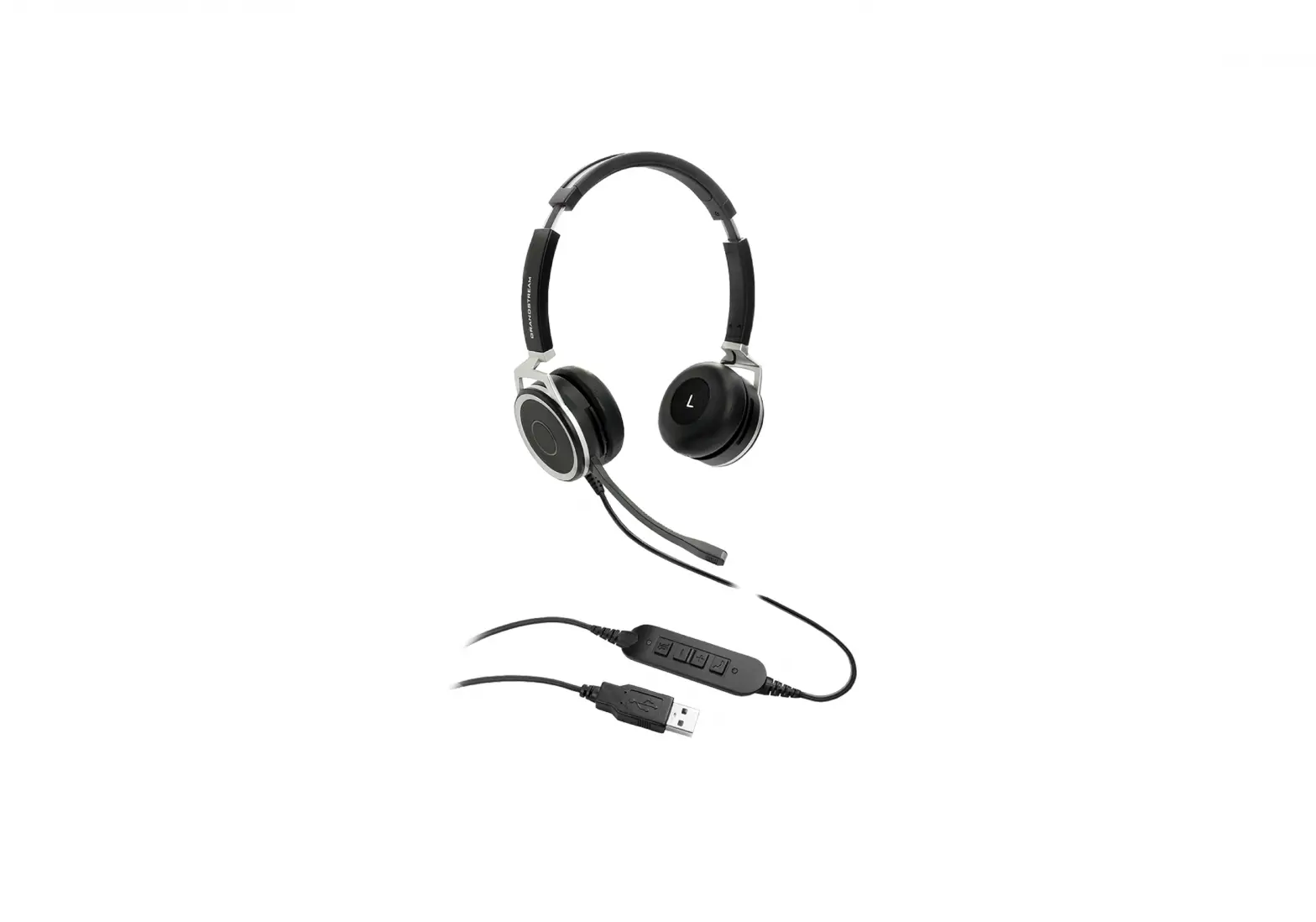
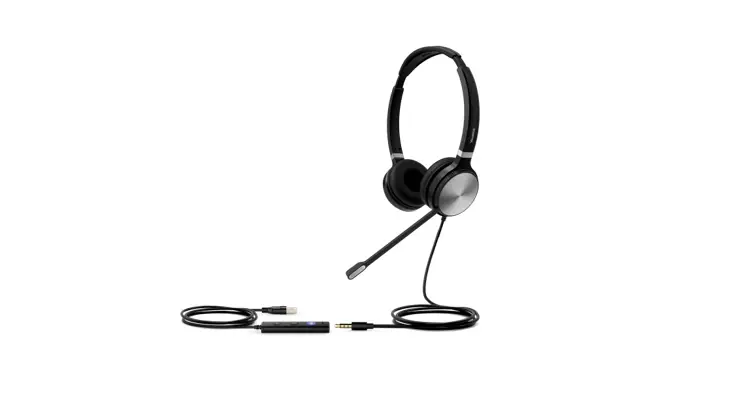
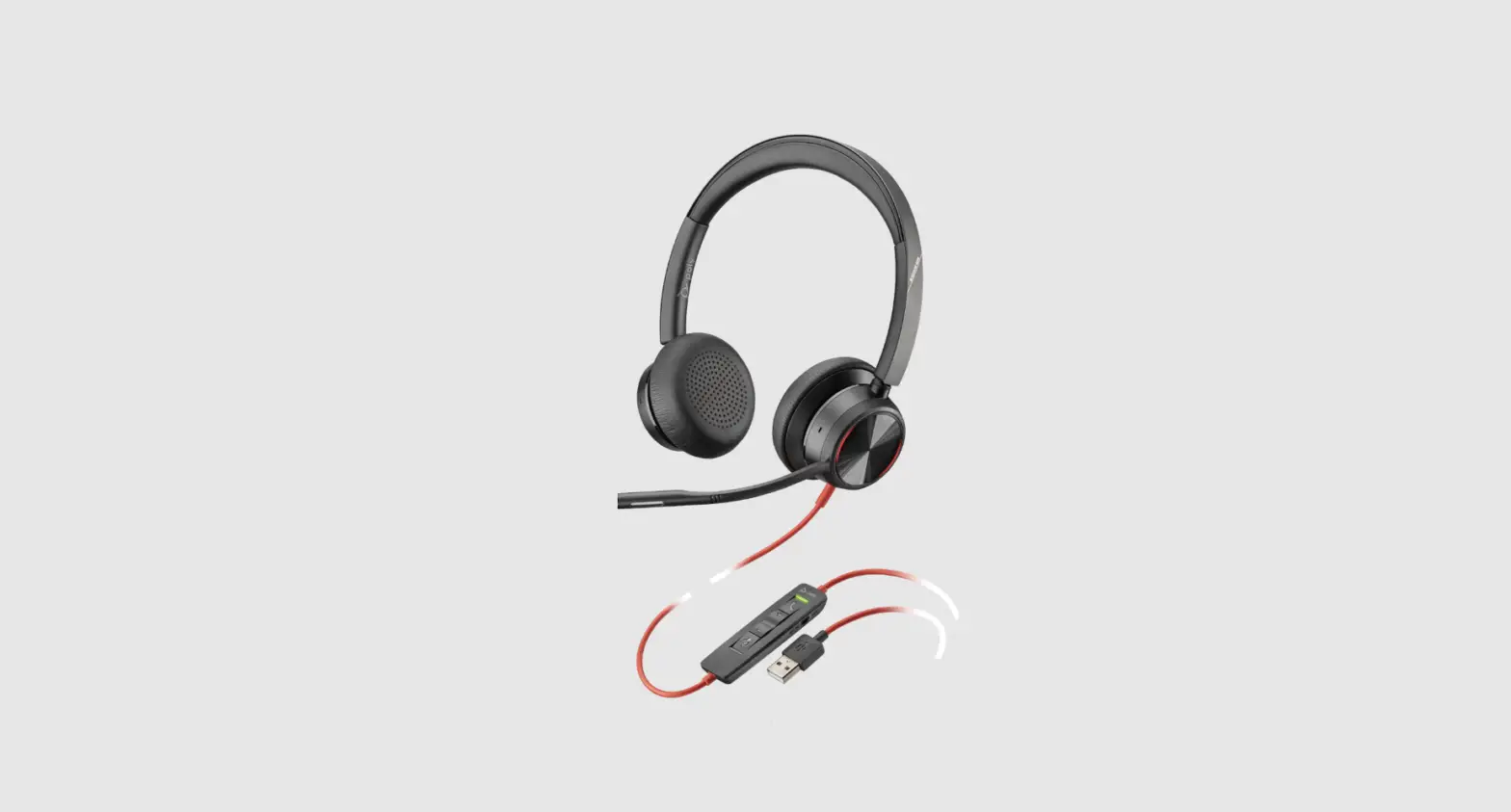
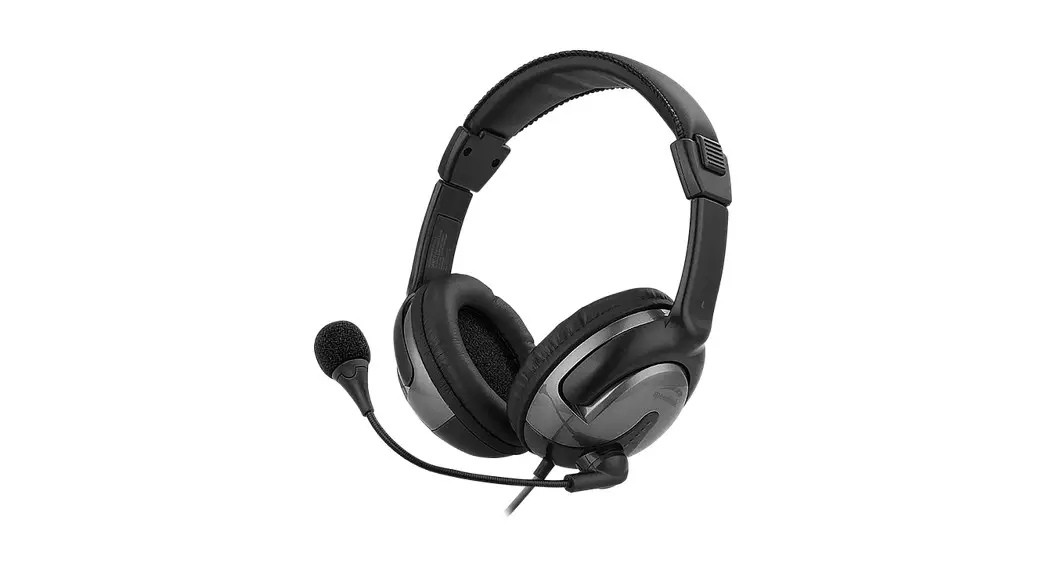
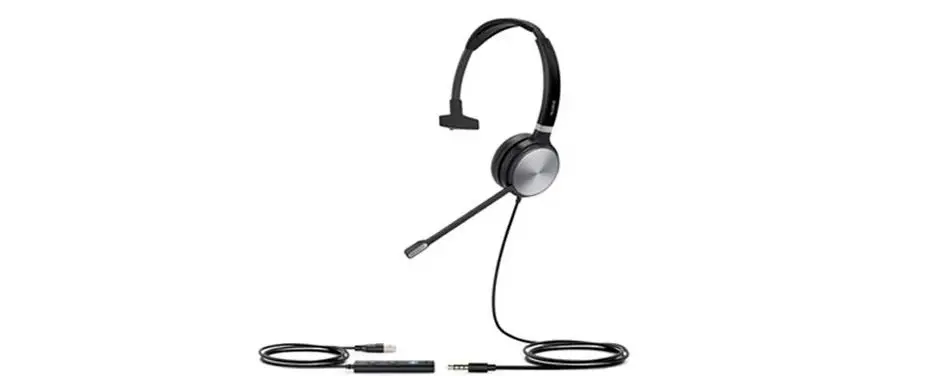
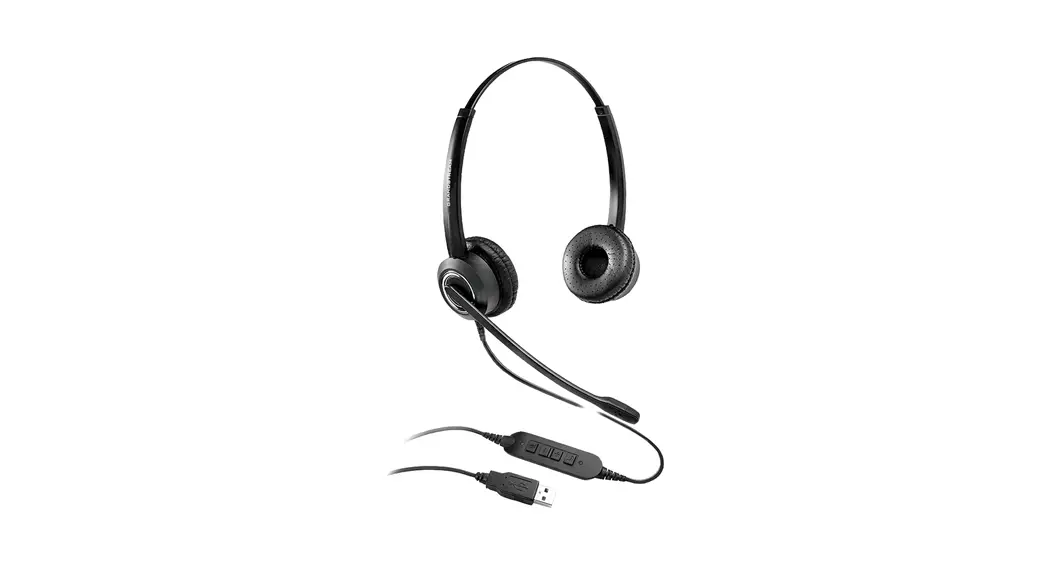
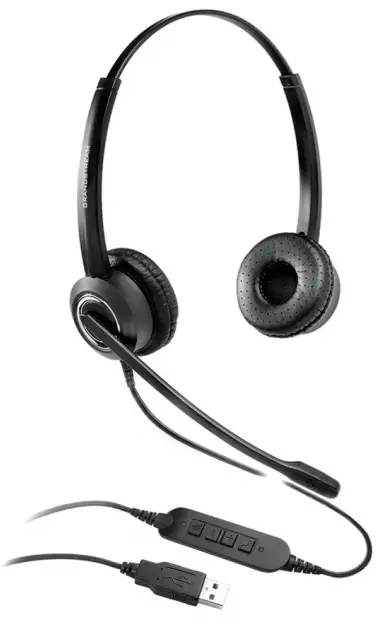
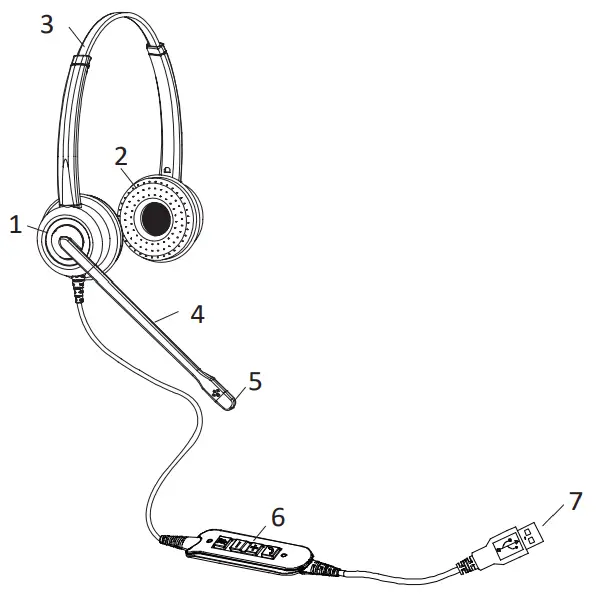
Headset Components
- Receiver
- Ear cushion
- Click-stop headband
- Flexible microphone boom
- Noise-canceling microphone
- Controller
- USB
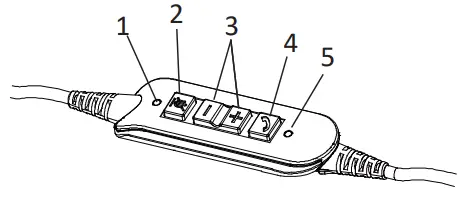
- Mute microphone Indicator
- Mute microphone
- Volume control
- Answer/End button
- Off-Hook Indicator
Using Your Headset
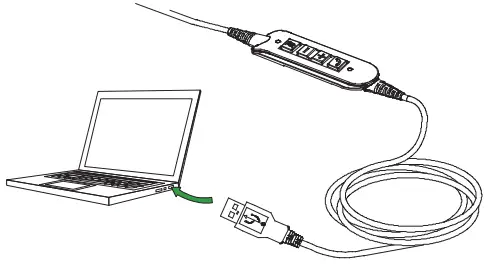
- Connect your GUV3000 Headset to a free USB port on your PC.
- Make sure that the headset has been selected as the standard audio device in the system control audio settings.
- Check whether you need to adjust these settings to use a headset.
Left or Right Wearing style
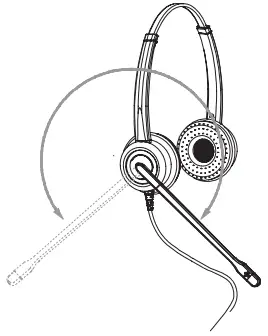
The GUV3000 can be worn on the left or right by flipping the microphone to the other side (310° limit).
To change ears, rotate the microphone boom over the headband to accommodate the left or right ear.
Adjust the Headband
Place the headset receiver to your ears. Adjust the headband until it is comfortable, ideally ensuring that there is virtually no pressure felt on the ears.
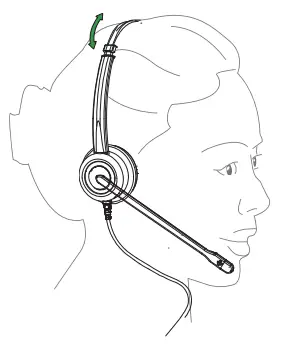
Position the Microphone
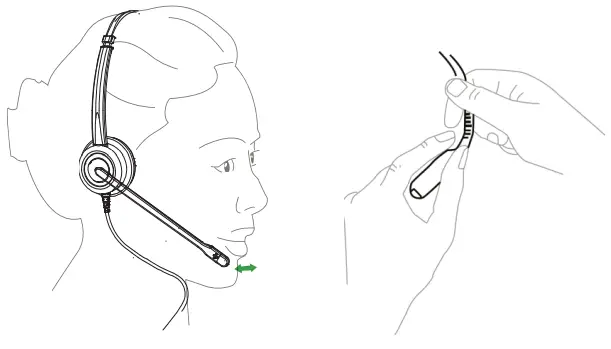
To avoid low or distorted sound, and to provide clear and crisp telephone calls, the microphone should be positioned within 30-40mm of your mouth. The microphone boom arm will move in a variety of directions to ensure the best fit.
How to Use the Headset Controller
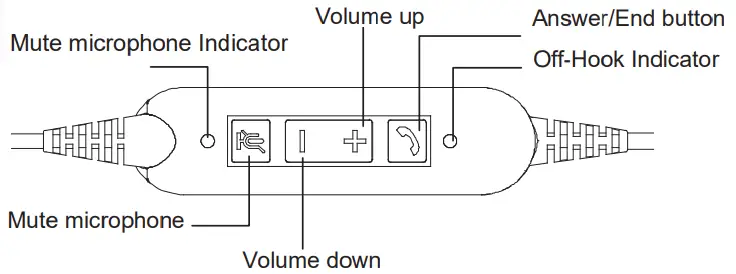
| FUNCTION | ACTION | |
 | Answer/End call | Tap the Answer/End button |
 | Adjust volume | Tap the Volume up or Volume down button |
 | Mute the microphone | Tap the mute microphone button |
 | Call light on/off | Tap the Answer/End button, Blue light on |
 | Mute on/off | When mute, Red light on |
U.S. FCC Part 15 Regulatory Information
This device complies with part 15 of the FCC Rules. Operation is subject to the following two conditions: (1) this device may not cause harmful interference, and (2) this device must accept any interference received, including interference that may cause undesired operation.
Any changes or modifications not expressly approved by the party responsible for compliance could void the user’s authority to operate the equipment.
Note: This equipment has been tested and found to comply with the limits for a Class B digital device, pursuant to part 15 of the FCC Rules. These limits are designed to provide reasonable protection against harmful interference in a residential installation.
This equipment generates, uses, and can radiate radio frequency energy and, if not installed and used in accordance with the instructions, may cause harmful interference to radio communications. However, there is no guarantee that interference will not occur in a particular installation. If this equipment does cause harmful interference to radio or television reception, which can be determined by turning the equipment off and on, the user is encouraged to try to correct the interference by one or more of the following measures:
—Reorient or relocate the receiving antenna.
—Increase the separation between the equipment and receiver.
—Connect the equipment into an outlet on a circuit different from that to which the receiver is connected.
—Consult the dealer or an experienced radio/TV technician for help.
Precautions
Always store the headset with the power off and safely protected.
Avoid storage at extreme temperatures (above 25°C/77°F or below -20°C/-4°F). This may adversely affect the headset.
Grandstream Networks, Inc.
126 Brookline Ave, 3rd Floor
Boston, MA 02215 USA
Voice: (617) 566-9300
Fax: (617) 249-1987
www.grandstream.com
FCC ID: YZZGUV3000

For Certification, Warranty, and RMA information, please visit
www.grandstream.com
 Grandstream Networks - Networking & Unified Communications