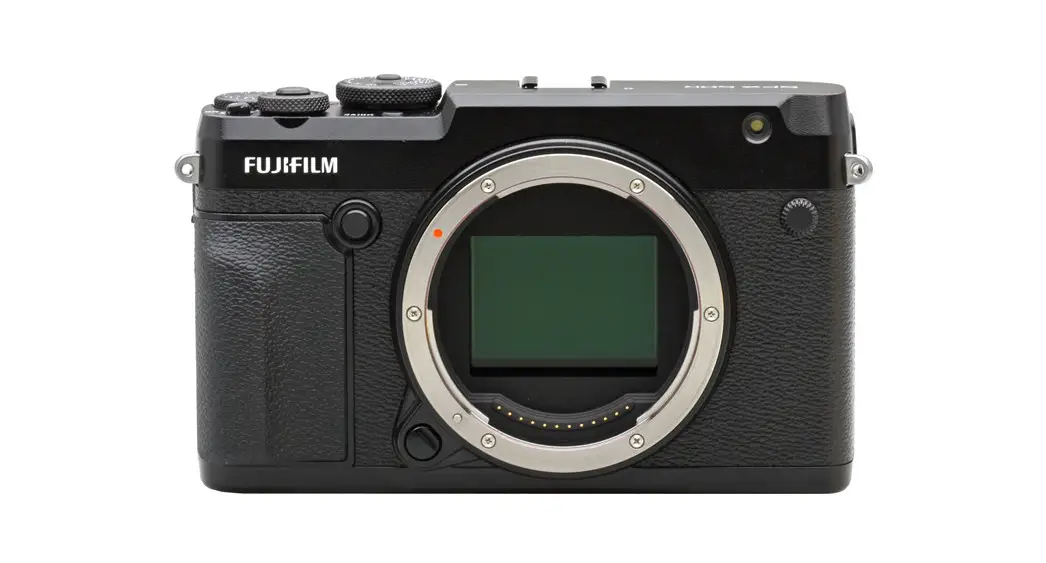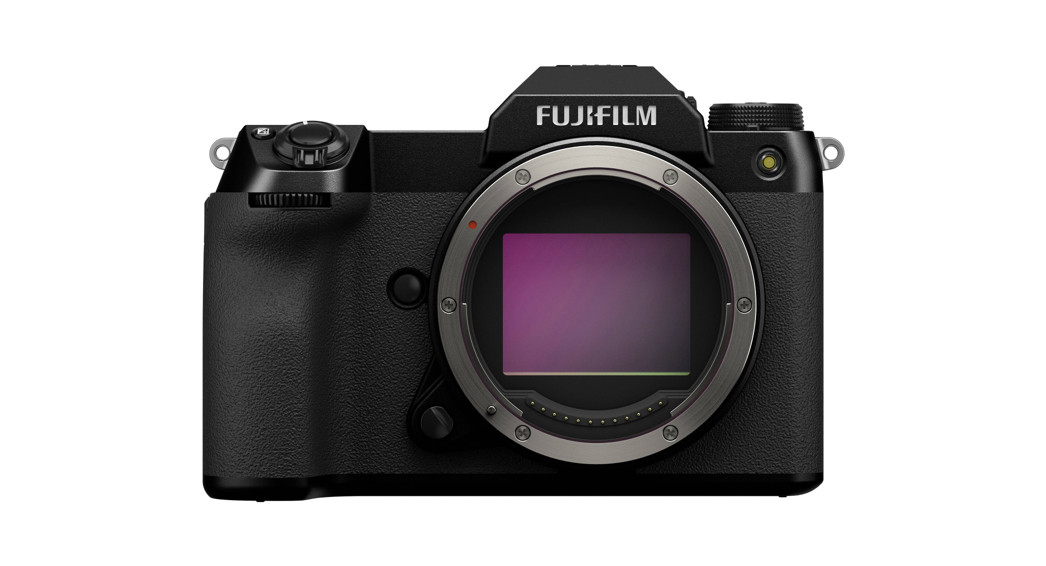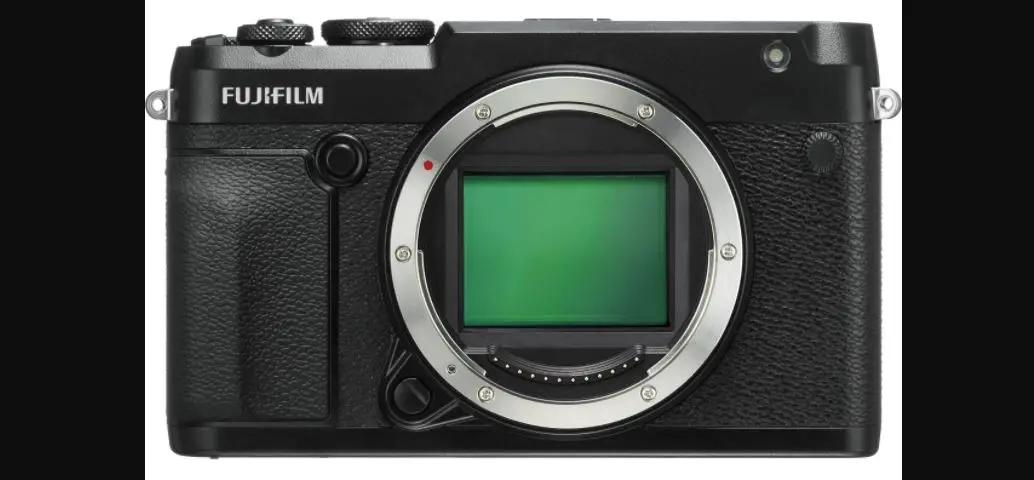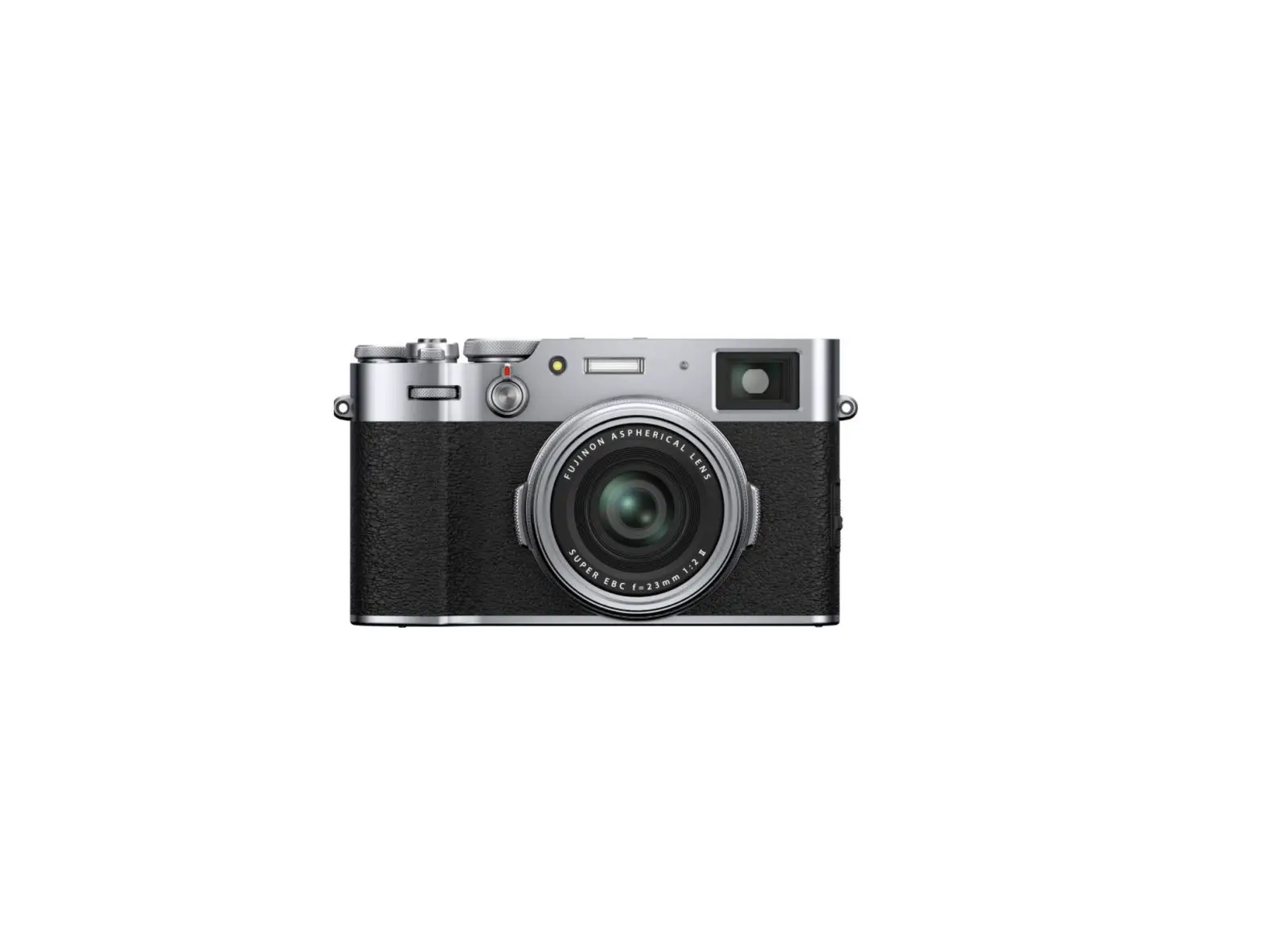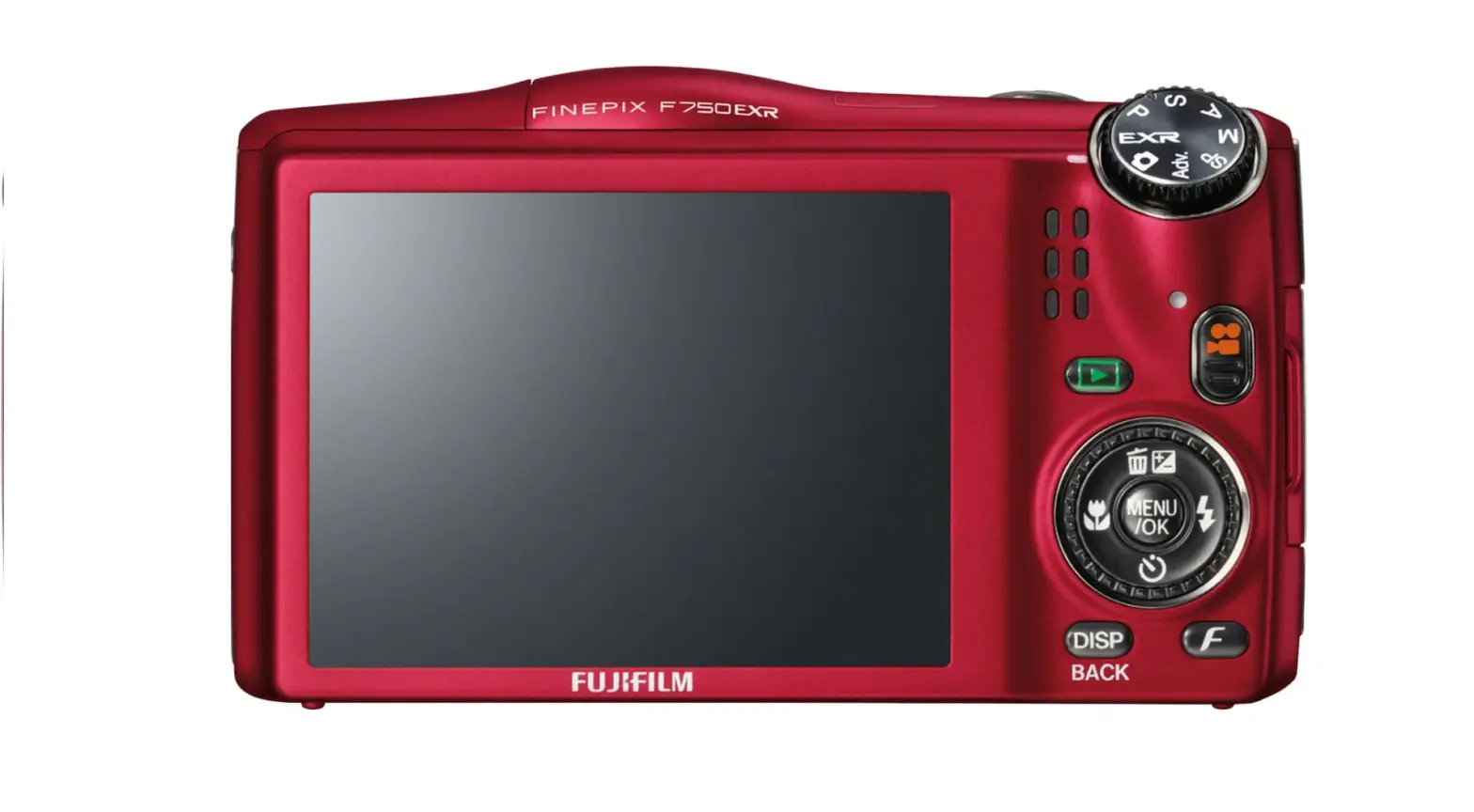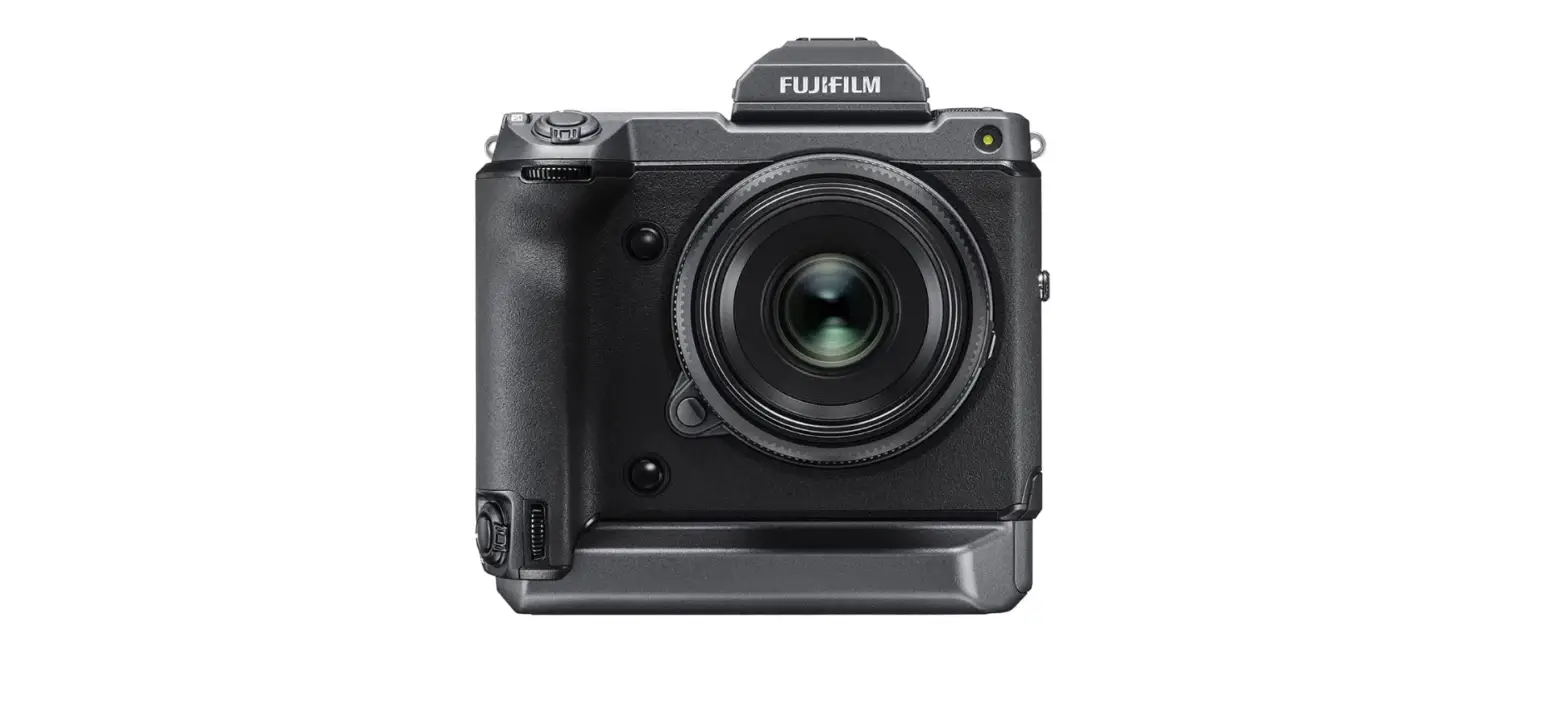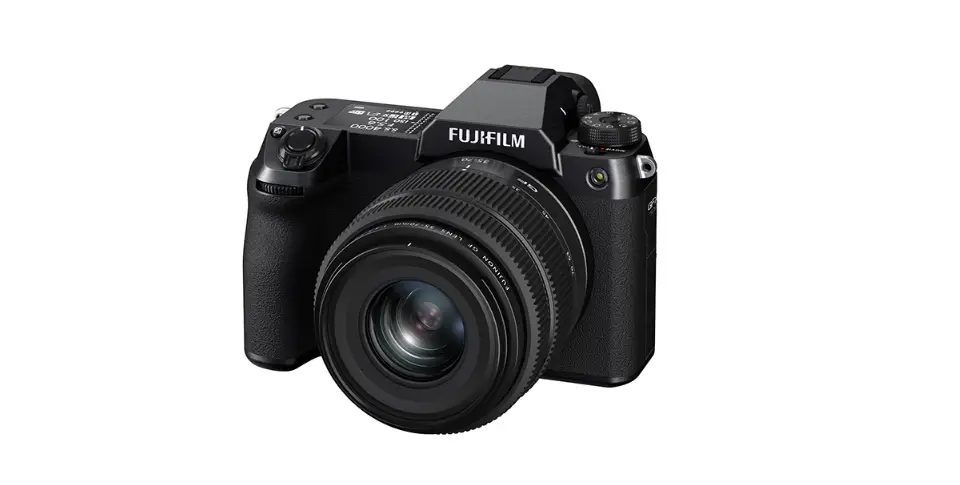

FUJIFILM GFX50S II Digital Camera 
Product Information
The product is GFX50S II camera with firmware version 2.00. The camera has added or updated features as a result of firmware updates. The updates may no longer match the descriptions in the documentation supplied with the product. The user can visit the website https://fujifilm-x.com/support/download/firmware/cameras/ for information on the updates available for different products. The camera offers AREA SETTING option under D USER SETTING in the setup menu, resulting in a change to the basic setup procedure and adjustments to TIME DIFFERENCE. In addition, DATE/TIME now offers a 24-hour clock. The items listed in the setup menu under D USER SETTING > RESET have changed. The D CONNECTION SETTING > Bluetooth SETTINGS item in the setup menu has been renamed Bluetooth/SMARTPHONE SETTING and now offers an IMAGE TRANSFER WHILE POWER OFF option. In addition, AUTO IMAGE TRANSFER and SMARTPHONE
SYNC. SETTING have respectively been renamed AUTO IMAGE TRANSFER ORDER and SMARTPHONE LOCATION SYNC. Pictures can now be uploaded not only during playback or when the camera is off but also while shooting is in progress. The procedure for connecting wirelessly to smartphones has changed.
Product Usage Instructions
To adjust settings for your current time zone, use AREA SETTING option under D USER SETTING in the setup menu. Choose your time zone from a map and turn daylight saving time on or off by selecting ON or OFF option. To switch the camera clock instantly from your home time zone to the local time at your destination when traveling, use b AREA SETTING to choose your home time zone before selecting a local time zone using g LOCAL. Highlight g LOCAL and press MENU/OK. Use the focus stick (focus lever) to choose the local time zone and press MENU/OK when settings are complete. Select ON to enable daylight saving time. To set the camera clock to local time, highlight g LOCAL and press MENU/OK. To set the clock to the time in your home time zone, select h HOME. If g LOCAL is selected, g will be displayed in yellow for about three seconds when the camera is turned on. To reset shooting or setup menu options to default values, highlight the desired option under D
USER SETTING > RESET and press MENU/OK. Reset all photo menu settings other than custom white balance and custom settings banks created using EDIT/STILL MENU RESET option. To connect wirelessly to smartphones, follow the new procedure mentioned in the latest manual available at http://fujifilm-dsc.com/en/manual/.
New Features Guide
Version 2.00
Features added or changed as a result of firmware updates may no longer match the descriptions in the documentation supplied with this product. Visit our website for information on the updates avail-able for different products:
https://fujifilm-x.com/support/download/firmware/cameras/
Contents
GFX50S II firmware version 2.00 adds or updates the features listed below. For the latest manuals, visit the following website. http://fujifilm-dsc.com/en/manual/
| No. | Description | GFX50S II P | See P | Ver. |
| 1 | An  AREA SETTING option has been added under D USER SETTING in the setup menu, resulting in a change to the basic setup procedure and adjustments to AREA SETTING option has been added under D USER SETTING in the setup menu, resulting in a change to the basic setup procedure and adjustments toTIME DIFFERENCE. In addition, DATE/TIME now offers a 24-hour clock. | 205 | 2.00 | |
| 2 | The items listed in the setup menu under D USER SETTING > RESET have changed. | 208 | 2 | 2.00 |
|
3 | The  CONNECTION SETTING > Bluetooth SETTINGS item in the setup menu has been renamed Bluetooth/SMARTPHONE SETTING and now offers an IMAGE TRANSFER WHILE POWER OFF option. In CONNECTION SETTING > Bluetooth SETTINGS item in the setup menu has been renamed Bluetooth/SMARTPHONE SETTING and now offers an IMAGE TRANSFER WHILE POWER OFF option. Inaddition, AUTO IMAGE TRANSFER and SMARTPHONE SYNC. SETTING have respectively been renamed AUTO IMAGE TRANSFER ORDER and SMARTPHONE LOCATION SYNC. |
239 |
|
2.00 |
| 4 | Upload timing has changed. Pictures can now be uploaded not only during playback or when the camera is off but also while shooting is in progress. | 239 | 2.00 |
| No. | Description | GFX50S II P | See P | Ver. |
| D CONNECTION SETTING > GENERAL SETTINGS has been reorganized as follows: • LOCATION INFO has been moved to D SCREEN SET-UP, • r BUTTON SETTING has been moved to D BUTTON/DIAL SETTING and renamed a Fn1 BUTTON SETTING, • GEOTAGGING has been moved to D SAVE DATA SET-UP, and • NAME and RESIZE IMAGE FOR SMARTPHONE Hhave been moved to Bluetooth/SMARTPHONE SETTING. |
219 | |||
| 5 | 230 238 | 3 | 2.00 | |
| 239 | ||||
| 6 | The procedure for connecting wirelessly to smartphones has changed. | 280 | 6 | 2.00 |
Changes and Additions
Changes and additions are as follows.
| GFX50S II Owner’s Manual: P 205 Ver. 2.00 b AREA SETTING | ||
| Adjust settings for your current time zone. AREA SETTING | ||
| Choose your time zone from a map. DAYLIGHT SAVINGS | ||
| Turn daylight saving time on or off. | ||
| Option | Description | |
| ON | Daylight saving time on. | |
| OFF | Daylight saving time off. | |
| GFX50S II Owner’s Manual: P 205 Ver. 2.00 TIME DIFFERENCE | ||
| Switch the camera clock instantly from your home time zone to the local time at your destination when traveling. To specify the difference between your local and home time zone: | ||
| O | Use b AREA SETTING to choose your home time zone before select- | |
| ing a local time zone using g LOCAL. | ||
| 1 Highlight g LOCAL and press MENU/OK. 2 Use the focus stick (focus lever) to choose the local time zone. Press MENU/OK when settings are complete. N Select ON to enable daylight saving time. | ||
| To set the camera clock to local time, highlight g LOCAL and press MENU/OK. To set the clock to the time in your home time zone, select h HOME. | ||
| Options | ||
| g LOCAL | HOME | |
| N | If g LOCAL is selected, g will be displayed in yellow for about three | |
| seconds when the camera is turned on. | ||
GFX50S II Owner’s Manual: P 208
- Highlight the desired option and press MENU/OK.
| Option | Description |
| STILL MENU RESET | Reset all photo menu settings other than custom white balance and custom settings banks created using EDIT/ SAVE CUSTOM SETTING to default values. |
| MOVIE MENU RESET | Reset all movie menu settings other than custom white balance and custom settings banks created using EDIT/ SAVE CUSTOM SETTING to default values. |
| SET-UP RESET | Reset all setup menu settings other than DATE/TIME, b AREA SETTING, TIME DIFFERENCE, and COPYRIGHT INFO to default values. |
| INITIALIZE | Reset all settings other than custom white balance to default values. |
A confirmation dialog will be displayed; highlight OK and press MENU/OK.
| GFX50S II Owner’s Manual: P 219 Ver. 2.00 LOCATION INFO | ||
| Select ON to display location info downloaded from a smart- phone. | ||
| Options | ||
| ON | OFF | |
| ||
| GFX50S II Owner’s Manual: P 230 Ver. 2.00 a Fn1 BUTTON SETTING | ||
| Choose the role performed by the Fn1 button during playback. | ||
| Option | Description | |
| a SMARTPHONE TRANSFER ORDER | Pressing the button marks the current picture for transfer. If the camera is not currently paired with a smartphone, Bluetooth/ SMARTPHONE SETTING options will be displayed. | |
| d SELECT & SMARTPHONE TRANSFER ORDER | Pressing the button displays a dialog where pictures can be selected for upload to a smartphone with which the camera is paired. If the camera is not currently paired with a smartphone, Bluetooth/SMARTPHONE SETTING options will be dis- played instead. | |
| r WIRELESS COMMUNICATION | The button can be used for wireless connections. | |
| GFX50S II Owner’s Manual: P 238 Ver. 2.00 GEOTAGGING | ||
| If ON is selected, location data downloaded from a smartphone will be embedded in pictures as they are taken. | ||
| Options | ||
| ON | OFF | |
GFX50S II Owner’s Manual: P 239 Ver. 2.00 Bluetooth/SMARTPHONE SETTING
Adjust Bluetooth settings.
| Option | Description |
| PAIRING REGISTRATION | Pair the camera with a smartphone or tablet to which the smartphone app has been installed. |
| SELECT PAIRING DESTINATION | Choose a connection from a list of devices with which the camera has been paired using PAIRING REGISTRATION. Select NO CONNECTION to exit without connecting. |
| DELETE PAIRING REG. | Delete pairing information for selected devices. Choose the de- vice in the device list. The selected device will also be removed from the devices listed in SELECT PAIRING DESTINATION. |
| Bluetooth ON/OFF | ON: The camera automatically establishes a Bluetooth con- nection with paired devices when turned on. OFF: The camera does not connect via Bluetooth. |
| AUTO IMAGE TRANSFER ORDER | Choose whether pictures are automatically marked for upload as they are taken. |
| SMARTPHONE LOCATION SYNC. | Choose whether to synchronize the camera to the location provided by a paired smartphone. |
| NAME | Choose a name (NAME) to identify the camera on the wireless network (the camera is assigned a unique name by default). |
| IMAGE TRANSFER WHILE POWER OFF | Choose whether the camera uploads pictures to paired smart- phones while off. |
| RESIZE IMAGE FOR SMARTPHONE H | Choose whether to resize images for upload to smartphones. Resizing applies only to the copy uploaded to the smartphone; the original is not affected. ON: Larger images are resized to H for upload. OFF: Images are uploaded at their original size. |
- Be sure your smartphone is running the latest version of the applicable smartphone app. Different operating systems use different apps; mfor more information, visit:
https://app.fujifilm-dsc.com/ - Pictures will be uploaded during shooting and playback and while the camera is off if ON is selected for both Bluetooth ON/OFF and AUTO IMAGE TRANSFER ORDER or if images are currently selected for upload using the IMAGE TRANSFER ORDER option in the playback
menu. - The camera clock will automatically be set to the time reported by paired smartphones whenever the app is launched.
GFX50S II Owner’s Manual: P 280 Ver. 2.00 Connecting to Smartphones
Access wireless networks and connect to computers, smartphones, or tablets. For more information, visit: http://fujifilm-dsc.com/wifi
Smartphones and Tablets
Installing Smartphone Apps
Before establishing a connection between the smartphone and camera, you will need to install at least one dedicated smartphone app. Visit the following website and install the desired apps on your phone.
https://app.fujifilm-dsc.com/
NThe apps available vary with the smartphone operating system.
Connecting to a Smartphone
Pair the camera with the smartphone and connect via Bluetooth
- Press DISP/BACK while shooting information is displayed.

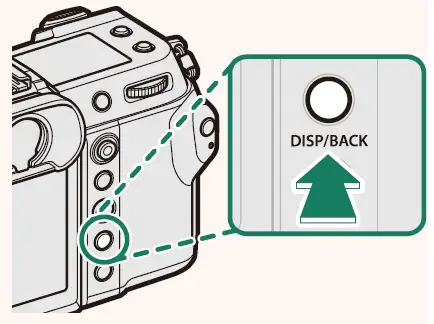
- You can also proceed directly to Step 3 by holding the DISP/ BACK button during playback.
Highlight Bluetooth and press MENU/OK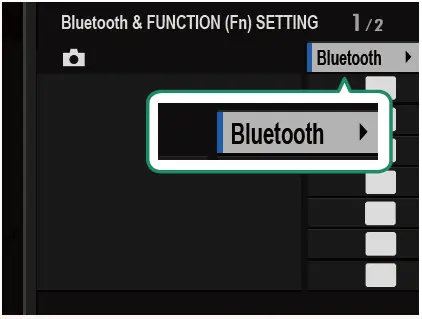
Highlight PAIRING and press MENU/OK.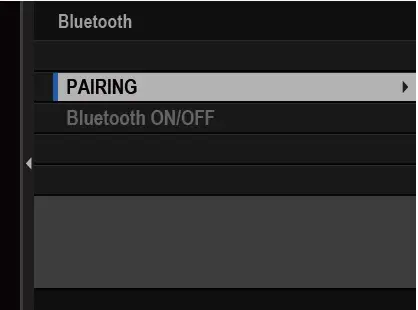
Launch the app on the smartphone and pair the smartphone with the camera. More information is available at the following website:
https://app.fujifilm-dsc.com/
When pairing is complete, the camera and smartphone will automatically connect via Bluetooth. A smartphone icon and a white Bluetooth icon will appear in the camera display when a connection is established.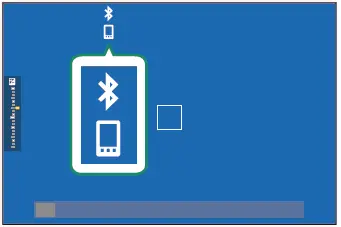
- Once the devices have been paired, the smartphone will automatically connect to the camera when the app is launched.
- Disabling Bluetooth when the camera is not connected to a smartphone reduces the drain on the battery.
| Using the Smartphone App | |
| Read this section for information on the options available for downloading pictures to your smartphone using the smart- phone app. | |
| Before proceeding, select ON for Bluetooth/SMARTPHONE SET- | |
| TING > Bluetooth ON/OFF. | |
| Selecting and Downloading Pictures Using the Smartphone App You can download selected pictures to a smartphone using the smartphone app. | |
| More information is available from the following website: | |
| https://app.fujifilm-dsc.com/ | |
| Uploading Pictures as They Are Taken Pictures taken with ON selected for D CONNECTION SETTING > Bluetooth/SMARTPHONE SETTING > AUTO IMAGE TRANSFER ORDER will automatically be marked for upload to the paired device. | |
| • If ON is selected for both Bluetooth/SMARTPHONE SETTING > | |
| Bluetooth ON/OFF and IMAGE TRANSFER WHILE POWER OFF in the D CONNECTION SETTING menu, upload to the paired device will continue even while the camera is off. • Selecting ON for D CONNECTION SETTING > Bluetooth/SMART- PHONE SETTING > RESIZE IMAGE FOR SMARTPHONE H enables compression, reducing file size for upload. | |
| Selecting Pictures for Upload in the Playback Menu Use IMAGE TRANSFER ORDER > SELECT FRAMES to select pictures for upload to a paired smartphone or tablet via Bluetooth®. | |
7-3, AKASAKA 9-CHOME, MINATO-KU, TOKYO 107-0052, JAPAN
https://fujifilm-x.com

 Model Selection
 app.fujifilm-dsc.com/
 FUJIFILM Digital Camera X Series & GFX – USA