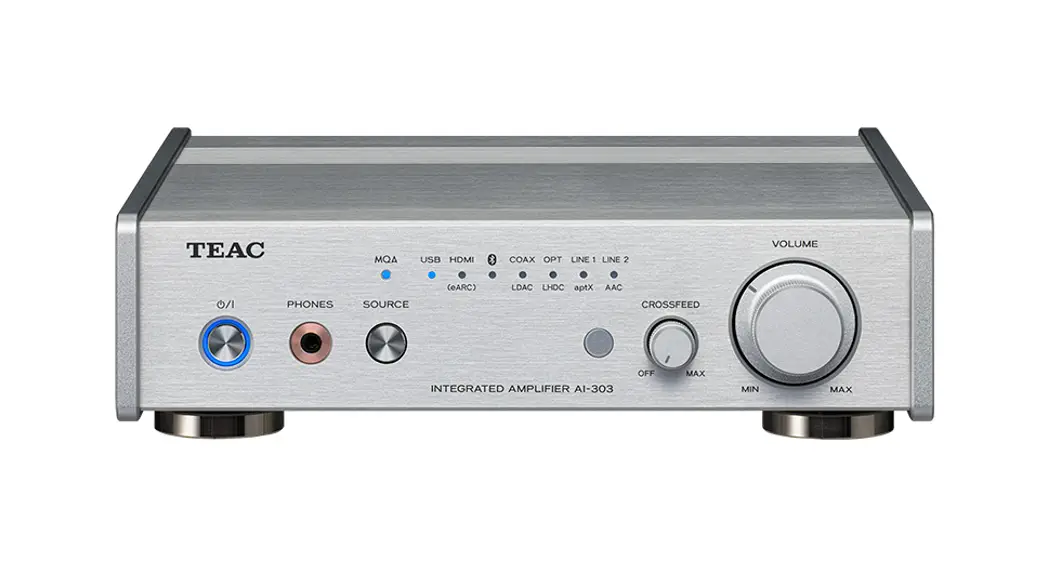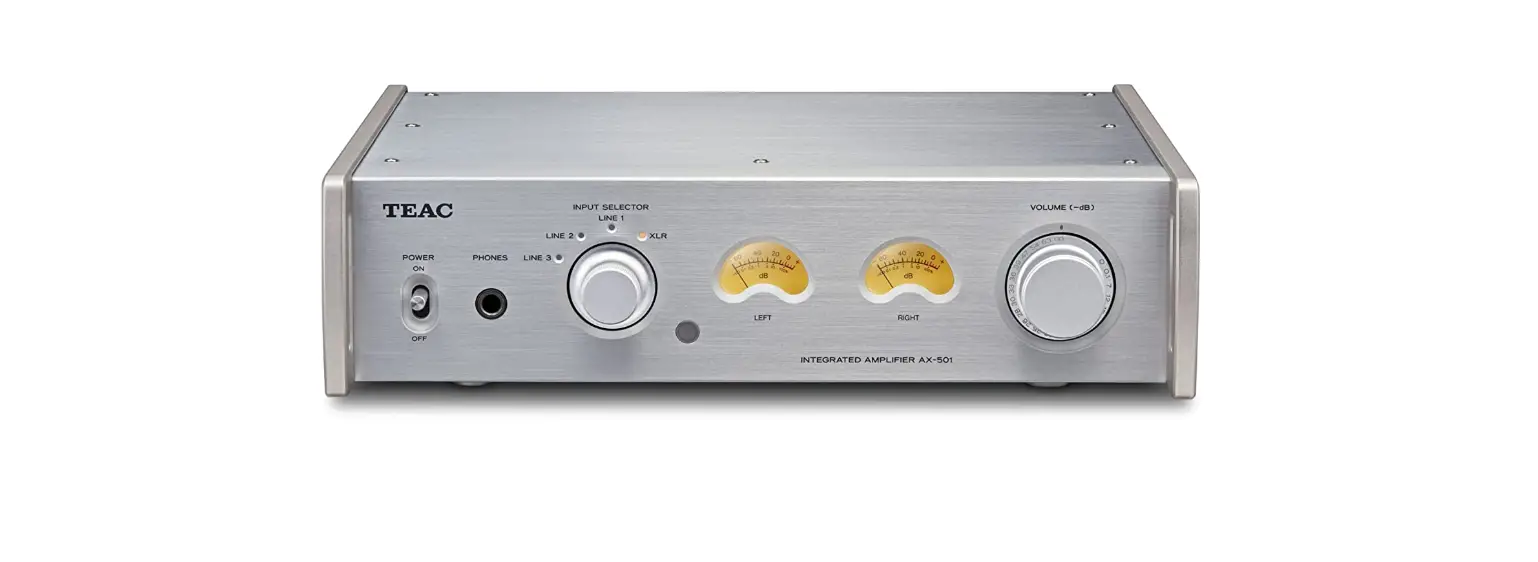

Teac AI-501DA-S Integrated Amplifier with USB Audio Input
Overview
This Windows/Mac application supports playback of 22.5MHz DSD and 768kHz PCM audio files. 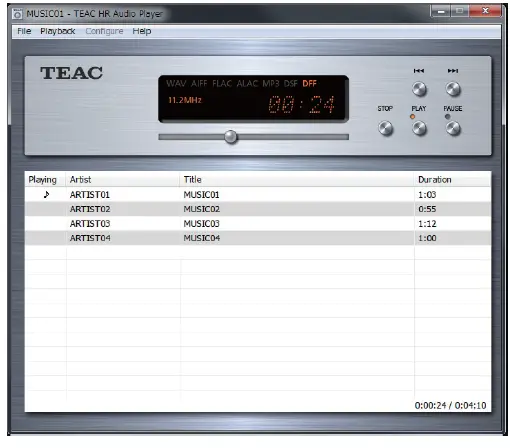 TEAC HR Audio Player, which is available for both Windows and Mac, is a high-quality audio playback application that can handle high-resolution audio files. You will be able to enjoy the playback of high-resolution audio files, including DSD, at high audio quality without a complicated setup by using this application in combination with a TEAC UD-505 or another TEAC D/A converter with USB that supports such files. While many previous DSD playback applications have been specialized, requiring a high level of understanding and complicated setups in order to play back high-quality audio, the TEAC HR Audio Player allows you to complete a high-quality audio playback environment by simply installing the application and selecting the connected device. After doing this, you will be able to play back high-resolution files with high audio quality by simply dragging and dropping the music files into order in the player. In addition to providing a playback environment for high-resolution files with little difficulty, this application has also been designed to maximize the potential of supported devices with high-quality audio playback. Simplifying the application screen and reducing CPU load contribute to enabling even smoother playback. DoP format and DSD native playback are supported for DSD files.* Each listener can set the playback method according to personal preference. For listeners that desire even better audio quality, the included RAM buffer playback function prevents the degradation of audio quality due to fluctuations in CPU load by loading the data temporarily into the computer’s memory. TEAC HR Audio Player is a free audio playback application for use with TEAC USB DAC devices. This free software allows anyone to easily enjoy the high-quality audio provided by high-resolution file playback. *DSD file playback is limited to models that support it. See the Owner’s Manual for the device that you are using for information about the playback methods and file formats that it supports.
Supported models and operating systems (as of January 2018)
Devices that support PCM playback UD-H01, AI-501DA, A-H01, HR-S101(AI-101DA), HR-X101(CR-H101), HA-P50, HA-P50SE, NP-H750
Supported operating systems
- Windows: Windows Vista (32/64-bit)
- Windows 7 (32/64-bit)
- Windows 8 (32/64-bit)
- Windows 8.1 (32/64-bit)
- Windows 10 (32/64-bit)
- Mac: OS X Lion (10.7)
- OS X Mountain Lion (10.8)
- OS X Mavericks (10.9)
- OS X Yosemite (10.10)
- OS X El Capitan (10.11.1)
- macOS Sierra (10.12)
- macOS High Sierra (10.13)
Supported operating systems
- Windows: Windows Vista (32/64-bit)
- Windows 7 (32/64-bit)
- Windows 8 (32/64-bit)
- Windows 8.1 (32/64-bit)
- Windows 10 (32/64-bit)
- Mac: OS X Lion (10.7)
- OS X Mountain Lion (10.8)
- OS X Mavericks (10.9)
- OS X Yosemite (10.10)
- OS X El Capitan (10.11.1)
- macOS Sierra (10.12)
- macOS High Sierra (10.13)
Features
Easy music playback with high audio quality using supported TEAC equipment
Anyone will be able to enjoy the playback of high-resolution audio files simply by installing this application and using it with a UD-505 or another TEAC USB DAC device. Unlike specialized applications, this application uses very simple settings and does not require other plug-ins, for example, to be installed
DSD native playback is supported for units capable of it on both Windows and Mac
DSD native playback, which converts DSD directly to analog without conversion to a PCM format, is supported on Windows and Mac when using a UD-505 or another device that supports DSD. oo Select DSD native format to play DSD files with the highest sampling frequency supported by a unit capable of DSD playback (11.2 MHz or 22.5 MHz)
Playback also supported for various other high-resolution file formats
In addition to DSD files with resolutions up to 22.5 MHz, playback is supported for PCM files of up to 768 kHz. Furthermore, the playback of FLAC files with resolutions up to 768 kHz is also supported.
Supported file formats
- DSF (.dsf ) 2.8/5.6/11.2/22.5 MHz
- DSDIFF (.dff ) 2.8/5.6/11.2/22.5 MHz
- PCM (.wav) 44.1 kHz – 768 kHz,16 bit – 32 bit
- FLAC (.flac) 44.1 kHz – 768 kHz,16 bit – 32 bit
- MP3 (.mp3) 32 kbps – 320 kbps
- AIFF (.aif ) 44.1 kHz – 768 kHz,16 bit – 32 bit
- ALAC (.m4a) 44.1 kHz – 768 kHz,16 bit – 32 bit
Simple screen design reduces CPU load and contributes to higher sound quality
Not only does this unit make it easy to enjoy high-resolution file playback, it also provides high-quality audio output. The application screen is designed to be used in combination with an audio device without impeding audio quality. The simple screen design reduces the CPU load, enabling the computer to focus resources on higher audio quality. For listeners that desire even better audio quality, the RAM buffer playback loads the data temporarily into the computer’s memory before playback to enable playback with even higher audio quality.
Other features
- Playlists can be created, saved and loaded
- Repeat playback function for playlists and single tracks
- Shuffle playback function for playlists
- (This function is only available with devices that support it.)
Making settings in Windows
Installing the software
- Uncompress the downloaded file.
- Double-click “Setup TEAC HR Audio Player.exe” to start the installation wizard.
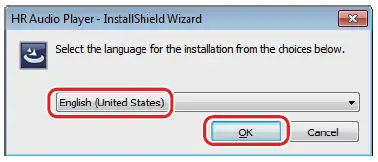
- Select the language to use during installation and click the “OK” button

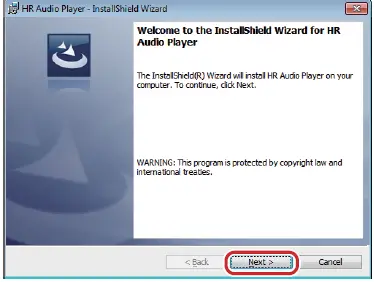
- Click the “Next” button.

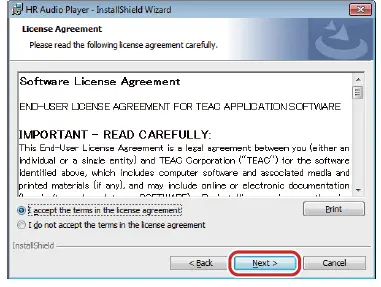
- Check the contents of the Software License Agreement, select “I accept the terms in the license agreement” and click the “Next” button

- Click “Install”.

- When the wizard completion screen appears, click “Finish” to complete installation

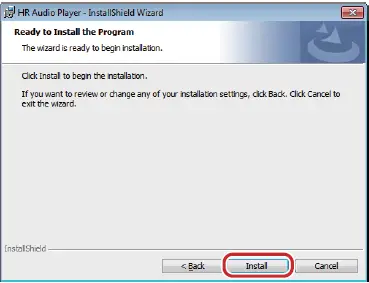
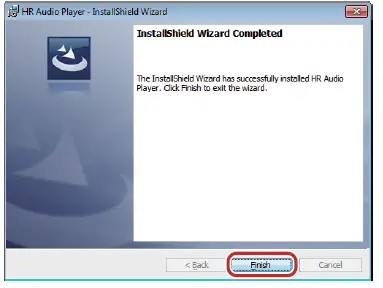
Starting the software
Start this software after connecting the USB DAC device. The main screen appears when TEAC HR Audio Player is launched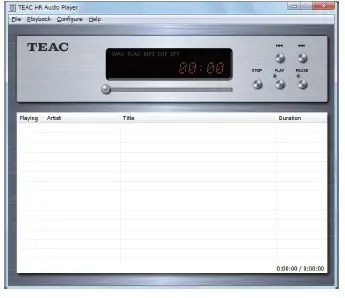
Setting up the USB DAC device
Select [Device] from the [Configure] menu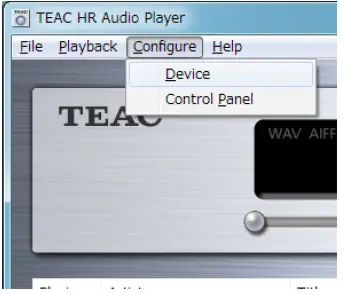
When the Configure window opens, set the Device item to the connected USB DAC (device name, etc.)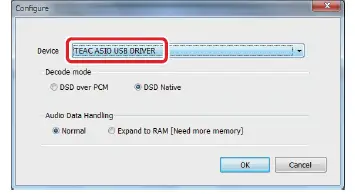
Changing the transmission mode
The transmission mode can be set to Isochronous or Bulk Pet for UD-505 and NT-505 models. Moreover, with Bulk Pet, four different modes can be set for the data transmission pattern. Select [Control Panel] from the [Configure] menu.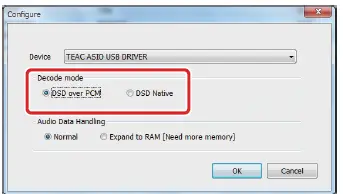
Enabling playback with even higher audio quality
Selecting the DSD decode mode
- With the TEAC HR Audio Player, you can choose the playback format.
- Select [Device] from the [Configure] menu to open the [Configure] window.
- Set the [Decode mode] item to [DSD over PCM] or [DSD Native], as you prefer.

DSD over PCM
Using the DoP (DSD Audio over PCM Frames) playback method, the DSD signal is embedded into an ordinary PCM format signal for transfer.
DSD Native
Using the ASIO 2.1 driver, the DSD data is transferred directly without PCM conversion or other change.
Selecting the data loading method
You can set how files are accessed for playback. Select [Device] from the [Configure] menu to open the [Configure] window.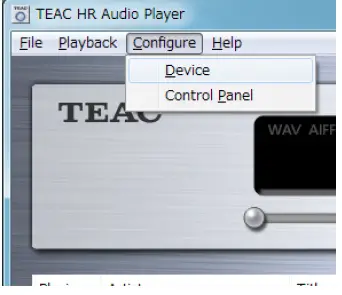
Normal
Data is loaded in the same manner as ordinary file access.
Expand to RAM
- The file to be played back is loaded into RAM once before playback.
- Playback can be made more stable because loading does not occur at the same time,and this enables playback with higher audio quality.
- When [Expand to RAM] is selected, it may take some time to start playback if the processing speed of the computer is slow.
Making settings in Mac
Installing the software
- Uncompress the downloaded file.
- Double-click “Setup TEAC HR Audio Player.pkg” to start installation.
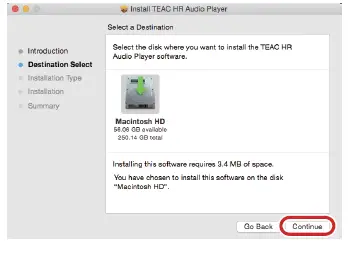
- Click the “Continue” button.
- Select the hard disk where the software will be installed, and click the “Continue” button.

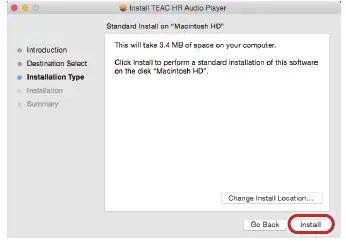
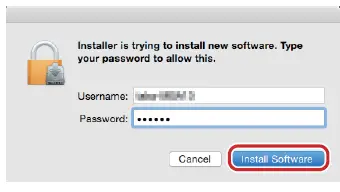
- Confirm that the hard disk selected for software installation has enough open space, and click the “Install” button

- Confirm that the hard disk selected for software installation has enough open space, and click the “Install” button

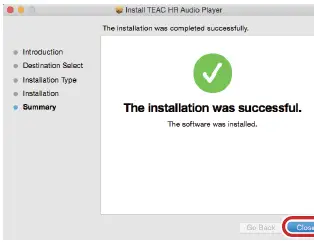
- When “The installation was successful.” appears, click the “Close” button to quit the installer

Starting the software
- Double-click the TEAC HR Audio Player icon inside the Applications folder to launch it.
- NOTE: Start this software after connecting the USB DAC device.
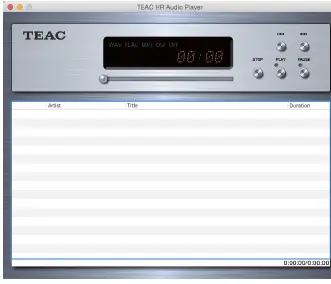
- The main screen appears when TEAC HR Audio Player is launched

Deleting the software
If you want to delete the TEAC HR Audio Player software, delete the TEAC HR Audio Player icon inside the Applications folder.
Setting up the USB DAC device
Select “Preferences…” from the “TEAC HR Audio Player” menu. 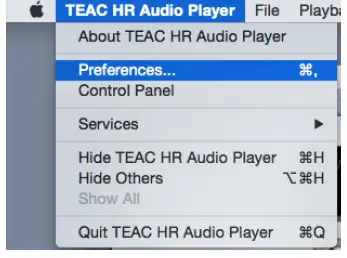
When the Preference window opens, set the Device item to the connected USB DAC (device name, etc.).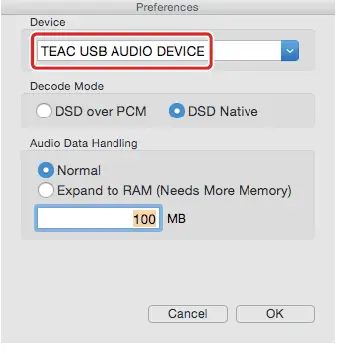
Changing the transmission mode
The transmission mode can be set to Isochronous or Bulk Pet for UD-505 and NT-505 models. Moreover, with Bulk Pet, four different modes can be set for the data transmission pattern. Select “Control Panel” from the “TEAC HR Audio Player” menu
Enabling playback with even higher audio quality
Selecting the DSD decode mode
- With the TEAC HR Audio Player, you can choose the playback format.
- Select [Preferences…] from the [TEAC HR Audio Player] menu to open the Preferences window.
- Set the [Decode mode] item to [DSD over PCM] or [DSD Native], as you prefer.
Selecting the data loading method
You can set how files are accessed for playback. Select [Preferences…] from the [TEAC HR Audio Player] menu to open the Preferences window.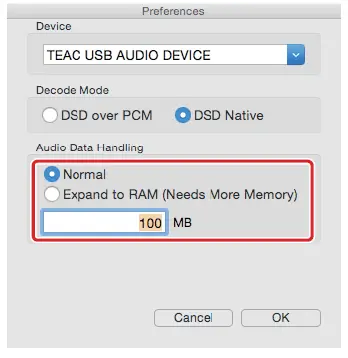
Set the [Audio Data Handling] item to [Normal] or [Expand to RAM]. For playback with even higher audio quality, select [Expand to RAM].
Preparing audio files
- Prepare the audio files that you want for playback using TEAC HR Audio Player.
- The playlist appears in the lower part of the main window. First, add the tracks that you want to play to the playlist

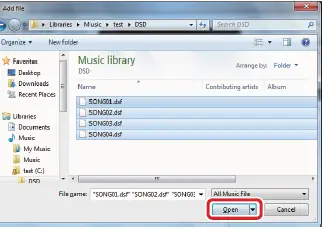
- Select [Add file…] from the [File] menu at the top-left of the main screen to open the [Add file] window

- During selection, you can also select multiple files and then click the [Open] button to add them all at once.

Playing back audio files
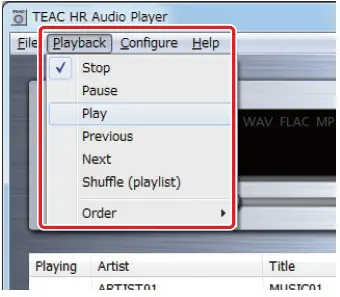
After creating a playlist, click the [PLAY] button to start playback from the beginning of the list. Click the [STOP] button to stop playback or the [PAUSE] button to pause playback. After stopping playback with the [STOP] button, press the [PLAY] button again to start playback from the beginning of the file where playback was stopped. To start playback of a specific file, double-click that file’s line in the list. During playback, you can use the mouse to move the slider below the time display to change the playback position as desired.You can also control playback from the Playback menu on the main screen.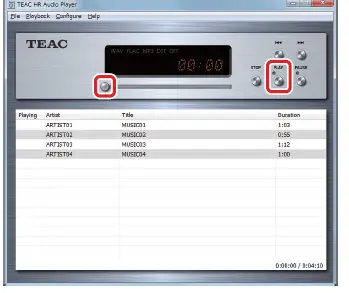
Saving playlists”
After adding the desired tracks to the playlist, select [Save playlist…] from the [File] menu. When the [Save playlist] window opens, choose the desired location and click the [Save] button to save the playlist.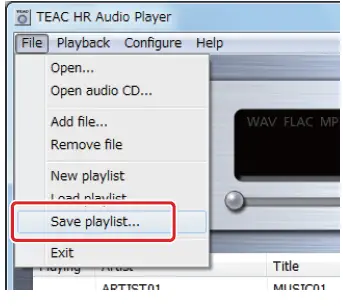
Loading playlists
Immediately after TEAC HR Audio Player is launched, no tracks appear in the playlist. By loading a previously saved playlist you can conveniently prepare for playback. You can also load another playlist when a playlist has already been created (tracks have been added). Creating multiple playlists according to genres and audio file formats can make playback more convenient. Select [Load playlist…] from the [File] menu. If a playlist has already been created (tracks added), the following window will open. Click [Yes] to save this playlist. Click [No] to not save this playlist. When the [Load playlist] window opens, select the desired playlist (“.ppl” extension on Windows or “.xml” extension on Mac) from where it is saved, and click the [Open] button to load it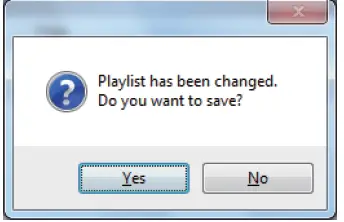
Software update history
Windows version
V1.0.0.21
- 22.5MHz DSD and 768kHz PCM files are now supported.
- A command to launch the ASIO USB DRIVER control panel has been added.
Version 1.0.0.16
- The HA-P5 is now supported.
Version 1.0.0.13
- Support was added for AIFF and ALAC files.
- Windows 10 is now supported.
Version 1.0.0.12
- An installer is now used.
- 11.2MHz DSD files are now supported.
- MP3 files with artwork did not play properly sometimes. This has been fixed.
Version 1.0.0.10
- Noise occurred when resuming playback from a paused state. This has been fixed.
- Version 1.0.0.9
- Support has been added for the HR-S101 amplifier (AI-101DA).
- Support has been added for the HA-P90SD.
Version 1.0.0.8
- Support has been added for the UD-301, AI-301DA and HA-P50 models.
- Support has been added for some MP3 files that could not be played back before.
- Support was added for the latest USB driver (version 1.1.2.2) for models that do not support DSD file playback.
- Use TEAC HR Audio Player version 1.0.0.8 when using USB driver
version 1.1.2.2 or newer.
- When playing back using EXPAND to RAM mode, the maximum amount of memory that can be used has been increased.
- This allows more data to be loaded when playing back high-quality audio with a computer that has a large amount of RAM.
- Windows 8.1 is now supported.
Version 1.0.0.5
- Track titles and artist names in WAV files that have been set using UTF-8 (Unicode) character encoding can now be shown properly.
- If the tag information (track title and artist name) of a file in a playlist included a double quotation mark (“) character, that file would be removed from the playlist during saving. This has been fixed. This fix applies to new playlists created using version 1.0.0.5 or later
FAQS
No, but you could use a Bluetooth reciever to stream from your iPhone to your amp. I use the Logitech Bluetooth Audio Adapter plugged into an extra input and it works great; but you will not be using the DAC.
No, I don’t believe that Android or any other mobile devices would support that as TEAC drivers are only available for Macs or PCs.
Yes, it keeps the brightness setting even after disconecting the power cable
Hi click on the black model you can see the back.
No. HDMI was just developing when this amp was designed.
It should be able to power your speakers. TEAC states that the rated output power in 8 ohms is 30W per channel and max power is 45W per channel
It should be able to power your speakers. TEAC states that the rated output power in 8 ohms is 30W per channel and max power is 45W per channel
You will need an adaptor
No it does not. For native DSD, you need to get the TEAC UD-501 (plays DSD via USB).
the dimensions are 11.4″(W) x 3.2″(H) x 10.4″(D). The power cord is approximately 1 meter.
I believe people now call these retro. 🙂 Back in the days of HIFI, equipment had dancing needles and lights.
They both are right. If you convert the numbers measured in “mm” to “inch”, they match.
I believe people now call these retro. 🙂 Back in the days of HIFI, equipment had dancing needles and lights.
It will depend on your analog source. The Teac does not have a phono pre-amp.
It is rated for 120V 60Hz on the manufacturer’s specs, so I would say no.