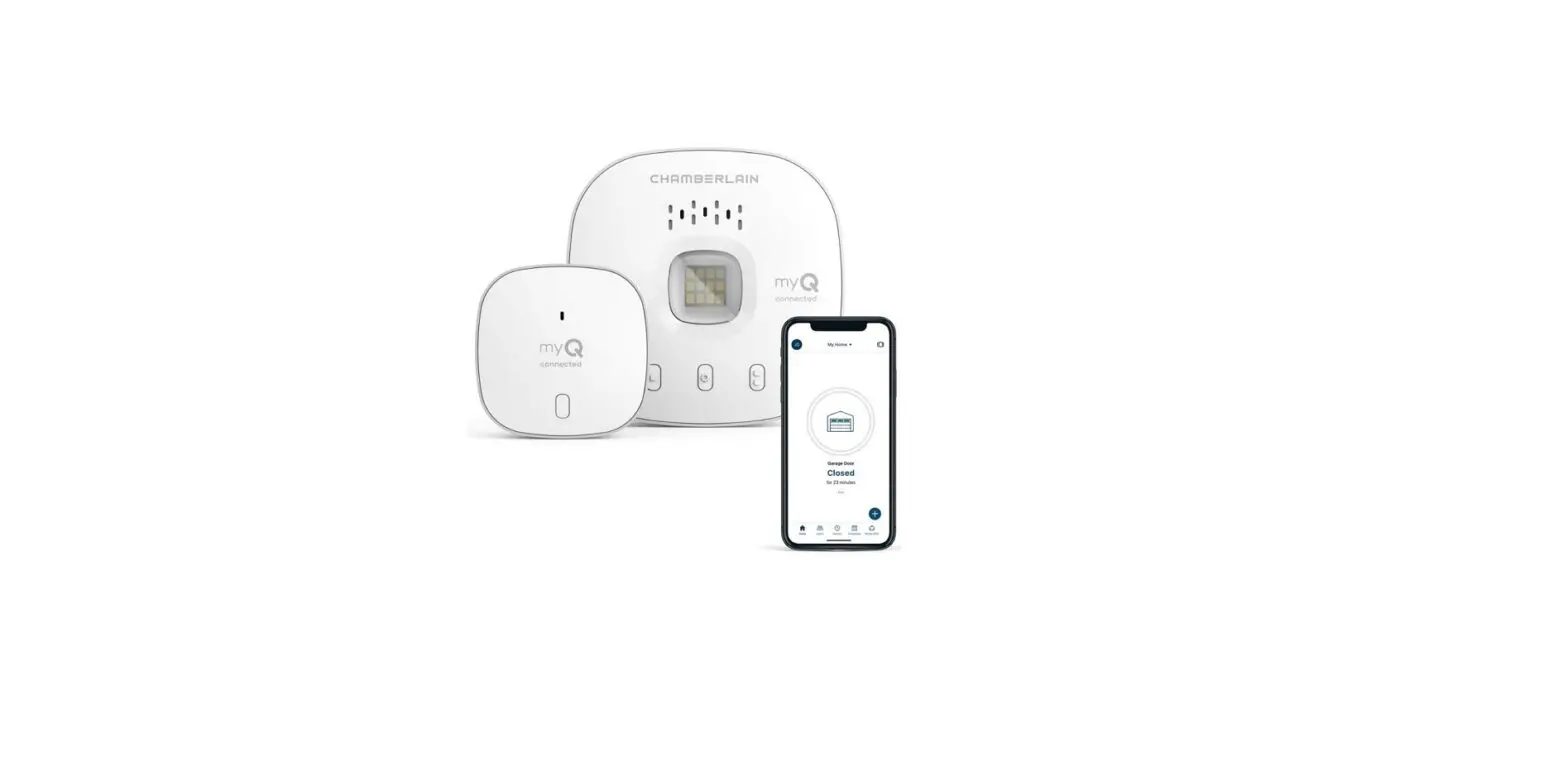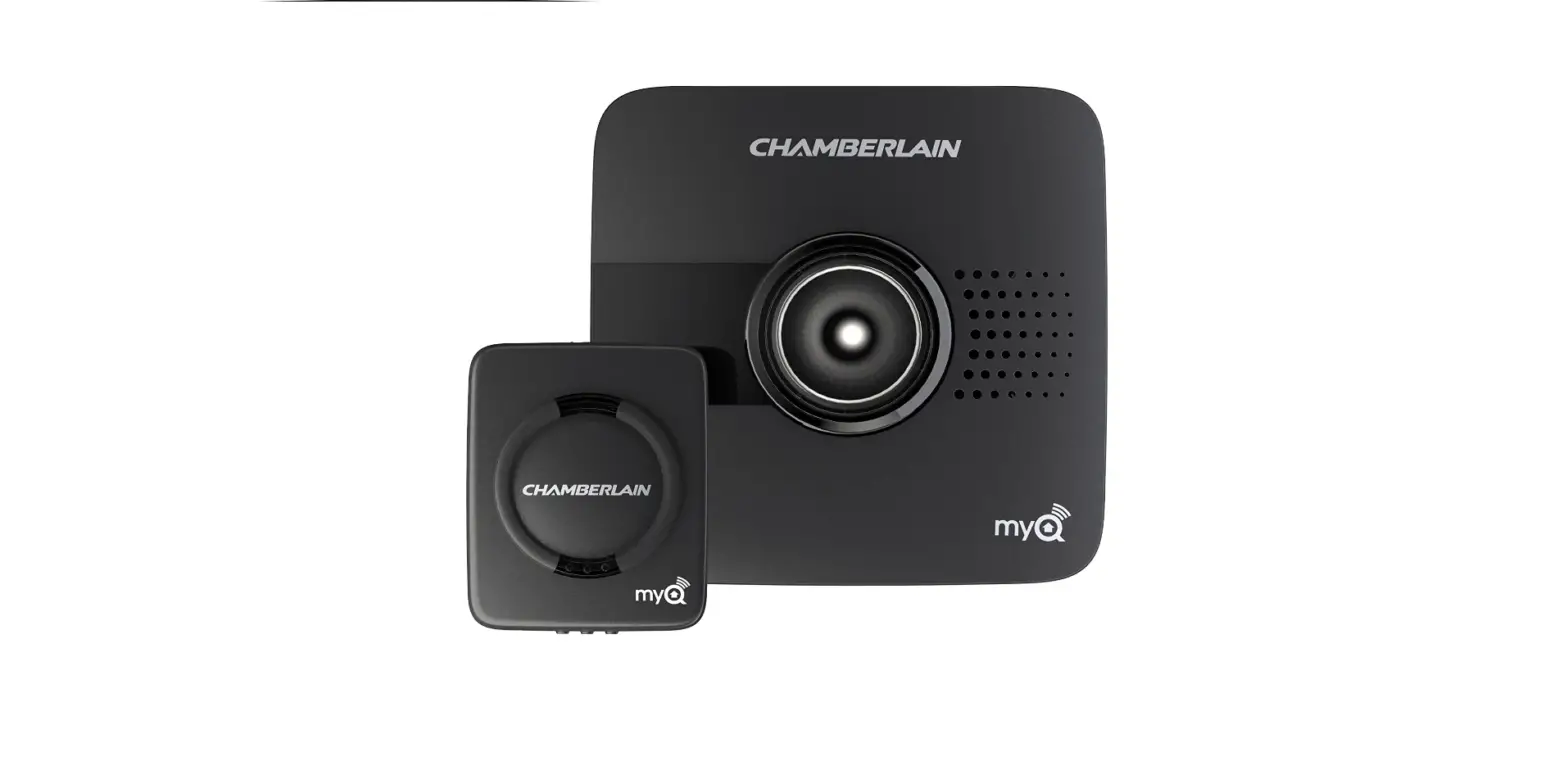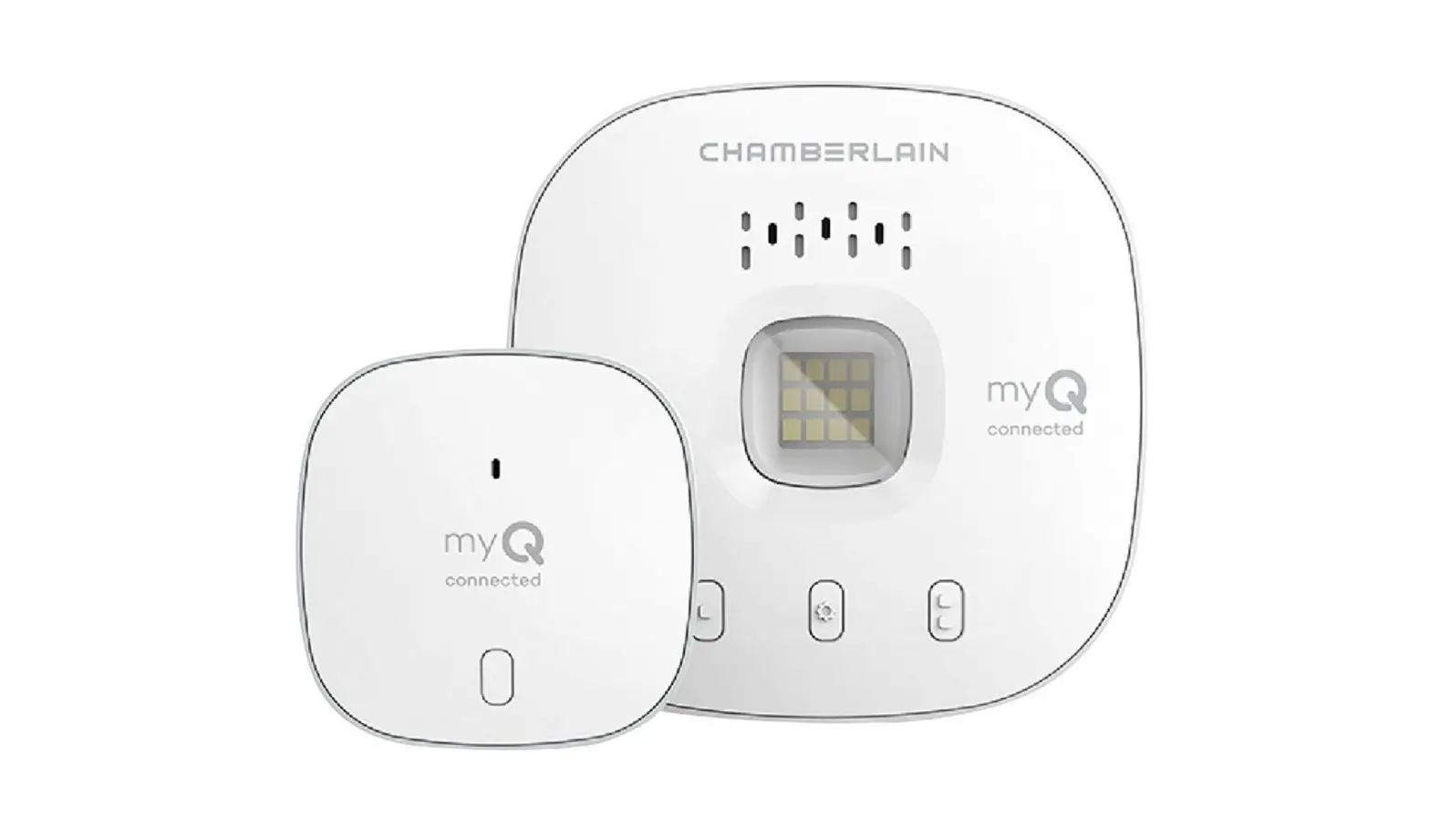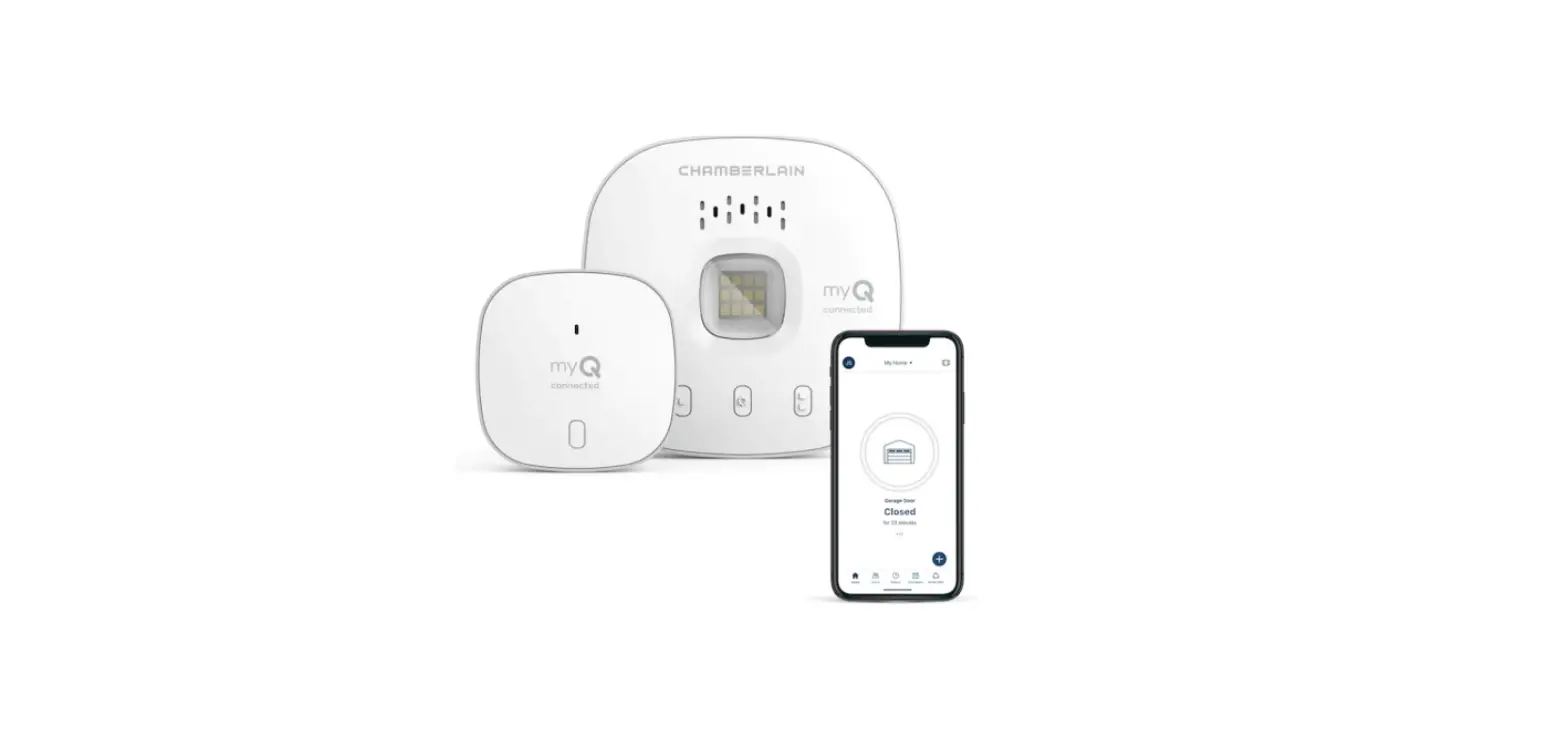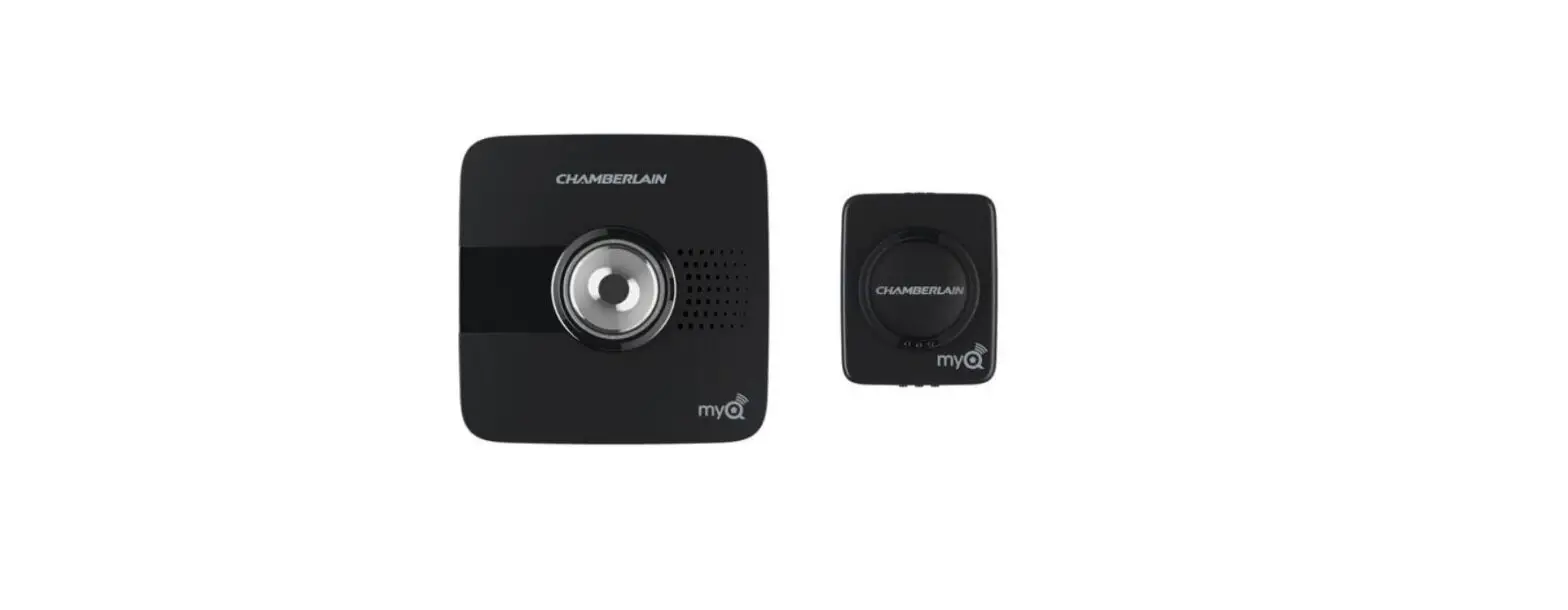

Chamberlain MyQ Garage Universal Smartphone Door Controller User Manual
WARNING
To reduce the risk of SEVERE INJURY to persons:
- DO NOT enable the Chamberlain Universal Smartphone Garage Door Controller if operating either one-piece or swinging doors. To be enabled ONLY on a sectional door.
 Read instructions thoroughly BEFORE beginning.
If using this product with residential door openers, this product must be used only with door openers manufactured after 1993 that utilize photoelectric sensors. Photoelectric sensors are always located on or near the bottom of the door track.
WHAT’S IN THE BOX
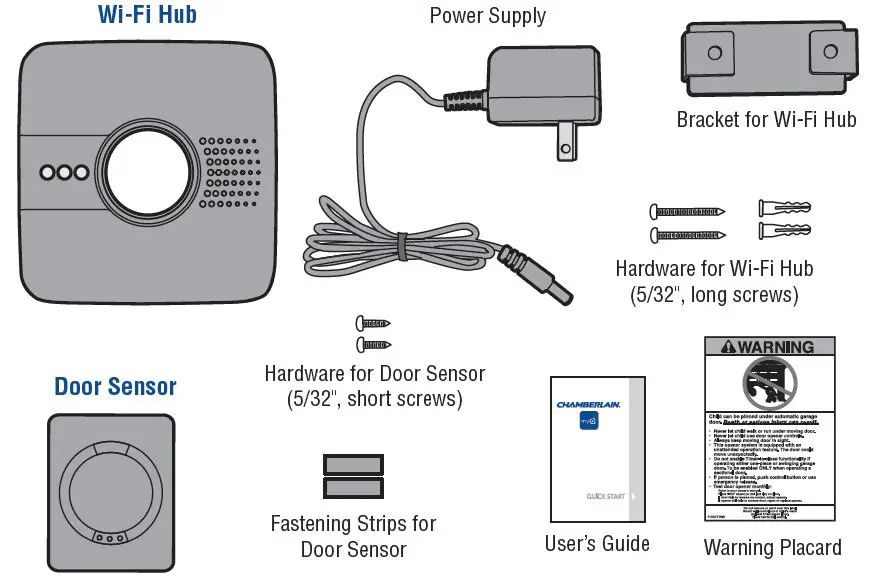
NOTE: The Wi-Fi hub can control up to 2 garage doors, however, an additional door sensor is required. Follow the instructions included with the new door sensor for programming instructions.
BEFORE STARTING YOU MUST HAVE
- A mobile device, used during setup
- Router with Wi-Fi®
- Broadband Internet Connection
- Wi-Fi Hub Serial Number (located in this User’s Guide and on the Wi-Fi Hub)
- Compatible Garage Door Opener (www.chamberlain.com/MyQGarage)
- Make sure your mobile device is connected to the Wi-Fi network.
- Make sure there is a strong Wi-Fi® signal in the garage where the Wi-Fi Hub will be mounted. To verify, place your mobile device in the location where the Wi-Fi
- Hub will be installed. You mobile device should display two or more bars. If not, move the router closer to the garage or purchase a Wi-Fi range extender (refer to the Help section of this User’s Guide).

CONNECT TO NETWORK
Make sure the Wi-Fi signal in the garage is strong and your mobile device is connected to your home Wi-Fi network.
Connect with a mobile device
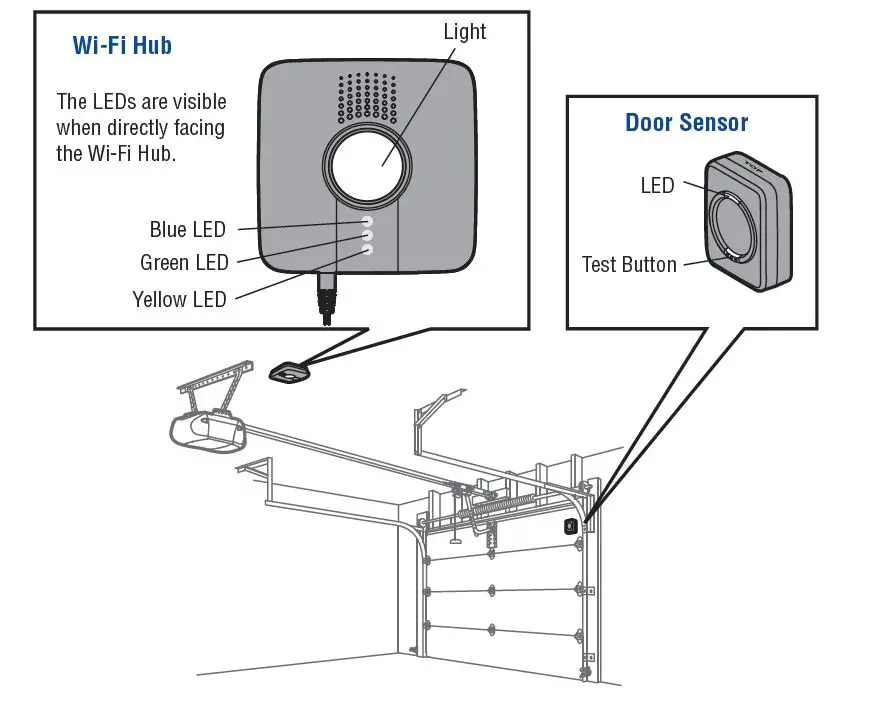
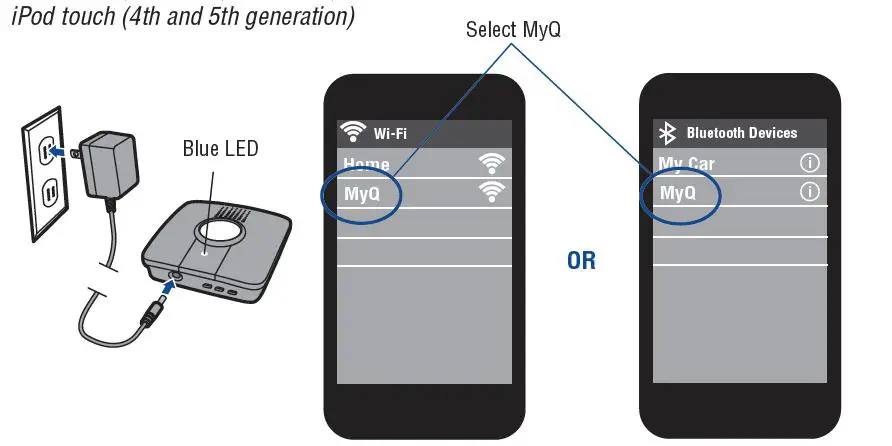
- Plug in the Wi-Fi Hub. The blue LED will blink, and the Wi-Fi Hub is ready to be connected to your home Wi-Fi network.
- iPhone® or iPod touch®*: Go to Settings > Bluetooth® and turn on Bluetooth. Select the Bluetooth device with the “MyQ” prefix x. Click “Allow” to share Wi-Fi settings then proceed to the App store to download MyQ App. OR All other mobile devices: Go to settings, select Wi-Fi, then select the network with the “MyQ” prefix x and select connect. Once connected, launch the mobile device’s web browser and go to “setup.myqdevice.com”. Follow the on-screen instructions to connect to your home network and download the App.
NOTE: Do not operate the garage door opener until the installation has been completed. - If the green LED is glowing solid, proceed to step 2 Installation. If the green LED is not glowing solid, repeat the steps above or proceed to Alternate Method: Connect with WPS (Wi-Fi Protected Setup).
Made for:- iPhone 3GS, iPhone 4, iPhone 4S, and iPhone 5
- iPod touch (4th and 5th generation)

ALTERNATE METHOD: Connect with WPS (Wi-Fi Protected Setup)
If your router is using WEP security setting, change it to WPA or WPA2.
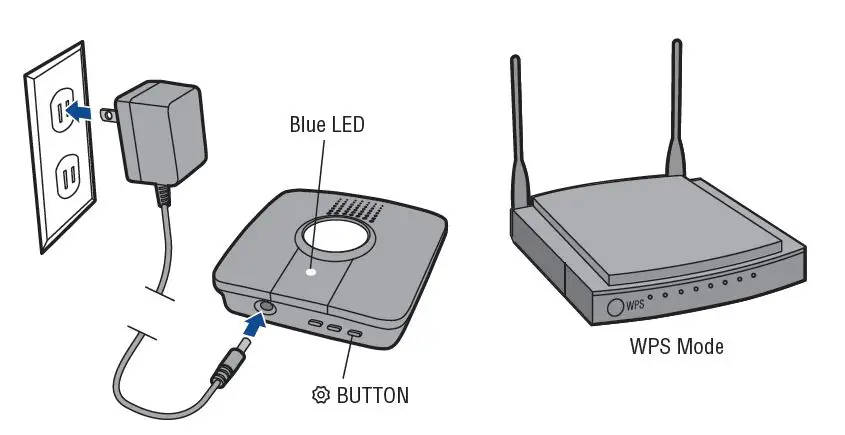
- Plug in the Wi-Fi Hub. The blue LED will blink, the Wi-Fi Hub is ready to be connected.
- Press and release the BUTTON on the Wi-Fi Hub. The blue LED will turn solid.
- Press the router’s WPS button to activate WPS mode. It may take a few minutes for the Wi-Fi Hub to connect to the router. The Wi-Fi Hub’s green LED will turn solid when the Wi-Fi Hub is connected to your network.
- Download the Chamberlain MyQ® Home Control App from the App Store or Google Play. NOTE: Do not operate the garage door opener until installation has been completed.
- If the green LED is glowing solid, proceed to step 2 Installation.

INSTALLATION
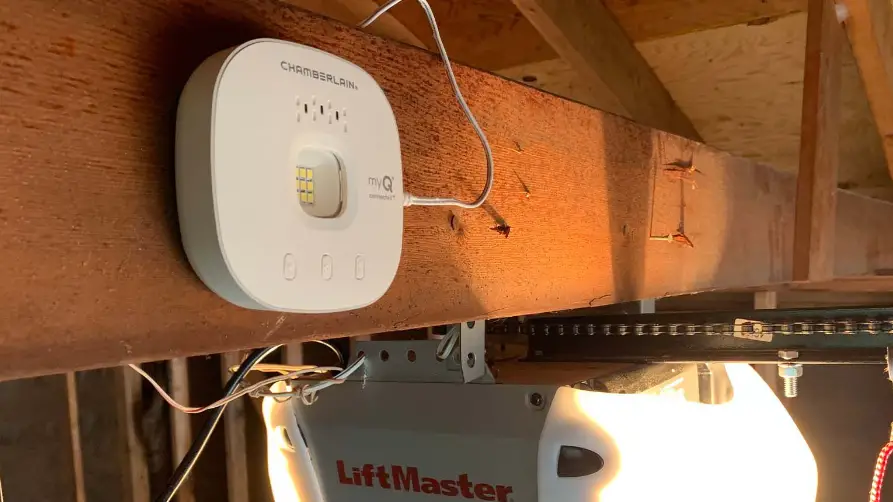
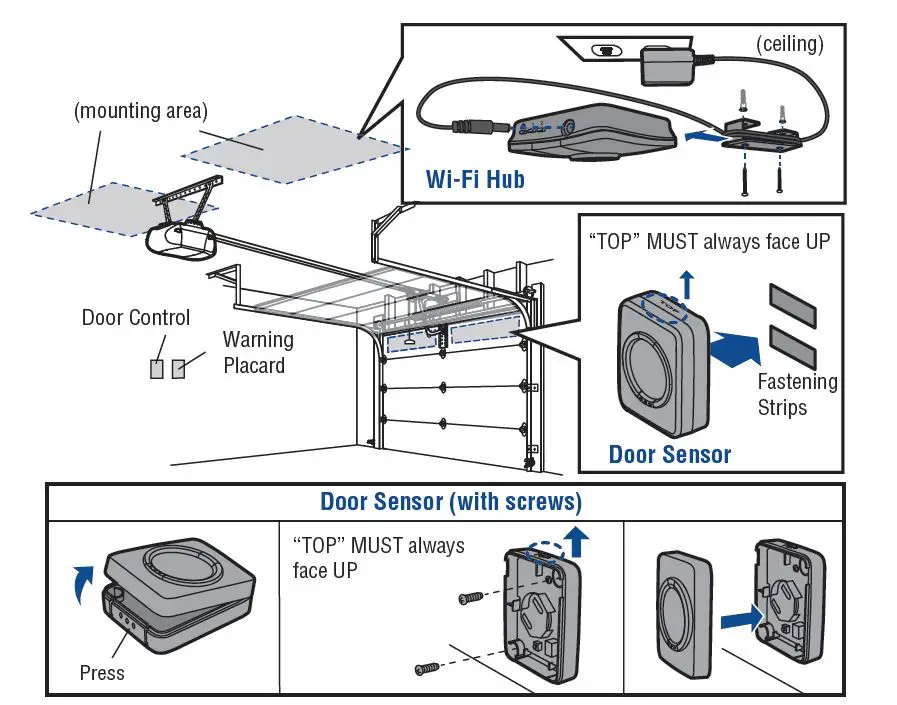
- Choose a location to install the Wi-Fi Hub:
- Wi-Fi Hub light MUST be visible if you’re standing in the doorway of the garage
- Wi-Fi Hub MUST be a minimum of two feet away from the garage door opener
- Place the Wi-Fi Hub in its mounting location, plug it in, and verify the Green LED turns on solid. NOTE: If the Green LED does not turn on solid, move the router closer to the garage or install a Wi-Fi range extender.
- Use the Wi-Fi Hub bracket as a template to drill 5/32″ pilot holes. Attach the bracket. Slide the Wi-Fi Hub onto the bracket.
- Attach the door sensor vertically on the top panel of the garage door using astening strips or screws (provided).
- Attach the warning placard to the wall next to the door control.

REGISTER AND TRY IT
Open the App and sign up for an account. Follow the on-screen prompts in the App to complete your setup. Once setup is complete, use the App to control your garage door.
NEED HELP?
The Wi-Fi Hub will not connect.
- Use your mobile device to verify there is a strong Wi-Fi signal in the garage near the Wi-Fi Hub. If the Wi-Fi signal strength is weak, the connection may fail. If there is a weak or no signal, move the router closer to the garage or install a Wi-Fi extender.
- iPhone® or iPod touch®: Go to Settings > Bluetooth® and forget the MyQ® device. Repeat the steps or try connecting using the alternate method (WPS).
- All other mobile devices: If the blue LED is not blinking, reset the Wi-Fi Hub to factory default then repeat the steps or try connecting using the alternate method (WPS).
- alternate Method (WPS): If the blue LED on the Wi-Fi Hub is flashing, repeat the alternate method or try connecting with a mobile device. If the blue and green LED are flashing, reset the Wi-Fi Hub, then try connecting with a mobile device.
Reset the Wi-Fi Hub to Factory Default
- Press and hold the BUTTON on the Wi-Fi Hub until the blue LED blinks.
- While the blue LED is blinking, press and hold the BUTTON again until the blue LED pauses and then blinks. The Wi-Fi Hub is set to factory default.
What are the buttons on the Wi-Fi Hub for?
The BUTTON is used to reset the Wi-Fi Hub to factory default. Buttons 1 and 2 are used to program compatible remote controls and other compatible accessories. For additional information go to the help section in the App.
What do the LEDs on the Wi-Fi Hub mean?
| LED COLOR | LED STATE | WI-FI HUB STATUS |
| Blue | Blinking | Wi-Fi needs to be setup |
| Green and Blue | Blinking | NO router communication |
| Blue | Solid | Wi-Fi setup active |
| Green | Blinking | Internet connection failed |
| Yellow and Green | Blinking | Programming mode |
| Green | Solid | Wi-Fi Connected |
REPLACEMENT PARTS
- Description Part Number
- Door Sensor 041D7924
- Power Supply 041D0270
Need more help?
Go to the Help section at www.mychamberlain.com, or call 1-800-528-9131
ONE-YEAR LIMITED WARRANTY
The Chamberlain Group, Inc. warrants to the first retail purchaser of this product that is free from defects in materials and/or workmanship for a period of 1 year from the date of purchase.
REPLACEMENT PARTS
- Description Part Number
- Door Sensor 041D7924
- Power Supply 041D0270
SOFTWARE AGREEMENT
Use of this product and the software embedded within the product is subject to the copyright notices, terms, and conditions available at:
http://www.mychamberlain.com/agreement
NOTICE: To comply with FCC and/or Industry Canada (IC) rules, adjustment or modifi cations of this transceiver are prohibited. THERE ARE NO USER-SERVICEABLE PARTS.
FCC STATEMENT
This device complies with Part 15 of the FCC rules and IC RSS-210. Operation is subject to the following two conditions: (1) this device may not cause harmful interference, and (2) this device must accept any interference received, including interference that may cause undesired operation. This device must be installed in a way where a minimum 8″ (20 cm) distance is maintained between users/bystanders and device.“Made for iPod” and “Made for iPhone” mean that an electronic accessory has been designed to connect specifically to iPod or iPhone respectively, and has been certifi ed by the developer to meet Apple performance standards. Apple is not responsible for the operation of this device or its compliance with safety and regulatory standards. Please note that the use of this accessory with an iPod or iPhone may affect wireless performance.
Apple, iPhone, and iPod touch are trademarks of Apple Inc., registered in the U.S. and other countries. The Bluetooth® word mark and logos are registered trademarks owned by Bluetooth SIG, Inc. and any use of such marks by The Chamberlain Group, Inc. is under license. Other trademarks and trade names are those of their respective owners. Wi-Fi® is a registered trademark of Wi-Fi Alliance.