Connecting the charger AXIbox 11K to the Evchargo App
Product Information
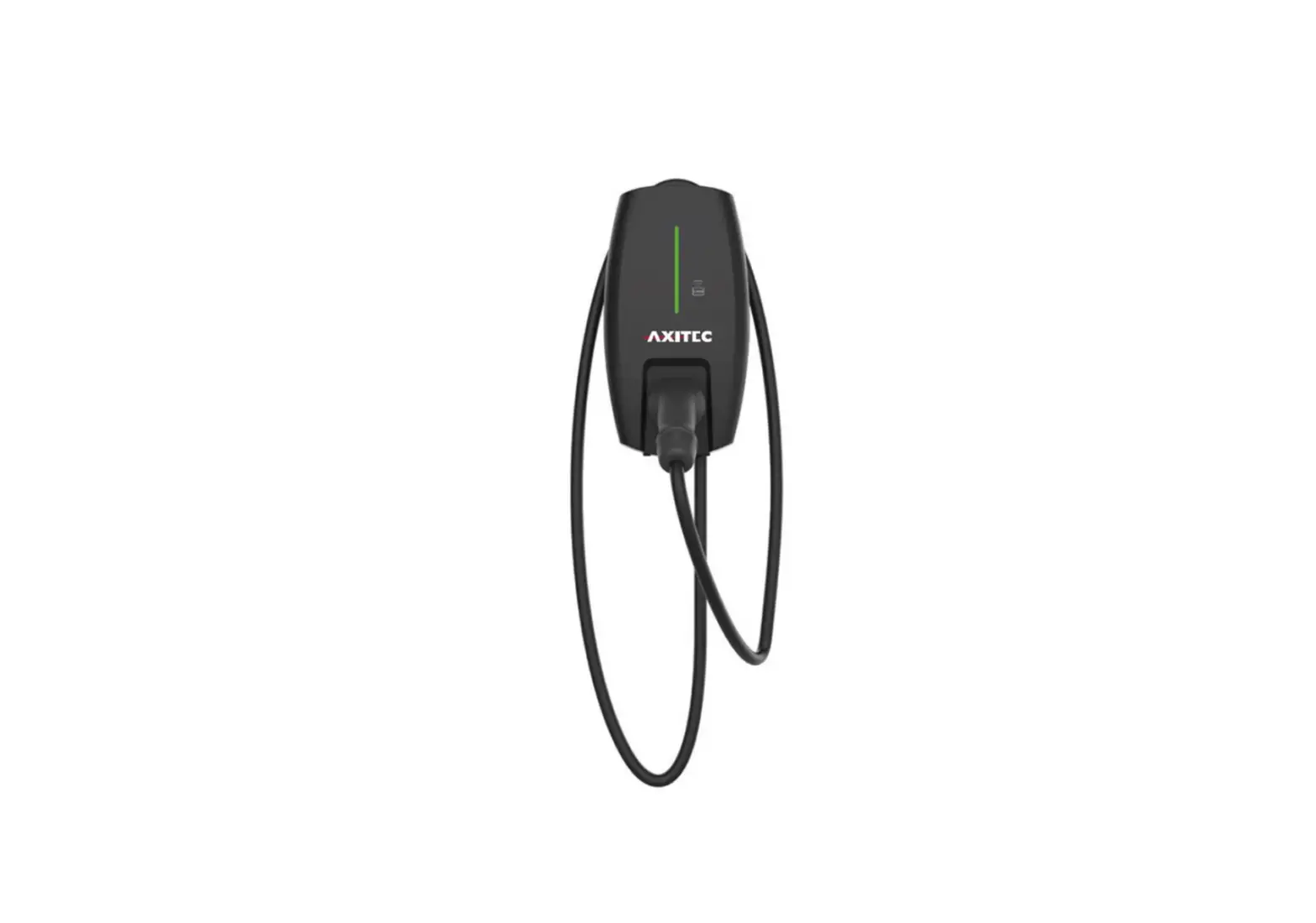
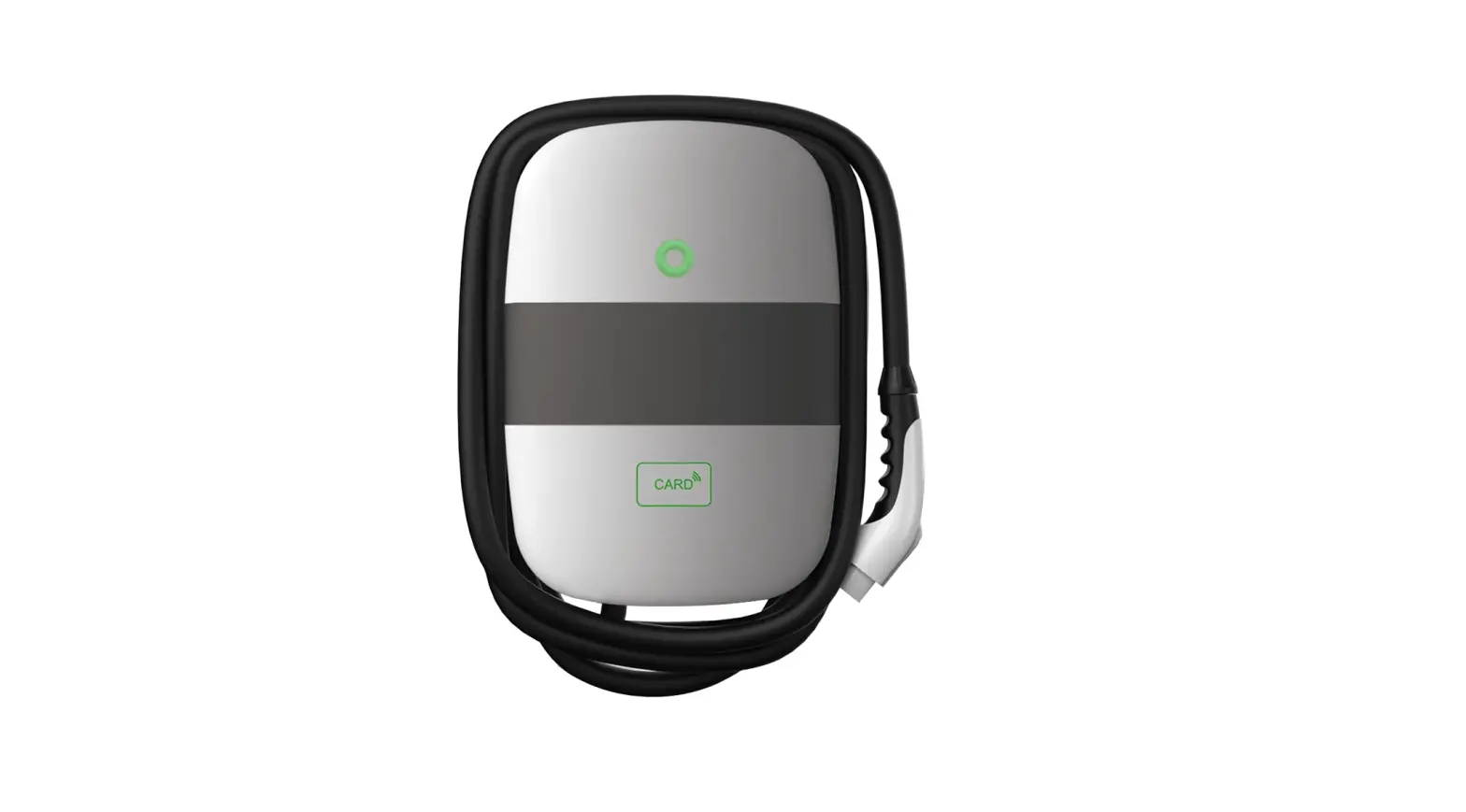
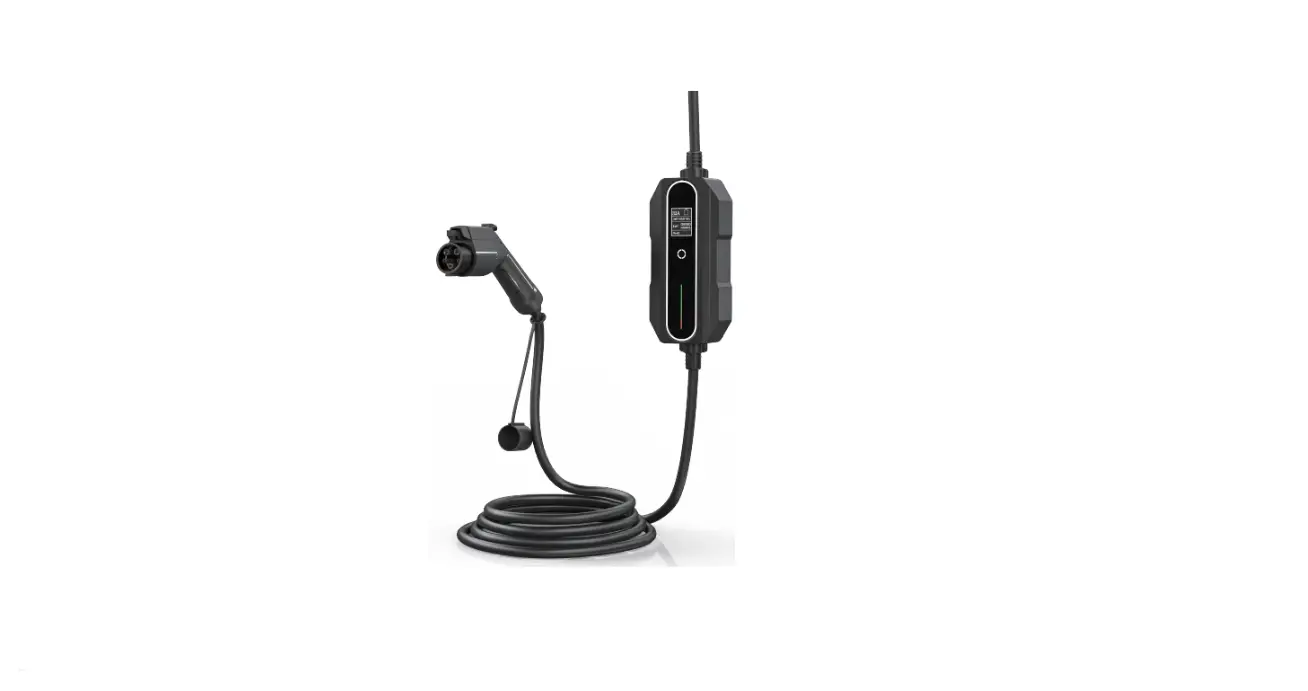
The AXIbox 11K charger is a device that allows you to charge
your electric vehicle. It can be connected to the Evchargo mobile
app for convenient control and monitoring.
Features:
- Supports Wifi, Bluetooth, and location services
- Easy registration process
- Allows control and monitoring of the charger through the
Evchargo app - Green LED indicates the charger is ready for connection
- Bluetooth connection required for initial setup
Product Usage Instructions
1. Register in the App
- Download and install the App Evchargo.
- Activate Wifi, Bluetooth, and location services on your mobile
device. - Register with your email and log in to the app.
2. Connecting the Charger to the App
- Ensure the charger is installed correctly and the green LED is
flashing slowly. - In the app, go to “Charge Points” and then select “Bind the
Charge point”. Choose “EN+”. - Select “Check for nearby charge points” in the following menu.
The available chargers will be displayed via Bluetooth. - Select your charger’s serial number from the list. In the
“Select the Operator” menu, choose “Shenzen en+123” (located near
the bottom).Note: If the charging station is not found via Bluetooth, it
needs to be reset manually. Contact support for assistance.
Manually entering the serial number or scanning the barcode will
result in an error. - Connect to your WIFI by entering your Wifi name and password,
then confirm. - The connecting process may take 30 to 60 seconds to complete.
Once completed, the charger will be shown as online and can be
controlled through the app.
Follow these instructions to successfully connect the AXIbox 11K
charger to the Evchargo app and start charging your electric
vehicle.
Connecting the charger AXIbox 11K to the App Evchargo
1 Register in the App
1) Download and install the App Evchargo
Manual Evchargo
2) Activate Wifi, Bluetooth and location. 3) Register with your e-mail and log in.
2 Connecting the Charger to the App
1) The charger needs to be installed correctly before connecting to the App. Start the charger (green LED flashing slowly).
2) Go to ,,Charge Points” and then to ,,Bind the Charge point”. Select ,,EN+”.
3) Select in the following menu ,,Check for nearby charge points”. Via Bluetooth, the available chergers are shown. Select the selection field with the serial number of your charger. In the menu ,,Select the Operator” choose ,,Shenzen en+123″ (almost on the bottom of the list).
Note: It is necessary that the charging station is found via Bluetooth. If this is not the case, the charging station must be reset manually in order to reactivate the Bluetooth of the charging station. To do this, contact the support. Manually entering the serial number or scanning the barcode results in an error.
Manual Evchargo
4) Connect to your WIFI (enter Wifi name and password, then confirm).
The following connecting process takes 30 to 60s to complete. Afterwards, the charger is shown as online and can be controlled via App.

![Anker Powerwave 10 Charging Station [a2571] User Manual](https://static-data1.manualsee.com/1/img/4/12915/2020/11/Anker-PowerWave-10-Charging-Station-A2571-featured-1568x766.png "Anker Powerwave 10 Charging Station [a2571] User Manual")