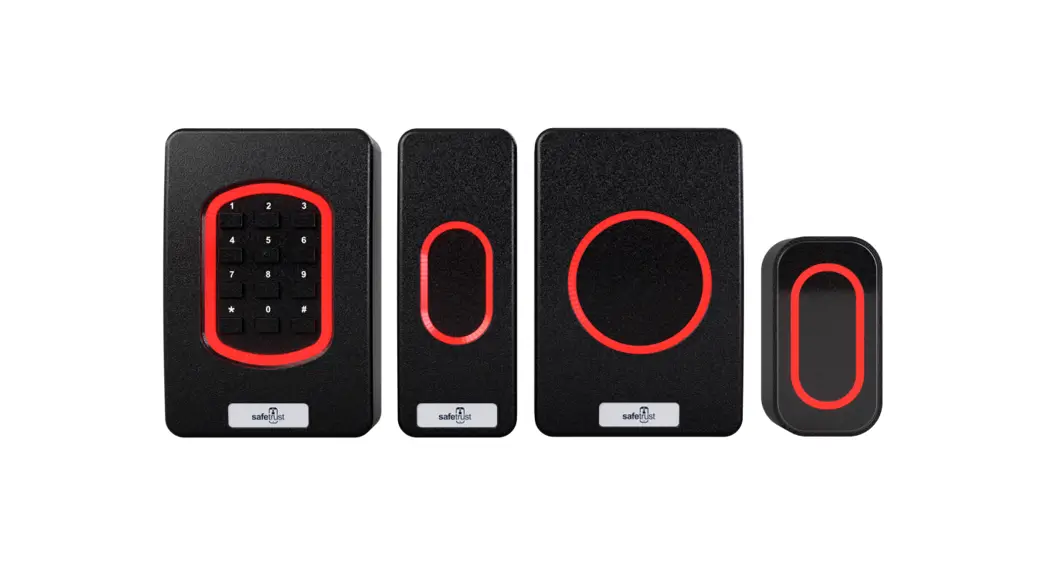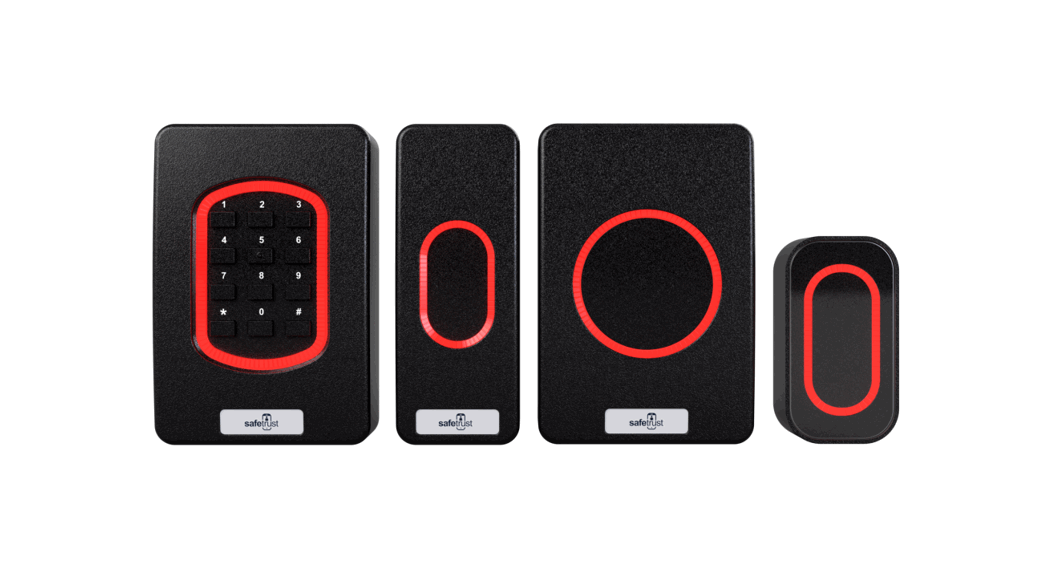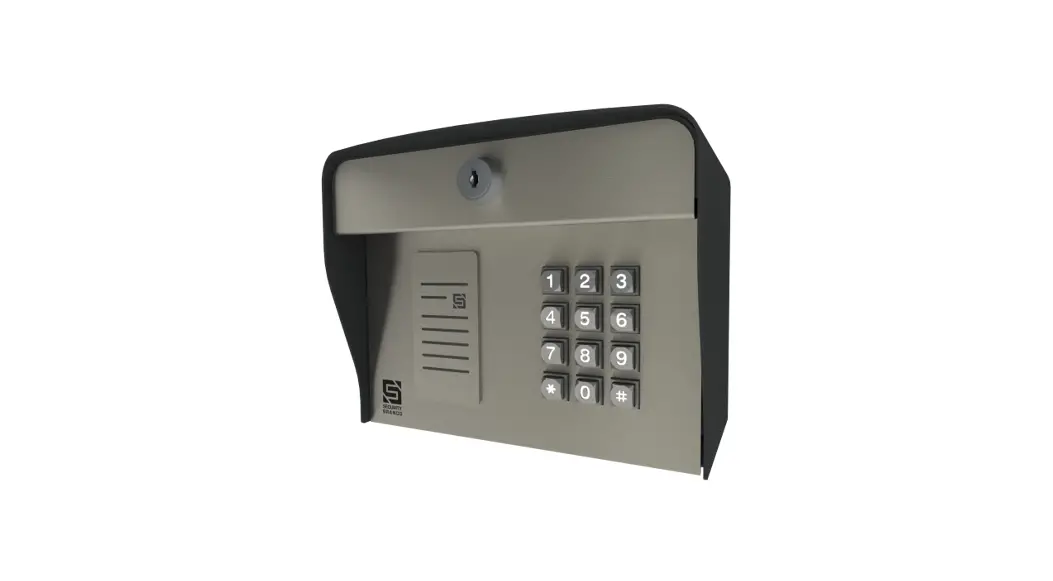
safetrust SA530 IoT Sensor Keypad User Guide
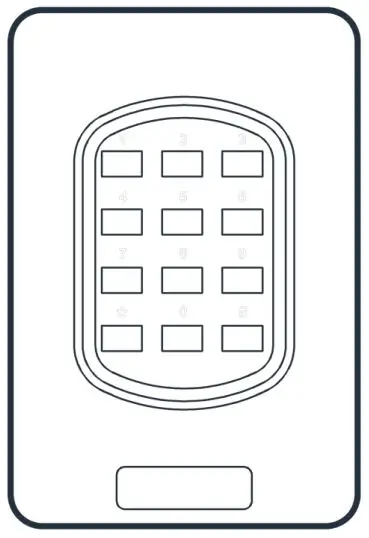
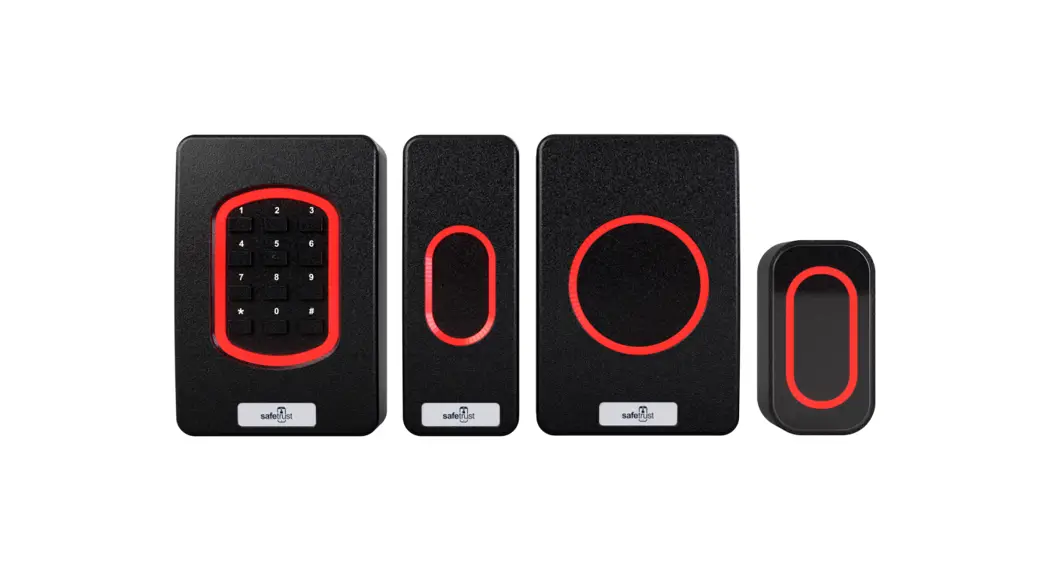
01. In the box
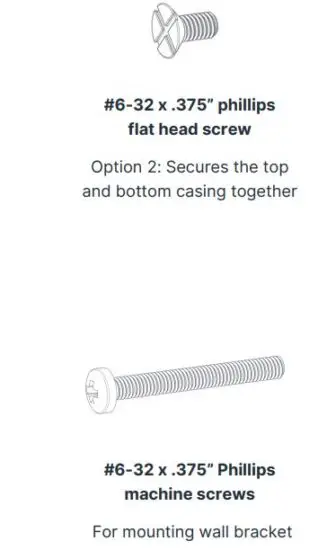
02. What you’ll need
- A working internet connection
- Cable, 5-12 conductor (Wiegand), 4 conductor Twisted Pair Over-All Shield and
- UL approved, Belden3107A or equivalent (OSDP)
- Linear DC power supply
- Metal or plastic junction box
- Drill with various bits for mounting hardware
3. Installation
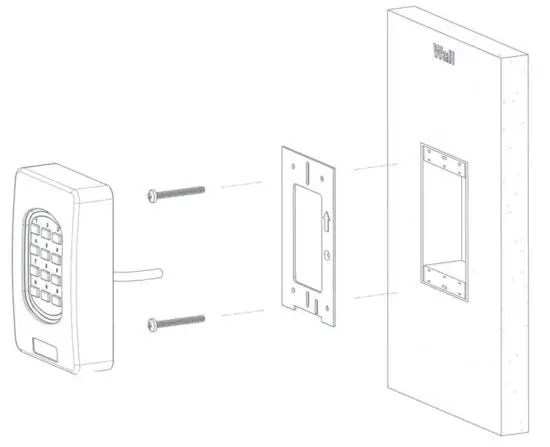
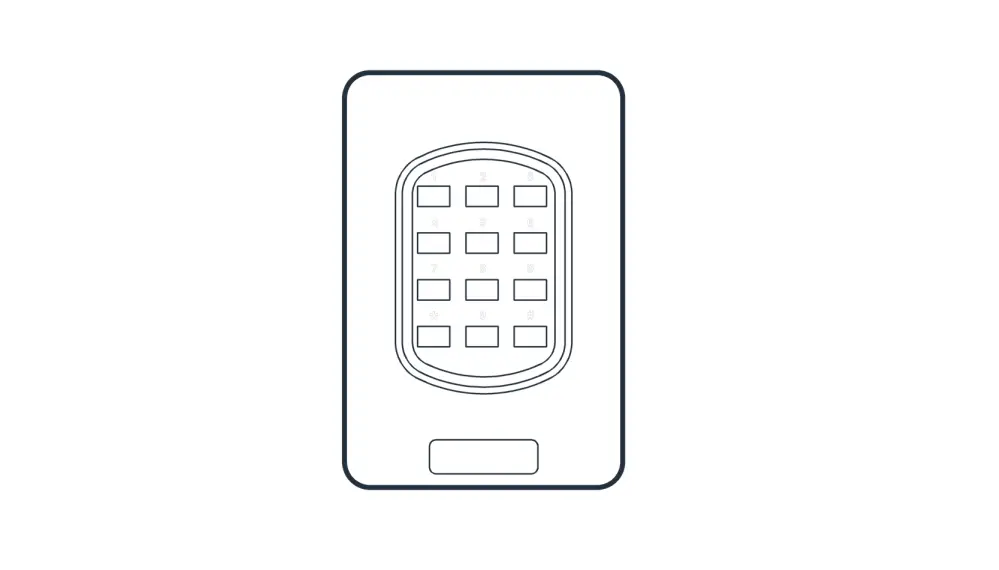
For a wall mounted installation, locate the electrical box which will be recessed into the wall. You will see a top and bottom metal flange with holes which is used to secure the back plate to the wall. Using the Phillips machine screws provided (#6- 32 x .375”) screw the back plate against electrical box so that it’s flush.
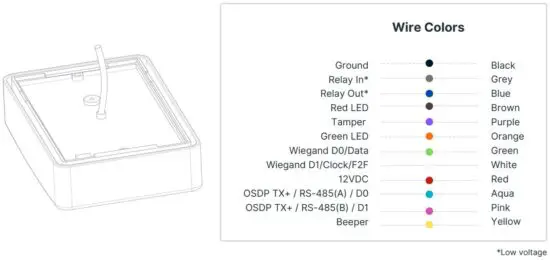
The next step is to connect the wires as per the wiring table above.
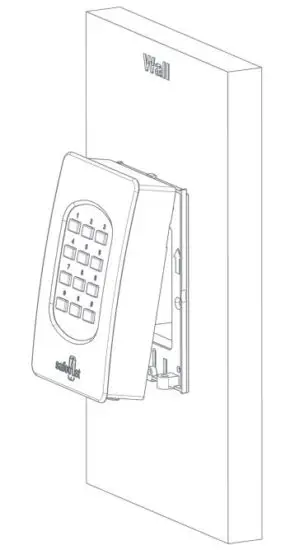
Once the back plate has been fitted and the wiring is complete, the top casing can be inserted onto the bottom casing like shown above.
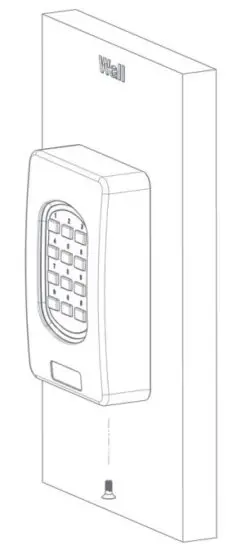
Complete the hardware installation by fixing the snake eye screws (security screws) to the top and bottom casing (#6-32X5/16″ SS).
4. Configuration
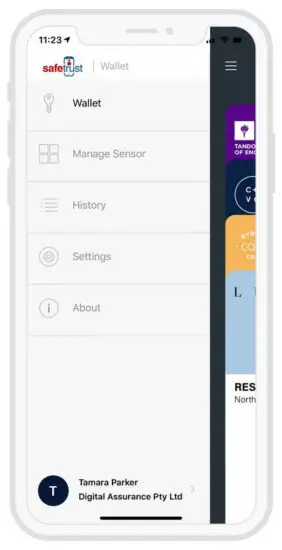
Open the Safetrust Wallet APP and select Manage Sensor tab. Make sure your system admin has set you up with this role.
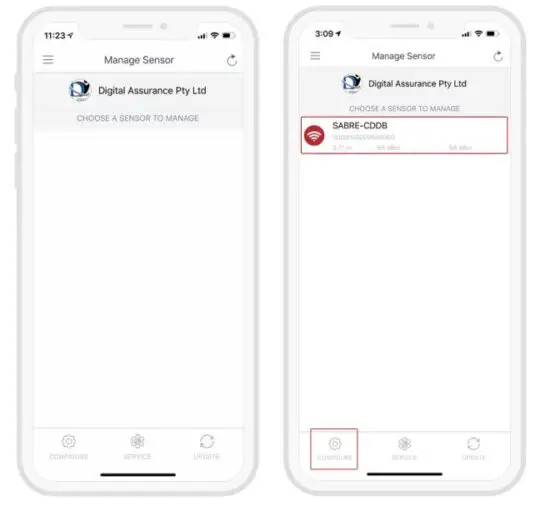
With the Admin Installer tab open from the App, bring the phone in range of the IoT Sensor and once visible from the App, highlight and select “Configure”.
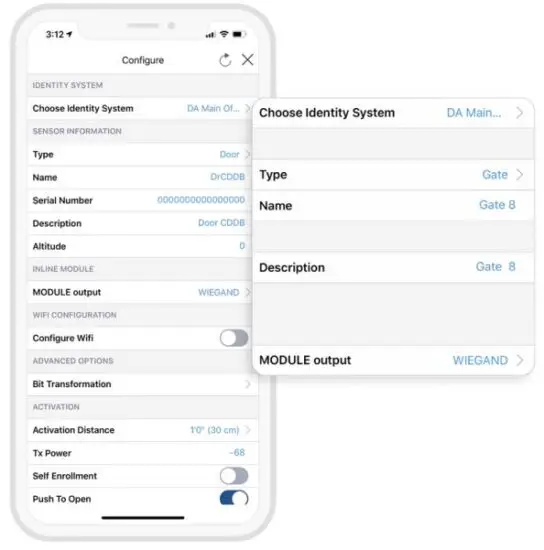
- Choose an Identity System.
- Specify the Type of access from the dropdown (eg. Door, Gate etc.)
- Assign a short Name and Description using alphanumeric characters.
- Choose an Output for the sensor (the default is set to Wiegand).
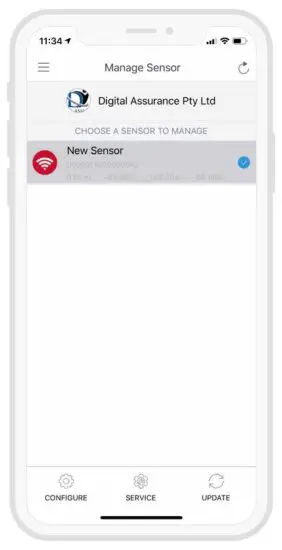
When the IoT Sensor information is saved successfully to Credential Manager and assigned to the Identity System, the new description will appear in the Manage Sensor tab with a unique serial number assigned.
5. Testing
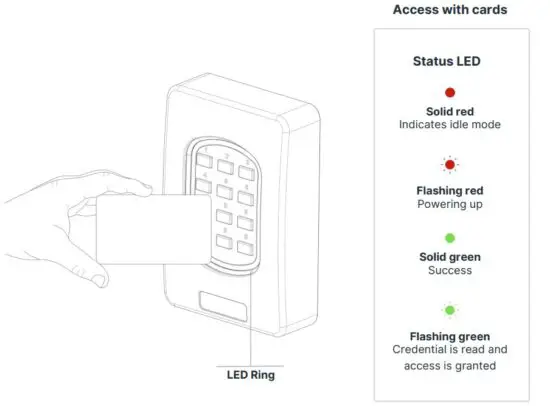
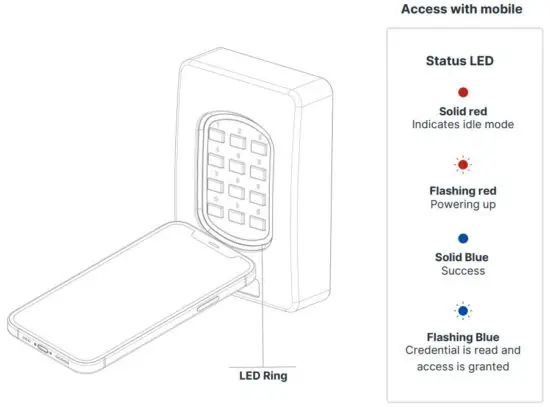
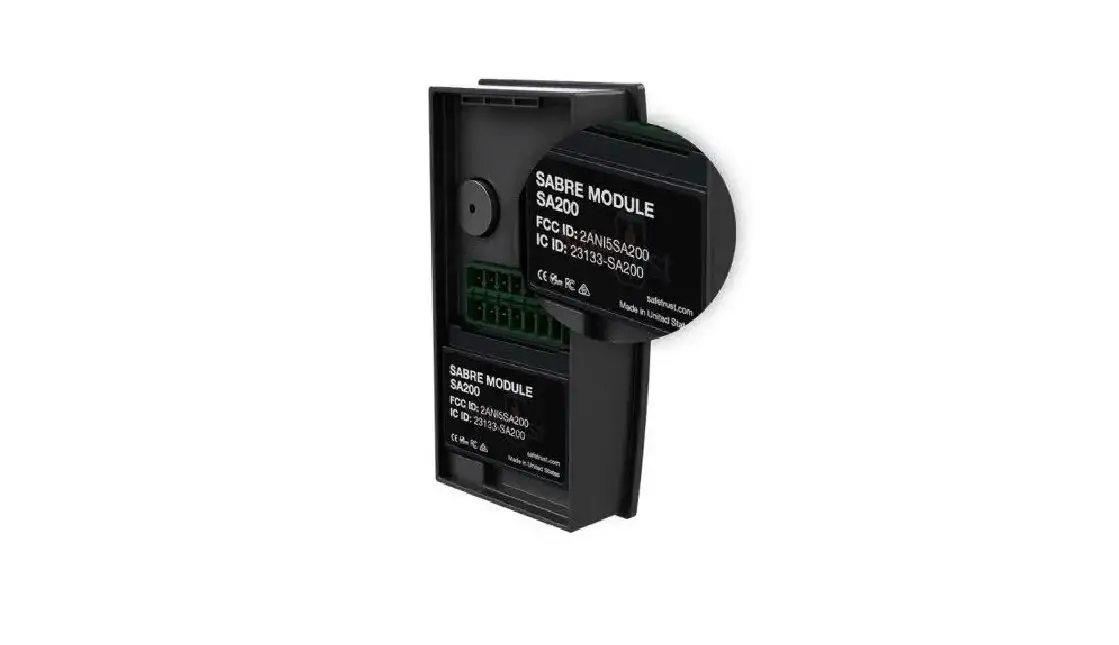
6. Regulatory Information
FCC: This device complies with part 15 of the FCC Rules. Operation is subject to the following two conditions: (1) This device may not cause harmful interference, and (2) this device must accept any interference received, including interference that may cause undesired operation.
Canada Radio Certification: This device complies with Industry Canada license-exempt RSS standard(s). Operation is subject to the following two conditions: (1) this device may not cause interference, and (2) this device must accept any interference, including interference that may cause undesired operation of the device.
CE Marking: Safetrust hereby declares that these proximity readers are in compliance with the essential requirements and other relevant provisions of Directive 1999/5/EC.
07. Support
Thank you for purchasing the Safetrust IoT Sensor Keypad.
If for any reason you need assistance with your installation, please contact your local Sales representative . Sincerely –
The Safetrust Team
Read More About This Manual & Download PDF:
 Safetrust Inc - Touchless Identity Solutions